
Transport Schedule
The Transport Schedule tab provides a centralized calendar and list view of all planned inmate movements, court appearances, medical transports, and inter-facility transfers. Officers can schedule, assign vehicles and escorts, and confirm departure and arrival times from a single interface. Real-time status updates keep supervisors informed of active transports throughout the day.
Calendar View
Visualize all scheduled transports in a daily, weekly, or monthly calendar grid with color-coded status indicators.
Vehicle Assignment
Assign specific transport vehicles from the fleet and track vehicle availability in real time to prevent scheduling conflicts.
Escort Assignment
Designate primary and secondary transport officers and verify officer availability against shift schedules before confirming assignments.
Risk Flag Alerts
Automatic alerts surface high-risk inmate classifications, active holds, and incompatible co-transport flags before the trip departs.
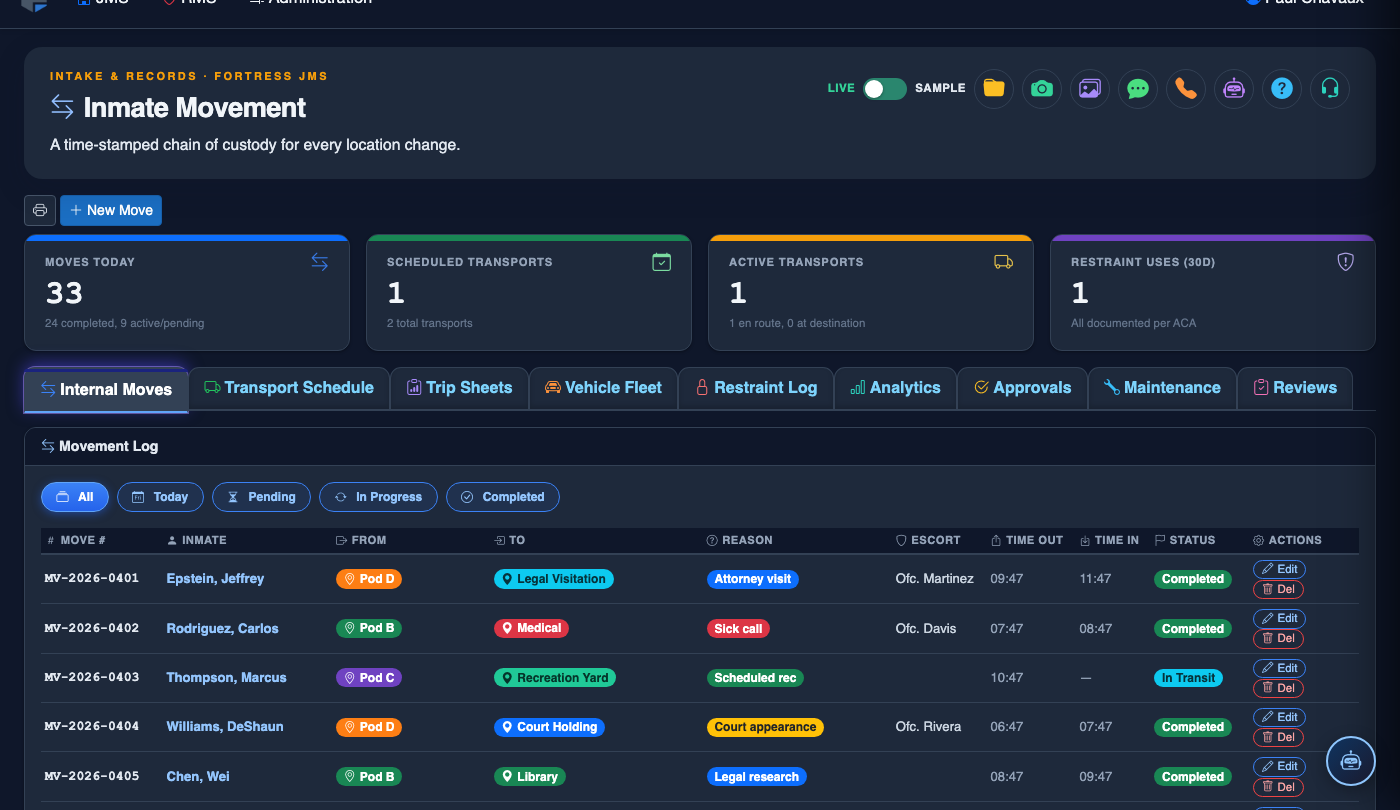
Step-by-Step: Scheduling an Inmate Transport
Open the Transport Schedule Tab
Navigate to Inmate Movement in the main menu, then click the Transport Schedule tab. The schedule view loads showing today’s date by default. Use the View toggle in the top-right to switch between List and Calendar views.
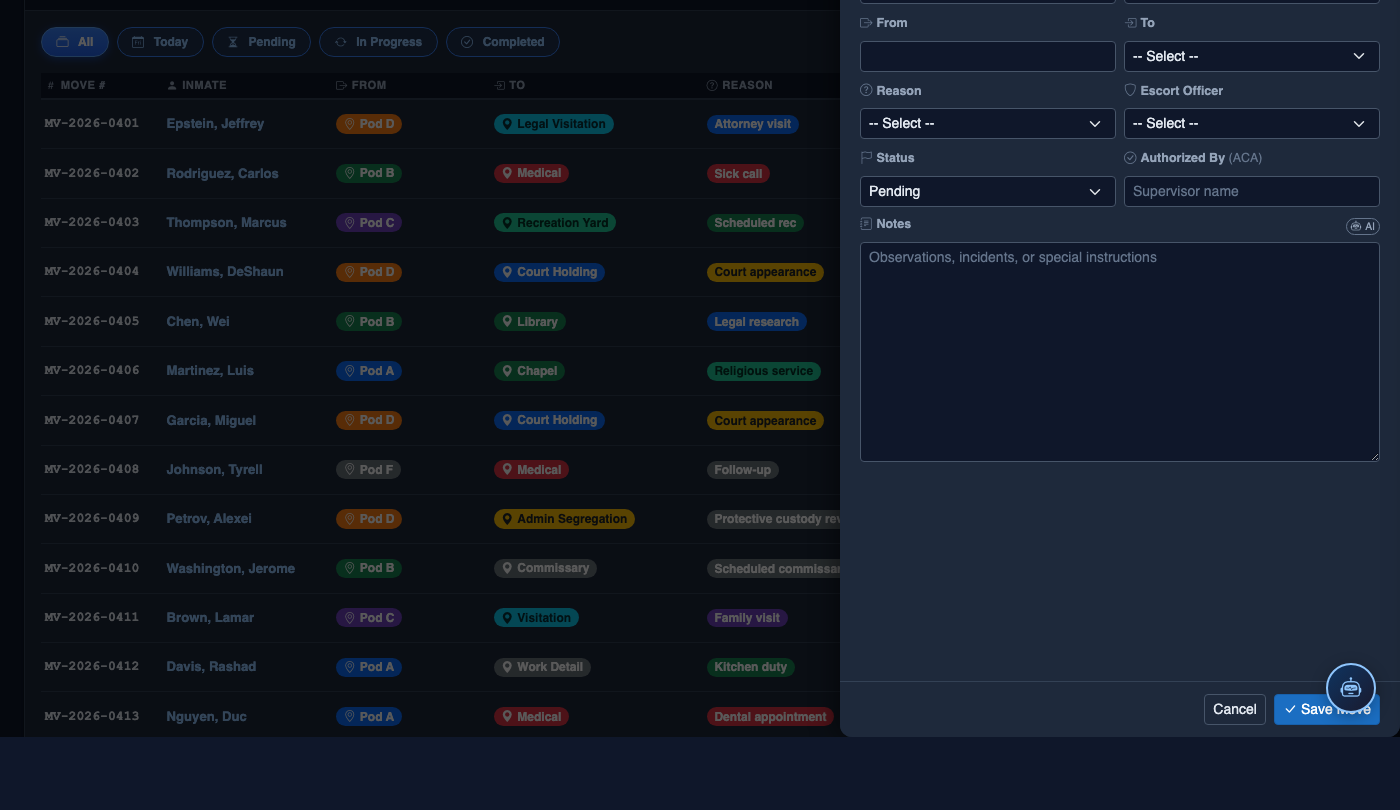
Click New Transport
Click the + New Transport button in the upper-right corner to open the transport scheduling form. Select the Transport Type from the dropdown — options include Court Appearance, Medical, Inter-Facility Transfer, and Work Release.
Search and Add Inmates
Use the Inmate Search field to find inmates by name or booking number. Click Add to Transport for each inmate. The system automatically checks for Risk Classification flags and displays incompatibility warnings if two selected inmates cannot be transported together.
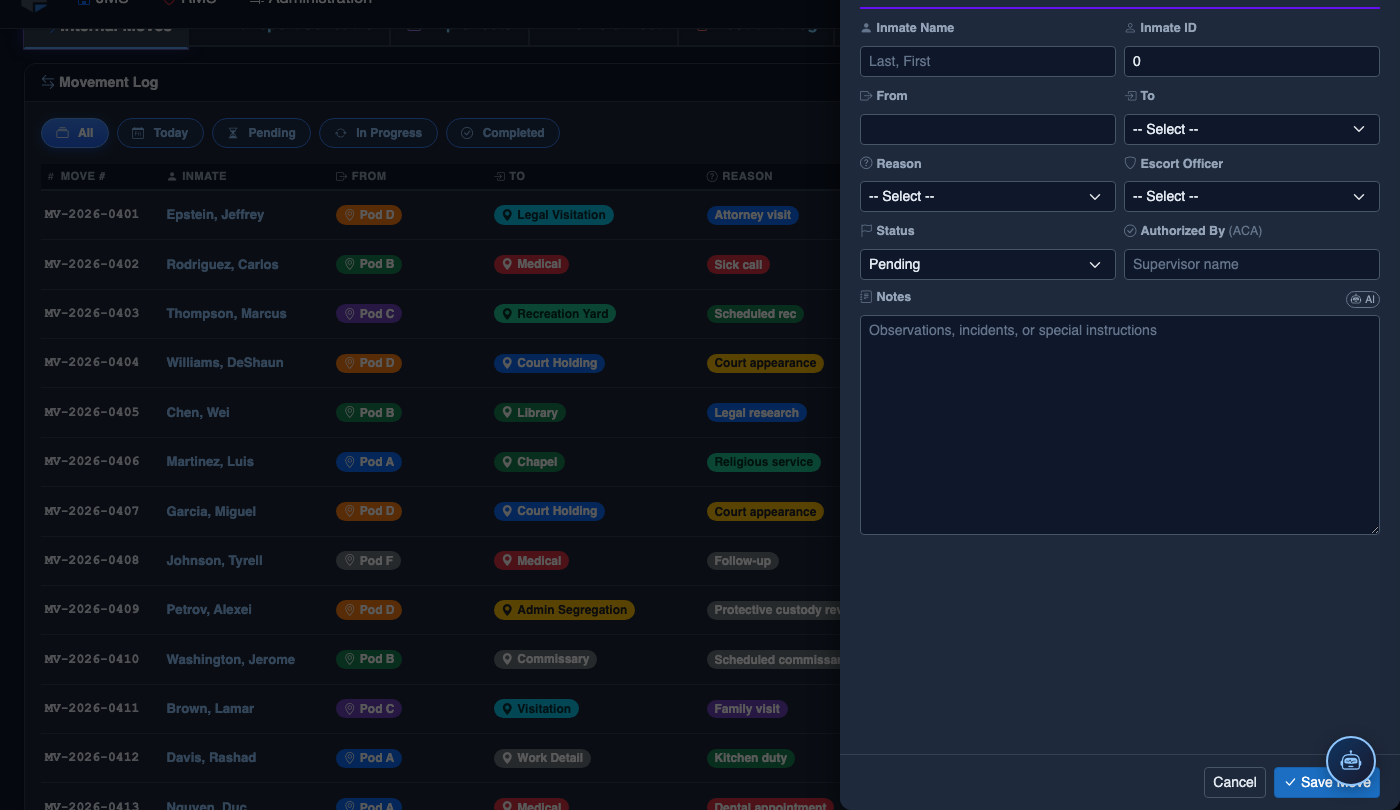
Set Date, Time, and Destination
Enter the Departure Date and Departure Time, then enter the Destination address or select from saved locations such as the county courthouse or regional hospital. Set an estimated Return Time for officer scheduling purposes.
Assign Vehicle and Escort Officers
Select an available vehicle from the Vehicle dropdown (unavailable vehicles are grayed out). Then assign a Primary Officer and, if required, a Secondary Officer. Officers currently on leave or assigned to conflicting duties will appear with a warning indicator.
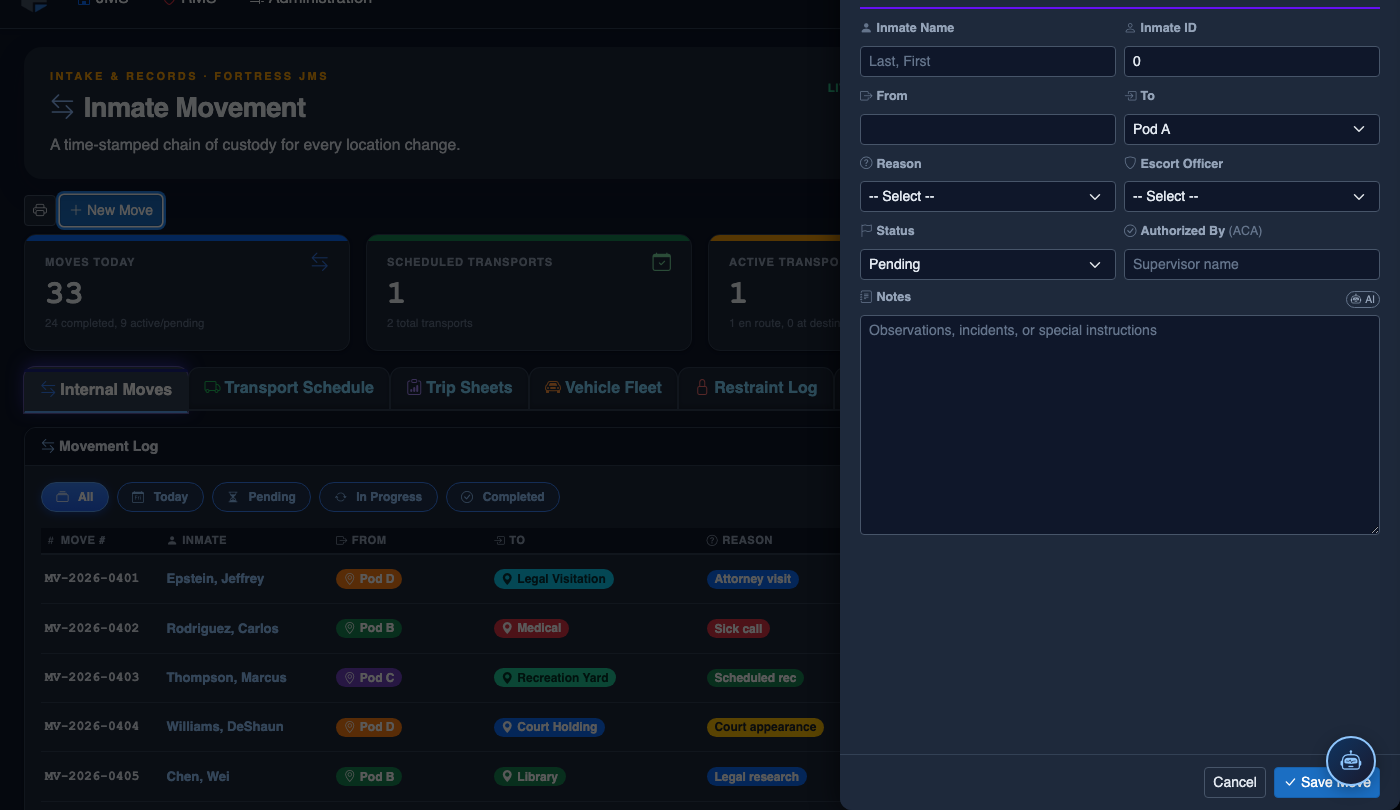
Review and Confirm
Review the transport summary panel showing all assigned inmates, vehicle, officers, and destination. Click Confirm Transport to save. The transport will appear on the schedule immediately and assigned officers will receive an automated notification.
Mark Departure and Arrival
When the transport departs, click the transport record and select Mark Departed — this logs the actual departure time and updates the inmate’s location status. Upon return, click Mark Arrived to close the transport and trigger any required post-transport checks.
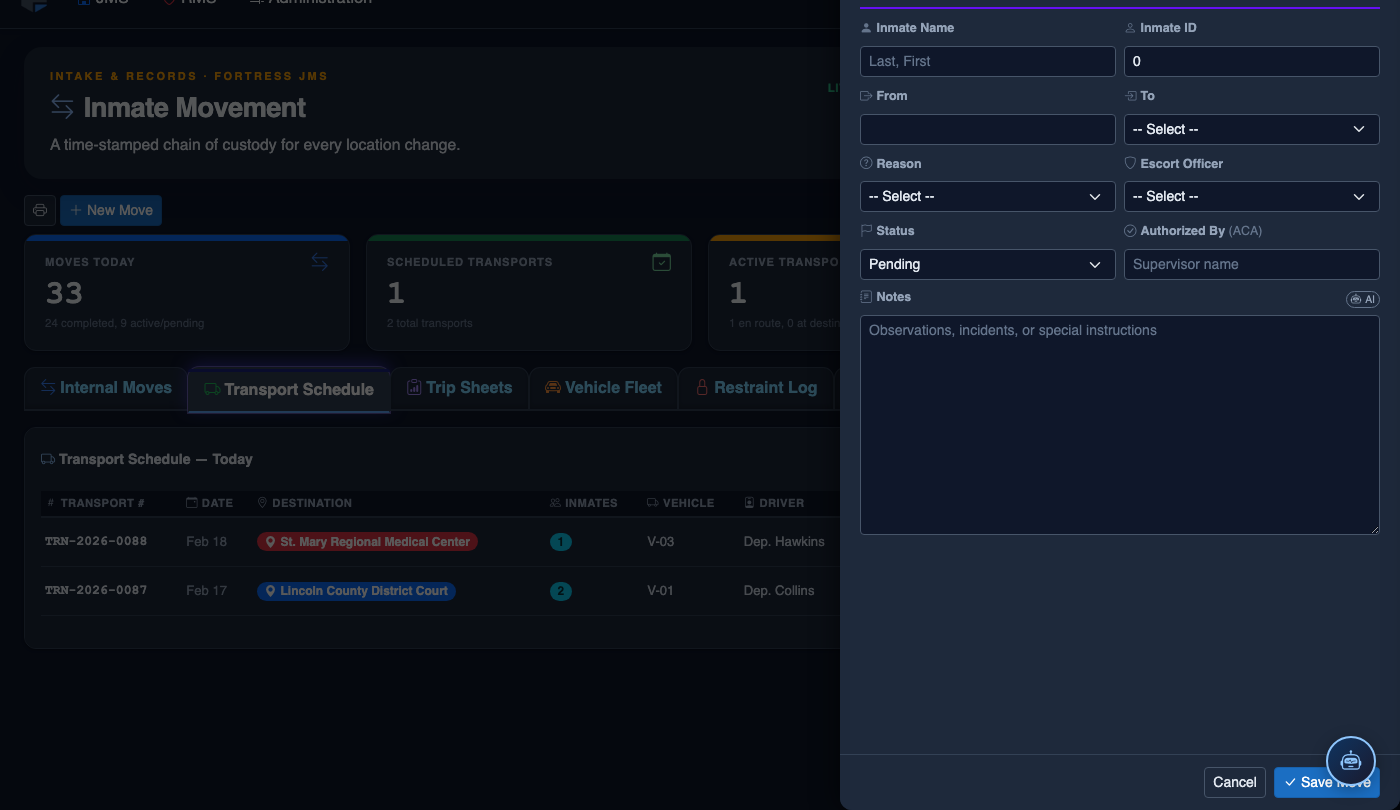
Log a New Movement
Click New Move in the module toolbar. Complete the movement record:
- Inmate — search by name or booking number.
- From Location — select origin unit, pod, and cell.
- To Location — select destination; the system flags restricted or unavailable beds.
- Movement Type — Internal Transfer, Court Transport, Medical, or Emergency.
- Reason — Classification Change, Disciplinary, Safety, Court Hold, etc.
- Authorizing Officer and Escorting Officer.
- Scheduled Date/Time — defaults to now for immediate moves.
- Click Save Movement. Bed Roster and Assignment records update automatically.
💡 Pro Tips
- Use the Recurring Transport option for inmates with weekly court dates to avoid re-entering the same trip each week.
- Always check the Active Holds panel before confirming — an ICE or US Marshal hold may prohibit the inmate from leaving the facility without prior authorization.
- Print the Trip Sheet directly from the Transport Schedule confirmation screen to ensure officers have all documentation before departure.
Mobile View — Transport Schedule
FortressDMS is fully responsive. Officers can access the Transport Schedule on a phone or tablet directly from the field — no app install required.
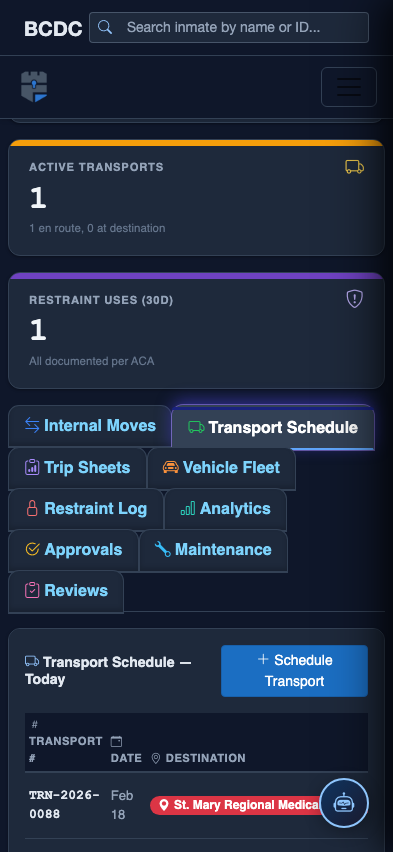
Tab view with data rows
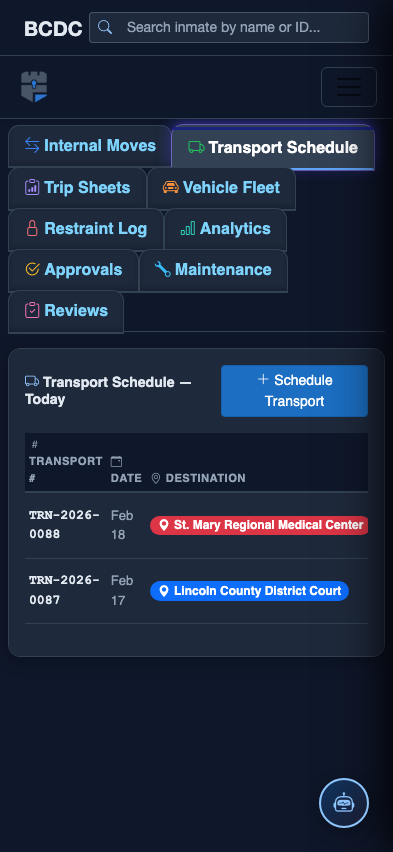
Scrolled / detail view