
Asset Inventory
The Asset Inventory tab is the definitive record of every asset registered in your facility. Officers and administrators can search, filter, add, edit, and retire assets, manage assignments to inmates or staff, and generate detailed reports for audits and inspections. The searchable grid and bulk actions make large-scale inventory counts far faster than paper-based or spreadsheet-driven methods.
Powerful Search & Filter
Find any asset instantly by name, serial number, category, location, status, or assigned inmate booking number.
Inline Record Editing
Update asset details, reassign locations, and change status without leaving the inventory grid — saving time during bulk updates.
Assignment History
Every asset record carries a complete chain-of-custody log showing every inmate or staff member it has been assigned to, with dates and officer signatures.
Retirement & Disposal Workflow
Retire damaged or end-of-life assets with reason codes and disposal methods documented for compliance — records are archived, never deleted.
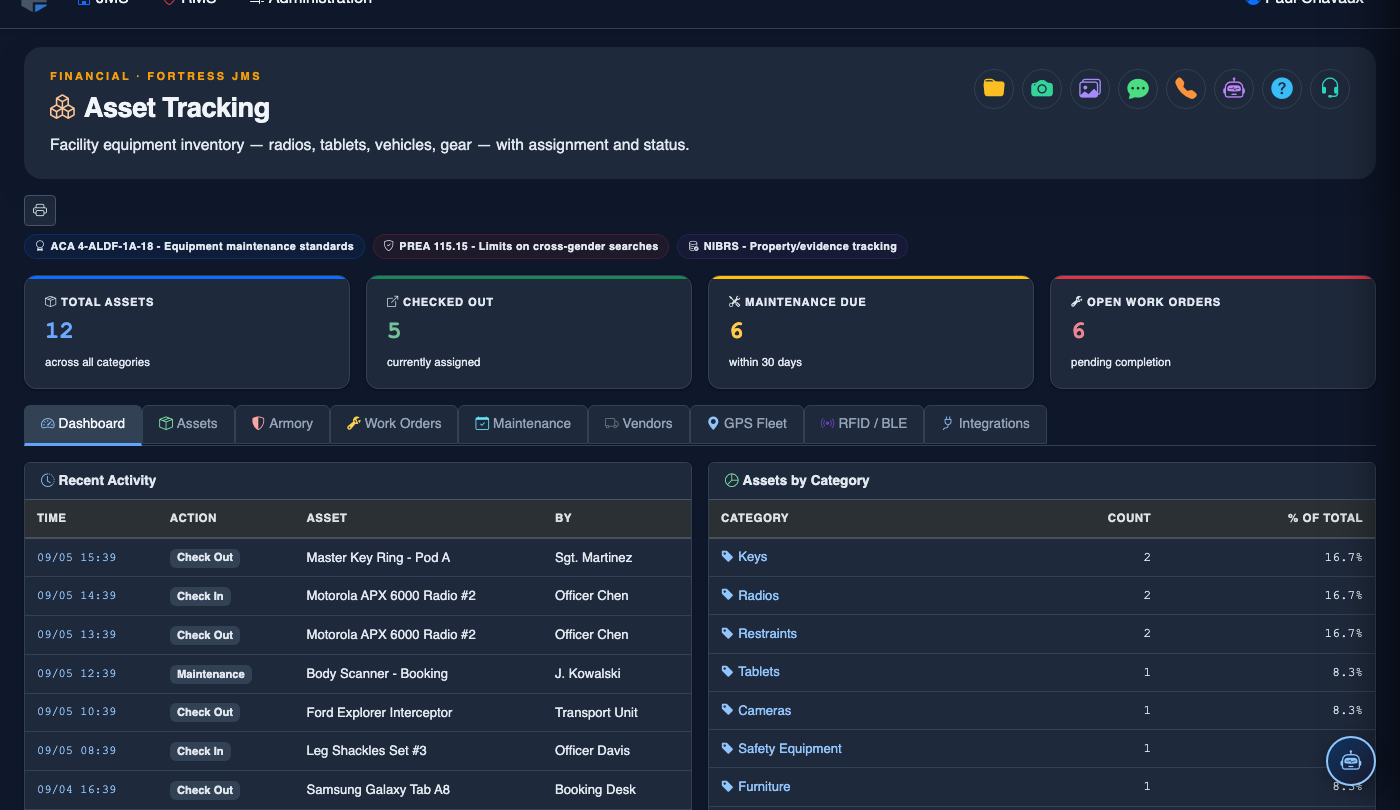
Step-by-Step: Working with Asset Inventory
Open the Asset Inventory Tab
From Asset Tracking, click the Asset Inventory tab. The paginated grid loads all registered assets sorted by Category then Name. Column headers are clickable for sorting.
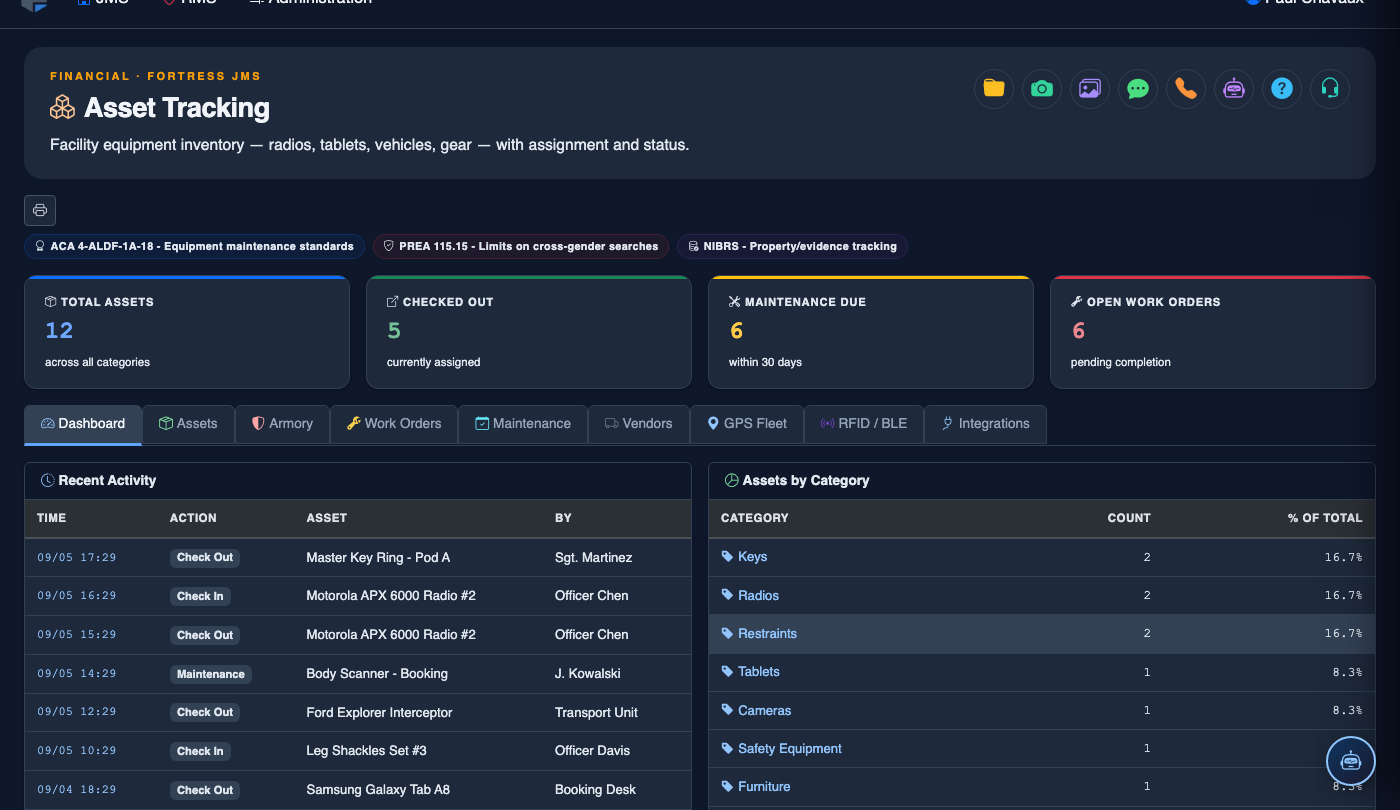
Search and Filter the Inventory
Use the Search bar to find assets by name or serial number. Apply the Category, Status, and Location dropdowns to narrow the view. Filters stack — you can search for all Restricted Tools that are currently Unaccounted in one step.
View a Full Asset Record
Click any row in the inventory grid to open the full asset record. You will see Details, Assignment History, Maintenance Log, and Notes tabs within the record panel. The assignment history provides a complete chain of custody for investigative purposes.
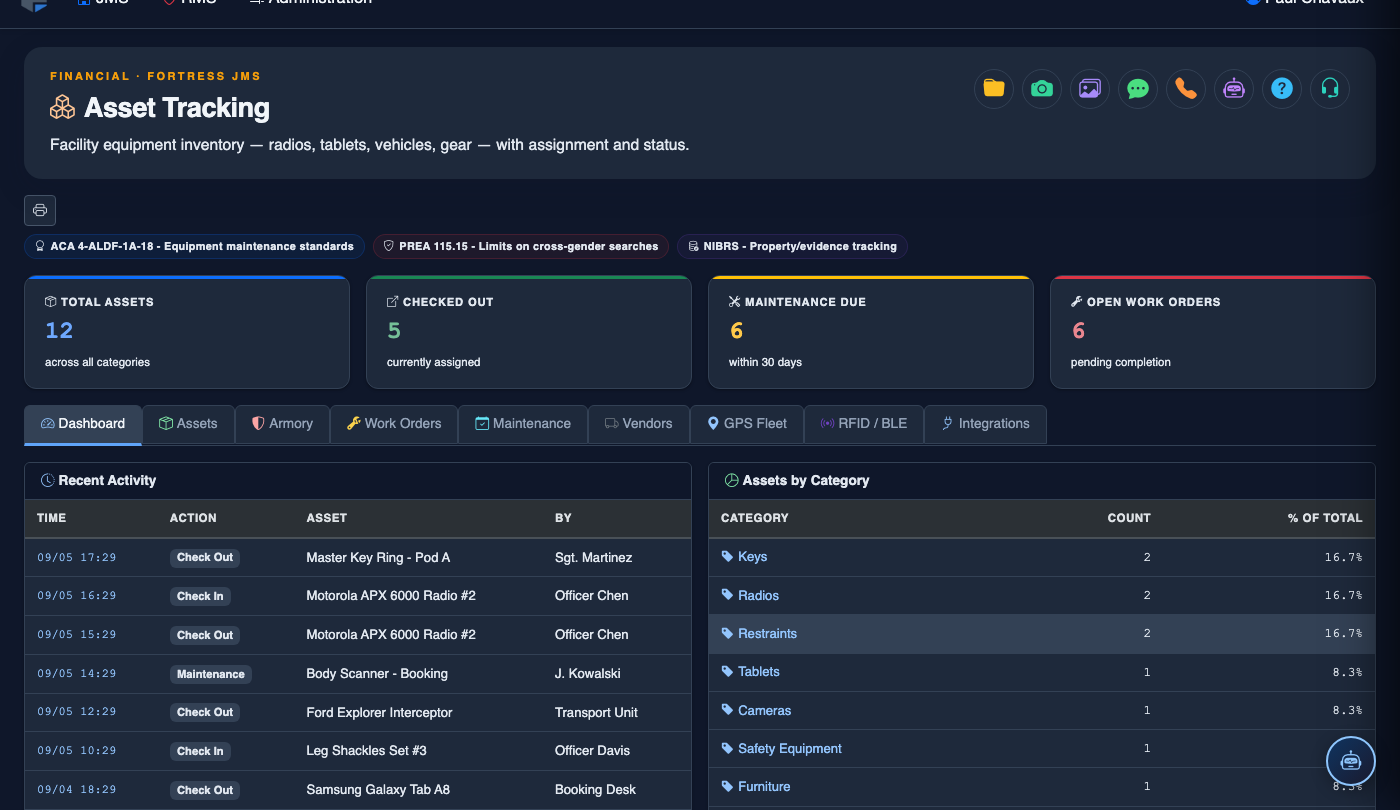
Edit an Asset Record
From the asset detail panel, click Edit Asset. Update fields such as Storage Location, Category, or Notes. All edits are timestamped with the editing officer’s credentials. Click Save Changes when done.
Bulk Update Asset Status
Check the checkboxes on multiple inventory rows, then use the Bulk Actions dropdown to update status for all selected assets simultaneously. This is ideal for marking an entire tool set as In Maintenance when a shop is shut down for inspection.
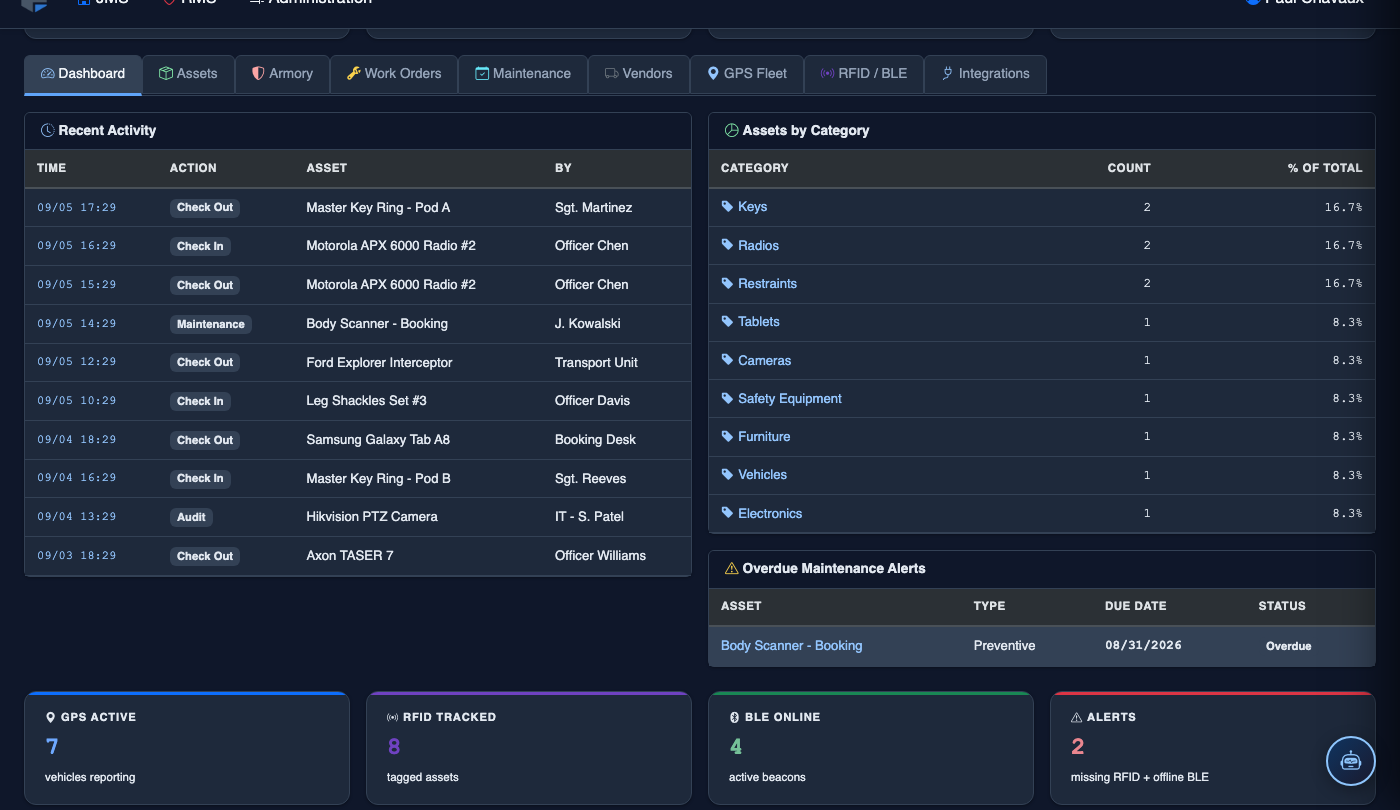
Retire a Damaged or End-of-Life Asset
Open the asset record and click Retire Asset. Select a Retirement Reason (Damaged Beyond Repair, End of Life, Lost/Stolen) and a Disposal Method (Destroyed, Donated, Sold at Auction). The record is archived and removed from active inventory counts while remaining available for audit searches.
Export Inventory for Audit
Apply the desired filters, then click Export CSV or Export PDF. The PDF format includes your facility header, report date, applied filters, and a signature line — ready for submission to state inspectors or accreditation bodies without further formatting.
💡 Pro Tips
- When an inmate is released, run an inventory filter for Assigned To: [inmate booking number] before processing the release paperwork — it catches every outstanding item in seconds and prevents unintentional walk-outs with facility property.
- Use the Notes field to record identifying marks, condition details at intake, or vendor warranty reference numbers — this information is invaluable when filing claims or resolving disputes about damage.
- For restricted tool categories (knives, keys, restraints), set a daily reconciliation reminder and save a filtered export of that category as a named report template for one-click generation at shift end.
Mobile View — Asset Inventory
FortressDMS is fully responsive. Officers can access the Asset Inventory on a phone or tablet directly from the field — no app install required.
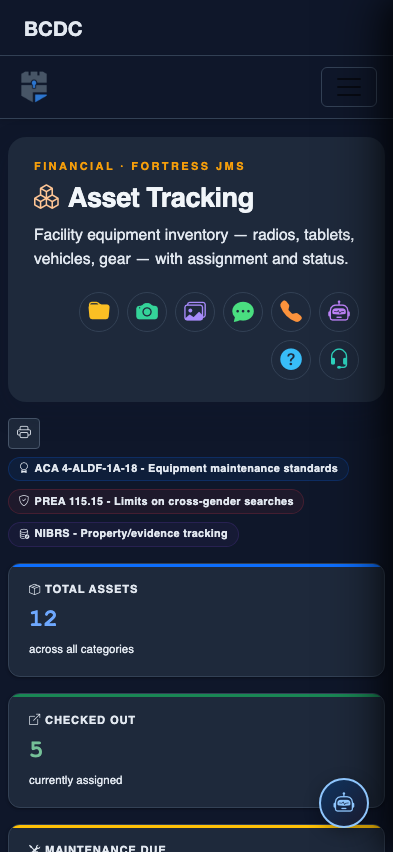
Tab view with data rows
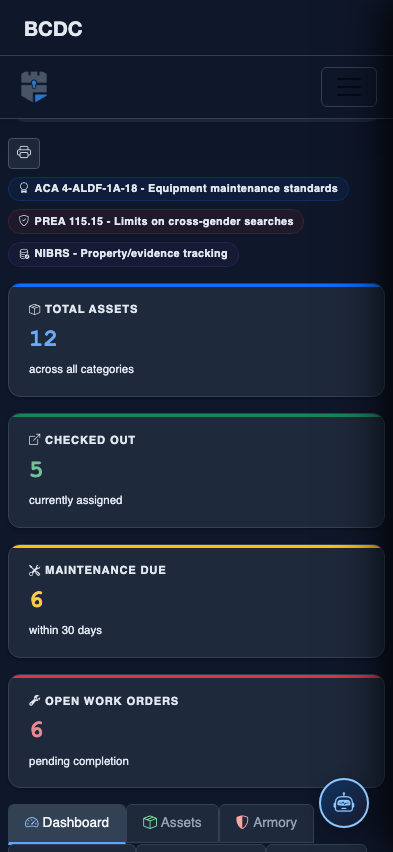
Scrolled / detail view