
Activation Compliance
The Activation Compliance tab provides supervisors with a real-time view of which officers have activated their body-worn cameras in accordance with department policy. Instantly identify gaps in BWC activation rates by shift, unit, or individual officer so corrective action can be taken before incidents escalate into liability. This dashboard is a critical tool for meeting state and federal transparency mandates.
Policy Compliance Rate
See at a glance what percentage of required activations were completed per officer and unit.
Non-Compliance Alerts
Automatic flagging of incidents where activation was required but the BWC was not turned on.
Shift & Date Filtering
Filter compliance data by date range, shift, or individual officer to pinpoint accountability gaps.
Exportable Reports
Export compliance summaries to PDF or CSV for internal review boards, audits, or court proceedings.
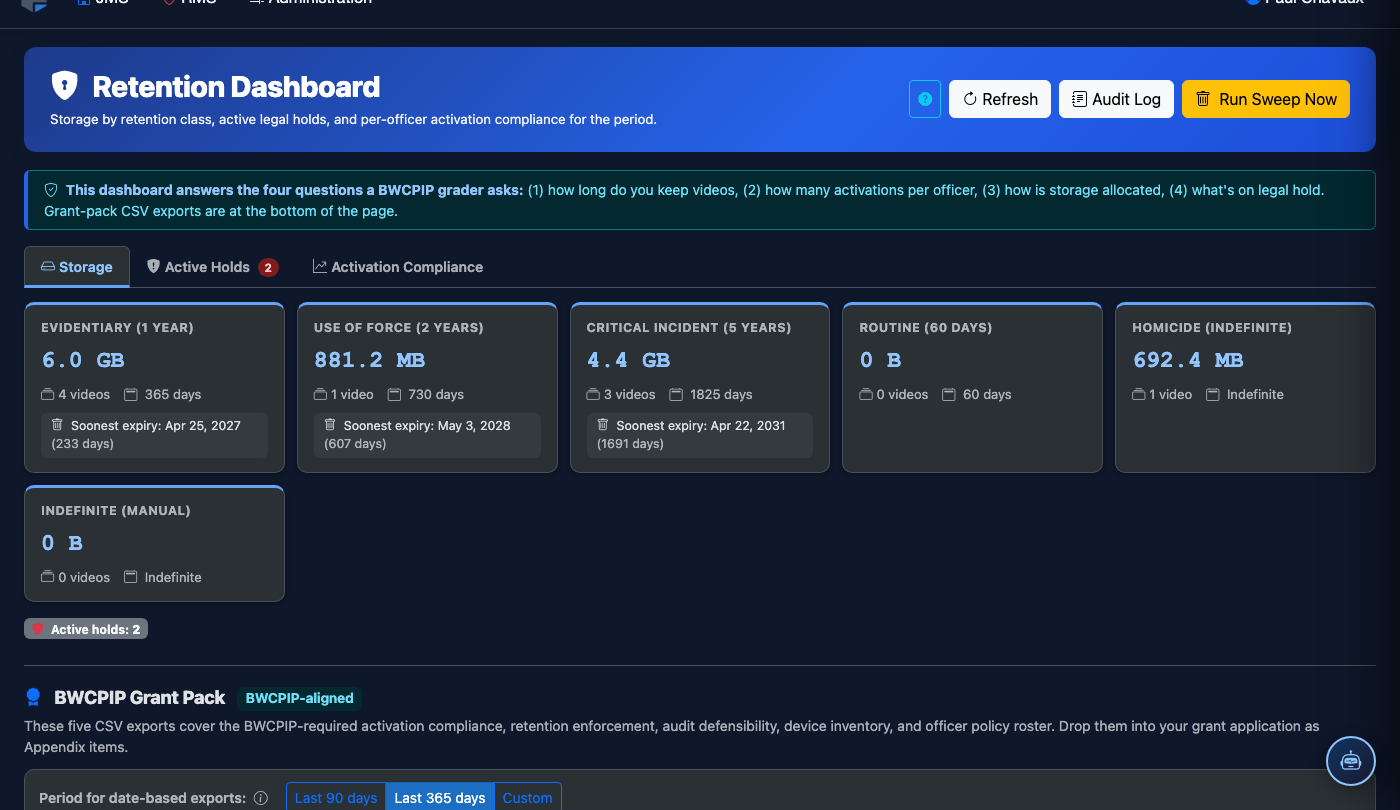
Step-by-Step: Reviewing Activation Compliance
Navigate to the BWC Retention Dashboard
From the main navigation, select Body-Worn Camera then click Retention Dashboard. The dashboard will load with data from the current pay period by default.
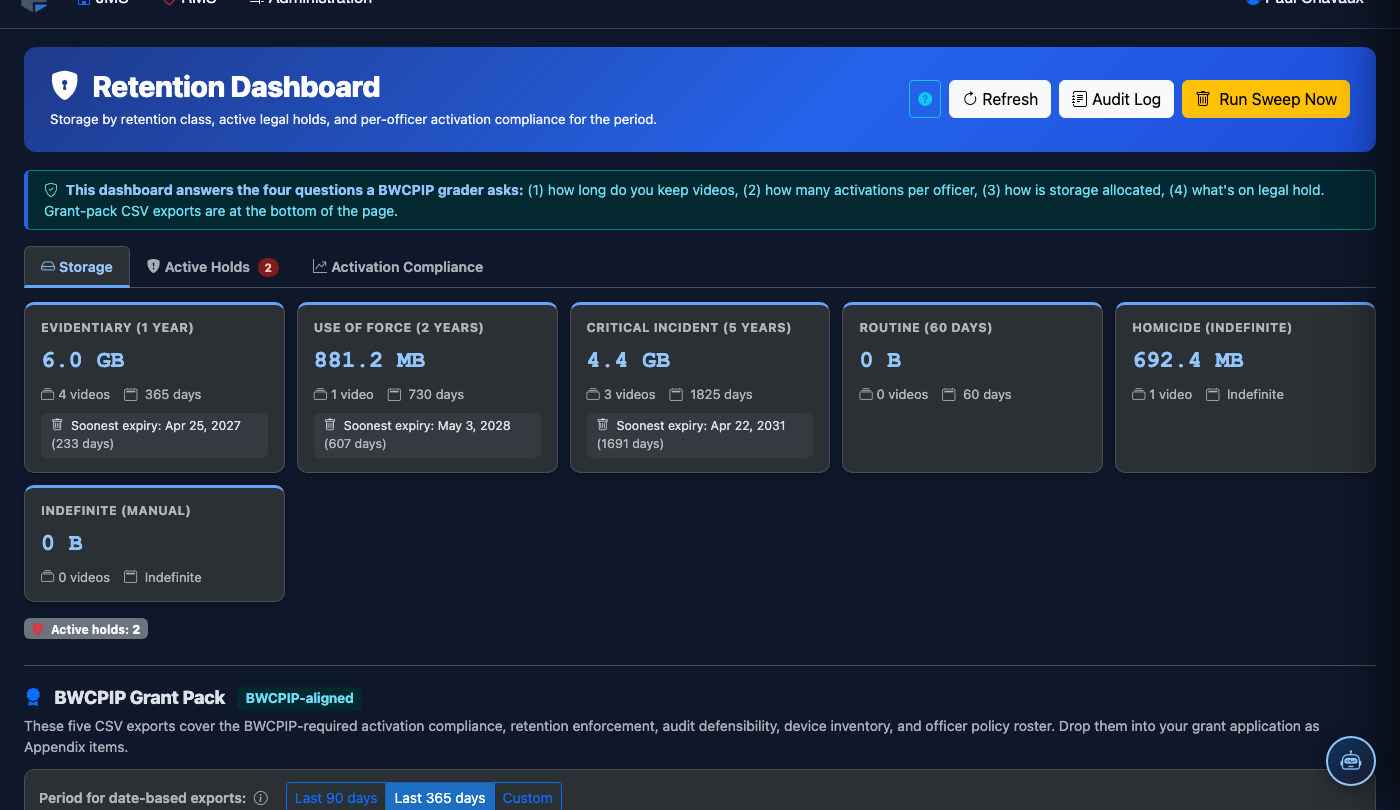
Click the Activation Compliance Tab
Select the Activation Compliance tab (Tab 3) at the top of the dashboard. The view will refresh to display compliance metrics organized by officer and shift.
Set Your Date Range and Filter Criteria
Use the Date Range picker to select the review period. Optionally filter by Shift (Day/Evening/Night) or a specific Officer using the dropdown menus.
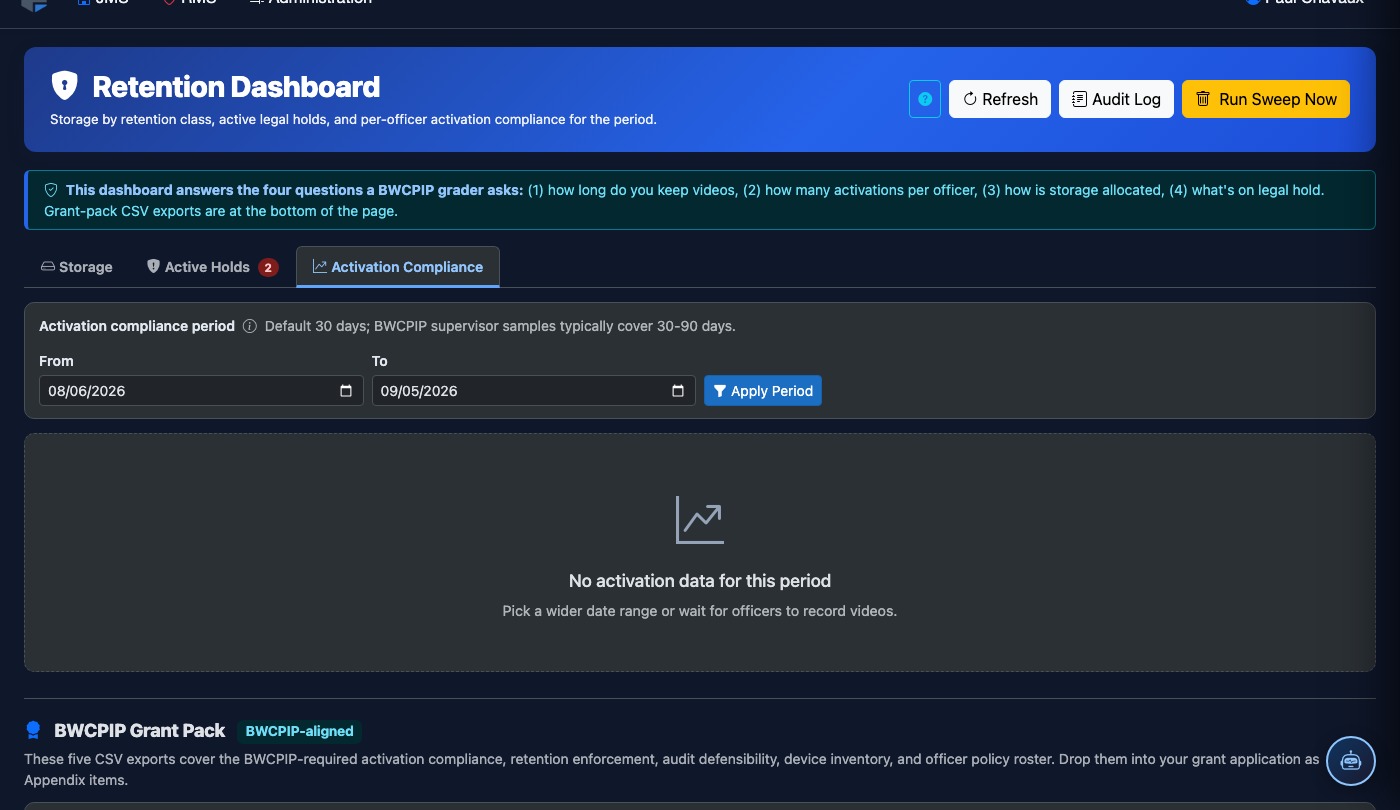
Review the Compliance Rate Grid
The main grid displays each officer’s Required Activations, Actual Activations, and Compliance %. Rows highlighted in red indicate officers below the department threshold.
Drill Into Non-Compliance Events
Click any officer’s row to expand the Non-Compliance Events detail panel. Each event shows the date, time, incident type, and whether a supervisor exception was logged.
Log a Supervisor Exception
If an officer had a documented reason for non-activation (e.g., medical emergency requiring hands-on care), click Add Exception, select the reason code, and enter any supporting notes. This removes the event from the non-compliance count.
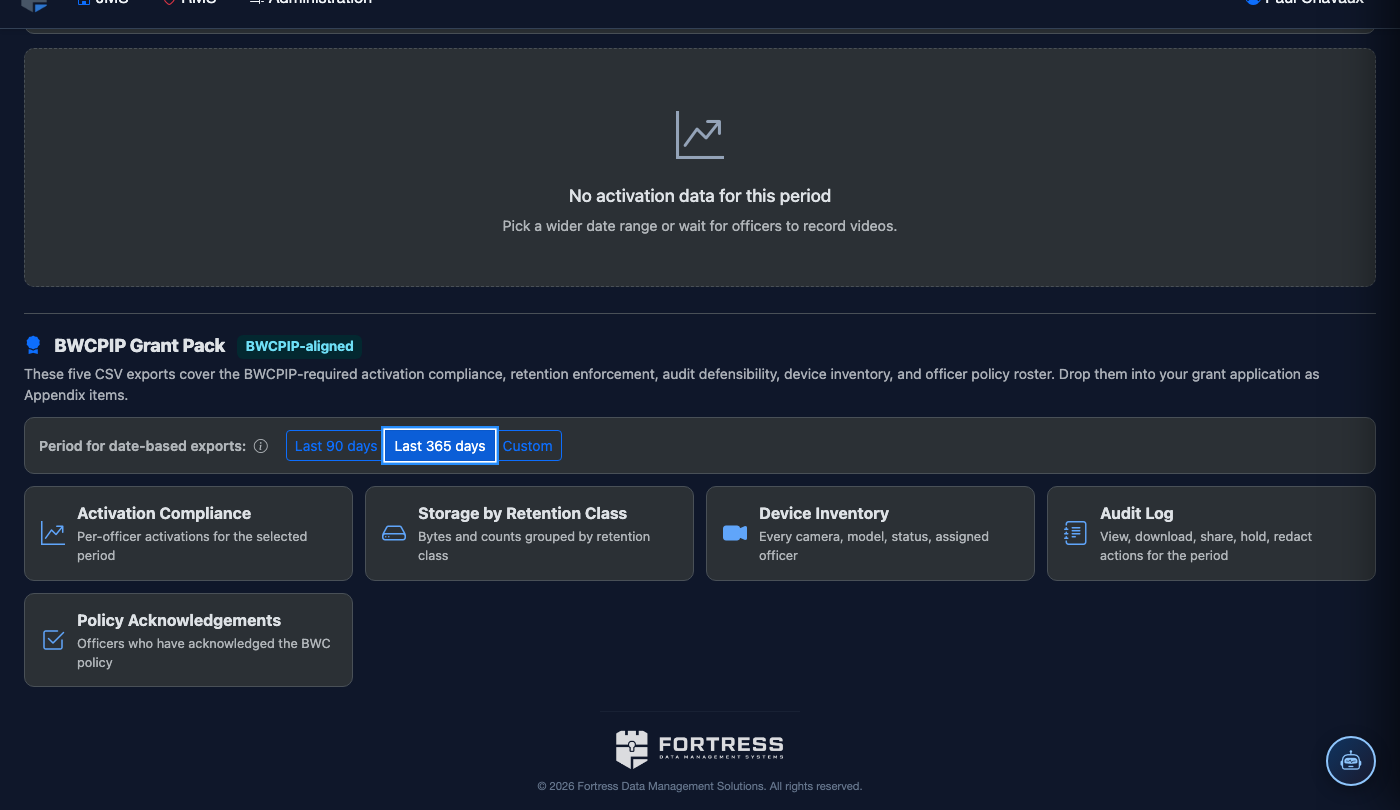
Export the Compliance Report
Click Export in the top-right corner and choose PDF or CSV. The exported report includes the selected date range, filter criteria, all officer records, and exception notes for audit documentation.
💡 Pro Tips
- Run weekly compliance reviews rather than waiting until end-of-month — early intervention prevents patterns from solidifying.
- Use the Shift filter to compare Day vs. Night shift compliance rates; overnight shifts often show higher non-compliance due to lower supervision density.
- All supervisor exceptions are logged in the BWC Audit Log tab, creating a defensible paper trail for internal affairs or litigation review.