
Time Accounting
The Time Accounting tab automates the precise calculation of time served, good-time credits, and release date verification for every inmate scheduled for discharge. FortressDMS cross-references the booking timestamp, court orders, earned good-time accruals, and any custody interruptions to produce a legally defensible release date calculation that officers can review and confirm before finalizing a discharge. Discrepancies between the system-calculated date and the court order are flagged immediately for supervisor review.
Automated Time Calculation
System calculates exact time served to the minute from booking timestamp through the scheduled release date.
Good-Time Credit Accrual
Tracks statutory good-time credits, program participation credits, and court-awarded jail credits in real time throughout the sentence.
Release Date Verification
Compares the system-calculated release date to the court-ordered date and flags any discrepancy for supervisor resolution.
Interruption Accounting
Accounts for custody interruptions (hospital transports, court appearances, escape days) to ensure accurate net time-served totals.
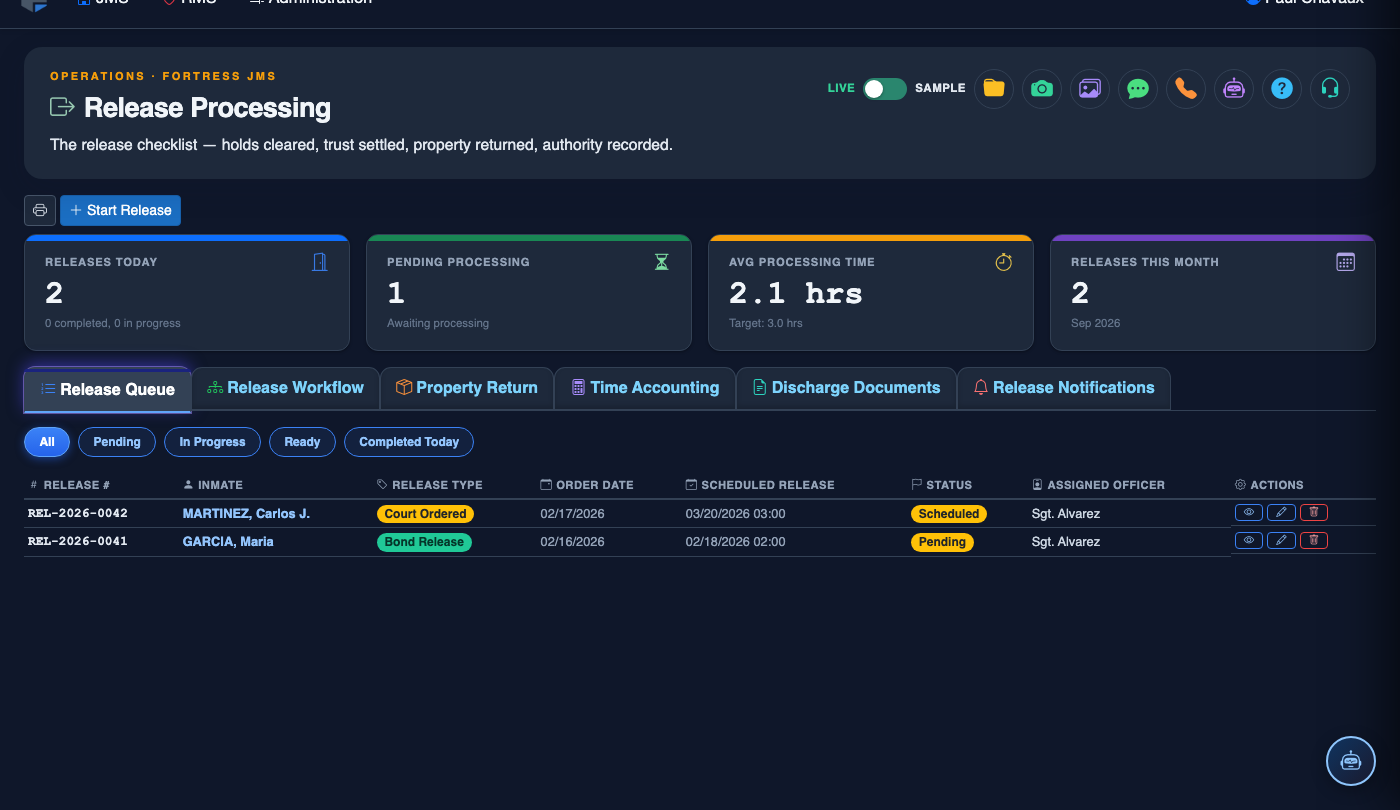
Step-by-Step: Verifying Time Accounting at Release
Open the Time Accounting Tab
Navigate to the Time Accounting tab within the inmate’s release record. The tab displays the Booking Date and Time, the Sentence Length from the court order, and the system-calculated Release Date based on all credits and interruptions logged in the record.
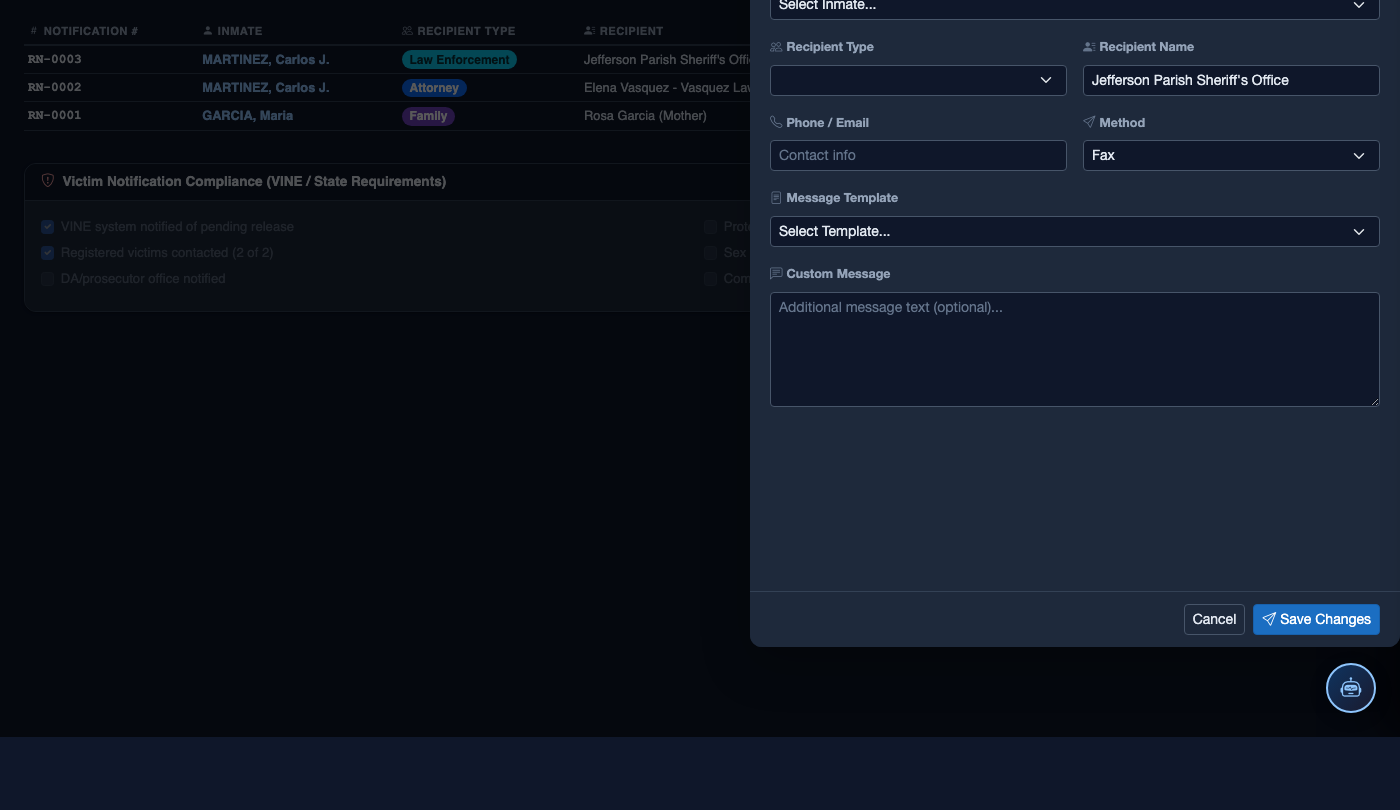
Review the Time Calculation Breakdown
Expand the Calculation Detail panel to see the full breakdown: gross sentence days, minus Jail Credit (pre-sentence time in custody), minus Statutory Good-Time (e.g., 1 day per 3 served), minus Program Credits (education, work, treatment participation), plus any Forfeited Credits from disciplinary actions. Confirm each line matches your records.
Check for Custody Interruptions
The Interruptions section lists every period during which the inmate was not in your physical custody: hospital stays, court transports, AWOL periods, and transfers to other facilities. Each interruption has a start/end timestamp and a type. Review for accuracy — an incorrect interruption date can add or subtract days from the release date.
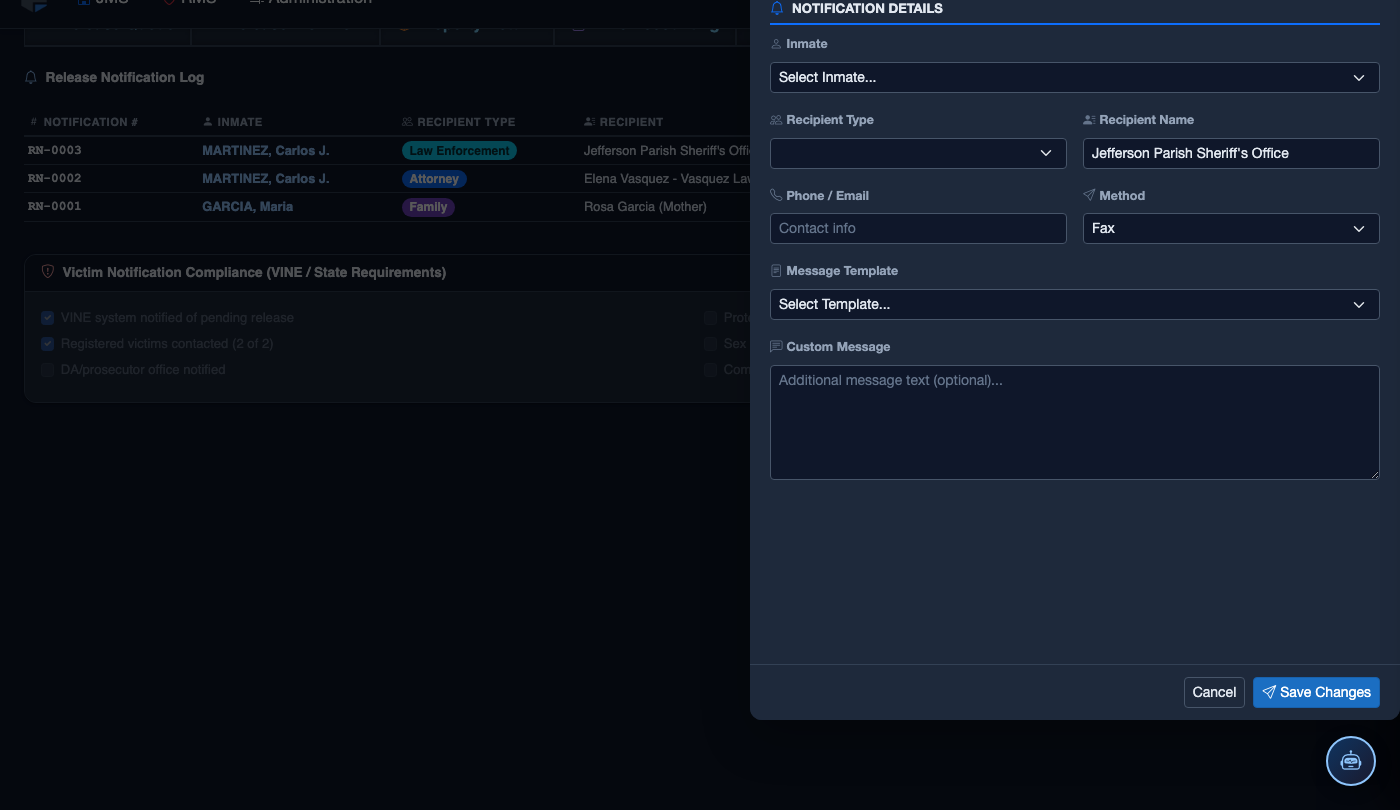
Resolve Date Discrepancies
If the system-calculated release date does not match the court-ordered date, the discrepancy is highlighted in red. Click View Discrepancy Detail to identify the source — a missing jail credit, an unlogged interruption, or a data entry error are the most common causes. Corrections require a supervisor PIN and a note documenting the change.
Apply or Adjust Good-Time Credits
If the inmate has earned additional Program Completion Credits that were not yet applied, click Add Credit, select the program type, enter the number of days awarded, and attach the authorizing program completion record. Forfeited credits from disciplinary write-ups can also be reinstated here if the write-up was successfully appealed.
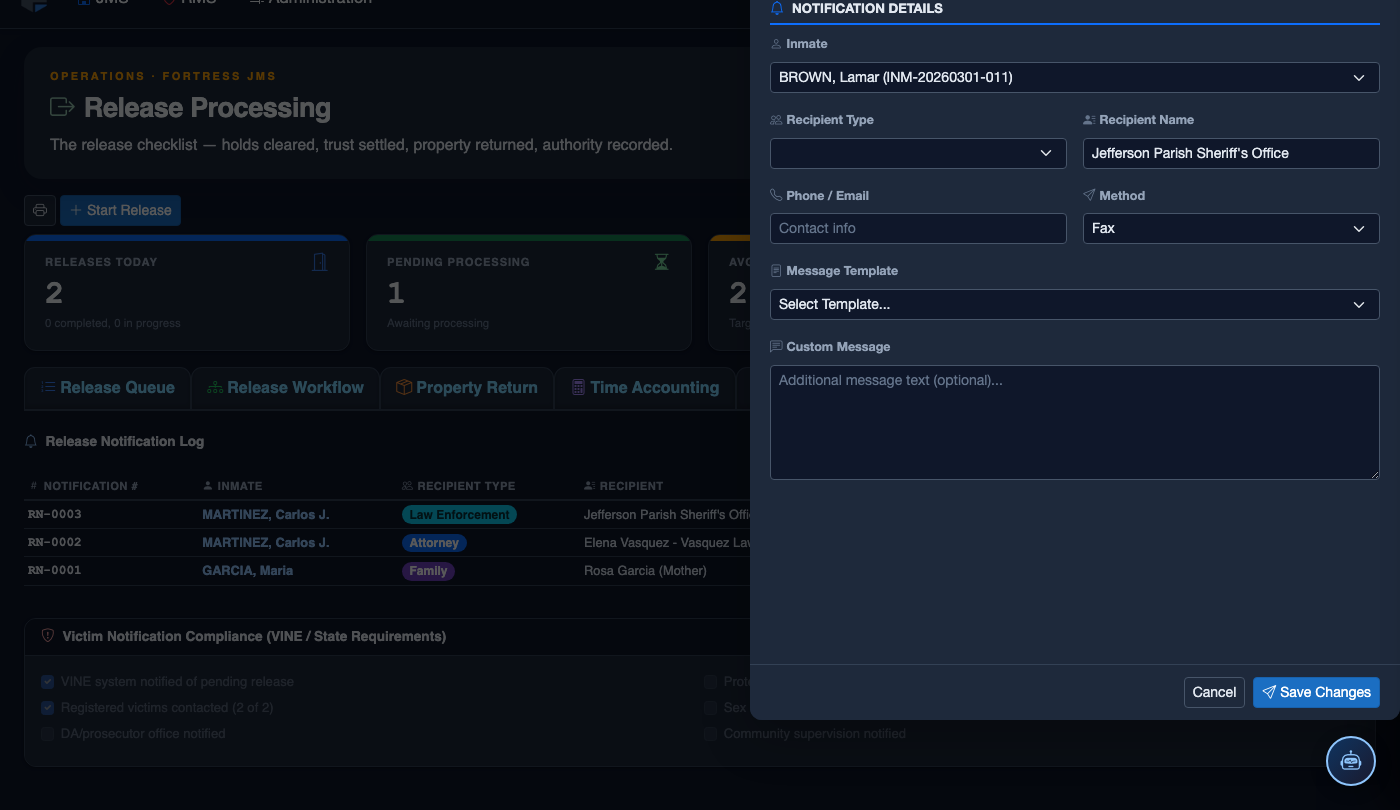
Confirm and Lock the Calculation
Once the calculation is verified and any discrepancies resolved, click Confirm Time Accounting and enter your Officer PIN. This action locks the calculation against further changes without a supervisor override. The confirmed release date is written to the release record and displayed on the Release Queue for all officers to see.
Print the Time Accounting Summary
Click Print Summary to generate the official Time Accounting Statement. This document is included in the inmate’s release packet and serves as the facility’s legal record of how the release date was calculated. Many facilities also provide a copy to the inmate as part of their discharge paperwork.
Initiate the Release Process
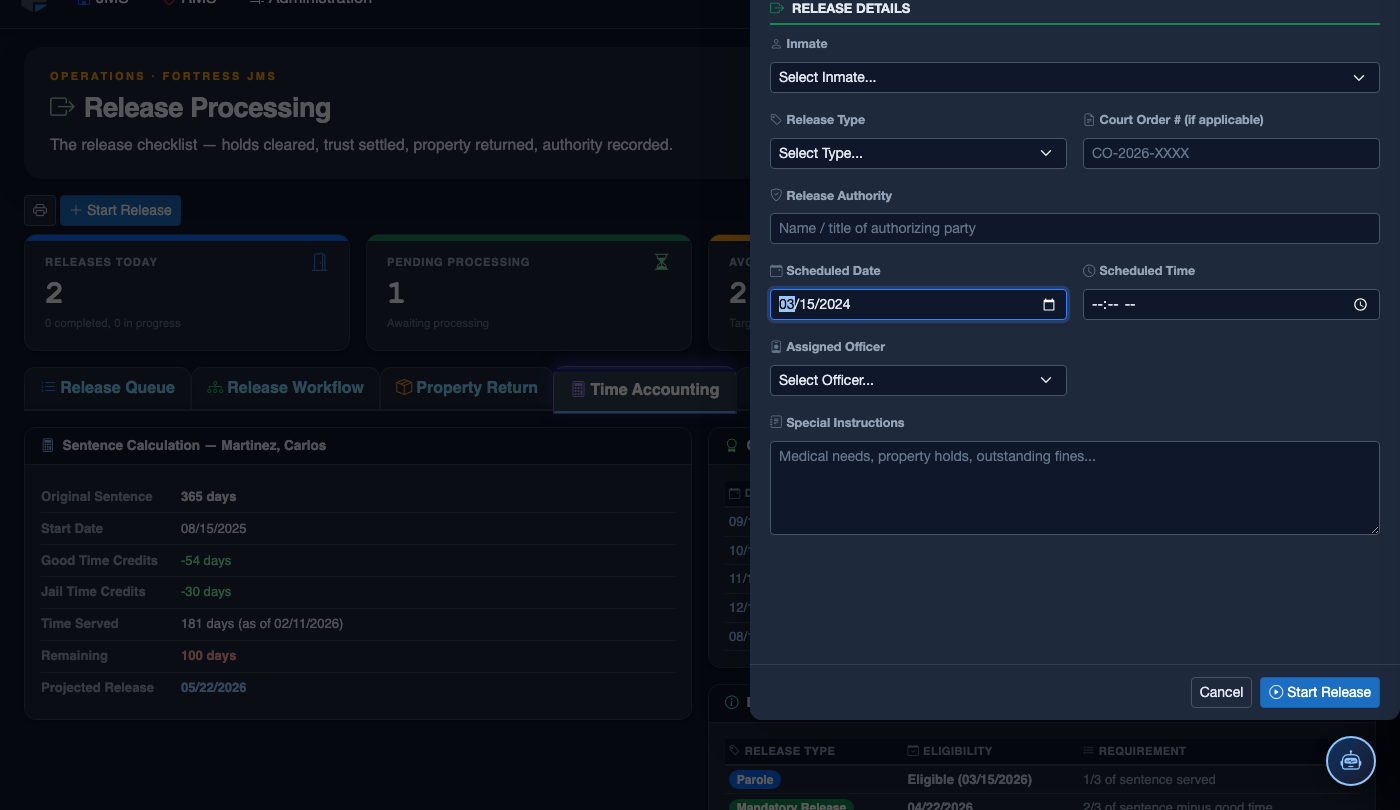
Click Start Release. Work through the release checklist:
- Inmate — search by name or booking number. Active detainers display as warnings.
- Release Type — Sentence Served, Bond Posted, Court Order, Transfer, or Supervised Release.
- Detainer Check — confirm no holds from other jurisdictions are active before proceeding.
- Property Return — verify all personal property is accounted for and the inmate signs the receipt.
- Release Date and Time — set the official release timestamp.
- Transportation — document how the inmate is leaving (self, family, transport agency).
- Post-Release Notes — conditions of release, supervision reporting requirements, etc.
- Click Finalize Release. Bed status changes to Available; housing and case records are closed.
💡 Pro Tips
- Audit your good-time accrual settings annually against current state statutes — good-time rates can change through legislation and your FortressDMS configuration must match the law to avoid wrongful detention claims.
- When in doubt on a discrepancy, err on the side of caution — holding an inmate one extra day while a supervisor reviews is far less costly than a wrongful release.
- Log hospital and court appearance interruptions at the time they occur, not at release — entering them retroactively is a common source of calculation errors and requires a supervisor correction trail.
Mobile View — Time Accounting
FortressDMS is fully responsive. Officers can access the Time Accounting on a phone or tablet directly from the field — no app install required.
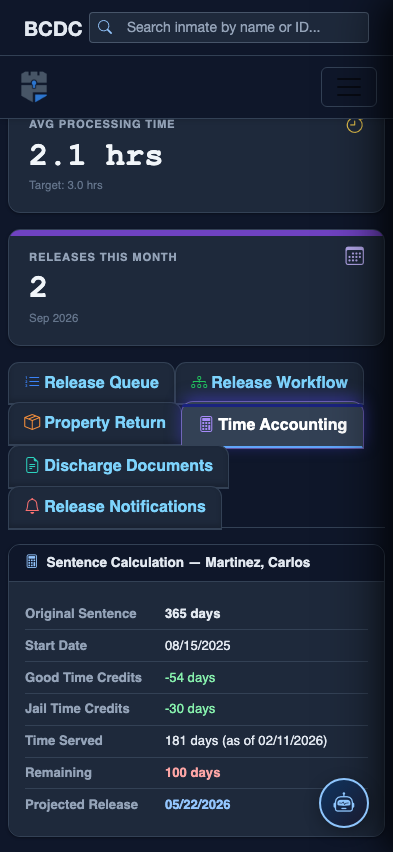
Tab view with data rows
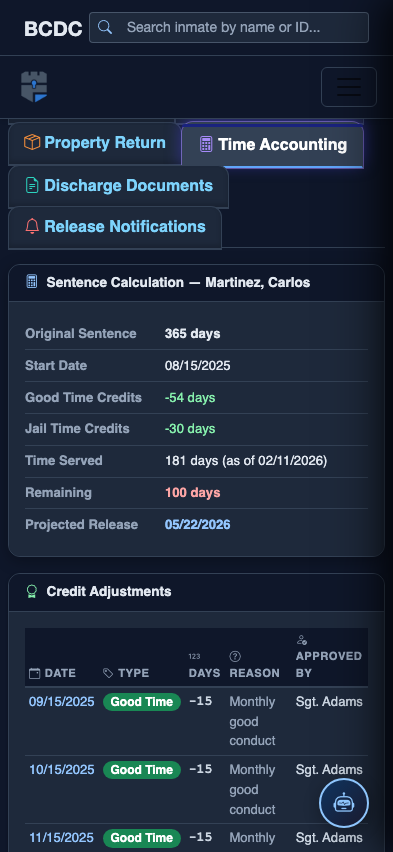
Scrolled / detail view