
Involved Persons
The Involved Persons tab links every individual connected to a jail incident — inmates, staff, victims, and witnesses — to a single incident report. Officers can document each person’s role, injuries, and relevant biographical details without leaving the incident workflow. Accurate person linkage ensures investigations remain complete, legally defensible, and audit-ready.
Multi-Role Tracking
Classify each person as Inmate, Staff, Victim, Witness, or Other and capture their specific involvement in the incident.
Injury Documentation
Record injury type, severity, body location, and medical treatment received for each involved party directly on the incident record.
Booking Record Linkage
Instantly pull inmate booking data by ID number, auto-populating name, housing unit, and classification without redundant data entry.
Statement Capture
Attach individual narrative statements from each involved person, preserving first-hand accounts for investigative and legal review.
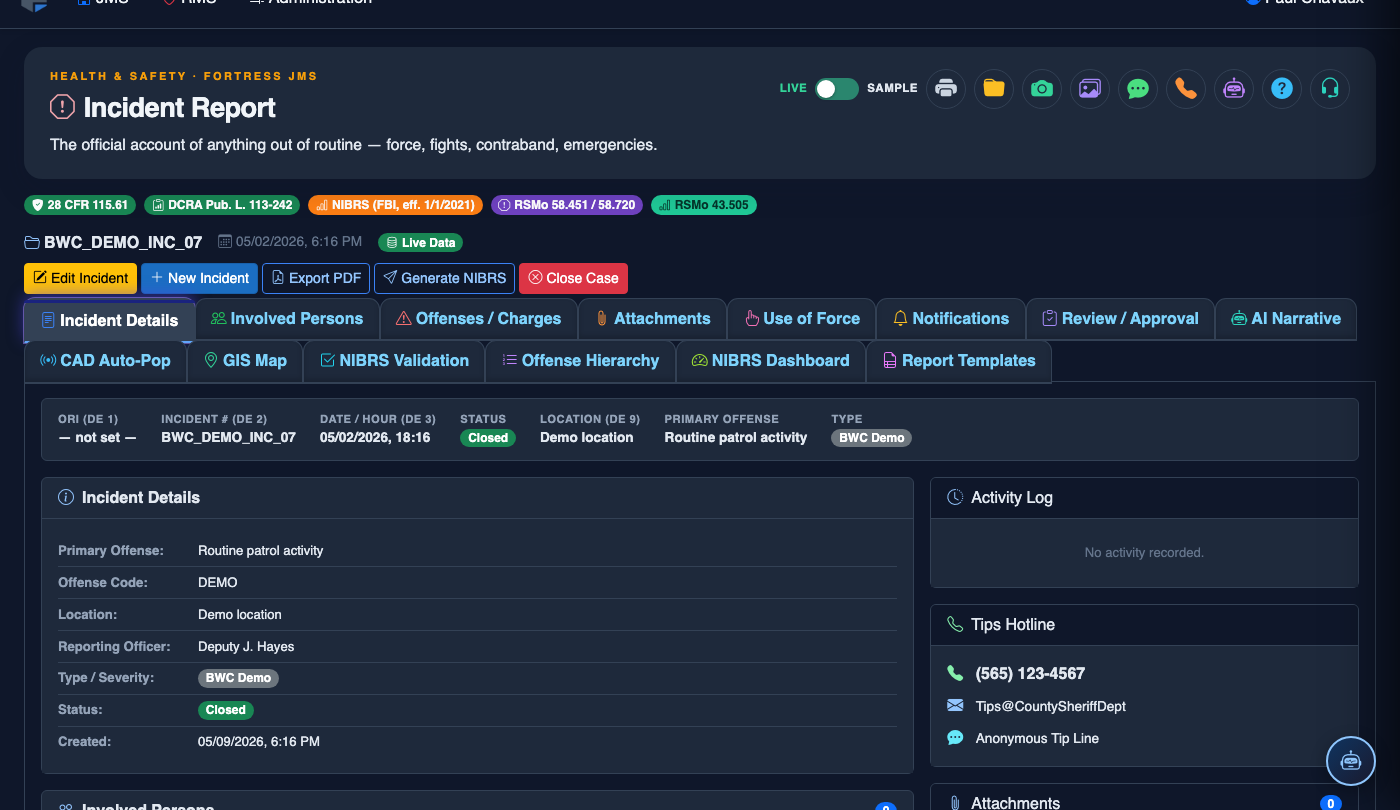
Step-by-Step: Adding Involved Persons to an Incident Report
Open the Incident Report and Navigate to the Involved Persons Tab
From the Incident Reports module, open an existing incident or create a new one. Once the report is open, click the Involved Persons tab (Tab 2) in the top navigation bar of the report form.
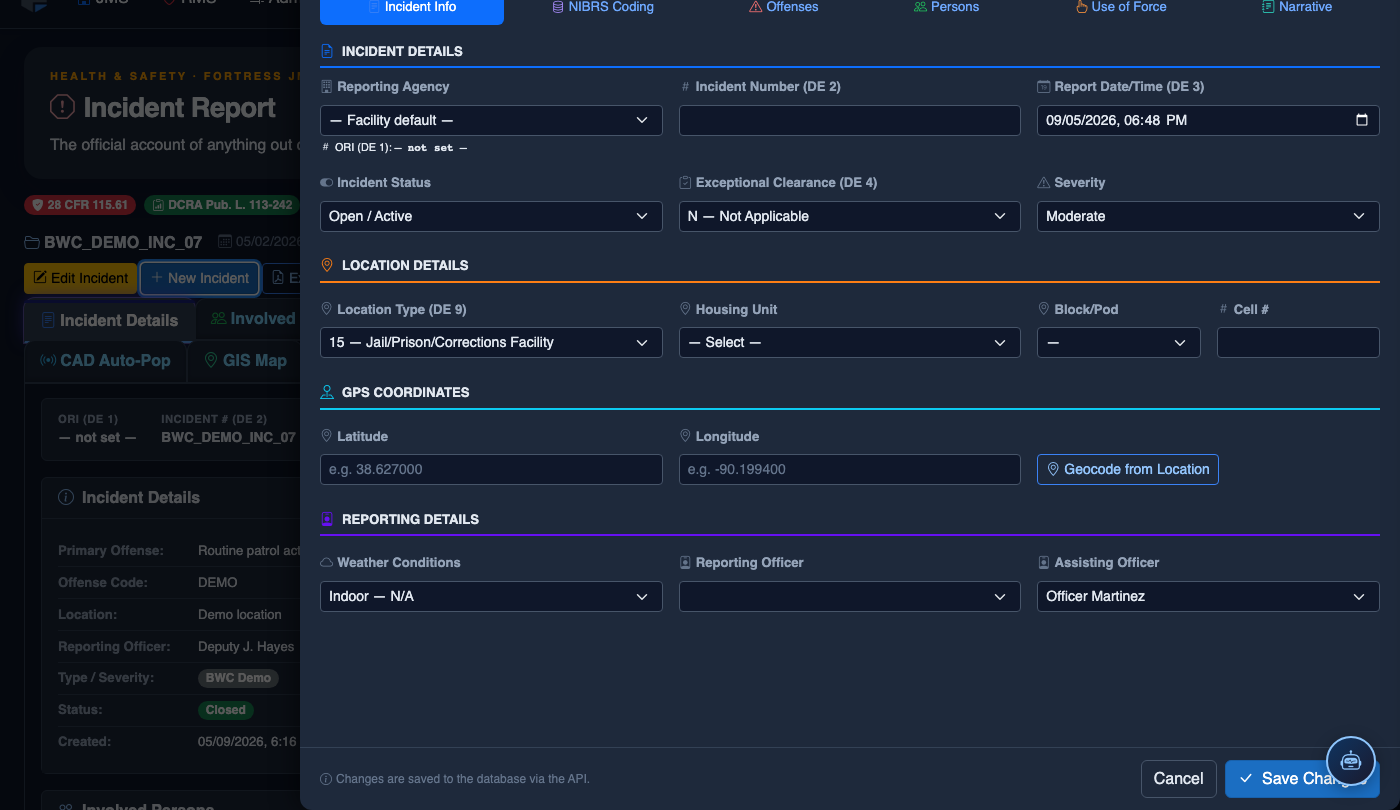
Click “Add Person” to Begin Entry
Click the Add Person button in the upper right of the Involved Persons panel. A data entry drawer will slide open, prompting you to specify the person’s role and identity information.
Select a Person Role and Link to Booking Record (for Inmates)
Choose the Person Role from the dropdown: Inmate, Staff Member, Victim, Witness, or Other. If the role is Inmate, enter their Booking Number or search by name — the system will auto-populate housing unit, classification level, and demographic details from the active booking record.
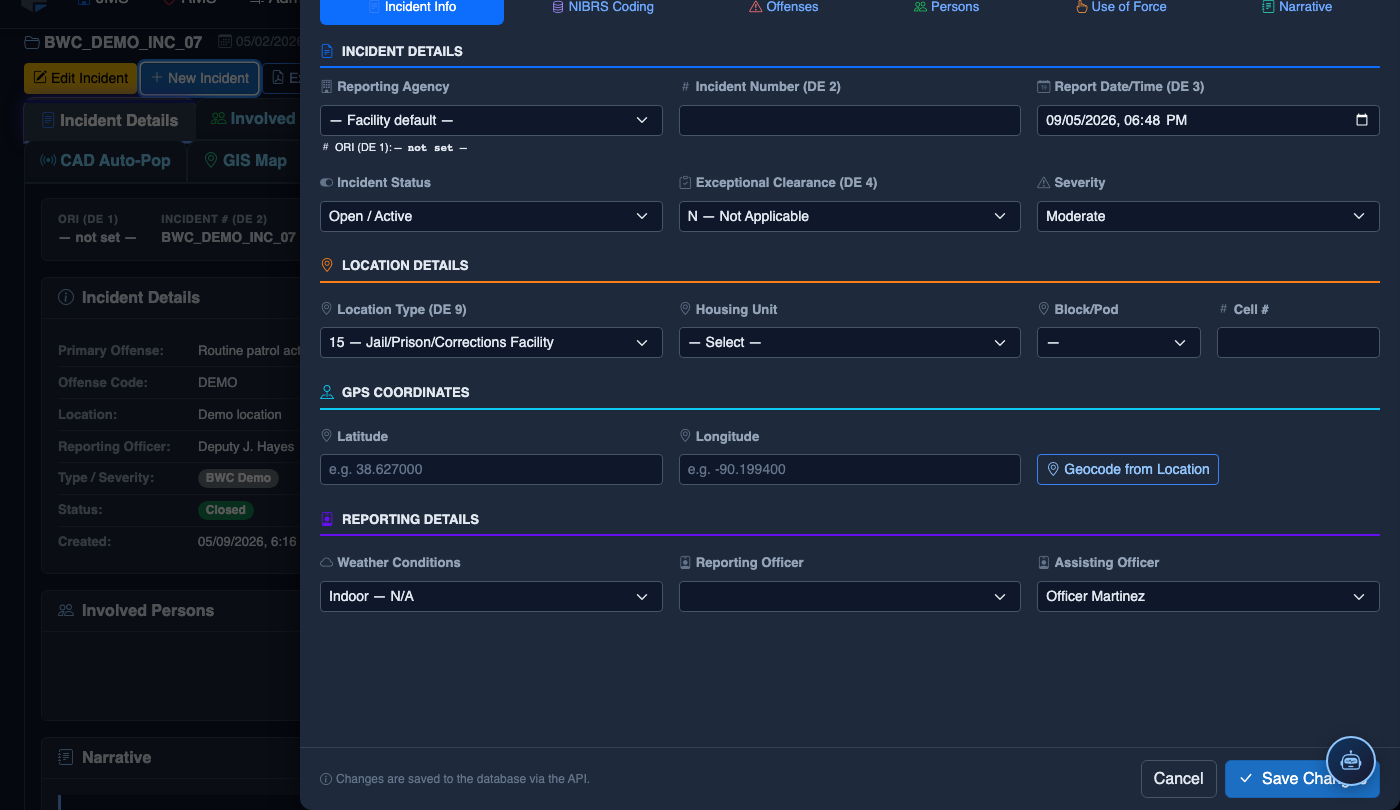
Document Injuries and Medical Treatment
Under the Injuries section, check Injury Occurred if applicable, then select the Injury Type (Laceration, Contusion, Fracture, etc.), Body Location, and Severity. Document whether the person was seen by Medical Staff and record treatment notes. If no injury occurred, check No Injury to explicitly mark the field.
Enter Narrative Statement
In the Statement text area, enter a first-hand or officer-documented account from this person’s perspective. Statements are stored individually per person and are accessible to supervisors and investigators during review.
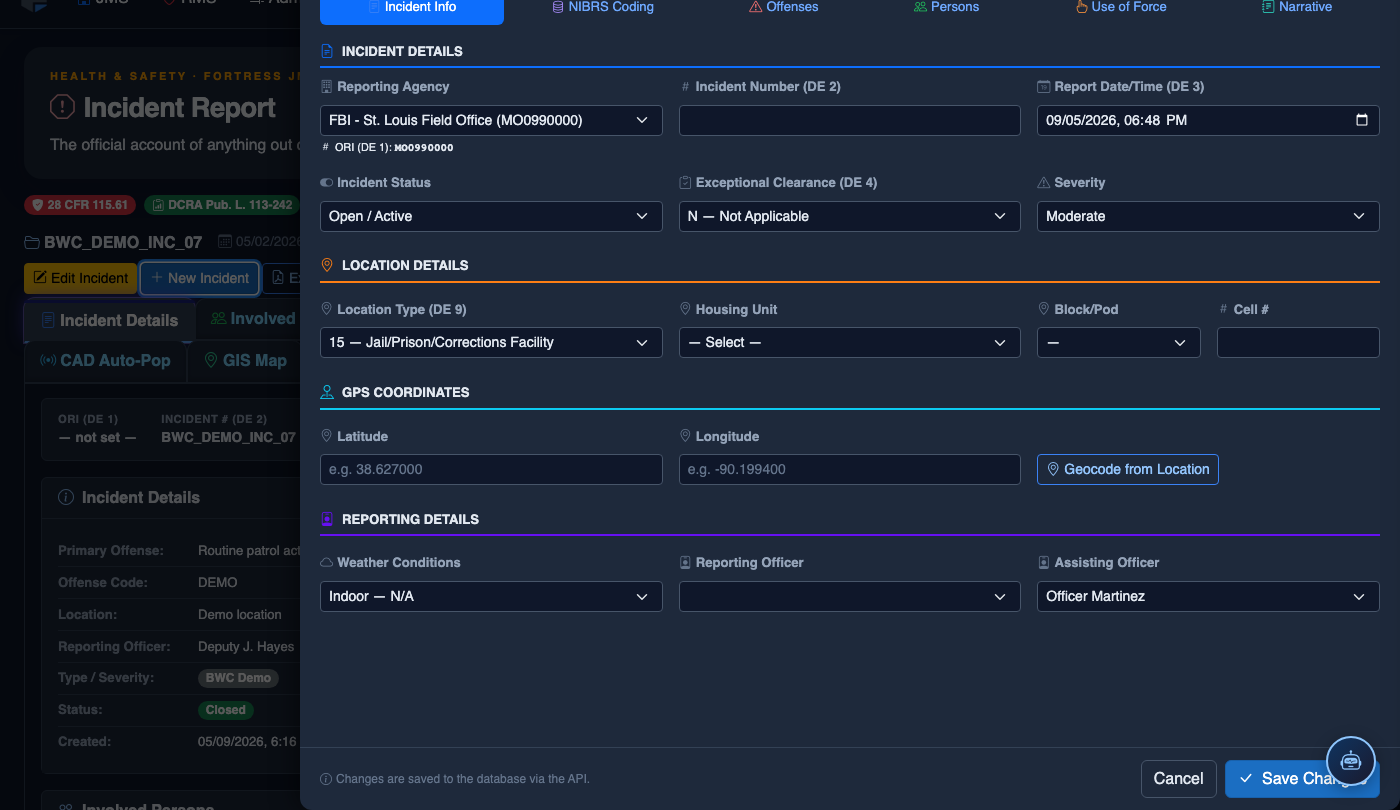
Save the Person Record and Add Additional Persons
Click Save Person to add the entry to the incident’s Involved Persons list. The person will appear in the summary table. Repeat the process by clicking Add Person again for each additional officer, inmate, victim, or witness involved in the incident.
Review the Persons Summary Table Before Proceeding
Before advancing to the next tab, verify the Involved Persons Summary table shows all expected individuals with correct roles and injury status. Use the Edit (pencil) or Remove (trash) icons on each row to make corrections. Completeness here directly supports classification, use-of-force review, and supervisory sign-off.
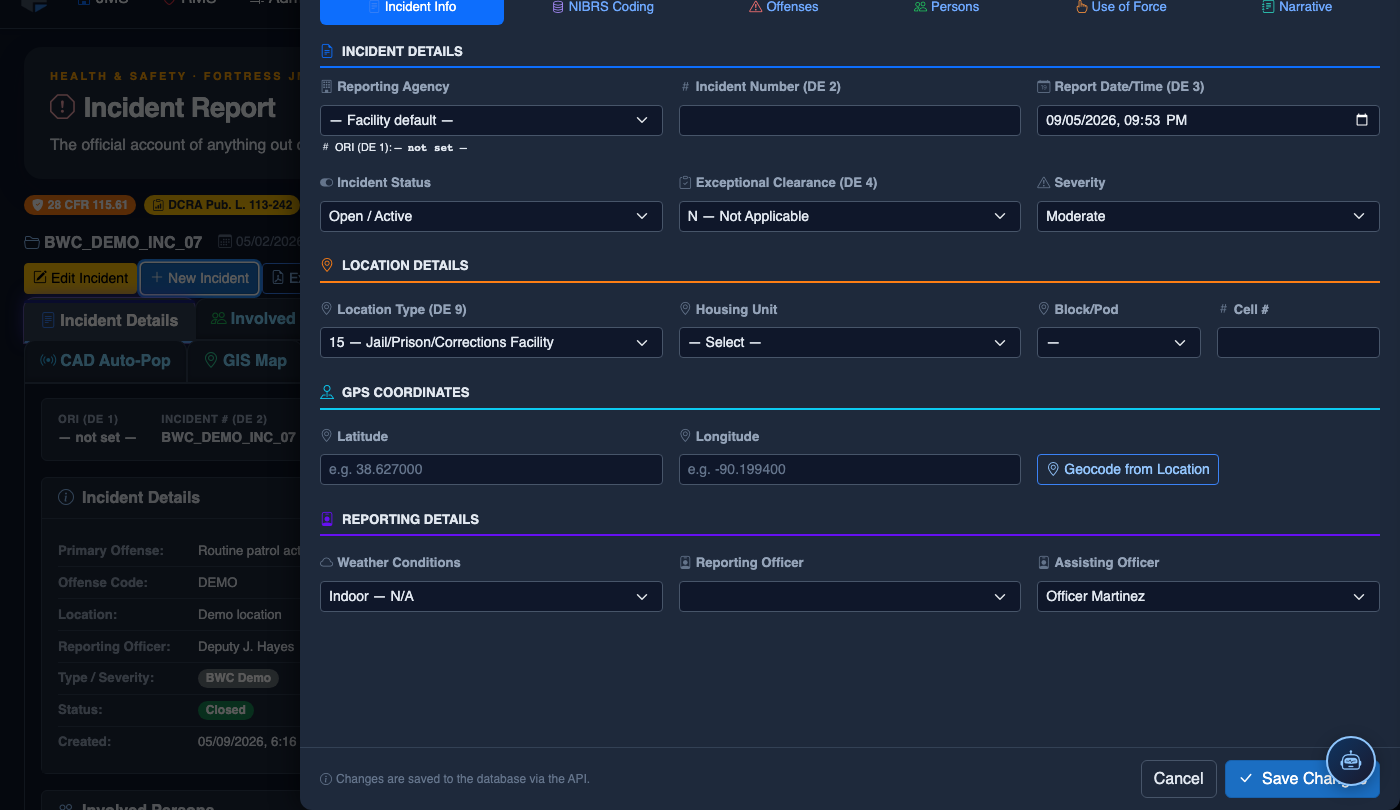
File a New Incident Report
Click New Incident. Complete the incident report:
- Incident Type — select the category (Altercation, Medical Emergency, Escape Attempt, Property Damage, Use of Force, etc.).
- Date, Time, and Location — the precise time and place of the incident.
- Involved Persons — add all Inmates, Staff, and Witnesses using the search tool.
- Narrative — write the factual incident description in first person, past tense. The AI Narrative Assist can draft based on your bullet points.
- Severity — Minor, Moderate, or Major. Major incidents trigger automatic supervisor notification.
- Attachments — upload photos, BWC footage, or medical documentation directly.
- Click Save Draft to continue later, or Submit for Review to route to your supervisor.
💡 Pro Tips
- Always link inmates using their Booking Number rather than typing names manually — this prevents duplicate or mismatched records across reports.
- Explicitly mark No Injury even when no injury occurred; a blank injury field may trigger a compliance flag during supervisory review.
- Add staff members involved (even as responders with no injury) to create a complete chain of custody and protect officers from liability claims later.
- Statements entered here are separate from the incident narrative — use plain, objective language that reflects what the person directly observed or experienced.
Mobile View — Incident Report and Navigate t
FortressDMS is fully responsive. Officers can access the Incident Report and Navigate t on a phone or tablet directly from the field — no app install required.
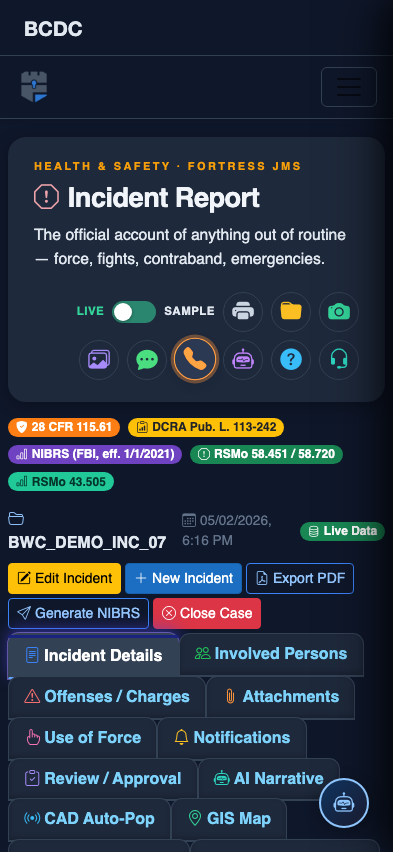
Tab view with data rows
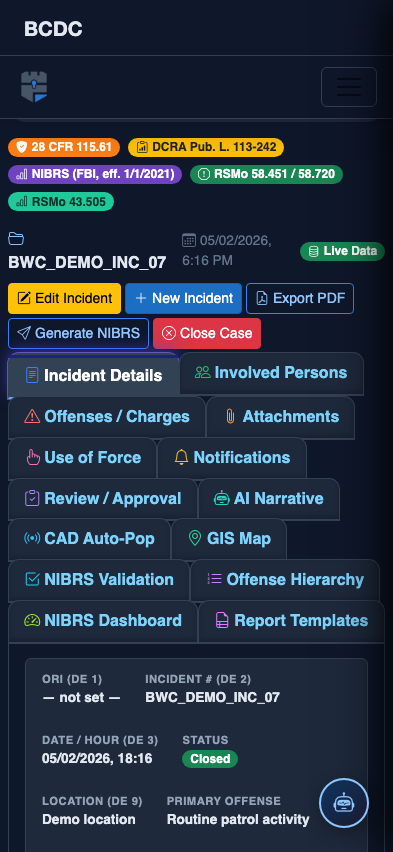
Scrolled / detail view