
Supervisor Review Tab
The Supervisor Review tab provides a structured, priority-sorted queue for reviewing assigned body-worn camera recordings. Supervisors add formal findings, time-stamped annotations, and a final disposition decision to each clip — creating a documented compliance record that satisfies policy mandates and supports officer performance management.
Priority-Sorted Review Queue
Assigned clips surface in Critical / Urgent / Routine order so supervisors always address the highest-priority footage first.
Formal Findings Entry
Supervisors document findings in a structured form with policy reference, disposition, and recommended follow-up action.
SLA Countdown Timers
Each queued clip shows time remaining before the policy review deadline, with visual warnings as the deadline approaches.
Escalation to Command Staff
Supervisors can escalate any reviewed clip to command staff with their findings attached, routing serious incidents to the appropriate chain of command.
Step-by-Step: Supervisor Review Workflow
Open the Supervisor Review Tab
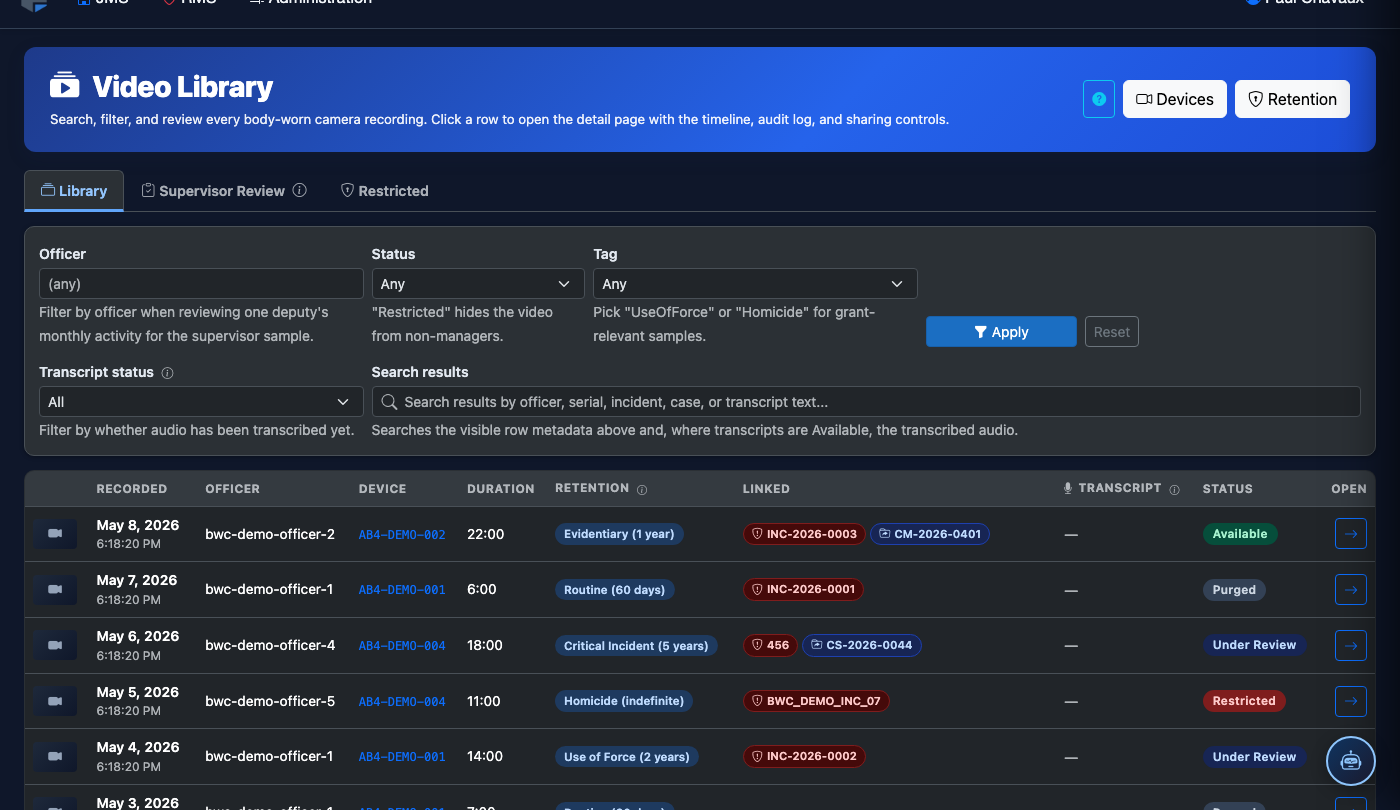
Navigate to Body-Worn Camera > Video Library and click the Supervisor Review tab. Your personal review queue loads, showing all clips assigned to you sorted by priority (Critical first), with the number of remaining review hours displayed on each card.
Select a Clip to Review
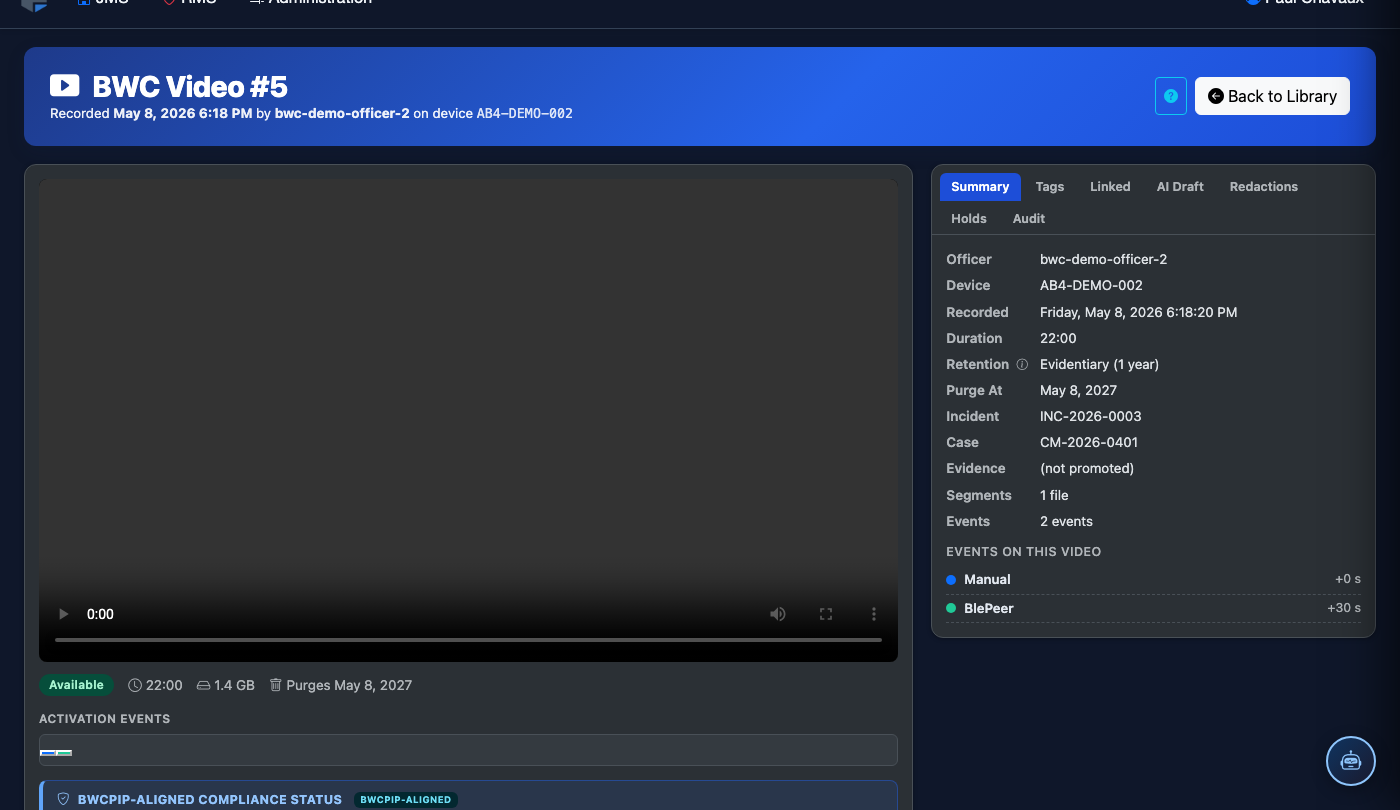
Click a recording card to open it. The review pane splits into two sections: the Video Player on the left and the Review Form on the right. The form pre-populates with the assigning officer’s notes and any existing annotations added by the initial reviewer.
Watch the Recording and Add Supervisor Annotations
Play the recording in the left panel. Pause at any point and click Add Supervisor Annotation to insert a time-stamped note visible only to supervisors and command staff. Use this for sensitive observations that should not appear in the general annotation feed visible to line officers.
Complete the Review Form
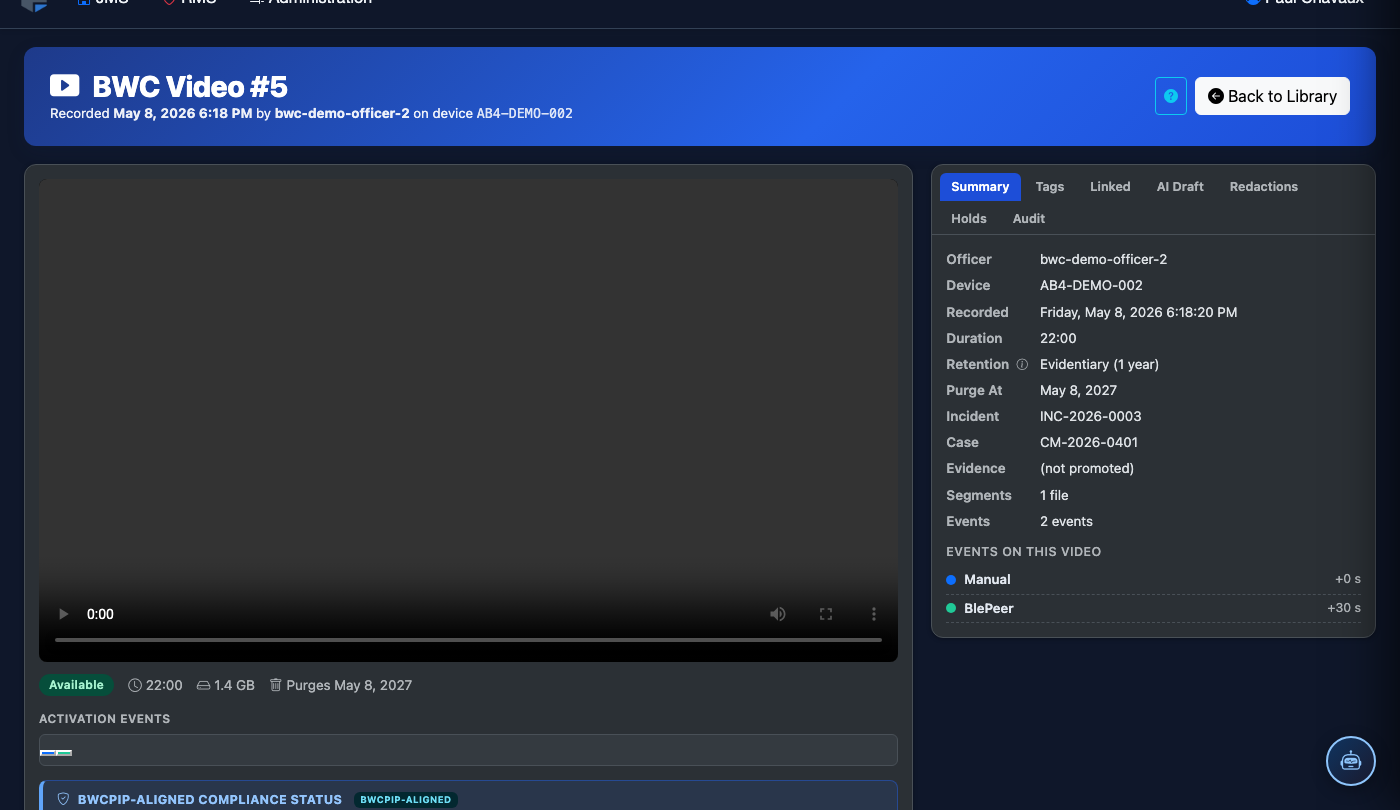
In the Review Form panel, fill in the required fields: Policy Reference (select from the dropdown), Findings Narrative (free text), and Recommended Action (No Action / Coaching / Written Reprimand / Administrative Investigation / Criminal Referral). All fields are required before a disposition can be saved.
Record a Disposition Decision
Click Approve — No Issues to close the review with no policy concerns found, or Approve — With Findings to document a violation that does not require further investigation, or Escalate to forward the clip and your findings to command staff. The disposition is stamped with your name, role, and timestamp.
Escalate to Command Staff
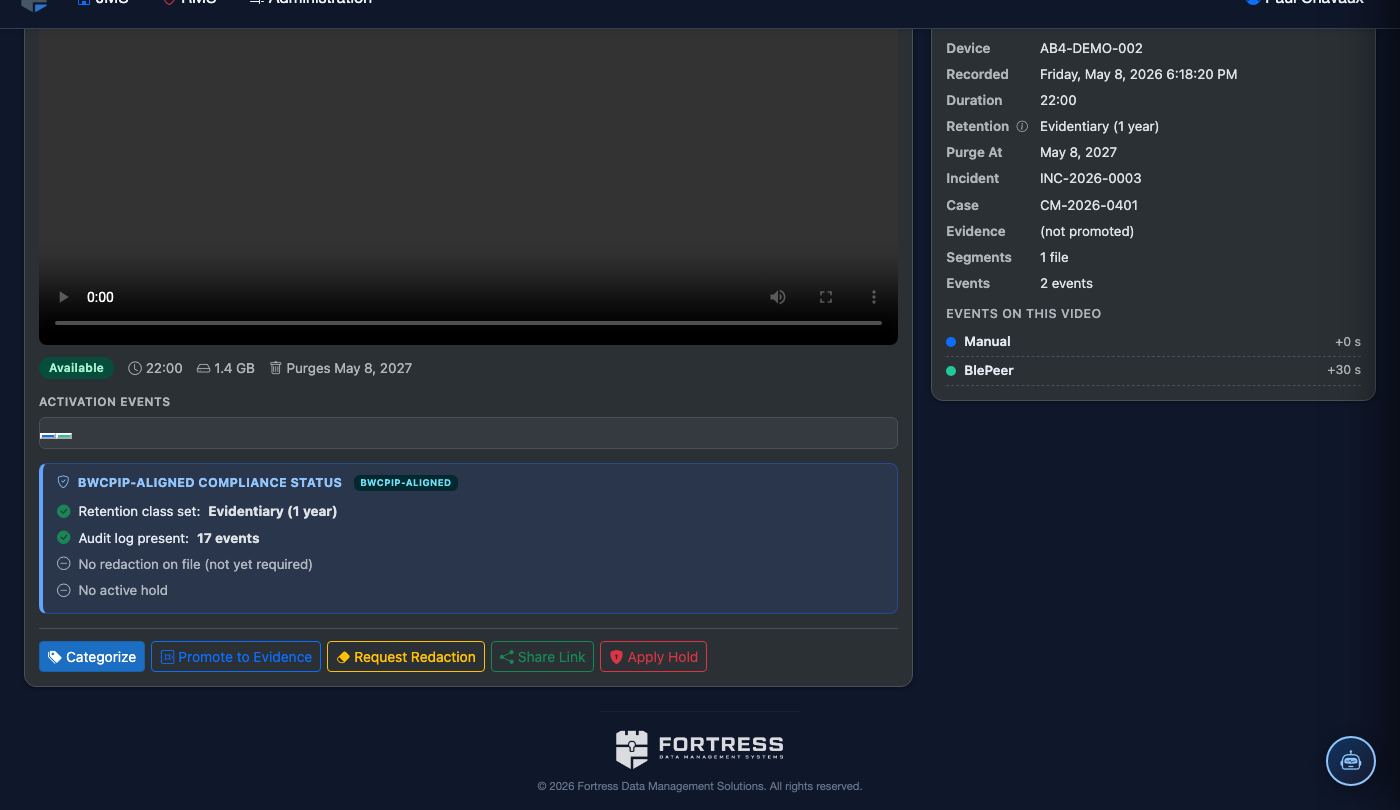
When escalating, select the Command Recipient from the dropdown, add an Escalation Note summarizing your concerns, and click Send to Command. The command recipient receives an in-app notification with your full findings form attached. The clip’s status updates to Escalated — Pending Command Review in the library.
Export Review Record for HR or Legal
Once a disposition is saved, click Export Review Record to generate a PDF package containing the video clip link, all annotations, your findings narrative, the disposition decision, and the full chain-of-custody log. This package is suitable for inclusion in personnel files, HR proceedings, or legal discovery.
💡 Pro Tips
- Address all Critical-priority clips before end of shift regardless of shift workload — most facilities’ use-of-force policies require supervisor sign-off within 24 hours, and the SLA timer does not pause for shift changes.
- Supervisor-level annotations are visible to command staff and auditors but not to line officers or the subject officer — use them freely to document concerns without triggering a premature conversation before your review is complete.
- When escalating to command, write the escalation note as if it may appear in a formal administrative investigation — clear, factual language free of speculation gives command staff the strongest foundation for next steps.