
AI Narrative Assist
AI Narrative Assist leverages advanced language models to help corrections officers draft accurate, professional incident narratives in seconds. The system analyzes structured incident data already entered — involved parties, offense codes, timestamps, and locations — then generates a coherent, legally defensible written narrative that officers can review and finalize. This dramatically reduces report completion time while ensuring consistent, policy-compliant documentation across your facility.
AI-Generated Drafts
One-click narrative generation from structured incident fields, saving officers 15–20 minutes per report.
Inline Editing
Officers review and refine the AI draft directly in the narrative field, retaining full editorial control.
Policy-Compliant Language
Narratives use standardized corrections terminology and avoid speculation, protecting your facility legally.
Audit Trail
Every AI-generated draft and subsequent officer edit is logged with timestamps for full accountability.
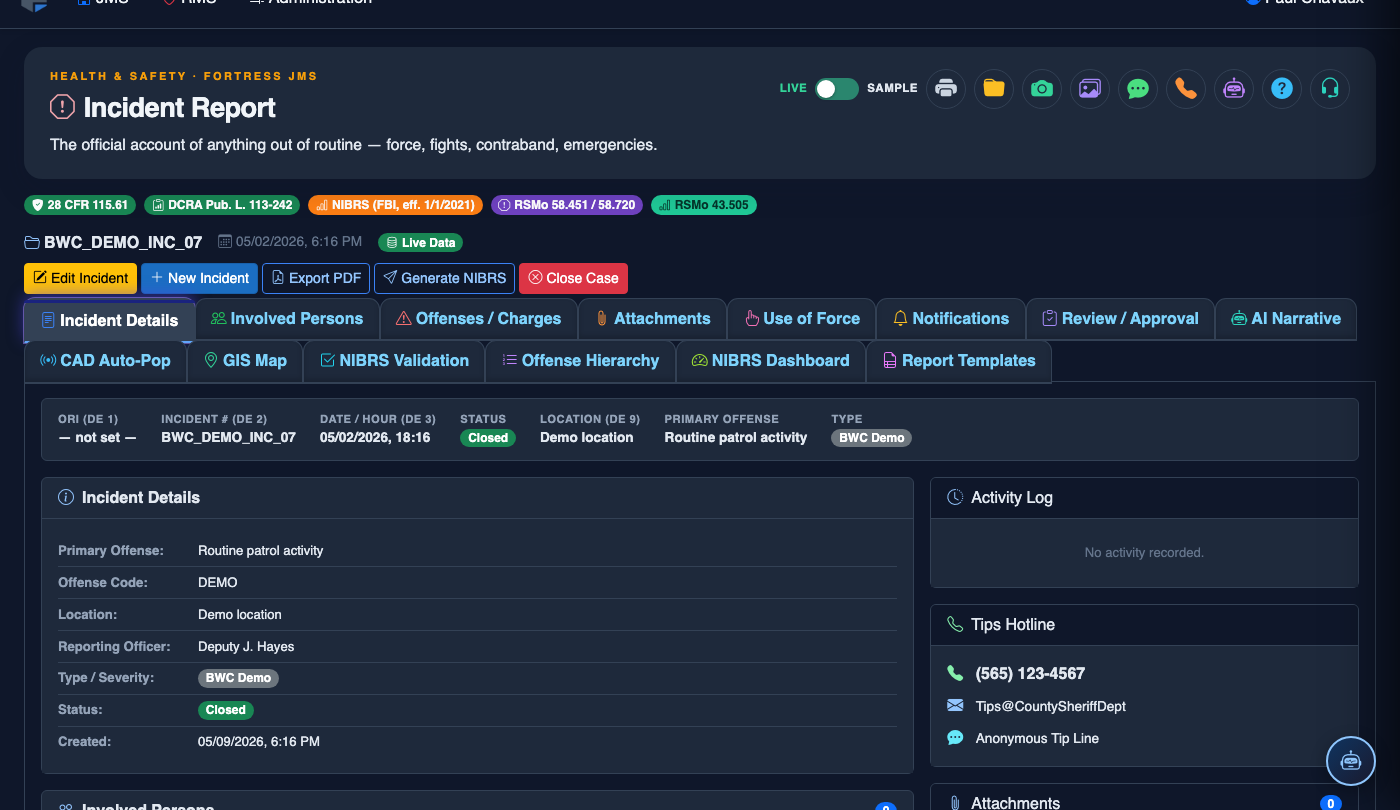
Step-by-Step: AI Narrative Assist
Open the Incident Report
Navigate to Incident Reporting from the main menu and open an existing report or create a new one. Ensure the Incident Details, Involved Parties, and Offense Codes tabs are completed before generating a narrative.
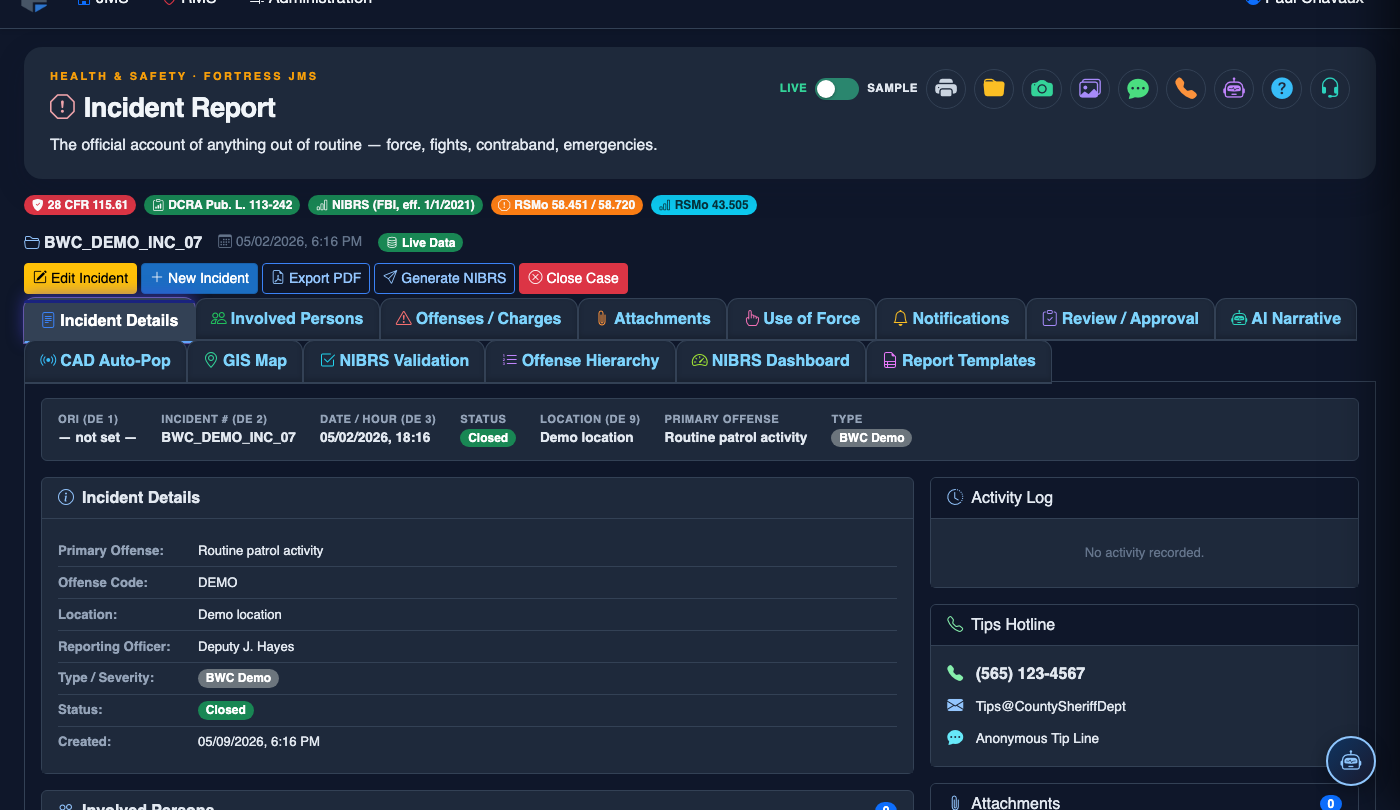
Navigate to the AI Narrative Assist Tab
Click the AI Narrative Assist tab (tab 8) within the incident report. The panel displays the current incident summary on the left and a blank narrative field on the right ready for AI generation.
Click Generate Narrative
Click the Generate Narrative button. The AI engine reads all structured data from the report — involved inmates, staff, offense codes, timestamps, and location — and produces a full first-person officer narrative within seconds.
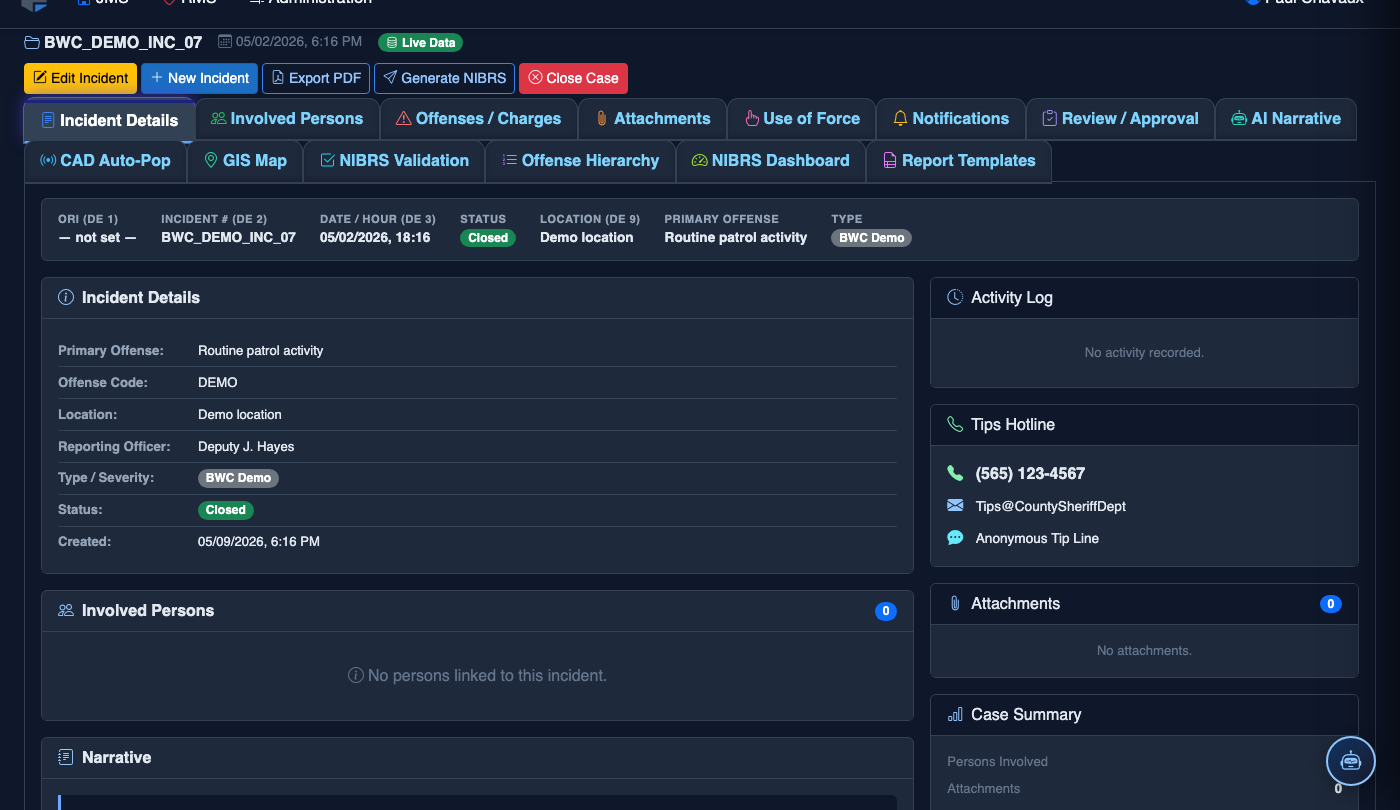
Review the AI Draft
Read through the generated narrative carefully. The AI highlights any fields it could not verify in yellow — these require officer confirmation before the report can be submitted.
Edit and Personalize
Click directly in the narrative text field to make any corrections, add firsthand observations, or clarify actions taken. All edits are tracked with the officer’s badge number and timestamp in the audit log.
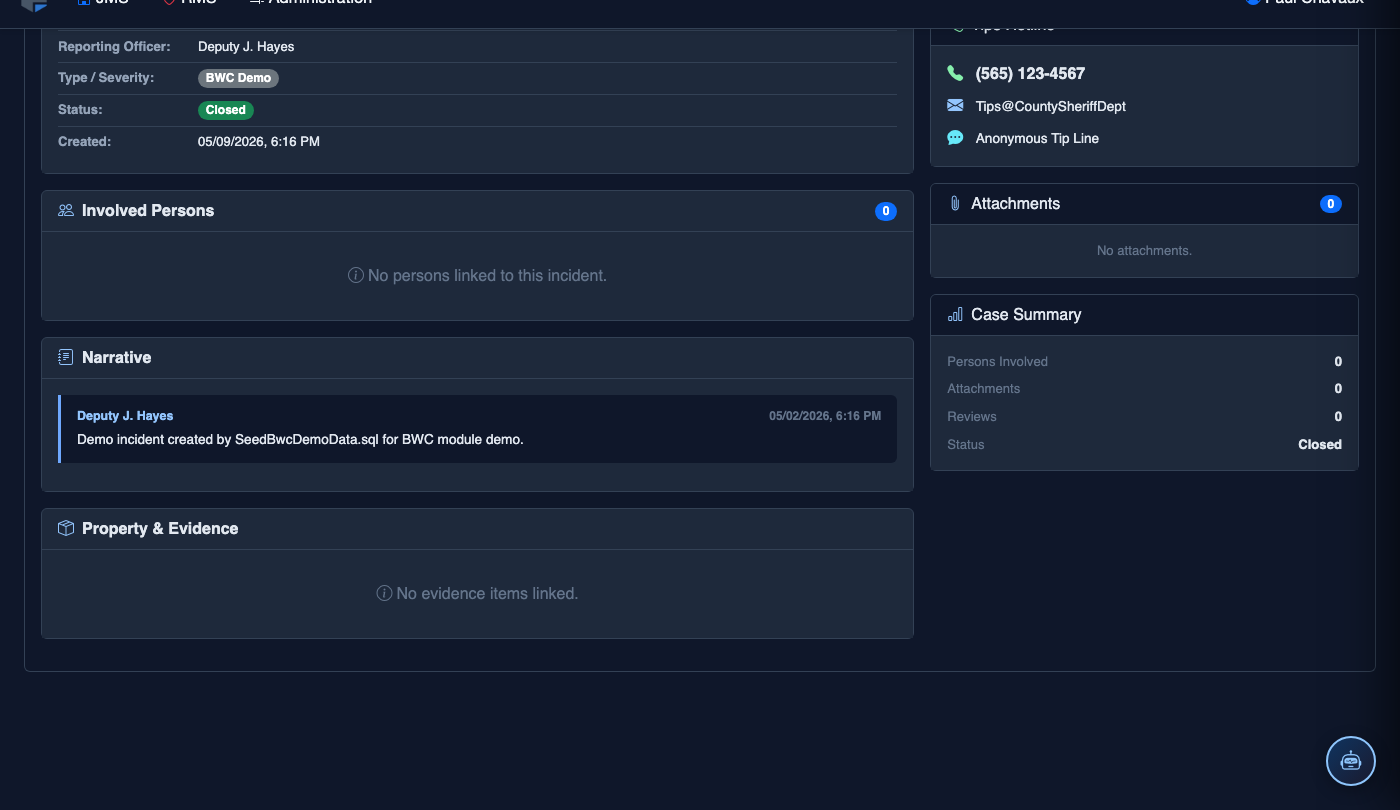
Regenerate if Needed
If the draft does not meet your needs, click Regenerate to produce an alternative version. You can also use the Tone selector to choose between Formal, Concise, or Detailed narrative styles.
Accept and Save
When satisfied, click Accept Narrative to lock the text into the report’s official narrative field, then click Save Report. The narrative cannot be modified after supervisor approval without creating a supplemental report.
File a New Incident Report
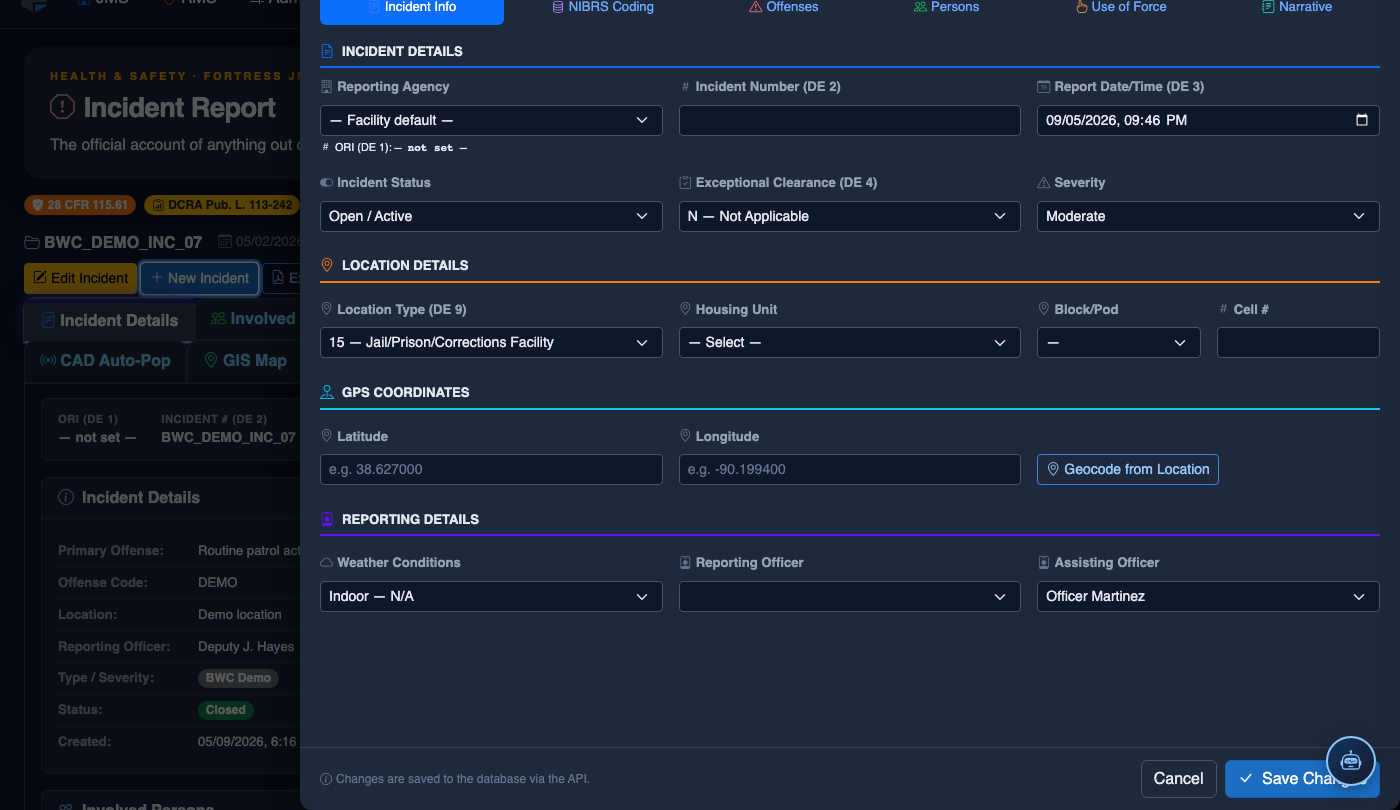
Click New Incident. Complete the incident report:
- Incident Type — select the category (Altercation, Medical Emergency, Escape Attempt, Property Damage, Use of Force, etc.).
- Date, Time, and Location — the precise time and place of the incident.
- Involved Persons — add all Inmates, Staff, and Witnesses using the search tool.
- Narrative — write the factual incident description in first person, past tense. The AI Narrative Assist can draft based on your bullet points.
- Severity — Minor, Moderate, or Major. Major incidents trigger automatic supervisor notification.
- Attachments — upload photos, BWC footage, or medical documentation directly.
- Click Save Draft to continue later, or Submit for Review to route to your supervisor.
💡 Pro Tips
- Complete all structured tabs (Parties, Offenses, Location) before generating — the more data provided, the more accurate and detailed the AI narrative will be.
- Use the Concise tone setting for minor infractions and Detailed for use-of-force incidents that may face legal scrutiny.
- Never remove AI-flagged yellow highlights without personally verifying the underlying fact — unverified details in a narrative can undermine a disciplinary case.
Mobile View — AI Narrative Assist
FortressDMS is fully responsive. Officers can access the AI Narrative Assist on a phone or tablet directly from the field — no app install required.
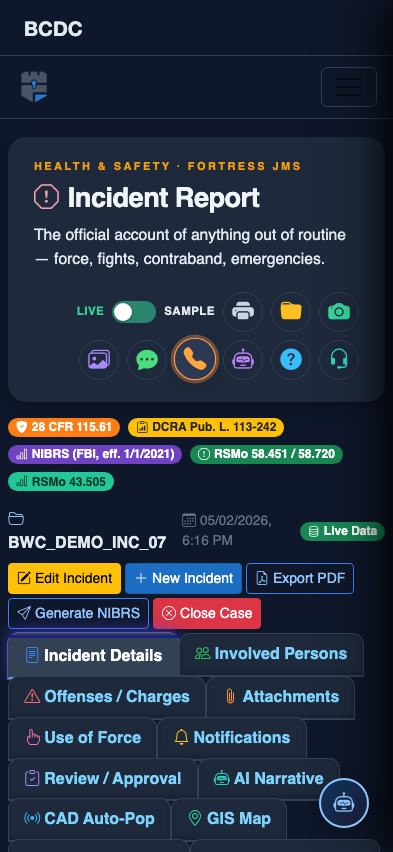
Tab view with data rows
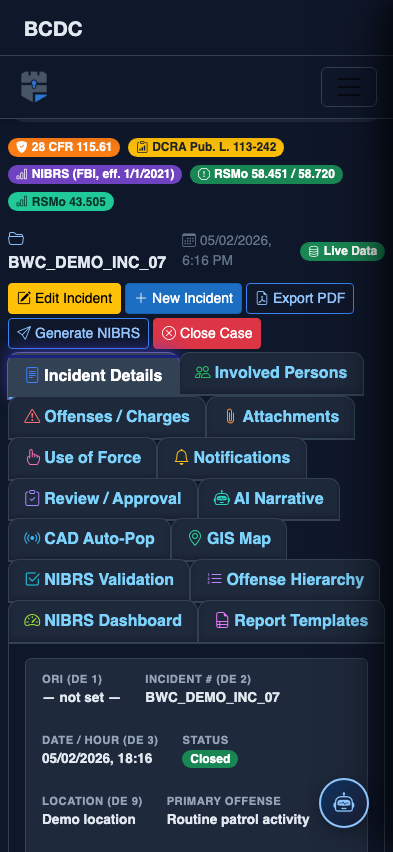
Scrolled / detail view