
Mail Records Archive
Searchable, retention-compliant archive of every scanned mail piece. Export to CSV, view full PDFs, and produce audit trails for compliance reviews.
Full-Text Search
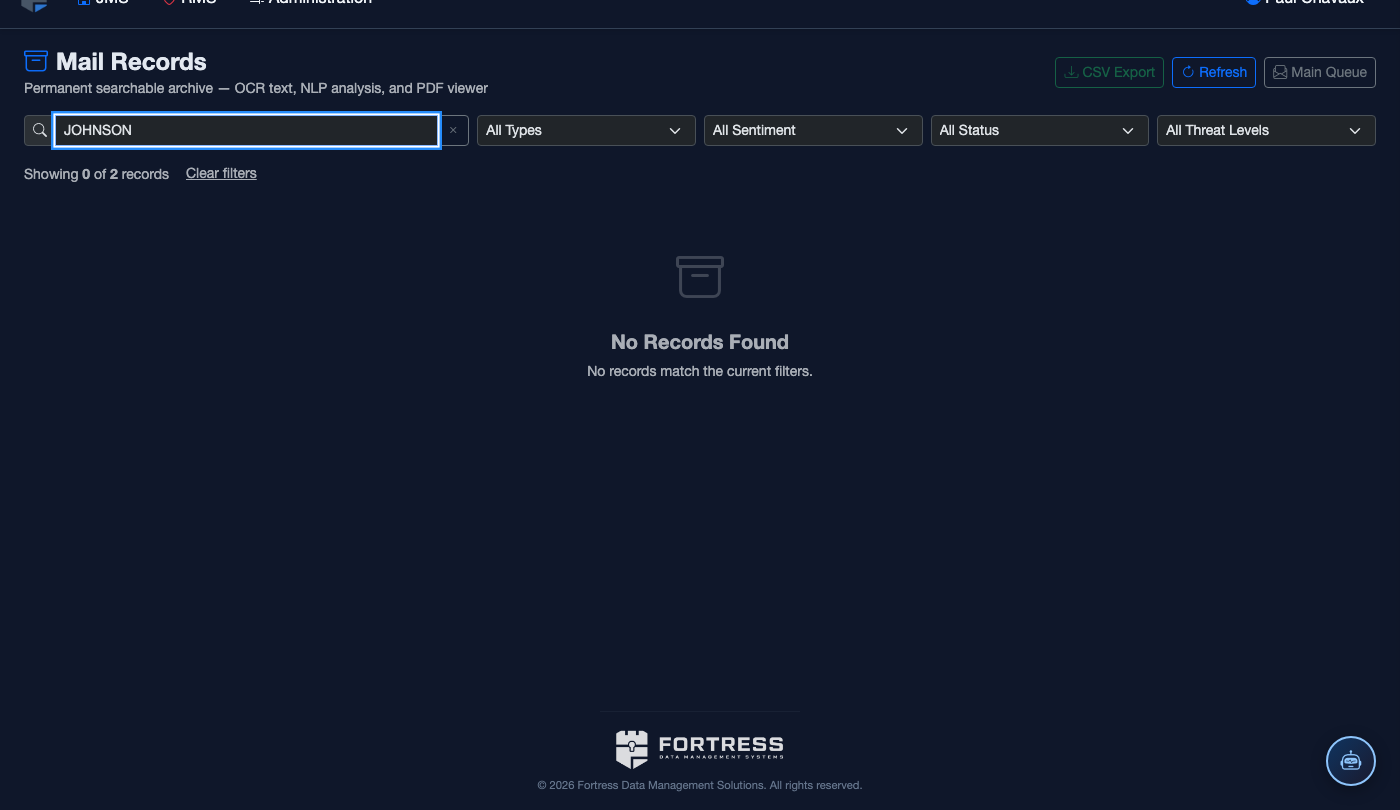
Search by inmate name, booking number, sender, mail type, date range, or keyword flag. Results appear instantly.
Inline PDF Viewer
Click any record to view the original scanned PDF inline — no download required. Approved and rejected pieces both appear.
Audit Trail
Every action — scan, OCR run, review decision, destruction — is timestamped and officer-attributed in the record detail.
CSV Export
Export the full archive or a filtered subset to CSV for court-ordered discovery, FOIA responses, or compliance reporting.
📚 How To: Search and Export Mail Records
Open Mail Records
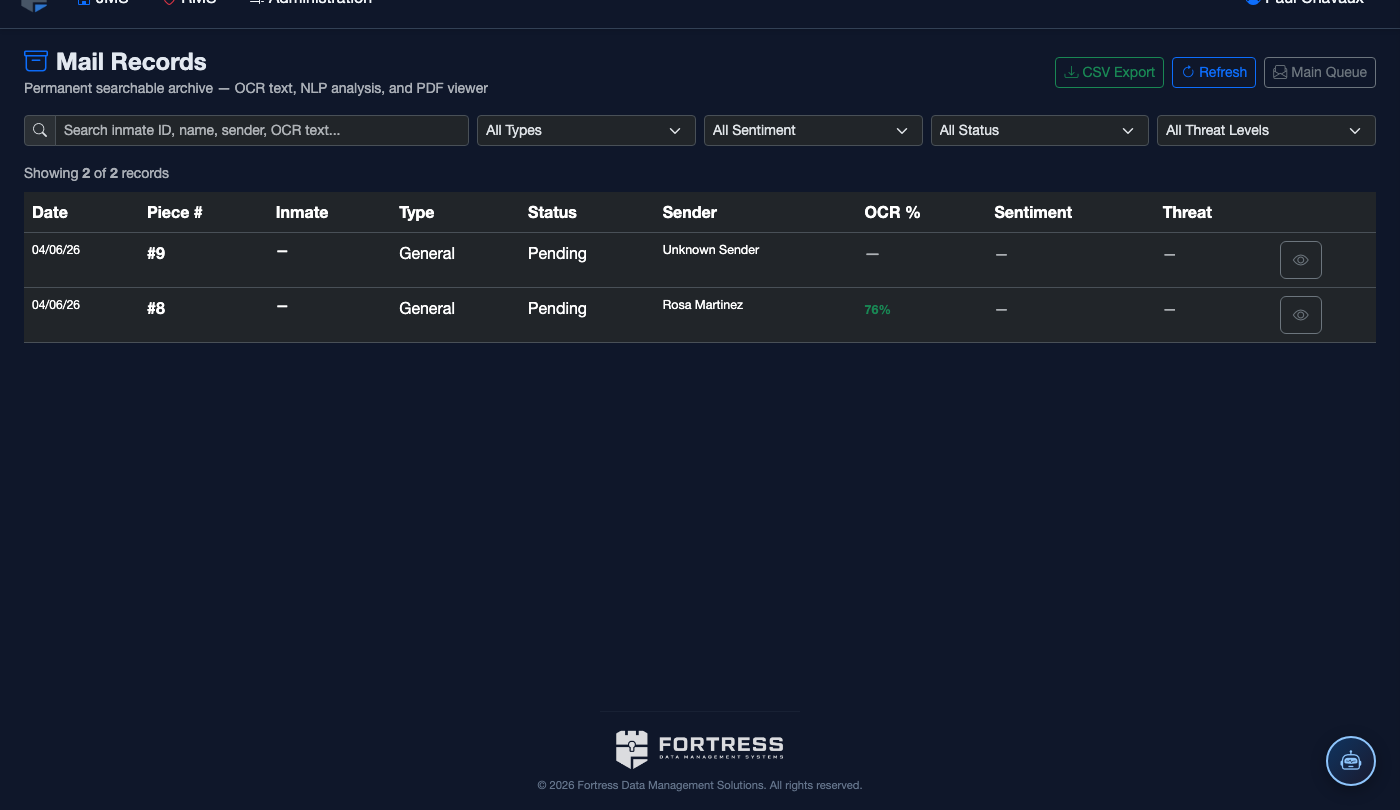
Navigate to JMS → IPS → ScanMail → Mail Records. The archive loads showing all pieces — both approved and rejected — in reverse chronological order.
Search by Inmate or Date
Type an inmate name or booking number into the search field. Use the date range pickers to narrow to a specific window. Results update as you type.
Review Search Results
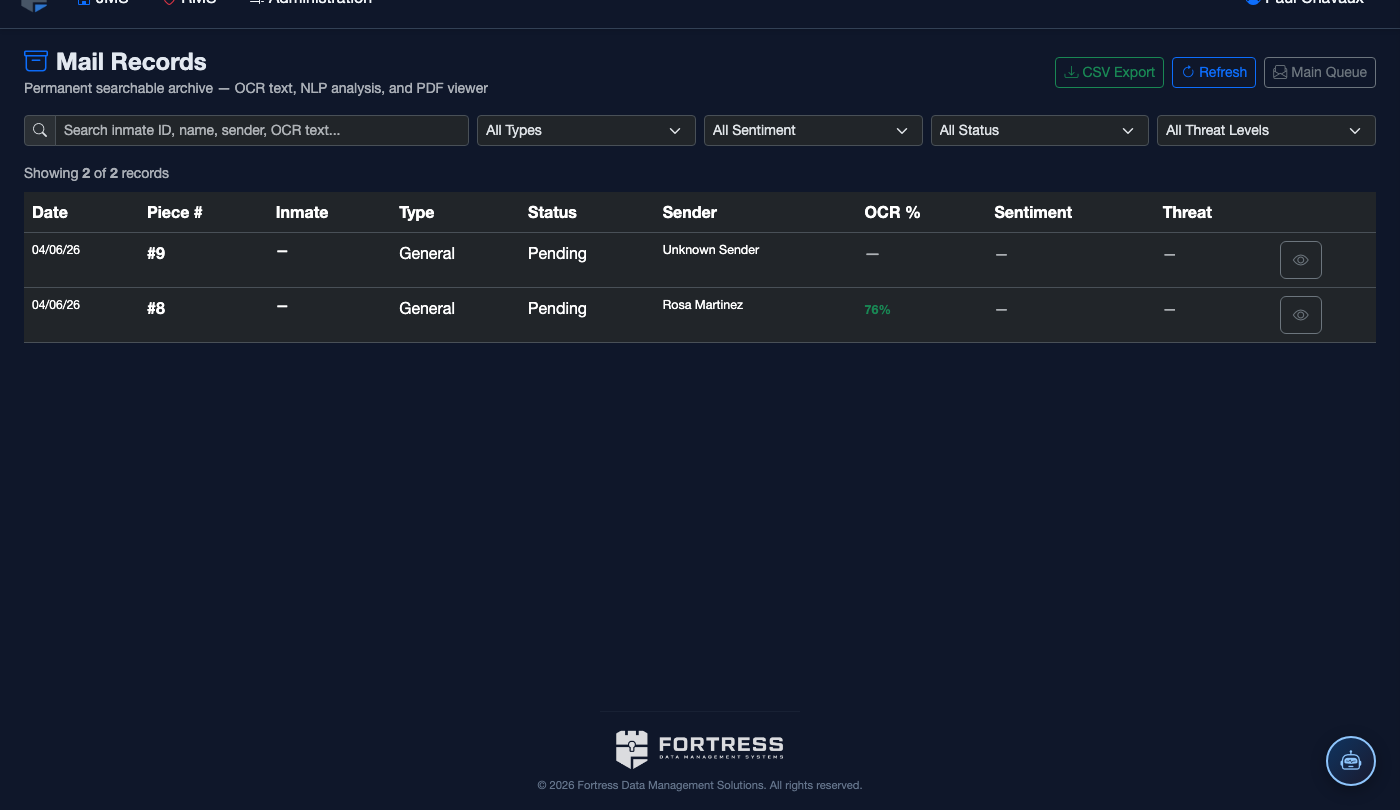
Each row shows date scanned, inmate, mail type, pages, OCR%, approval status, and who reviewed it. A 👁 eye icon opens the full PDF viewer.
View Full Audit Trail
Click any record row to expand the detail panel. The audit trail section shows every action taken: when it was scanned, OCR’d, reviewed, and by whom.
Export to CSV
Click CSV Export (top right) to download the current filtered view. The export includes all columns — inmate, sender, type, OCR text, review decision, officer, and timestamps.
Retention & Destruction
Records are retained for 90 days by default (configurable in ScanMail Settings). After the retention period, pieces are auto-queued for destruction. The Destruction Log (on the Mail Queue page) records every destruction event.
- Navigate to ScanMail → Mail Queue → Destruction Log tab.
- Filter by date range to find destruction events.
- Each entry shows the piece ID, inmate, destruction date, and the officer who authorized it.
- Use CSV Export on the Records page for a complete audit-ready report.
- The Records archive is append-only — records cannot be edited or deleted, only marked as destroyed at end of retention.
- For legal holds, contact your facility administrator to extend the retention period for specific inmates.
- CSV exports include all metadata but not the scanned PDF content — PDFs must be accessed through the inline viewer.
Mobile View — Mail Records
FortressDMS is fully responsive. Officers can access the Mail Records on a phone or tablet directly from the field — no app install required.
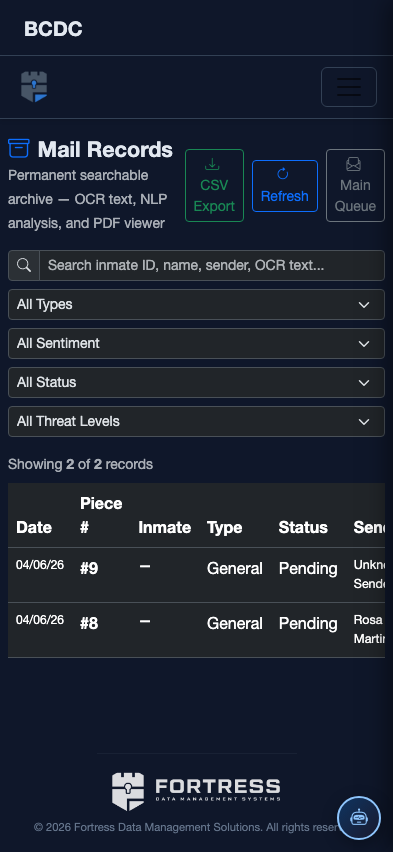
Tab view with data rows
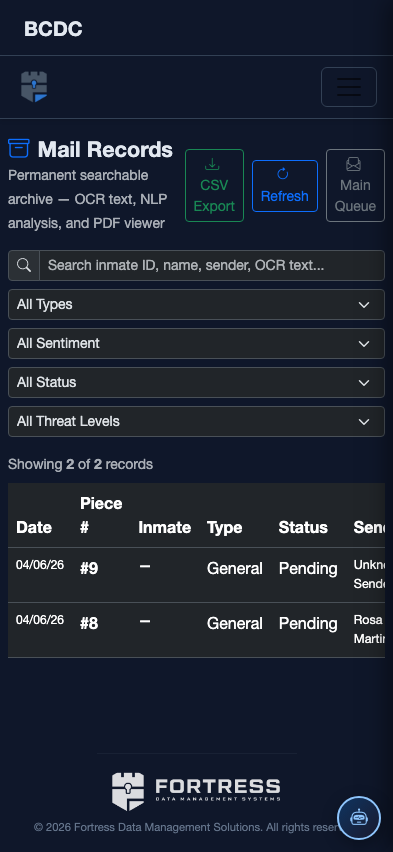
Scrolled / detail view