
Scheduled Reports
The Scheduled Reports tab lets administrators automate the delivery of any standard or custom report on a recurring basis — daily, weekly, or monthly — so command staff, oversight boards, and auditors receive current data without anyone having to manually run and email reports. Configure delivery time, output format, and recipient list once, and the system handles distribution every cycle.
Flexible Scheduling
Set daily, weekly (specific weekday), or monthly (specific day) delivery schedules with a configurable send time.
Multi-Recipient Delivery
Send each scheduled report to multiple email recipients including staff outside FortressDMS — judges, county officials, or state auditors.
Format Options
Choose PDF or Excel for each schedule — PDF for executives, Excel for analysts who need to manipulate the data.
Delivery Notifications
The schedule log records every delivery attempt with a timestamp and success/failure status so you can verify reports reached their recipients.
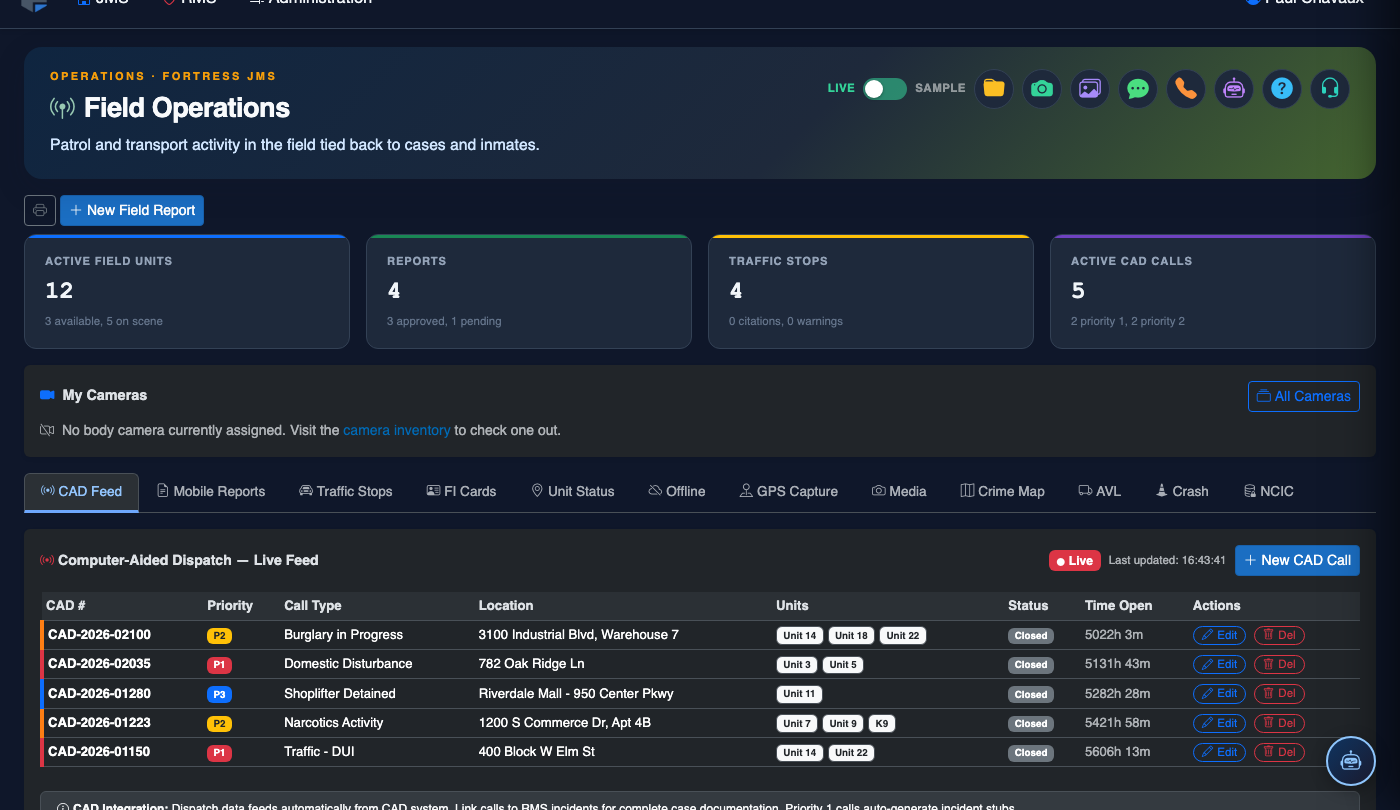
Step-by-Step: Setting Up a Scheduled Report
Navigate to Scheduled Reports
Go to Reports and click the Scheduled Reports tab. The tab displays a list of all currently active schedules with their frequency, next run time, and recipient count. Click + New Schedule to create one.

Select the Report to Schedule
In the Schedule Setup form, use the Report dropdown to choose from all available standard reports or any saved custom report template. The dropdown shows both categories to make selection straightforward.
Set Frequency and Delivery Time
Choose a Frequency: Daily (every day), Weekly (select a day of the week), or Monthly (select a day of the month). Then pick a Delivery Time — reports generated early in the morning (e.g., 6:00 AM) ensure recipients have fresh data at the start of the business day.

Choose Output Format
Select PDF or Excel (.xlsx) as the attachment format. PDF is recommended for executive summaries and compliance filings; Excel is preferred when recipients plan to chart or further analyze the data.
Add Email Recipients
In the Recipients field, enter one or more email addresses separated by commas. Recipients do not need to have FortressDMS accounts — external addresses (county administrators, state auditors, judges) are fully supported.

Save and Activate the Schedule
Click Save Schedule. The new schedule appears in the active schedules list with a green status badge and the calculated Next Run timestamp. The toggle switch on each row lets you pause or resume any schedule without deleting it.
Monitor Delivery History
Click the History icon on any schedule row to view the delivery log — each entry shows the run date/time, recipient addresses, format delivered, and a status of Sent, Failed, or Skipped. Use this to confirm that compliance reports are reaching their destinations.
💡 Pro Tips
- Schedule the Daily Booking Log at 5:00 AM so the administrator on duty has a complete overnight intake summary waiting in their inbox at the start of each shift.
- For monthly county commissioner reports, schedule on the 1st of each month covering the prior month’s date range — use a custom report with a rolling “last 30 days” filter so the range auto-adjusts.
- Pause schedules rather than deleting them when a regular recipient is on leave — resume in one click when they return, preserving all configuration.
- Verify the delivery log after the first scheduled run to confirm SMTP delivery is working before relying on the schedule for compliance obligations.
Mobile View — Scheduled Reports
FortressDMS is fully responsive. Officers can access the Scheduled Reports on a phone or tablet directly from the field — no app install required.
Tab view with data rows
Scrolled / detail view