
Facility Overview
The Facility Overview tab provides correctional administrators with a real-time, at-a-glance snapshot of the entire facility’s housing status, population counts, and bed utilization across all housing units. Staff can instantly identify overcrowded pods, available beds, and inmates flagged for special attention without navigating away from the dashboard. This centralized view is the command center for daily population management and operational decision-making.
Live Population Counts
Displays current inmate population totals by housing unit, pod, and facility-wide in real time.
Bed Utilization Rates
Shows capacity vs. current occupancy per unit so administrators can quickly spot overcrowding or availability.
Alert Flags
Highlights inmates on watch lists, separation orders, or medical holds directly in the facility map view.
Housing Unit Summary
Presents a structured summary of each housing unit’s classification, gender designation, and current status.
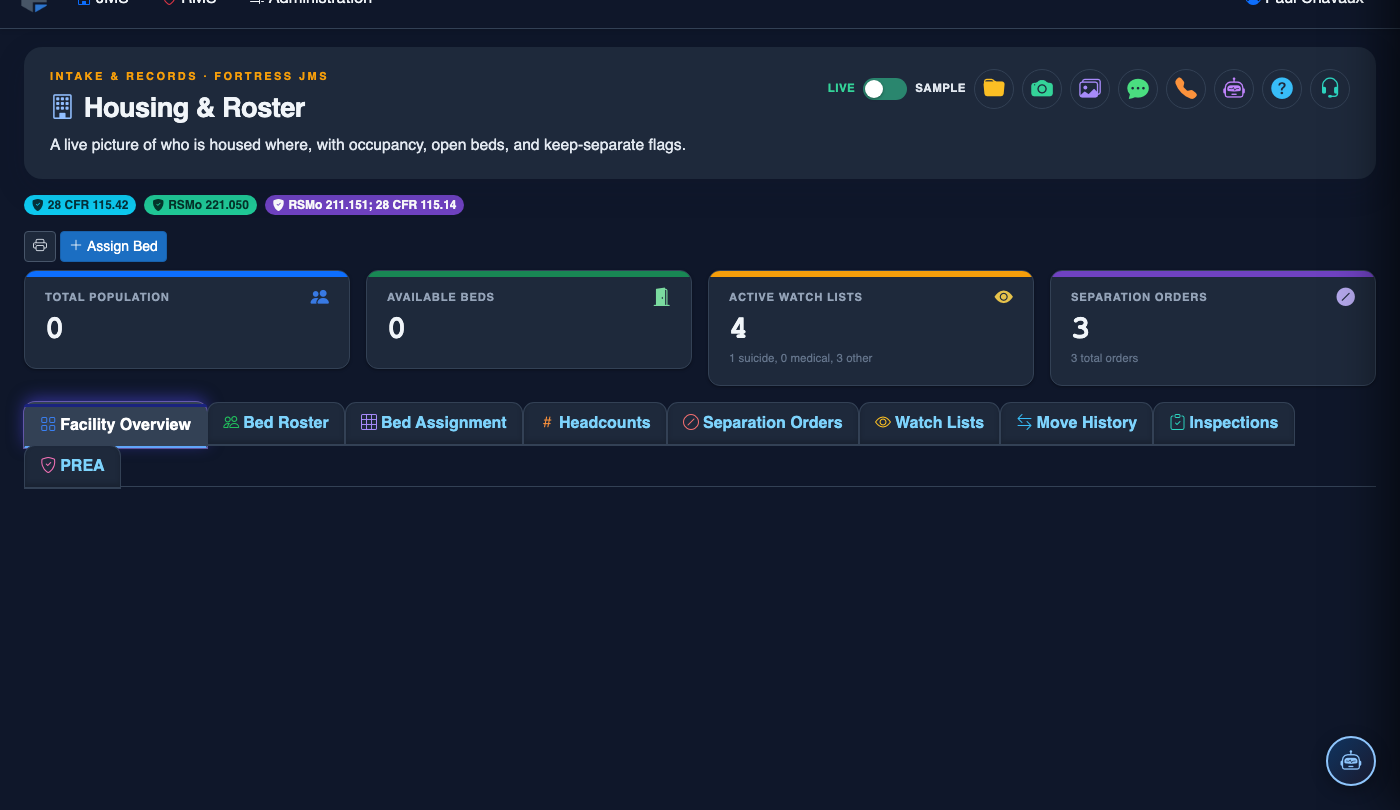
Step-by-Step: Facility Overview
Navigate to Housing & Roster
From the main navigation menu, select Housing & Roster. The module will open directly on the Facility Overview tab, which is the default landing view for this module.
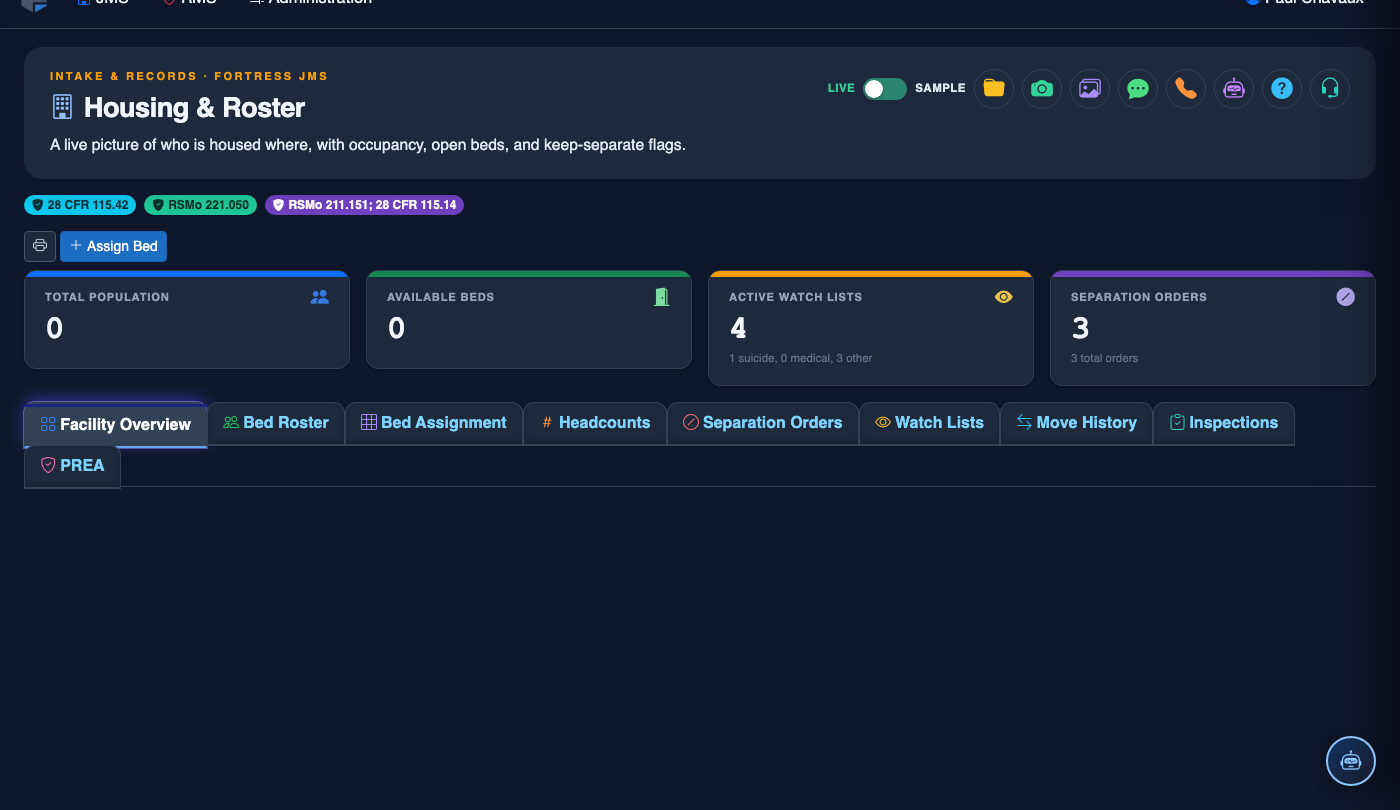
Review Facility-Wide Population Totals
At the top of the overview panel, review the Total Population count alongside the Total Capacity figure. The utilization percentage is color-coded: green for under 80%, amber for 80–95%, and red for over 95% capacity.
Inspect Individual Housing Units
Scroll down to the Housing Unit Grid to see each pod listed with its Unit Name, Classification, Occupied Beds, and Available Beds. Units with active alert flags display colored indicators alongside the unit name.
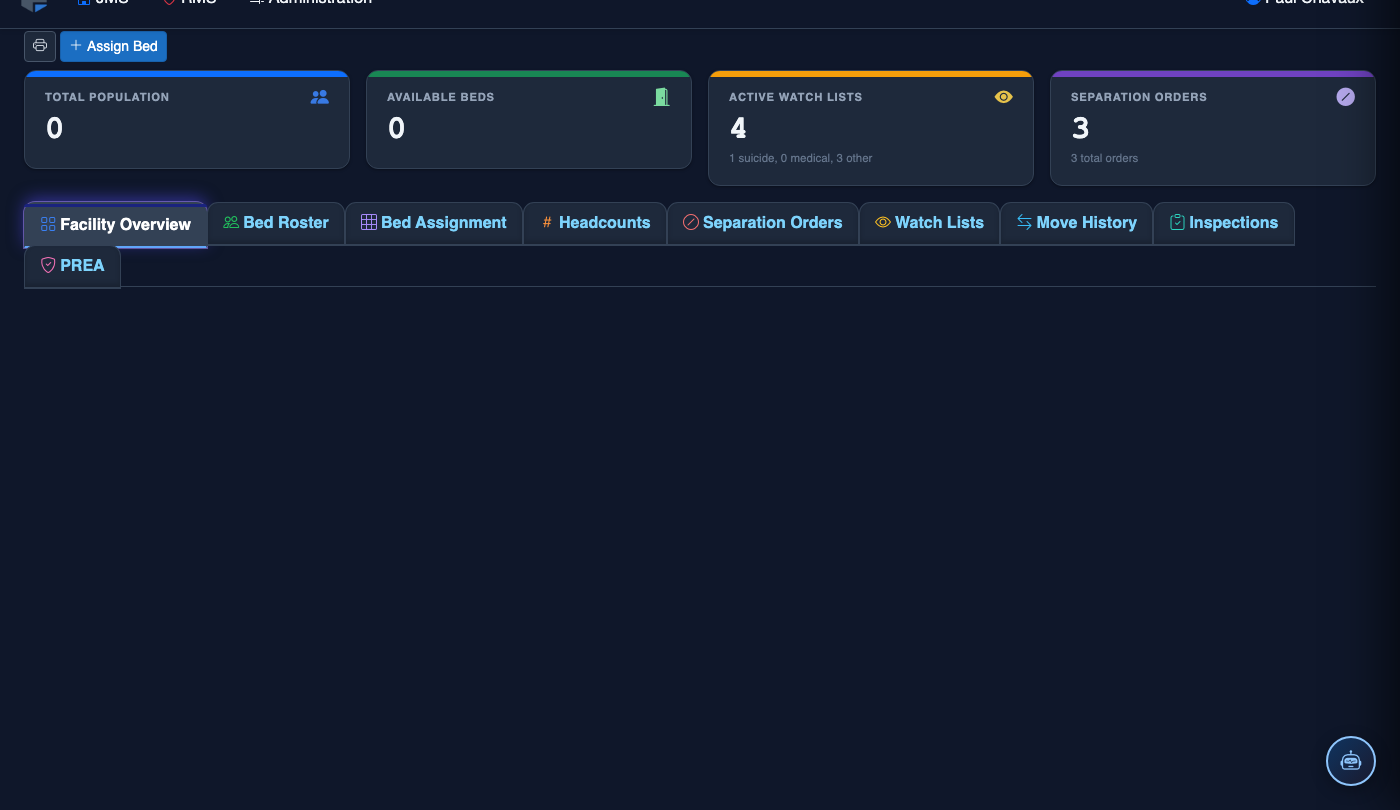
Identify Flagged Inmates
Any inmate with a Separation Order, Medical Hold, or Watch List designation will display a badge next to their housing unit entry. Click the badge icon to view a quick summary of the flag reason and the responsible officer.
Drill Down to a Housing Unit
Click on any housing unit row to expand its detail panel, showing a full list of currently assigned inmates, their Booking Number, Classification Level, and Length of Stay. Use the View Bed Roster button to jump directly to the Bed Roster tab filtered to that unit.

Export the Overview Report
Click the Export button in the upper-right corner of the overview panel to generate a printable PDF or CSV snapshot of the current facility status. This report is suitable for shift briefings, administration meetings, and state reporting requirements.
💡 Pro Tips
- Bookmark the Facility Overview as your browser homepage for instant situational awareness at the start of each shift.
- Red capacity indicators on a unit do not automatically trigger a lockdown — use the Bed Assignment tab to move inmates to available units and resolve the overcrowding flag.
- The overview refreshes automatically every 60 seconds; press F5 or click Refresh to force an immediate update after a large booking intake.
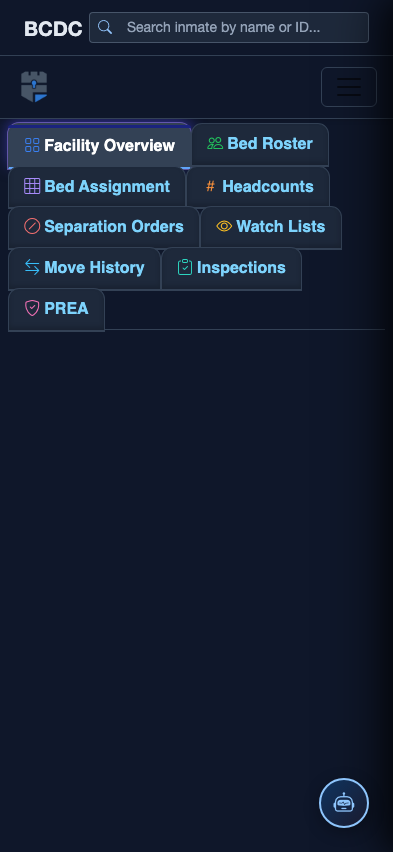
Mobile View — Facility Overview
FortressDMS is fully responsive. Officers can access the Facility Overview on a phone or tablet directly from the field — no app install required.
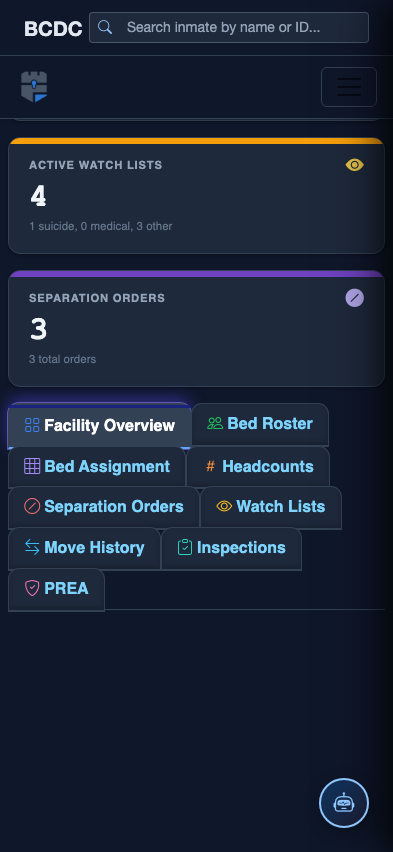
Tab view with data rows
Scrolled / detail view