
Allergy Tracking
The Allergy Tracking tab enables medical and food service staff to document, classify, and enforce inmate food allergies and intolerances with the rigor required for correctional healthcare compliance. Allergy records are cross-referenced against active meal plans in real time, generate visible kitchen alerts, and feed into the broader dietary compliance audit trail — protecting inmates from preventable adverse events and protecting the facility from liability.
Severity Classification
Classify each allergy as Intolerance, Allergy, or Anaphylactic — with escalating alert levels that reach kitchen, housing, and medical staff appropriately.
Meal Plan Integration
Allergy records are automatically matched against the weekly meal plan; any meal item containing a listed allergen triggers a conflict flag before the menu is approved.
Medical Documentation
Attach physician notes, allergy test results, or prior reaction records to each allergy entry to substantiate the accommodation for legal and accreditation purposes.
Facility-Wide Alerts
Anaphylactic allergy designations generate a persistent red banner on the inmate’s full profile, visible to all authorized staff regardless of which module they are viewing.
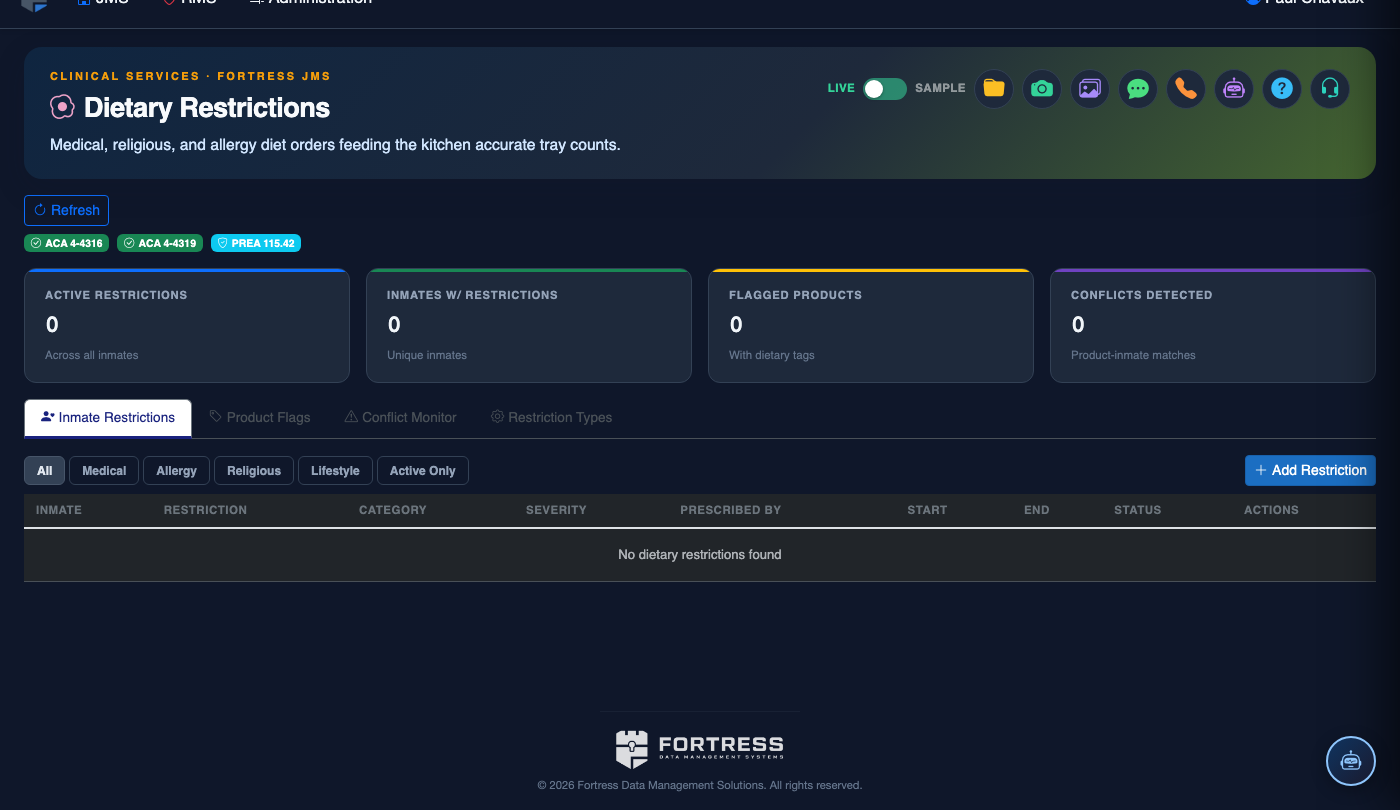
Step-by-Step: Allergy Tracking
Open the Allergy Tracking Tab
In the Dietary Restrictions module, click the Allergy Tracking tab. The view shows all inmates with recorded allergies, filterable by allergen category, severity level, or housing unit.
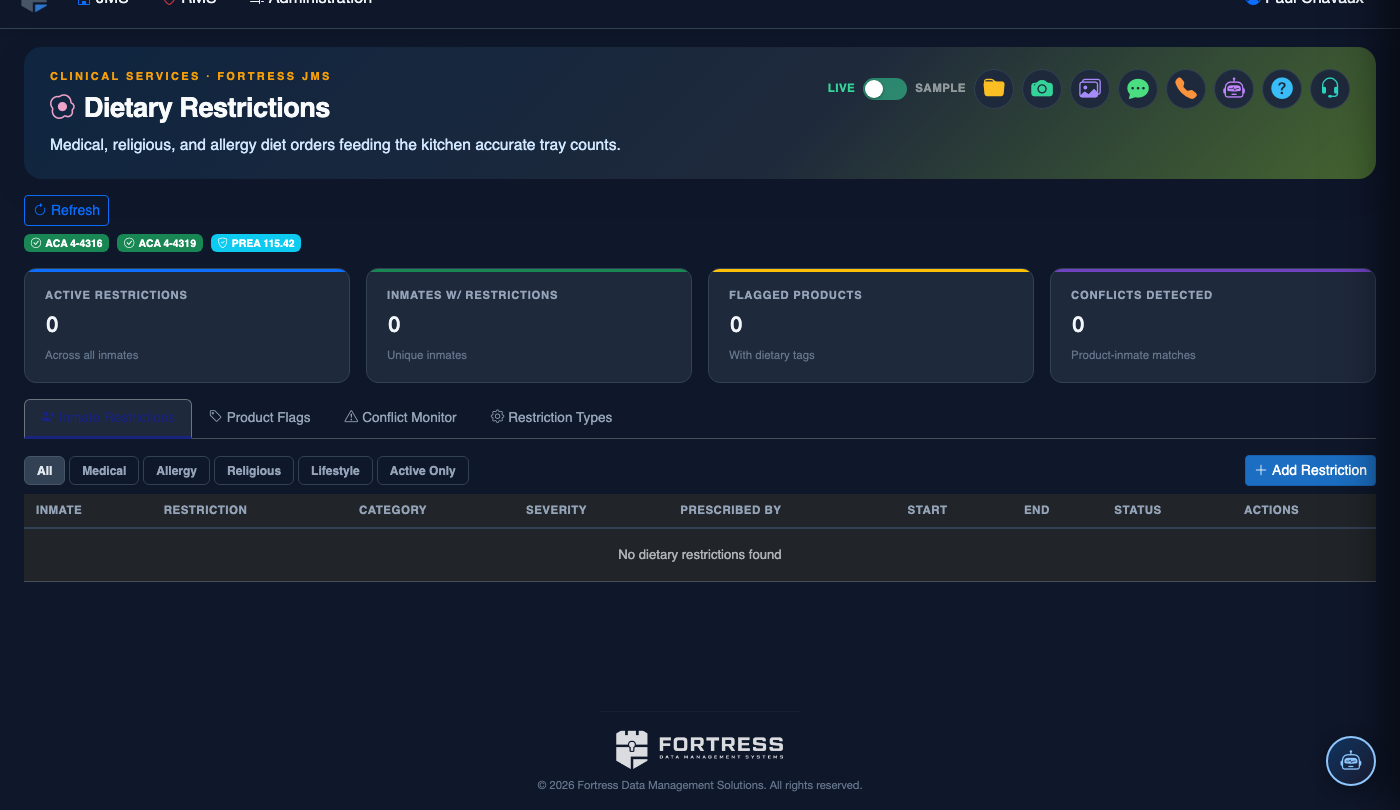
Search for an Inmate
Use the Search Inmates bar to find a specific inmate by name or booking number. Click the inmate’s row to open their allergy detail panel on the right side of the screen.
Add a New Allergy Record
In the inmate’s allergy detail panel, click Add Allergy. Select the allergen from the standardized list — common items include Peanuts, Tree Nuts, Shellfish, Fish, Milk/Dairy, Eggs, Wheat/Gluten, Soy, and Sesame. For unlisted allergens, use the Custom Allergen field and enter the specific item.
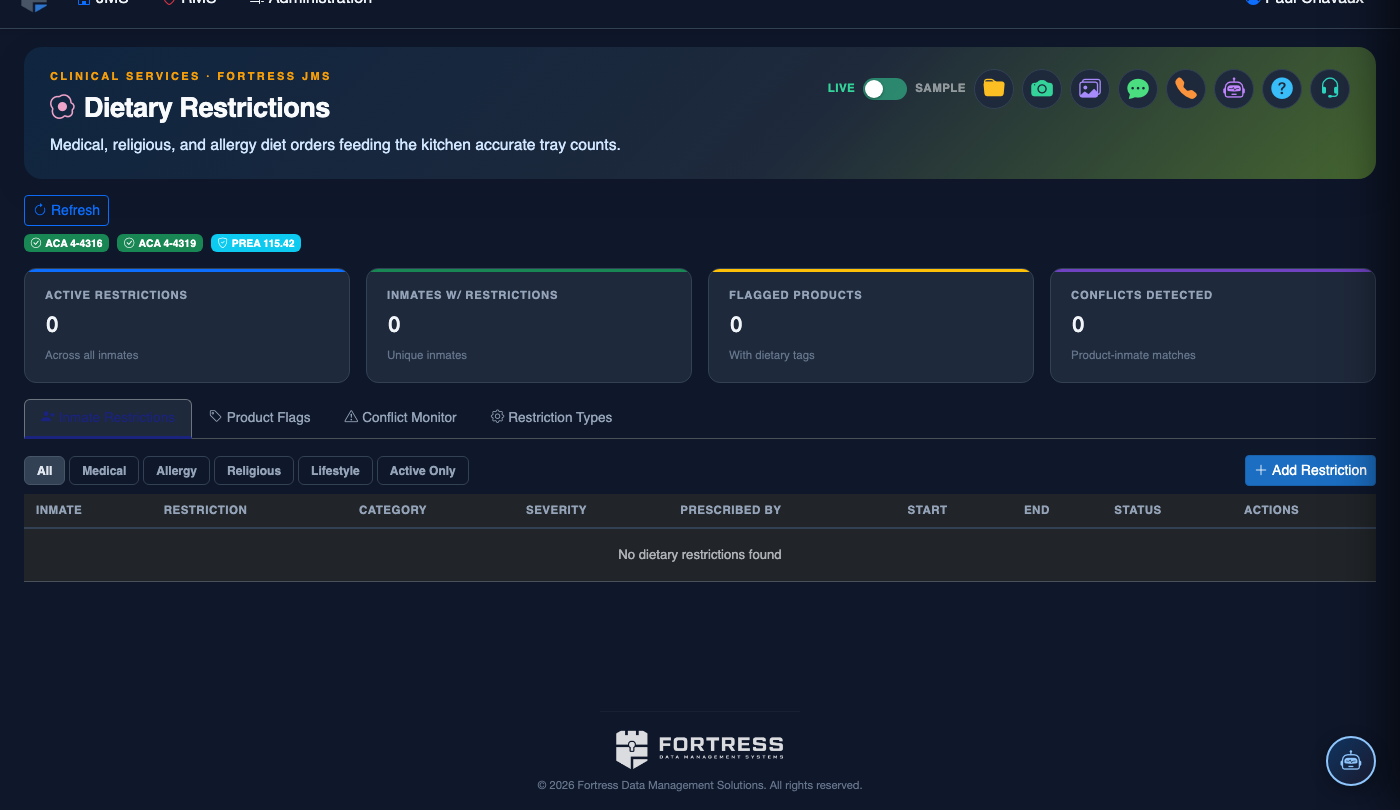
Set Severity and Onset Date
Choose the Severity level: Intolerance (digestive/discomfort response), Allergy (immune response requiring menu exclusion), or Anaphylactic (life-threatening — triggers full alert protocol). Enter the Onset / Reported Date and the name of the reporting source (inmate self-report, booking officer, or medical provider).
Attach Supporting Documentation
Click Attach Document to upload physician allergy test results, prior ER records, or pharmacy notes. Supported formats include PDF and JPEG. Attached documents are stored in the inmate’s medical record and accessible from both the Allergy Tracking tab and the main Medical profile.
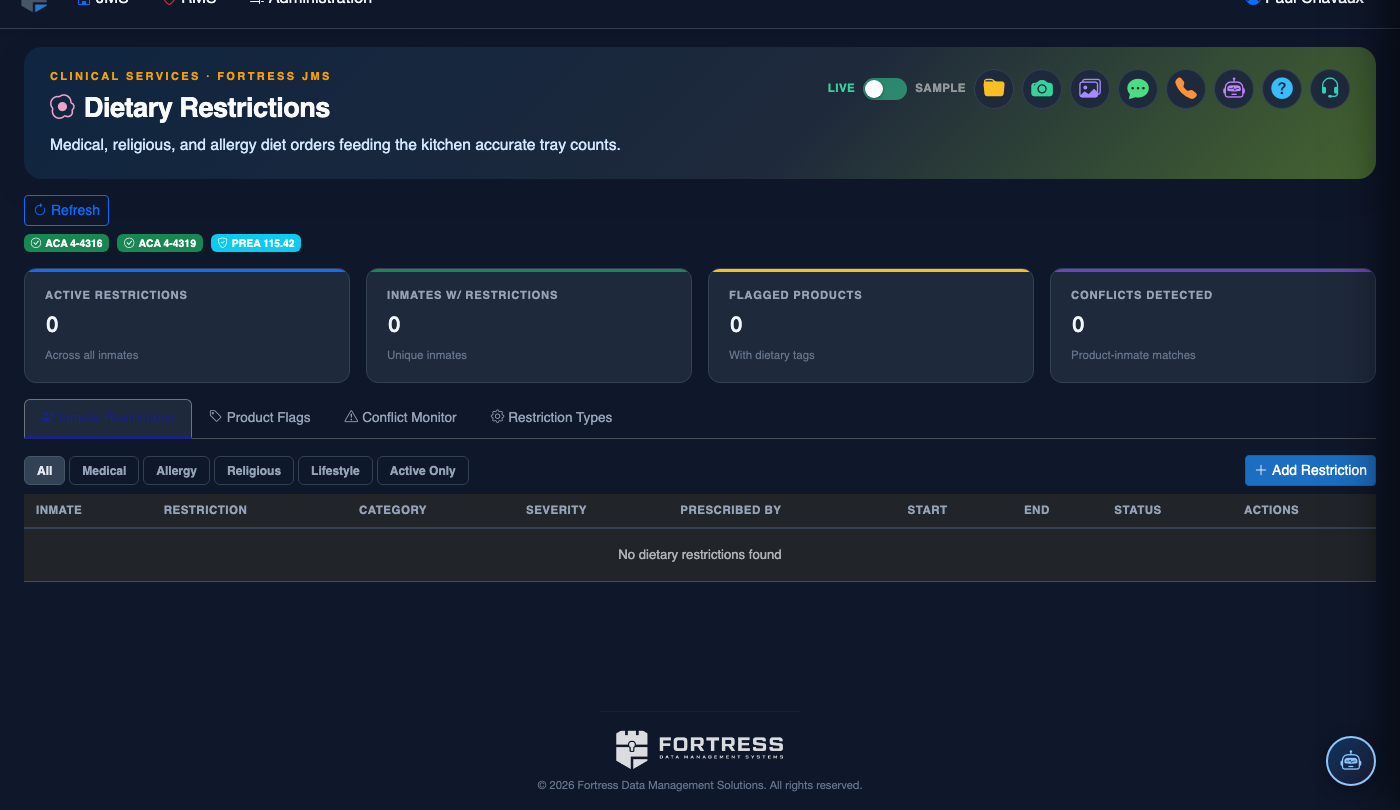
Confirm Meal Plan Impact
After saving the allergy record, click Check Meal Plan Conflicts. The system scans the current and next week’s approved menus and displays any meal items that contain the newly recorded allergen. Staff are prompted to initiate a Supervisor Override to substitute the conflicting items before the next meal service.
Review the Facility Allergy Summary
From the tab’s main list view (no inmate selected), click Facility Allergy Report to generate a summary of all active allergies sorted by severity. Anaphylactic cases are listed first with housing unit, current medication (e.g., epinephrine auto-injector on file), and last medical review date — essential for shift briefings and emergency planning.
Add a Dietary Restriction or Profile
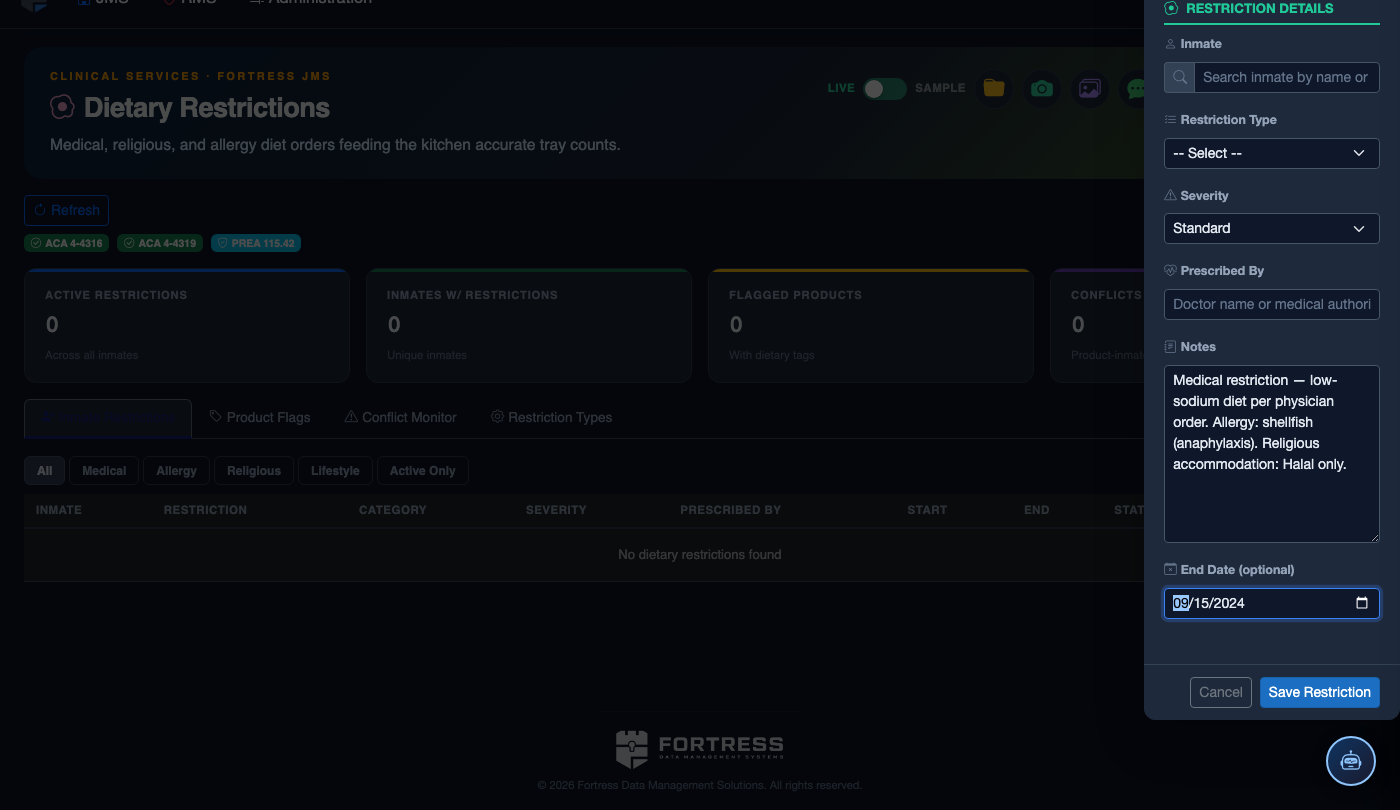
Click Add Restriction. Complete the dietary record:
- Inmate — search by name or booking number.
- Restriction Type — Medical, Allergy, Religious, or Lifestyle Preference.
- Specific Restriction / Allergy — document precisely (e.g., “Shellfish — anaphylaxis risk, auto-injector on file”).
- Meal Plan — select the kitchen plan that satisfies all active restrictions (plans update kitchen print sheets automatically).
- Physician Order — for medical restrictions, attach or reference the ordering physician’s note.
- Effective / Expiry Dates — set expiry for temporary restrictions; permanent restrictions have no expiry.
- Click Save Profile. The restriction appears on kitchen tray-line cards at the next meal cycle.
💡 Pro Tips
- Anaphylactic designations must be entered by medical staff, not food service personnel — enforce this workflow to ensure clinical accountability for the highest-severity records.
- Use the Custom Allergen field for specific product allergies (e.g., a particular brand of canned tomatoes) and note the exact item in the attached documentation.
- The Facility Allergy Summary report is ideal for shift-change briefings in the kitchen — post a printed copy at each kitchen station at the start of every service week.
- Self-reported allergies that lack medical documentation should be recorded with severity Intolerance and a note flagging ‘Pending medical verification’ — this protects the inmate while the claim is being confirmed.
Mobile View — Allergy Tracking
FortressDMS is fully responsive. Officers can access the Allergy Tracking on a phone or tablet directly from the field — no app install required.
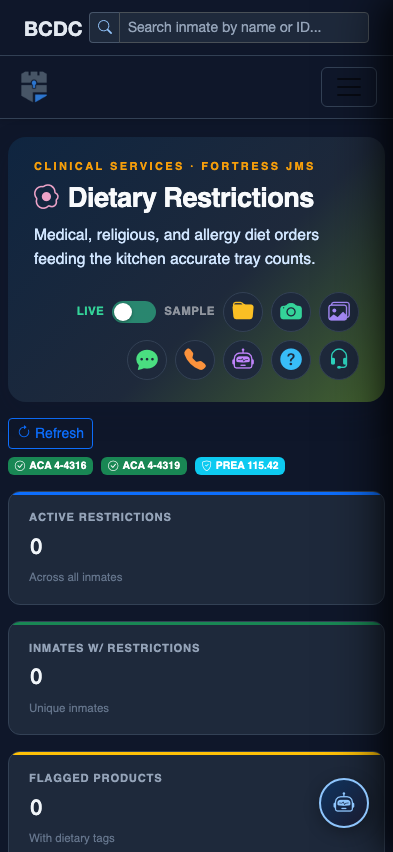
Tab view with data rows
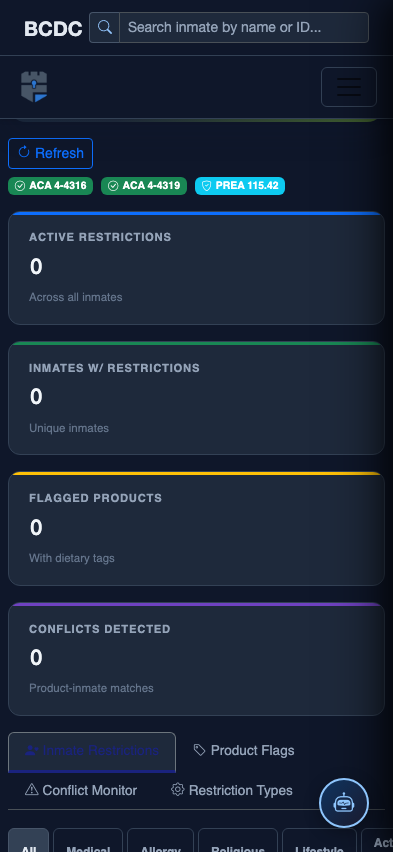
Scrolled / detail view