
Armory Management
The Armory Management tab provides correctional facilities with a comprehensive system for tracking, issuing, and auditing all weapons, firearms, and defensive equipment. Administrators can maintain chain-of-custody records for every armory item, enforce access controls, and generate compliance reports required by state oversight bodies. Officers checking out and returning equipment are logged in real time, ensuring accountability across every shift.
Weapon Inventory
Maintain a complete catalog of all firearms, tasers, batons, and chemical agents with serial numbers and condition status.
Checkout & Return Logging
Record officer name, badge number, timestamp, and shift for every equipment checkout and return transaction.
Access Controls
Restrict armory access by rank, clearance level, and post assignment to enforce need-to-carry policies.
Compliance Audits
Generate detailed audit reports for state inspections, including chain-of-custody history and annual inventory reconciliation.
Step-by-Step: Armory Management
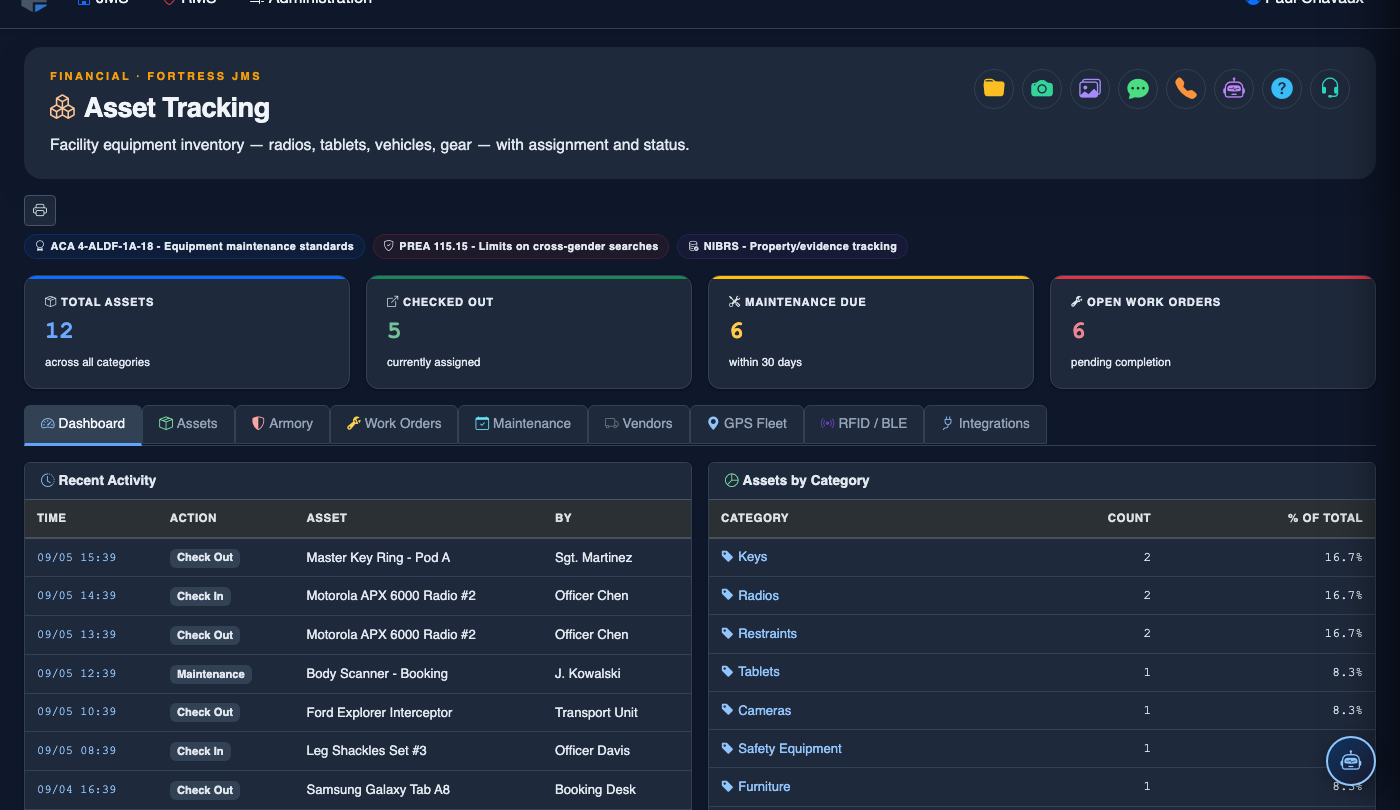
Navigate to Asset Tracking > Armory Management
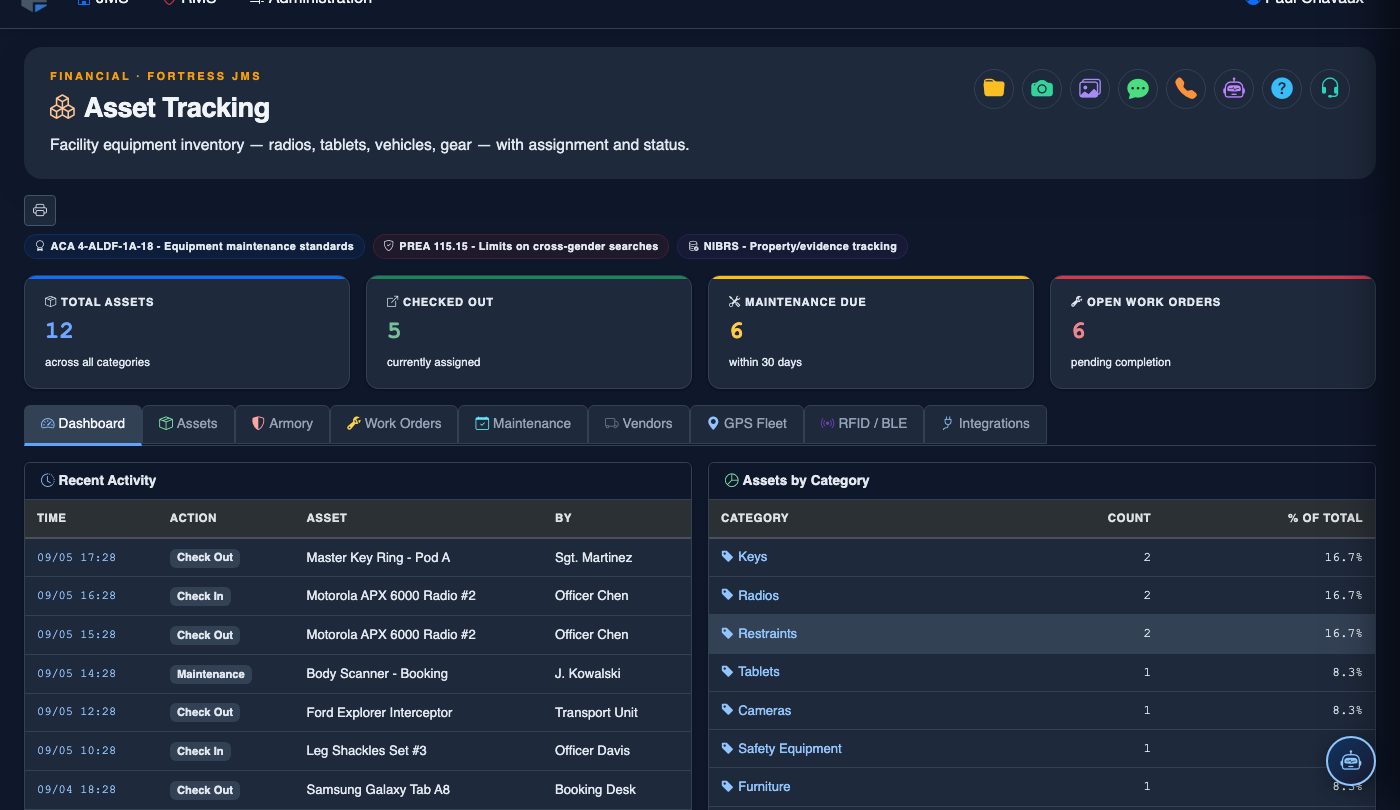
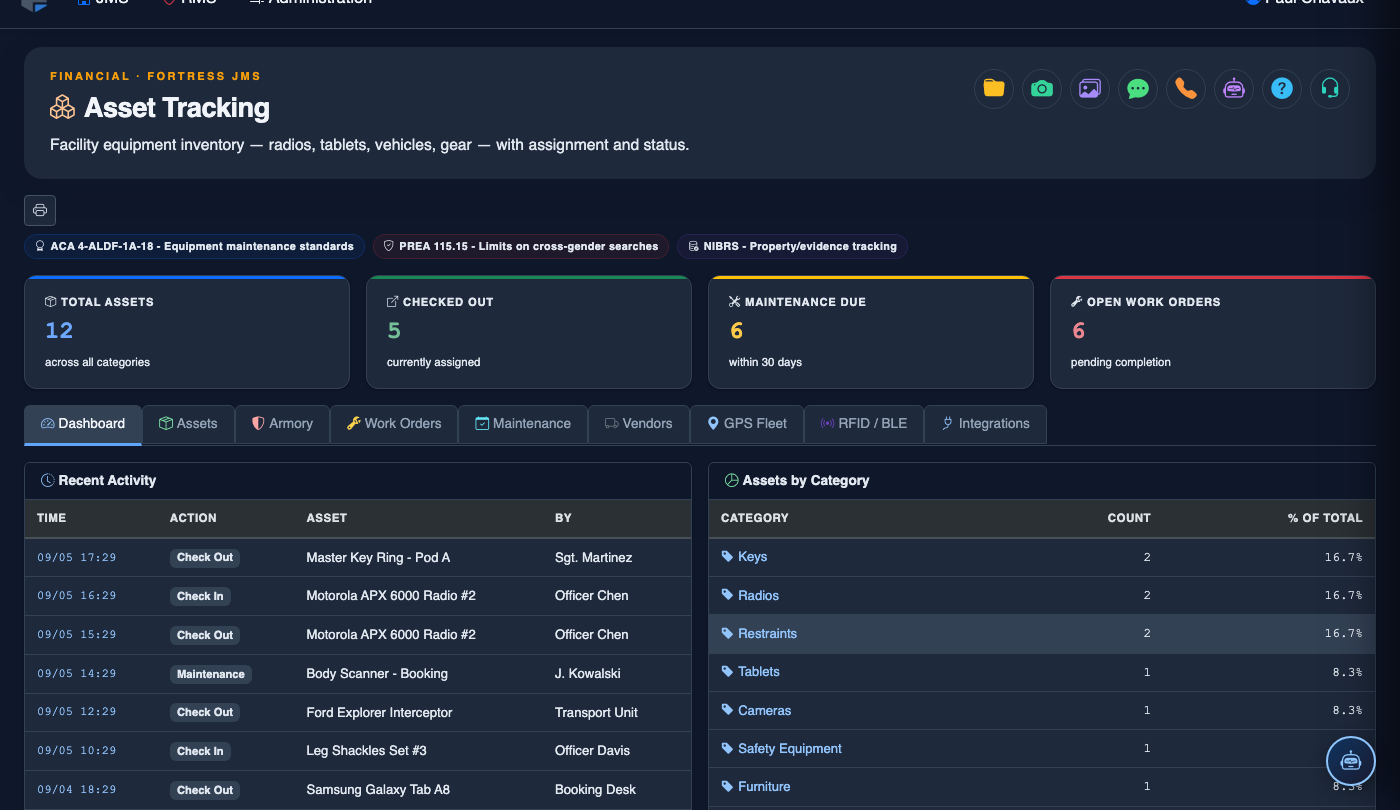
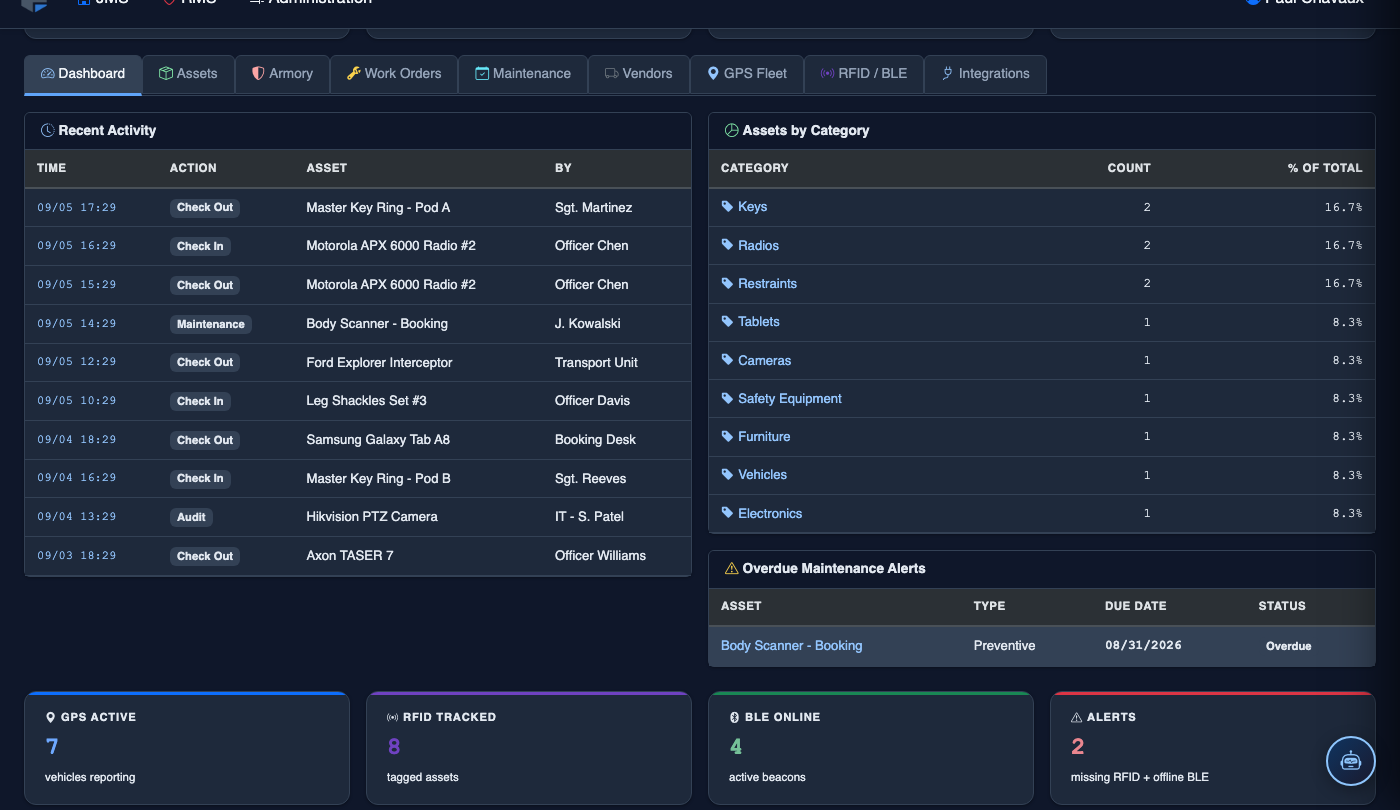
From the main navigation, select Asset Tracking and then click the Armory Management tab. The armory dashboard displays current inventory status, items checked out, and any overdue returns.
Add or Locate an Armory Item
Click Add Item to register new equipment, or use the Search bar to locate an existing item by serial number, type, or storage location. Each item record includes make, model, caliber (for firearms), condition rating, and assigned storage locker.
Process an Equipment Checkout
Select the item and click Check Out. Enter the officer’s Badge Number, confirm their Clearance Level meets the item’s requirement, and select the Post Assignment. The system timestamps the transaction and updates the item status to Checked Out.
Process a Return and Condition Check
When equipment is returned, click Check In on the item record. Select the returning officer, note the item’s Return Condition from the dropdown (Serviceable / Needs Maintenance / Damaged), and add any remarks. If condition has changed, the system can automatically generate a Work Order.
Set Access Control Restrictions
Open item settings and navigate to the Access Control tab. Define which Rank Levels and Post Assignments are authorized to check out this item. Unauthorized checkout attempts are blocked and logged for supervisor review.
Run an Inventory Audit Report
Click Reports and select Armory Audit. Choose a date range, then click Generate Report. The report lists every transaction including officer name, item serial number, checkout time, return time, and condition notes — suitable for state inspection submission.
Manage Overdue Returns and Alerts
The Overdue Items panel highlights any equipment not returned within the expected shift window. Supervisors receive automatic alerts via the notification system. Click Escalate to notify the chain of command and document the discrepancy in the item’s chain-of-custody log.
💡 Pro Tips
- Schedule a physical inventory reconciliation at the start of each month and compare counts against the system ledger to catch discrepancies early.
- Use the Condition Notes field consistently — detailed notes at return time make maintenance scheduling and liability documentation far easier during audits.
- Pair the Armory tab with the Work Orders tab so that any item flagged as damaged automatically enters the maintenance queue without manual intervention.
Mobile View — Armory Management
FortressDMS is fully responsive. Officers can access the Armory Management on a phone or tablet directly from the field — no app install required.
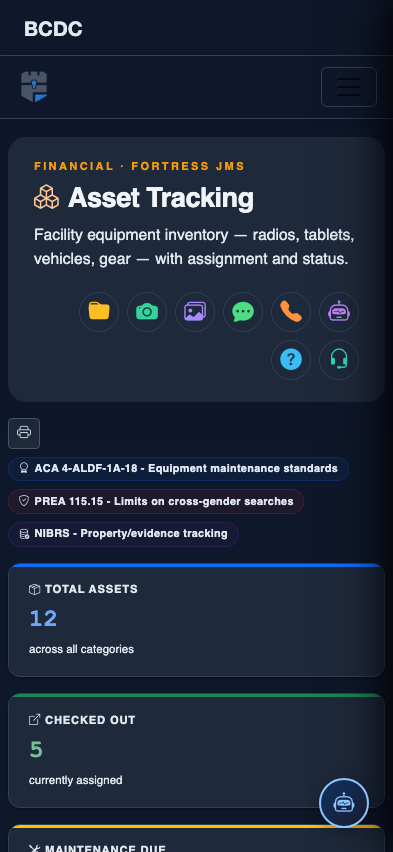
Tab view with data rows
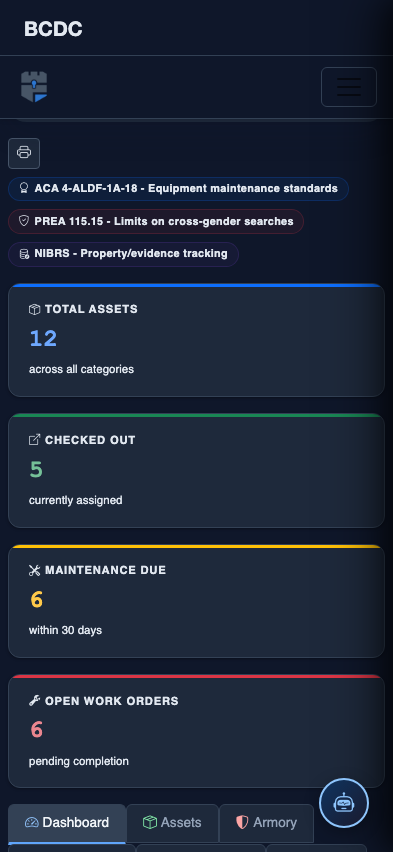
Scrolled / detail view