
Batch Import — Fujitsu fi-8270
Connect the Fujitsu fi-8270 ADF production scanner to import an entire day’s mail in one run. The scanner handles 2,000+ letters per day — cover-to-cover in under two hours.
ADF Production Scanner
The Fujitsu fi-8270 scans at 100 ppm duplex with a 100-sheet feeder. The KioskScanner tray app drives it directly from Windows via TWAIN/WIA.
Envelope-as-Separator
Landscape-orientation scans (envelope faces) are detected as new-piece separators. Portrait pages (letter content) attach to the preceding envelope automatically.
Manifest CSV Pre-Match
Upload a manifest CSV before the scan run to pre-match filename → inmate ID. The scanner then assigns pieces automatically during import.
Bulk Processing
All pages are OCR’d, NLP-analyzed, and keyword-scanned in parallel as the batch uploads. Staff review the flagged subset — not every piece.
📚 How To: Run a Daily Batch Import
Open Batch Import
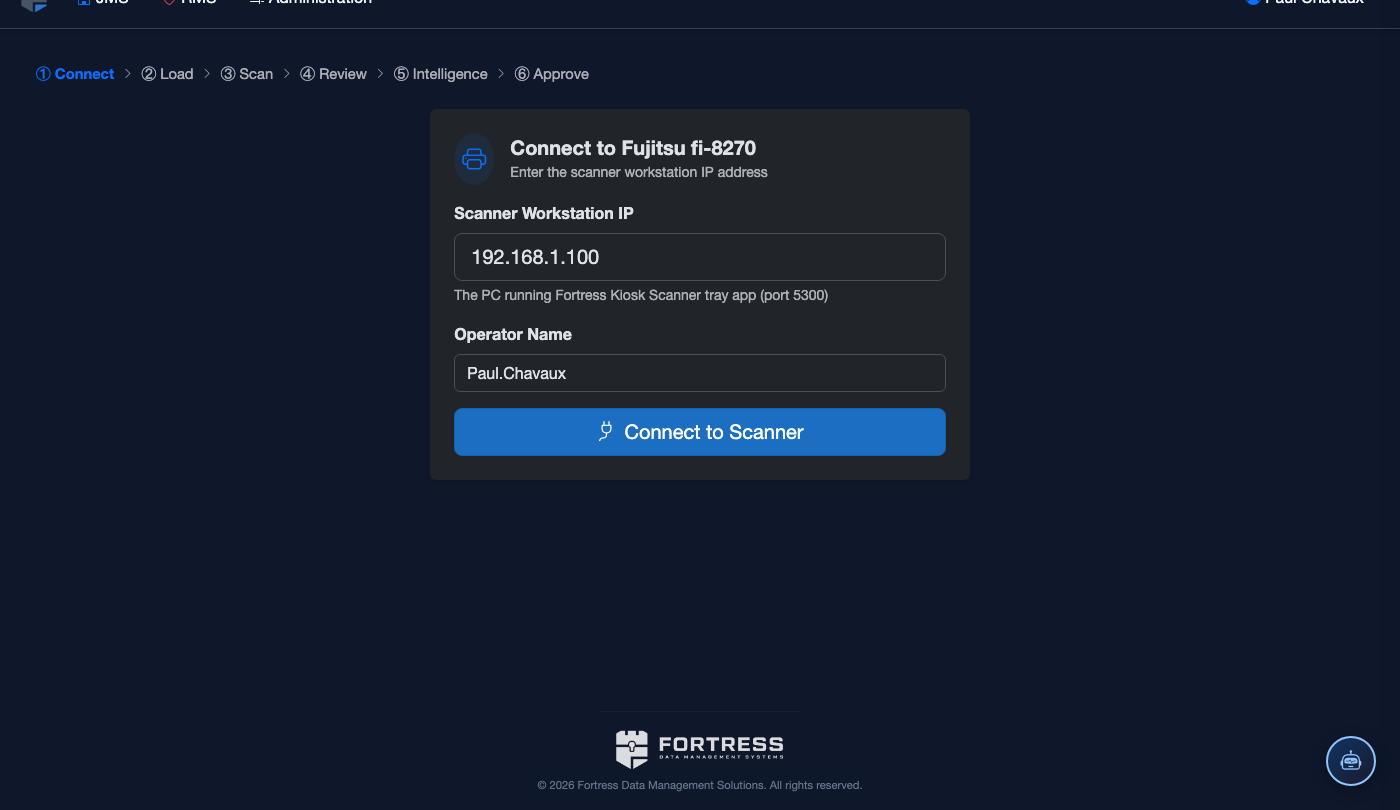
Navigate to JMS → IPS → ScanMail → Batch Import. You’ll see the 6-step batch wizard with the Fujitsu fi-8270 connection panel at the top.
Sort & Batch the Physical Mail
Before scanning, separate mail into three batches: General, Legal, and Media. Legal mail is flagged at scan time — it bypasses AI analysis entirely per attorney–client privilege rules.
Connect to Scanner
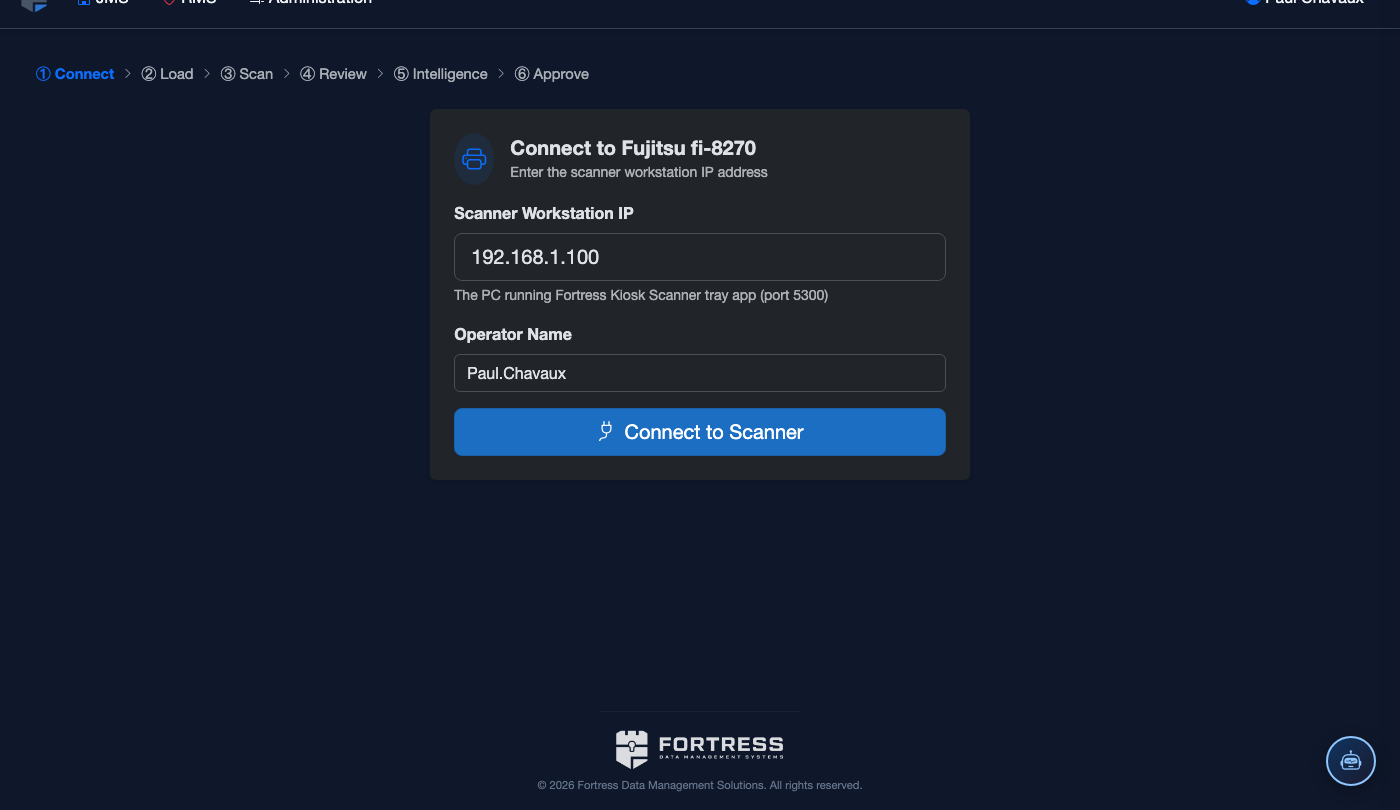
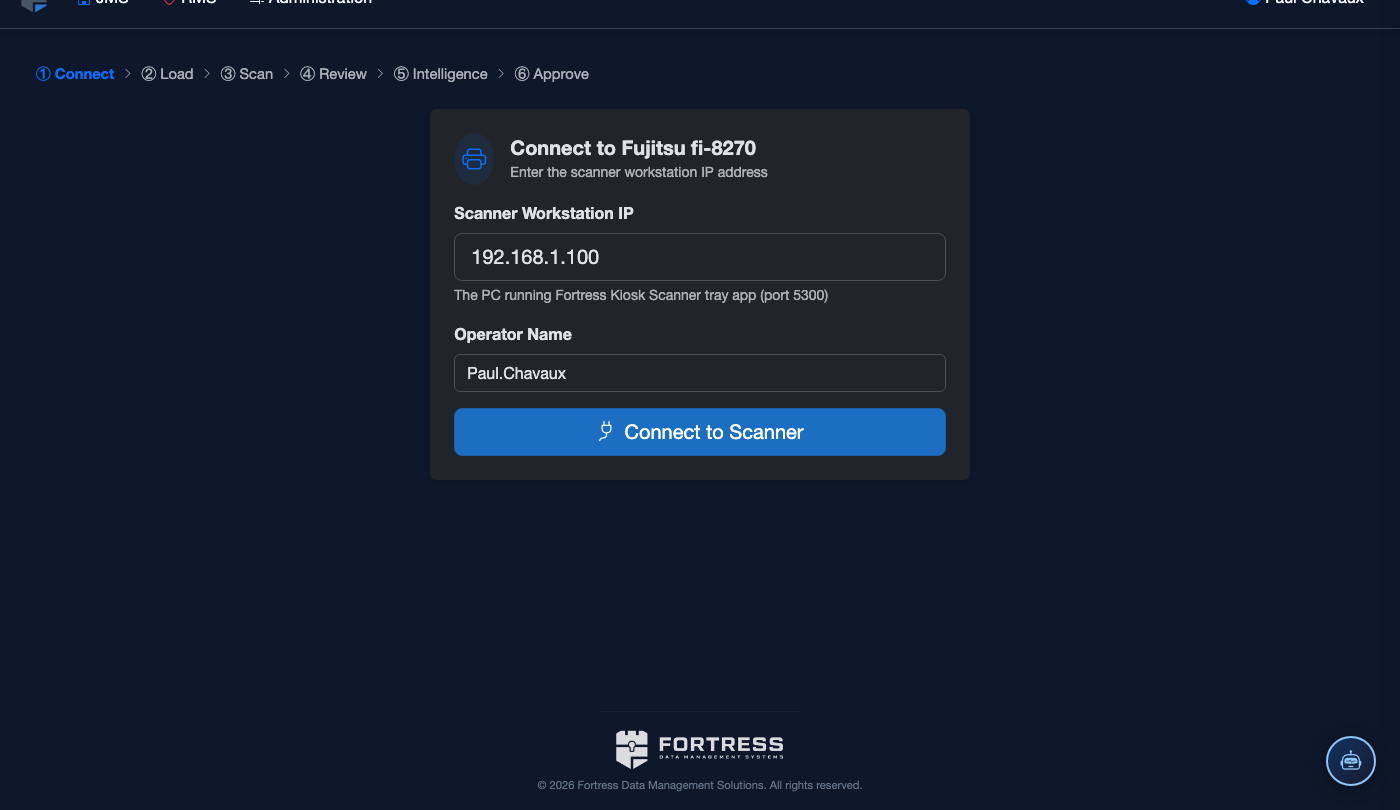
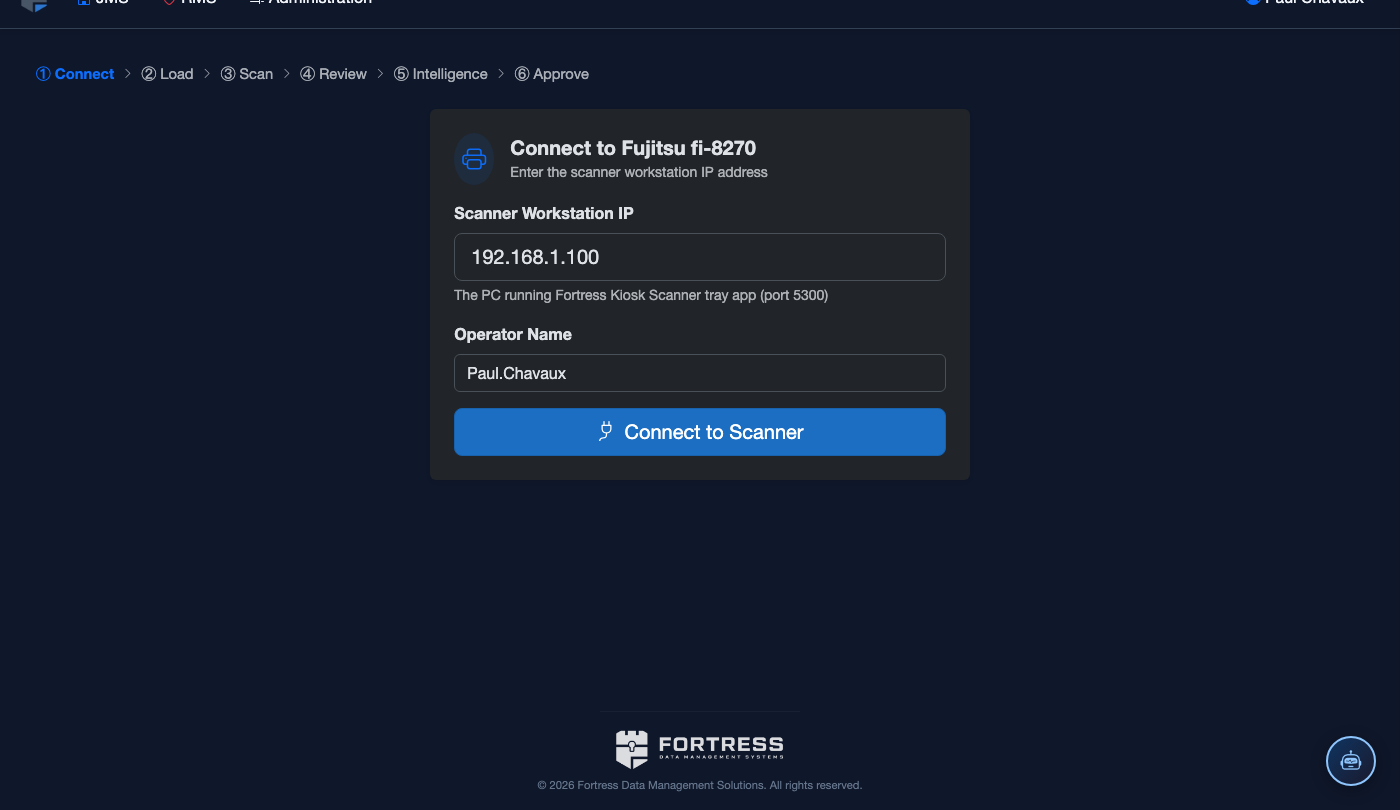
Click Connect to Scanner. The Fortress KioskScanner tray app (running at localhost:5300) connects via TWAIN. Status changes to Scanner Ready with the model name and ADF capacity shown.
Optional: Upload Manifest CSV
Upload a manifest CSV (filename,inmate_id) to pre-match scanned files to inmates before the run starts. Without a manifest, inmate assignment happens during the review step.
Run the Scan
Load the sorted mail into the ADF feeder (General batch first). Click Start Scan. The fi-8270 scans at 100 ppm duplex — 2,000 letters (avg 3 pages each) completes in roughly 2 hours. A live progress counter shows pages scanned and pieces detected.
Review & Submit Batch
After scanning, the wizard shows a thumbnail grid of all pieces detected. Verify the envelope-to-letter groupings, correct any mis-detected separators, then click Submit Batch. All pieces enter the Mail Queue for officer approval.
- Review the Piece Count — should match physical count.
- Check the Unassigned count — pieces without an inmate match show in amber.
- Click any piece thumbnail to reassign or split pages.
- Click Submit Batch to Queue to push all pieces to officer review.
- Scan General mail first, then Legal mail as a separate batch so type flags are applied correctly.
- If the fi-8270 isn’t available, you can also scan to a network folder (SMB share) — the ScanMailWatchFolderService picks up new files automatically.
- Landscape pages (envelopes) are the separator signal. Keep envelopes intact — don’t remove them before scanning.
Mobile View — Batch Import
FortressDMS is fully responsive. Officers can access the Batch Import on a phone or tablet directly from the field — no app install required.
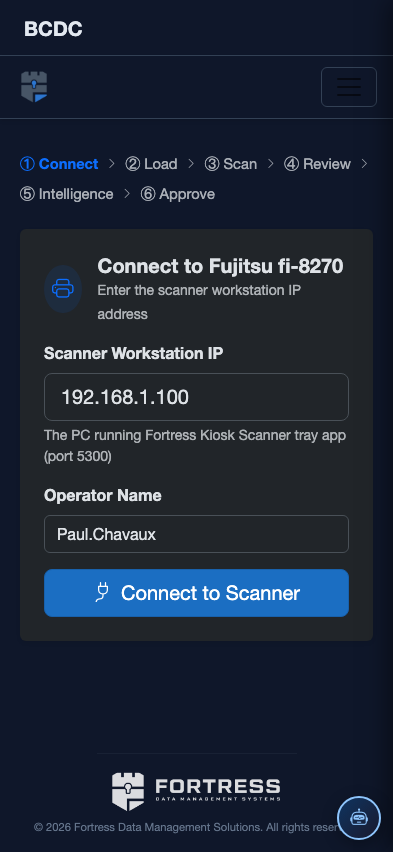
Tab view with data rows
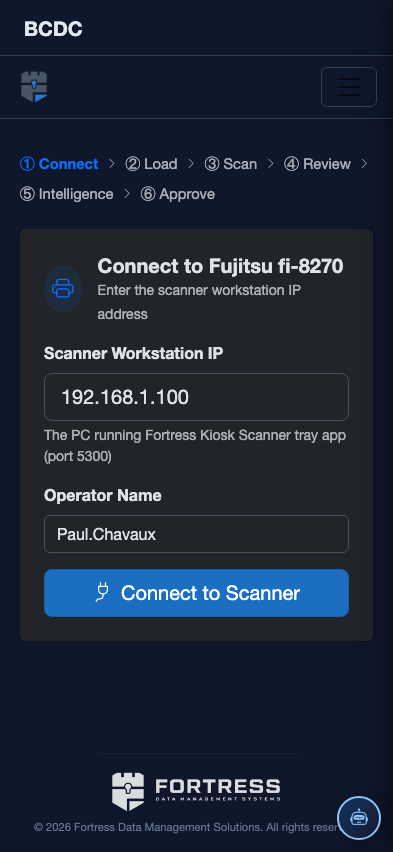
Scrolled / detail view