
Redaction Workbench
The Redaction Workbench gives authorized correctional staff a professional video and audio redaction environment to prepare BWC recordings for public records requests, court disclosures, or media release. Frame-accurate redaction tools allow staff to blur faces, obscure sensitive areas, and mute audio segments while preserving the original unmodified source recording. Every redacted copy is versioned and the full edit history is retained for chain-of-custody compliance.
Frame-Accurate Editing
Scrub to exact frames and apply redactions with precision using the timeline editor.
Face & Region Blur
AI-assisted face detection plus manual region selection for blurring faces, license plates, and sensitive areas.
Audio Muting
Mute specific audio segments to protect privileged communications, medical disclosures, or minor identities.
Versioned Output
Every redacted export is saved as a new version; the unmodified original is always preserved and separately secured.
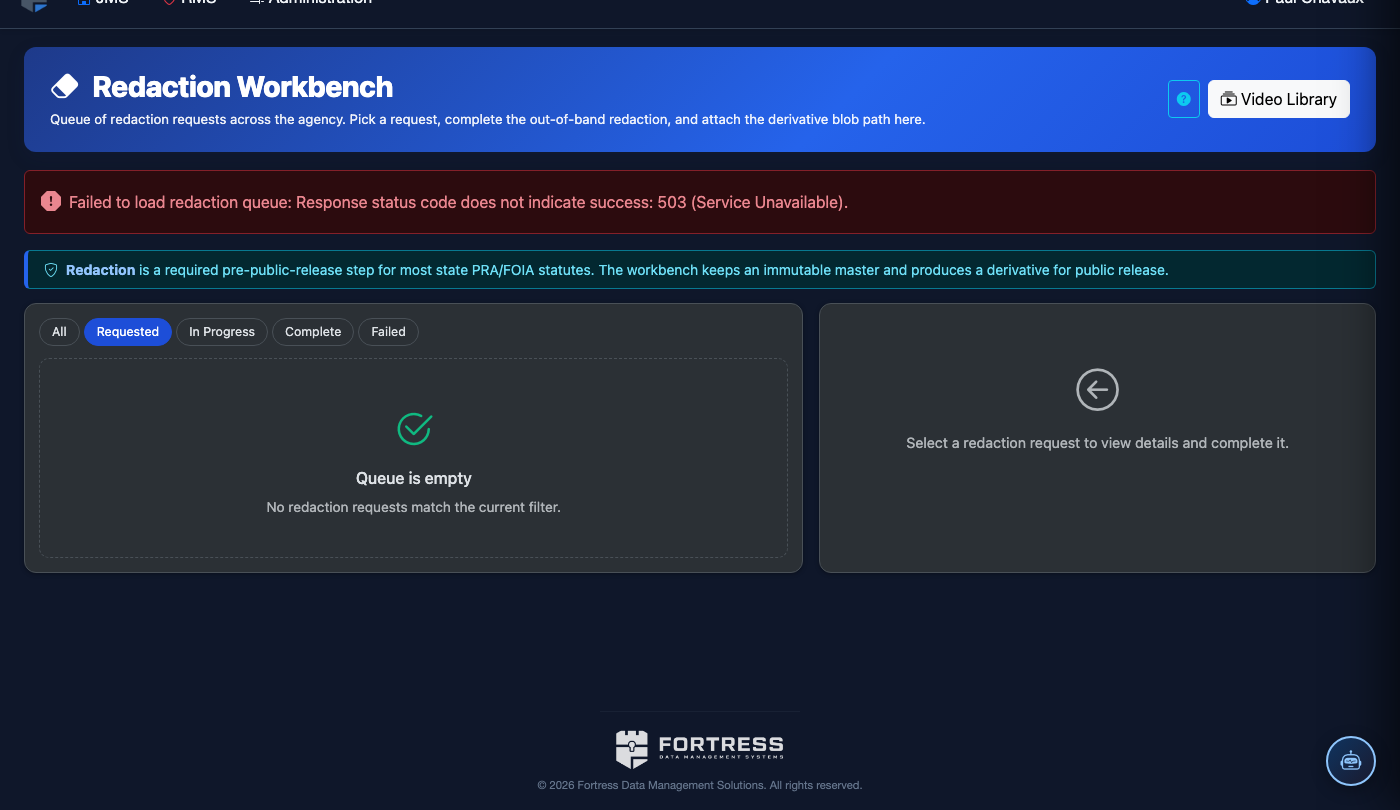
Step-by-Step: Redacting a BWC Recording
Open a Recording in the Workbench
Navigate to BWC & Video > Redaction Workbench. Click New Redaction Project and search for the source recording by officer name, date, or booking number. Select the recording and click Open in Workbench. The system creates a working copy — the original is never modified.
Set the Redaction Request Context
In the Project Details panel on the right, enter the Request Type (Public Records, Court Order, Media, Internal Review), the Requestor Name or Case Number, and the Due Date. This metadata is attached to every exported version and is visible in the audit log.
Apply Face and Region Redactions
Click Auto-Detect Faces to run the AI face-detection pass — detected faces are highlighted with orange bounding boxes. Review and accept or reject each detection. To manually add a blur region, click Add Region, draw a box over the area in the video frame, and drag the timeline handles to set the Start and End timestamps for that redaction. Choose Blur or Blackout as the effect.
Mute Sensitive Audio Segments
Switch to the Audio tab in the redaction panel. The waveform display makes it easy to identify speech segments. Click and drag to highlight a segment, then click Mute Segment. Common use cases include protecting medical disclosures, attorney communications, or minor victims. Muted segments are shown as grey blocks on the timeline.
Preview the Redacted Output
Click Preview Redacted to play back the video exactly as it will appear in the exported copy. All blur regions, blackouts, and muted audio segments are applied in real time during preview. Toggle between Original and Redacted view using the switch above the player to verify redactions are correct before finalizing.
Submit for Supervisor Approval
Click Submit for Review. A designated approving supervisor receives a notification to review the redaction project. The supervisor can add comments, request additional redactions, or click Approve & Finalize. Approval is required before the export download link becomes active.
Export the Finalized Redacted Copy
Once approved, click Export and choose the output format (MP4 recommended for court; WMV for legacy systems). The export is watermarked with the project metadata and a unique export ID. Download the file or generate a Secure Share Link with an expiration date for direct delivery to the requestor.
💡 Pro Tips
- Use the Tracking Redaction mode for moving subjects — it automatically follows a face or region across frames so you don’t have to manually adjust the bounding box every few seconds.
- Save redaction templates for common scenarios (e.g., a "Minor Victim" template that auto-mutes all audio and blurs all detected faces) to reduce processing time on similar requests.
- The original, unmodified recording is always stored separately and requires a second supervisor’s authorization to access — redacting does not destroy evidence.
Mobile View — Redaction Workbench
FortressDMS is fully responsive. Officers can access the Redaction Workbench on a phone or tablet directly from the field — no app install required.
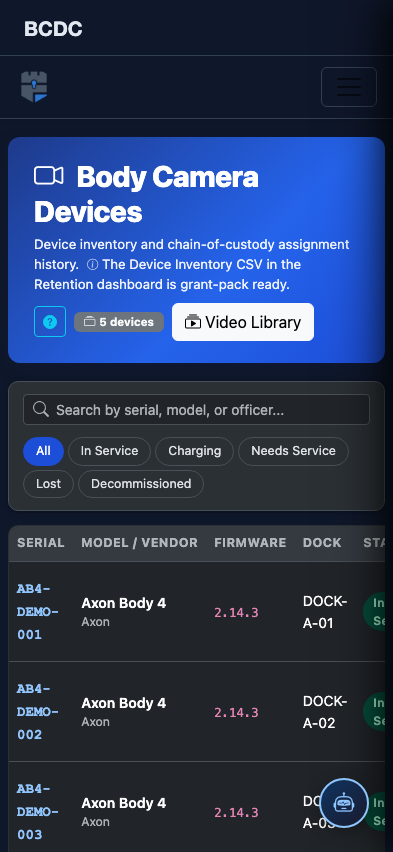
Tab view with data rows
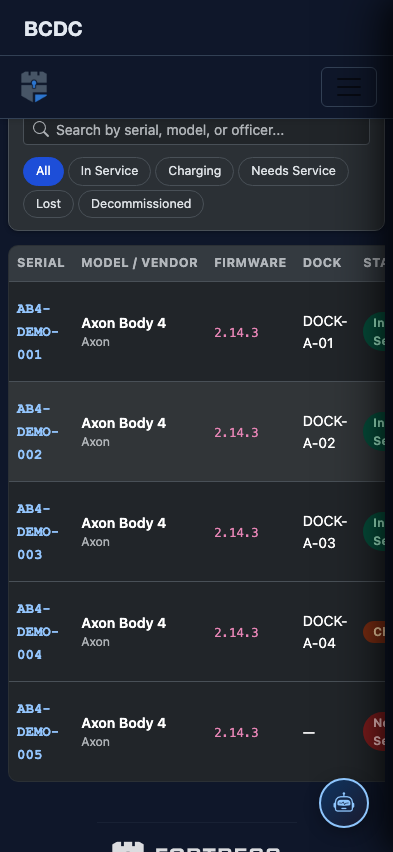
Scrolled / detail view