
NIBRS Dashboard
The NIBRS Dashboard gives command staff and records managers a real-time view of their facility's NIBRS reporting health — tracking submission status, error rates, pending validations, and historical trends across all incident reports for the current reporting period. Rather than discovering compliance problems at month-end, administrators can monitor NIBRS readiness continuously and intervene before submission deadlines. The dashboard also provides drill-down analytics by offense type, housing unit, and officer to support targeted training and process improvement.
Real-Time Submission Health
Live counters show total incidents, NIBRS-ready count, pending errors, and submission deadline countdown for the current period.
Officer-Level Drill-Down
Identify which officers have the highest error rates to target NIBRS training where it will have the greatest impact.
Historical Trend Analysis
Compare NIBRS submission quality across months and years to demonstrate continuous improvement to state reporting agencies.
One-Click Submission Export
Generate the monthly NIBRS submission file in state-required format directly from the dashboard with a single export action.
Step-by-Step: NIBRS Dashboard
Access the NIBRS Dashboard
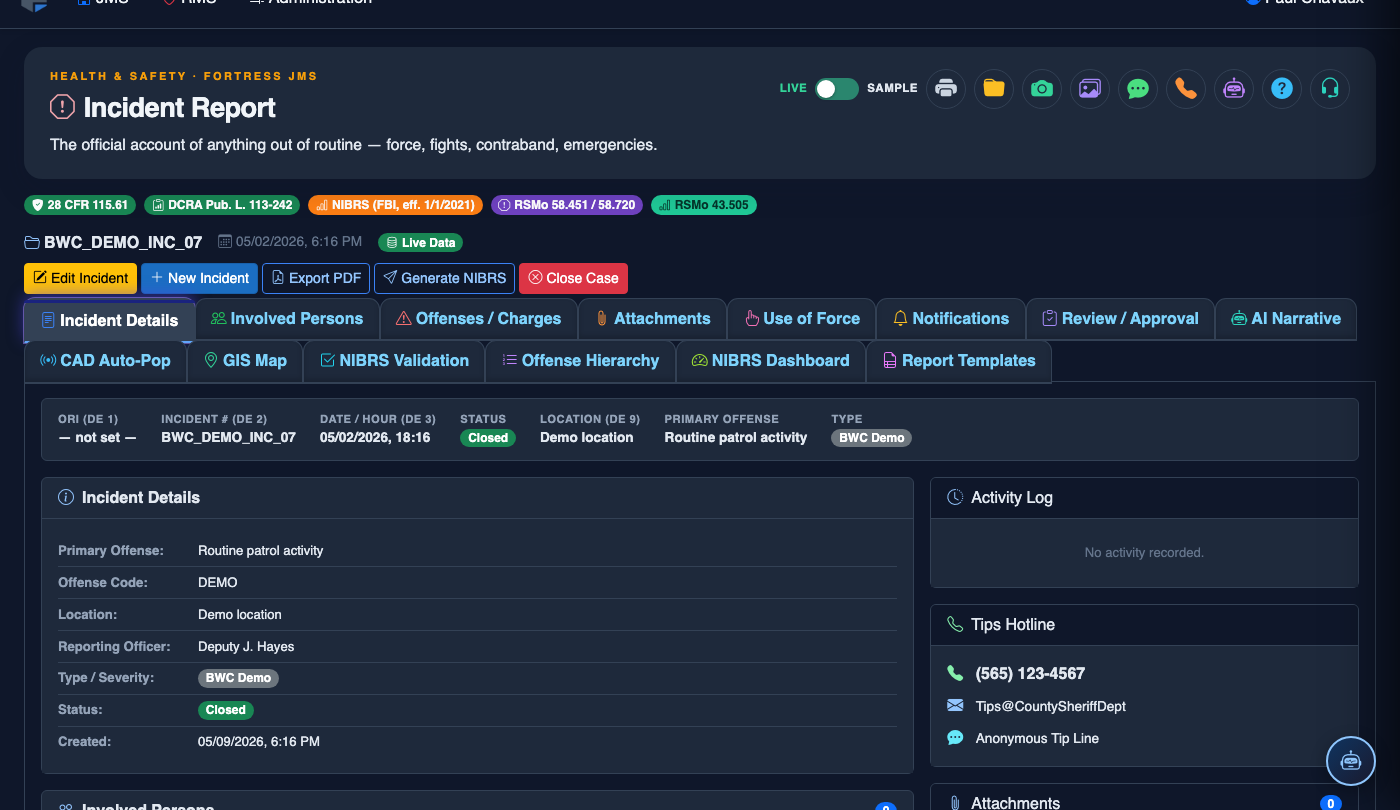
Navigate to Incident Reporting > NIBRS Dashboard from the main menu, or open an incident report and click the NIBRS Dashboard tab. The dashboard loads the current reporting period by default, displaying the submission health summary at the top.
Review the Submission Health Summary
The top panel shows four key metrics: Total Incidents for the period, NIBRS Ready (green), Pending Errors (red), and Days Until Submission Deadline. A readiness percentage bar provides an at-a-glance target — aim for 100% before the deadline.
Drill Into Pending Errors
Click the Pending Errors counter to open the error queue. Each row shows the incident number, reporting officer, primary offense, error rule code, and a Fix Now button that opens the incident directly to the flagged field. Supervisors can assign error correction tasks to individual officers from this view.
Analyze by Officer
Scroll to the Officer Performance section to see a ranked table of officers by NIBRS error rate for the period. Click any officer row to see their specific error patterns — this guides supervisory coaching conversations and identifies whether errors are concentrated in specific offense types or fields.
Review Historical Trends
Use the Trend Analysis chart below the summary to compare submission quality metrics across the past 12 months. The chart displays total incidents reported, error rates, and first-submission acceptance rates — all data points that state reporting agencies evaluate during compliance reviews.
Generate the Submission Export
When all incidents are NIBRS Ready, click Generate Submission File. Select your state agency format (flat-file or XML) and the reporting period, then click Export. The file downloads immediately and is also archived in Reports > NIBRS Submissions for audit purposes.
Log the Submission
After transmitting the file to your state reporting agency, return to the dashboard and click Mark Submitted. Enter the state's confirmation number or acknowledgment reference. This closes the reporting period and starts the counters for the next month.
File a New Incident Report
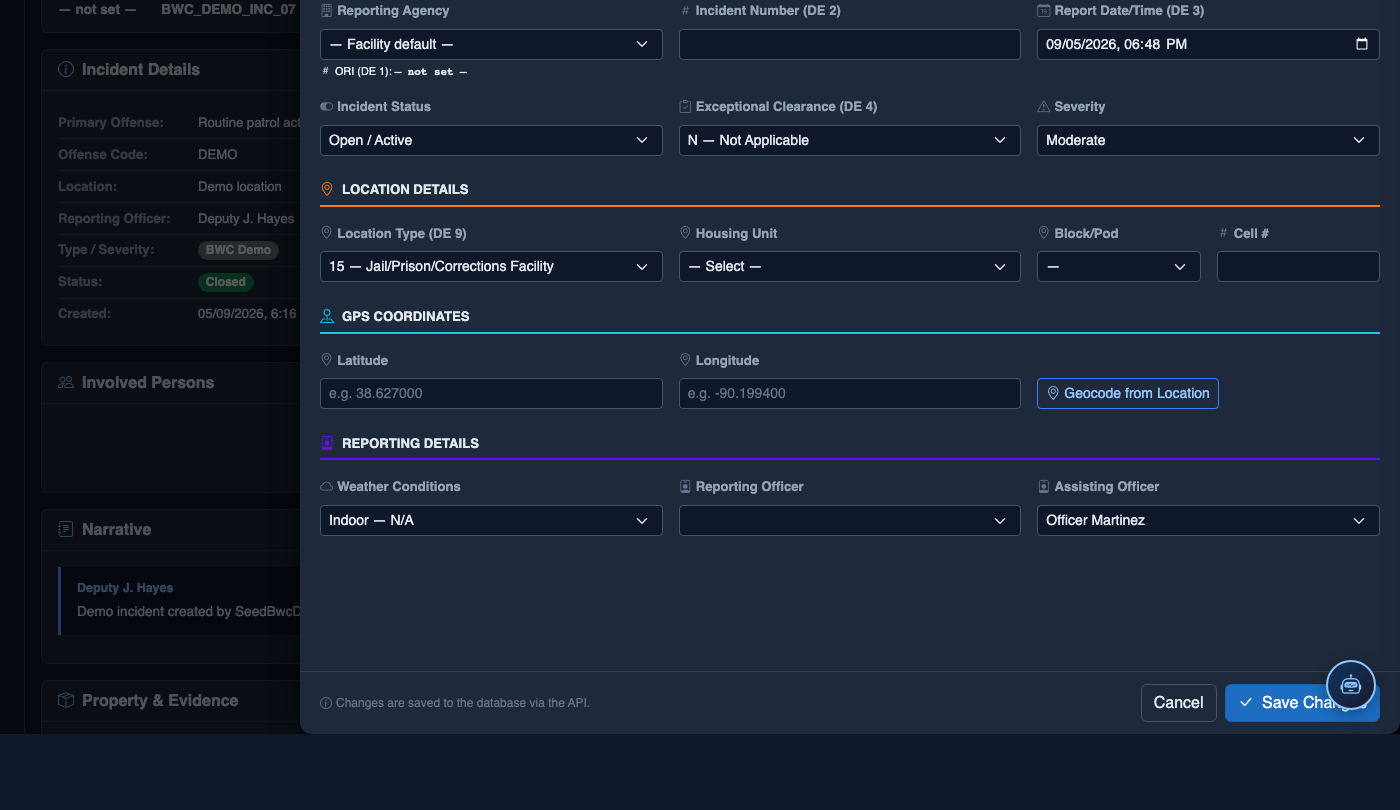
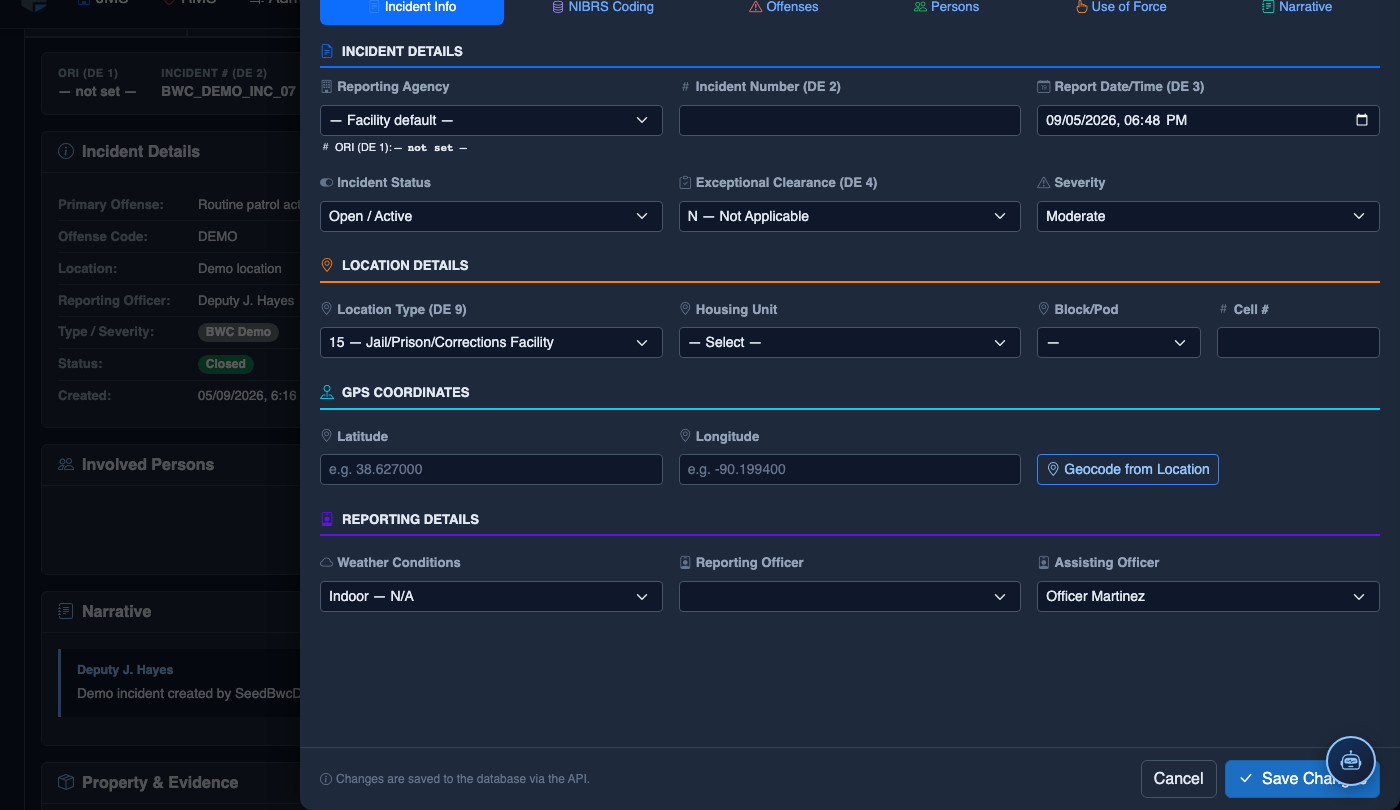
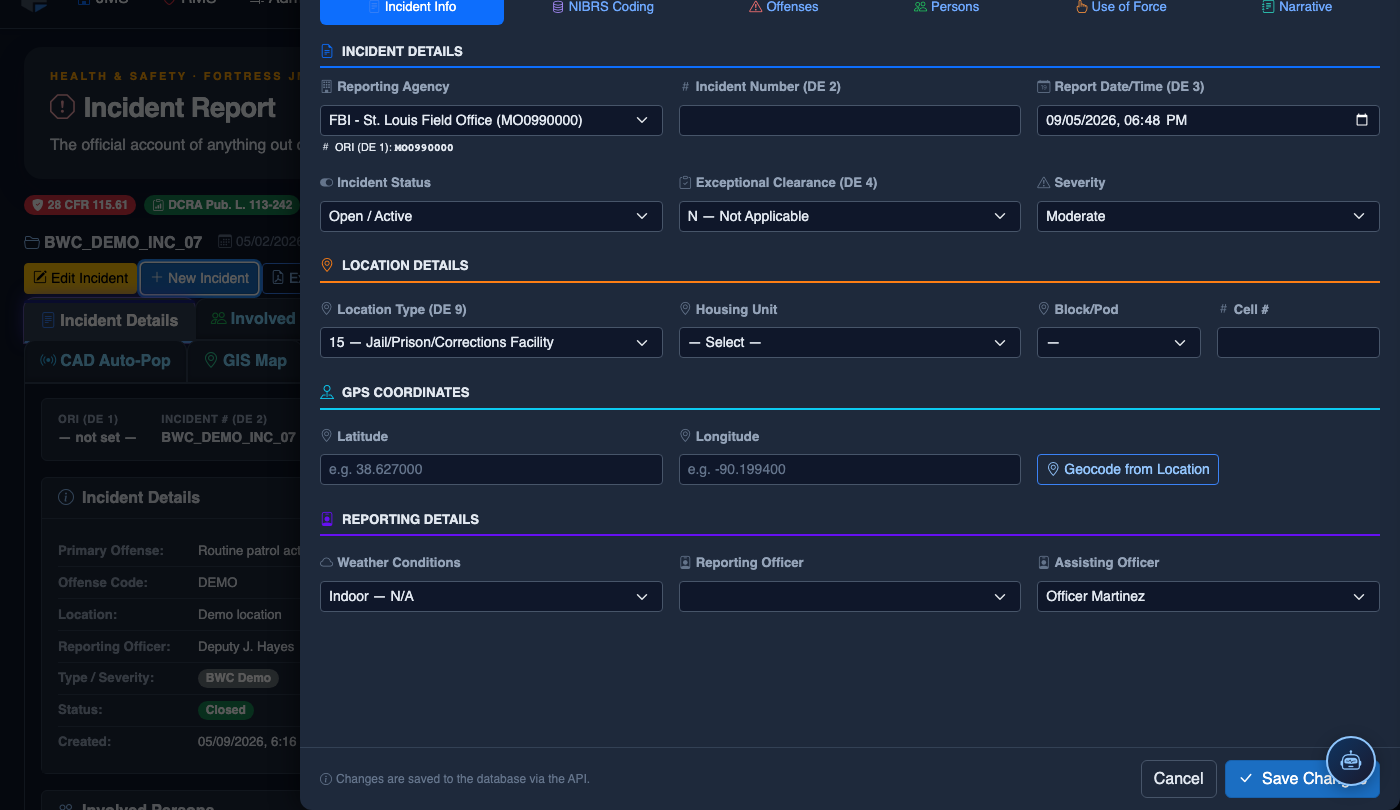
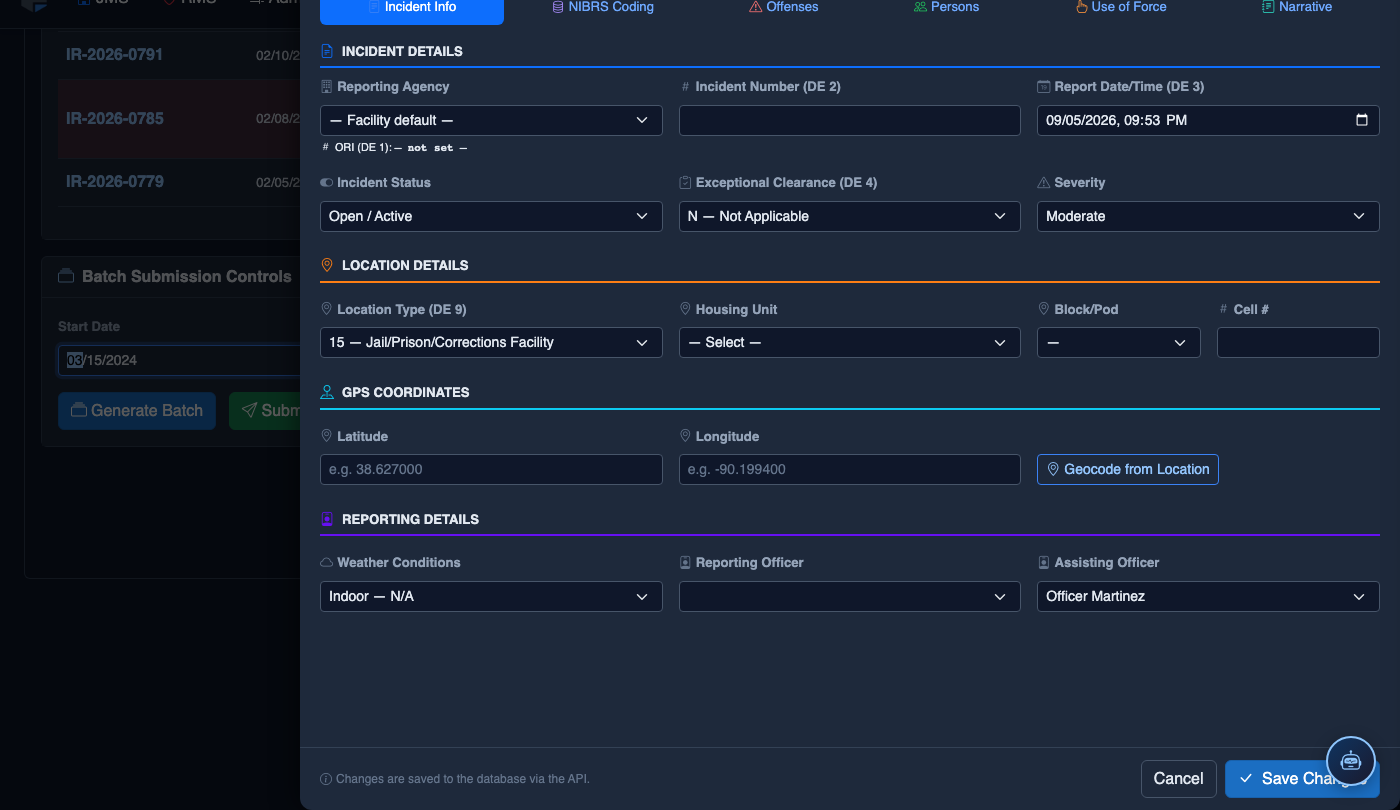
Click New Incident. Complete the incident report:
- Incident Type — select the category (Altercation, Medical Emergency, Escape Attempt, Property Damage, Use of Force, etc.).
- Date, Time, and Location — the precise time and place of the incident.
- Involved Persons — add all Inmates, Staff, and Witnesses using the search tool.
- Narrative — write the factual incident description in first person, past tense. The AI Narrative Assist can draft based on your bullet points.
- Severity — Minor, Moderate, or Major. Major incidents trigger automatic supervisor notification.
- Attachments — upload photos, BWC footage, or medical documentation directly.
- Click Save Draft to continue later, or Submit for Review to route to your supervisor.
💡 Pro Tips
- Set up the Weekly NIBRS Health Email (Admin > NIBRS > Scheduled Reports) to automatically send the submission health summary to records managers every Monday — catching errors early is far less stressful than a month-end scramble.
- Use the Error Frequency Report to identify which NIBRS rule codes generate the most errors facility-wide, then build targeted training materials around those specific rules for roll-call briefings.
- Keep your state's NIBRS submission portal confirmation numbers recorded in the Mark Submitted field — in the event of a state audit, these reference numbers prove timely submission and are retrievable from the dashboard archive indefinitely.
Mobile View — NIBRS Dashboard
FortressDMS is fully responsive. Officers can access the NIBRS Dashboard on a phone or tablet directly from the field — no app install required.
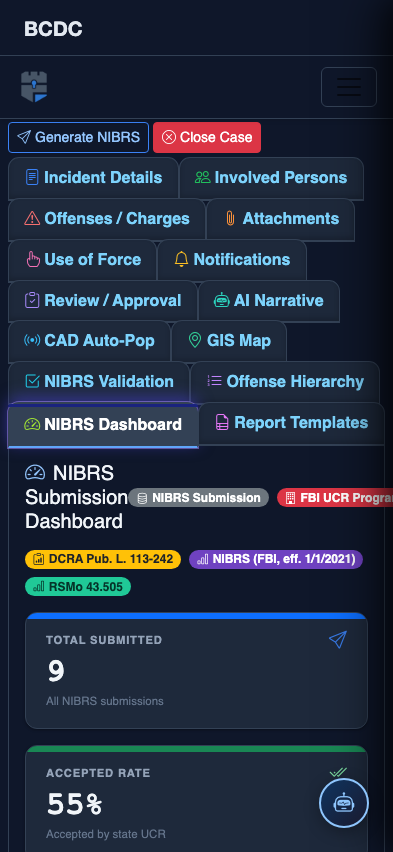
Tab view with data rows
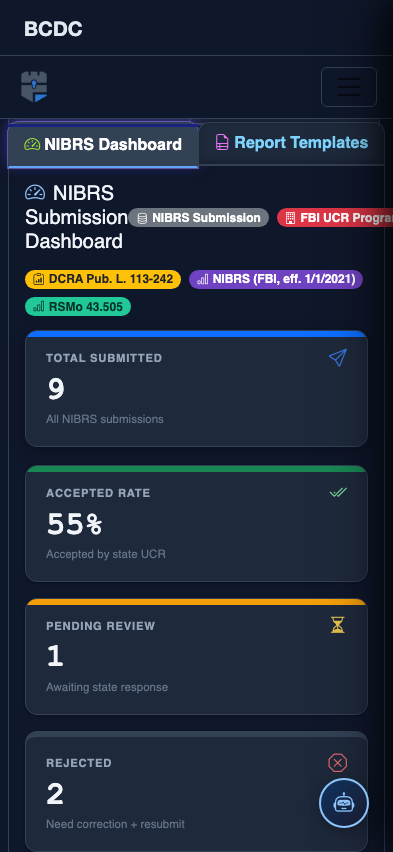
Scrolled / detail view