
Medical Appointments
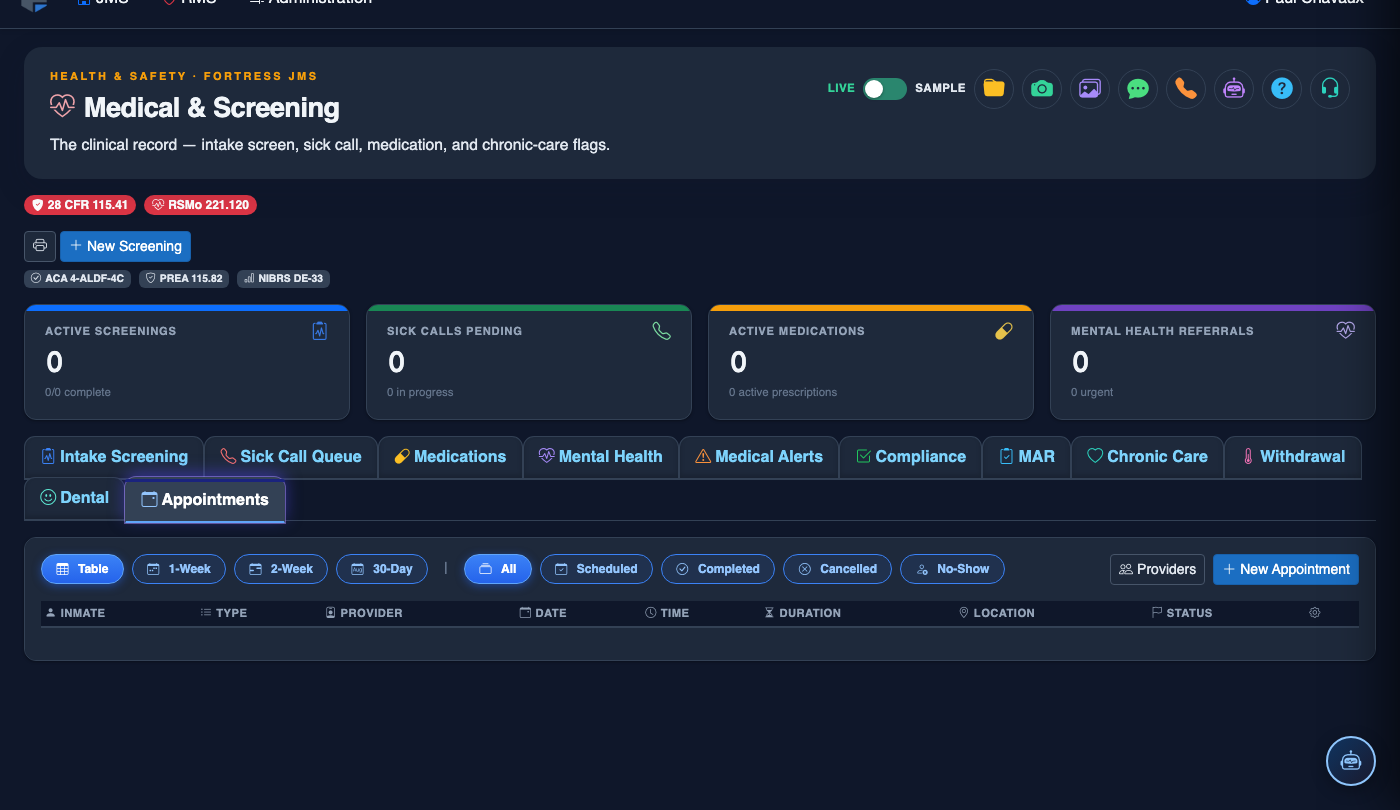
The Medical Appointments tab provides a centralized scheduling and tracking system for all inmate medical encounters — from routine sick calls to specialist consultations and off-site hospital transports. Staff can create, modify, and close appointment records while maintaining a documented audit trail required for ADA, HIPAA, and accreditation compliance.
Appointment Scheduling
Book, reschedule, or cancel medical appointments with automatic conflict detection across housing units and provider calendars.
Multi-Provider Support
Track appointments with on-site medical staff, contract physicians, dentists, mental health providers, and off-site hospital or specialist visits.
Escort & Transport Alerts
Generate transport request notifications for security staff directly from the appointment record.
Outcome Documentation
Record appointment outcomes, follow-up orders, and referrals to close the care loop and satisfy documentation requirements.
Step-by-Step: Medical Appointments
Access the Medical Appointments Tab
Navigate to the inmate’s profile and open the Medical & Screening module. Click the Medical Appointments tab (tab 11). The view defaults to upcoming appointments sorted by date ascending.
Create a New Appointment
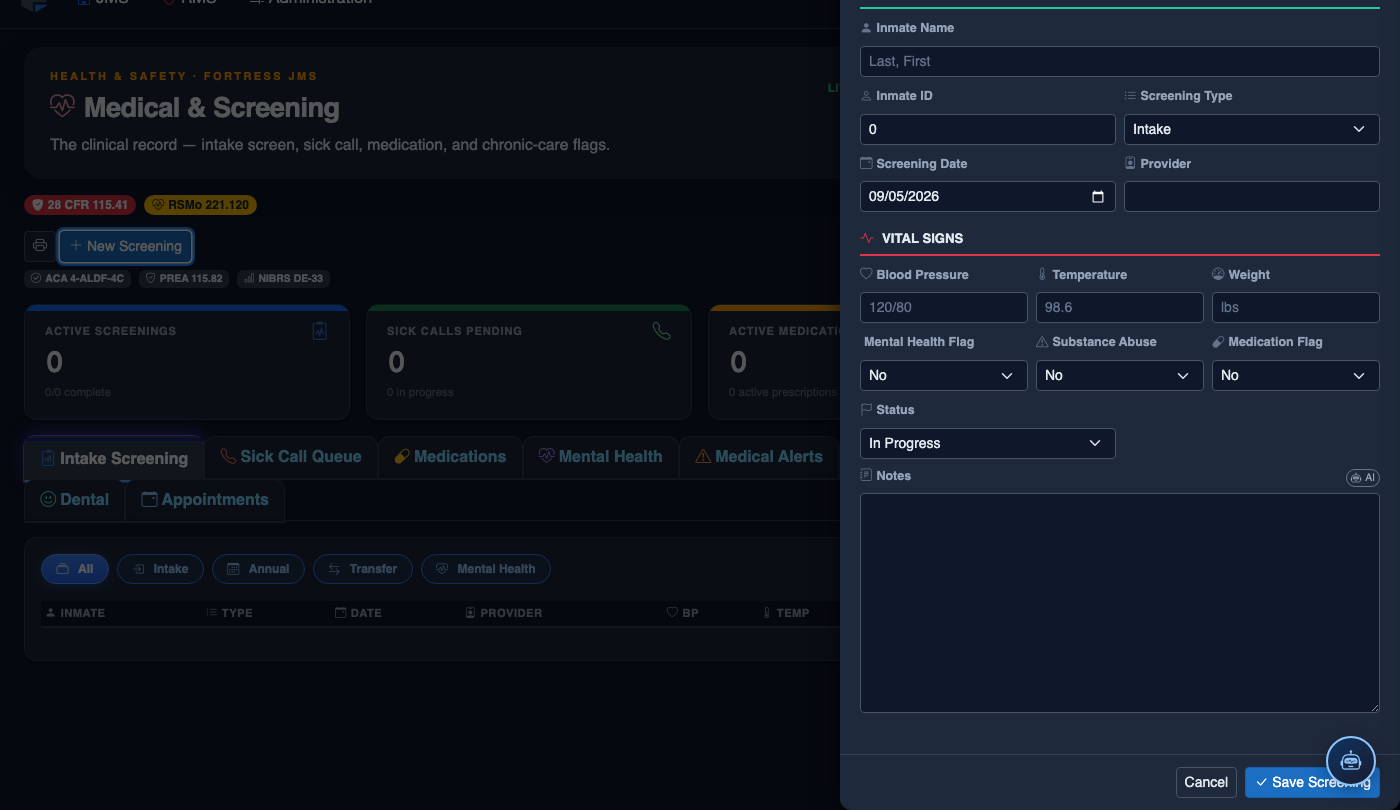
Click New Appointment in the toolbar. A scheduling form opens with fields for Appointment Type (Sick Call, Dental, Mental Health, Specialist, Emergency, Off-Site), Requested Date/Time, and Provider.
Select Provider and Location
Choose the Provider from the dropdown — on-site providers are listed first, followed by contract specialists. For off-site visits, select the External Facility field and enter the destination address or facility name. The system flags whether a transport request is required.
Set Priority and Notifications
Set the appointment Priority (Routine, Urgent, or Emergent). For Urgent or Emergent, the system automatically notifies the on-duty medical supervisor. Check Escort Required if the inmate needs an officer escort within the facility.
Generate Transport Request
If the appointment is off-site, click Create Transport Request. This populates a transport form pre-filled with inmate name, housing unit, destination, and scheduled time, which routes to the security supervisor queue for approval.
Record Appointment Outcome
After the appointment, reopen the record and click Document Outcome. Enter the provider’s summary notes, any new prescriptions, follow-up orders, or referrals. Set the status to Completed.
Close or Reschedule
If the inmate was unavailable (in court, in restricted housing, etc.), set the status to Missed — Reschedule and enter the reason. The system prompts to create a replacement appointment automatically, preserving the original record for audit purposes.
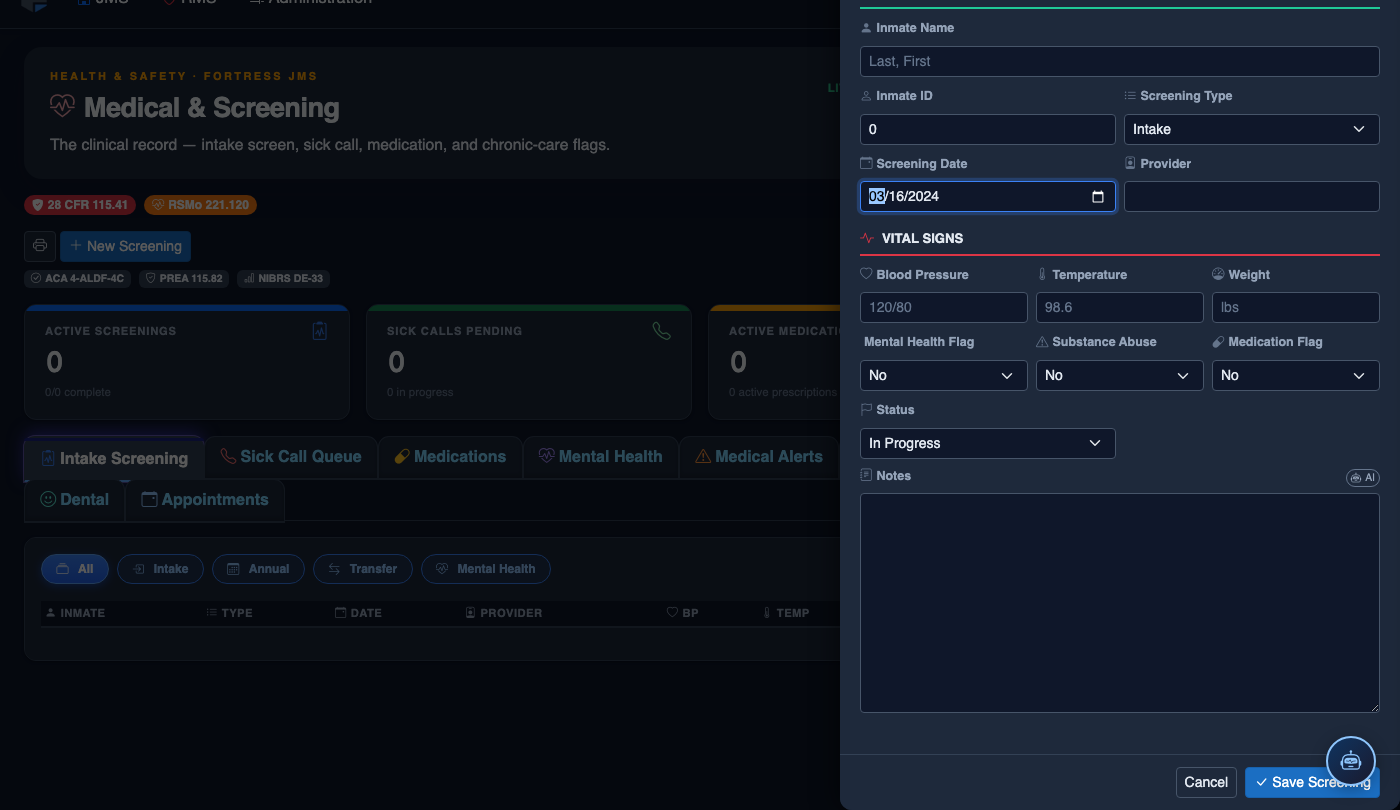
Create a New Medical Record
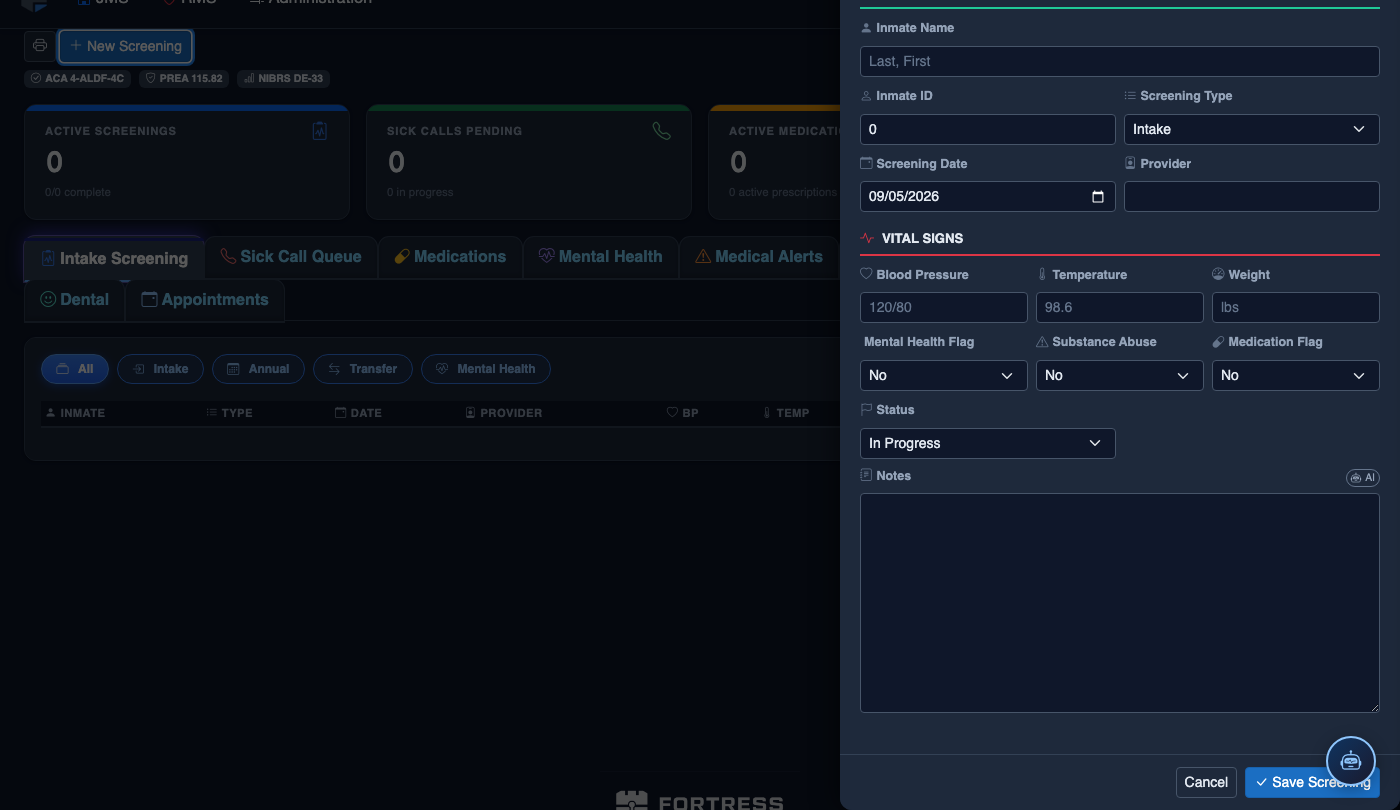
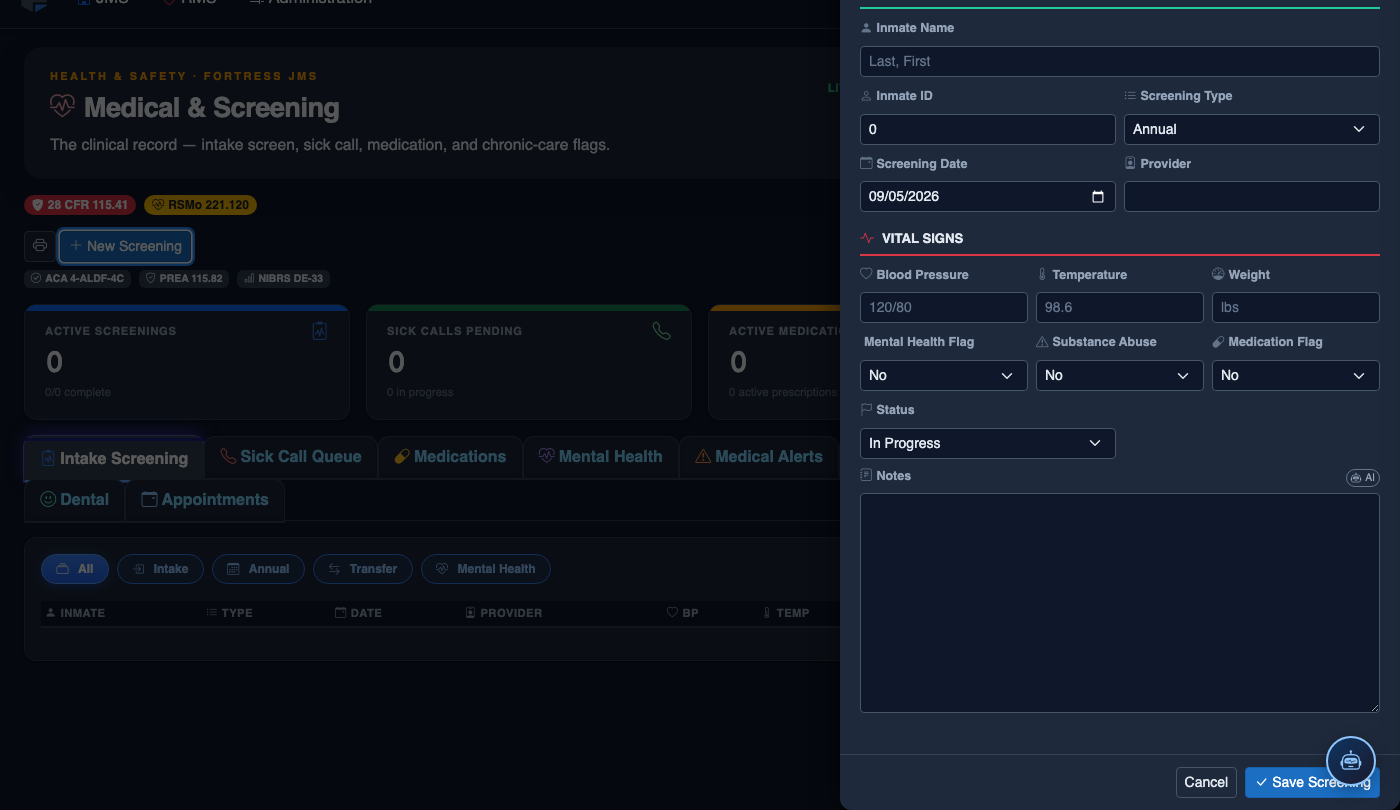
Click New Screening in the module toolbar. Complete the medical form:
- Inmate — search by name or booking number.
- Visit Type — Intake Screening, Sick Call, Scheduled Follow-Up, or Emergency.
- Priority — Routine, Urgent, or Emergent; Emergent pages on-call provider immediately.
- Chief Complaint / Findings — document symptoms, vitals, and objective observations.
- Provider — assign the clinician or nurse conducting the visit.
- Disposition — Treat and Return, Infirmary Admission, Hospital Transfer, or No Action.
- Add any Prescriptions, Follow-Up Date, or Restrictions.
- Click Save Record. Alerts fire automatically if vital signs are out of range.
💡 Pro Tips
- Filter the appointments list by Status: Pending each morning to quickly identify any appointments that need escort or transport preparation.
- Linking a Medical Appointment to a Dental Record or Mental Health note creates a unified care timeline viewable from the inmate’s medical summary.
- The Missed — Reschedule status preserves the original appointment for compliance reporting — never delete a missed appointment record.
- Off-site transport requests auto-expire if not approved within 24 hours; set a reminder in the system for time-sensitive specialist visits.
Mobile View — Medical Appointments
FortressDMS is fully responsive. Officers can access the Medical Appointments on a phone or tablet directly from the field — no app install required.
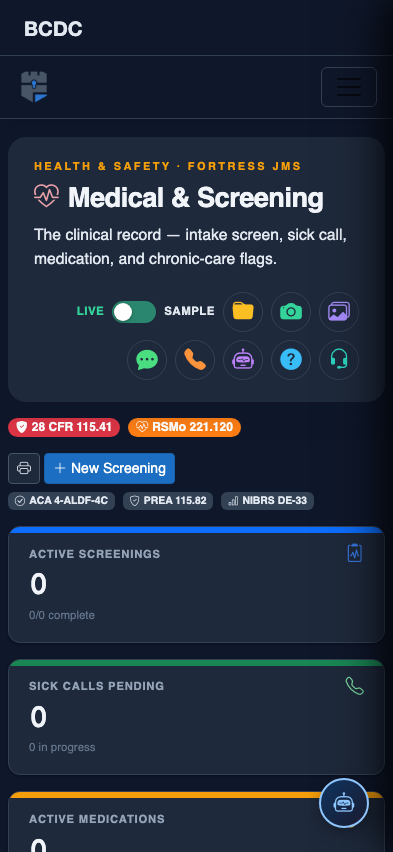
Tab view with data rows
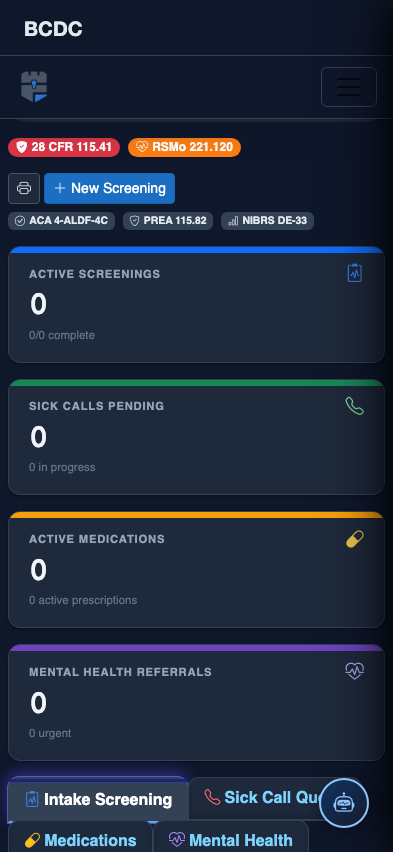
Scrolled / detail view