
Review & Approval
The Review & Approval tab is the final gate in the incident reporting workflow, where supervisors and command staff formally review the completed report, leave annotated comments, request corrections, and issue an approval or return decision. Once a report is approved at this stage, it becomes a locked, admissible record that feeds classification, court preparation, and state reporting systems.
Multi-Tier Approval Workflow
Incidents route through configurable approval tiers — Shift Supervisor, Watch Commander, and Administrator — with each tier’s decision logged independently for accountability.
Annotated Reviewer Comments
Supervisors can attach specific comments to any section of the report, directing officers to a particular field, tab, or evidence item that requires correction or clarification.
Return for Correction
Reports that need revision are returned to the originating officer with reviewer notes intact, unlocking editing while preserving the full review history for audit purposes.
Immutable Approved Record
Final approval locks the report against further edits, creating a tamper-evident record suitable for court submission, state filings, and civil litigation discovery.
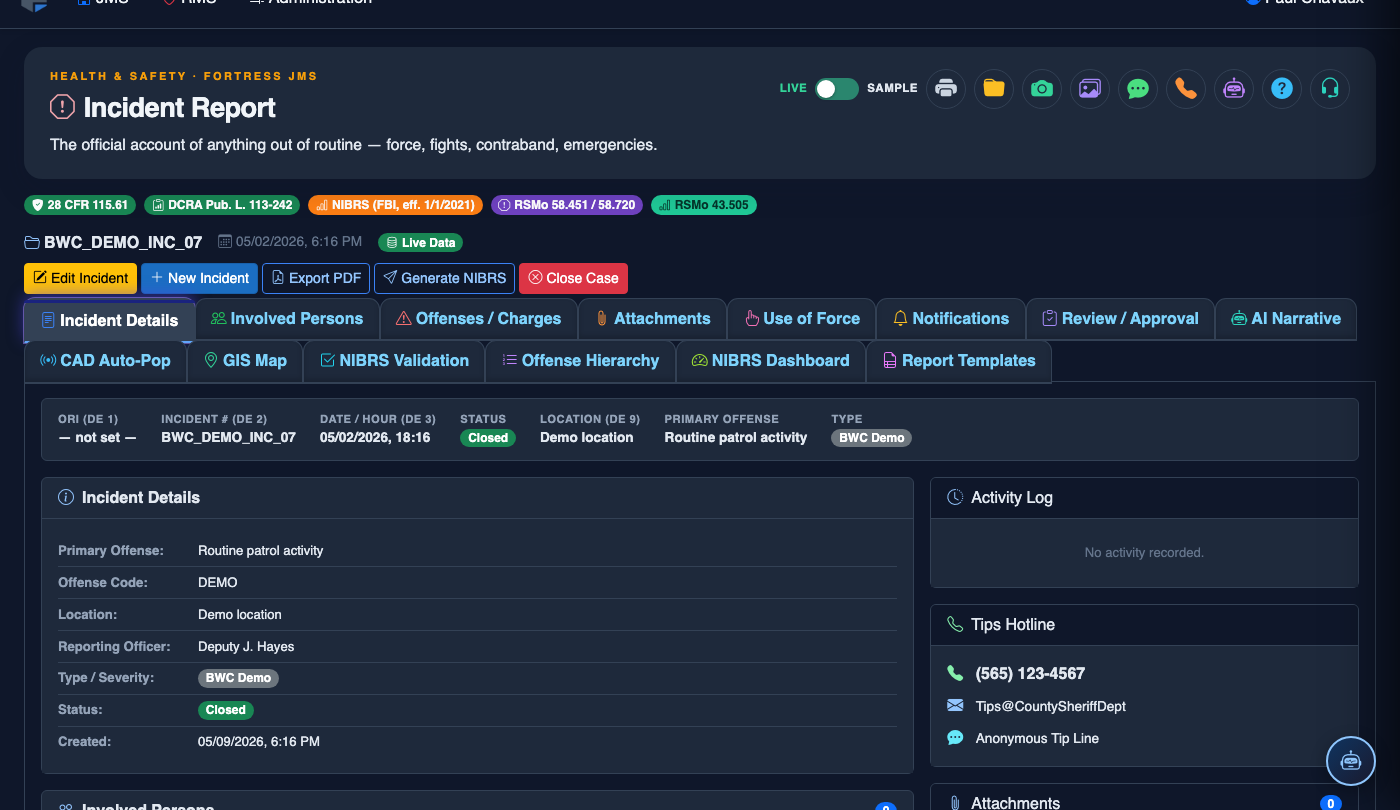
Step-by-Step: Submitting and Approving an Incident Report
Complete All Prior Tabs and Navigate to Review & Approval
Ensure Tabs 1–6 are fully completed — the tab header will show a green checkmark on each completed tab. Click the Review & Approval tab (Tab 7). If any required fields are incomplete, the system will list the outstanding items and prevent submission until resolved.
Review the Report Summary Before Submitting
The top section of the Review & Approval tab displays a Report Summary — incident type, involved persons count, offense count, evidence items, notifications completed, and any use-of-force flags. Review this summary for accuracy. This is your last opportunity to make edits before the report enters the supervisor’s queue.
Submit the Report for Supervisory Review
Click Submit for Review. You will be prompted to confirm submission with a certification statement acknowledging that the information is accurate to the best of your knowledge. Check the confirmation box and click Confirm Submission. The report status changes to Pending Review and is routed to the appropriate supervisor’s queue.
Supervisor: Access the Review Queue
Supervisors access the pending report from the Incident Review Queue on their dashboard. Click the report to open it in read-only review mode. The full report, including all tabs, evidence, and notifications, is visible. The Review Timeline panel on the right shows all prior submissions and reviewer actions.
Add Review Comments or Request Corrections
Supervisors can click Add Comment next to any section to annotate specific concerns. If the report requires correction, click Return for Correction, summarize the required changes in the Return Notes field, and confirm. The officer will receive a notification and the report will re-open for editing on their end.
Approve the Report
When the report is satisfactory, the supervisor clicks Approve. The system displays a confirmation dialog citing the report number, approval tier, and certifies the supervisor’s digital signature (based on their authenticated session). Click Confirm Approval. The report advances to the next approval tier or becomes Final if this is the highest required tier.
Confirm Final Status and Downstream Triggers
Once fully approved, the report status changes to Final — Approved and the record is locked. Downstream systems are automatically triggered: inmate classification scores are updated, court-bound charge packets are queued, and any applicable state regulatory filings are placed in the reporting export queue. The originating officer receives a confirmation notification.
File a New Incident Report
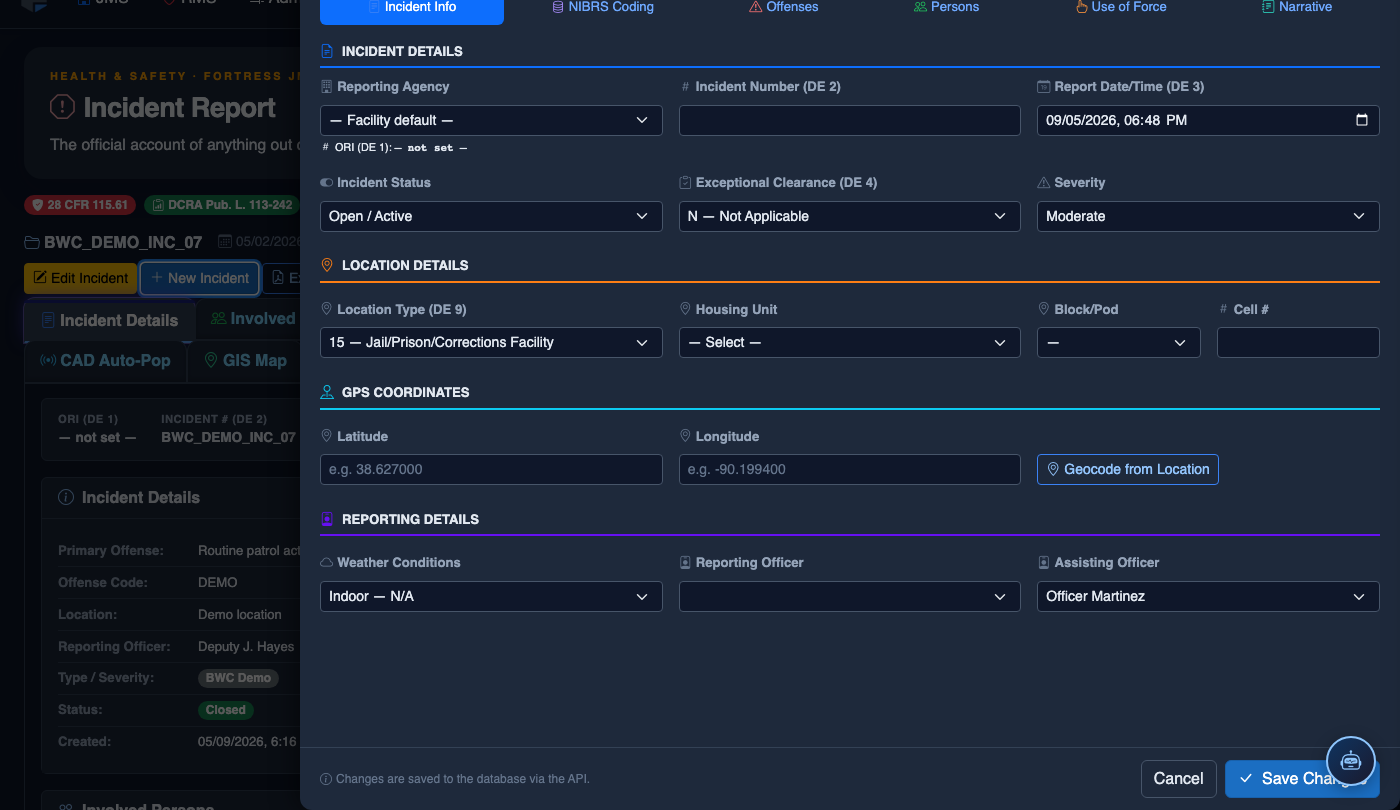
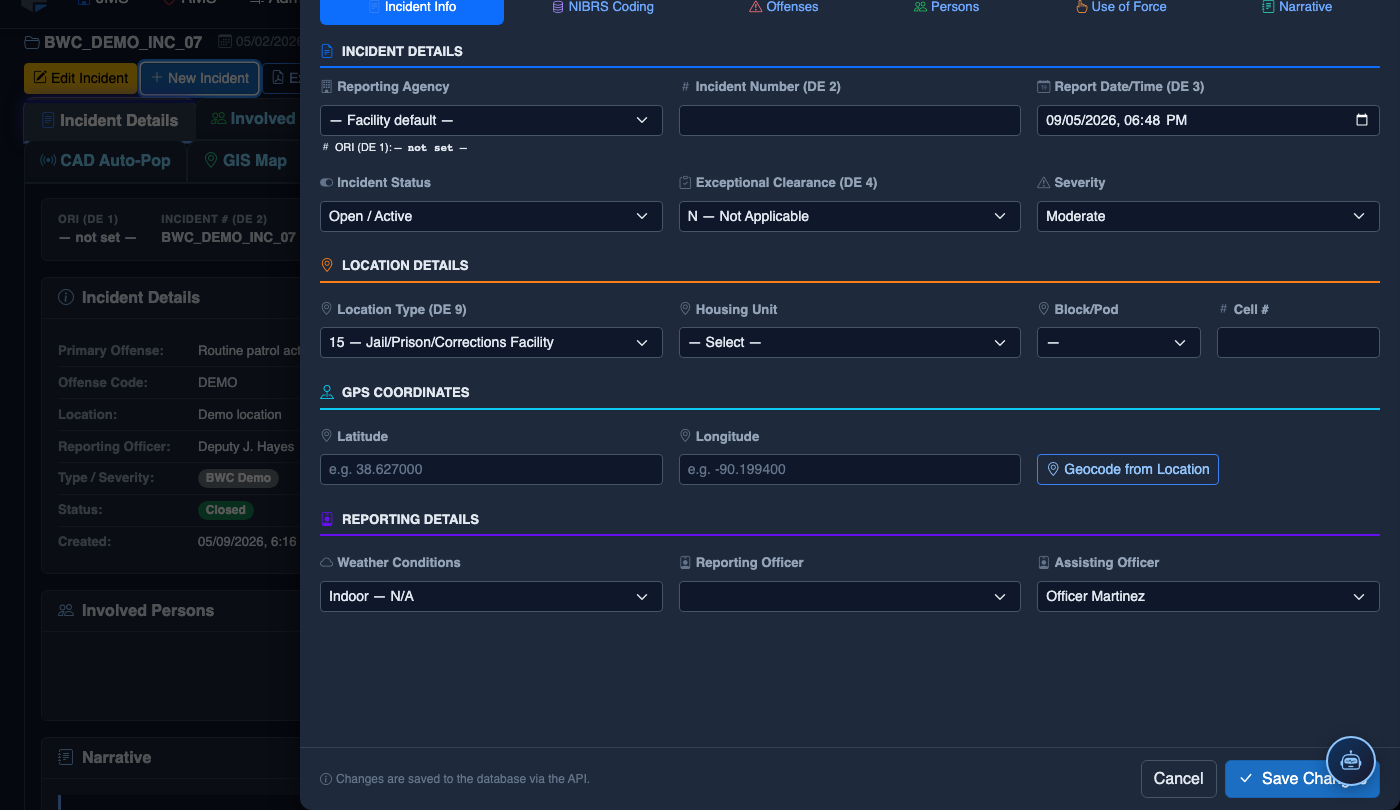
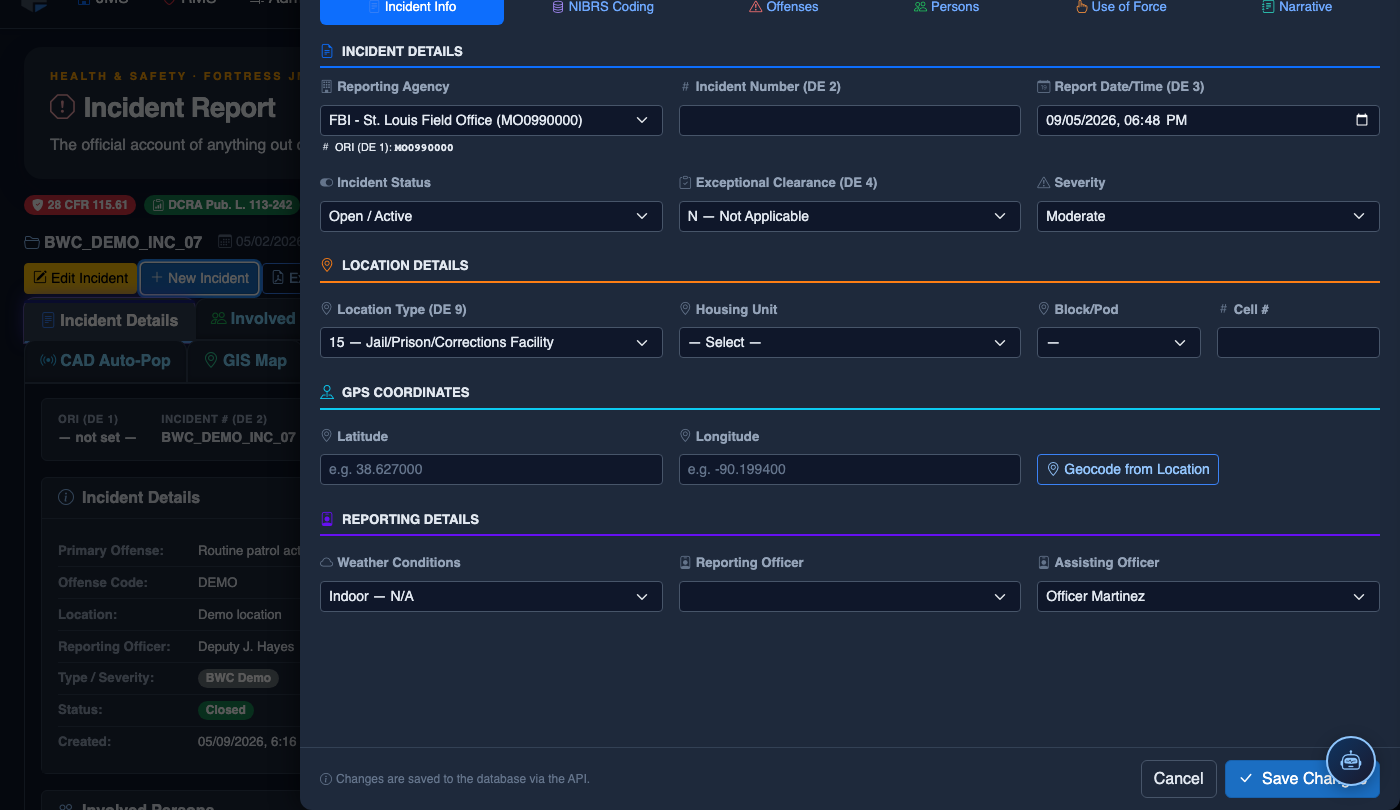
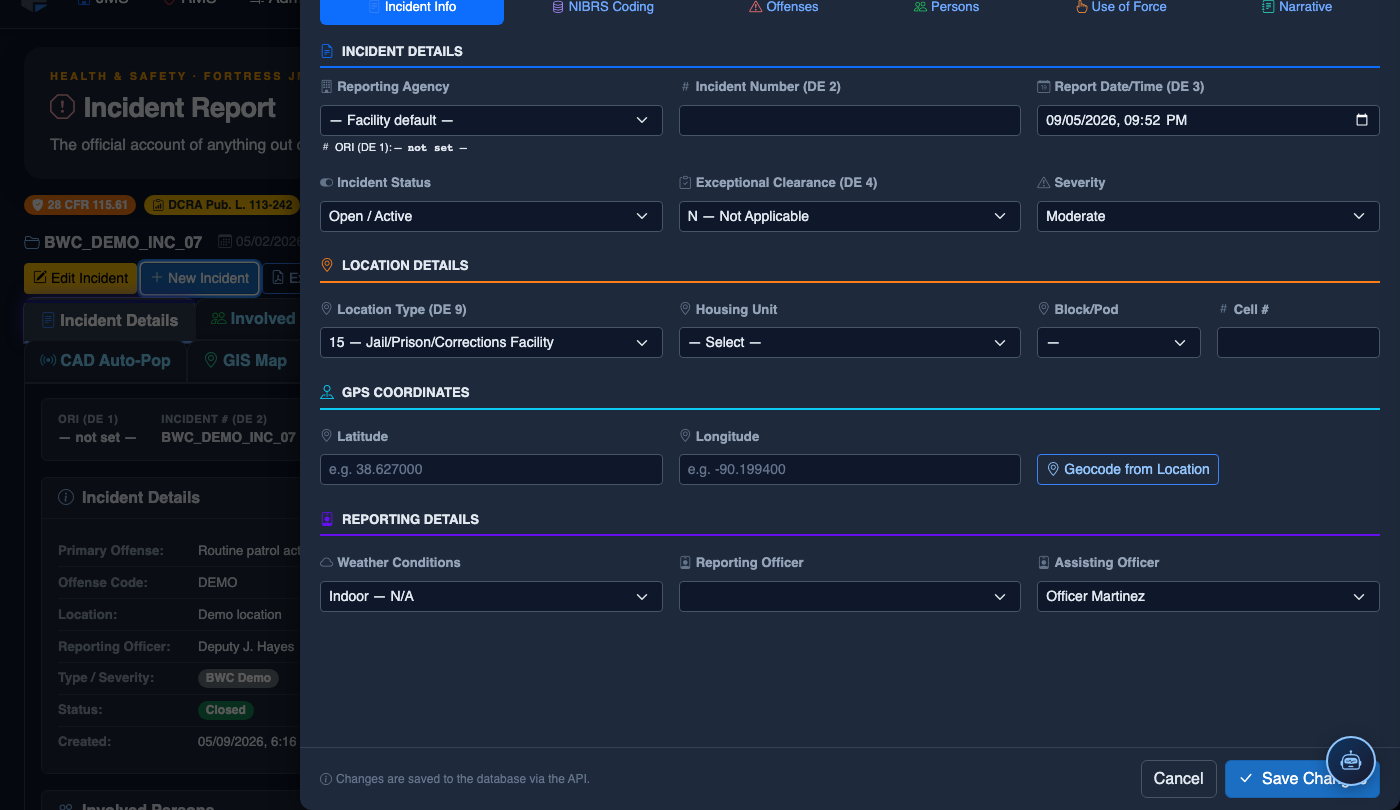
Click New Incident. Complete the incident report:
- Incident Type — select the category (Altercation, Medical Emergency, Escape Attempt, Property Damage, Use of Force, etc.).
- Date, Time, and Location — the precise time and place of the incident.
- Involved Persons — add all Inmates, Staff, and Witnesses using the search tool.
- Narrative — write the factual incident description in first person, past tense. The AI Narrative Assist can draft based on your bullet points.
- Severity — Minor, Moderate, or Major. Major incidents trigger automatic supervisor notification.
- Attachments — upload photos, BWC footage, or medical documentation directly.
- Click Save Draft to continue later, or Submit for Review to route to your supervisor.
💡 Pro Tips
- Use the Return Notes field to be specific — “narrative lacks objective force justification” is more actionable than “needs revision” and reduces re-submission cycles.
- If a report is returned for correction, the officer can see the supervisor’s comments inline alongside each flagged section — they do not need to search for feedback in a separate message thread.
- Approved reports can still receive supplemental reports — if new information emerges after approval, officers can attach a Supplement Report rather than requesting an unlock of the primary record.
- The Review Timeline panel preserves every submission, return, and approval event with timestamps and responsible parties — this is the first place investigators look during an internal affairs review.
Mobile View — Review Approval
FortressDMS is fully responsive. Officers can access the Review Approval on a phone or tablet directly from the field — no app install required.
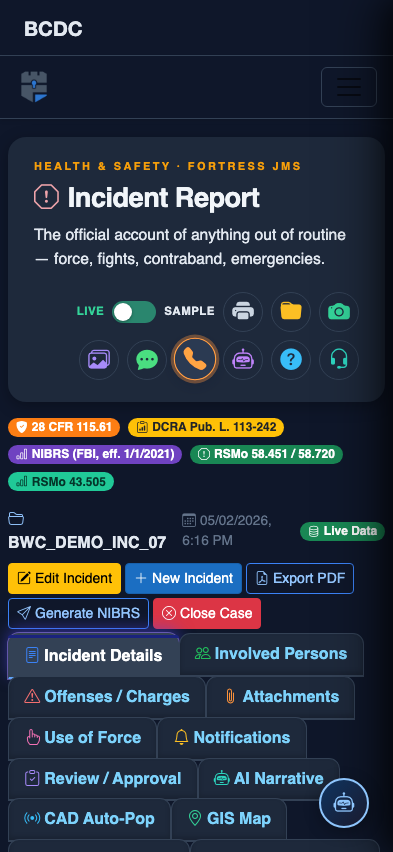
Tab view with data rows
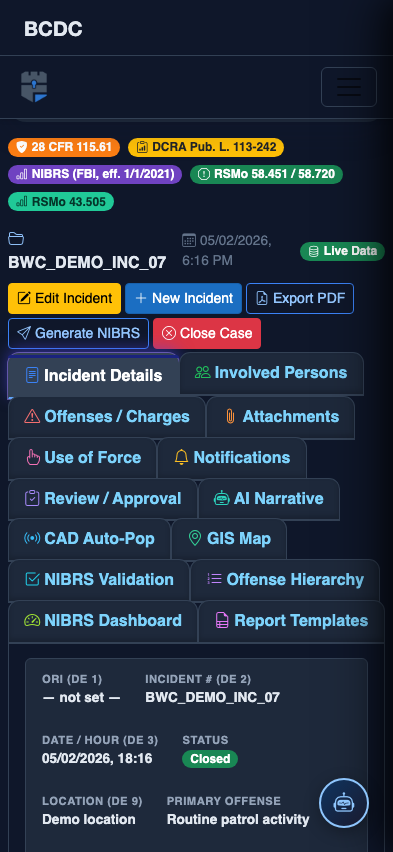
Scrolled / detail view