
System Integrations
The System Integrations tab within Asset Tracking connects FortressDMS to third-party hardware and software platforms your facility already relies on. Configure data bridges to booking systems, biometric scanners, RFID readers, and external property management tools — all from a single configuration panel. Eliminate duplicate data entry and ensure asset records stay synchronized across every platform in your correctional operation.
Third-Party Connectors
Link external booking, court, and property systems to FortressDMS for real-time asset data flow.
RFID & Barcode Sync
Configure RFID readers and barcode scanners to push asset scans directly into the tracking database.
Automated Sync Schedules
Set recurring sync intervals so asset inventories reconcile with external systems on a defined cadence.
Secure API Keys
Manage integration credentials and API keys through an encrypted vault with role-based access controls.
Step-by-Step: Configuring System Integrations
Navigate to System Integrations
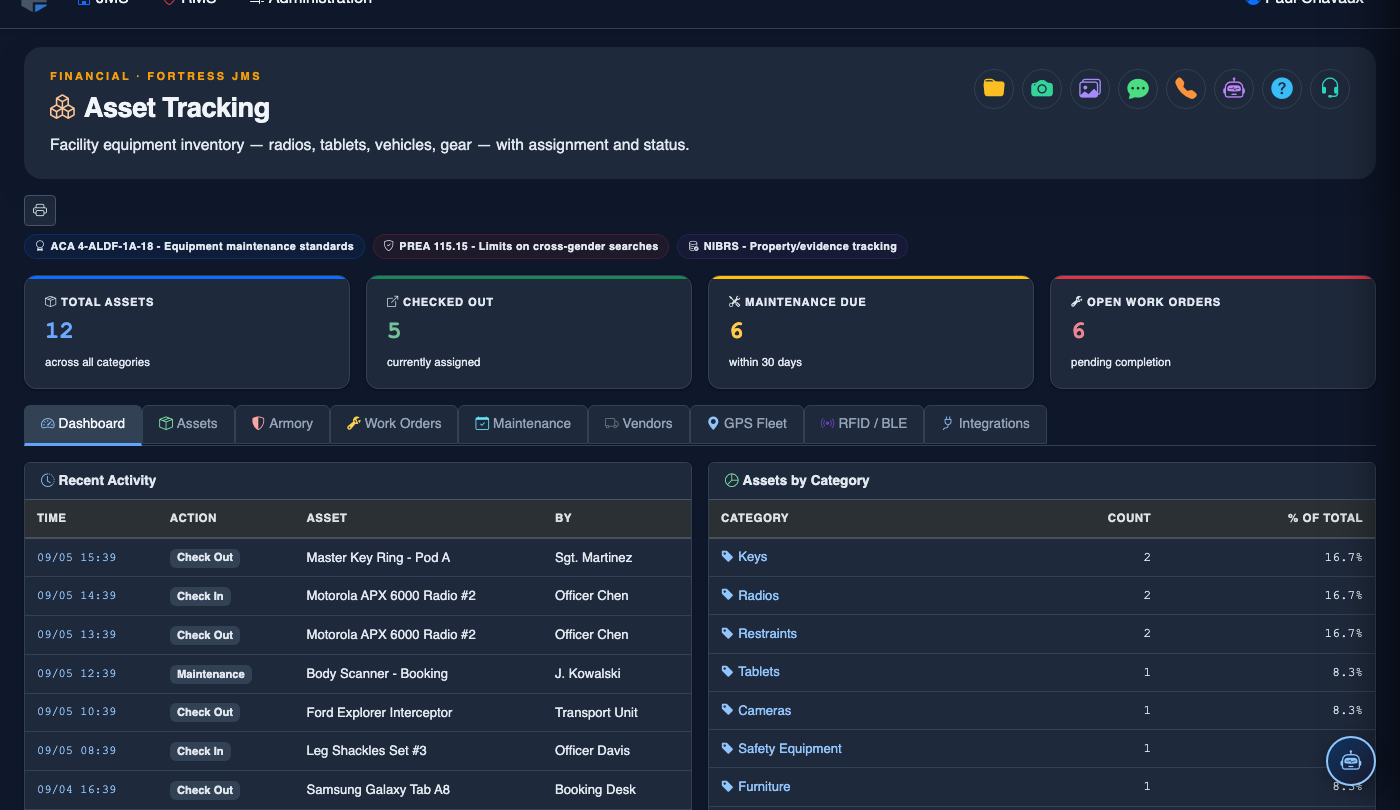
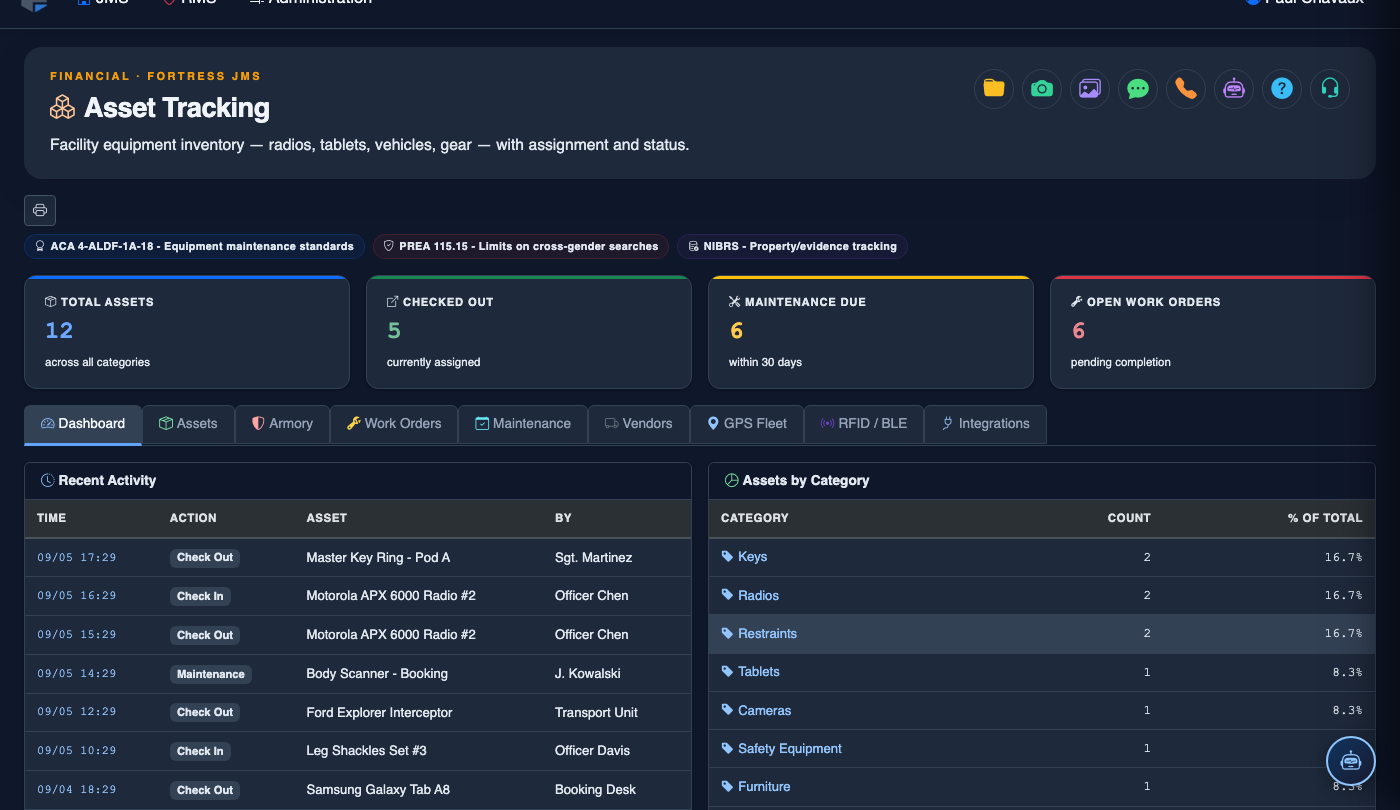
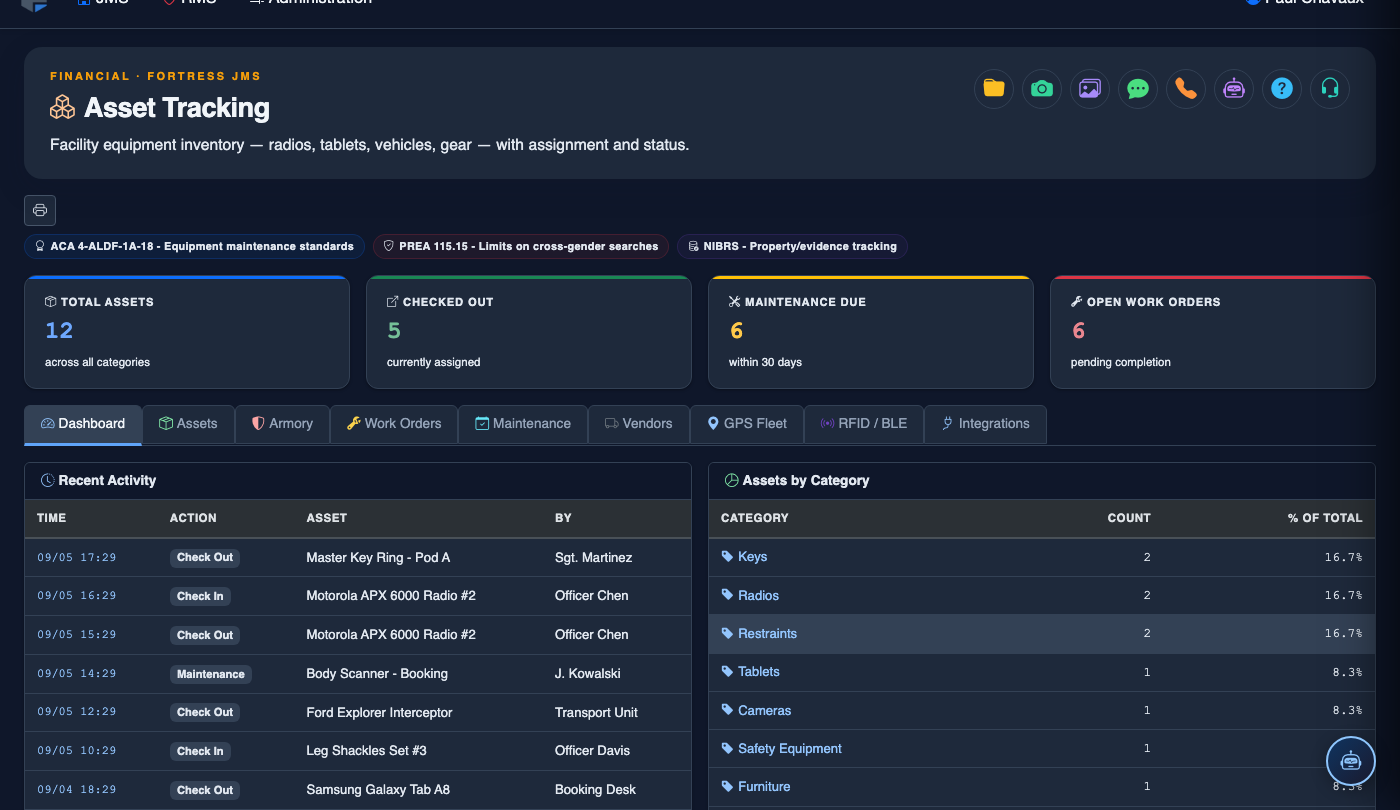
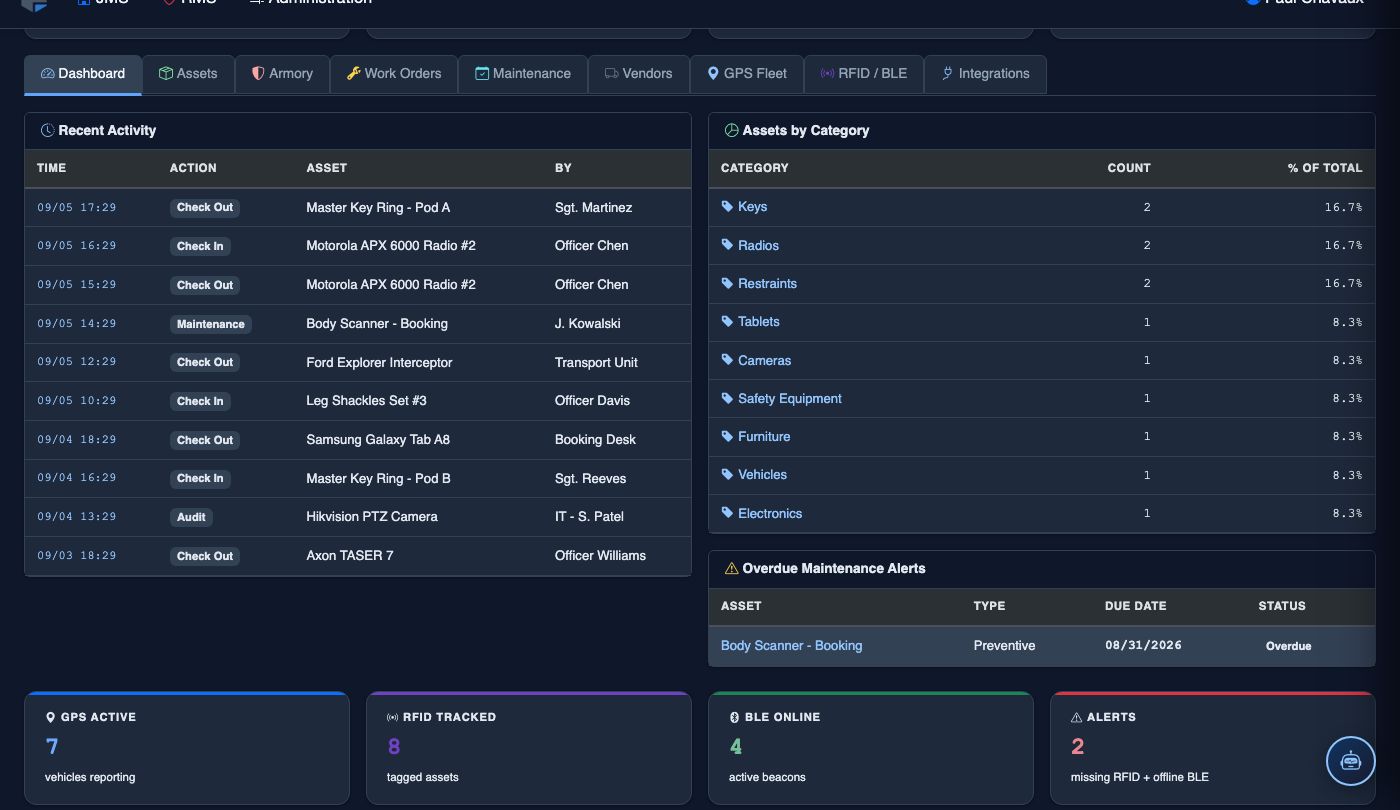
From the main navigation, open the Asset Tracking module and select the System Integrations tab (tab 9). This panel displays all currently configured connectors and their live sync status.
Add a New Integration
Click the + Add Integration button in the top-right corner. A modal will appear allowing you to select the integration type — choose from booking platforms, court record systems, biometric hardware, or custom REST/SFTP endpoints.
Enter Connection Credentials
Provide the external system’s API Endpoint URL, API Key or OAuth Client ID/Secret, and any required field mappings. All credentials are encrypted at rest using AES-256.
Map Asset Fields
Use the Field Mapping grid to align external system data columns with FortressDMS asset fields. Drag and drop source fields onto destination fields or type a custom transform expression for data type conversions.
Set Sync Schedule
Under Sync Settings, choose between Real-Time (webhook-driven), Scheduled (pick an interval from 15 minutes to 24 hours), or Manual sync modes. Enable Error Alerts to receive notifications when a sync fails.
Test the Connection
Click Test Connection to send a sample request to the external system. The panel will display a green Connected badge on success or a detailed error message to help troubleshoot failed handshakes.
Activate and Monitor
Toggle the integration to Active and return to the integrations list. The Last Sync column will update after each successful run. Review the Sync Log link on any row to audit individual record transfers and identify any skipped or errored assets.
💡 Pro Tips
- Always run a Test Connection before activating a new integration — a failed live sync can create duplicate or orphaned asset records.
- Use the Manual sync mode during initial setup to validate field mappings before enabling automatic scheduling.
- Rotate API keys in the external system and update them in FortressDMS under Edit Integration without losing your field mapping configuration.
- Check the Sync Log after the first scheduled run to confirm record counts match between both systems before relying on the data operationally.
Mobile View — System Integrations
FortressDMS is fully responsive. Officers can access the System Integrations on a phone or tablet directly from the field — no app install required.
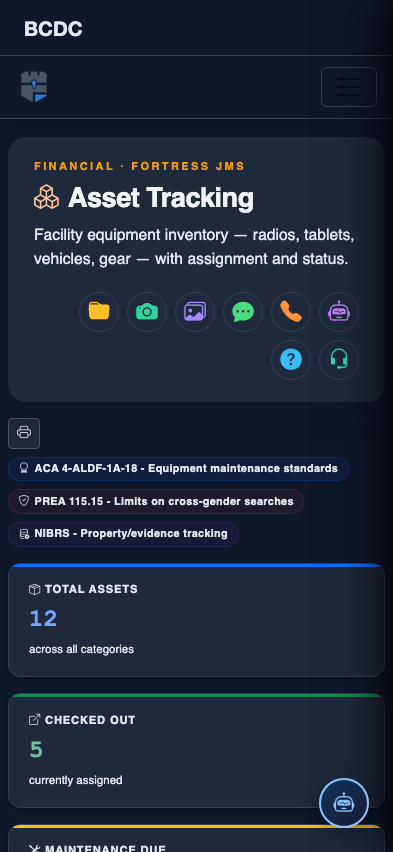
Tab view with data rows
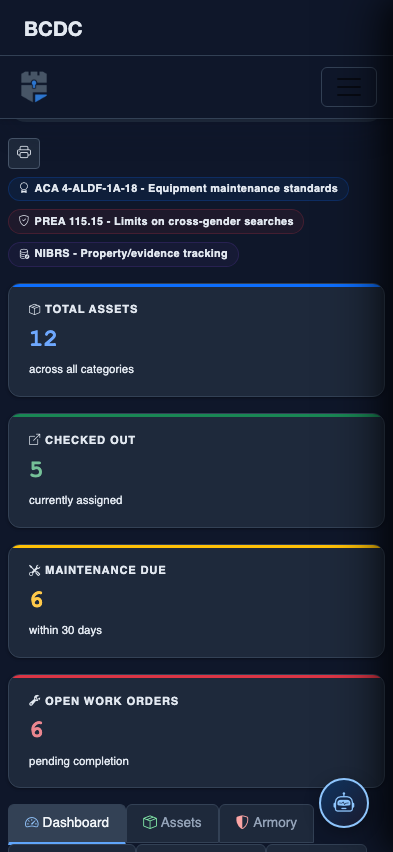
Scrolled / detail view