
Mail Queue & Approval
The central intake hub for all scanned mail. Review, assign inmates, run OCR, and approve or reject each piece before it reaches the inmate’s kiosk tablet.
Live Intake Queue
All scanned mail pieces in Pending status appear here in real time. View OCR confidence, sender info, and page count at a glance.
One-Click Approval
Approve or reject with a single click. Approved pieces trigger automatic PDF assembly and delivery to the inmate’s mail tab.
OCR & Inmate Matching
Run OCR on any piece to extract envelope text and auto-match the inmate ID from the handwritten or printed address.
PDF Inline Viewer
Click any piece to view the full scanned document inline as a PDF — no download required.
📚 How To: Review and Approve Mail
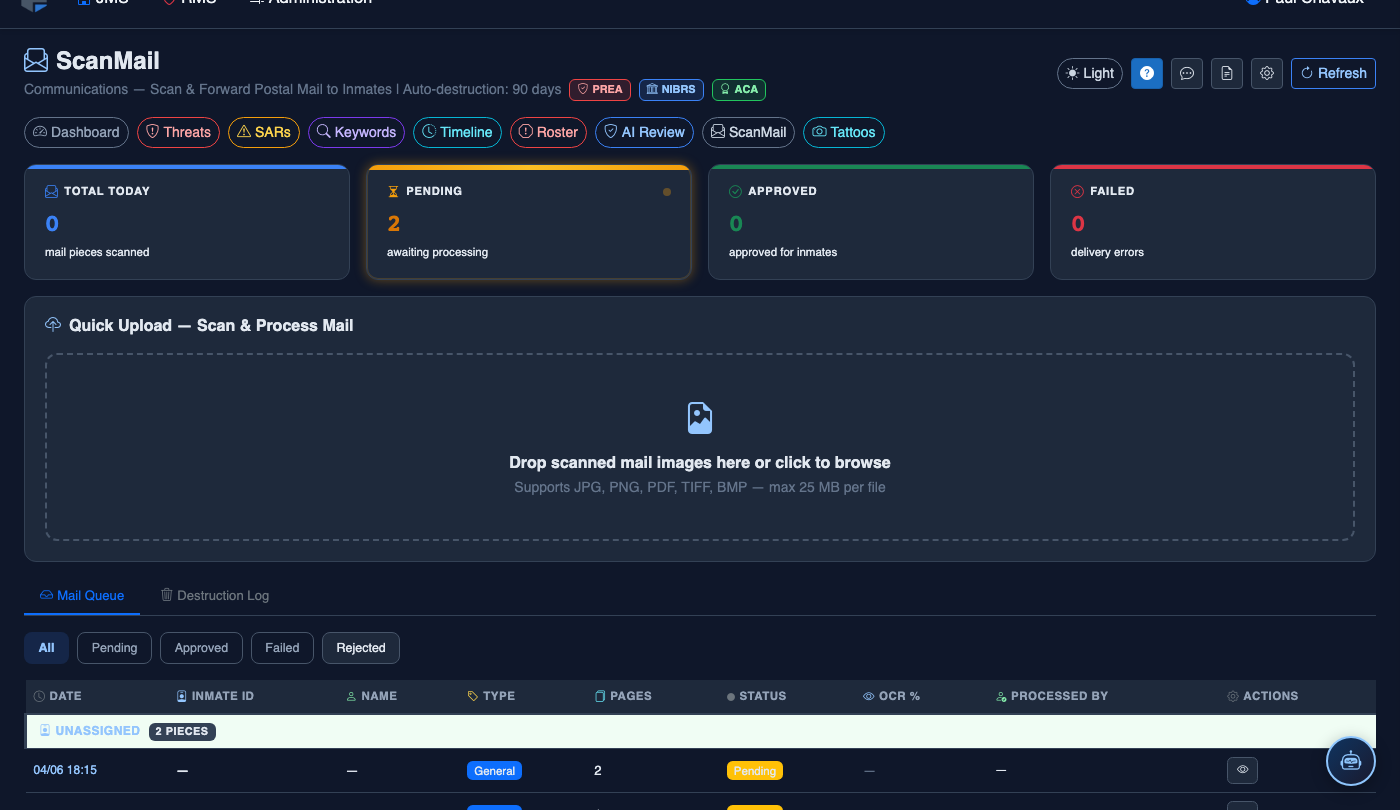
Navigate to the Mail Queue
Go to JMS → IPS → ScanMail. The Mail Queue tab loads by default showing all pieces. The four KPI cards (Total Today, Pending, Approved, Failed) give you an at-a-glance status.
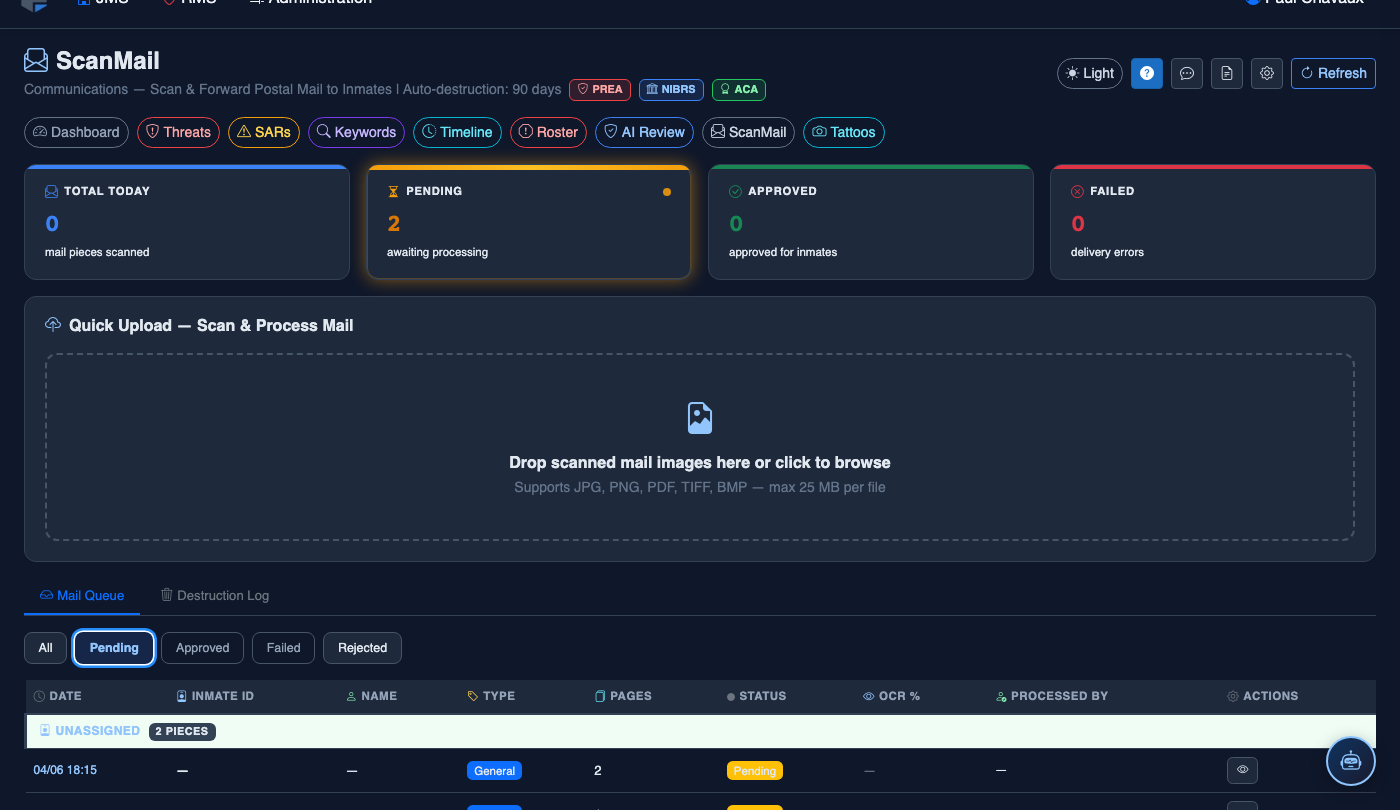
Filter to Pending Pieces
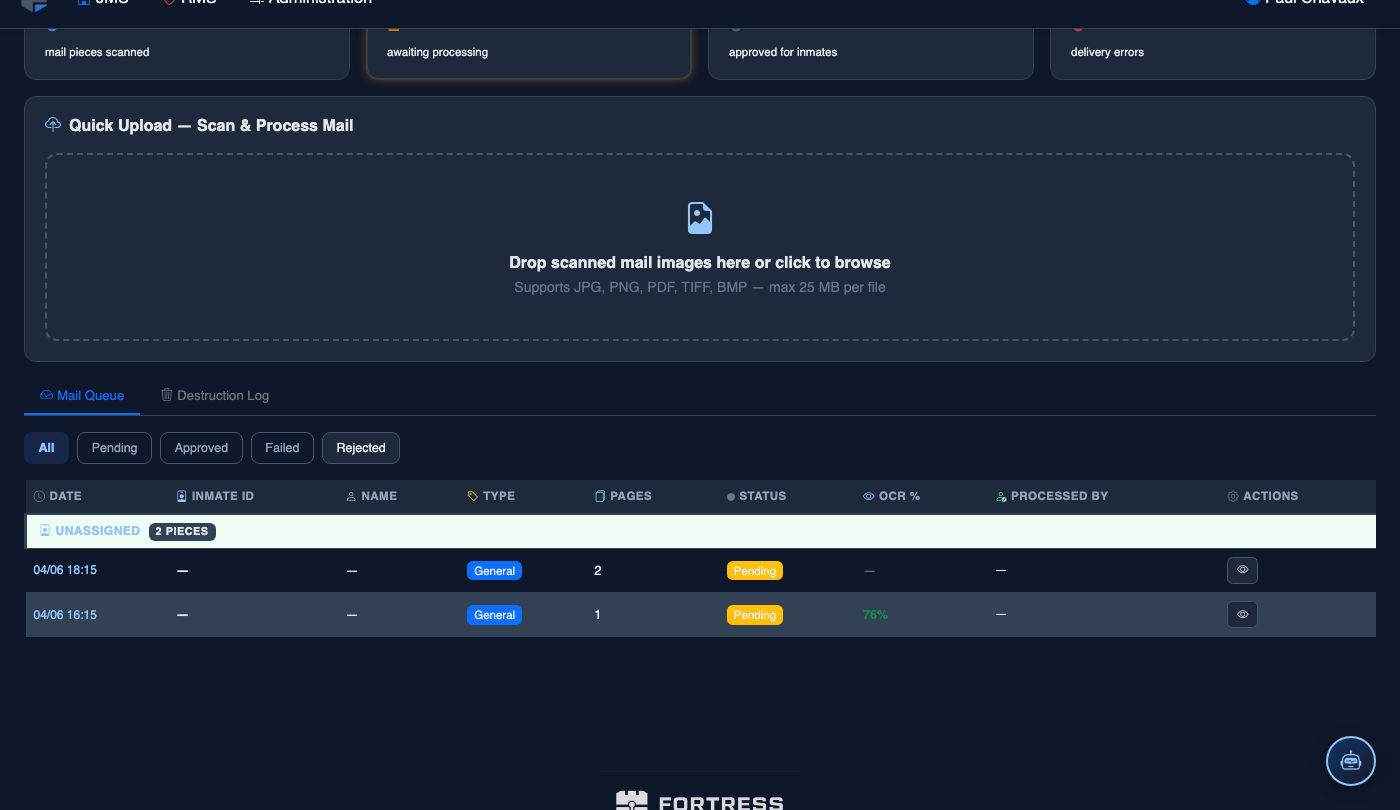
Click the Pending filter pill to see only pieces awaiting review. Each row shows the date scanned, inmate ID, name, mail type, page count, OCR confidence %, and current status.
Review Pending Items
Click the eye icon (👁) on any row to open the detail panel. The panel shows the full PDF scan inline, OCR’d text, inmate match, and any keyword flags.
Assign Inmate (if unassigned)
If a piece shows “Unassigned,” use the inmate search to match the recipient. The OCR engine pre-fills the name from the envelope address — confirm or override.
Approve or Reject
Click Approve to deliver to the inmate’s tablet. Click Reject to block delivery and log the reason. Approved pieces are assembled into a read-only PDF and appear in the inmate’s Mail tab immediately.
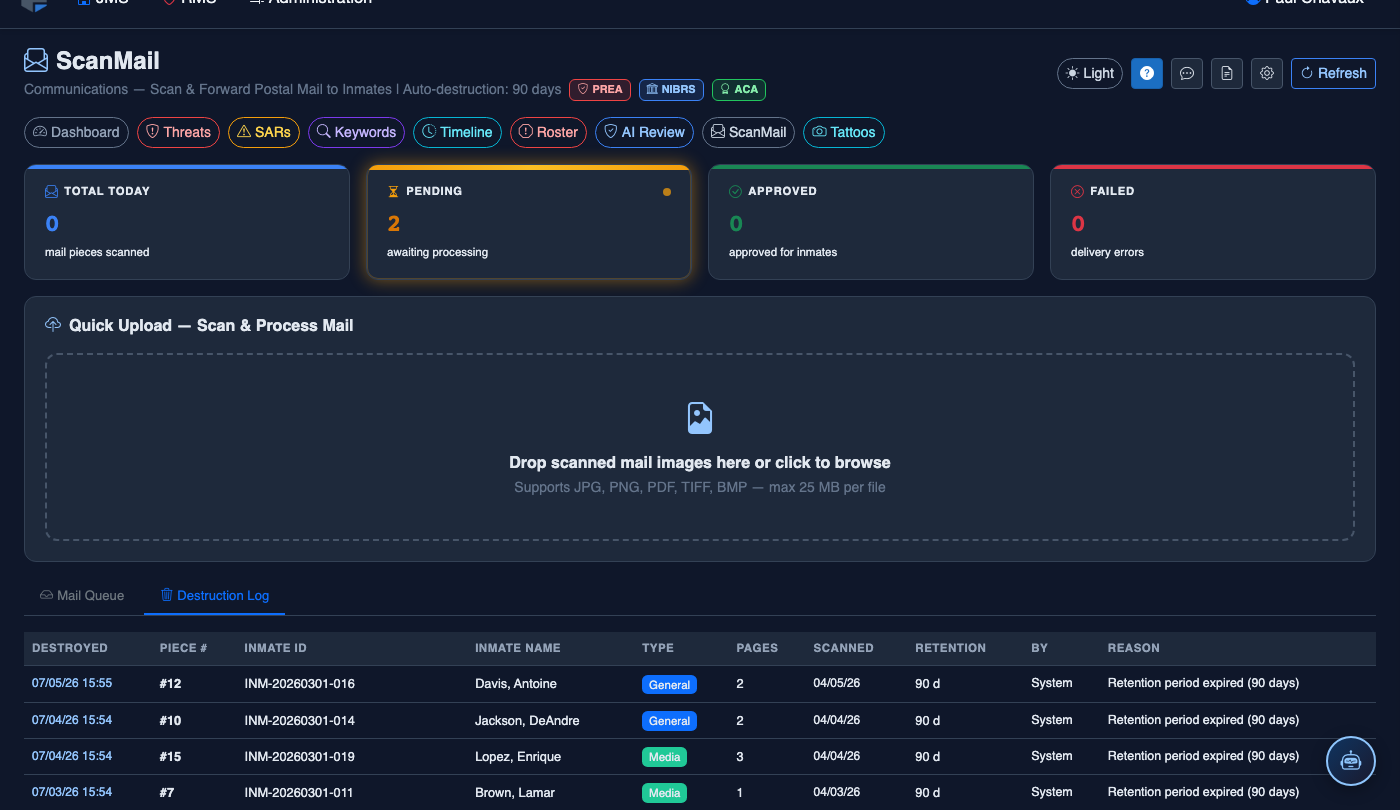
Quick Upload a Single Piece
Drag a scanned image or PDF into the Quick Upload drop zone (JPG, PNG, PDF, TIFF — max 25 MB). The file is queued, OCR’d, and appears in the Pending list within seconds.
- Locate the Quick Upload — Scan & Process Mail panel below the KPI cards.
- Drag your scanned file onto the drop zone or click to open the file browser.
- The file uploads and immediately enters the OCR pipeline — status changes from Pending to Processing.
- Once OCR completes, assign the inmate and approve or reject from the queue.
- Legal mail (Type = Legal) bypasses AI analysis — it goes directly to the review queue with no keyword scanning.
- Use the Rejection Log tab to audit all rejected pieces and their reasons.
- OCR % below 60% triggers the Azure AI Vision fallback for handwritten cursive mail.
Mobile View — Mail Queue
FortressDMS is fully responsive. Officers can access the Mail Queue on a phone or tablet directly from the field — no app install required.
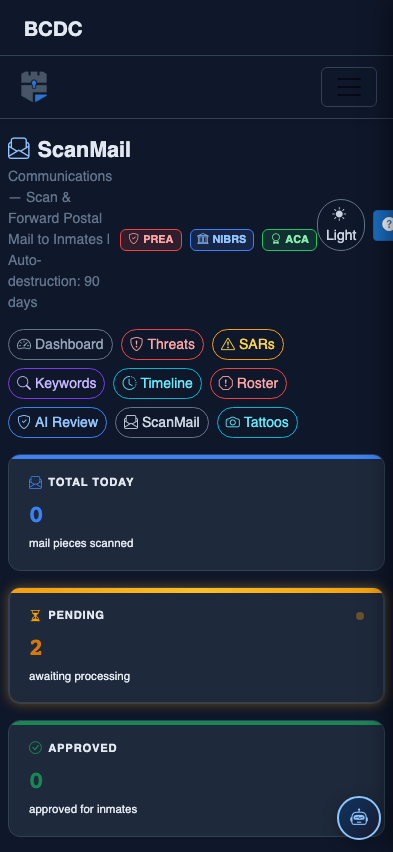
Tab view with data rows
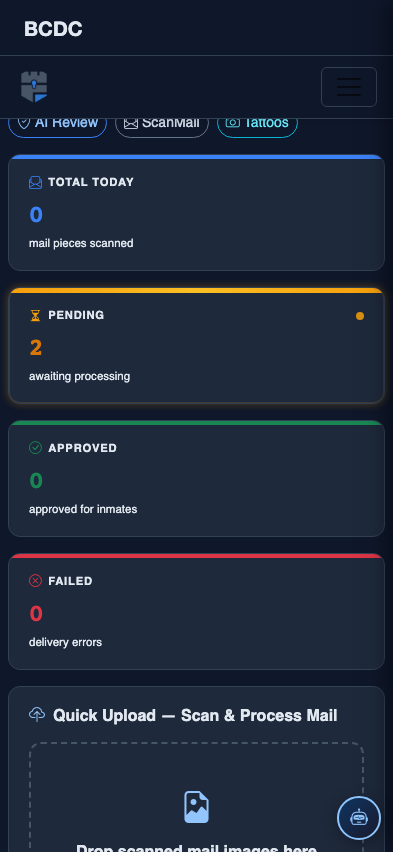
Scrolled / detail view