
Medications
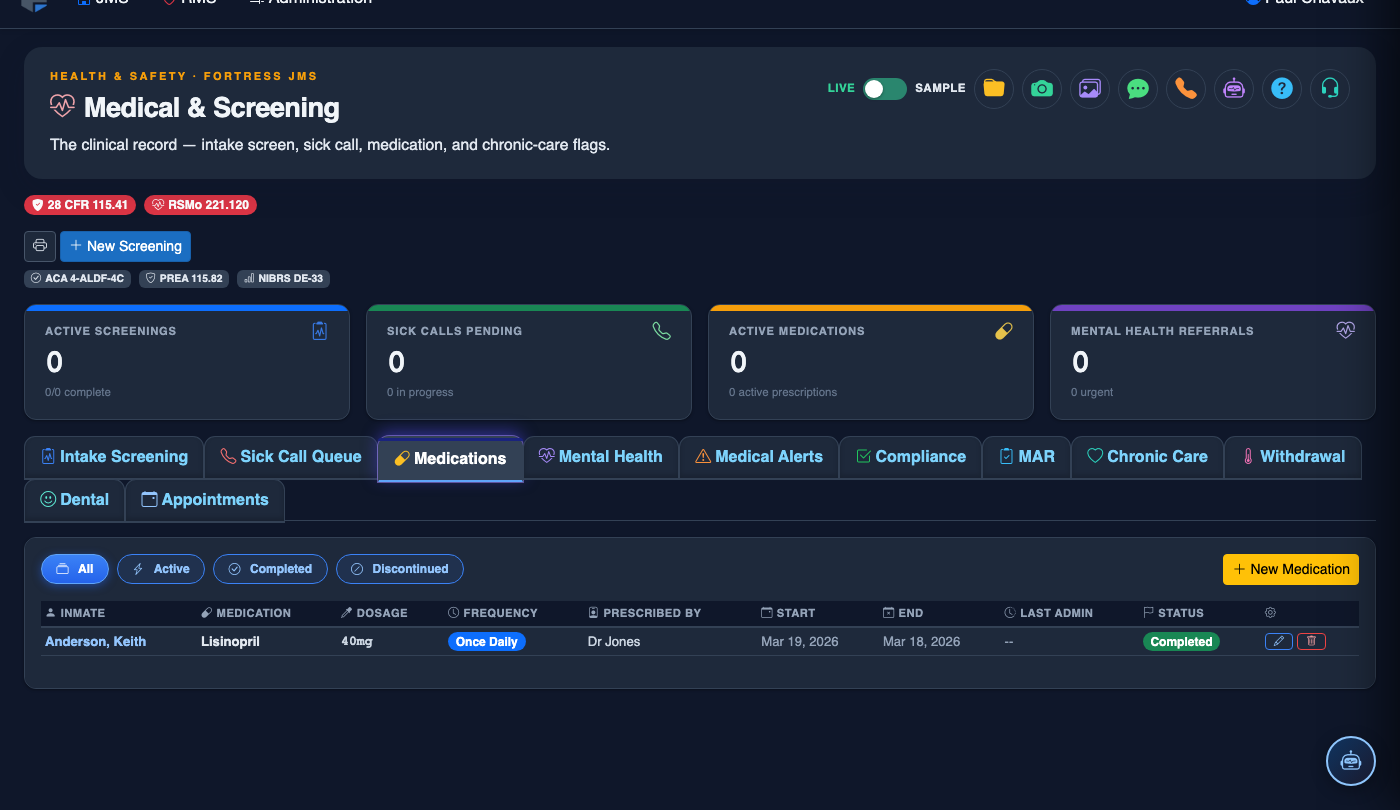
The Medications tab provides correctional nurses and health staff with a complete Medication Administration Record (MAR) for every inmate in the facility. Each medication pass — whether confirmed, refused, or held — is documented in real time with clinician credentials and a timestamp, creating an unambiguous audit trail that satisfies NCCHC standards and protects the facility against liability from medication errors or missed doses.
Medication Administration Record
Full MAR for every inmate, organized by medication pass time, with one-click administration confirmation or refusal documentation.
Pass Time Alerts
Configurable alerts notify nursing staff when a medication window opens, preventing missed doses across multiple housing units.
Duplicate Prevention
The system locks the administration record after a dose is given, preventing accidental duplicate entry within the same medication window.
Pharmacy Orders
Initiate new prescription orders, refill requests, and formulary substitutions directly within the tab, routed to the contracted pharmacy.
Step-by-Step: Medications (MAR)
Open the Medications Tab for a Medication Pass
Navigate to the Medical & Screening module and click the Medications tab. Select the Housing Unit or Pod from the filter bar and select the current Pass Time (AM, Noon, PM, or HS). The MAR grid loads all inmates in the selected unit with medications due during this pass, sorted by cell number for efficient cart-based distribution.
Verify the Medication Before Administration
Click on any inmate row to expand their full medication list for this pass. For each medication, verify the Drug Name, Dose, Route, and Prescribing Provider displayed on screen match the physical medication you are administering. The system also displays any active Allergy Alerts or Drug Interaction Warnings in amber at the top of the row.
Confirm Administration or Document a Refusal
After administering the medication, click Given on the medication row. The MAR entry is immediately timestamped with your nurse credentials and the exact time of administration. If the inmate refuses, click Refused, select a refusal reason from the dropdown (e.g., Side Effects, Asleep, Refused Without Reason), and add a brief note. Refusals are tracked and flagged for provider review after three consecutive instances.
Place a Medication on Hold
If a medication must be withheld for a clinical reason — such as a pending procedure, abnormal lab result, or provider order change — click Hold and enter the Hold Reason and the Hold Duration or condition for resumption. Held medications appear in a separate on-hold list and generate an automatic notification to the prescribing provider.
Add a New Prescription Order
To add a new medication for an inmate, click New Prescription from within their MAR panel. Enter the Drug Name (searched from the formulary), Dose, Route, Frequency, Start Date, Stop Date (if applicable), and Prescribing Provider. The order is sent electronically to the contracted pharmacy and the medication appears in the MAR at the appropriate pass time once it is dispensed and confirmed received.
Reconcile Medications at Release
When an inmate is scheduled for release, a Medication Reconciliation alert appears in their MAR. Review all active prescriptions, print a Continuity of Care Medication Summary for the inmate to present to their outside provider, and formally discontinue any facility-issued prescriptions that will not continue post-release. This step is critical for chronic disease management and reduces re-arrest risk linked to unmanaged conditions.
Export the Monthly MAR for Compliance Review
At the end of each month, click Export MAR Report to generate a complete PDF or CSV of all medication administration records for the selected period. This report is formatted for submission to the facility’s contracted pharmacist, medical director, and state oversight body as part of regular quality assurance and accreditation reviews.
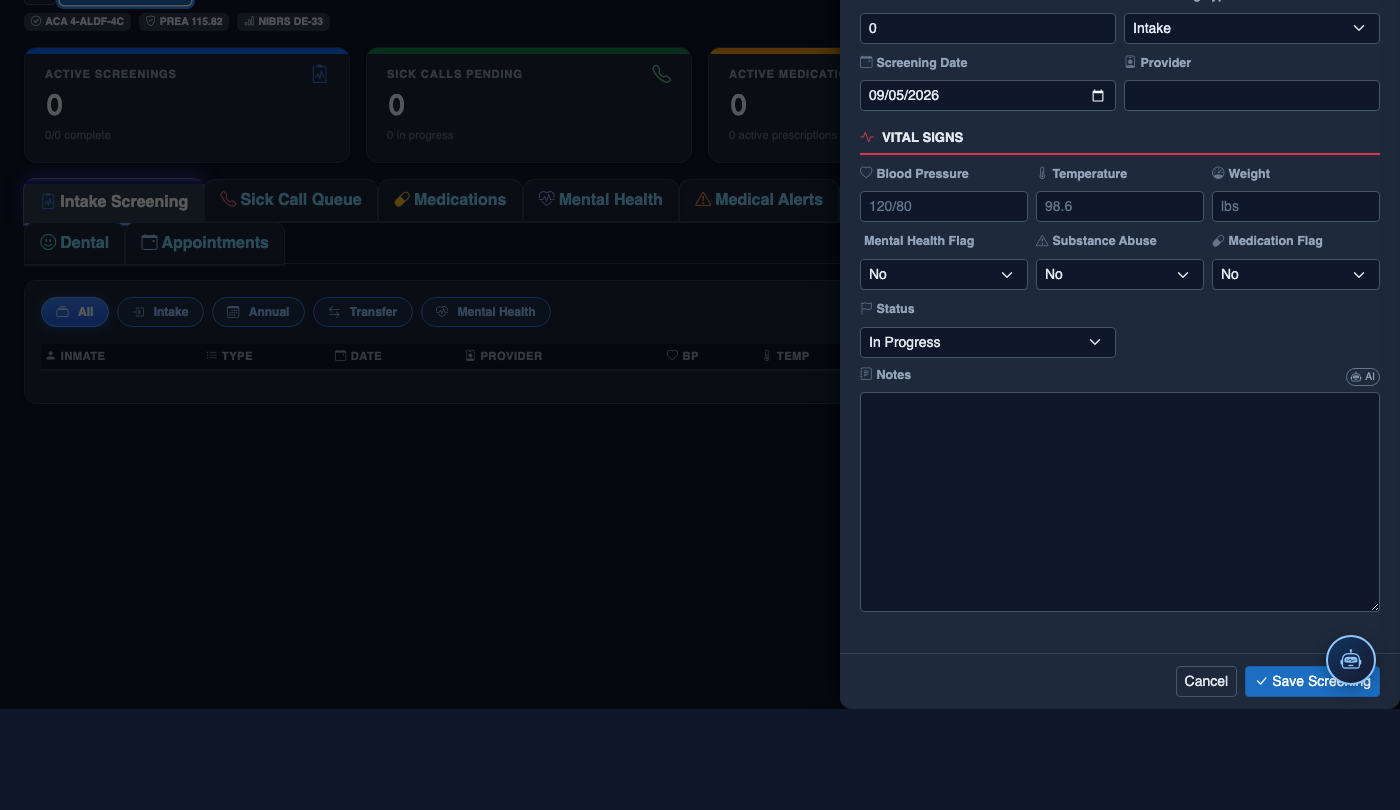
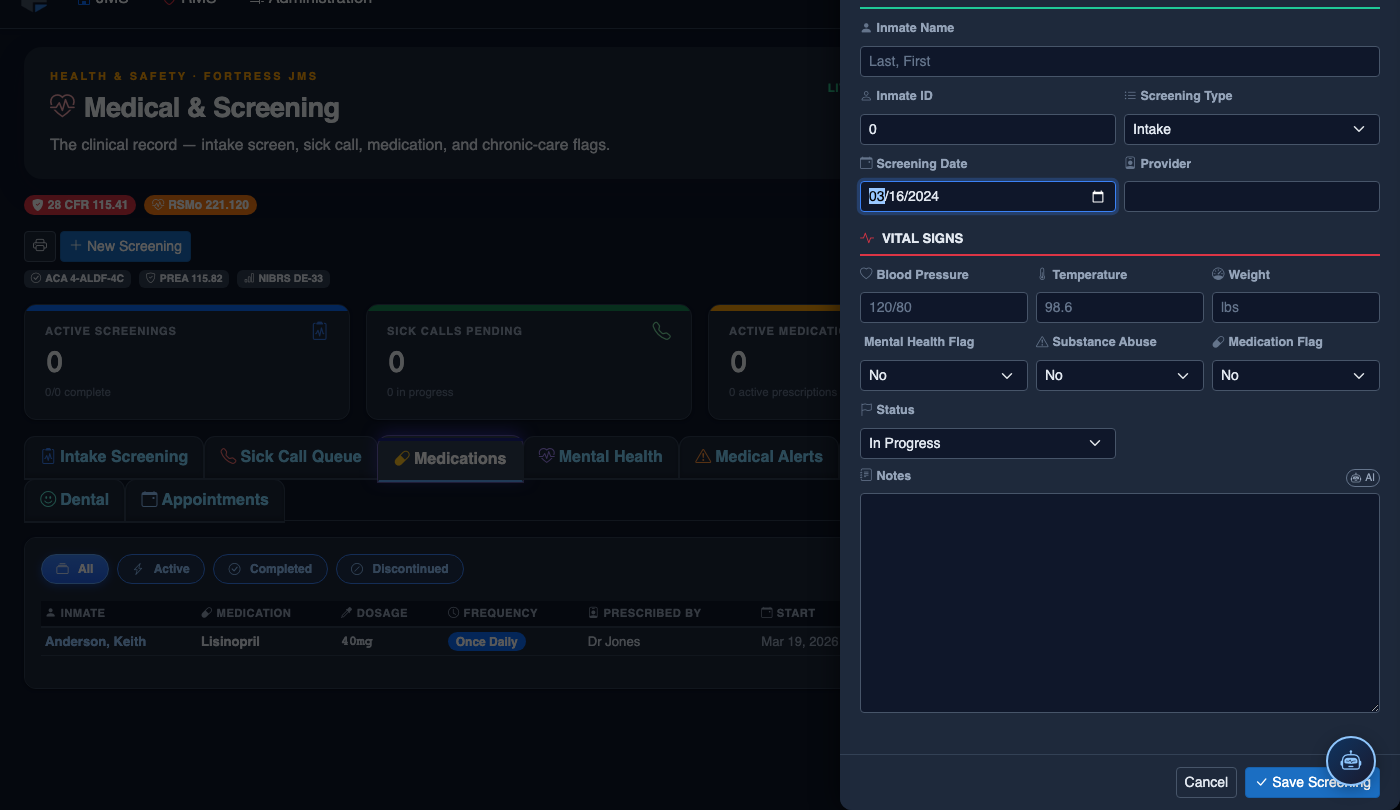
Create a New Medical Record
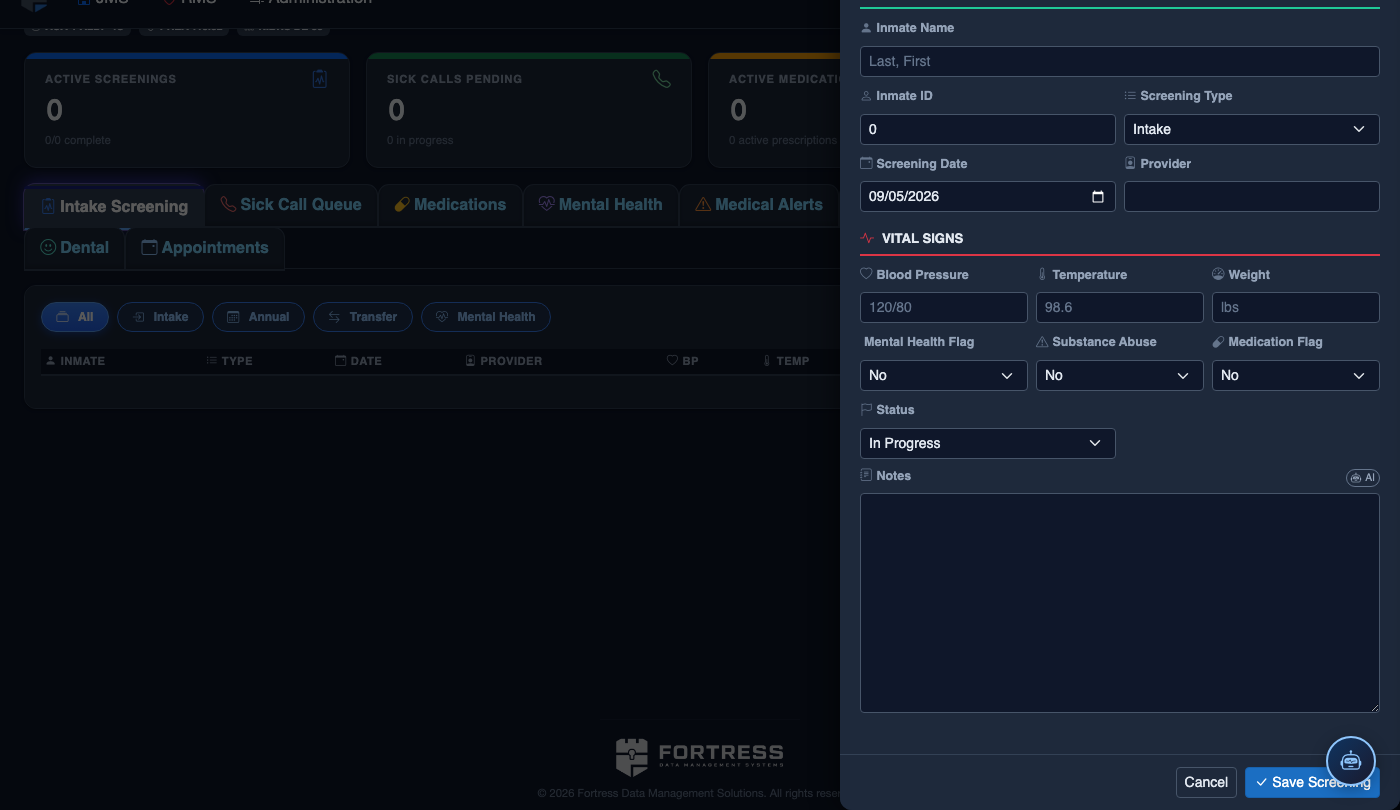
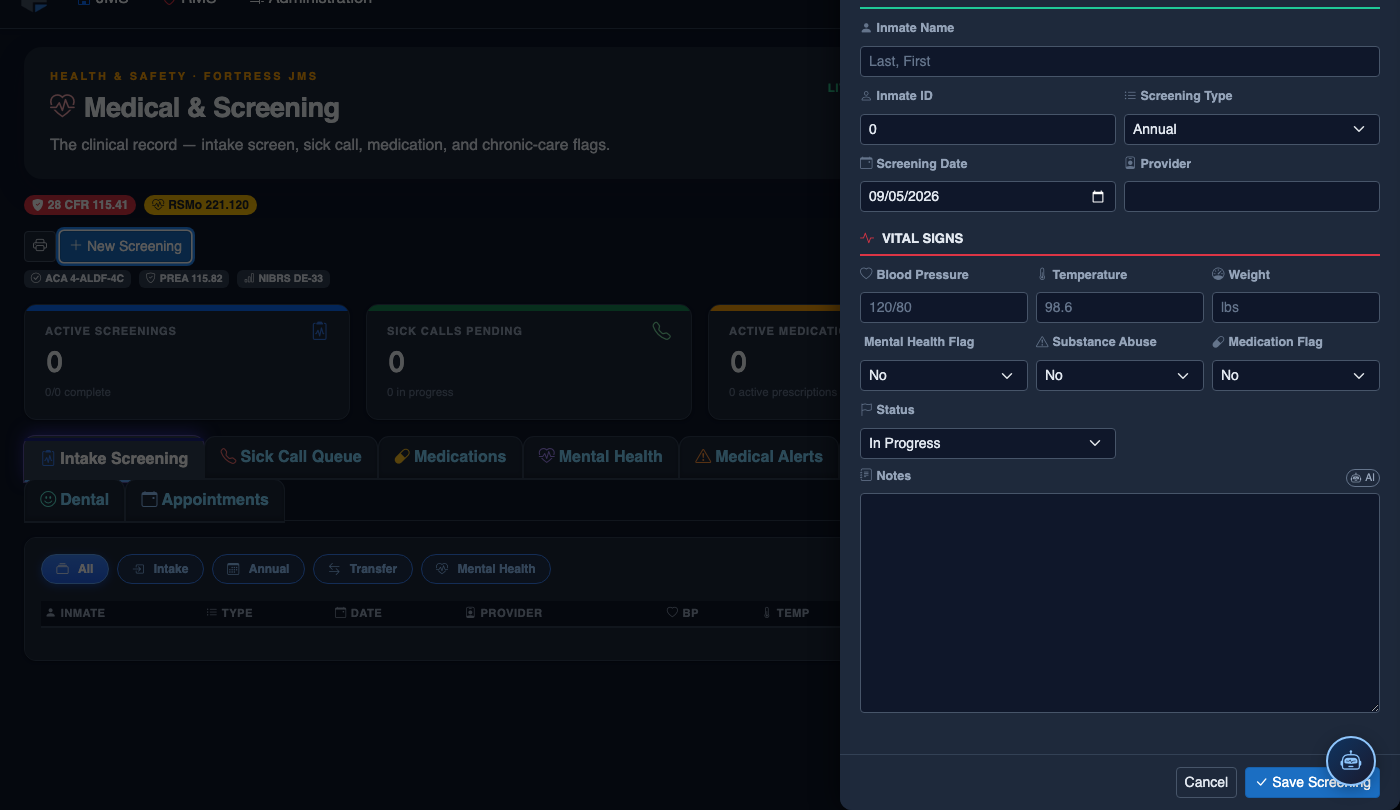
Click New Screening in the module toolbar. Complete the medical form:
- Inmate — search by name or booking number.
- Visit Type — Intake Screening, Sick Call, Scheduled Follow-Up, or Emergency.
- Priority — Routine, Urgent, or Emergent; Emergent pages on-call provider immediately.
- Chief Complaint / Findings — document symptoms, vitals, and objective observations.
- Provider — assign the clinician or nurse conducting the visit.
- Disposition — Treat and Return, Infirmary Admission, Hospital Transfer, or No Action.
- Add any Prescriptions, Follow-Up Date, or Restrictions.
- Click Save Record. Alerts fire automatically if vital signs are out of range.
💡 Pro Tips
- Use the Controlled Substance filter on the MAR to generate a separate view of all Schedule II–V medications during your pass — this simplifies the count verification process required by most state pharmacy board regulations for correctional facilities.
- When an inmate is transferred to a court appearance or outside medical appointment mid-pass, use the Partial Pass notation rather than marking the dose as missed — this preserves an accurate record without triggering a false missed-dose compliance alert.
- The Refusal Trend Report (available under module Reports) identifies inmates with frequent refusals that may warrant a provider consultation about medication palatability, side effect management, or treatment adherence counseling.
Mobile View — Medications
FortressDMS is fully responsive. Officers can access the Medications on a phone or tablet directly from the field — no app install required.
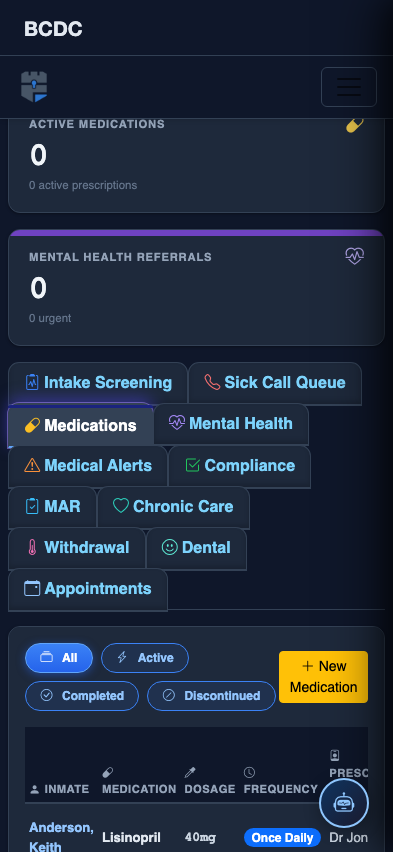
Tab view with data rows
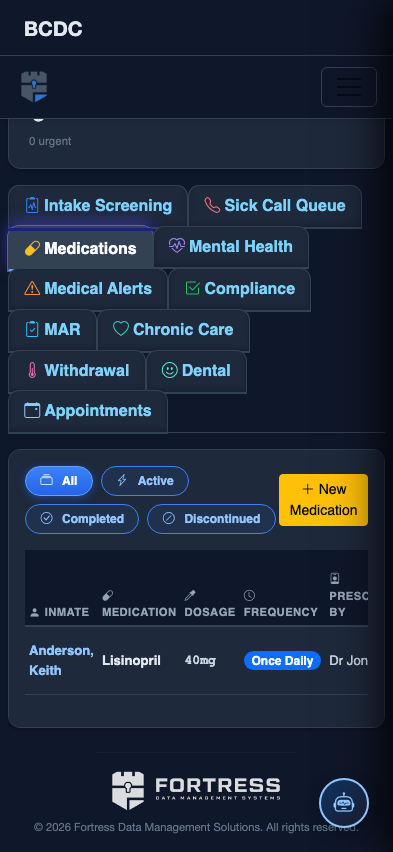
Scrolled / detail view