
Session History
The Session History tab provides a complete, searchable log of every video visitation session conducted at your facility. Administrators and supervisors can review past visits, verify compliance with scheduling policies, and retrieve session records for investigative or legal proceedings. Every session is timestamped, linked to the inmate booking record, and annotated with station, visitor, and duration data.
Complete Audit Trail
Every session is logged with start time, end time, station, inmate ID, and visitor identity for full accountability.
Advanced Search & Filter
Filter session records by inmate name or booking number, visitor, date range, station, or session status.
Legal & Compliance Ready
Export session logs in standard formats suitable for court discovery, internal investigations, or accreditation audits.
Flagged Session Review
Sessions flagged by officers during live monitoring are highlighted in the history log for rapid supervisor follow-up.
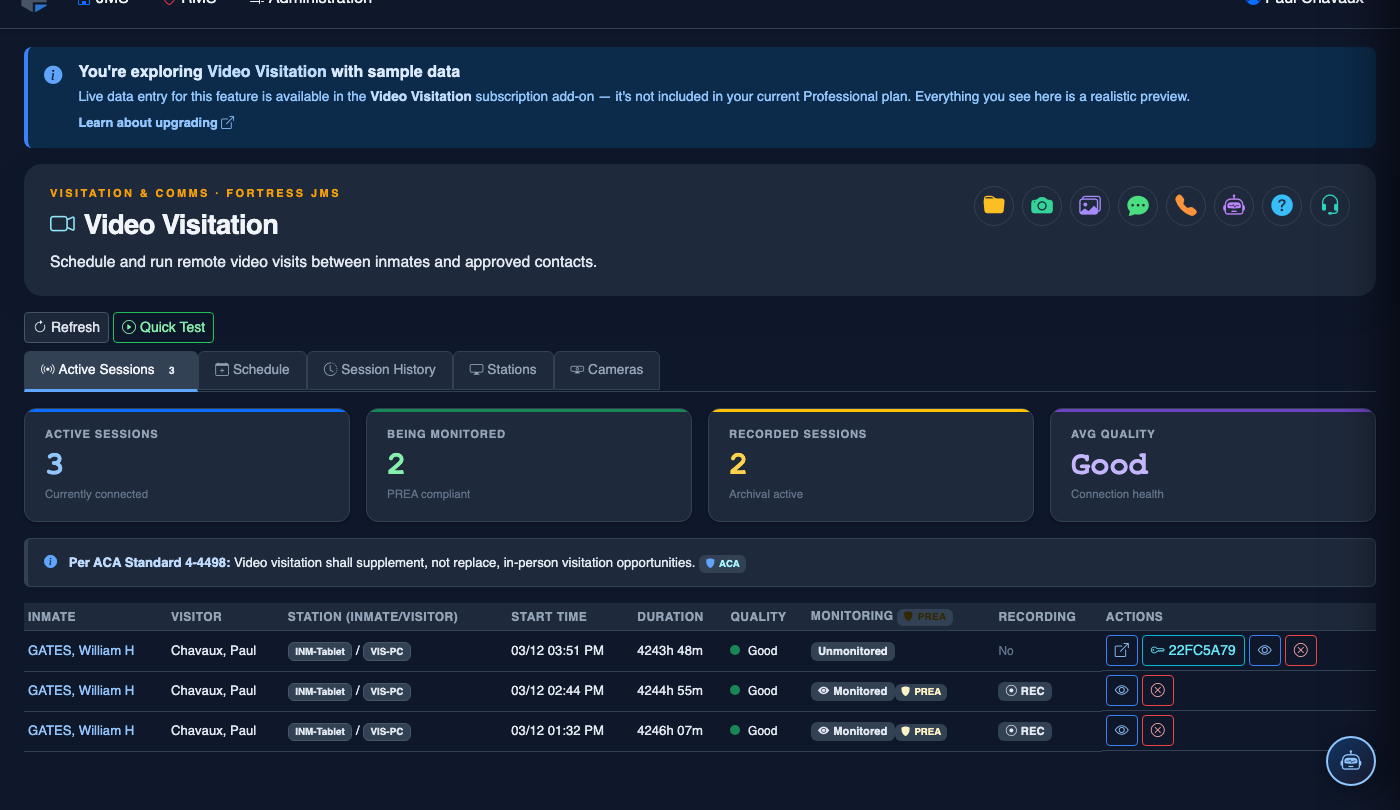
Step-by-Step: Reviewing Session History
Navigate to Video Visitation > Session History
From the main navigation menu, select Video Visitation, then click the Session History tab. The page loads a paginated grid of all past sessions sorted by most recent first.
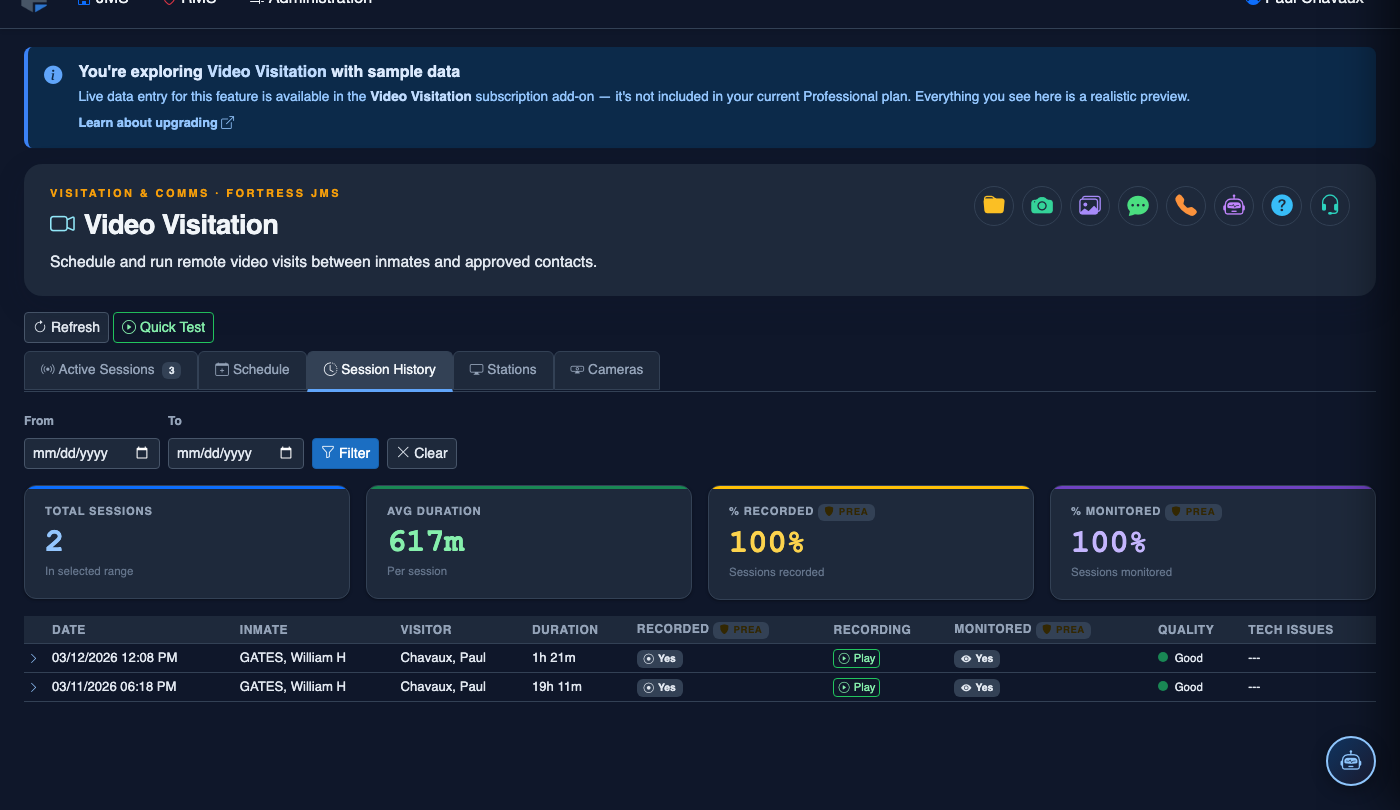
Set Your Date Range
Use the Start Date and End Date pickers at the top of the filter bar to narrow results to a specific time window. Click Apply Filters to refresh the grid.
Search by Inmate or Visitor
Enter a name or booking number in the Inmate Search field, or type a visitor name in the Visitor field. The grid updates in real time to show only matching sessions.
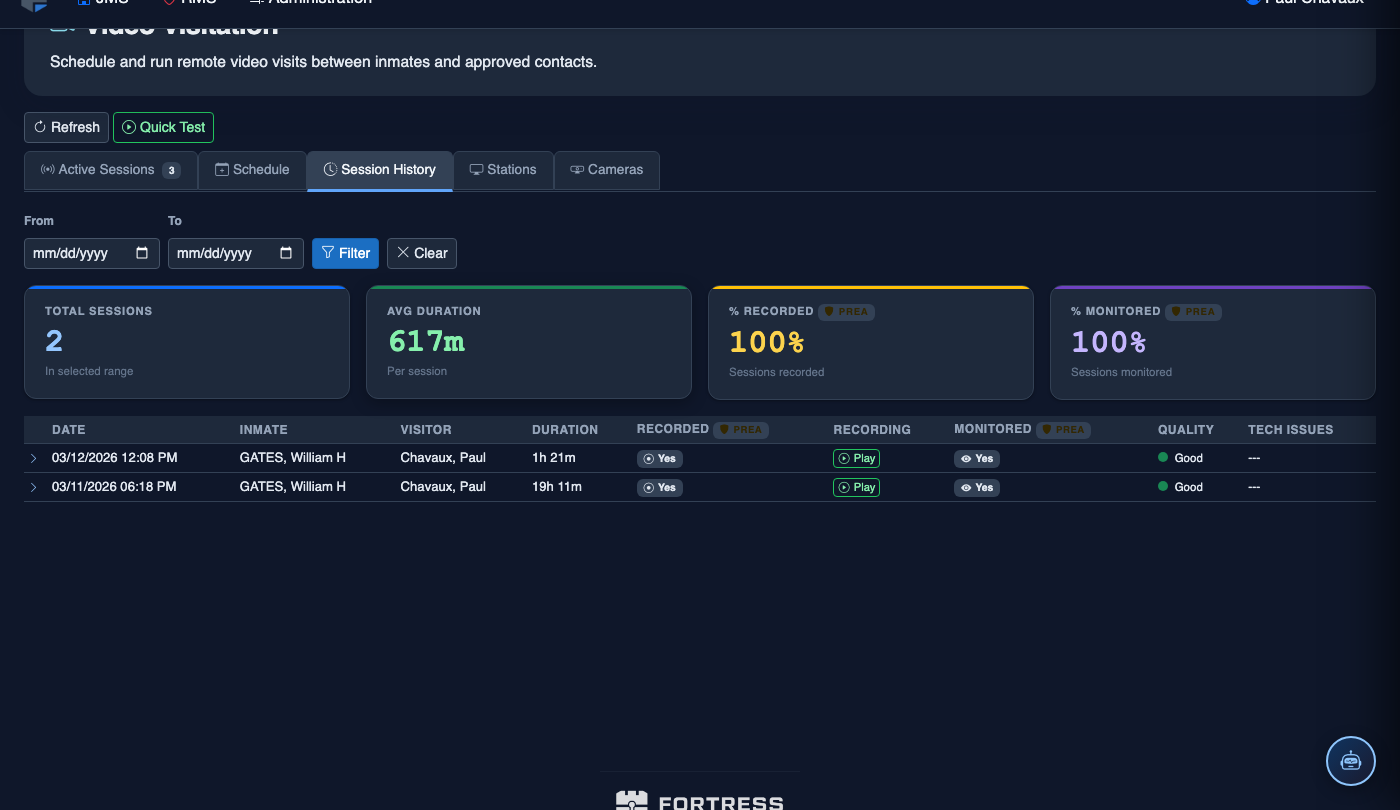
Review Session Details
Click any row in the session grid to expand its detail panel. You will see the Station used, Scheduled vs. Actual Duration, visitor check-in status, and any officer notes or flags applied during the session.
Identify Flagged Sessions
Rows highlighted in amber indicate sessions that were flagged by a monitoring officer. Click the row to read the flag reason and the officer’s name and badge number.
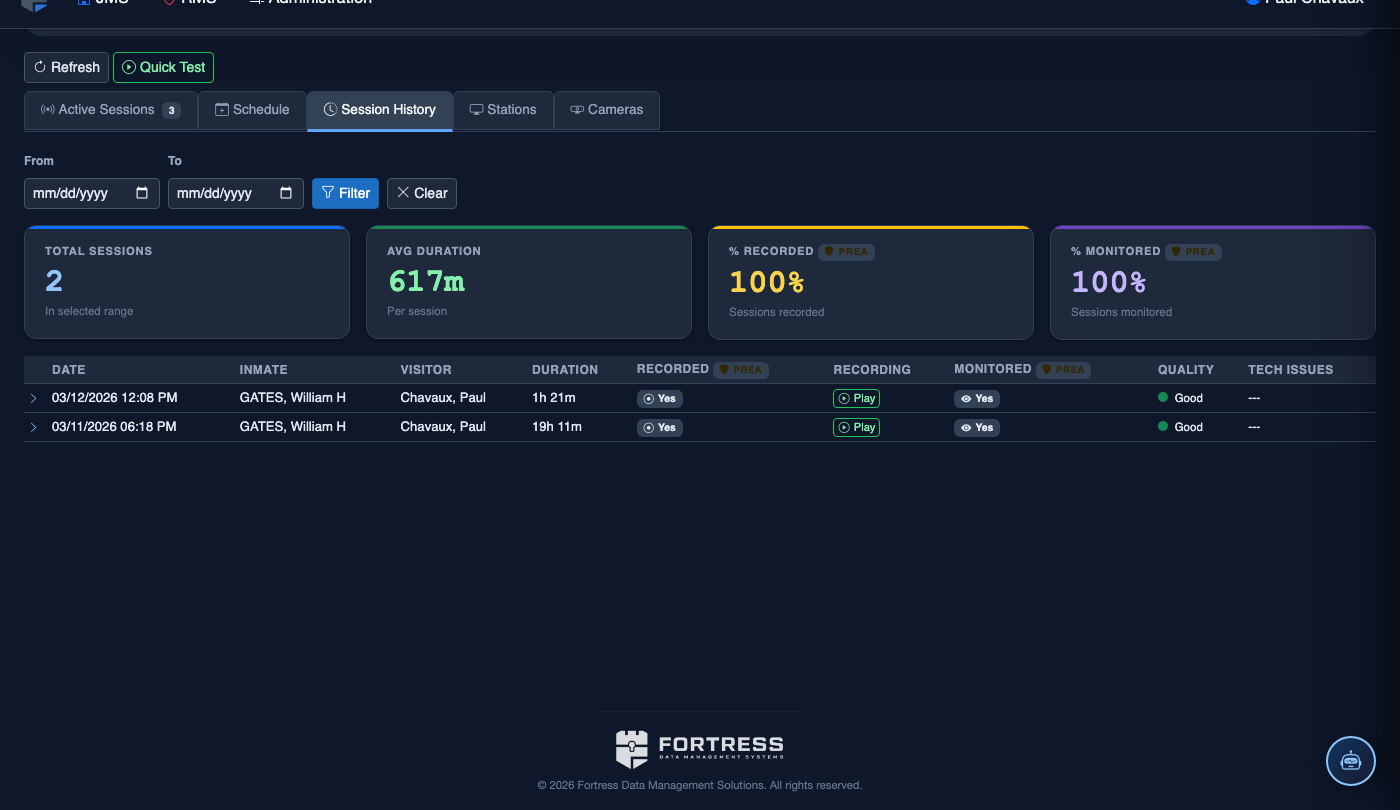
Export the Session Log
Click Export CSV or Export PDF from the toolbar to download the currently filtered session list. The export includes all visible columns and is timestamped for chain-of-custody documentation.
Link to Inmate Record
From the session detail panel, click View Inmate Record to jump directly to the inmate’s booking and classification profile — useful when a session review reveals a conduct concern that requires a classification update.
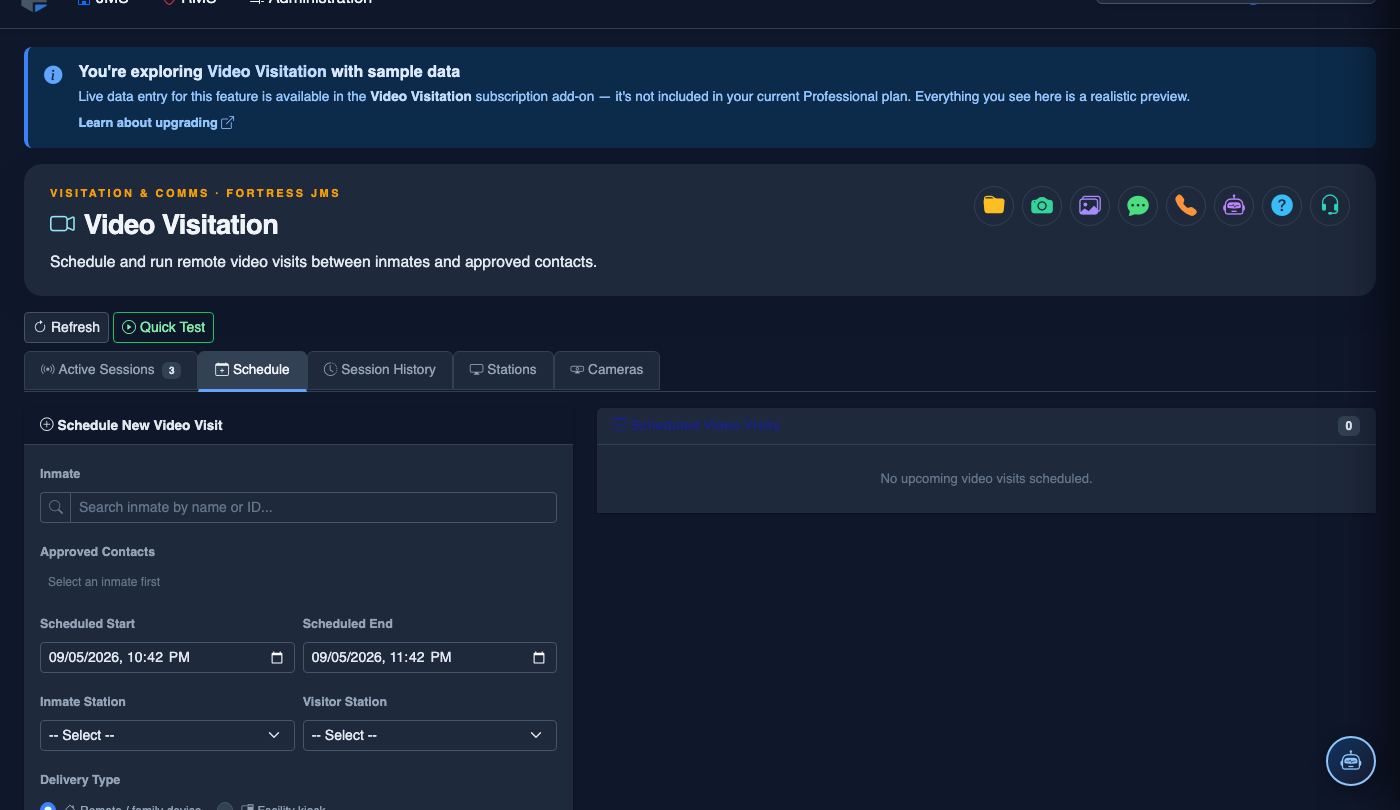
Schedule a Video Visitation Session
Click Schedule. Complete the video session booking:
- Inmate — search by name or booking number.
- Visitor — select from the approved visitor list; remote visitors receive an email invitation link.
- Session Type — Remote Video (visitor connects from home), In-Facility Kiosk, or Legal (private channel, no recording).
- Date and Time Slot — choose from available slots; the system enforces visit frequency limits per facility policy.
- Station Assignment — select the video station or kiosk to use.
- Duration — typically 30 minutes; extended slots require supervisor approval.
- Click Confirm Booking. Confirmation emails go to the visitor; session appears on the facility video schedule.
💡 Pro Tips
- Run a weekly export of all flagged sessions and include it in your supervisory report to administration — it demonstrates active monitoring compliance.
- Use the Station filter to isolate sessions from a specific kiosk when troubleshooting connectivity or audio quality complaints from inmates or visitors.
- Session duration data can reveal patterns of early terminations; consistently short sessions on one station may indicate a hardware issue worth escalating to your IT department.
Mobile View — Session History
FortressDMS is fully responsive. Officers can access the Session History on a phone or tablet directly from the field — no app install required.
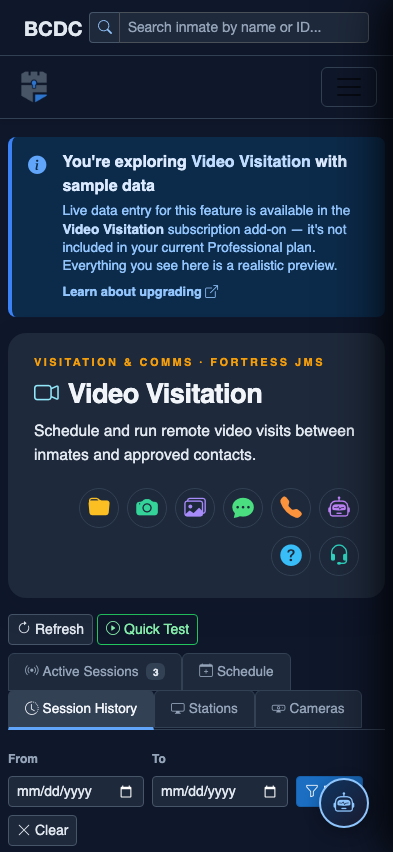
Tab view with data rows
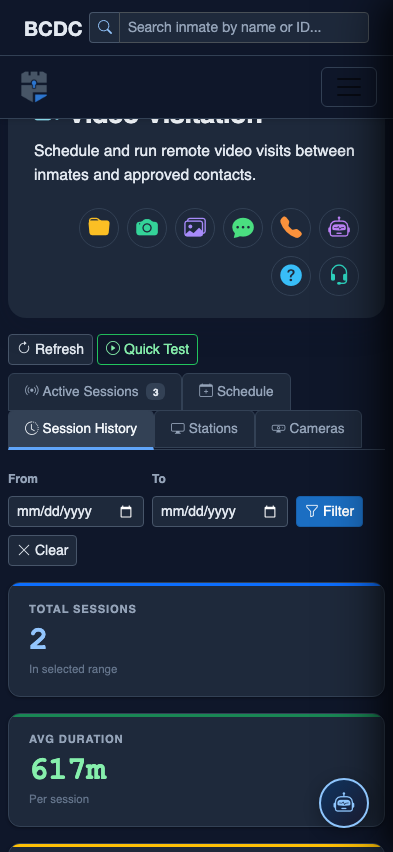
Scrolled / detail view