
DID Management
The DID Management tab provides a centralized inventory and routing console for every Direct Inward Dial telephone number assigned to the facility. Administrators can view the full DID pool, assign numbers to departments or inmate phone stations, configure ring destinations, and manage carrier-level provisioning — all without leaving FortressDMS. Accurate DID management ensures that public inquiry lines, attorney access numbers, and inmate calling systems all route correctly and that carrier costs are attributed to the right cost centers.
Full DID Inventory
A searchable grid of all facility DIDs with carrier, assignment status, monthly cost, and routing destination in one view.
Flexible Routing
Route any DID to an extension, ring group, IVR menu, queue, or voicemail box with a few clicks — no PBX command-line access needed.
Attorney-Client Flags
Tag specific DIDs as attorney lines so the system automatically suppresses call recording and enforces privileged-call protections.
Misconfiguration Alerts
Automatic health checks flag orphaned DIDs with no routing destination so calls are never silently dropped.
Step-by-Step: Managing DIDs in Communicator Management
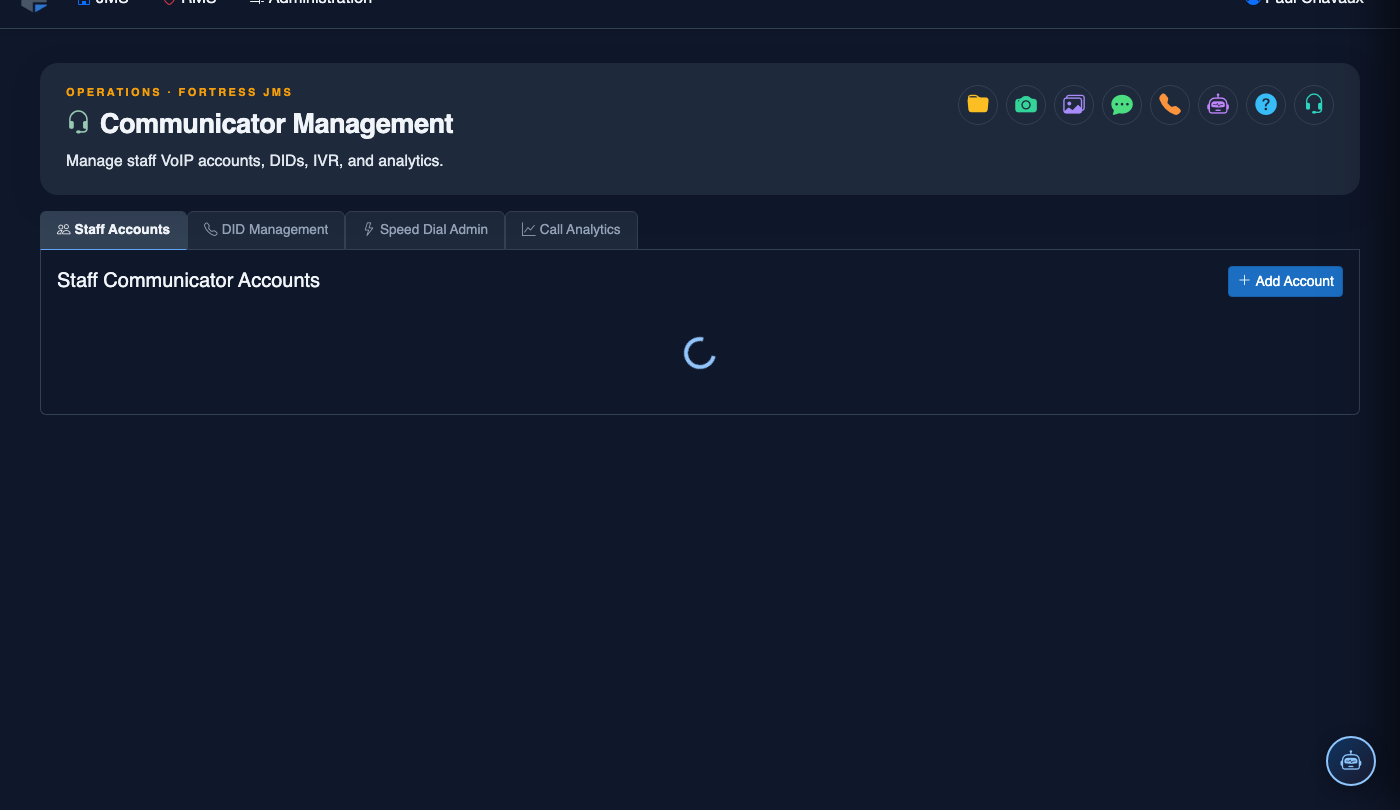
Open the DID Management Tab
Navigate to Communicator Management and click the DID Management tab. The inventory grid loads showing each DID’s Phone Number, Carrier, Type (Inmate / Staff / Public / Attorney), current Routing Destination, and a status badge indicating whether routing is correctly configured.
Add a New DID
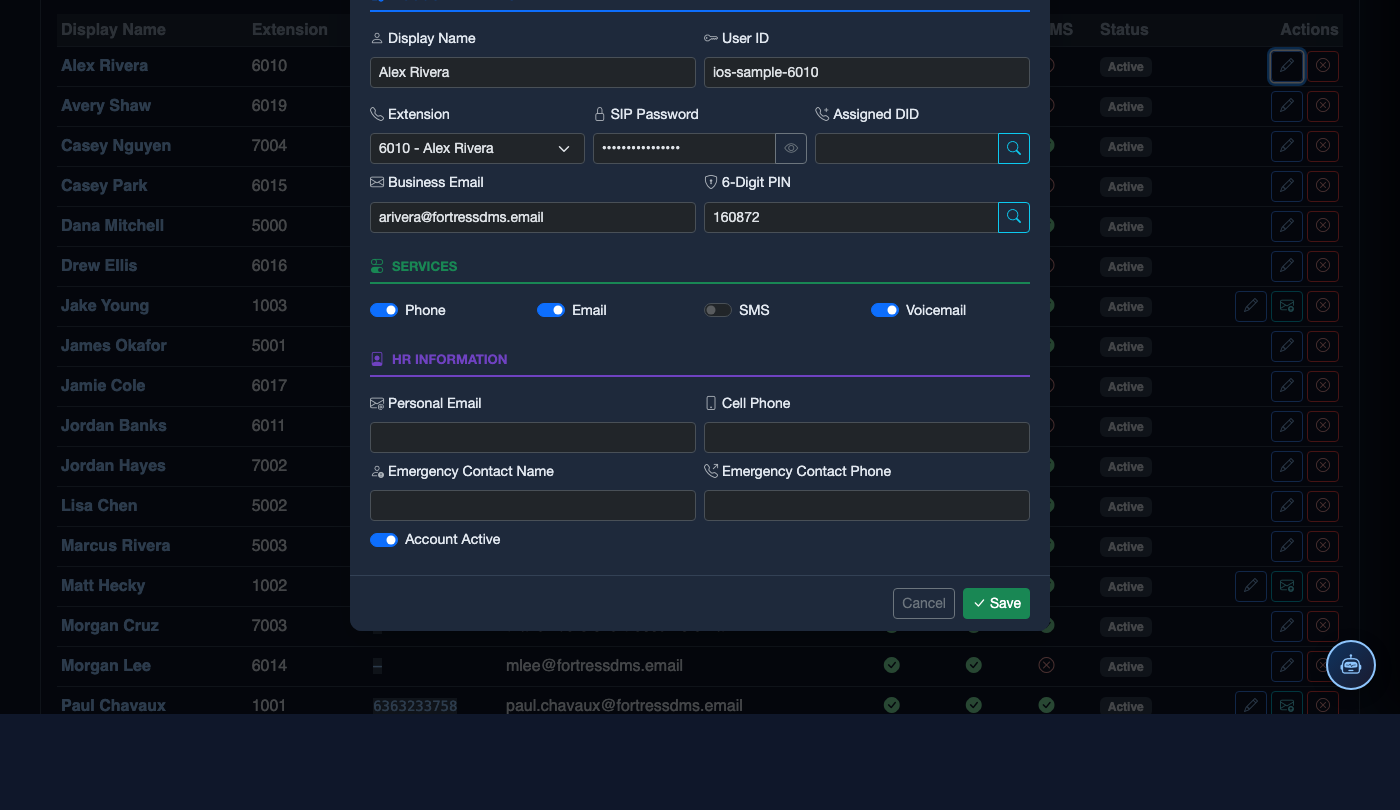
Click + Add DID. Enter the Phone Number (E.164 format), select the Carrier from the dropdown, and set the DID Type. If you have carrier API credentials configured, click Import from Carrier to auto-populate all numbers from your account — this is faster for bulk additions after ordering new numbers.
Configure Routing Destination
Select the Routing Type — Extension, Ring Group, IVR Menu, Queue, or Voicemail Box — then choose the specific target from the searchable dropdown. For inmate calling DIDs, set the destination to the appropriate Inmate Phone Station group so call costs are tracked at the housing-unit level.
Apply the Attorney-Client Flag
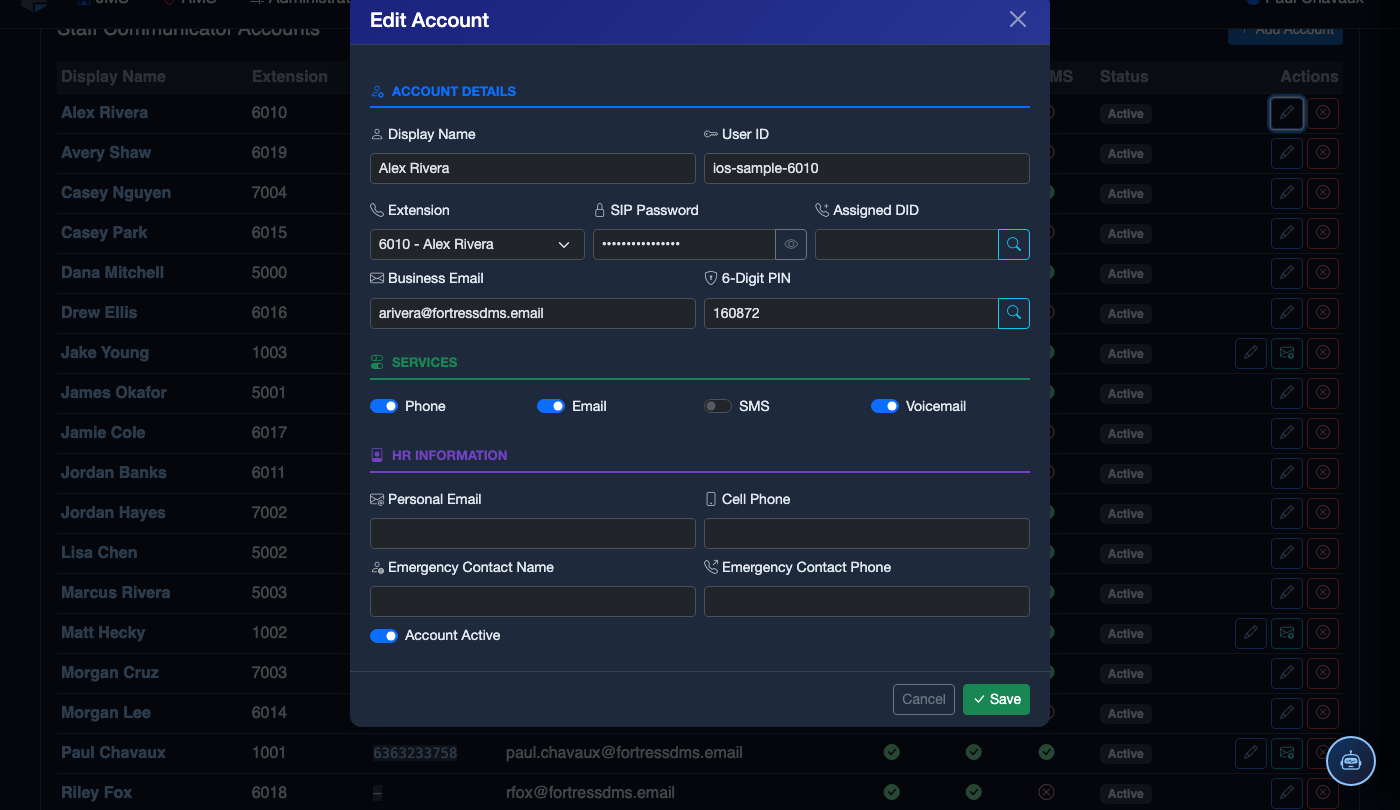
For numbers used by defense attorneys or public defenders, enable the Attorney-Client Privilege toggle. This flags all calls to or from this DID as legally privileged: call recording is automatically suppressed, the number is excluded from inmate call monitoring, and a special privilege marker appears in call logs.
Save and Verify Routing
Click Save DID. The system runs an immediate routing health check — the status badge updates to Configured (green) if the destination is reachable, or Error (red) if the target extension or group has been deleted or is suspended. Resolve any errors before the DID goes into service.
Reassign or Release a DID
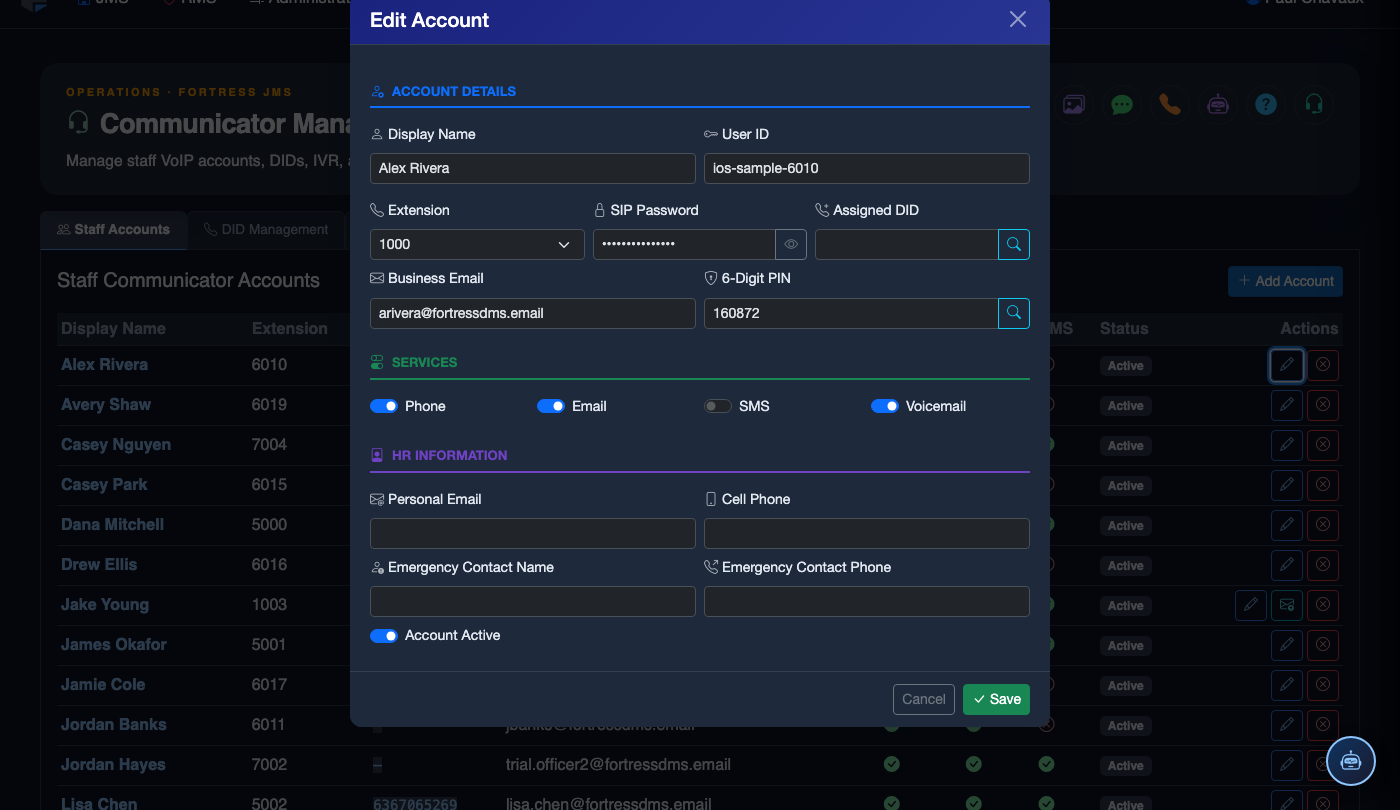
To move a number to a different department, click Edit and update the routing destination — all future calls reroute immediately. To release a number back to the carrier (e.g., when downsizing a housing unit), click Release DID and confirm. The system logs the release timestamp for billing reconciliation.
Review Cost Attribution Reports
Click DID Cost Report to generate a breakdown of monthly carrier charges per DID, cross-referenced with call volume by destination type. Use this report during budget reviews to identify underutilized numbers consuming unnecessary carrier fees.
💡 Pro Tips
- Conduct a DID audit at least quarterly — orphaned numbers with no routing destination are the most common source of missed public inquiry calls and wasted carrier spend.
- Keep an internal DID registry document that mirrors the JMS inventory, including the purpose, responsible department head, and renewal date for each number — useful for rapid troubleshooting without system access.
- When ordering new DIDs from the carrier, request that all numbers be ported into the FortressDMS carrier integration account so they import automatically rather than requiring manual entry.
Mobile View — DID Management
FortressDMS is fully responsive. Officers can access the DID Management on a phone or tablet directly from the field — no app install required.
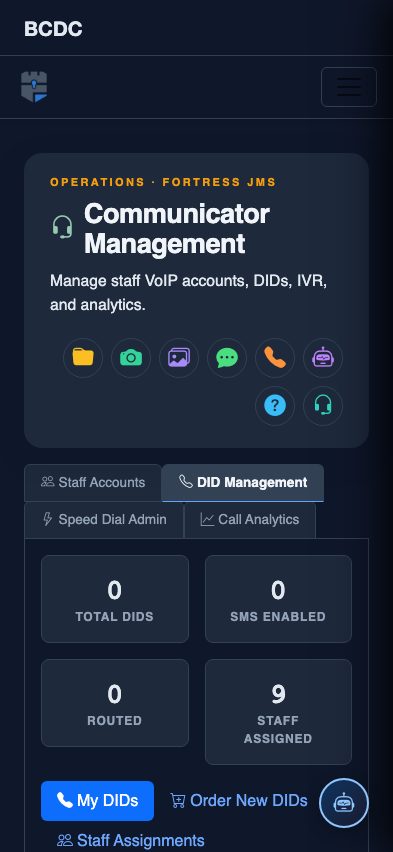
Tab view with data rows
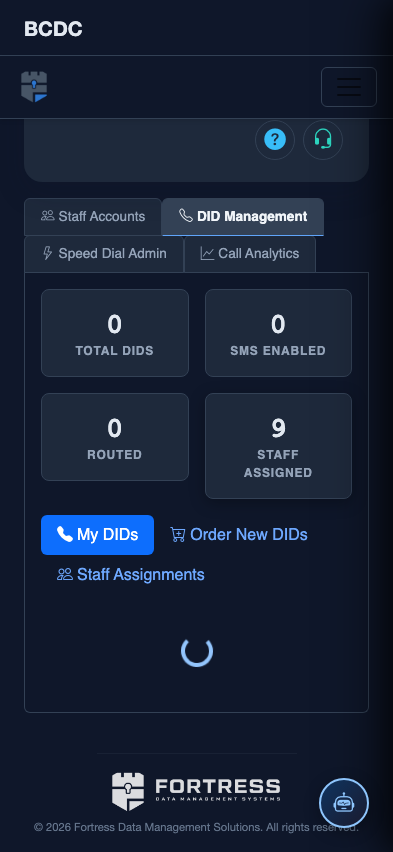
Scrolled / detail view