
Hearings & Adjudication
The Hearings & Adjudication tab manages the formal disciplinary hearing process from scheduling through final finding — capturing inmate pleas, hearing officer decisions, witness testimony, and the adjudication rationale in a structured, time-stamped record. This tab is the linchpin of due-process compliance, ensuring every required procedural step is documented before a finding can be recorded.
Hearing Scheduling
Schedule hearings with policy-mandated notice timers that alert staff when advance-notice minimums are not yet met.
Inmate Statement Capture
Record the inmate’s plea and verbal or written statement verbatim, with a refusal-to-participate attestation option.
Hearing Officer Assignment
Assign a neutral hearing officer — separate from the charging officer — with conflict-of-interest checks.
Adjudication Finding
Record Guilty, Not Guilty, or Dismissed findings with written rationale that automatically links to the sanction workflow.
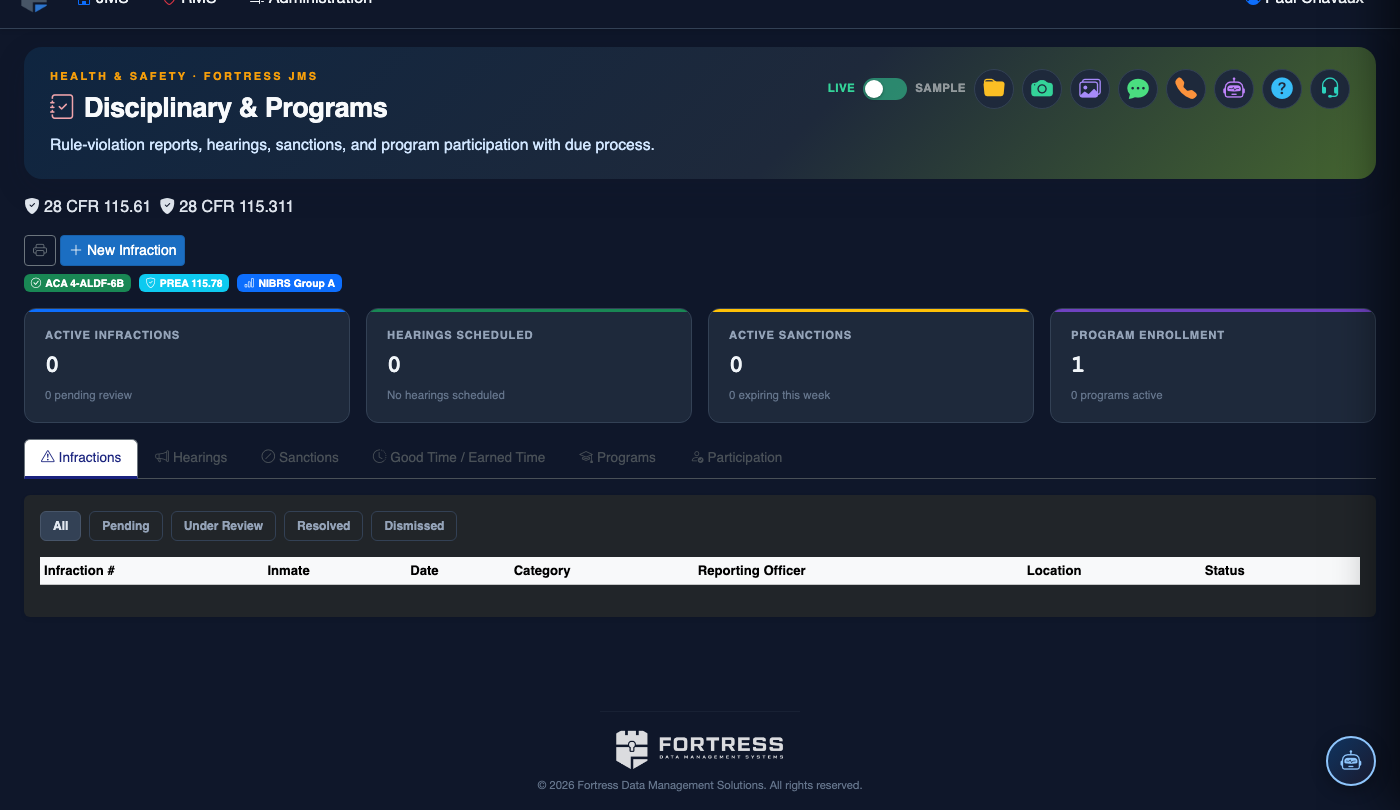
Step-by-Step: Conducting and Recording a Disciplinary Hearing
Open the Hearings Queue
Click the Hearings & Adjudication tab within Disciplinary & Programs. The queue lists all hearings in chronological order with their Scheduled Date, Inmate Name, Violation Code, and current status badge. Filter by Today’s Hearings to see your immediate workload.
Verify Notice Service
Before opening the hearing, confirm the Notice Served checkbox is marked with the correct service date and officer. The system blocks proceeding if the advance-notice period (e.g., 24 hours) has not elapsed, protecting the facility from due-process challenges.
Assign the Hearing Officer
Select the Hearing Officer from the staff dropdown. The system automatically flags a conflict if the selected officer is the charging officer or appears as a witness, requiring you to select an alternate. Confirm the officer assignment before proceeding.
Record the Inmate’s Plea and Statement
Select the inmate’s plea — Guilty, Not Guilty, or No Contest. In the Inmate Statement field, enter the inmate’s verbal statement. If the inmate declines to make a statement, check Inmate Declined to Participate and have the inmate sign or note their refusal to sign.
Present and Document Evidence
Review the evidence attached to the incident report with the inmate present. In the Evidence Review section, mark each item as Presented and note whether the inmate was given the opportunity to respond to each piece. Witness statements can be added or supplemented here if not captured during the incident.
Enter the Hearing Officer’s Finding
Select the adjudication outcome: Guilty, Not Guilty, or Dismissed. In the Finding Rationale field, document the specific evidence and reasoning that support the decision. For guilty findings, note any mitigating or aggravating factors that will guide sanction selection.
Finalize and Route to Sanctions
Click Finalize Hearing. The system timestamps the finding and locks the hearing record from further edits. If the outcome is Guilty, a prompt appears to navigate directly to the Sanctions Management tab to impose consequences. Not Guilty or Dismissed findings close the disciplinary record with no further action required.
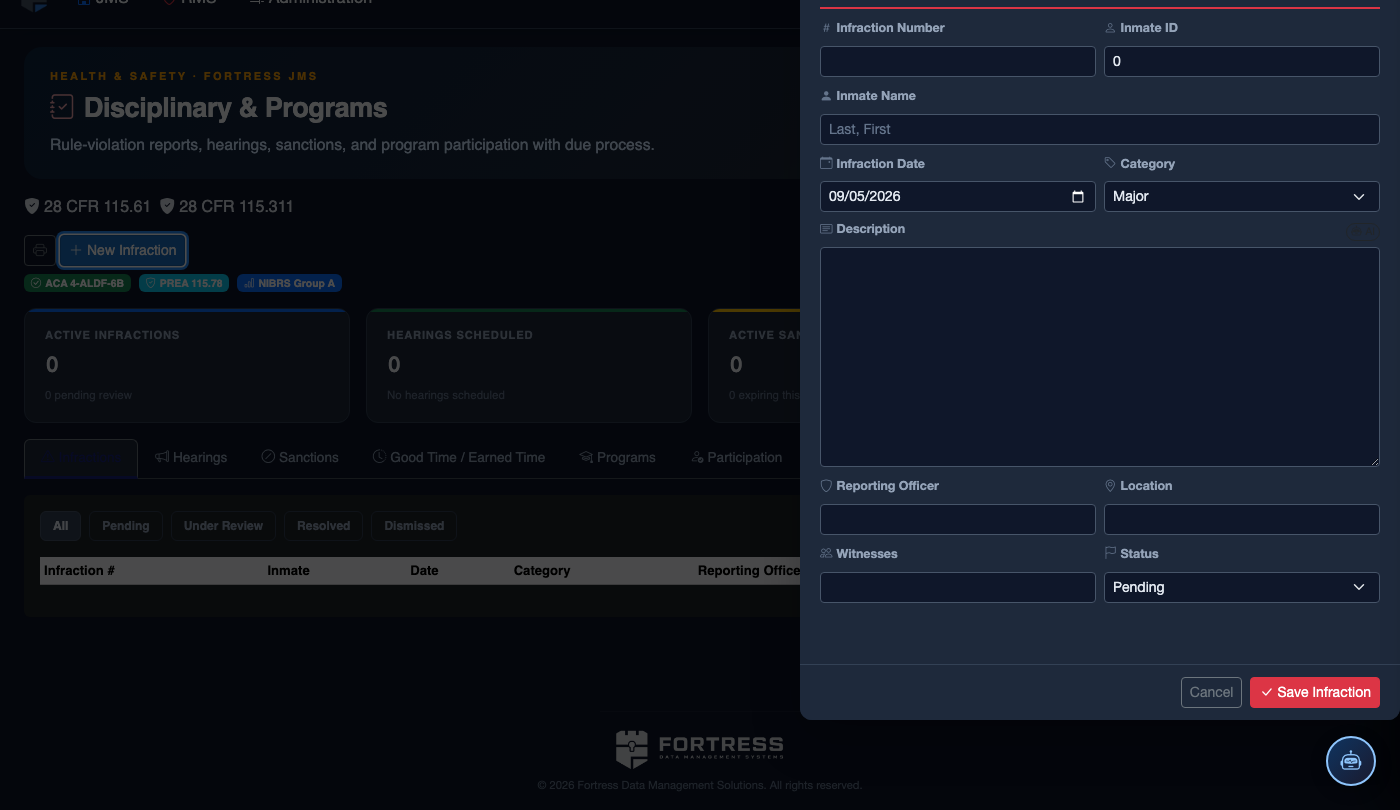
File a New Disciplinary Infraction
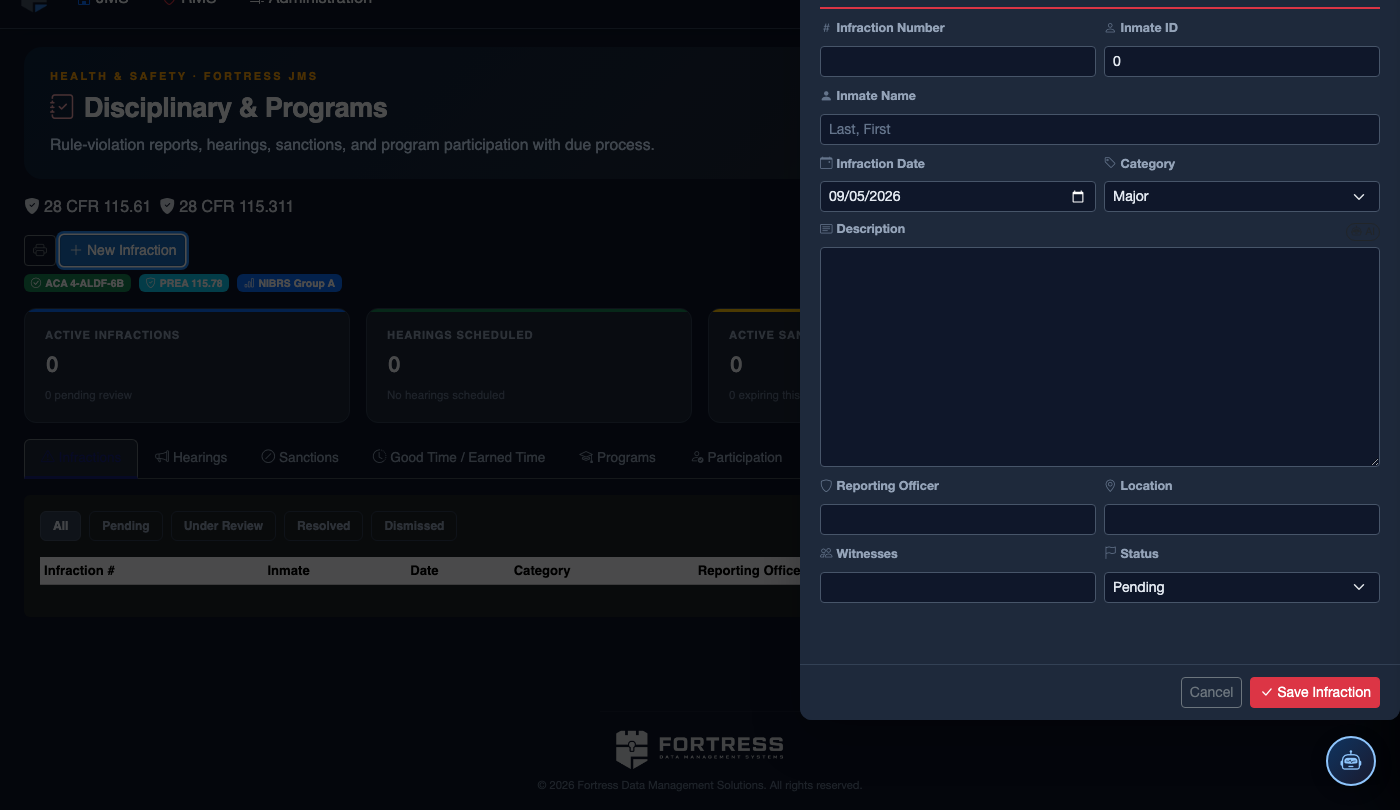
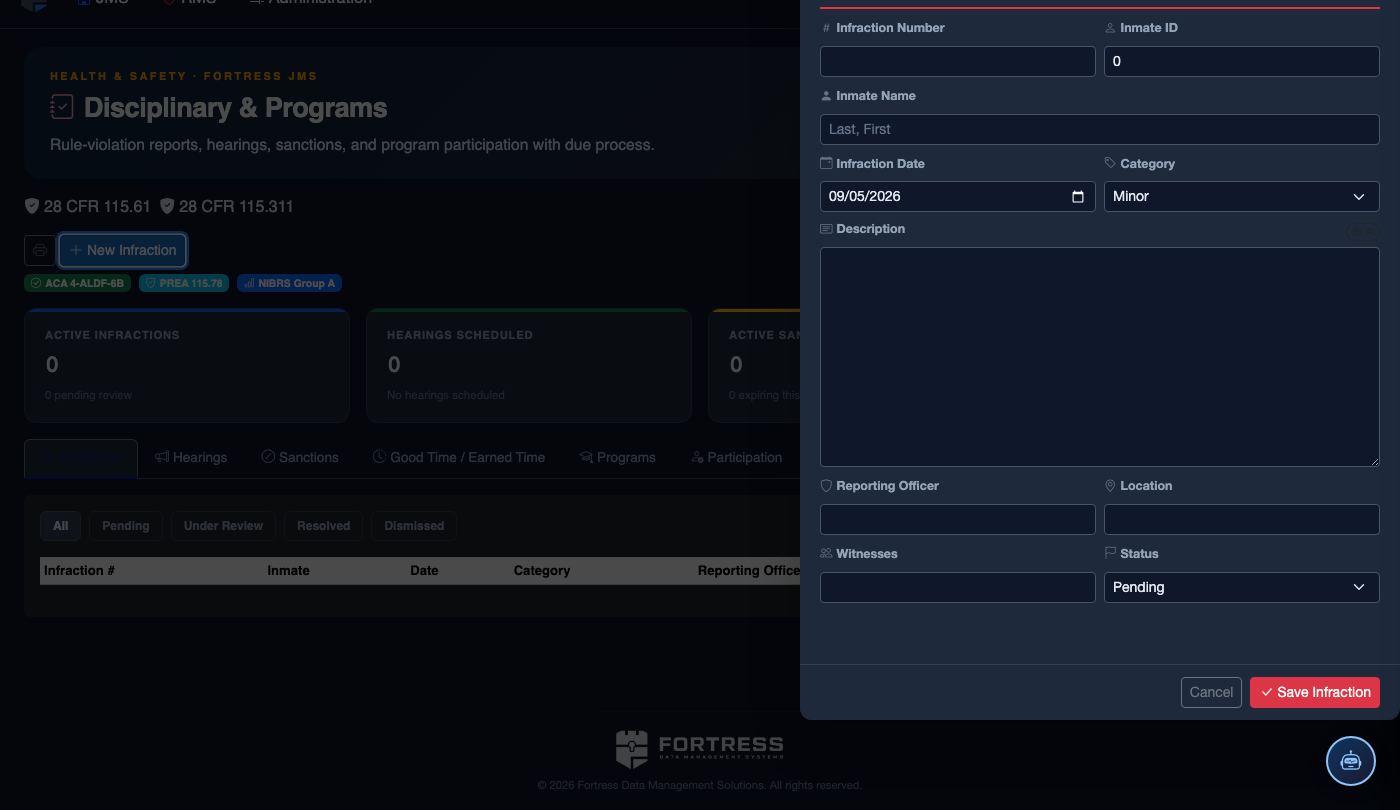
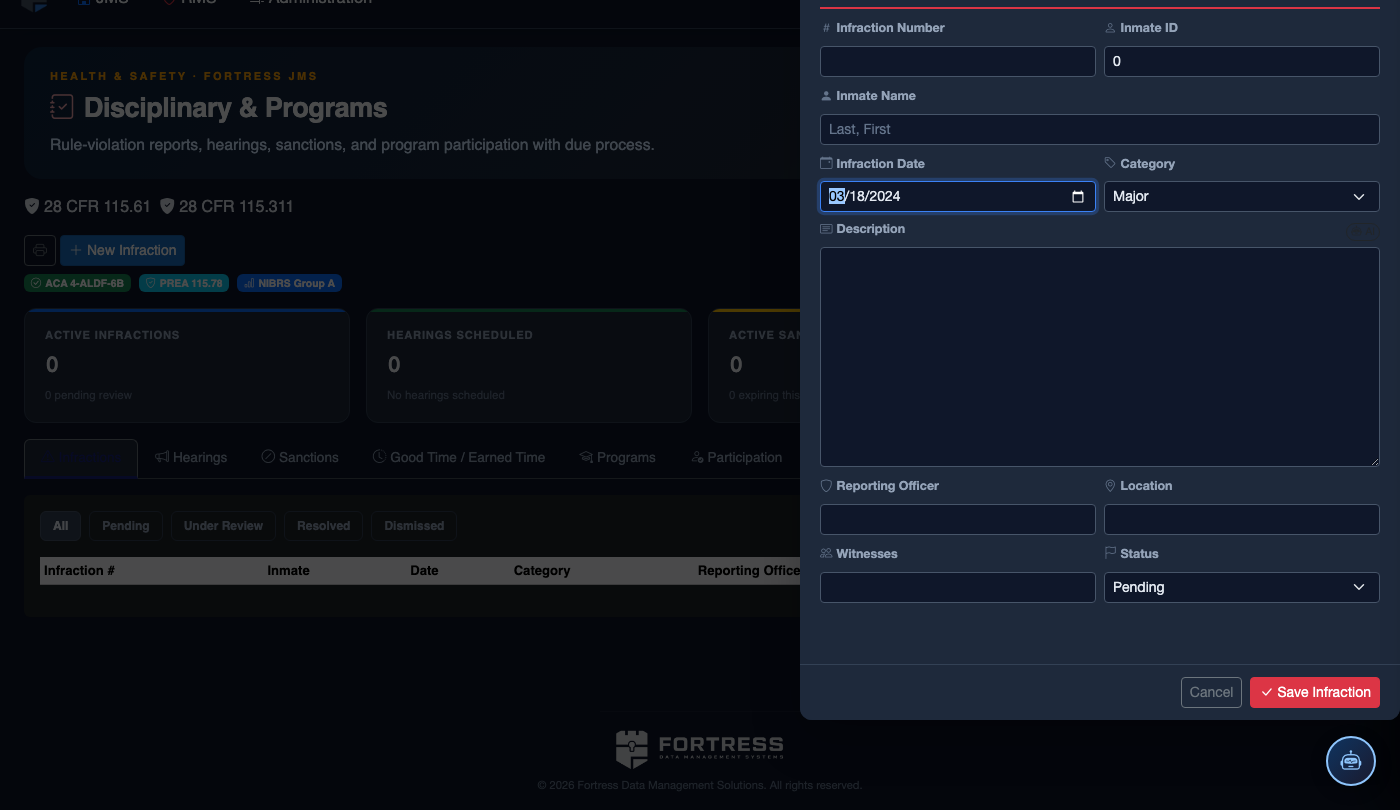
Click New Infraction. Complete the disciplinary record:
- Inmate — the subject of the infraction.
- Violation Type — select from the facility’s disciplinary code (Minor, Major, or Felony-level).
- Incident Description — document the incident objectively: date, time, location, what occurred, and who was involved.
- Reporting Officer and any Witnesses.
- Hearing Date — must be scheduled within the required timeframe (typically 24–72 hours for major violations).
- Recommended Sanction — Loss of Privileges, Segregation, Restitution, or Program Removal (final determination set by hearing officer).
- Click Save Infraction. The inmate is automatically notified and a hearing record is created.
💡 Pro Tips
- The Due Process Checklist at the top of each hearing record must be 100% complete before the Finalize button activates — use it as your pre-flight check before every hearing.
- If an inmate requests a staff representative or interpreter, document the request and accommodation in the Special Circumstances field to create an auditable record.
- Dismissed hearings still appear in the inmate’s disciplinary history — use the Dismissal Reason field to clearly note whether it was procedural (e.g., late notice) or evidentiary so the record is not misread in future classification reviews.
Mobile View — Hearings Adjudication
FortressDMS is fully responsive. Officers can access the Hearings Adjudication on a phone or tablet directly from the field — no app install required.
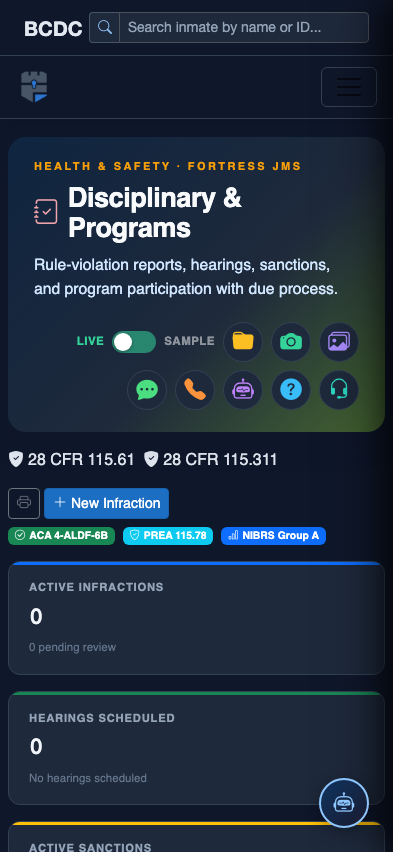
Tab view with data rows
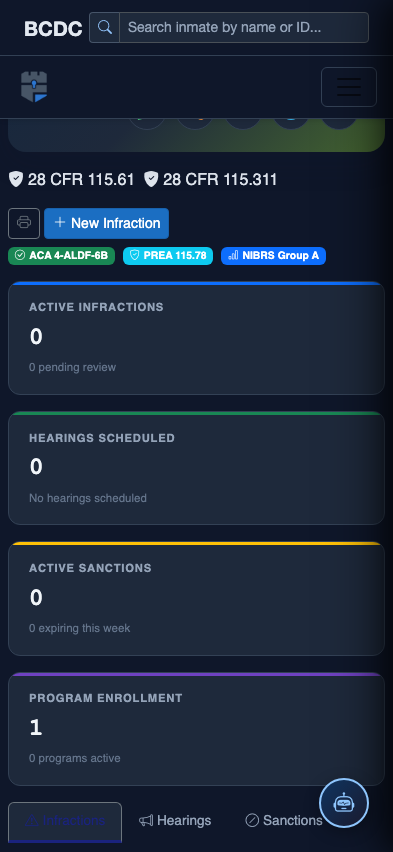
Scrolled / detail view