
Storage Overview
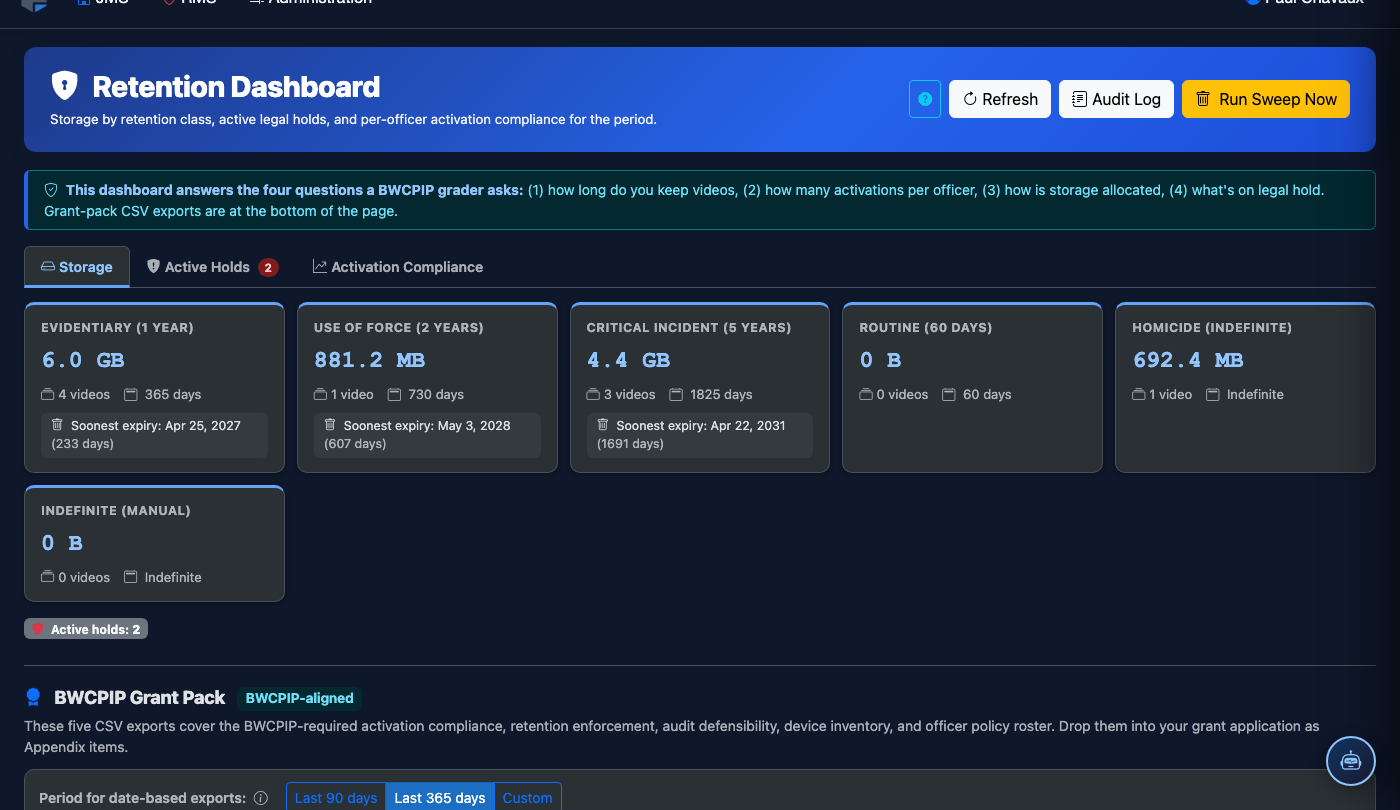
The Storage Overview tab within the Retention Dashboard provides a real-time snapshot of your facility’s BWC footage storage consumption — broken down by category, storage tier, and projected growth. Administrators can quickly identify capacity bottlenecks, review footage that is queued for deletion, and confirm that storage allocations align with your retention policy before the next billing cycle.
Usage by Category
See exactly how much storage is consumed by Routine Patrol, Use of Force, Medical, and other footage categories.
Hot vs. Cold Tiering
Visual breakdown of footage in accessible hot storage vs. archived cold storage with cost-per-GB indicators.
Pending Deletion Queue
Review all footage eligible for deletion with one-click hold placement to protect items before automated cleanup runs.
Growth Projections
90-day and 12-month storage growth forecasts based on current upload rates and active retention periods.
Step-by-Step: Reviewing and Managing Storage Capacity
Navigate to the Storage Overview Tab
Go to BWC & Video > Retention Dashboard and click the Storage Overview tab at the top. The summary bar at the top of the tab shows Total Allocated Storage, Used, Available, and a color-coded gauge. If the gauge is in the red zone (above 85% used), immediate action is recommended.
Analyze Usage by Footage Category
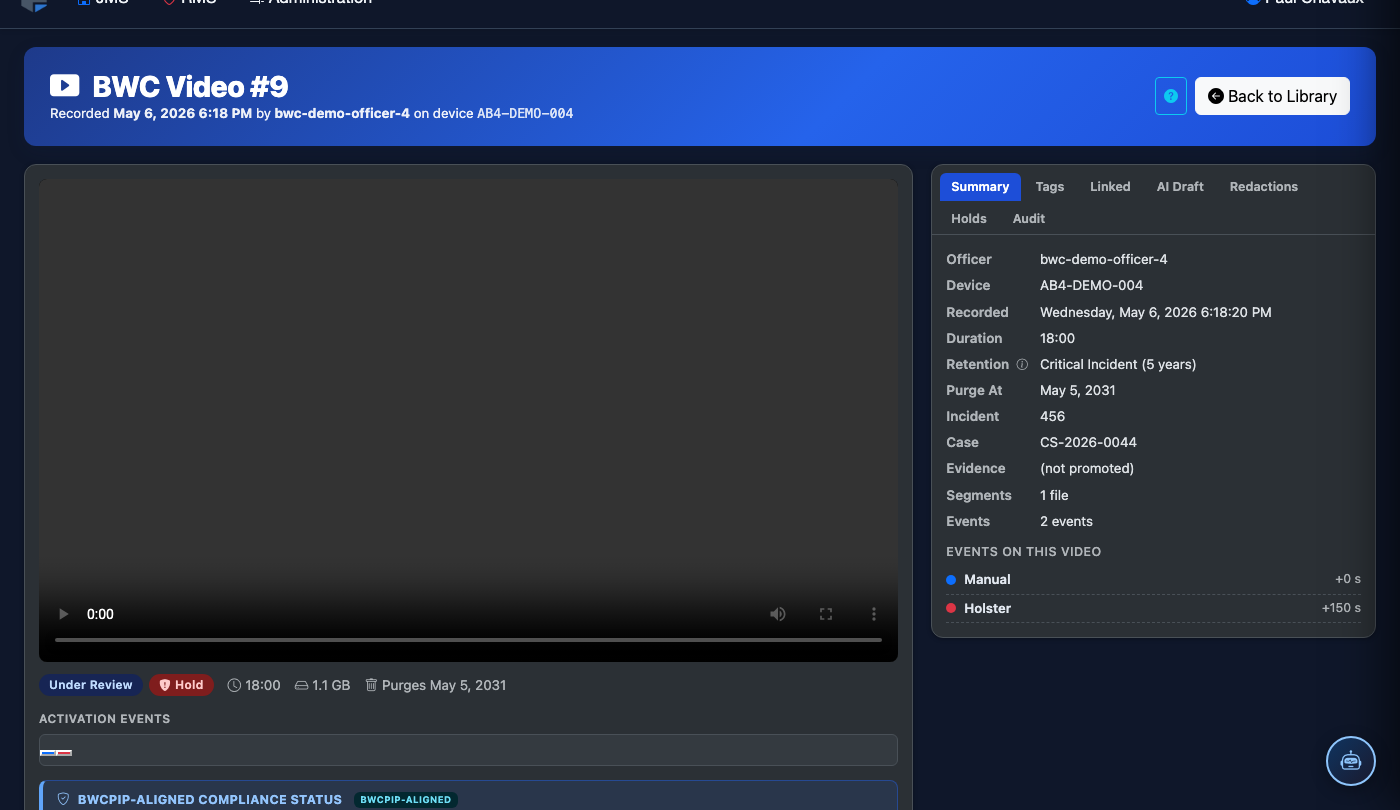
The Category Breakdown chart shows a donut chart and data table with storage consumed by: Routine Patrol, Use of Force, Medical Response, Inmate Incident, Administrative, and Restricted. Click any category slice to drill down into the individual recordings contributing to that usage, sortable by size, date, or officer.
Review the Hot vs. Cold Storage Split
Scroll down to the Storage Tiers panel. Hot storage holds footage under 90 days old or under an active hold — immediately accessible for playback. Cold storage holds archived footage at lower cost but requires a few minutes to retrieve. The panel shows the estimated monthly cost for each tier based on your storage contract. If cold storage is unexpectedly low, check whether holds are preventing tiering.
Inspect the Pending Deletion Queue
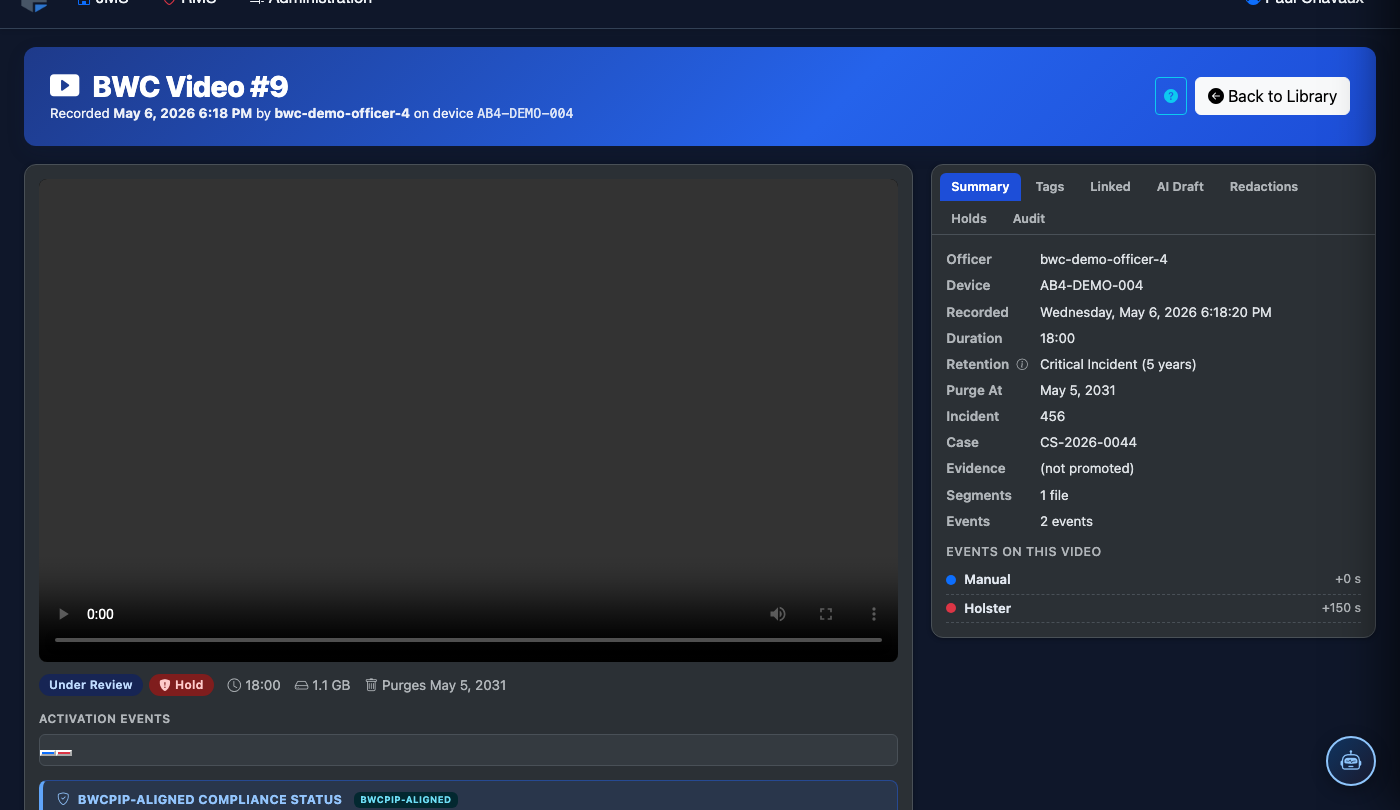
Click Pending Deletion to see all footage with an expired or expiring retention period. The list shows the recording date, officer, category, size, and days until the automated deletion will execute. For any item you want to protect, click the row and select Place Hold directly from this view without navigating away.
Review Growth Projections
The Projected Growth panel at the bottom of the tab shows a line chart forecasting storage consumption at 30, 60, 90, and 180 days. The projection factors in current daily upload rates, pending deletions, and scheduled hold expirations. If the projection line crosses the Capacity Threshold line within 90 days, a yellow warning banner appears prompting you to contact your FortressDMS account manager about a storage upgrade.
Export a Storage Utilization Report
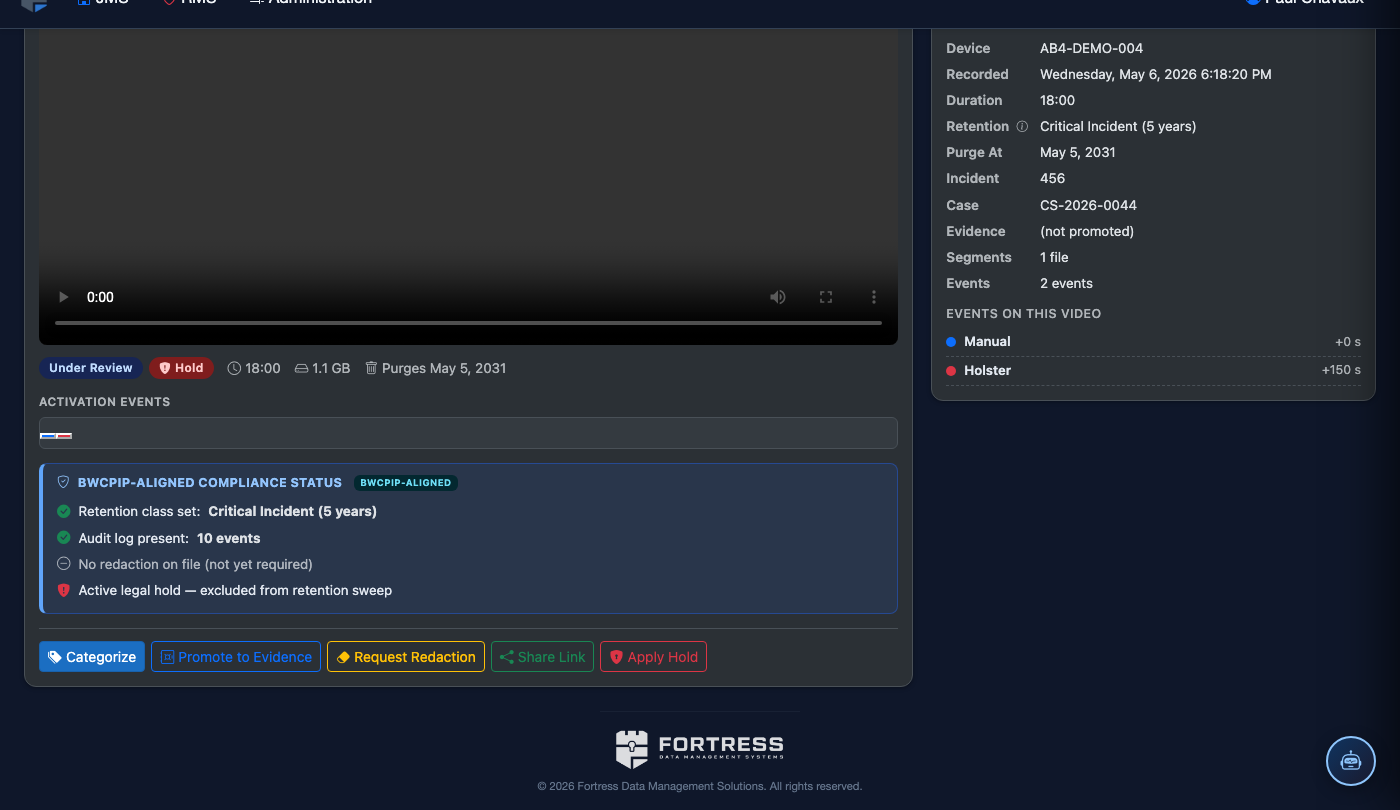
Click Export Report at the top right of the tab. Choose Storage Utilization and select the date range. The report includes total usage, per-category breakdown, tiering costs, and the pending deletion queue at the time of export. This is useful for budget justification and contract renewal discussions with your storage provider.
💡 Pro Tips
- Set a Storage Alert Threshold in System Settings to receive an automated email when usage crosses 75% and again at 90% — don’t wait until capacity is critical to act.
- Footage on an active hold cannot be tiered to cold storage; if your hold count is high, expect hot storage costs to be elevated. Review holds quarterly to release any that are no longer legally required.
- The Largest Recordings quick-filter in the category drilldown view surfaces the top 20 recordings consuming the most space — useful for identifying high-priority deletion candidates when freeing up capacity quickly.