
Video Stations
The Video Stations tab is the central management console for every physical and virtual visitation kiosk in your facility. Officers and administrators can view real-time station status, assign stations to specific housing units, take stations offline for maintenance, and configure session time limits per station. Proper station management ensures smooth visitation workflows and minimizes inmate and visitor wait times.
Real-Time Station Status
Live indicators show which stations are Available, In Use, Reserved, or Offline at any given moment across all housing units.
Housing Unit Assignment
Assign each station to a specific pod or housing unit so that visitation scheduling automatically routes inmates to the correct kiosk.
Per-Station Time Limits
Configure maximum session durations on individual stations to accommodate different visitation programs or classification tiers.
Maintenance Mode
Take individual stations offline without disrupting active sessions on other kiosks, with optional maintenance notes for IT staff.
Step-by-Step: Managing Video Stations
Open the Video Stations Tab
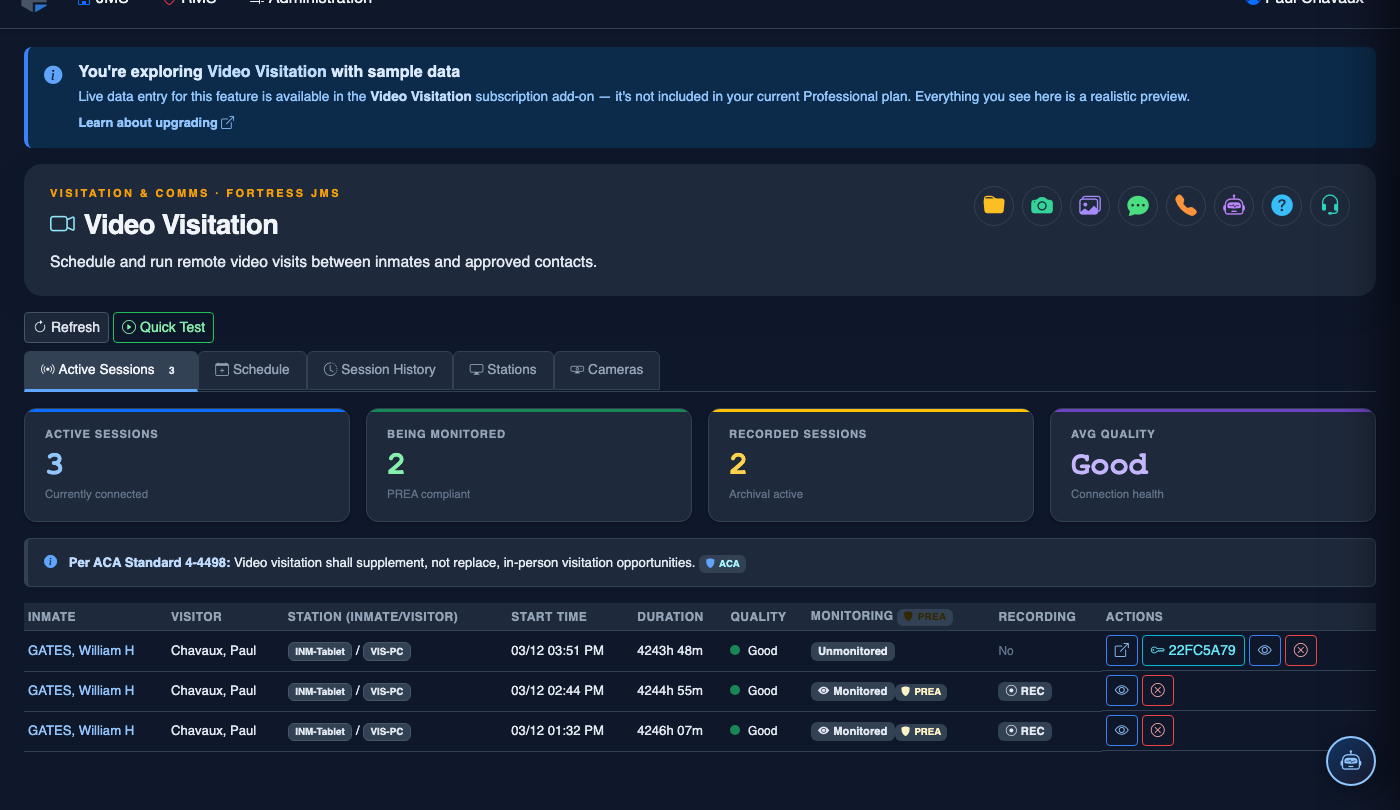
Navigate to Video Visitation in the main menu and click the Video Stations tab. The station grid displays all registered kiosks with their current status badges.
Add a New Station
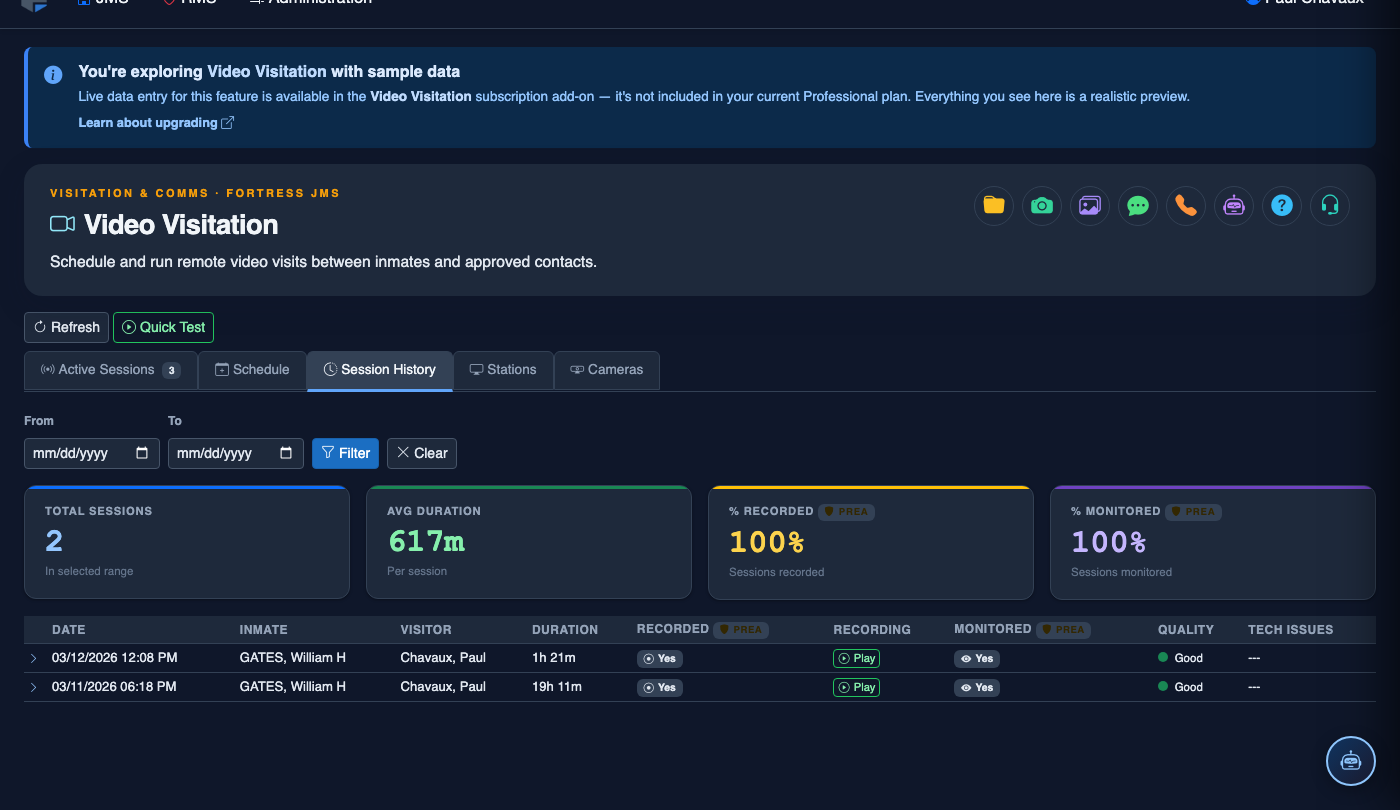
Click + Add Station in the toolbar. Enter the station’s Name, Location/Pod, IP Address or Device ID, and the Default Time Limit in minutes. Click Save Station to register it.
Assign Station to Housing Unit
Click the Edit (pencil) icon on any station row. In the edit form, use the Housing Unit dropdown to assign the station to the correct pod. This ensures scheduling routes the right inmates to this kiosk.
Take a Station Offline for Maintenance
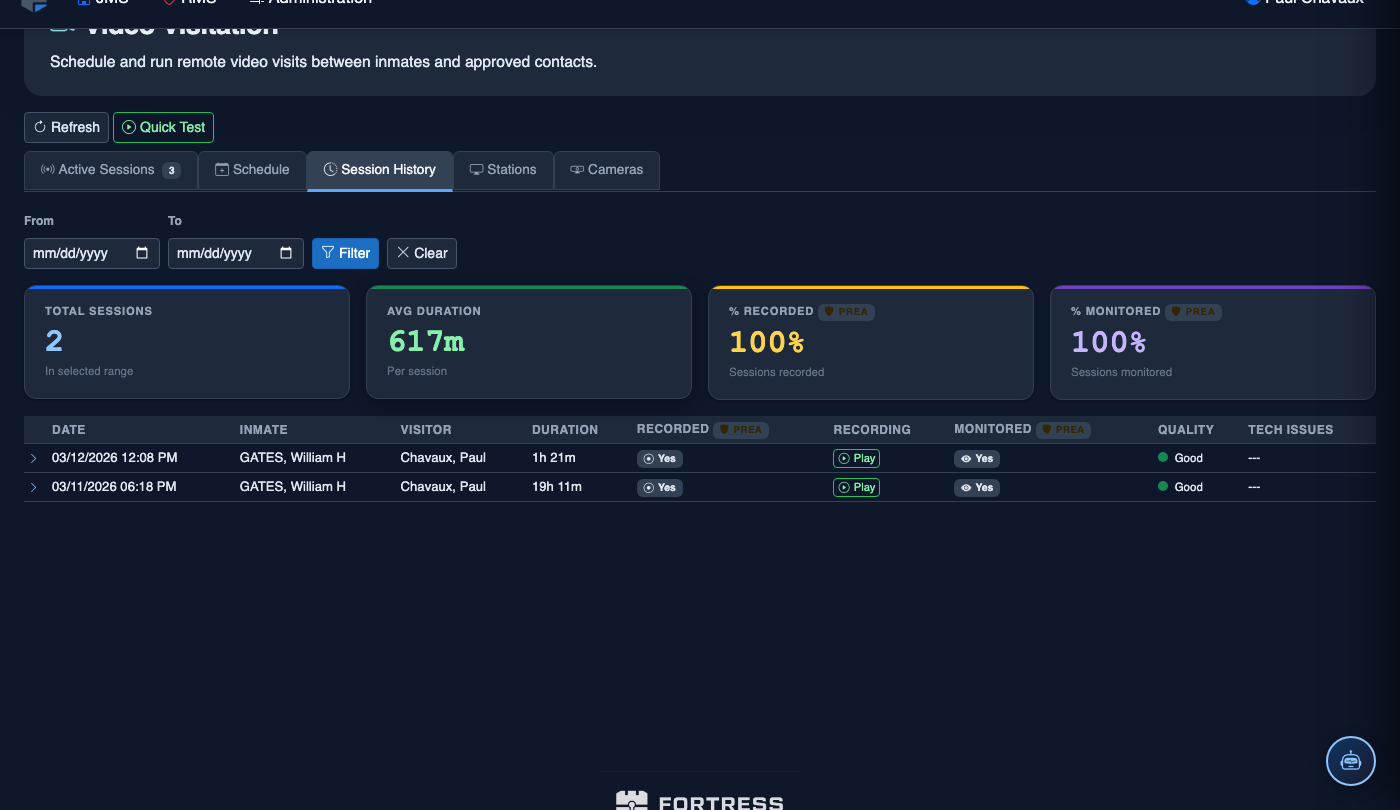
Click the Status toggle on any station and select Offline – Maintenance. Enter a brief note describing the issue. The station will no longer appear as available to the scheduling module until restored.
Monitor Active Sessions on Stations
Stations showing the In Use badge display the inmate name and session remaining time directly in the grid. Click the station row to view the live session details or flag the session for supervisor review.
Restore an Offline Station
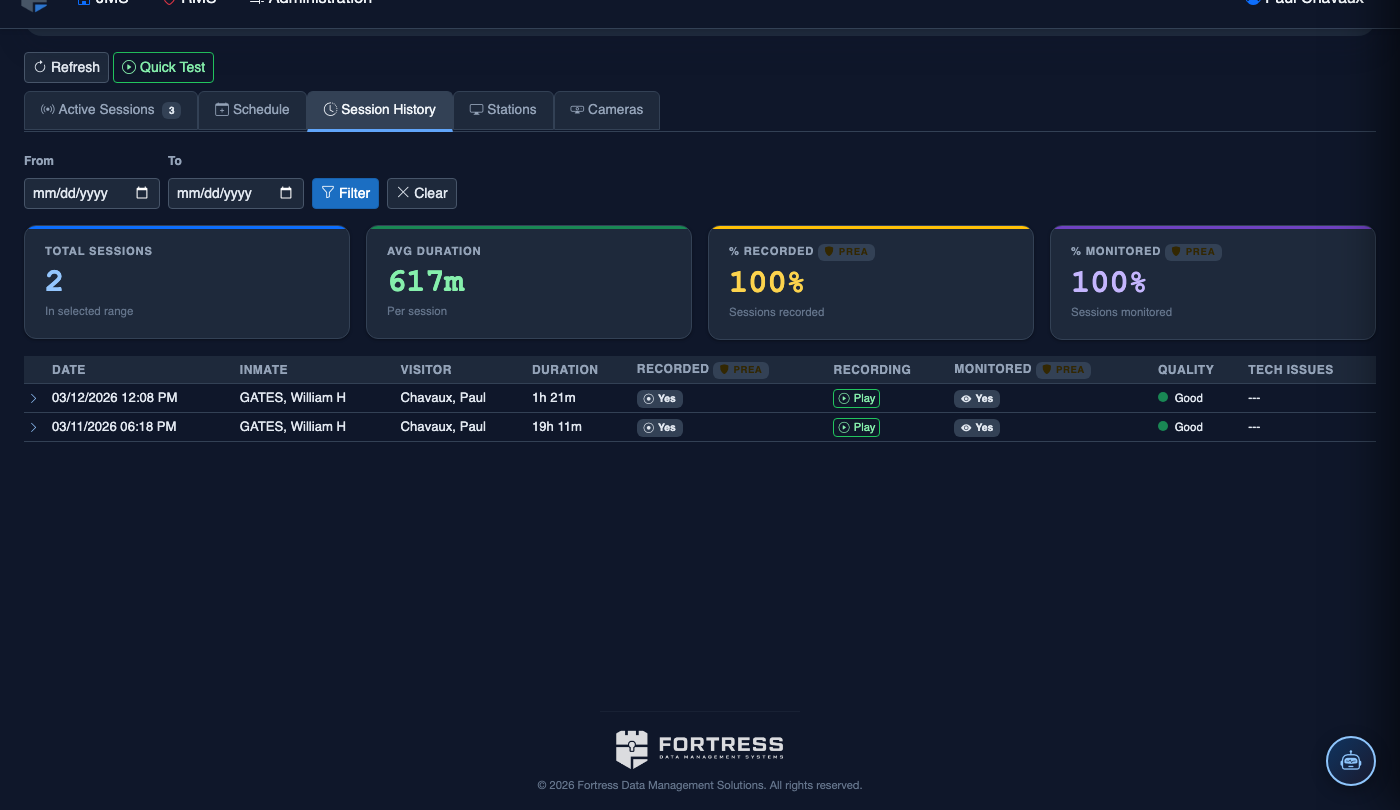
Once maintenance is complete, click the station’s Status toggle and set it back to Available. The station immediately becomes visible to the scheduling system for new session assignments.
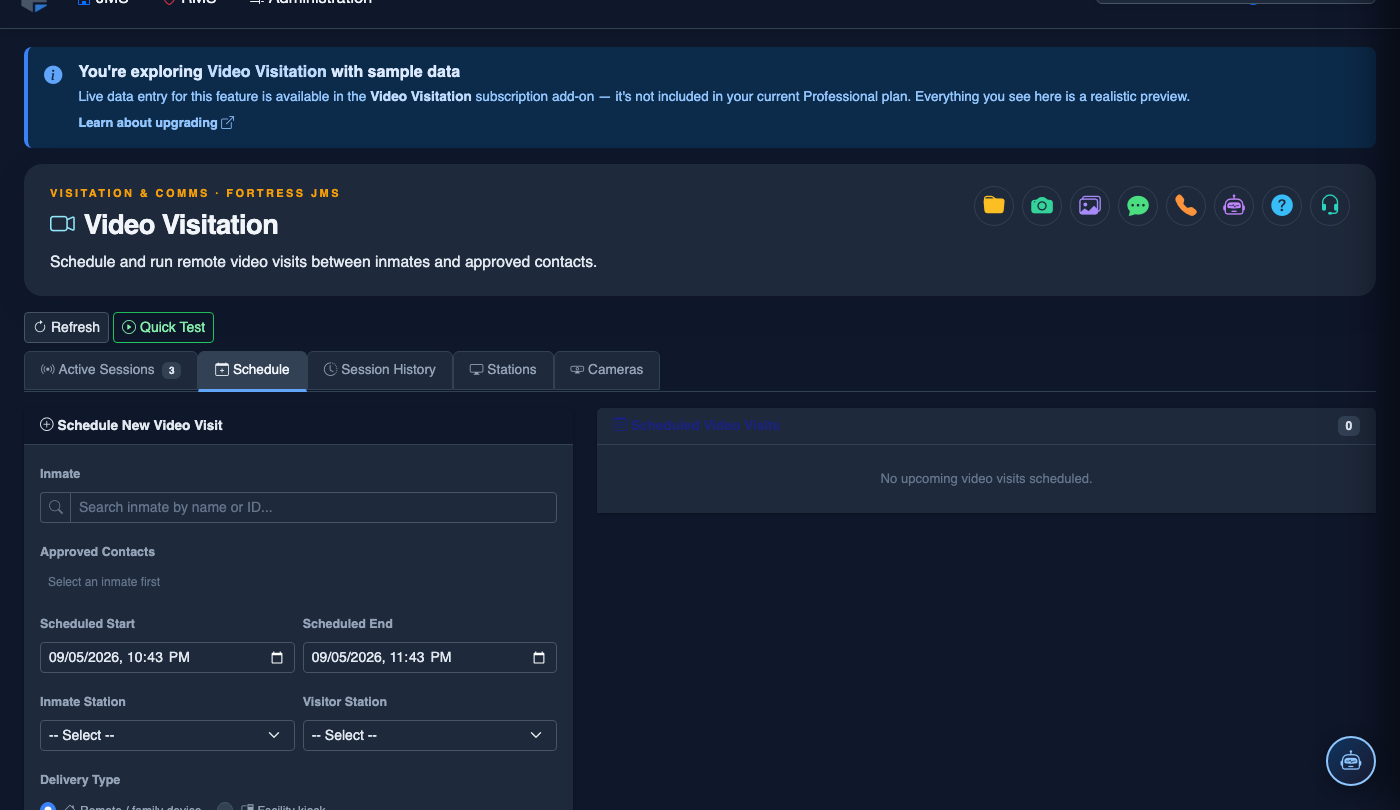
Schedule a Video Visitation Session
Click Schedule. Complete the video session booking:
- Inmate — search by name or booking number.
- Visitor — select from the approved visitor list; remote visitors receive an email invitation link.
- Session Type — Remote Video (visitor connects from home), In-Facility Kiosk, or Legal (private channel, no recording).
- Date and Time Slot — choose from available slots; the system enforces visit frequency limits per facility policy.
- Station Assignment — select the video station or kiosk to use.
- Duration — typically 30 minutes; extended slots require supervisor approval.
- Click Confirm Booking. Confirmation emails go to the visitor; session appears on the facility video schedule.
💡 Pro Tips
- Label stations with their physical location (e.g., “Pod B – Kiosk 2”) so officers can immediately correlate a system alert with the correct physical device.
- Set per-station time limits shorter during peak visitation hours to maximize throughput and reduce inmate wait times.
- Review the station uptime summary weekly — stations with frequent offline events may need hardware replacement before they fail during a scheduled visitation block.
Mobile View — Video Stations
FortressDMS is fully responsive. Officers can access the Video Stations on a phone or tablet directly from the field — no app install required.
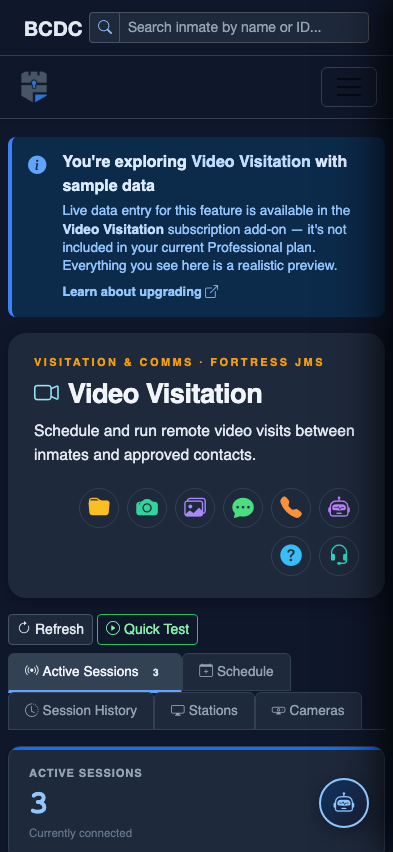
Tab view with data rows
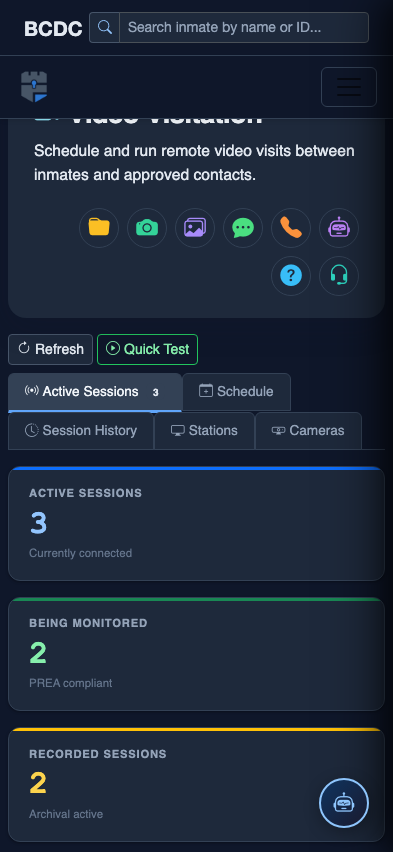
Scrolled / detail view