
Restricted Footage
The Restricted Footage tab provides a secured, role-gated view of body-worn camera recordings that contain sensitive content requiring elevated access permissions. Correctional administrators and designated supervisors can review, annotate, and manage footage flagged for internal affairs, litigation holds, or classified incident investigations. All access to restricted footage is fully audited, ensuring chain-of-custody integrity for evidentiary and compliance purposes.
Role-Gated Access
Only supervisors and administrators with explicit permissions can view restricted recordings.
Litigation Hold Flags
Footage tied to active legal cases is automatically flagged and protected from deletion.
Full Audit Trail
Every view, download, or annotation is logged with user identity, timestamp, and reason code.
Secure Playback
Encrypted in-browser playback prevents downloading without explicit authorized export approval.
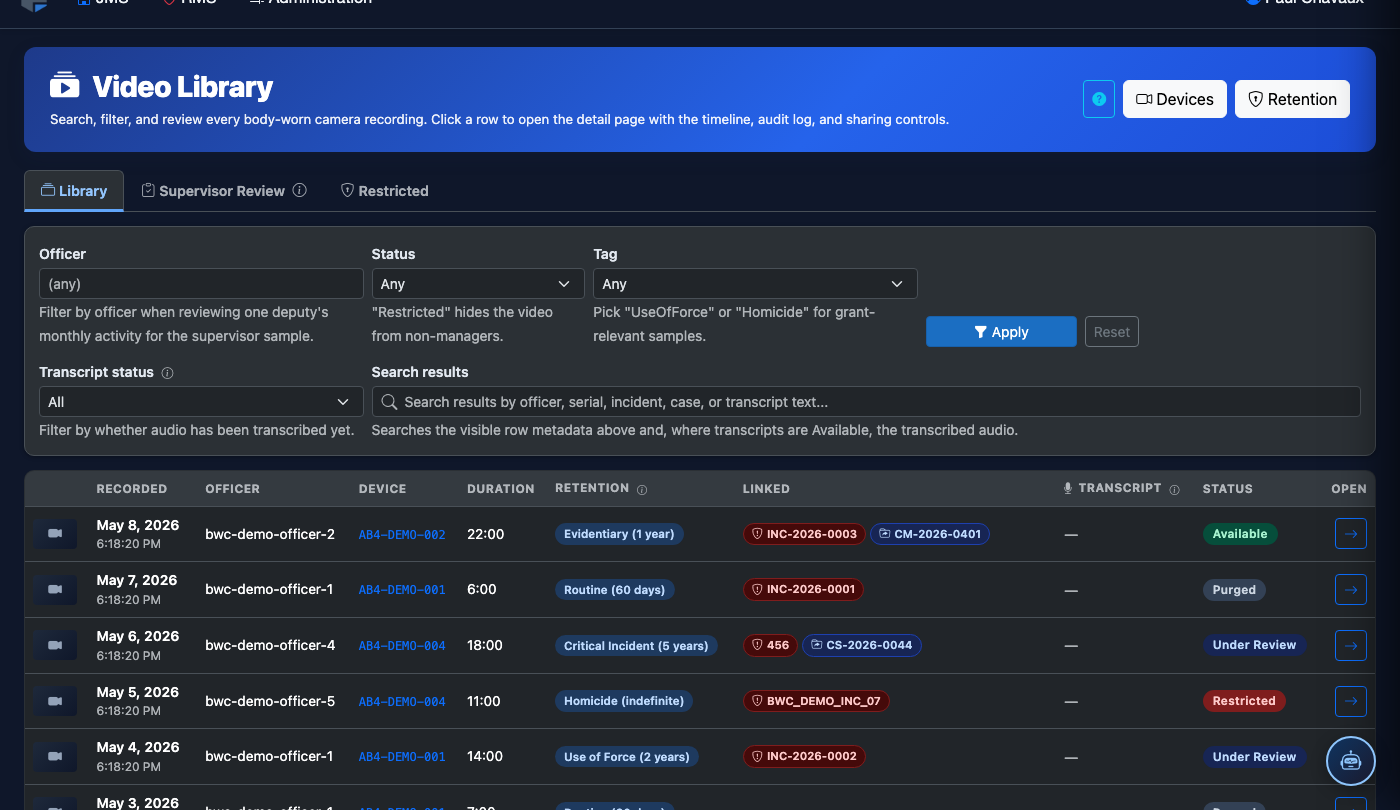
Step-by-Step: Accessing and Managing Restricted Footage
Navigate to the BWC Video Library
From the main navigation, select BWC & Video then click Video Library. At the top of the page, select the Restricted Footage tab. If this tab is not visible, your account does not have the required supervisor or administrator permissions.
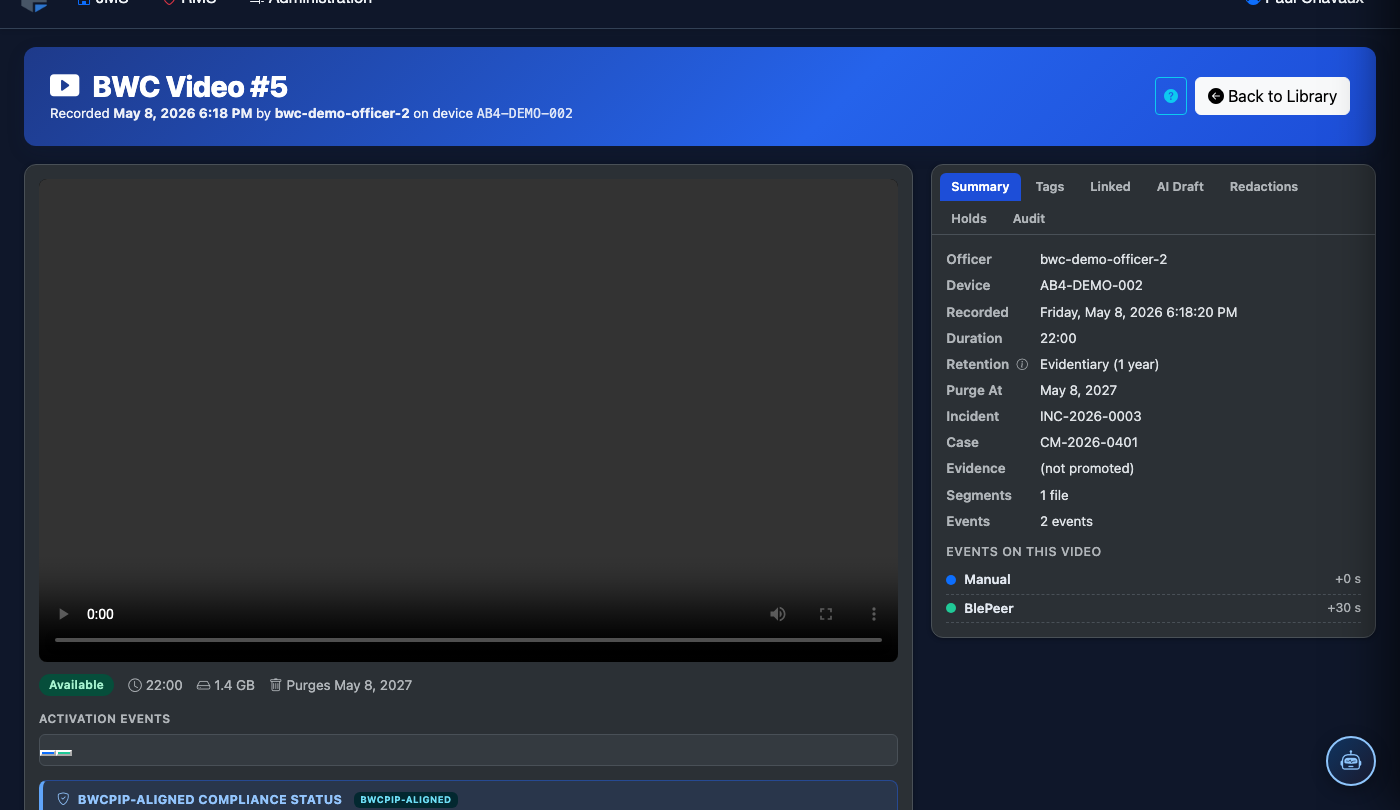
Filter by Restriction Type
Use the Restriction Type dropdown to filter recordings by category: Internal Affairs, Litigation Hold, Use of Force, or Classified. You can also filter by Date Range, Officer, or Inmate Booking Number to narrow results.
Acknowledge the Access Log Prompt
When you click on any restricted recording, a modal will appear requiring you to enter an Access Reason from the dropdown (e.g., Internal Review, Legal Request, Supervisor Audit) and optionally a free-text Case Reference Number. Click Confirm Access to proceed. This information is permanently logged.
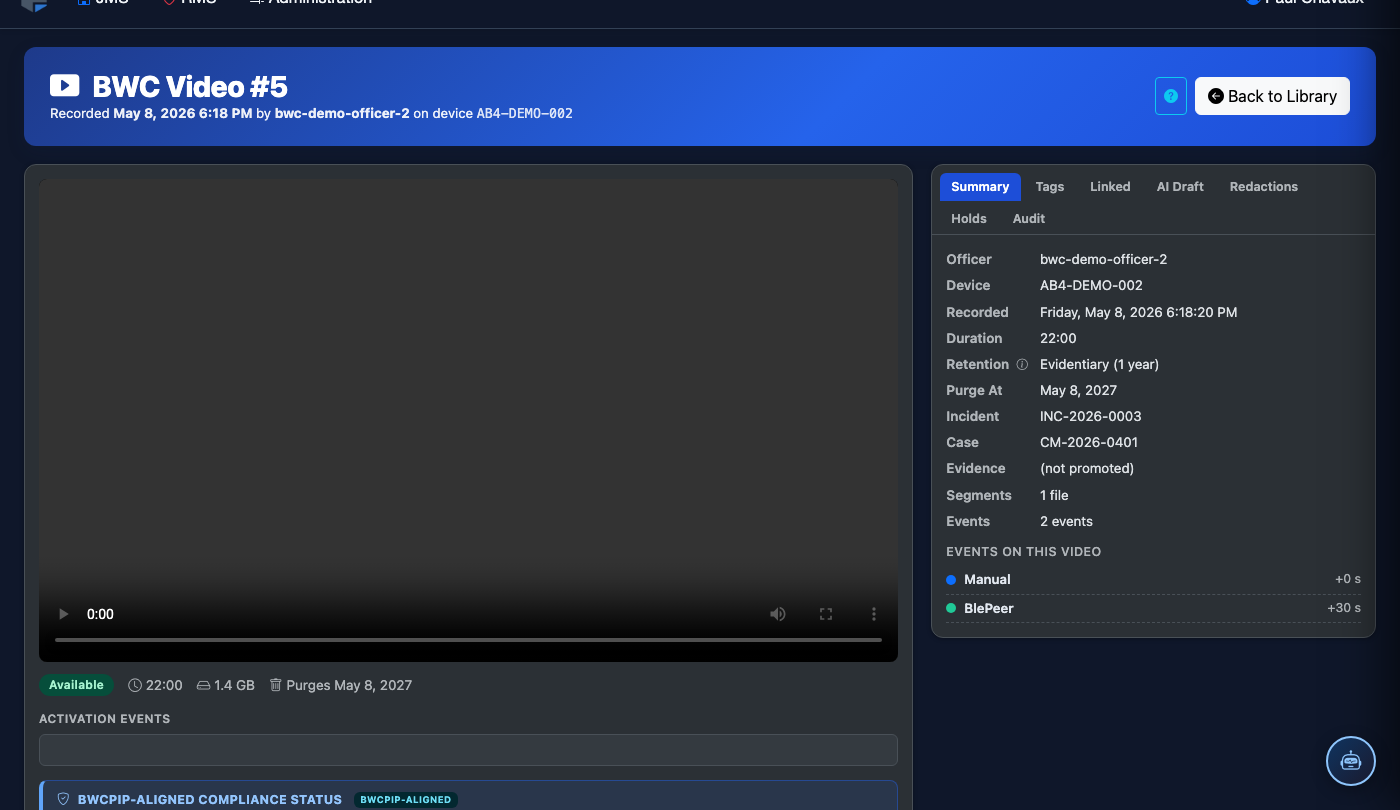
Review the Footage in Secure Playback
The recording plays in the encrypted in-browser viewer. Use the Timeline Markers panel on the right to jump to flagged segments. You can add Annotations by clicking the marker icon at any timestamp — these are visible to all authorized reviewers of this recording.
Manage the Restriction Status
From the footage detail panel, administrators can update the Restriction Level, extend or remove a Litigation Hold, or escalate the recording to Internal Affairs review. Click Save Changes to apply. All status changes are versioned in the audit log.
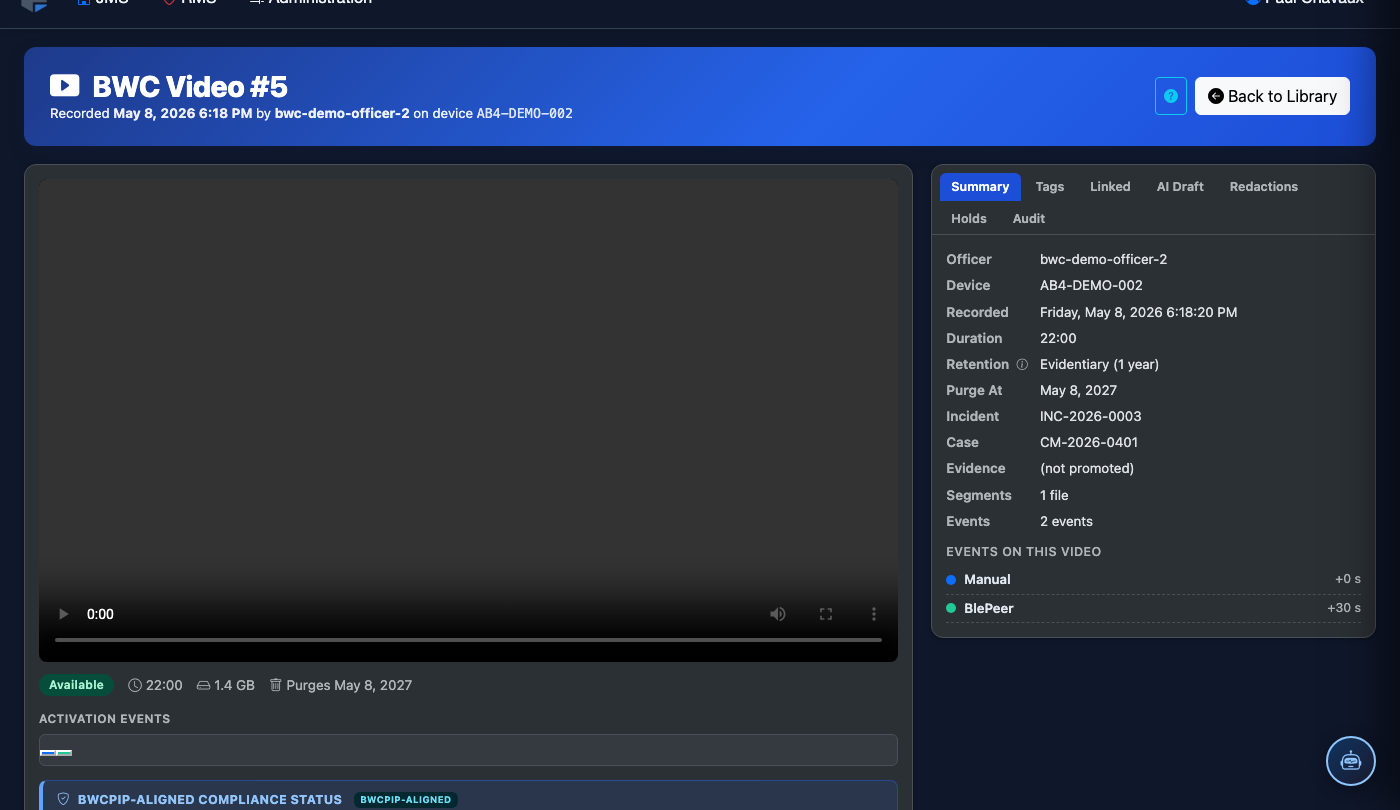
Export for Legal or Internal Affairs
If an authorized export is needed, click Request Export. A second supervisor must approve the export request before the download link is generated. Exports are watermarked with the requester’s name and timestamp and are logged in the chain-of-custody record.
💡 Pro Tips
- Litigation Hold footage cannot be deleted even by administrators — contact your IT administrator if a hold must be lifted, as it requires a documented court order or legal counsel authorization.
- Use the Bulk Restrict option from the All Footage tab to move multiple recordings to restricted status simultaneously after a significant incident.
- Set up Access Alerts in your notification settings to receive an email whenever restricted footage in your jurisdiction is accessed, even by other administrators.