
Visit Compliance
The Visit Compliance tab provides supervisors and compliance officers with a real-time and historical view of all visitation activity, flagged incidents, and policy adherence metrics. Use this tab to audit completed visits, document compliance violations, generate court-ready reports, and ensure your facility meets state and federal visitation regulations.
Compliance Dashboard
At-a-glance metrics on visit counts, flagged incidents, denied entries, and policy violations for any date range.
Incident Flagging
Officers can flag a visit for a compliance incident in real time — flags appear immediately in the supervisor dashboard.
Regulatory Reporting
Export formatted compliance reports for state inspections, PREA audits, or legal discovery in PDF or CSV.
Policy Rule Engine
Define facility-specific visit rules (time limits, contact restrictions, frequency caps) enforced automatically at check-in.
Step-by-Step: Auditing Visit Compliance
Open Visit Compliance Tab
Go to Visitation in the main navigation and select the Visit Compliance tab. The compliance dashboard loads with a summary of today’s visit activity by default.
Set Date Range and Filters
Use the Date Range picker to define the audit period. Filter by Housing Unit, Inmate, Visitor, or Flag Type to narrow results to the specific population you need to review.
Review Flagged Incidents
The Flagged Visits section highlights any visit where an officer logged a compliance concern. Click a row to see the full incident detail including the flagging officer, timestamp, flag type, and notes.
Document a Compliance Action
On a flagged incident, click Add Compliance Action to record the supervisory response: choose from Warning Issued, Visit Terminated, Visitor Suspended, or Referred for Investigation, then add notes and submit.
Review Policy Rule Violations
Switch to the Policy Violations sub-tab to see system-generated violations — visits that exceeded the time limit, frequency cap breaches, or contacts that were not on the approved list at time of entry.
Export a Compliance Report
Click Export Report and choose PDF or CSV. PDF reports include your facility logo, officer signatures (if enabled), and are formatted for submission to state inspectors or use in legal proceedings. CSV exports are best for data analysis.
Configure Policy Rules
Administrators can modify enforcement rules under Visitation Settings → Compliance Rules. Set maximum visit duration (minutes), visits per week per inmate, and minimum days between visits for each classification level (General Population, Administrative Segregation, etc.).
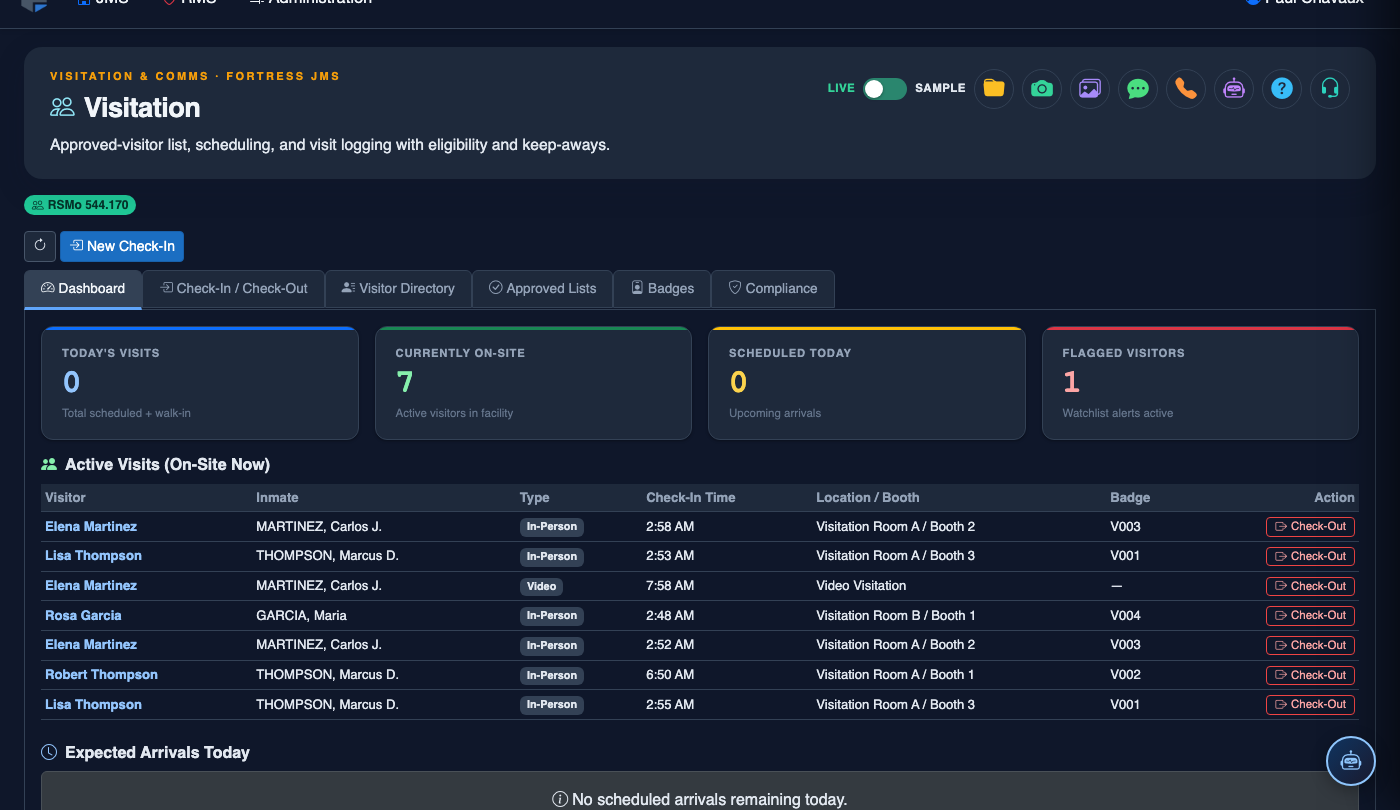
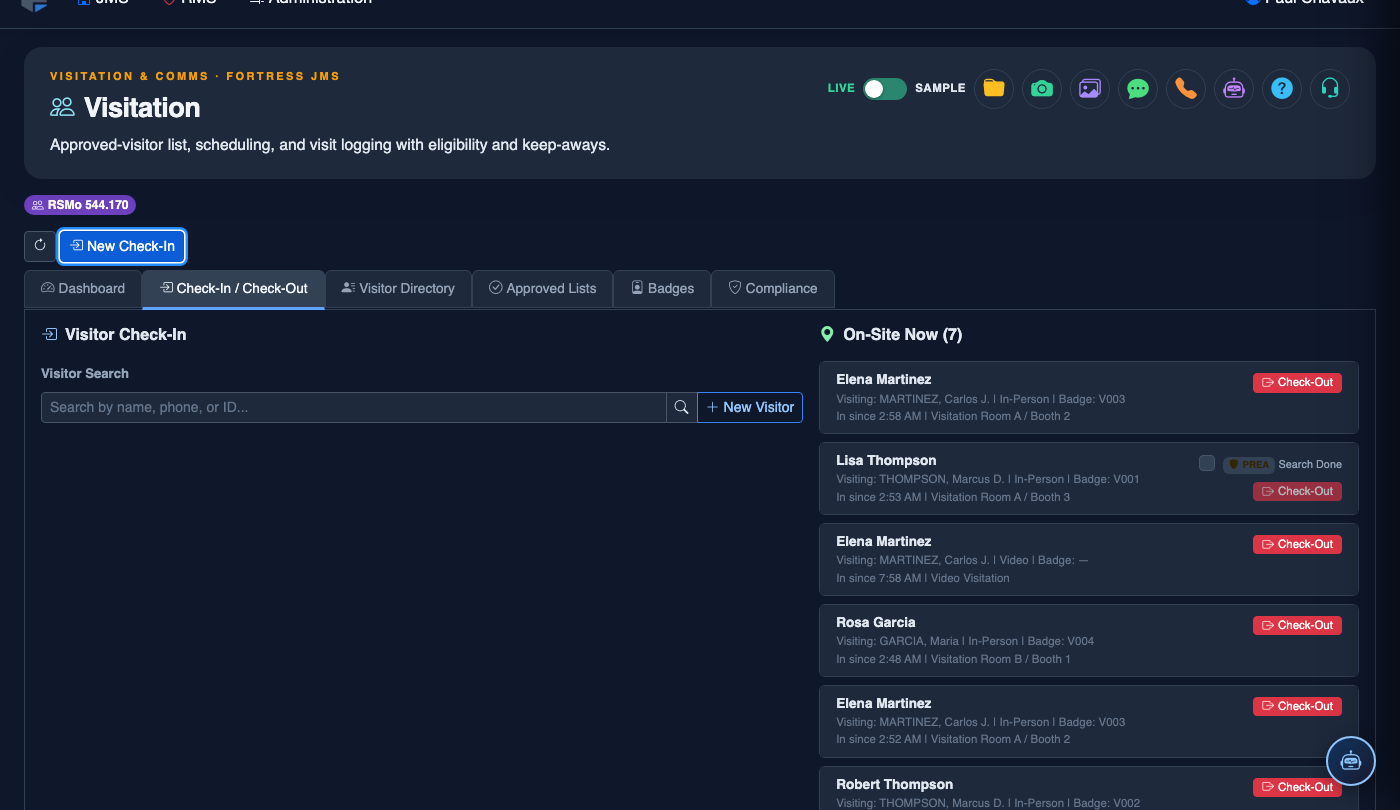
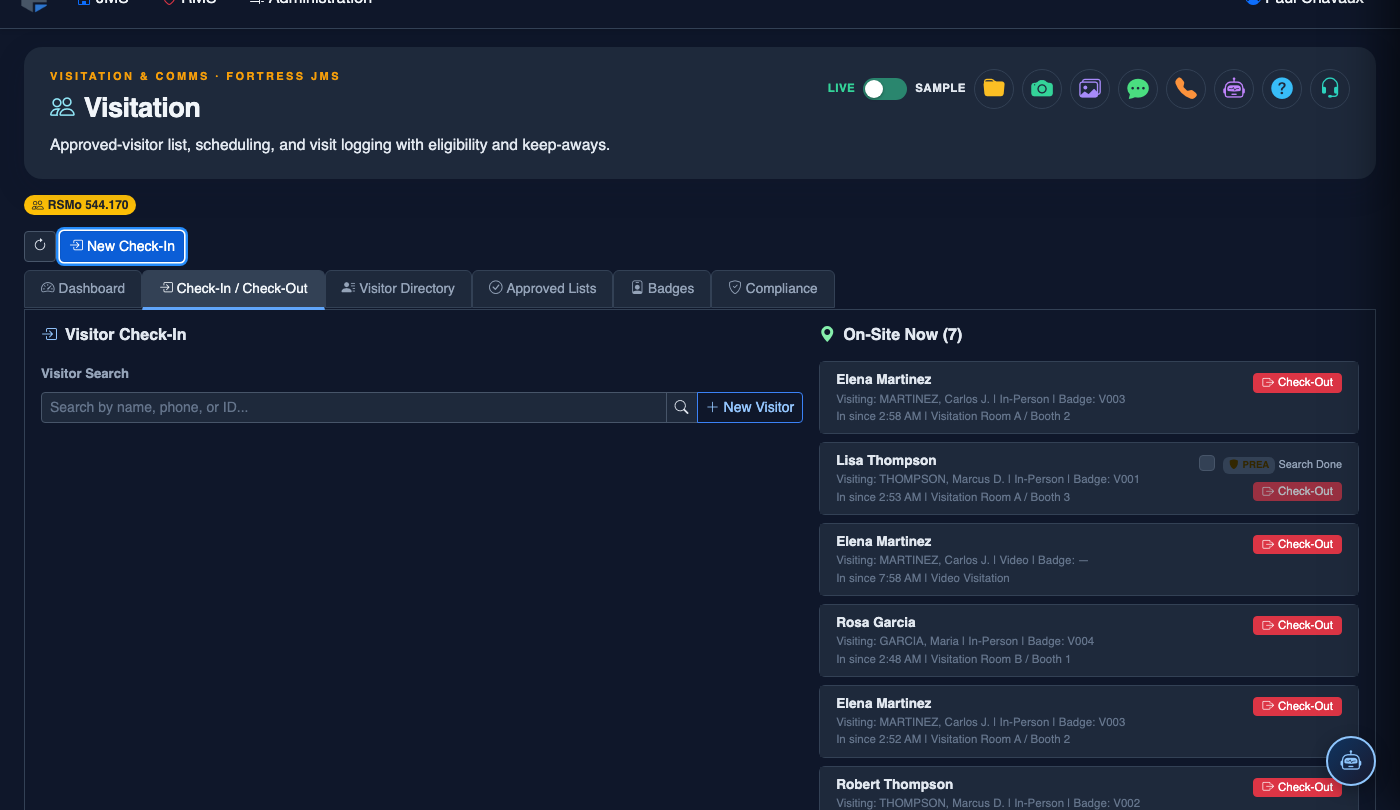
Log a New Visitor Check-In
Click New Check-In. Complete the visitation log:
- Inmate — search by name or booking number.
- Visitor — select from the Approved Visitor List. Visitors not on the list must be added first via Visitor Directory.
- Photo ID Verification — confirm ID type and number; the system compares against the visitor record.
- Visit Type — General, Legal, Clergy, or Official (each has different duration limits and privacy rules).
- Booth / Room Assignment — select the visitation station.
- Scheduled Duration — defaults to facility policy; adjust if authorized for extended visit.
- Click Start Visit. A timer begins and the visitor’s badge logs are updated. End the visit with Check-Out.
💡 Pro Tips
- Run a weekly compliance audit report every Monday morning to catch policy drift before it becomes an inspection finding — schedule it under Reports → Scheduled Reports.
- Tighten policy rules for Administrative Segregation housing units separately from General Population; the rule engine supports per-classification-level settings.
- Flagged incidents are automatically linked to the inmate’s disciplinary record — no manual cross-referencing required, ensuring a complete behavioral history for classification reviews.
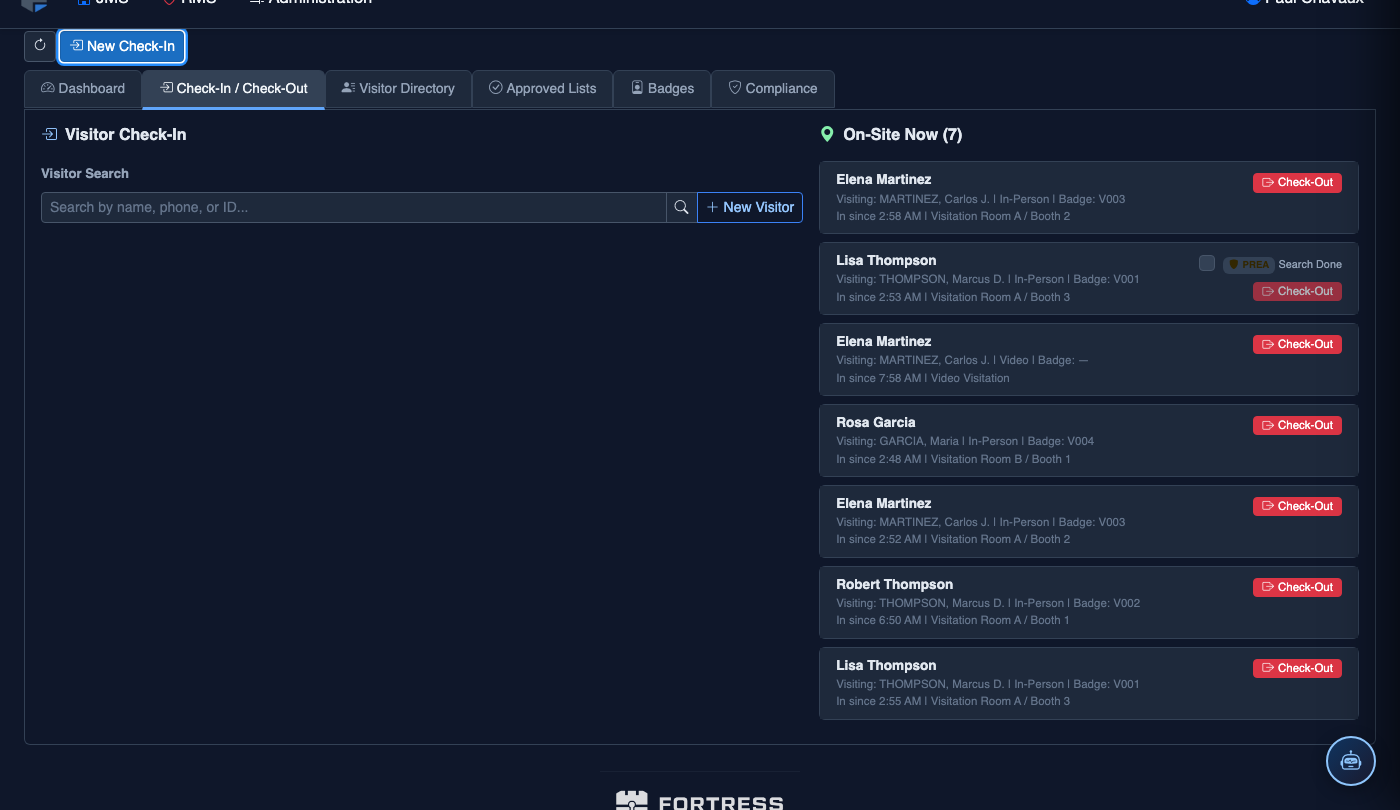
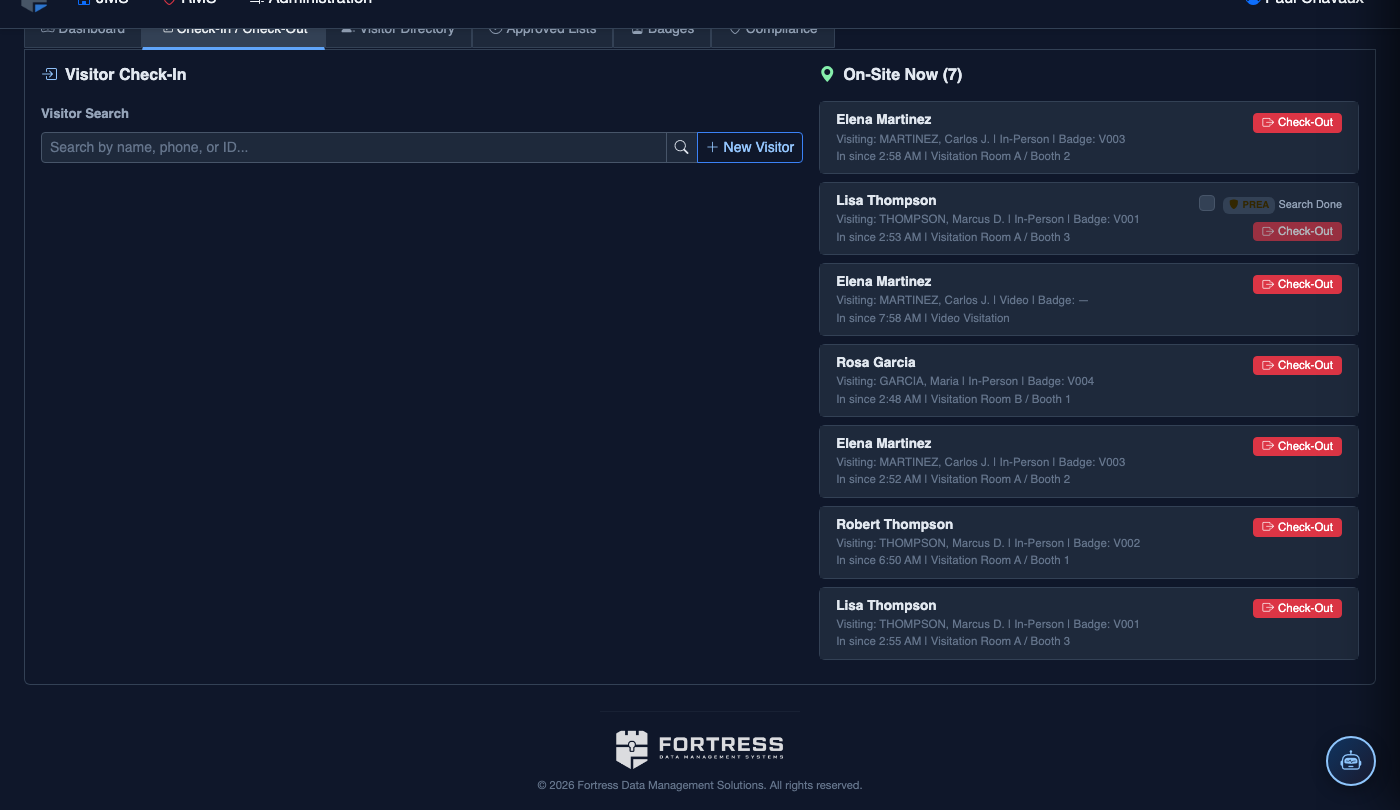
Mobile View — Visit Compliance
FortressDMS is fully responsive. Officers can access the Visit Compliance on a phone or tablet directly from the field — no app install required.
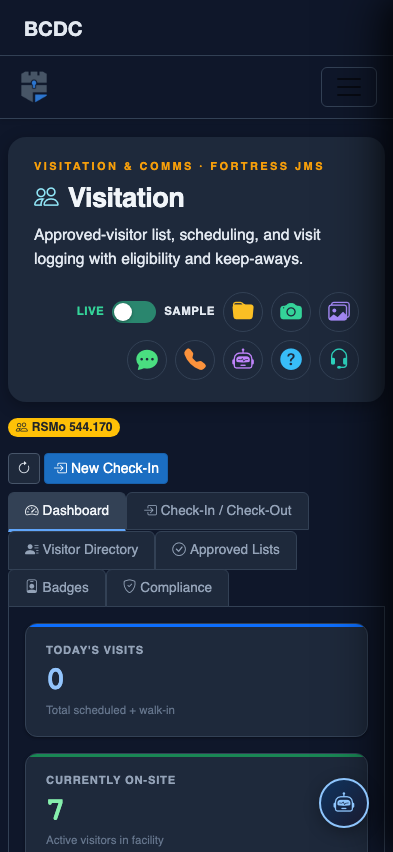
Tab view with data rows
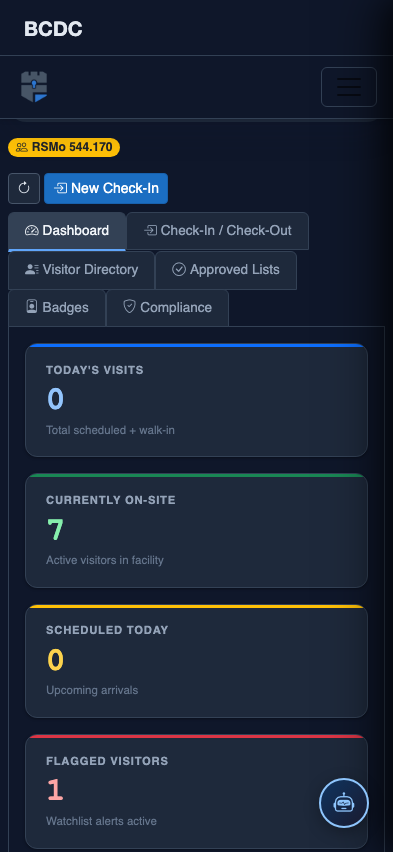
Scrolled / detail view