
Intelligence Analysis
Nemotron NLP-powered threat detection, sentiment trending, keyword frequency, and named entity recognition — extracted automatically from every scanned mail piece.
Threat Scoring
Each piece receives a threat level (High / Moderate / Low) based on keyword density, sentiment, and named entity combinations detected by Nemotron.
Sentiment Trends
Track sentiment distribution (Positive / Negative / Neutral / Concerning) across all mail over time. Spikes signal coordination or distress.
Keyword Frequency
See which keywords from your facility’s watch list appear most frequently, and in which inmates’ correspondence.
Named Entity Recognition
Nemotron NER extracts people, places, organizations, and phone numbers from mail text — linking mail intelligence to active cases.
📚 How To: Review Intelligence Analysis
Open Intelligence Analysis
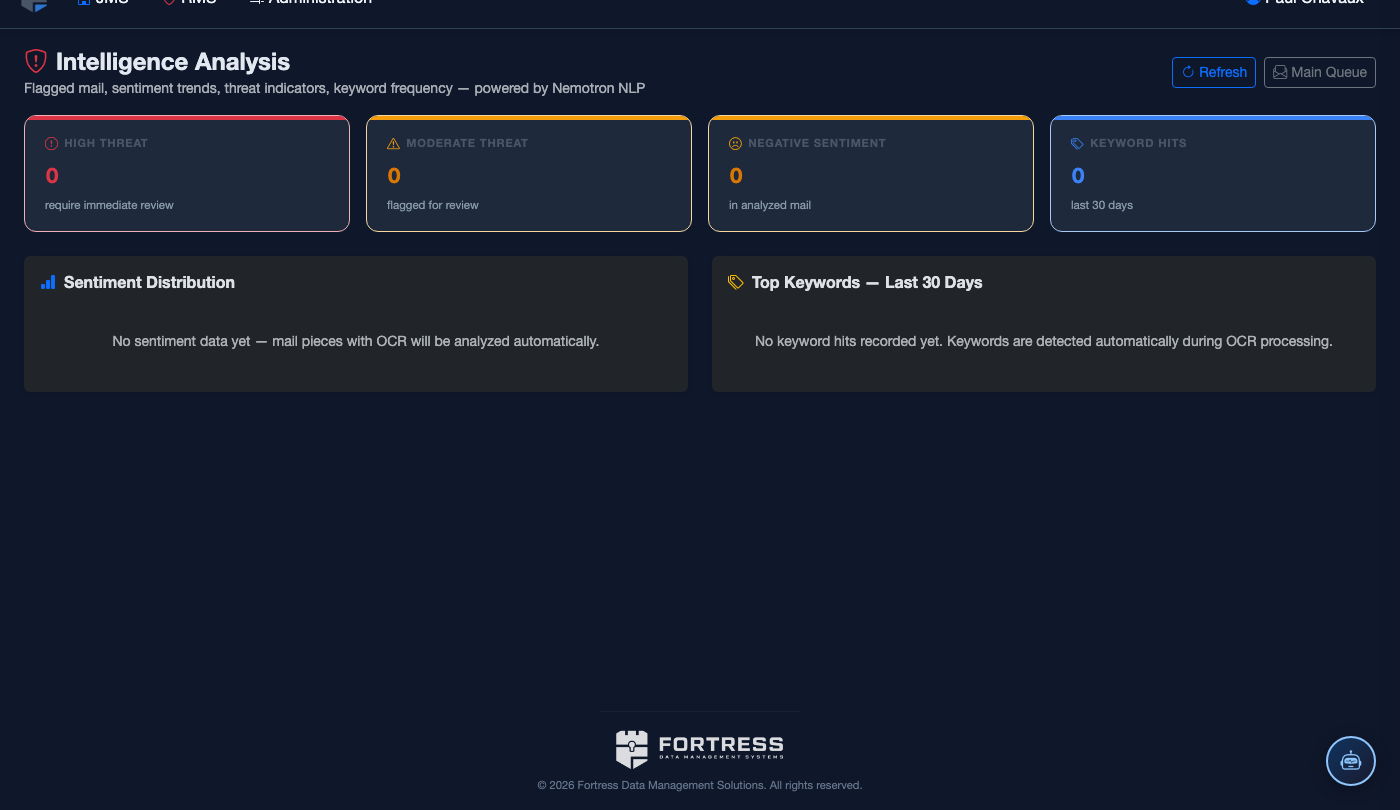
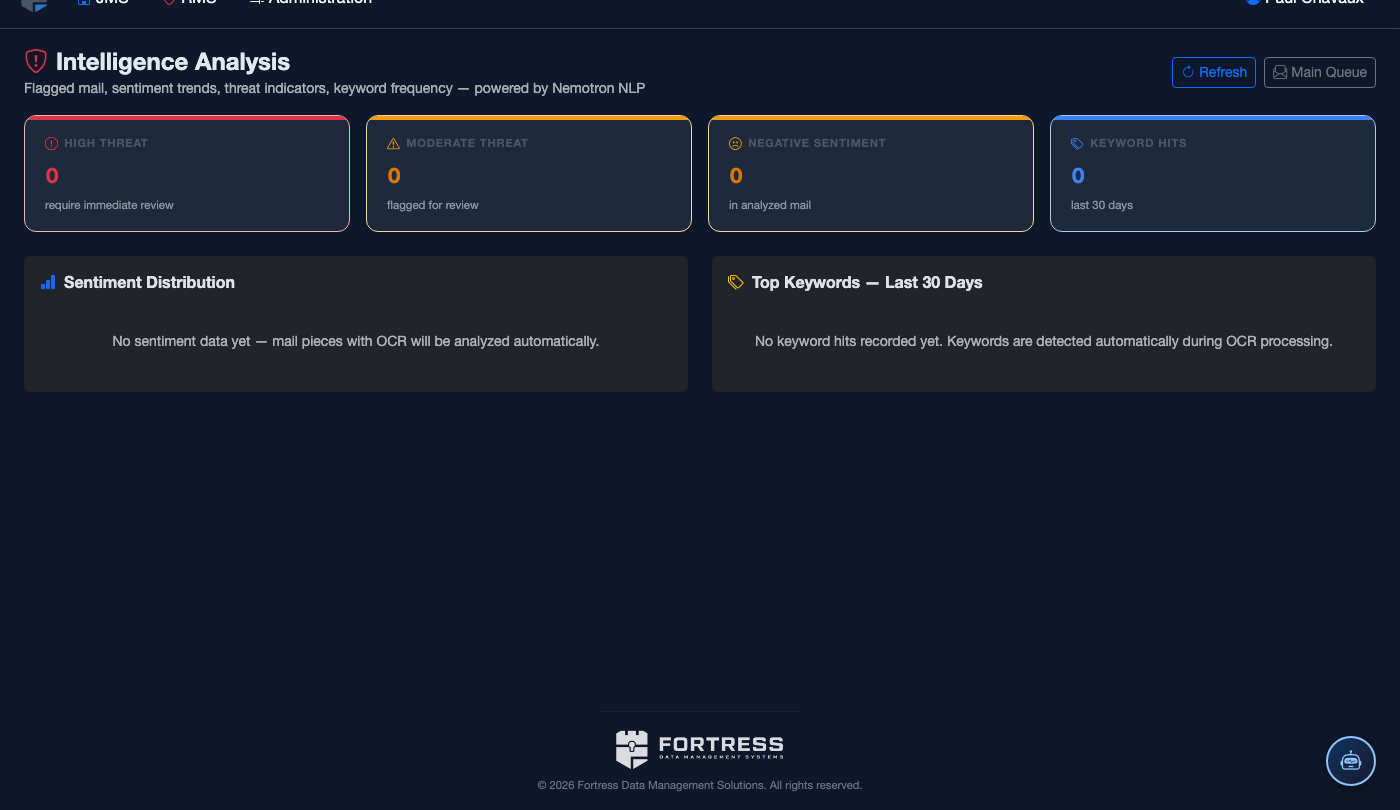
Navigate to JMS → IPS → ScanMail → Intelligence Analysis. The dashboard loads with four KPI cards: High Threat, Moderate Threat, Negative Sentiment, and Keyword Hits.
Read the KPI Cards
Each KPI card shows the count of mail pieces meeting that criteria in the last 30 days. High Threat (red) requires immediate review — click the card to jump to the flagged pieces.
Review Sentiment Distribution
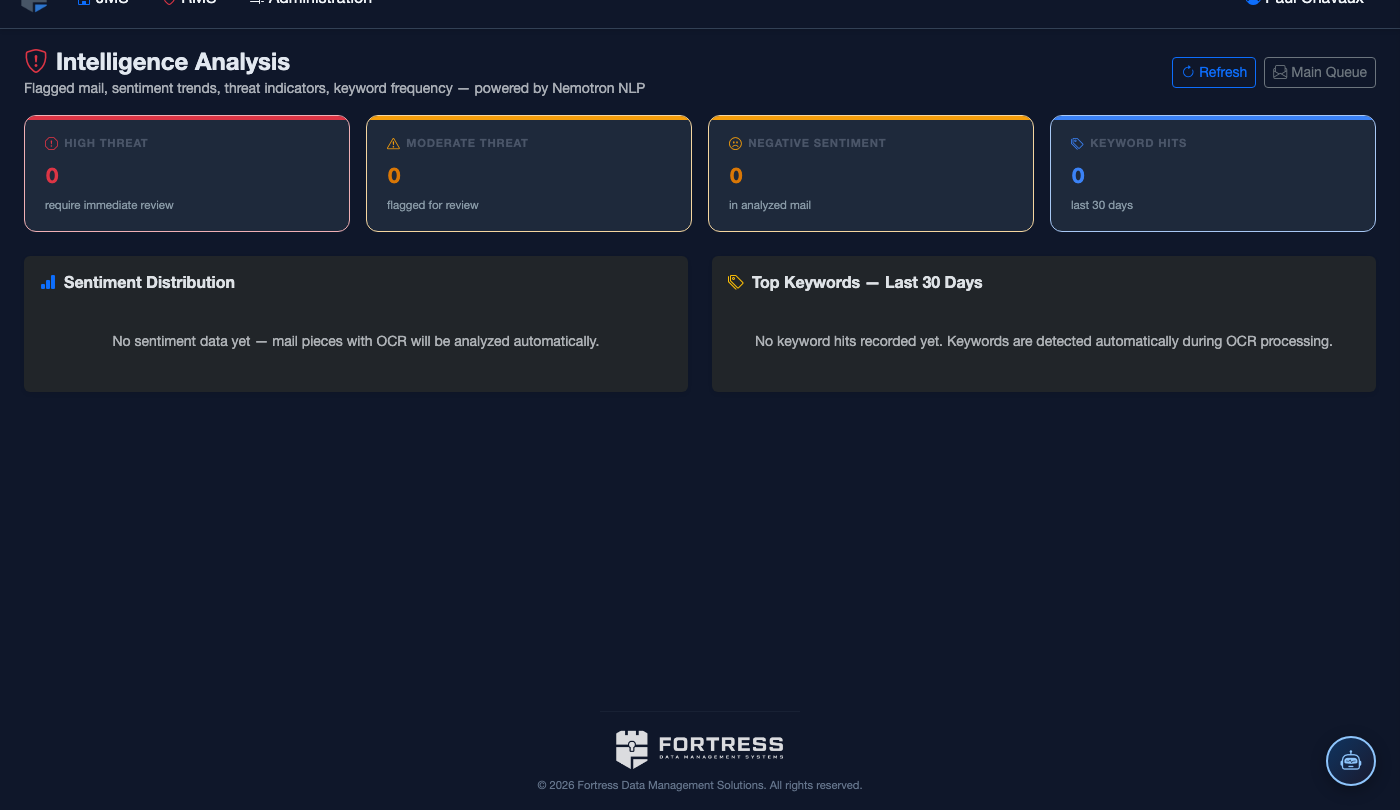
The Sentiment Distribution chart shows the breakdown of analyzed mail by tone. A high Negative or Concerning percentage over a specific inmate warrants escalation to a Threat Assessment.
Check Keyword Hits
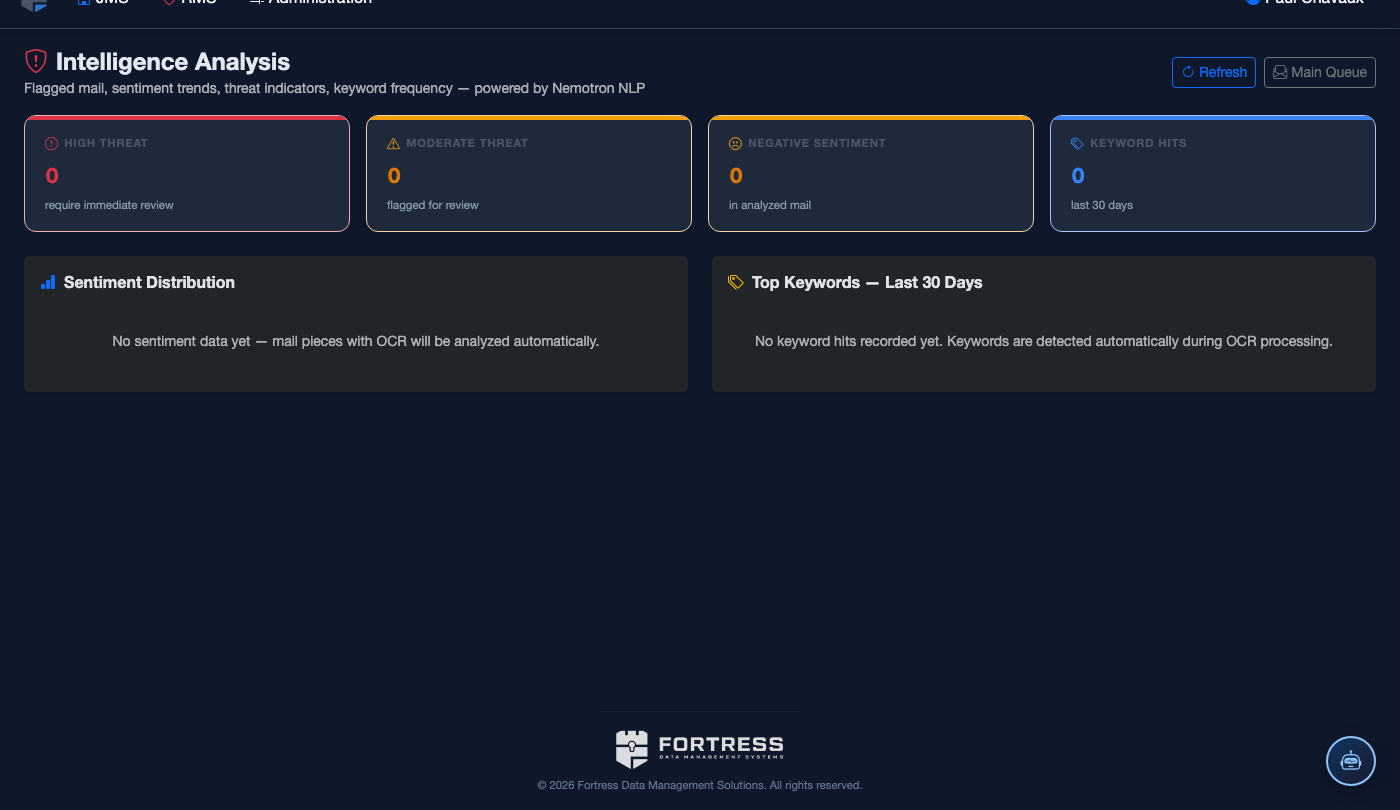
The Top Keywords — Last 30 Days panel shows which watch-list terms appeared most. Click any keyword to see which pieces triggered it and which inmates were involved.
Escalate to Threat Assessment
Click any flagged piece’s → Threat Assessment link to open a pre-populated Threat Assessment case with the mail piece attached as evidence. The link appears on each piece in the processing queue and in the intelligence detail.
Configure the Keyword Watch List
Add and manage your facility’s keyword watch list from the Intelligence → Keywords module. Every keyword is checked against OCR’d text for all future mail pieces automatically.
- Navigate to JMS → Intelligence → Keywords.
- Click + Add Keyword and enter the term or phrase.
- Set the severity (High / Medium / Low) and category (Contraband / Violence / Gang / Other).
- Click Save — the keyword takes effect on the next mail piece processed.
- Nemotron NLP runs entirely on-premises — mail content never leaves the facility network.
- Legal mail (Type = Legal) is excluded from all NLP analysis per attorney–client privilege.
- Intelligence data feeds directly into SARs (Suspicious Activity Reports) and Threat Assessments.
Mobile View — Intelligence Analysis
FortressDMS is fully responsive. Officers can access the Intelligence Analysis on a phone or tablet directly from the field — no app install required.
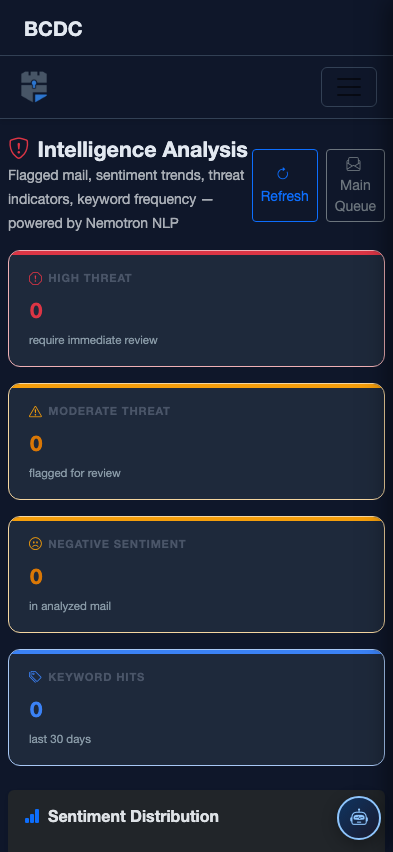
Tab view with data rows
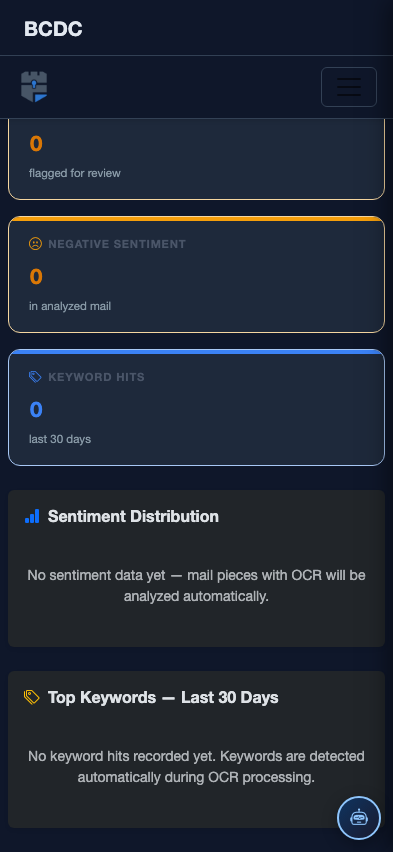
Scrolled / detail view