
Override Decisions
The Override Decisions tab provides a structured, documented pathway for classification officers to assign a custody level that differs from the automated system recommendation. Every override requires a written justification, supervisor approval, and an automatic audit entry — ensuring your facility can demonstrate that departures from objective scoring are rare, justified, and consistently applied. The override log is a key document during ACA and PREA audits.
Documented Justification
Officers must select a reason category and enter a free-text justification before any override is accepted by the system.
Supervisor Approval Gate
All overrides route to a supervisor for approval or rejection — no override takes effect without a second signature.
Override Rate Analytics
A built-in dashboard tracks override rates by officer, unit, and reason code — helping identify inconsistent classification practices.
Immutable Audit Log
Every override decision — approved or rejected — is permanently recorded with timestamps and cannot be altered after the fact.
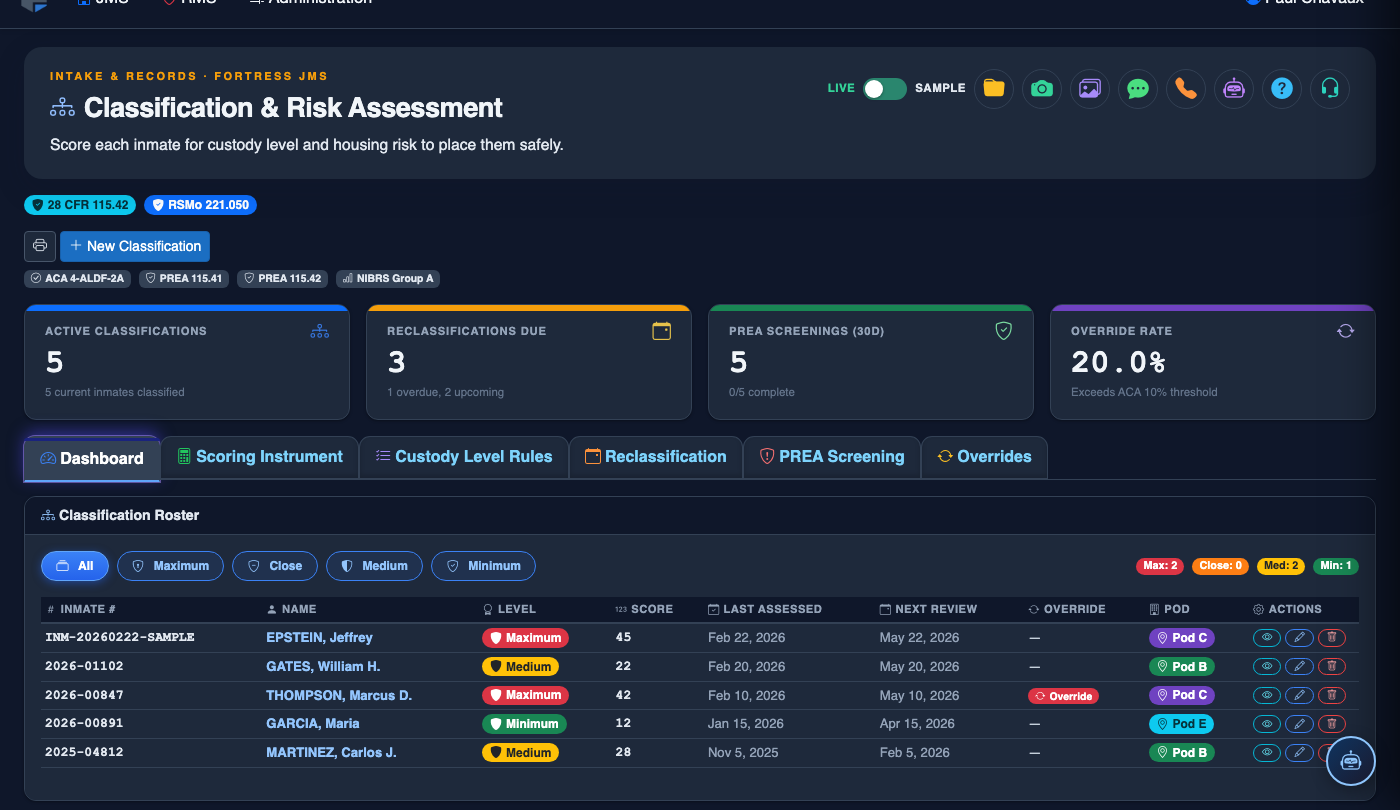
Step-by-Step: Submitting and Approving an Override Decision
Access the Override Decisions Tab
Navigate to Classification & Risk > Override Decisions. The tab shows the inmate’s current automated score and the system-recommended custody level prominently at the top of the page, so the departure from recommendation is immediately visible in the record.
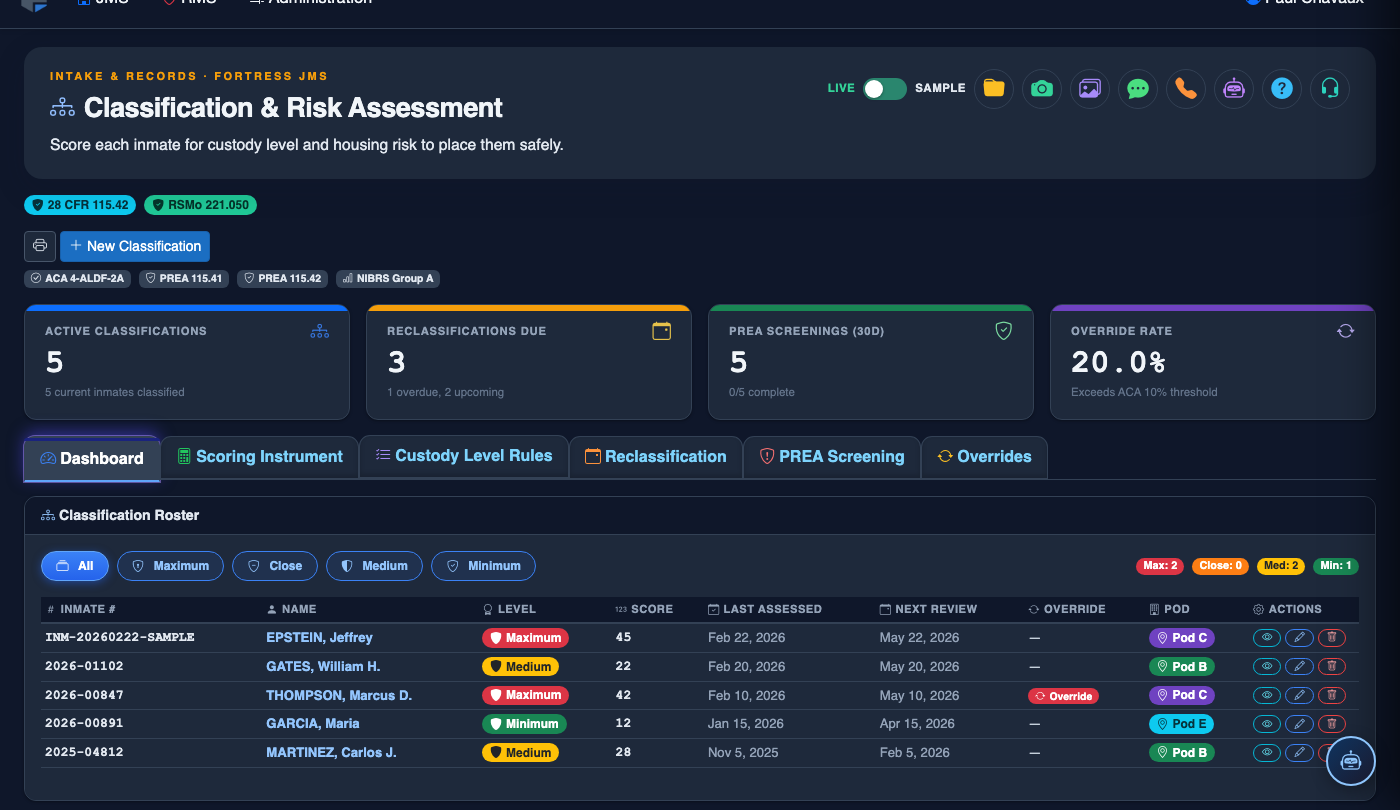
Select the Requested Custody Level
Use the Requested Custody Level dropdown to choose the level you are recommending instead of the system suggestion. The difference between the recommended and requested levels is displayed as an Override Direction indicator — upward (higher custody) or downward (lower custody) — which affects the approval routing.
Choose a Reason Category
From the Override Reason list, select the category that best fits the justification — such as Medical/Mental Health Requirement, Bed Availability, Protective Custody Request, Intelligence/Safety Concern, or Court Order. Reason codes drive the override analytics dashboard and must be applied consistently.
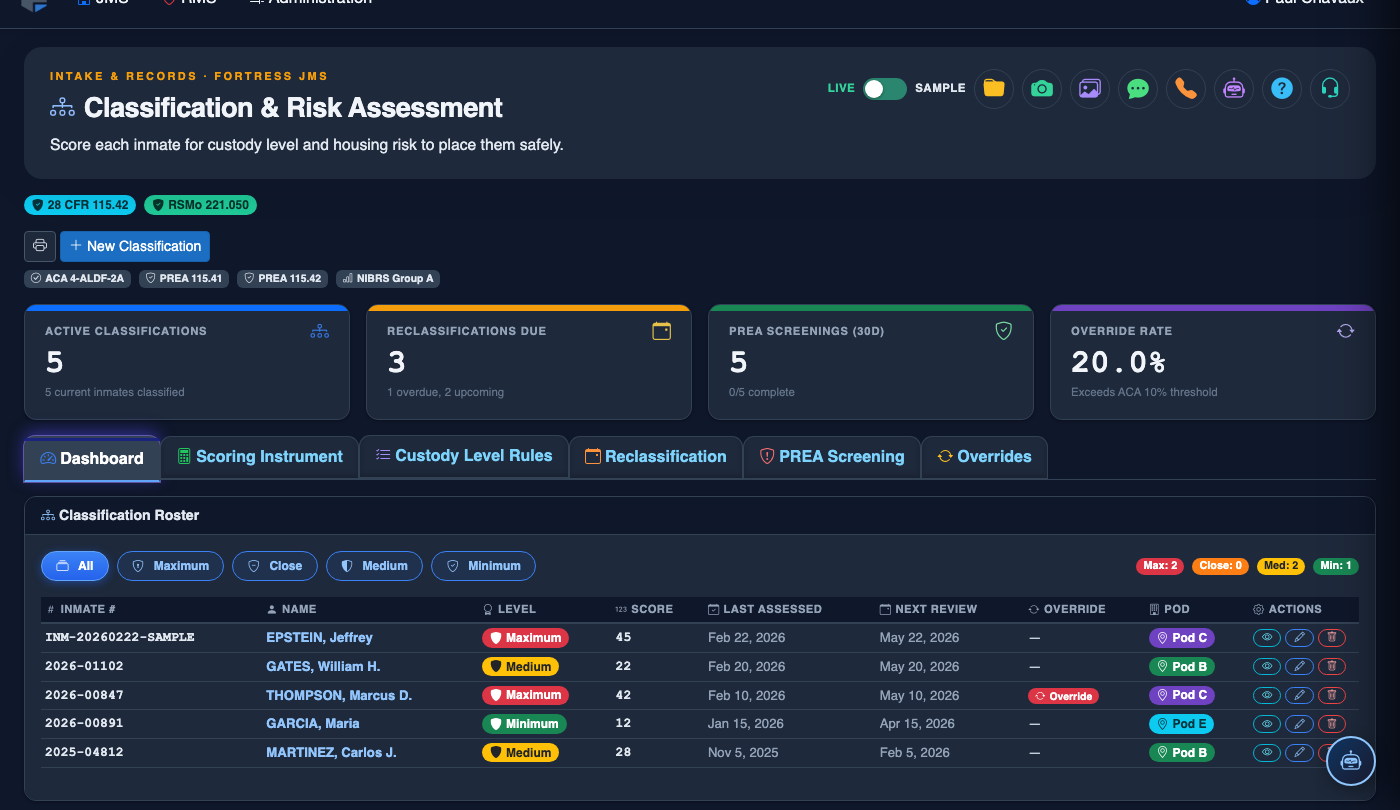
Write the Detailed Justification Narrative
In the Justification Narrative text field (minimum 50 characters), describe the specific facts supporting the override. Reference observable behaviors, specific incidents, or documented orders. Avoid vague language — auditors expect concrete factual statements tied to named documents or dates.
Attach Supporting Documents
If relevant, click Attach Document to upload supporting files such as a medical order, court document, or incident report. Attached files become part of the permanent override record. Accepted formats: PDF, DOCX, JPG (max 10 MB per file).
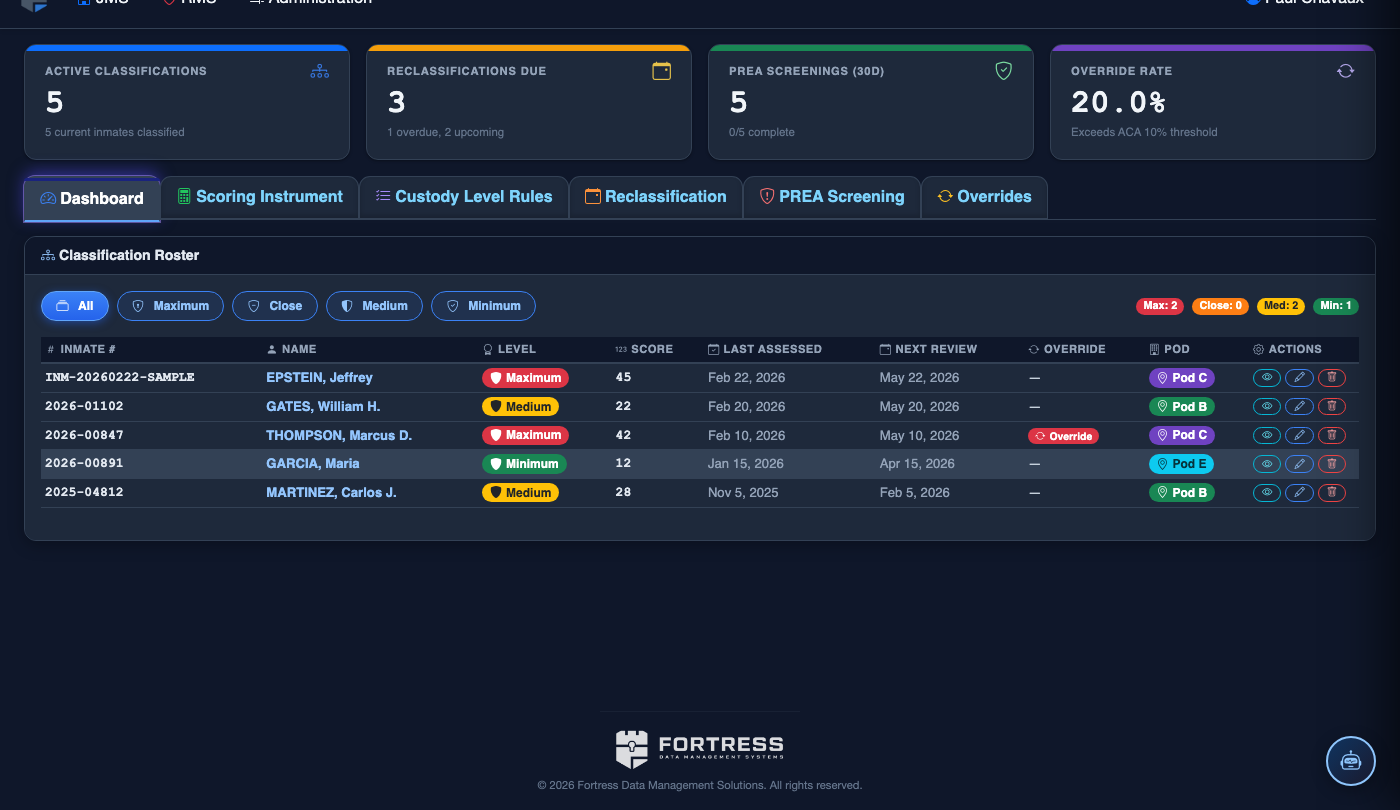
Submit and Await Supervisor Decision
Click Submit Override Request. The request enters a supervisor approval queue and you will receive an in-app notification when a decision is made. The inmate’s custody level remains at its current value until the supervisor approves — overrides do not take effect immediately.
Supervisor Reviews, Approves or Rejects
The supervisor opens the request from their Pending Overrides queue, reviews the narrative and attachments, and clicks Approve or Reject. A rejection requires a supervisor justification note. Approved overrides immediately update the inmate’s custody level and generate a housing move recommendation if needed.
💡 Pro Tips
- Monitor the override rate dashboard monthly — an override rate above 15% on any single unit or officer may indicate classification inconsistency and warrants a supervisory review.
- Downward overrides (moving an inmate to lower custody than scored) carry the highest legal risk; ensure those justification narratives are especially detailed and reference specific behavioral evidence.
- Set an automatic 90-day reclassification trigger for all approved overrides so the inmate is reassessed under standard criteria promptly — prevents overrides from becoming permanent by default.
- Use the Override Export under Reports to generate the override log required by ACA Standard 4-4238 for each accreditation cycle.