
Deposits & Credits
The Deposits & Credits tab is where finance staff record and manage all incoming funds to an inmate’s trust account, including cash received at the booking window, money orders, electronic transfers from approved services, and court-ordered credits. Each deposit is permanently recorded with the receiving officer’s credentials, timestamp, funding source, and reference number, creating a complete chain of custody for all inmate funds entering the facility’s financial system. Proper use of this tab ensures compliance with state inmate trust fund regulations and eliminates discrepancies during audits.
Multi-Source Deposit Entry
Accept and record cash, money orders, kiosk transfers, and electronic payments through a unified deposit entry form.
Reference Number Tracking
Attach money order serial numbers, kiosk confirmation codes, or court case numbers to each deposit for dispute resolution.
Sub-Account Routing
Direct incoming funds to the correct sub-account (spendable, savings, or restitution) at the time of deposit entry.
Deposit Reversal Workflow
Supervisor-gated reversal process for returned checks or erroneous entries, with mandatory reason codes and audit logging.
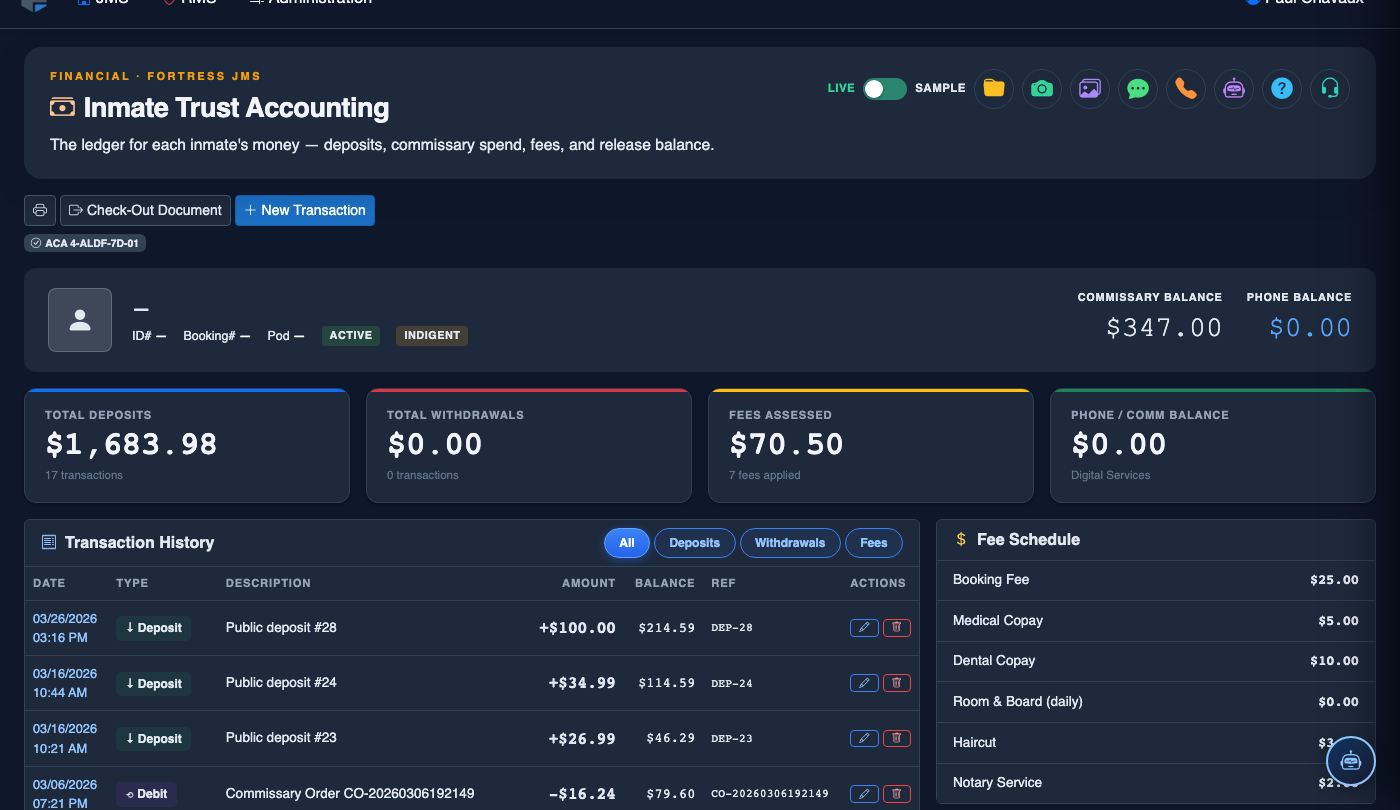
Step-by-Step: Processing Inmate Deposits & Credits
Open the Deposits & Credits Tab
After locating the inmate in Inmate Trust Accounting, click the Deposits & Credits tab. The tab displays a list of all prior deposits for this inmate in reverse chronological order, along with the current spendable balance at the top of the screen.
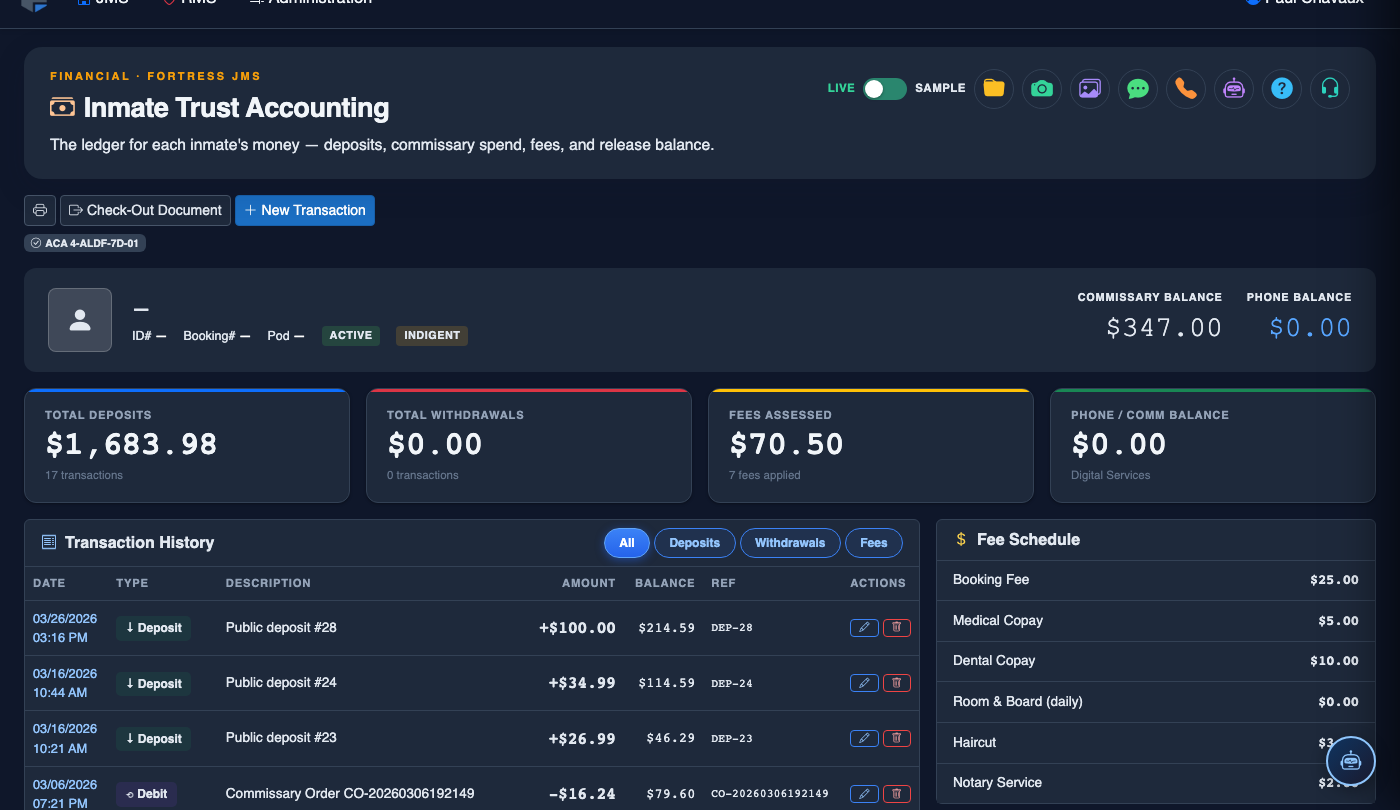
Click New Deposit
Click the + New Deposit button in the top-right corner of the tab. A deposit entry form will slide open on the right side of the screen. All required fields are marked with an asterisk and must be completed before the deposit can be posted.
Select the Funding Source
Use the Funding Source dropdown to select how the funds are being received: Cash, Money Order, Kiosk / Electronic Transfer, Court-Ordered Credit, or Facility Credit. The form will display additional fields appropriate to the selected source (e.g., money order serial number field for money orders).
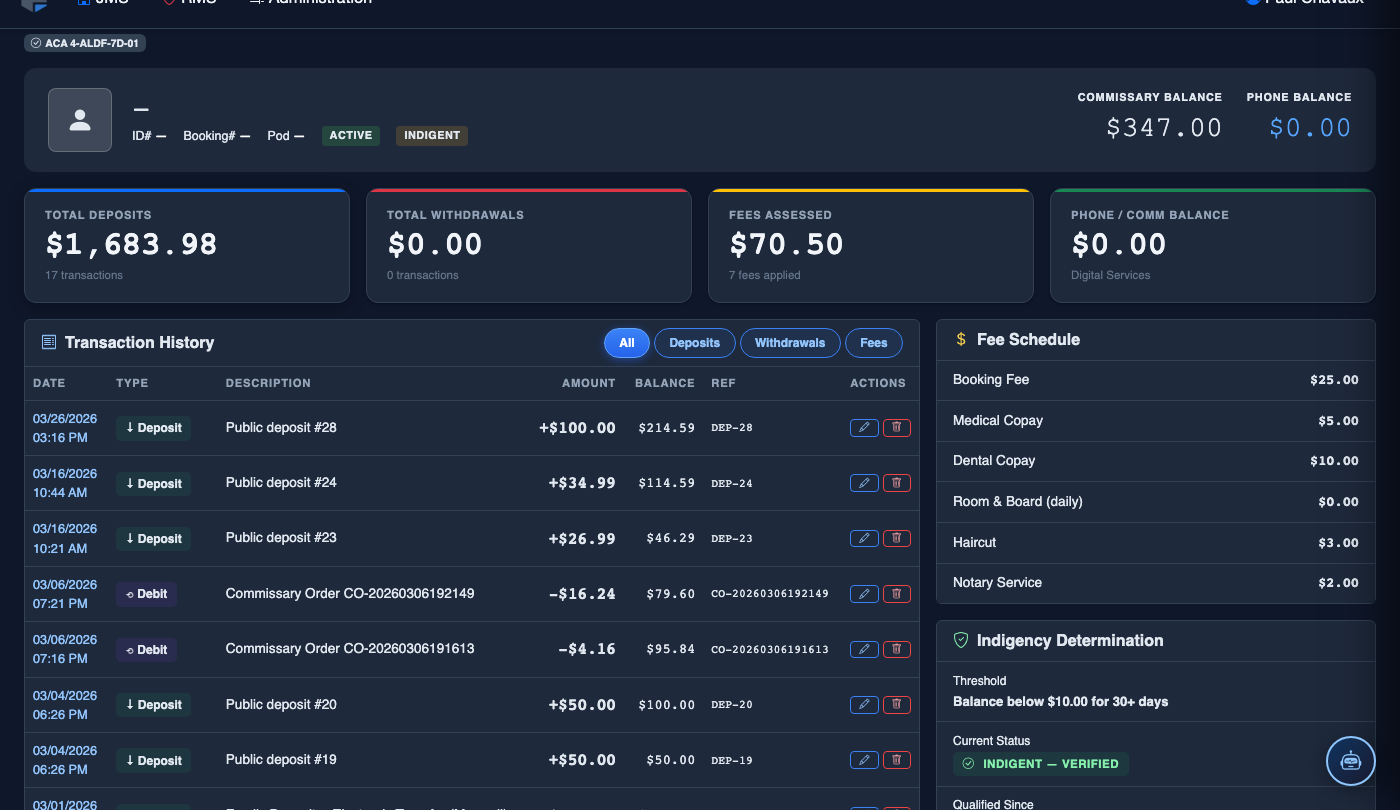
Enter Amount and Reference Information
Enter the deposit Amount in the currency field. In the Reference Number field, enter the money order serial number, kiosk confirmation code, or court case number as applicable. Use the Notes field to document any relevant context, such as the name of the person making the deposit on the inmate’s behalf.
Select the Destination Sub-Account
Use the Destination selector to choose which sub-account receives the funds: Spendable Trust for general use, Savings for restricted funds, or Restitution to fulfill a court-ordered payment obligation. When in doubt, consult the court order or booking documentation before selecting.
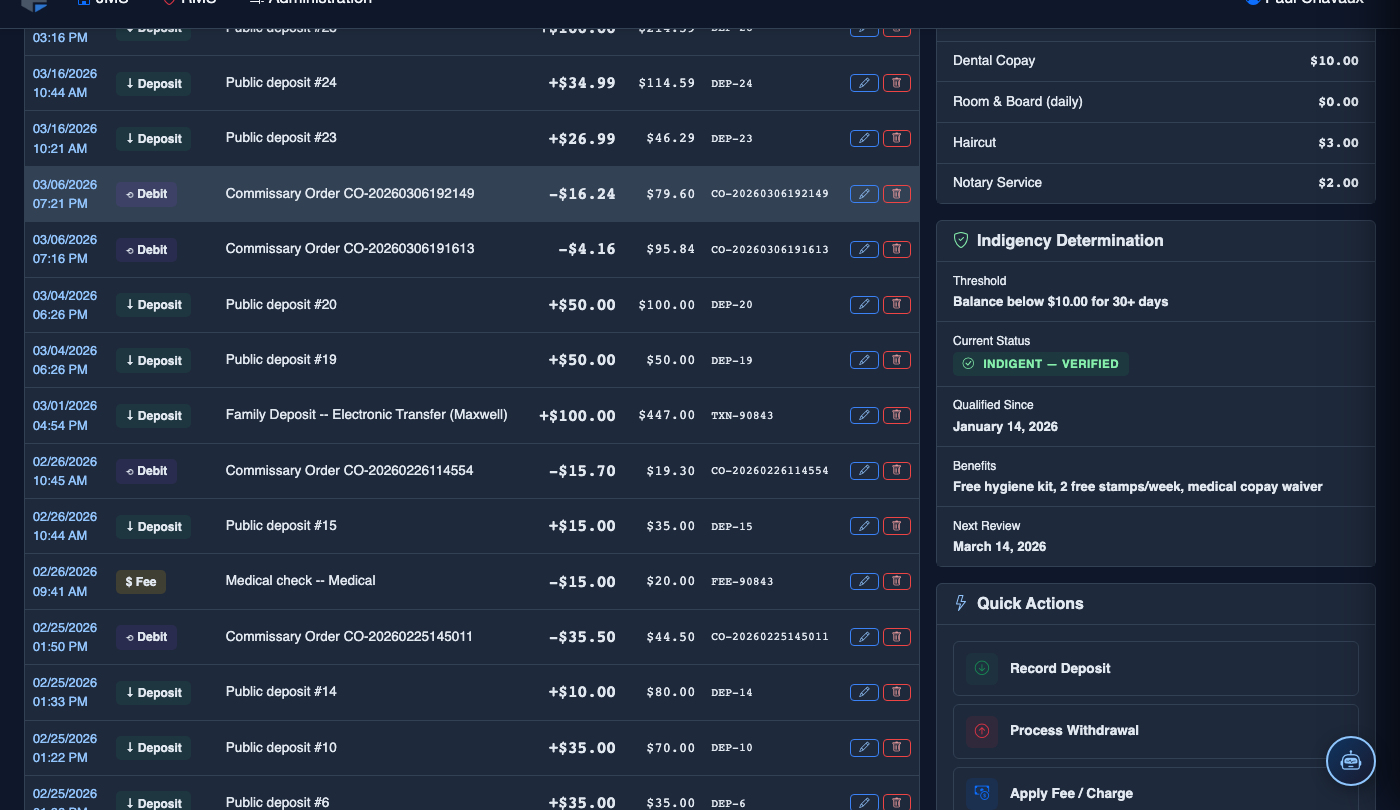
Post the Deposit
Click Post Deposit to finalize the transaction. The system will immediately update the inmate’s account balance, generate a transaction record with your officer credentials and timestamp, and display a Deposit Confirmed success banner. A printable receipt will be available via the Print Receipt link in the confirmation banner.
Process a Deposit Reversal (If Needed)
If a deposit must be reversed (e.g., a returned check or duplicate entry), locate the original transaction in the deposit list and click Reverse. Enter the Reversal Reason from the required dropdown and confirm. A supervisor approval prompt may appear depending on your facility’s configured approval workflow. Reversals are permanently logged and cannot be deleted.
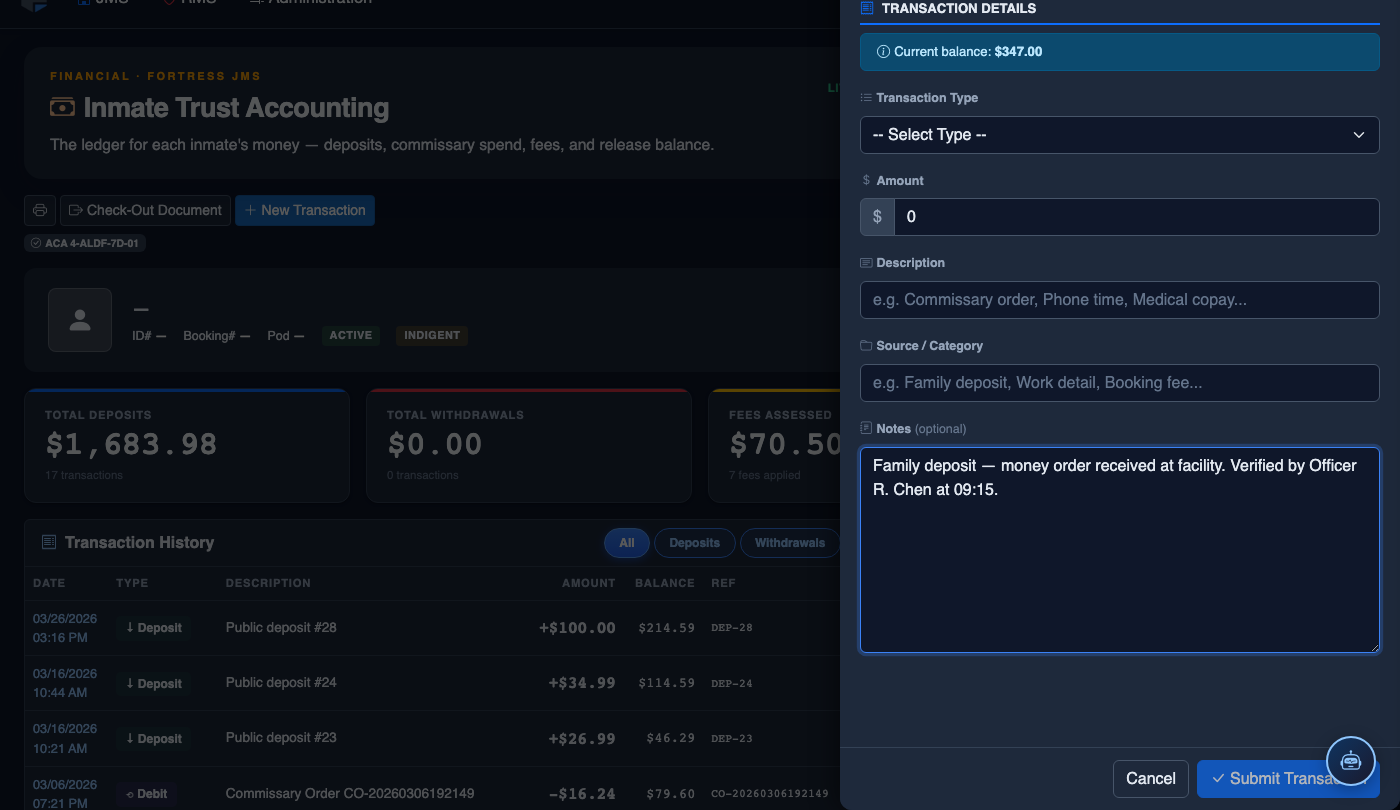
Record a New Financial Transaction
Click New Transaction. Complete the trust accounting form:
- Inmate — search by name or booking number. Current balance displays immediately.
- Transaction Type — Deposit, Withdrawal, Commissary Debit, Court Fee, Restitution, or Adjustment.
- Amount — enter the dollar amount. System validates against available balance for debits.
- Payment Method — Money Order, Cash, Check, Electronic Transfer, or Internal Transfer.
- Reference Number — document the money order number, check number, or authorization code.
- Notes — record who tendered payment and any special circumstances.
- Click Post Transaction. Balance updates immediately; a receipt prints automatically.
💡 Pro Tips
- Always record the money order serial number in the Reference Number field — this is the only way to trace a disputed deposit back to the physical instrument without pulling paper records.
- For court-ordered credits, attach a scanned copy of the court order to the deposit entry using the Attach Document link — this protects the facility if the credit amount is later disputed in court.
- If a visitor attempts to deposit funds at the booking window for an inmate with an Active Financial Hold, do not refuse the deposit — accept and route to the appropriate sub-account, then contact the supervisor regarding hold status.
Mobile View — Deposits Credits
FortressDMS is fully responsive. Officers can access the Deposits Credits on a phone or tablet directly from the field — no app install required.
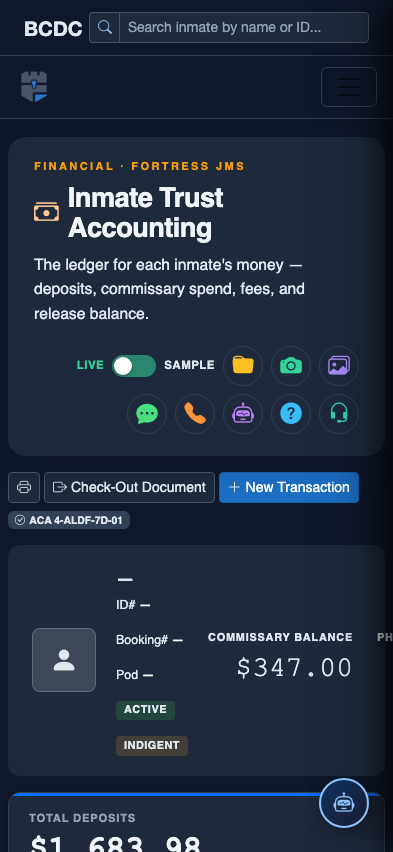
Tab view with data rows
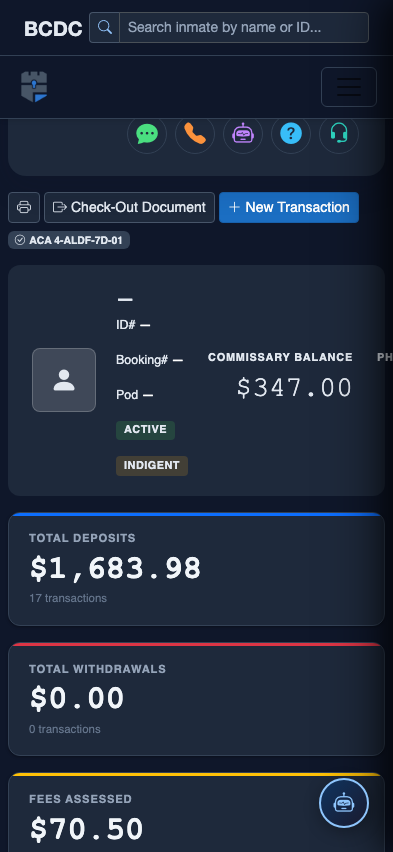
Scrolled / detail view