
Payments & Reconciliation
The Payments & Reconciliation tab is the financial closing point for inter-agency billing, where fiscal staff record incoming agency payments, apply them to outstanding invoices, and generate reconciliation reports for county finance. Accurate payment tracking ensures your accounts receivable ledger reflects real-time collections status, flags overdue accounts for follow-up, and produces audit-ready documentation of all inter-agency financial transactions.
Payment Recording
Log check, ACH, or wire payments received from agencies and apply them to specific outstanding invoices.
Balance Tracking
Automatically calculates remaining balances on each invoice and total outstanding receivables per agency.
Overdue Alerts
Automatically flags invoices past their due date and can trigger notification emails to the agency billing contact.
Reconciliation Export
Export period-end reconciliation summaries showing invoiced amounts, payments received, and net outstanding balances.
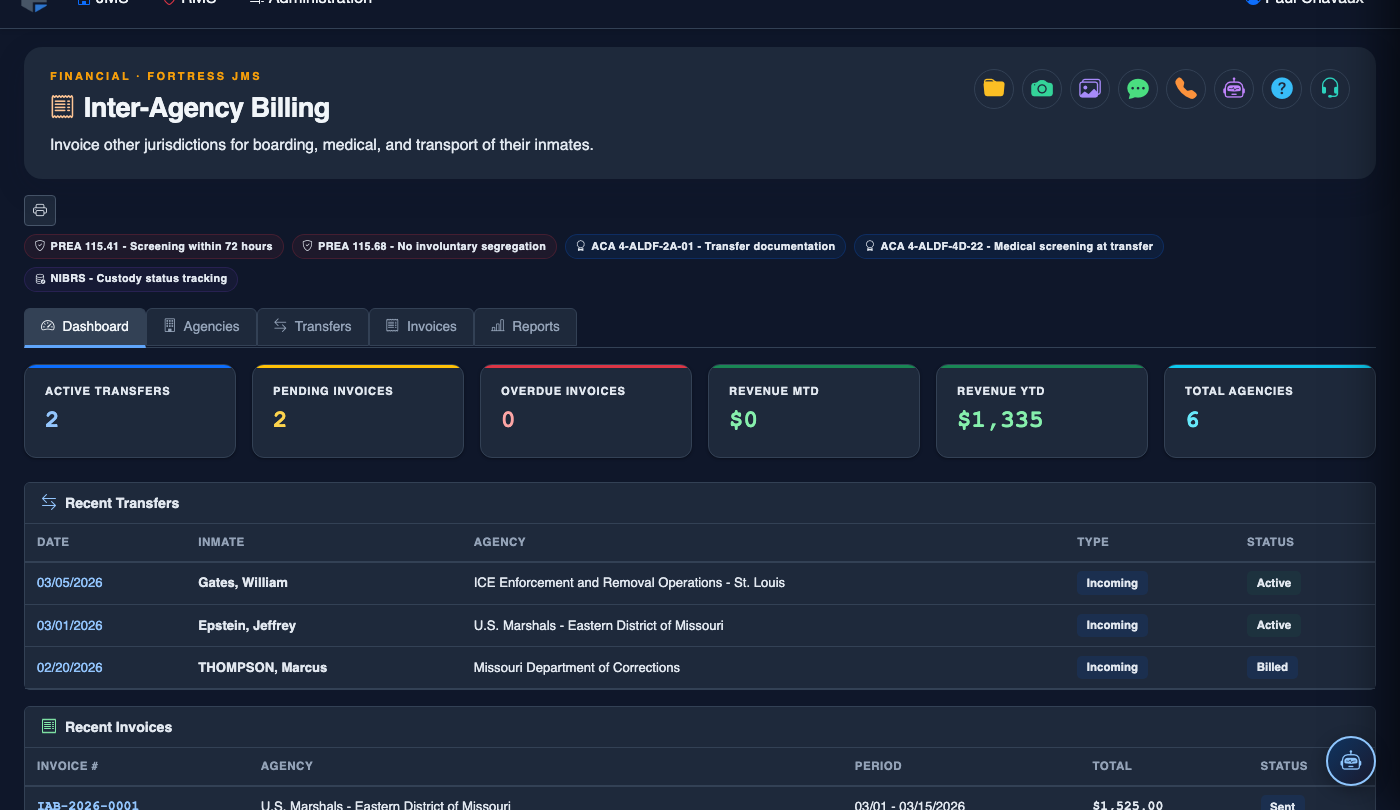
Step-by-Step: Recording Payments & Reconciling Accounts
Open the Payments & Reconciliation Tab
In Inter-Agency Billing, click the Payments & Reconciliation tab. The dashboard shows total Outstanding Receivables, Received This Month, and a list of all invoices with their current payment status. Overdue invoices are highlighted in red.
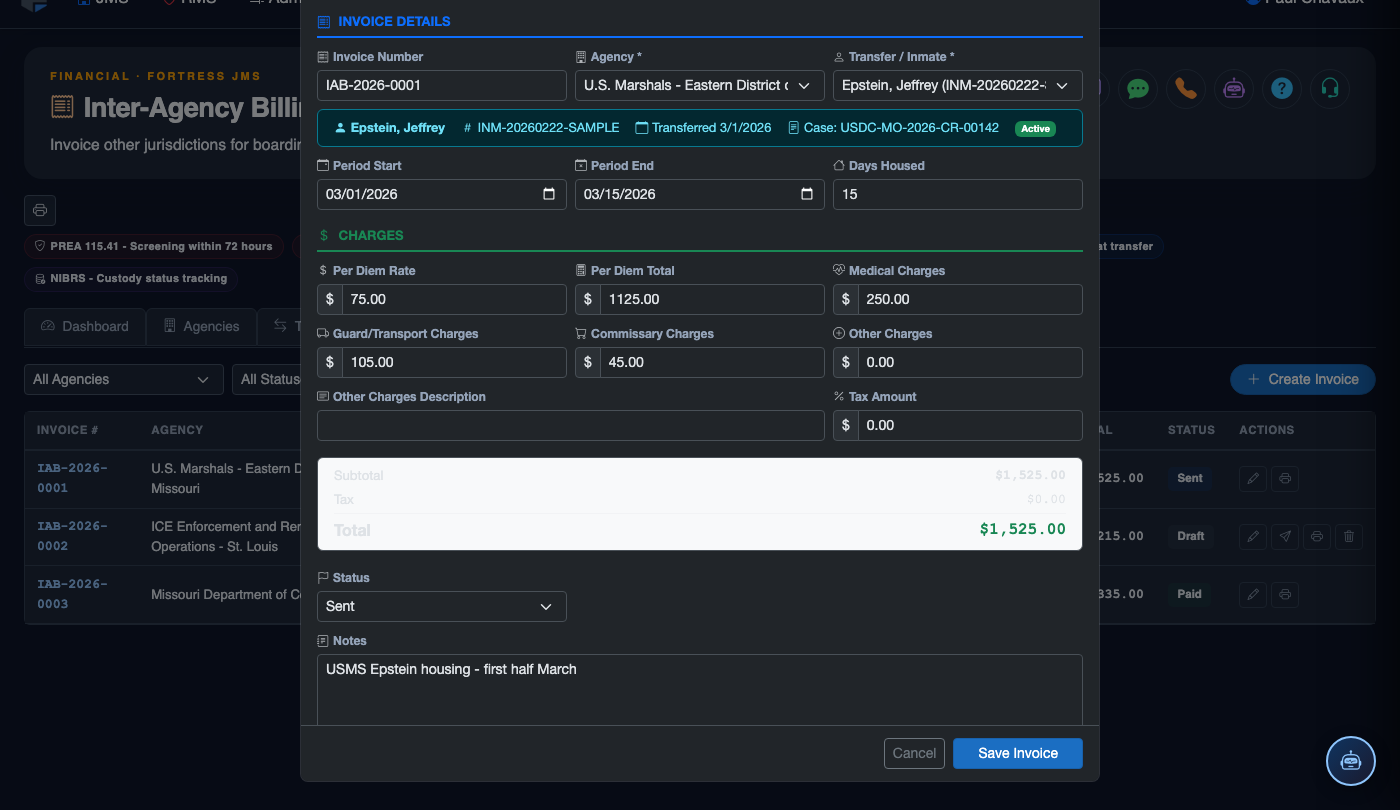
Click Record Payment
Click the Record Payment button. A form opens prompting you to select the Agency, the specific Invoice being paid (or the option to apply to oldest balance first), the Payment Method (Check, ACH, Wire), Payment Date, and Amount Received.
Enter Reference Information
Enter the Check Number or ACH Reference Number provided by the agency. This reference number links the system record to your physical payment instrument for reconciliation with the county finance office. The Memo field can capture any notes from the agency’s remittance advice.
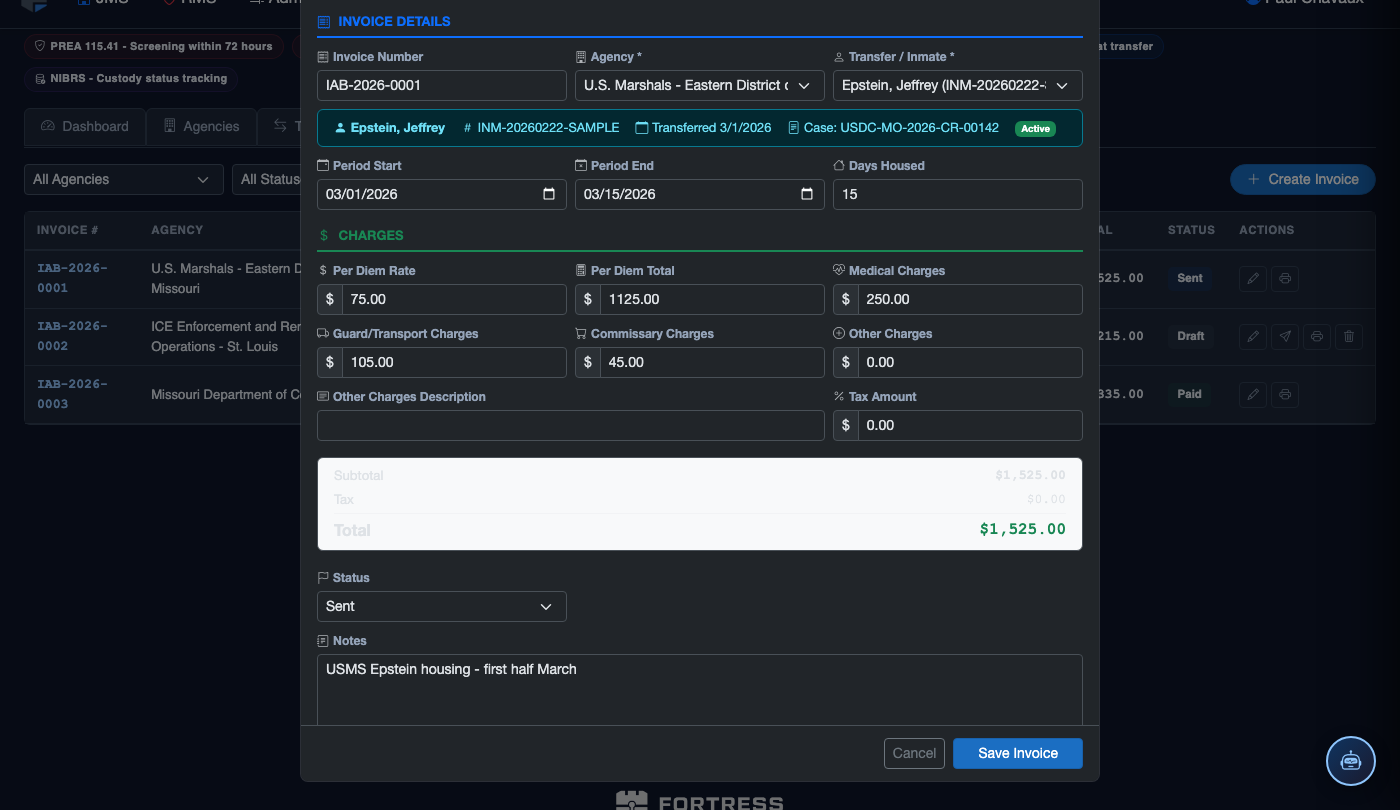
Handle Partial Payments
If the agency remits less than the full invoice amount, enter the actual Amount Received and the system will record a partial payment. The invoice status changes to Partial and the remaining balance is shown. A second payment record can be entered when the balance is remitted, creating a complete payment trail for the invoice.
Save and Confirm Payment
Click Save Payment. The invoice status updates automatically to Paid (if fully paid) or Partial. The payment appears in the transaction history beneath the invoice, and the accounts receivable summary totals update immediately. You will receive an on-screen confirmation with the new balance.
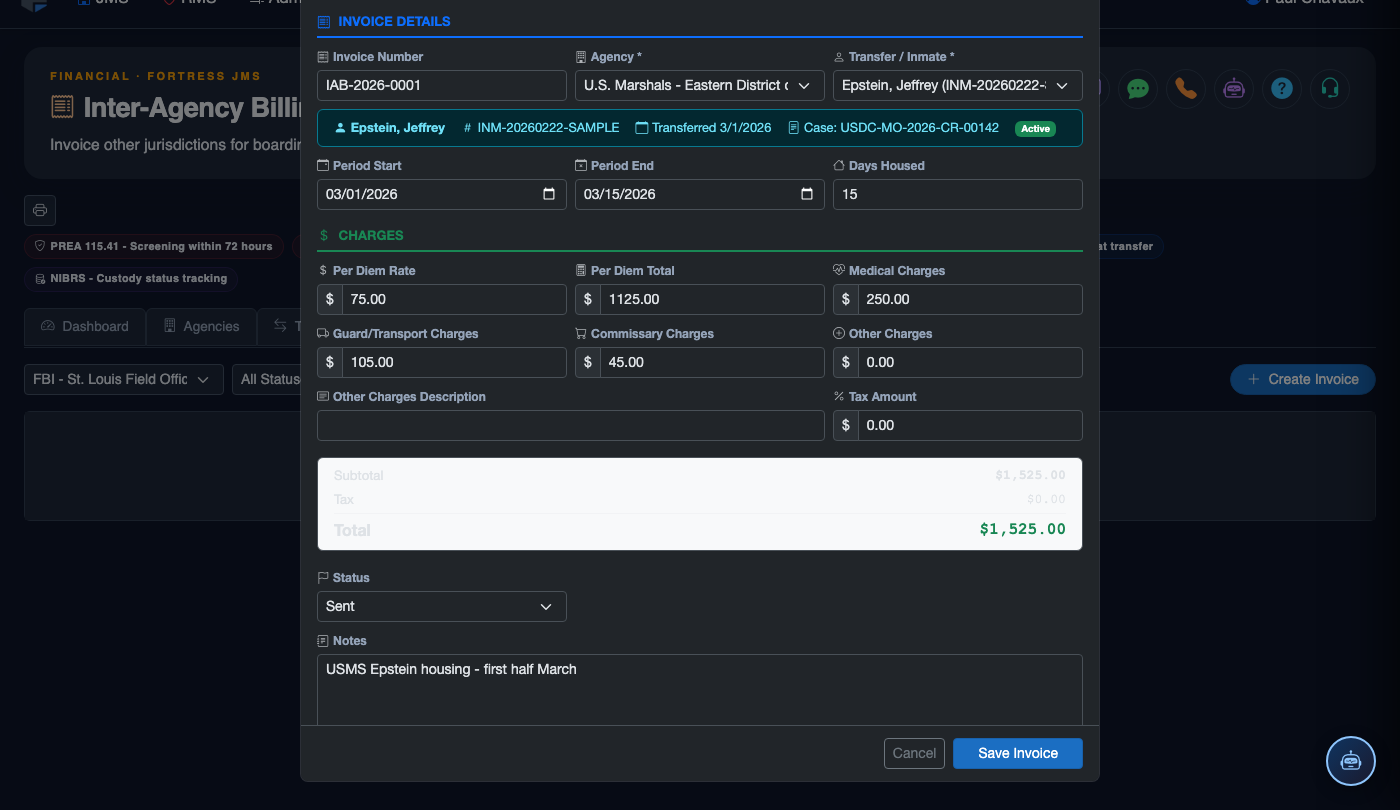
Run the Period-End Reconciliation Report
At the end of each month, click Reconciliation Report, select the billing period, and choose whether to report by agency or consolidated. The report shows invoiced amount, total payments received, adjustments, and net outstanding balance. Export to PDF for submission to county finance alongside the bank deposit records.
Follow Up on Overdue Invoices
Filter the invoice list by Status: Overdue to see all invoices past their due date. Click Send Reminder on any overdue invoice to transmit an automated email reminder to the agency’s billing contact, pre-populated with the invoice number, amount due, and original due date. Log all follow-up activity using the Notes field on the invoice record.
💡 Pro Tips
- Always enter the check or ACH reference number — it is the single most important piece of data for reconciling your facility’s bank deposits against system records during an audit.
- Record partial payments on the day they are received rather than waiting for the balance — aging reports become inaccurate if partial payments are batched and entered late.
- Use the Send Reminder feature at net-30 and again at net-45 — documenting that reminders were sent strengthens your position if a late-payment dispute escalates.
- Run the reconciliation report before the county’s month-end close deadline and resolve any discrepancies the same day — unexplained variances compound across fiscal quarters.
Mobile View — Payments Reconciliation
FortressDMS is fully responsive. Officers can access the Payments Reconciliation on a phone or tablet directly from the field — no app install required.
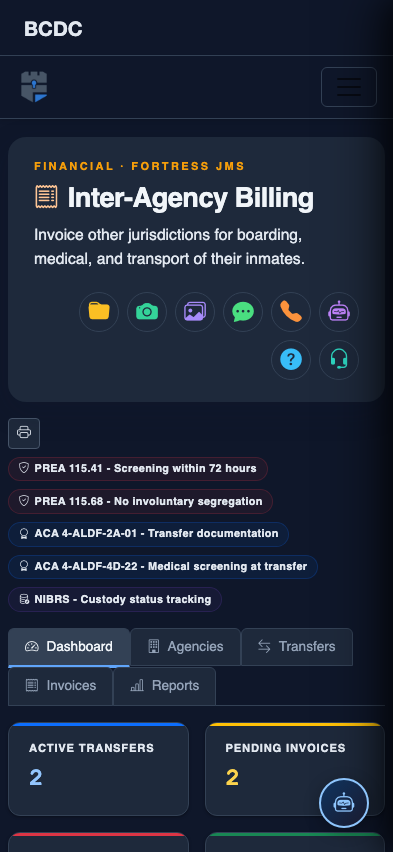
Tab view with data rows
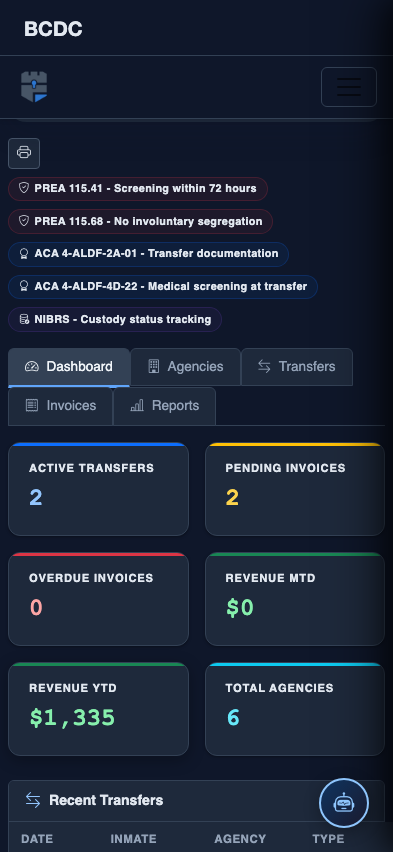
Scrolled / detail view