
Report Templates
Report Templates allow jail administrators to define and manage standardized incident report formats for consistent documentation across all incidents. Pre-built templates ensure officers capture all required fields — from use-of-force to medical emergencies — eliminating incomplete filings and reducing liability exposure. Once published, templates are immediately available to staff when opening a new incident report.
Standardized Formats
Create facility-wide templates that enforce consistent field structure and required information for every incident type.
Rapid Deployment
Officers can select a template and have all required fields pre-populated, dramatically reducing report completion time.
Compliance-Ready
Templates are built to satisfy state reporting mandates and accreditation standards including ACA and PREA requirements.
Version Control
Maintain a history of template revisions so auditors can confirm which version was active at the time of any given incident.
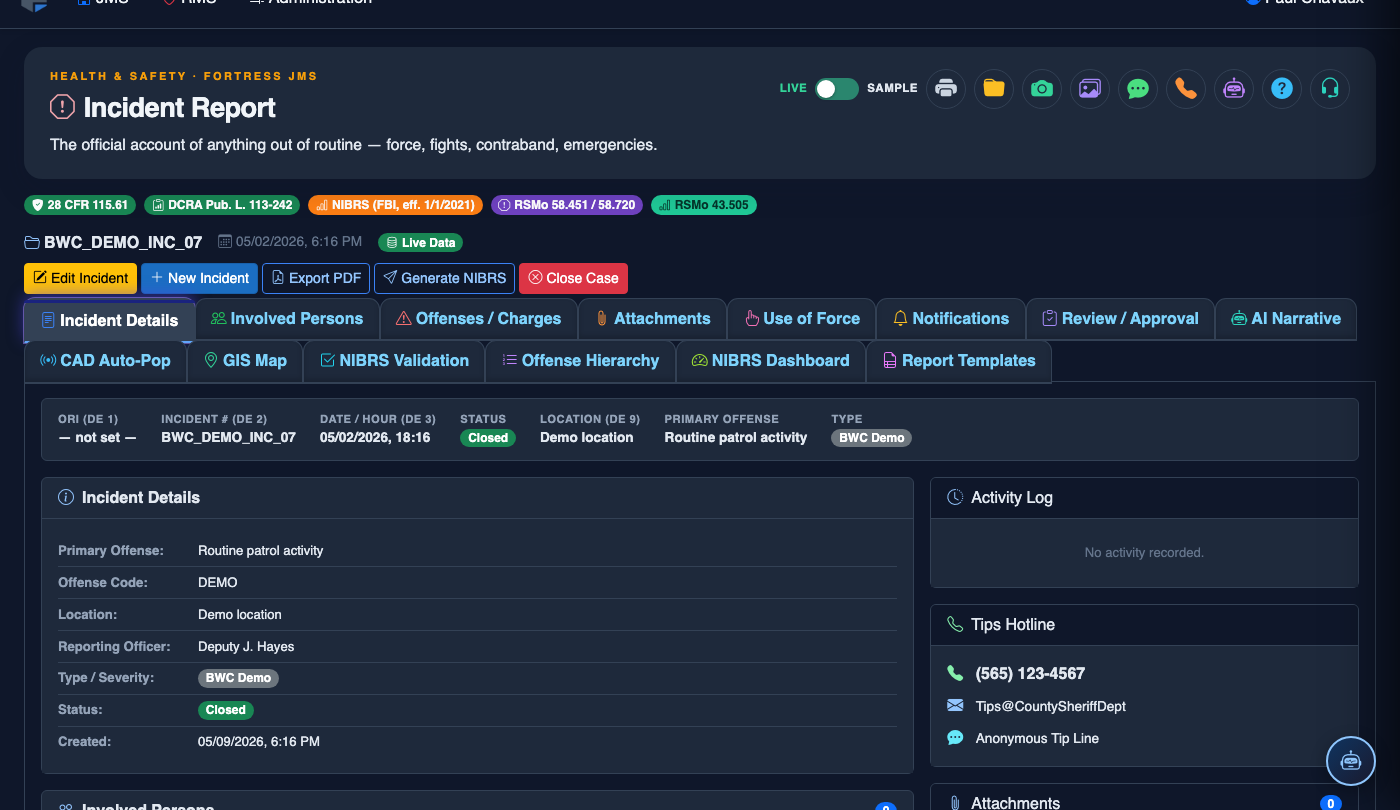
Step-by-Step: Creating and Managing Report Templates
Navigate to Report Templates Tab
From the main menu, open Jail Incident Reporting and click the Report Templates tab (Tab 14). This panel lists all existing templates with their incident type, status, and last-modified date.
Click “New Template”
Press the + New Template button in the top-right corner of the templates list. A creation wizard opens and prompts you to select the Incident Category (e.g., Use of Force, Medical, Escape, PREA) that this template will serve.
Configure Template Fields
In the Field Builder panel, drag required and optional fields onto the template canvas. Mark critical fields (e.g., Date/Time of Incident, Housing Unit, Inmate ID) as Required so the system prevents submission without them.
Add Narrative Sections
Add one or more Narrative blocks with prompt text to guide officers (e.g., “Describe the sequence of events leading to use of force”). These prompts appear inside the text area when officers fill out the report, improving report quality.
Set Approval Routing
Under the Workflow tab of the template editor, assign the supervisory review chain. Select which Rank or Role must approve a completed incident report before it is finalized. Multi-tier approvals (Sergeant → Lieutenant → Captain) are supported.
Preview and Validate
Click Preview to see how the template will appear to officers in the field. Run the built-in Validation Check to confirm all required fields have labels and that no duplicate field names exist across the template.
Publish the Template
Toggle the template status from Draft to Published and click Save. The template immediately becomes available in the New Incident Report wizard for all officers with the appropriate module access.
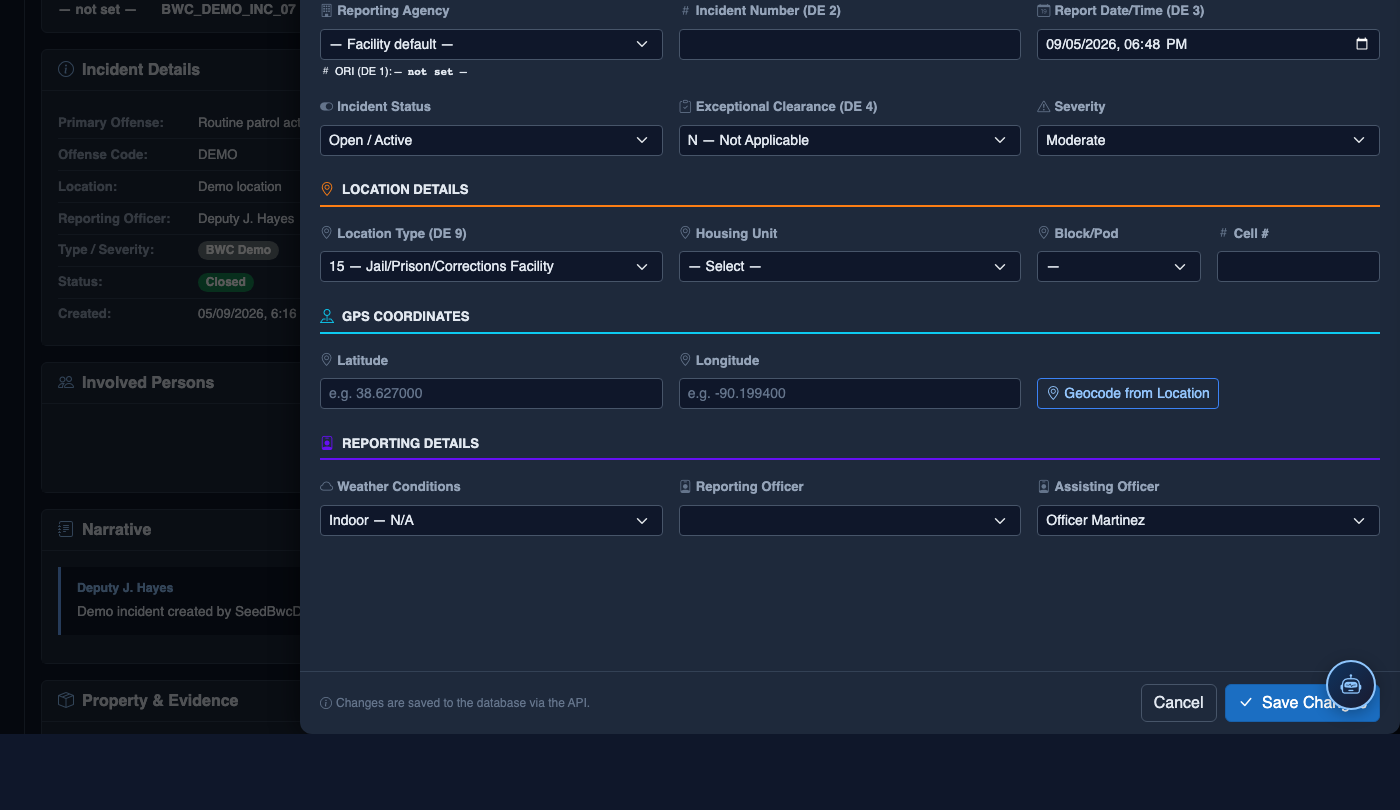
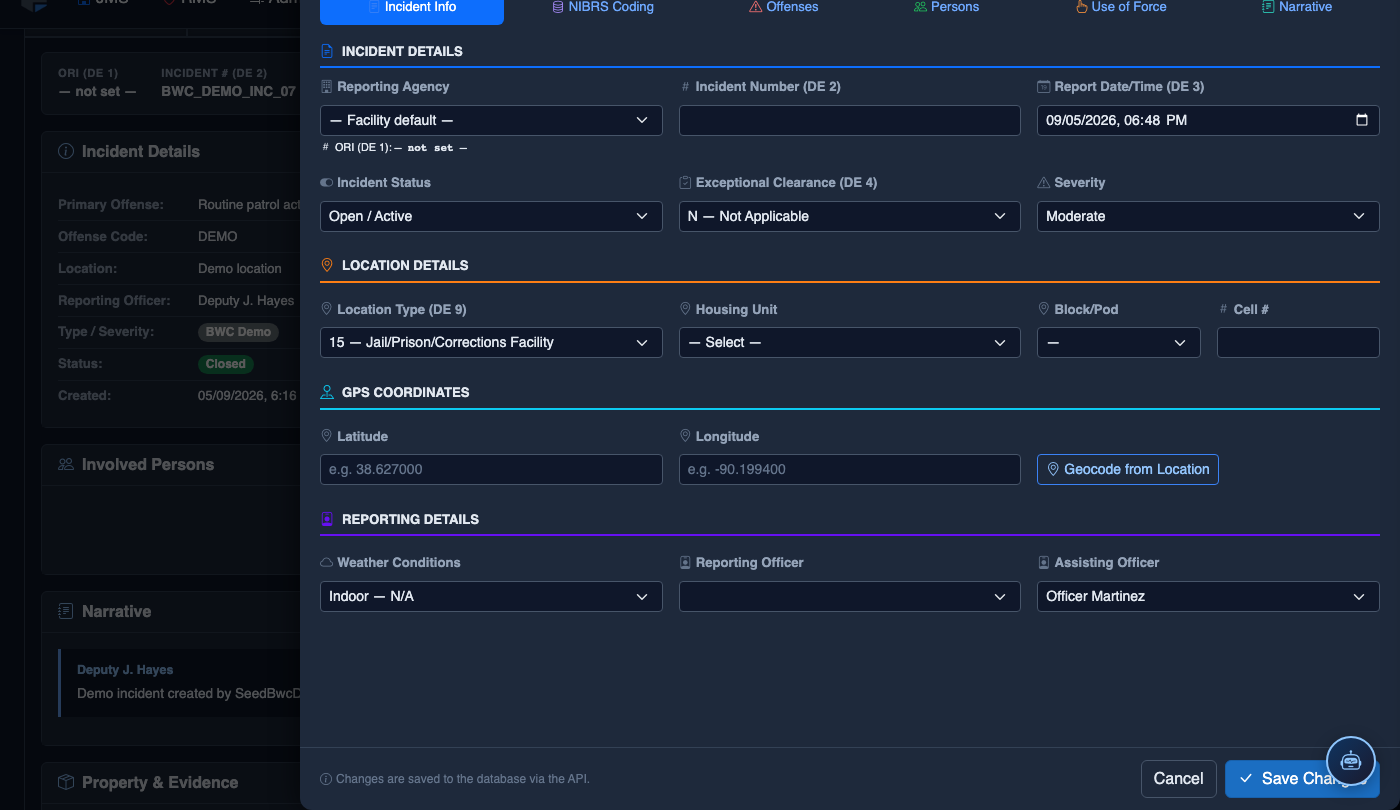
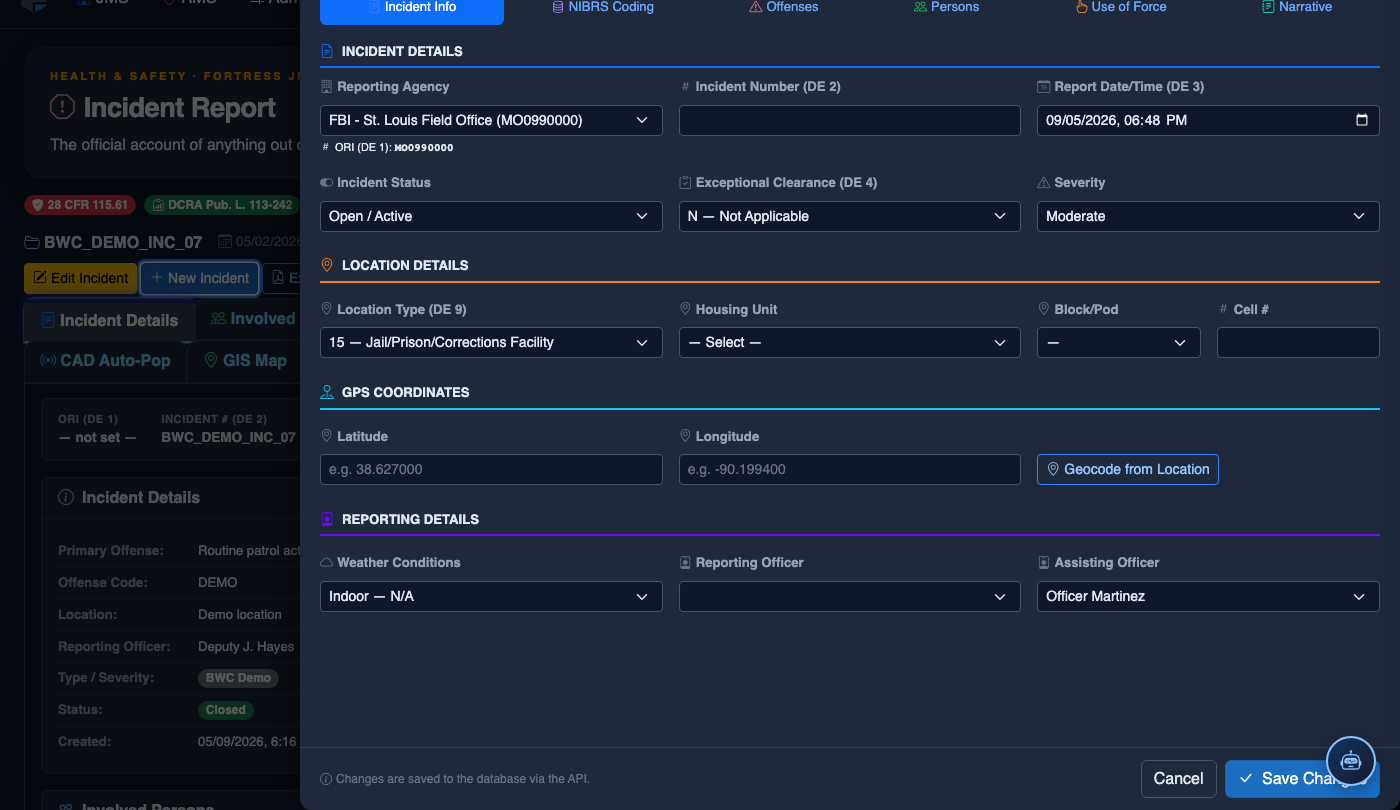
File a New Incident Report
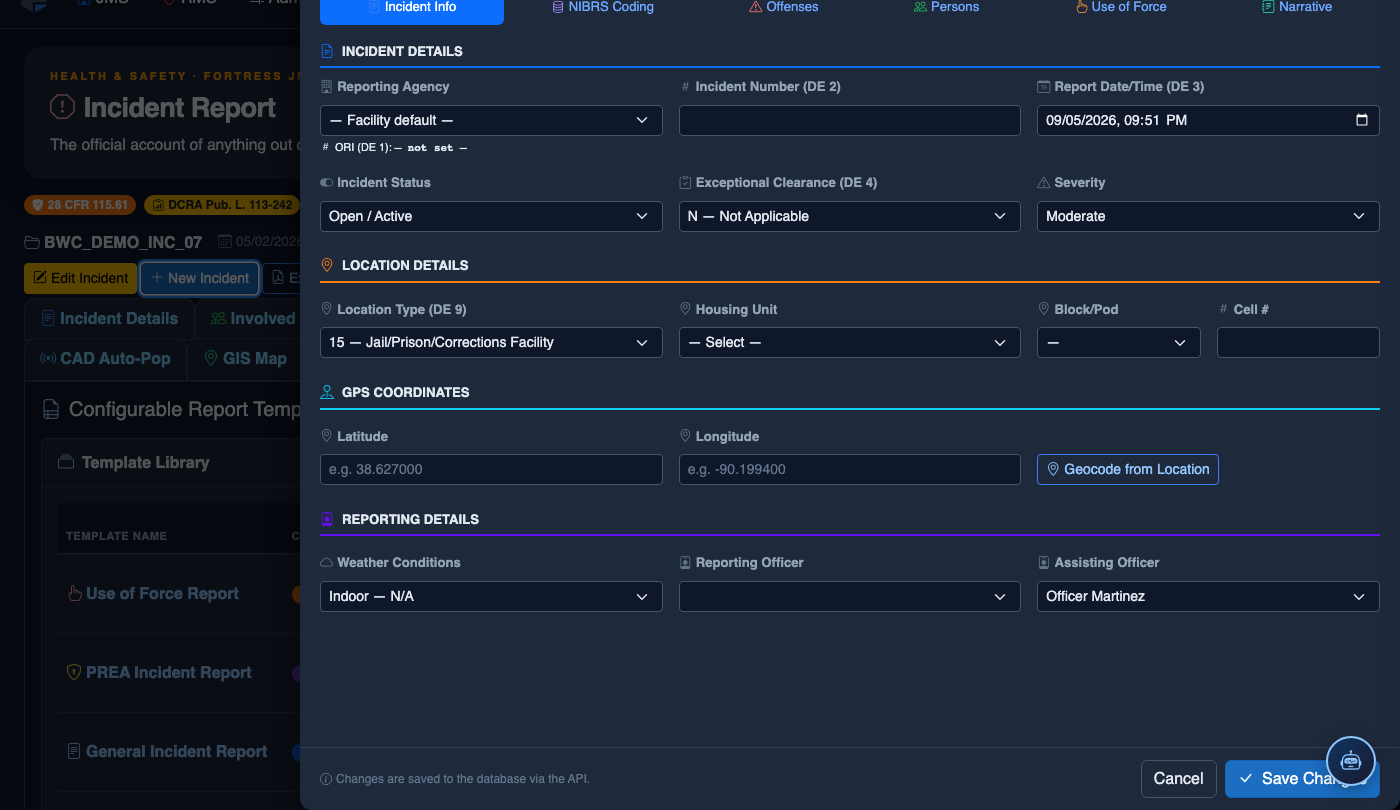
Click New Incident. Complete the incident report:
- Incident Type — select the category (Altercation, Medical Emergency, Escape Attempt, Property Damage, Use of Force, etc.).
- Date, Time, and Location — the precise time and place of the incident.
- Involved Persons — add all Inmates, Staff, and Witnesses using the search tool.
- Narrative — write the factual incident description in first person, past tense. The AI Narrative Assist can draft based on your bullet points.
- Severity — Minor, Moderate, or Major. Major incidents trigger automatic supervisor notification.
- Attachments — upload photos, BWC footage, or medical documentation directly.
- Click Save Draft to continue later, or Submit for Review to route to your supervisor.
💡 Pro Tips
- Create separate templates for each incident type (Use of Force, PREA, Medical Emergency, Escape) to ensure category-specific fields are always present.
- Use the Clone Template option to duplicate a working template before making major changes — this preserves the published version while you edit the draft.
- Review templates quarterly against your state’s reporting mandates and update field labels or required status as regulations change.
Mobile View — Report Templates
FortressDMS is fully responsive. Officers can access the Report Templates on a phone or tablet directly from the field — no app install required.
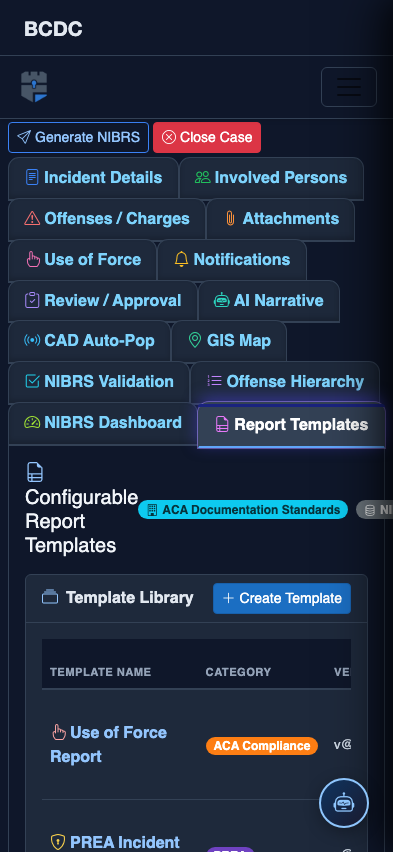
Tab view with data rows
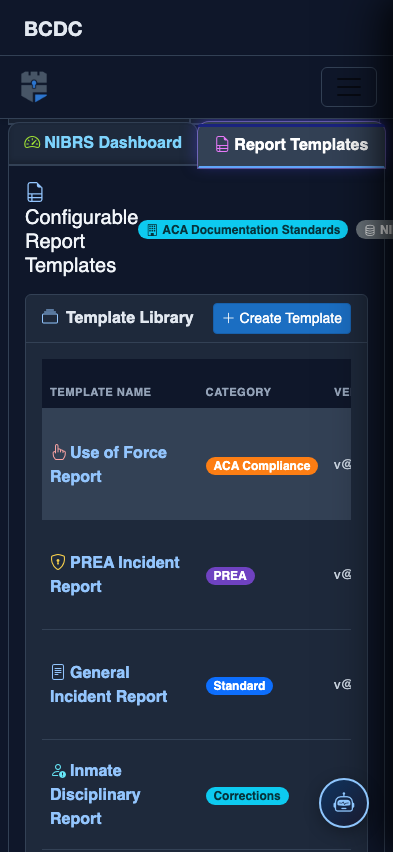
Scrolled / detail view