
Body-Worn Camera Video Library
The BWC Video Library module serves as the centralized repository for all body-worn camera footage recorded by facility officers. Administrators and supervisors can search, review, annotate, and export footage for use in disciplinary proceedings, incident investigations, and court submissions — with a full chain-of-custody audit trail maintained automatically.
Centralized Footage Repository
All BWC recordings upload automatically to a searchable library organized by officer, date, and housing unit.
Advanced Search & Filtering
Search footage by officer name, date range, incident tag, or booking number to locate relevant clips in seconds.
Supervisor Review Workflow
Supervisors receive assigned footage for compliance review, add time-stamped annotations, and record approval decisions within the system.
Chain-of-Custody Audit Trail
Every access, export, or annotation is logged with a timestamp and user identity to support legal admissibility.
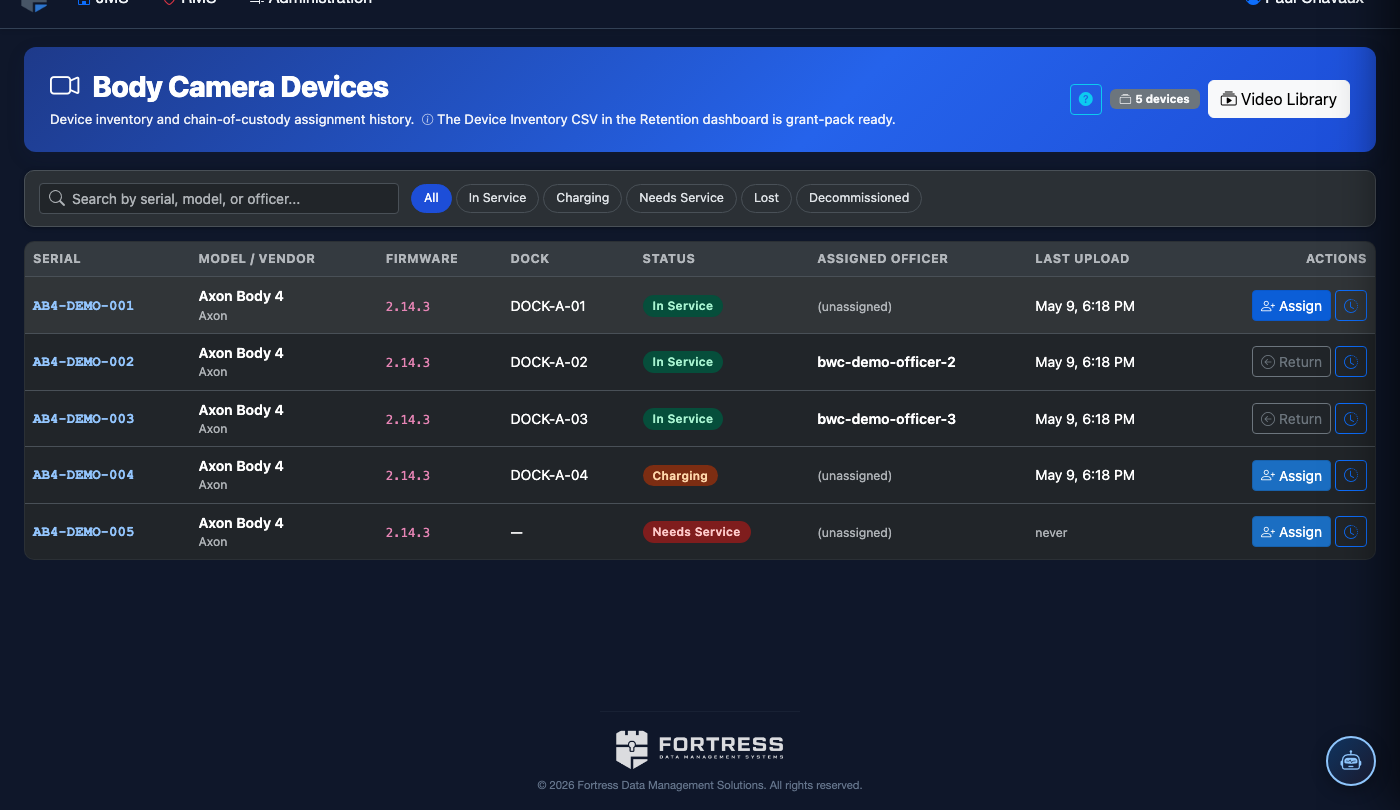
Step-by-Step: BWC Video Library
Open the BWC Video Library
From the main navigation, select Body-Worn Camera > Video Library. The module displays the Video Library tab by default, showing a thumbnail grid of the most recent recordings across all officers with upload date, duration, and review status.
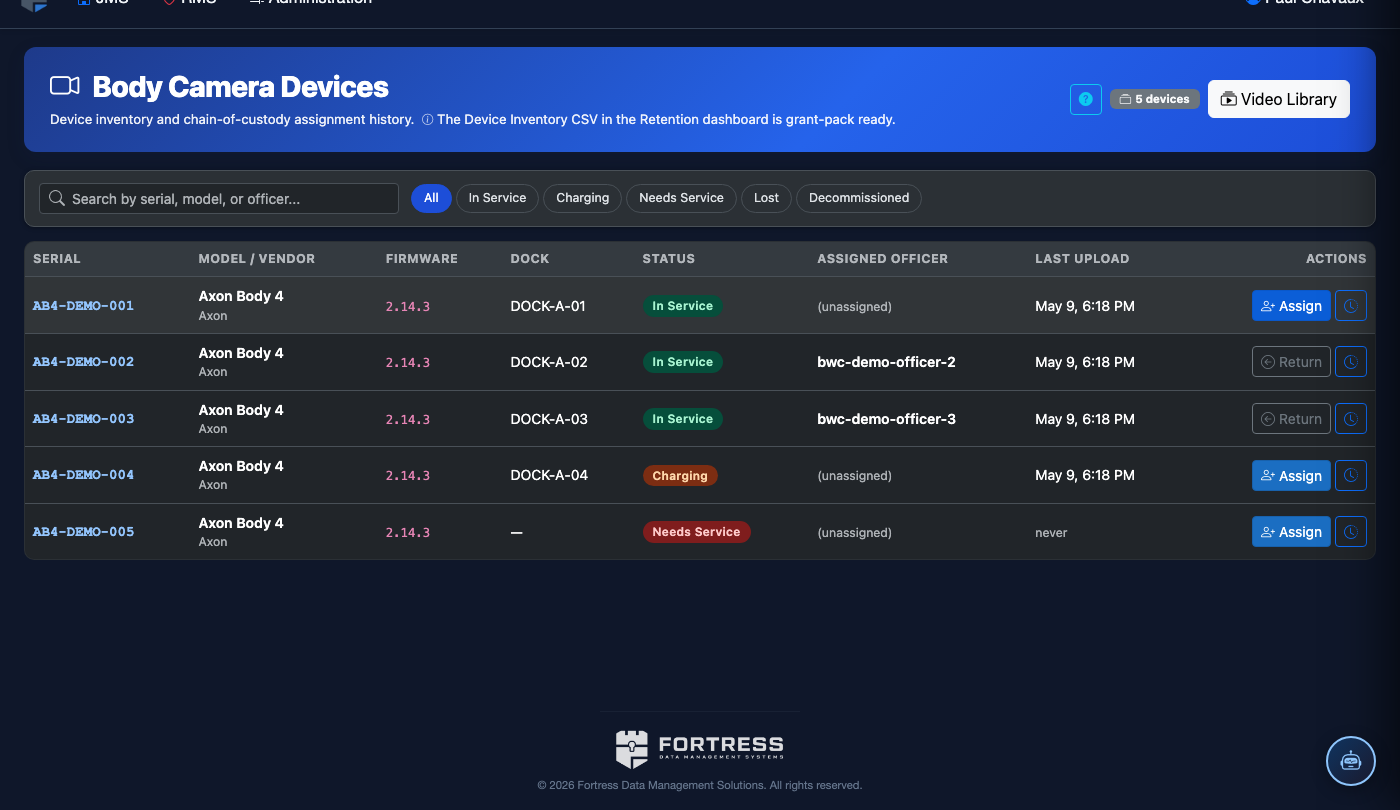
Search and Filter Footage
Use the Search bar to enter an officer name, booking number, or incident tag. Apply additional filters using the Date Range picker and the Housing Unit dropdown. The library refreshes instantly to show matching recordings.
Open and Review a Recording
Click any recording thumbnail to open the video player. The player includes standard playback controls, a Speed selector (0.5× to 2×), and a Jump to Timestamp field. Hover over the timeline to preview frames before scrubbing.
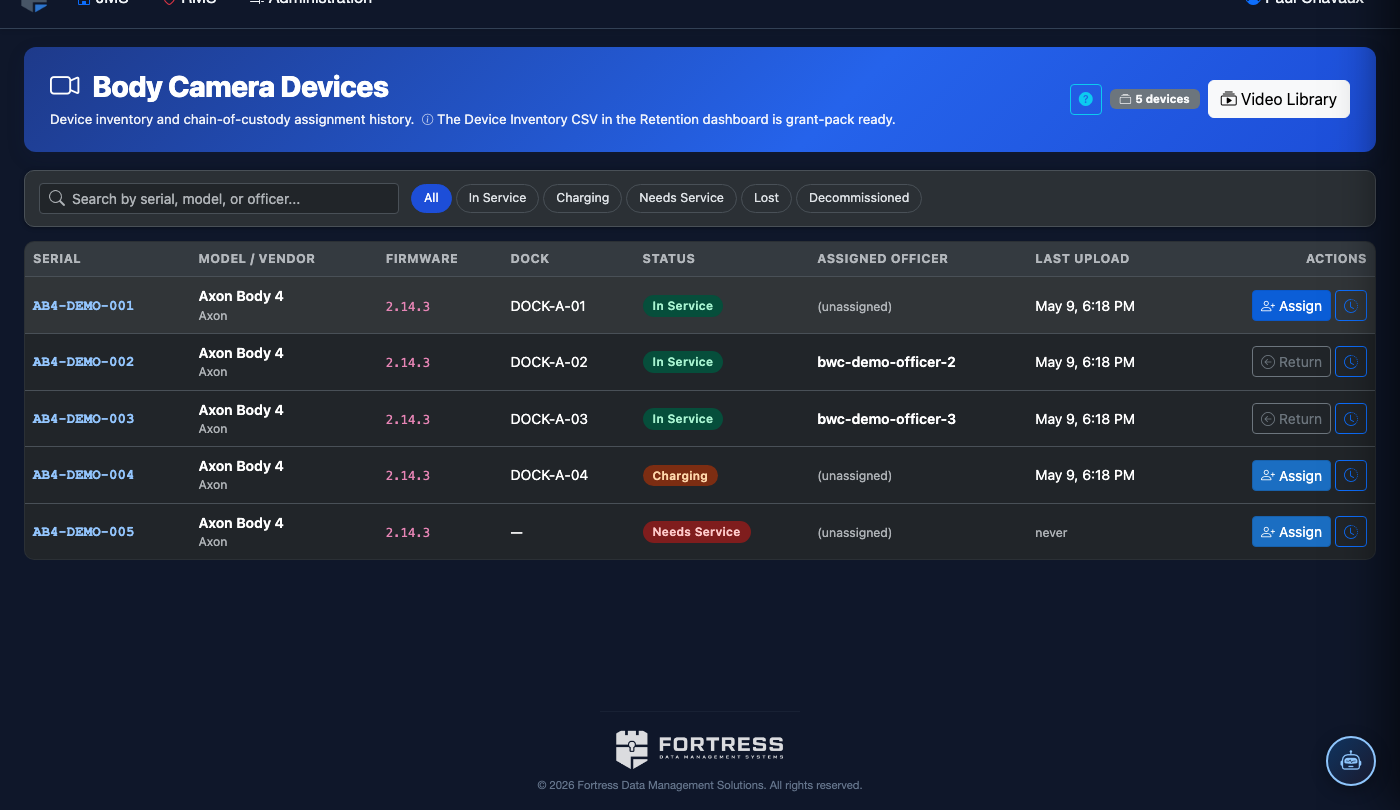
Add Annotations and Incident Tags
While viewing a recording, click Add Annotation to insert a time-stamped note. In the annotation panel, enter your comment and assign a Category (Use of Force, Contraband, Procedure Violation, or General). Click Tag Incident to link the clip to an existing incident report in the JMS.
Assign Footage for Supervisor Review
Click Assign for Review on any recording, select the target supervisor from the Reviewer dropdown, add a priority level, and click Send Assignment. The supervisor receives an in-app notification and the clip appears on their Supervisor Review tab queue.
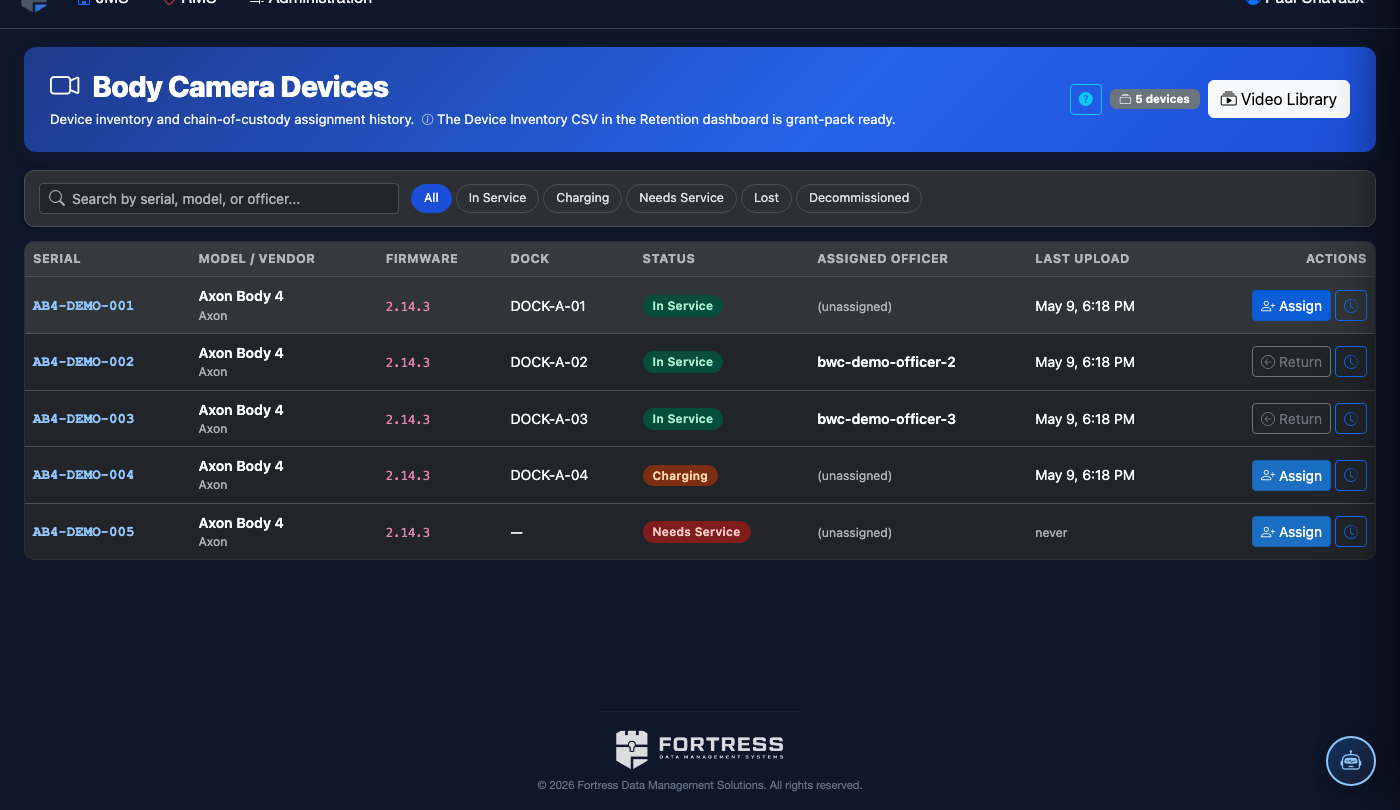
Export Footage for Legal or Compliance Use
Click Export on a recording to download the original file along with a Chain-of-Custody Certificate PDF. The certificate lists every user who accessed the recording, with timestamps, ensuring legal admissibility. Exports are logged permanently in the audit trail.
Set Retention Policies
Under Admin > Retention Settings, configure automatic deletion schedules by recording category (e.g., 90 days for routine patrol, 7 years for use-of-force incidents). Recordings flagged for active legal holds are automatically exempted from automatic deletion regardless of the retention schedule.
💡 Pro Tips
- Tag recordings with incident report numbers immediately after upload — this links the footage to the incident file automatically and eliminates manual cross-referencing during legal discovery.
- Use the Supervisor Review tab’s priority sorting to tackle Use of Force clips first; most oversight policies require supervisor sign-off within 24-72 hours of a use-of-force event.
- Recordings placed on a legal hold cannot be deleted by any user role — only a facility administrator with the Legal Hold Manager permission can remove a hold, providing a tamper-evident safeguard for litigation.
Mobile View — Video Library
FortressDMS is fully responsive. Officers can access the Video Library on a phone or tablet directly from the field — no app install required.
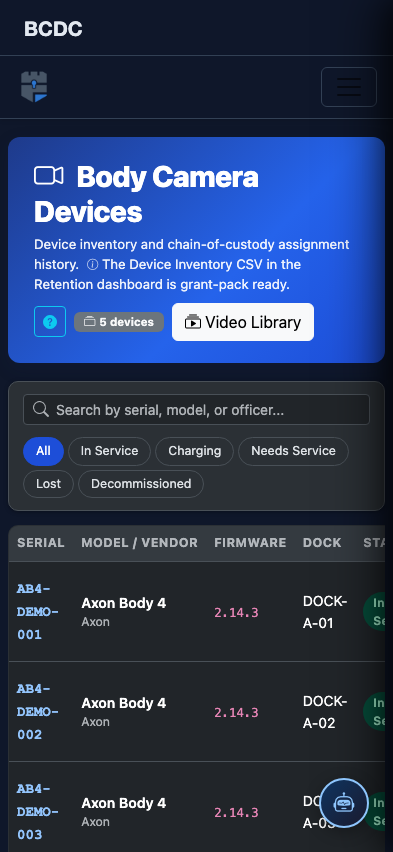
Tab view with data rows
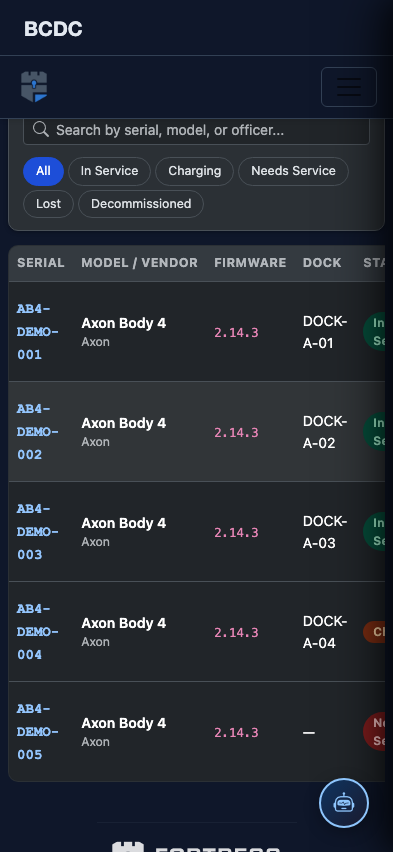
Scrolled / detail view