
MDM & Facility APK Download
The MDM & Facility APK Download page provides facility IT staff with direct access to the latest Fortress Facility Android application package and the open-source MDM agent installer. Downloading and deploying these components is the first step in standing up inmate-facing tablets across any housing unit. Version history, release notes, and SHA-256 checksums are published here to ensure integrity of every installation.
Facility APK
The signed Android application inmates use for phone services, video visitation, commissary, and grievance submission.
MDM Agent Installer
Open-source device management agent that enforces kiosk lock, policy sync, and remote wipe capabilities on enrolled tablets.
Checksum Verification
Every download includes a published SHA-256 hash so IT administrators can verify package integrity before deployment.
Release Notes
Full changelog per release version including security patches, new features, and breaking changes for facility IT review.
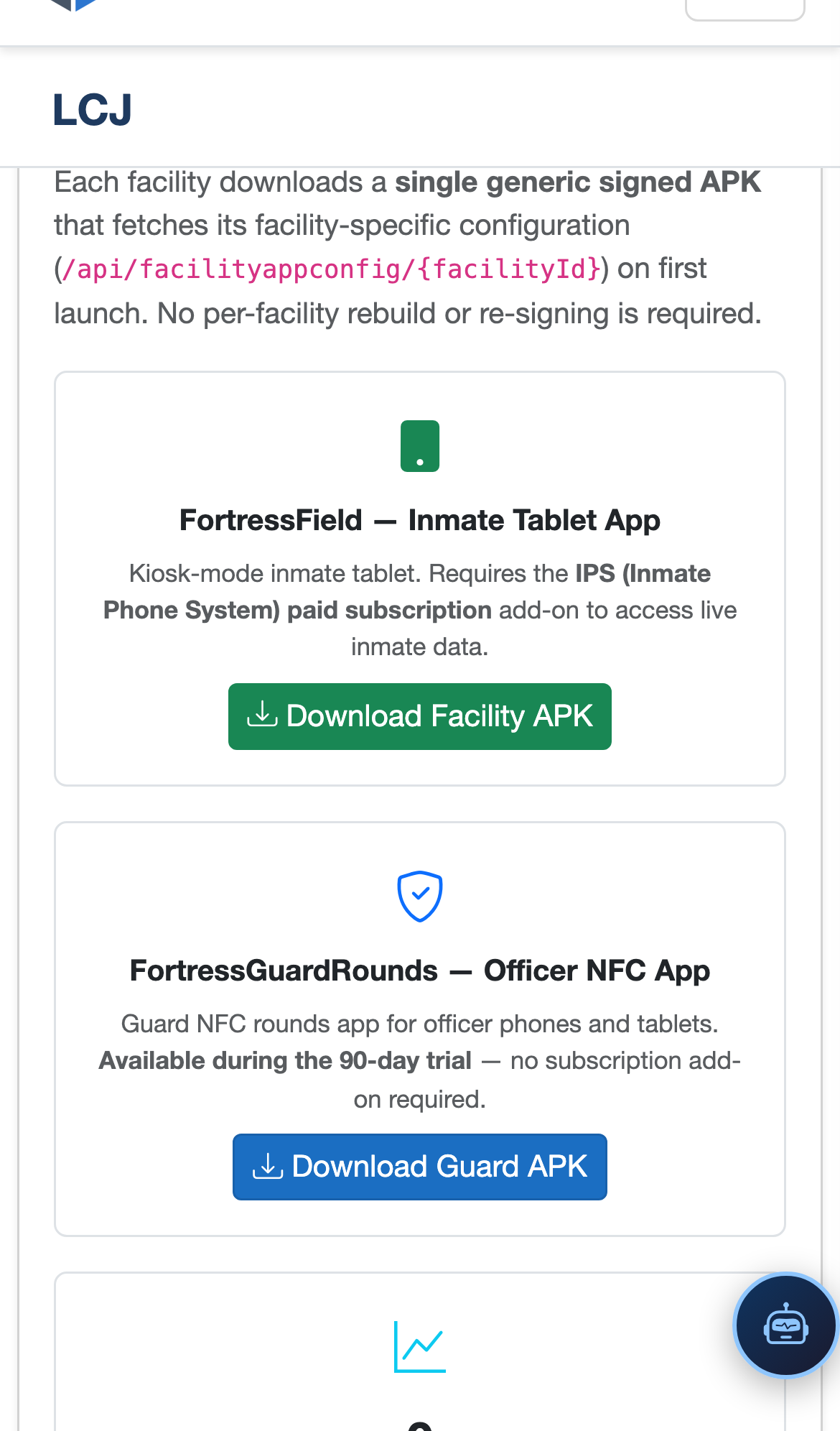
Step-by-Step: MDM & Facility APK Download
Navigate to the Download Page
Go to IPS → MDM & Facility APK Download. This page is restricted to users with the IT Administrator role. The page displays the current production release at the top, followed by previous versions in descending order.
Review Release Notes
Before downloading, click View Release Notes next to the target version. Review the changelog for security patches, new feature flags, and any APK signing certificate changes that may require device re-enrollment or policy profile updates.
Download the Facility APK
Click Download APK for the current release. The file is served from the Fortress Azure Blob Storage container and requires an authenticated session. Save the file to your IT staging server or a local drive — do not transfer via inmate-accessible network paths.
Verify the SHA-256 Checksum
Copy the SHA-256 Hash displayed on the download page. On your staging machine, run sha256sum fortress-facility.apk and compare the output. If hashes do not match, delete the file and re-download — do not deploy a package with a checksum mismatch.
Download the MDM Agent
Click Download MDM Agent to get the companion open-source management agent. This APK is installed first during tablet provisioning and must remain on the device at all times to maintain kiosk lock and receive remote policy pushes from the Tablet Configuration panel.
Sideload onto Tablets via ADB or Staging Server
Transfer both APKs to your tablets using ADB (Android Debug Bridge) over USB, or via your internal staging server if tablets are on the facility Wi-Fi. Run adb install -r fortress-facility.apk then install the MDM agent. Once installed, the agent auto-registers the device with Fortress and enforces the assigned profile.
Confirm Device Appears in Tablet Configuration
Navigate to IPS → Tablet Configuration and verify the newly provisioned tablet appears in the device list with an Online status. Assign the appropriate housing unit profile and push the configuration to complete setup.
💡 Pro Tips
- Always deploy APK updates to one test tablet in a low-risk housing unit first; verify inmate login, video, and commissary functions before rolling out facility-wide.
- Store the last two APK versions on your staging server so you can rapidly roll back if an update causes unexpected behavior on enrolled devices.
- Set a calendar reminder for the APK signing certificate expiry listed in the release notes — an expired cert silently blocks APK updates and causes the MDM agent to flag devices as non-compliant.