
Inmate Trust Accounting
The Inmate Trust Accounting module provides a fully auditable financial management system for all inmate personal funds held in custody by the facility. From initial booking deposits through daily commissary debits and final release disbursements, every transaction is recorded with a complete audit trail that satisfies state regulatory requirements and protects the facility from liability. Classification staff, finance officers, and administrators use this module to monitor account balances, process fund transfers, and generate court-admissible financial statements.
Complete Account Lifecycle
Manage inmate funds from booking deposit through release disbursement with a continuous, unbroken transaction record.
Automated Transaction Ledger
Every deposit, debit, commissary charge, and court fine is automatically posted and timestamped in the inmate’s ledger.
Multi-Fund Account Types
Support spendable trust, savings, and restitution sub-accounts with configurable spending restrictions per account type.
Regulatory-Ready Reporting
Generate facility-wide financial summaries and individual account statements that meet state audit and accreditation standards.
Role-Based Access Controls
Restrict deposit, withdrawal, and override capabilities to authorized finance officers and supervisors only.
Commissary Integration
Automatically sync commissary purchase orders, deducting approved amounts from inmate spendable balances in real time.
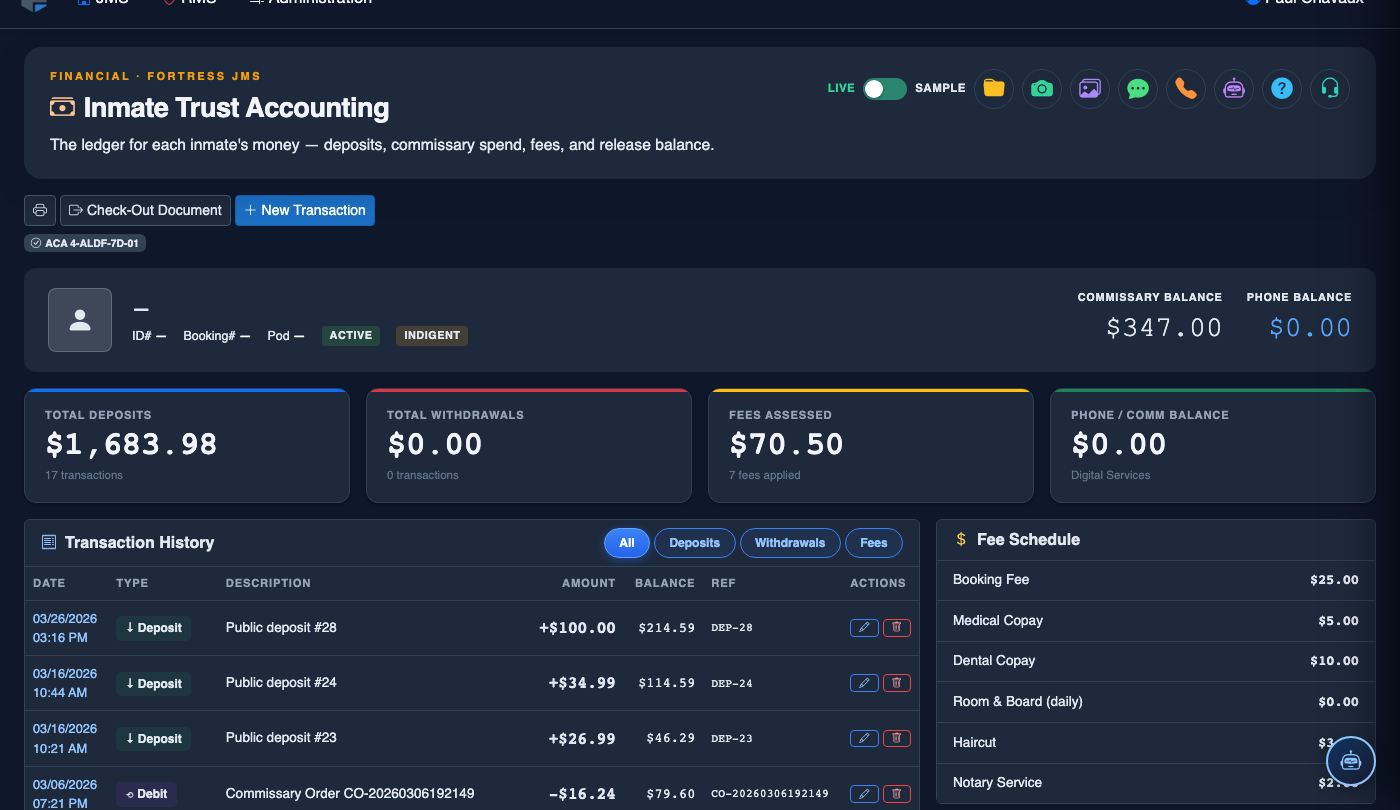
Step-by-Step: Managing Inmate Trust Accounts
Access the Inmate Trust Accounting Module
From the main navigation menu, select Inmate Trust Accounting. The module opens to the Account Overview dashboard showing a summary of all active inmate accounts, total funds held, and recent transaction activity across the facility.
Search and Select an Inmate Account
Use the Inmate Search bar at the top of the module to locate an account by inmate name, booking number, or facility ID number. Click the inmate’s row to open their individual account detail view showing current balance and sub-account breakdown.
Review Account Balance and Sub-Accounts
The Account Overview tab displays the inmate’s total available balance broken into sub-accounts: Spendable Trust, Savings, and Restitution Hold. Verify all holds and restrictions are correctly applied before processing any new transactions.
Process a Deposit or Credit
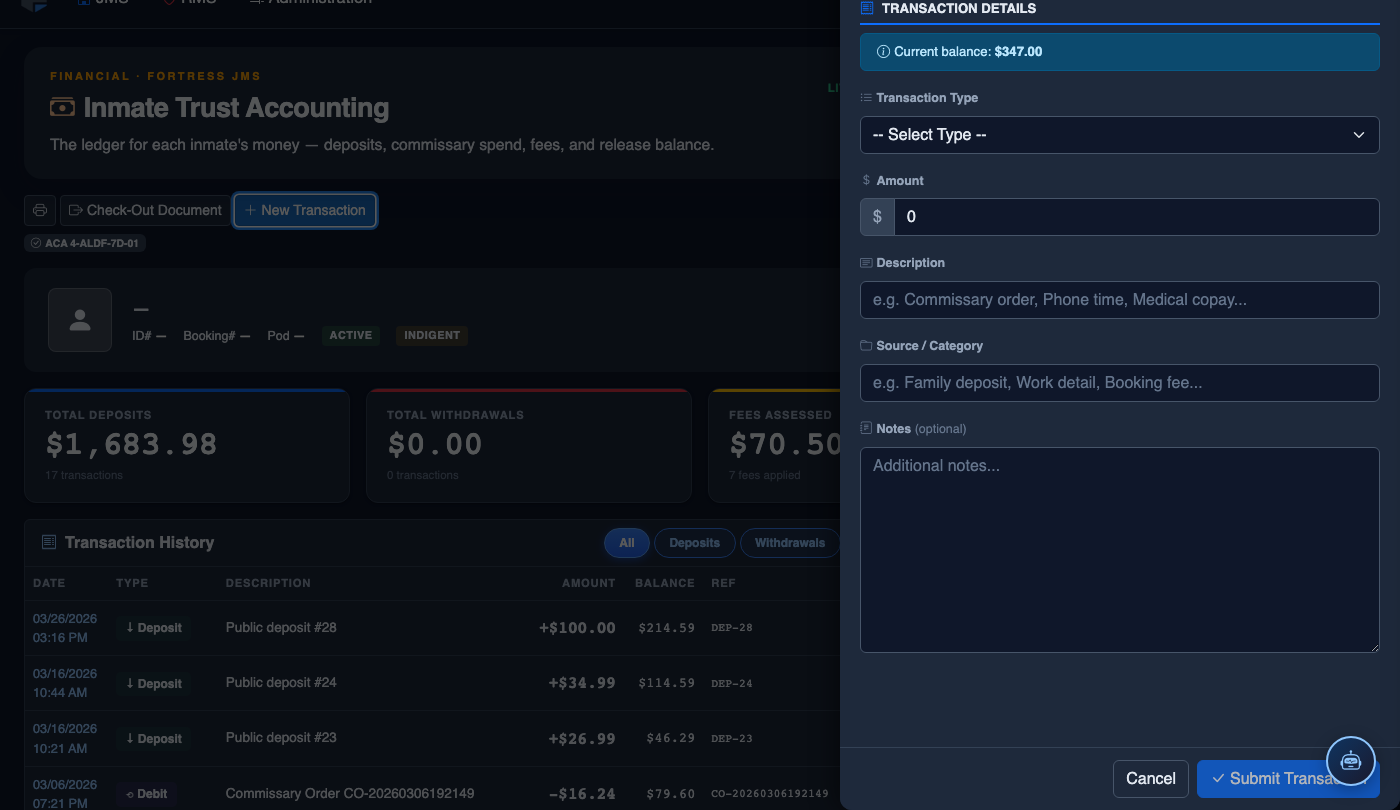
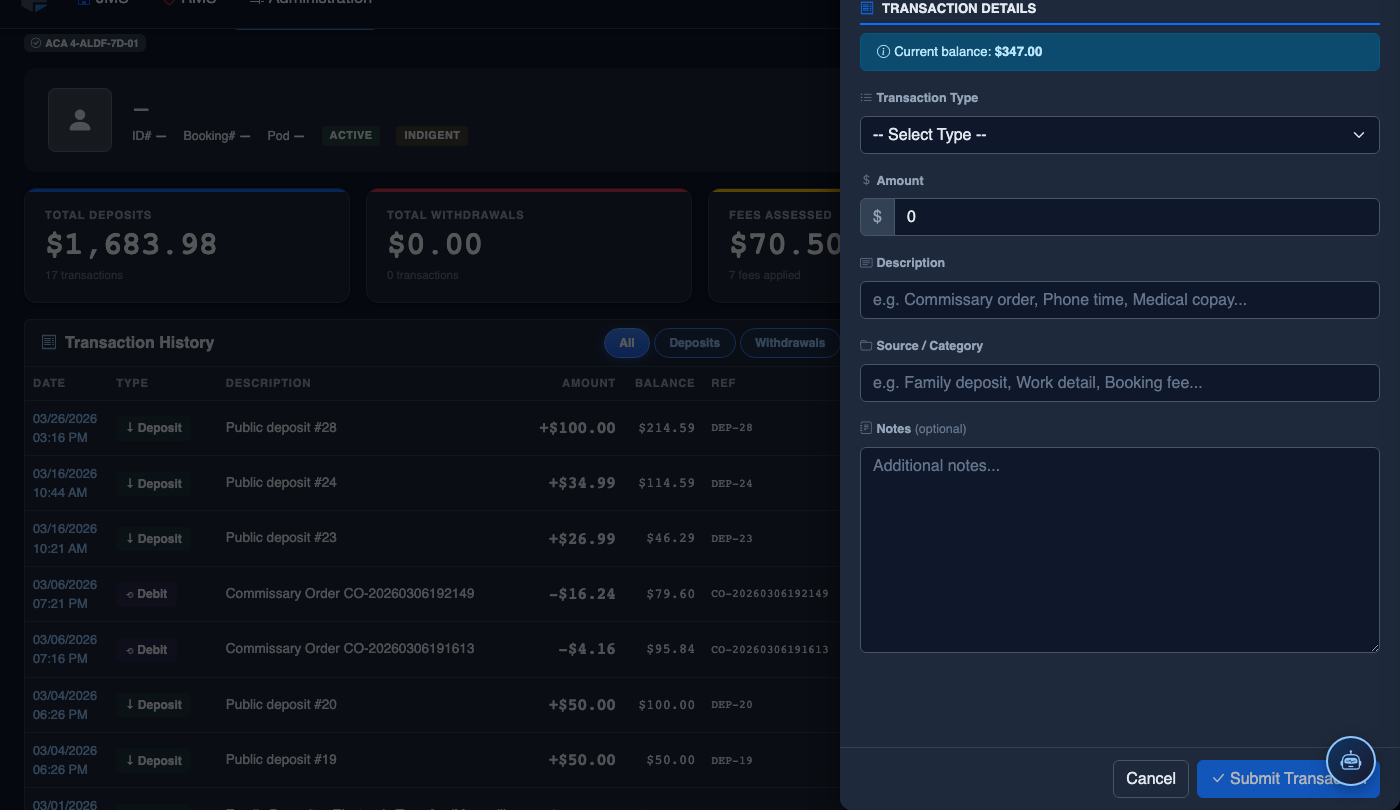
Click the Deposits & Credits tab, then click + New Deposit. Select the Funding Source (e.g., cash, money order, electronic transfer), enter the Amount, choose the Destination Sub-Account, and add any applicable Reference Number. Click Post Deposit to commit the transaction.
Process a Withdrawal or Debit
Navigate to the Withdrawals & Debits tab and click + New Withdrawal. Select the Withdrawal Type (commissary, court-ordered fine, restitution payment, or release disbursement), enter the Amount, and confirm the inmate has sufficient available balance. Click Post Withdrawal — the system will reject the transaction if funds are insufficient.
Audit the Transaction History
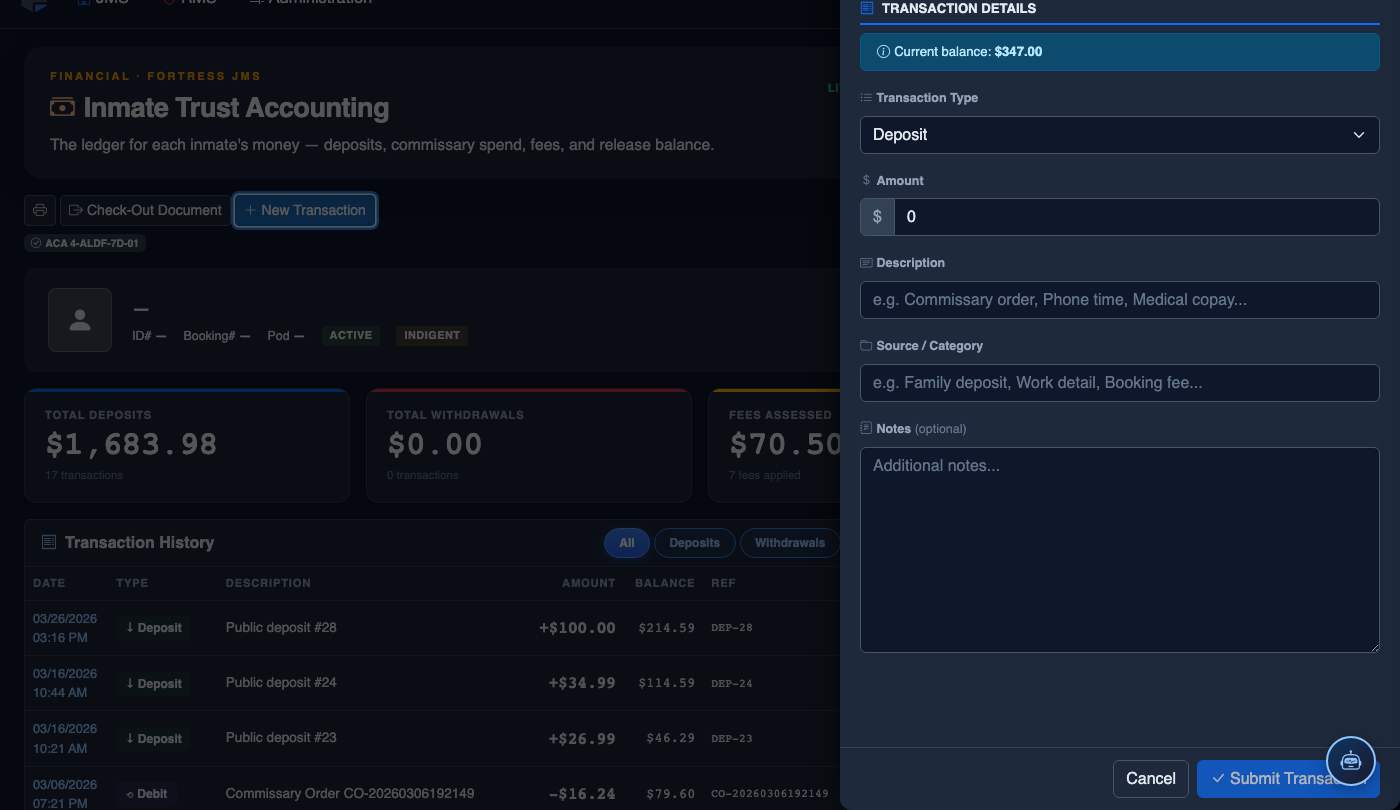
Open the Transaction History tab to see a complete chronological ledger of all account activity. Use the Date Range and Transaction Type filters to isolate specific periods or categories. Every entry shows the posting officer, timestamp, and running balance for full accountability.
Generate Account Statements and Reports
Click Export Statement from any tab to generate a printable or PDF account statement. For facility-wide financial reporting, use the Reports button in the module header to produce aggregate summaries by date range, account type, or housing unit — ready for state auditors or accreditation review.
Process Release Disbursement
When an inmate is released, open their account and click Release Disbursement. The system automatically calculates the final balance after all holds and outstanding restitution obligations. Select the disbursement method (cash, check, or electronic transfer) and click Finalize Release Funds to close the account and generate a release receipt.
💡 Pro Tips
- Always verify the Restitution Hold balance before processing a release disbursement — court-ordered holds take priority over spendable funds and cannot be bypassed without supervisor override.
- Use the Transaction History date range filter set to the current month at the start of each shift to quickly identify any anomalous or duplicate transactions from the previous 24 hours.
- For commissary-related debits, confirm that the commissary order has been fulfilled before posting the debit — reversing a posted commissary debit requires a supervisor-level override and generates an audit flag.
- Facility-wide account reconciliation reports should be run weekly and compared against cash-on-hand to ensure the facility’s total trust liability matches physical and electronic holdings.