
RFID & BLE Tracking
The RFID & BLE Tracking tab extends asset visibility inside the facility walls where GPS signals cannot reach. By tagging equipment, keys, medical devices, and other high-value assets with RFID or Bluetooth Low Energy (BLE) beacons, administrators can pinpoint asset locations down to the room or zone level in real time. The system also supports inmate and staff wristband tracking for enhanced movement monitoring and accountability in restricted areas.
Indoor Asset Location
Track tagged equipment and keys to specific rooms, hallways, or zones using fixed RFID readers and BLE gateway sensors.
Tag Management
Register and assign RFID/BLE tags to assets or individuals, with battery status monitoring and replacement alerts for BLE beacons.
Zone Breach Alerts
Receive instant alerts when a tagged asset or individual enters an unauthorized zone, with timestamp and zone-entry event logged.
Asset Search
Instantly locate any tagged asset by name or tag ID — the system returns the last-seen zone and timestamp, eliminating manual searches.
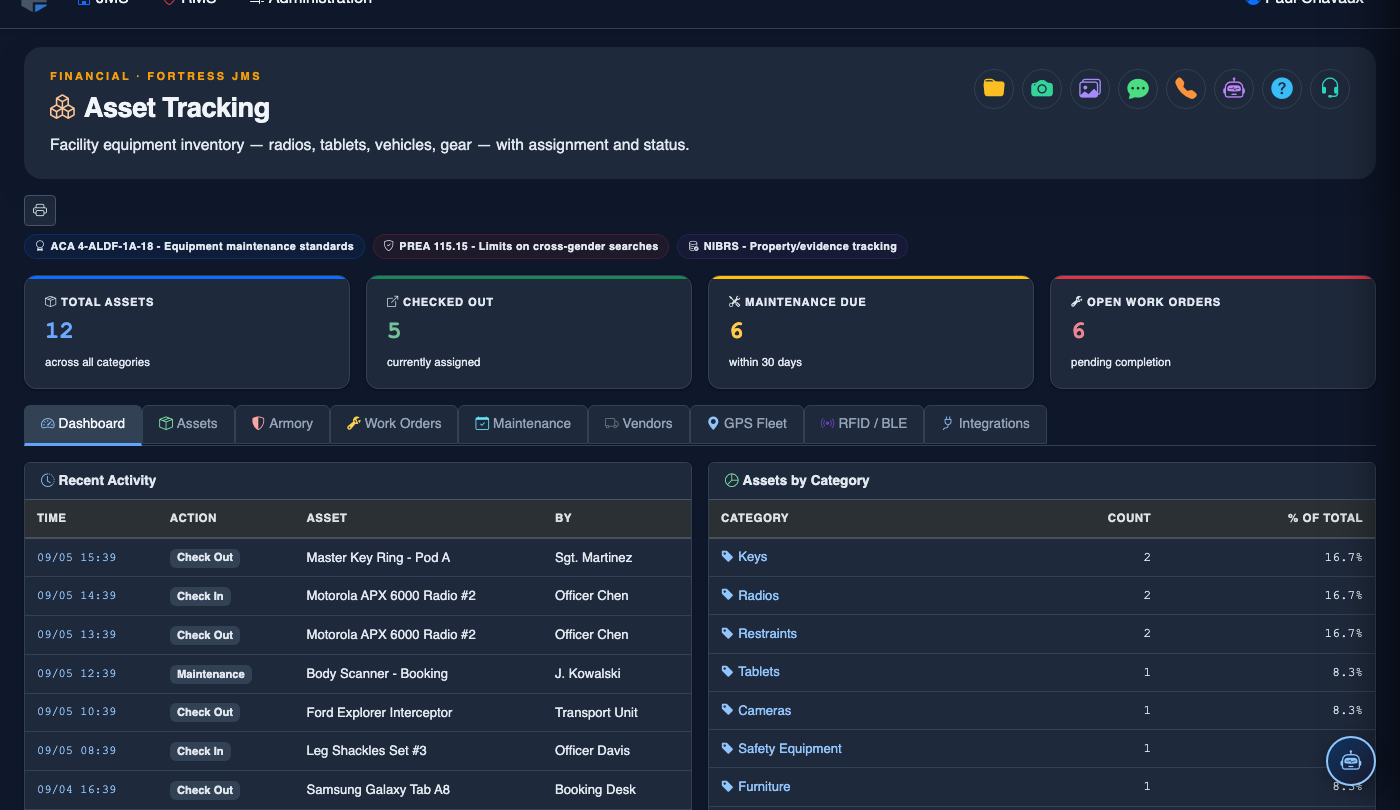
Step-by-Step: RFID & BLE Tracking
Access the RFID & BLE Tracking Tab
Navigate to Asset Tracking and click the RFID & BLE Tracking tab. The facility floor plan map loads with all detected tags shown as colored icons by zone. The legend distinguishes Equipment Tags (blue), Key Tags (amber), and Personnel Wristbands (green).
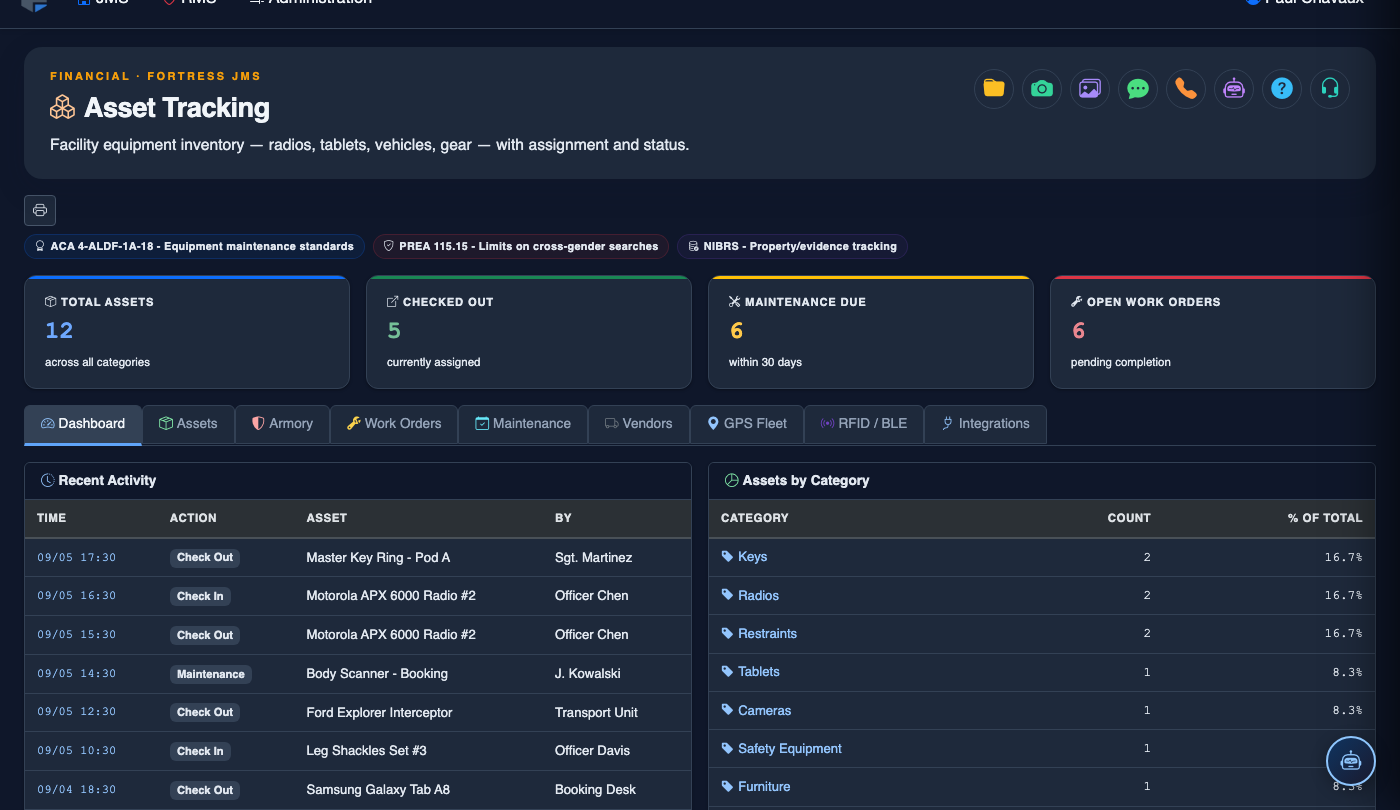
Register a New RFID or BLE Tag
Click Tag Management > Register Tag. Select the tag type (RFID Passive, RFID Active, or BLE Beacon). Scan the tag’s barcode or enter the Tag ID manually. Assign it to an existing asset record or person record from the dropdown. BLE tags also require entering the initial Battery Level reading.
Configure Reader Zones and Floor Plan
Go to Infrastructure > Zones and upload your facility floor plan image. Draw zone boundaries over the floor plan and name each zone (e.g., Medical Unit, Cell Block A, Armory). Assign each fixed RFID reader or BLE gateway to its corresponding zone so the system knows which zone a tag detection belongs to.
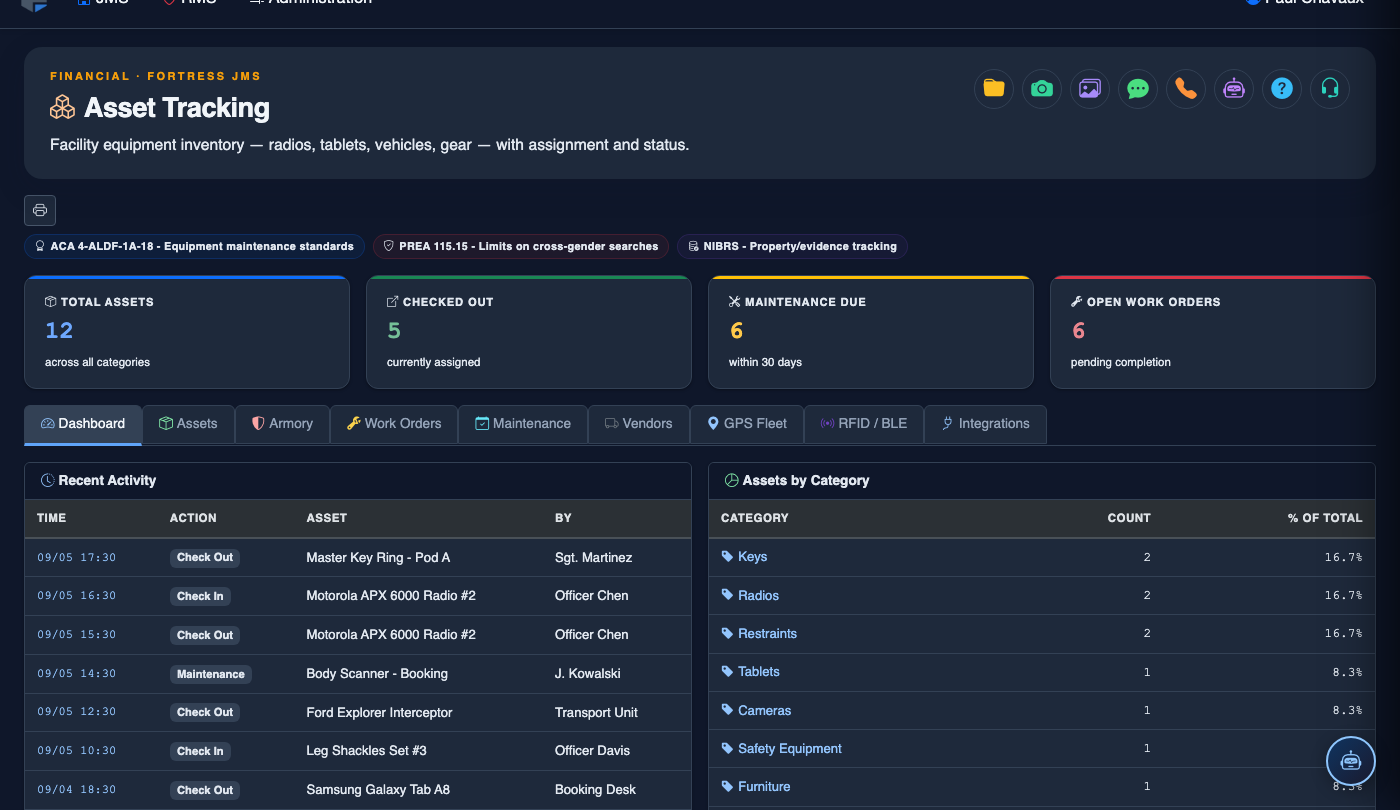
Set Zone Authorization Rules and Breach Alerts
In Zone Settings, select a zone and click Access Rules. Define which tag categories or individual tags are authorized in this zone. Enable Breach Alerts — select alert recipients (e.g., shift supervisor, control room) and set the delivery method (in-system notification or SMS). Unauthorized tag detections in restricted zones trigger an immediate alert.
Locate a Missing or Misplaced Asset
Use the Asset Search bar to find any tagged item by name or tag ID. The result immediately shows the Last Detected Zone and the Timestamp of the last RFID/BLE read. For active BLE tags, signal strength data narrows the location further within the zone to help officers zero in on the item quickly.
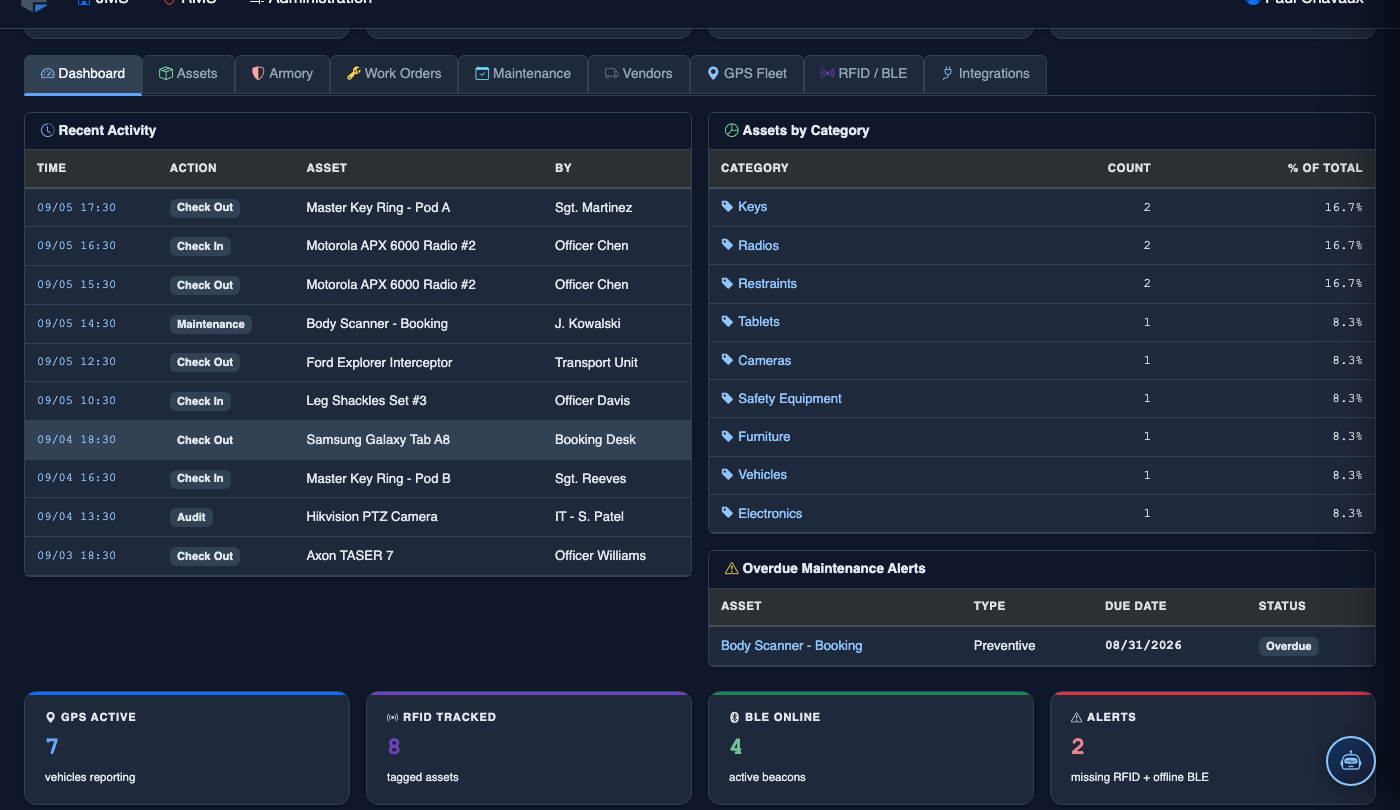
Monitor BLE Battery Status and Replace Tags
Navigate to Tag Management > Battery Status to view a list of all BLE tags sorted by battery level. Tags below 20% are highlighted in amber; tags below 10% are flagged red and trigger a replacement alert. Click a tag to view its full history and initiate a Tag Replacement workflow which swaps the tag ID while preserving the asset’s tracking history.
Run Zone Movement and Dwell Time Reports
Go to Reports > Zone Activity. Select a zone, asset category, and date range. The report shows how long each tagged asset or individual spent in each zone (Dwell Time) and a chronological movement log. This data is valuable for shift debriefs, incident reconstruction, and demonstrating accountability during audits.
💡 Pro Tips
- Tag your entire key management inventory with RFID — key accountability is one of the most common audit findings; automated location tracking eliminates the manual key log and provides a timestamped chain-of-custody record.
- Stagger BLE battery replacement cycles across your tag inventory rather than replacing all tags at the same time — this prevents a mass battery failure scenario and spreads procurement costs evenly.
- Use Zone Movement Reports as a supplemental log during use-of-force investigations — knowing which staff and equipment were present in a zone at a specific time provides objective, auditable documentation.
Mobile View — RFID BLE Tracking
FortressDMS is fully responsive. Officers can access the RFID BLE Tracking on a phone or tablet directly from the field — no app install required.
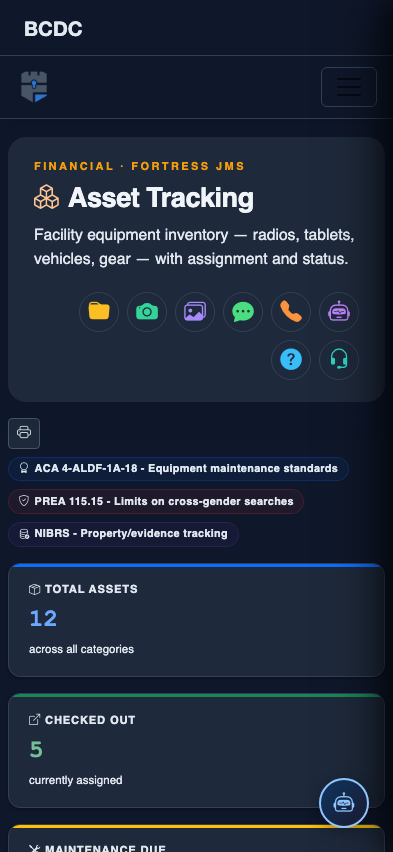
Tab view with data rows
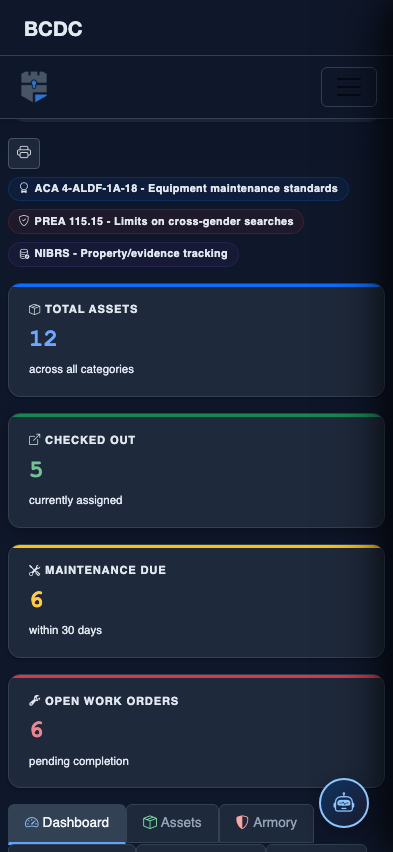
Scrolled / detail view