
Commissary Ordering
The Commissary Ordering module in FortressDMS provides correctional facilities with an end-to-end system for managing inmate purchases of approved goods — from product catalog maintenance and order placement through fulfillment tracking and trust account deductions. Administrators can configure product availability by housing unit, set order windows and spending limits, and maintain a complete audit trail of every commissary transaction. The module integrates directly with Inmate Trust Accounting to ensure real-time balance verification and automatic fund deduction at the point of order approval.
Product Catalog Management
Maintain an approved product list with pricing, category, and housing-unit availability controls.
Order Placement & Approval
Inmates submit orders within configured windows; staff review, approve, or deny each order with a documented reason.
Fulfillment Tracking
Track orders from approval through picking, packing, and delivery to the housing unit with officer sign-off at each stage.
Trust Account Integration
Real-time balance verification and automatic deduction from inmate trust accounts upon order approval.
Order Window Controls
Configure weekly order windows, spending caps, and quantity limits per inmate and per product category.
Reporting & Audit Trail
Full transaction logs, order history exports, and vendor reconciliation reports for financial accountability.
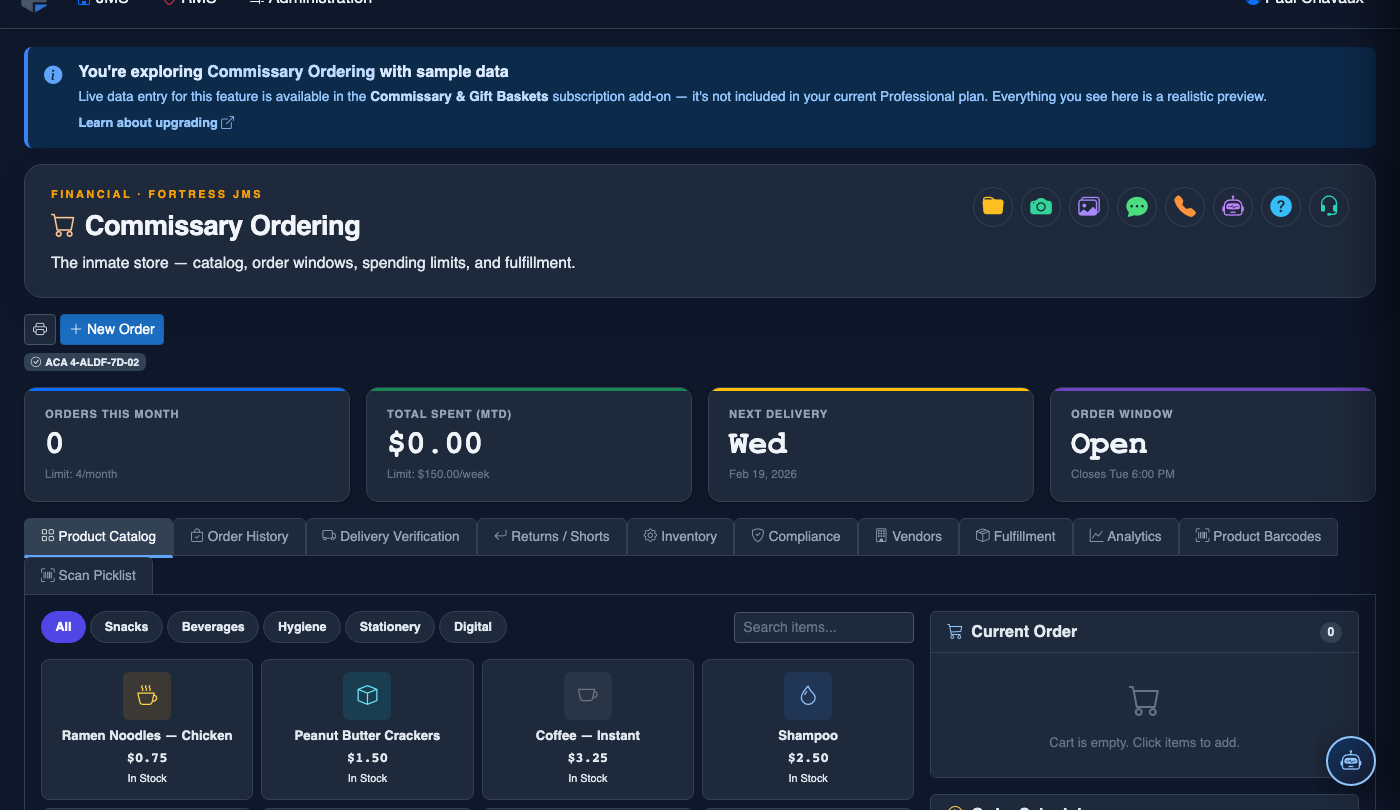
Step-by-Step: Running the Commissary Ordering Workflow
Open the Commissary Ordering Module
From the Fortress JMS navigation panel, locate and click Commissary Ordering under the Inmate Services section. The module dashboard displays a summary of active order windows, pending approvals, and today’s fulfillment queue.
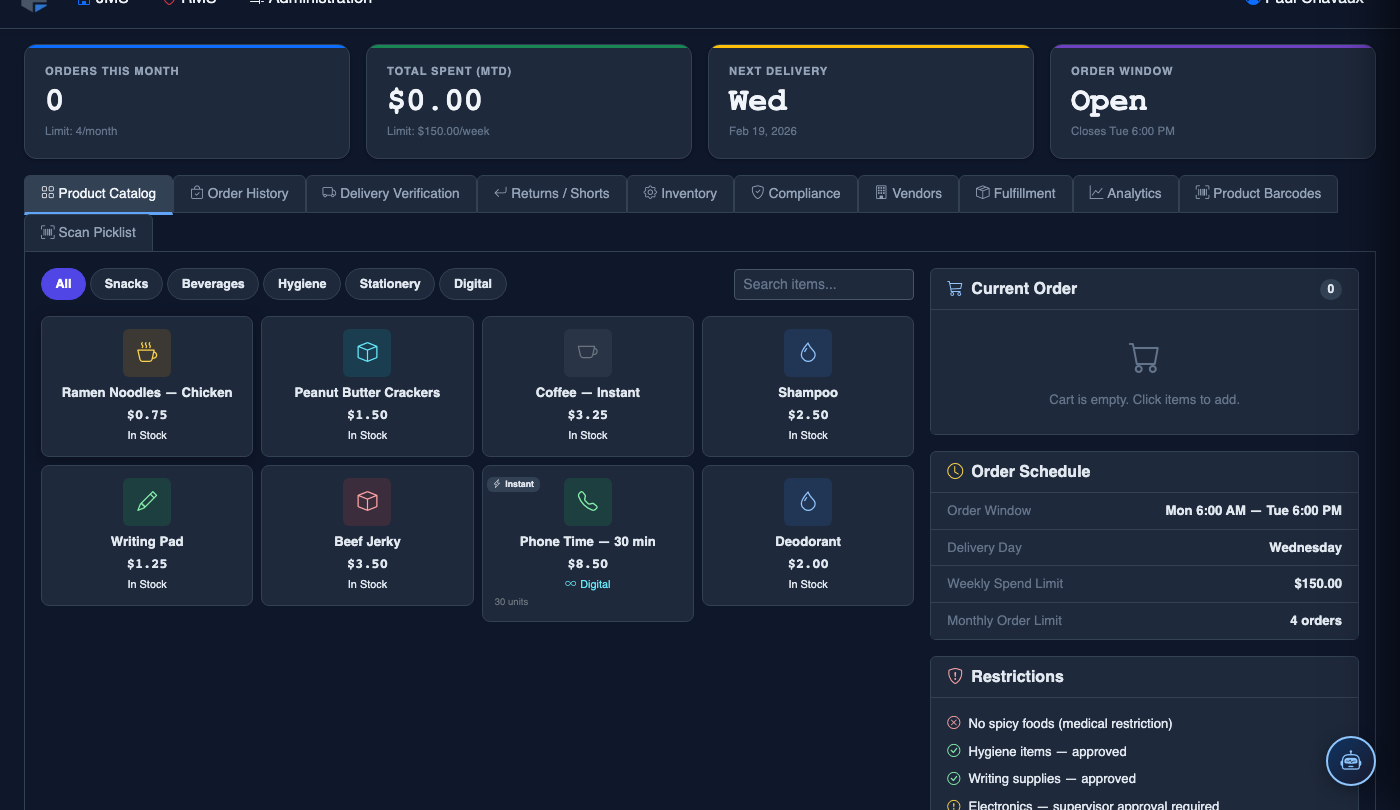
Configure the Product Catalog
Navigate to the Product Catalog tab to add, edit, or deactivate products. Set each item’s Category (hygiene, food, electronics, etc.), Unit Price, Quantity Limit, and Housing Unit Availability. Products marked inactive will not appear on inmate order forms.
Set the Order Window & Spending Limits
Under Commissary Accounts, define the active Order Window (e.g., Sunday through Tuesday) and the weekly Spending Cap per inmate. You may set different caps by classification level — general population, administrative segregation, or medical housing. Click Save Settings to apply.
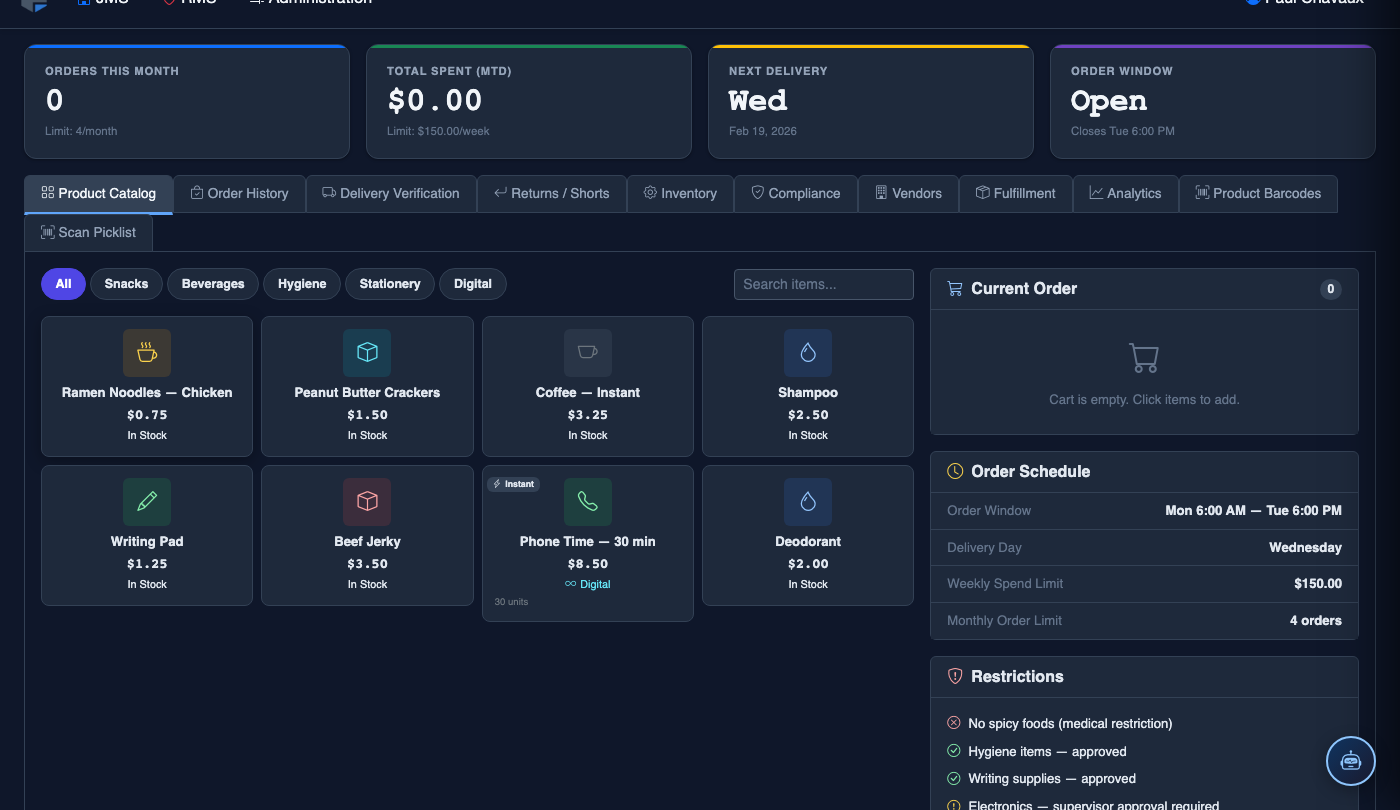
Review Submitted Orders
During the order window, inmate orders queue in the Order Management tab. Each order displays the inmate’s name, booking number, housing unit, items requested, total cost, and current trust balance. Use the Filter by Housing Unit dropdown to review orders by block or pod.
Approve or Deny Orders
Select one or more orders and click Approve to authorize the purchase and immediately deduct funds from the inmate’s trust account. To deny an order, click Deny and select a reason (Insufficient Funds, Item Restricted, Disciplinary Hold, etc.). The inmate’s account is not charged for denied orders.
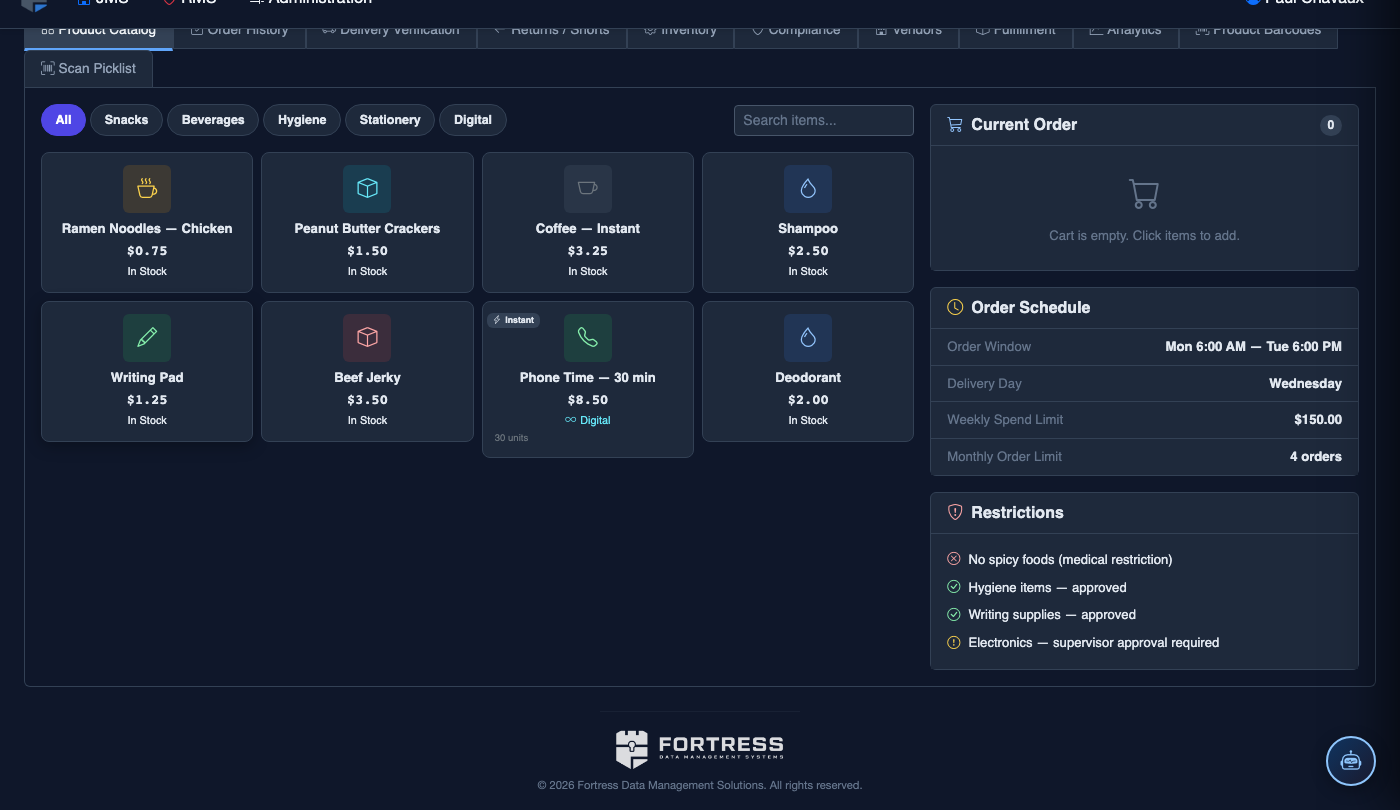
Process Fulfillment
Move approved orders to the Order Fulfillment tab. The system generates a pick list grouped by housing unit. Staff check off each item as it is packed and record the Delivery Officer and Delivery Time upon distribution. Inmates may be required to sign a delivery confirmation form printed from FortressDMS.
Run Reconciliation Reports
At the close of each order cycle, use the Reports section to export a Vendor Order Summary for purchasing, a Trust Deduction Report for accounting, and a Fulfillment Completion Report for compliance. All reports are timestamped and include the generating officer’s credentials.
💡 Pro Tips
- Close the order window at least 48 hours before your vendor order cutoff to give staff sufficient time to approve orders, compile pick lists, and transmit purchase orders to your commissary vendor.
- Use disciplinary holds in the Commissary Accounts tab to automatically block ordering privileges for inmates on restriction — this eliminates the need to manually review their orders each cycle.
- Bulk-approve orders for an entire housing unit using the Select All checkbox in Order Management to dramatically speed up the approval process for low-risk pods.
- Reconcile trust account deductions against the vendor invoice weekly — any discrepancy between approved order totals and vendor billing should be flagged immediately for finance review.