
GPS Fleet Tracking
The GPS Fleet Tracking tab provides real-time location visibility for all facility vehicles — transport vans, inmate transport buses, staff patrol vehicles, and emergency response units. Administrators can monitor live vehicle positions on an interactive map, review historical trip data, enforce geofence boundaries, and generate mileage reports for maintenance and accountability purposes. GPS data integrates directly with the maintenance scheduling module to trigger mileage-based service alerts.
Live Fleet Map
View all active vehicles on an interactive map with real-time position, speed, heading, and driver assignment displayed.
Geofence Alerts
Define approved operating zones and receive immediate alerts when a vehicle enters or exits a geofenced boundary.
Trip History & Replay
Replay any vehicle’s complete route history by date and time to verify transport compliance or investigate an incident.
Maintenance Integration
GPS mileage readings feed directly into maintenance schedules, auto-triggering service alerts at configurable mileage thresholds.
Step-by-Step: GPS Fleet Tracking
Access the GPS Fleet Tracking Tab
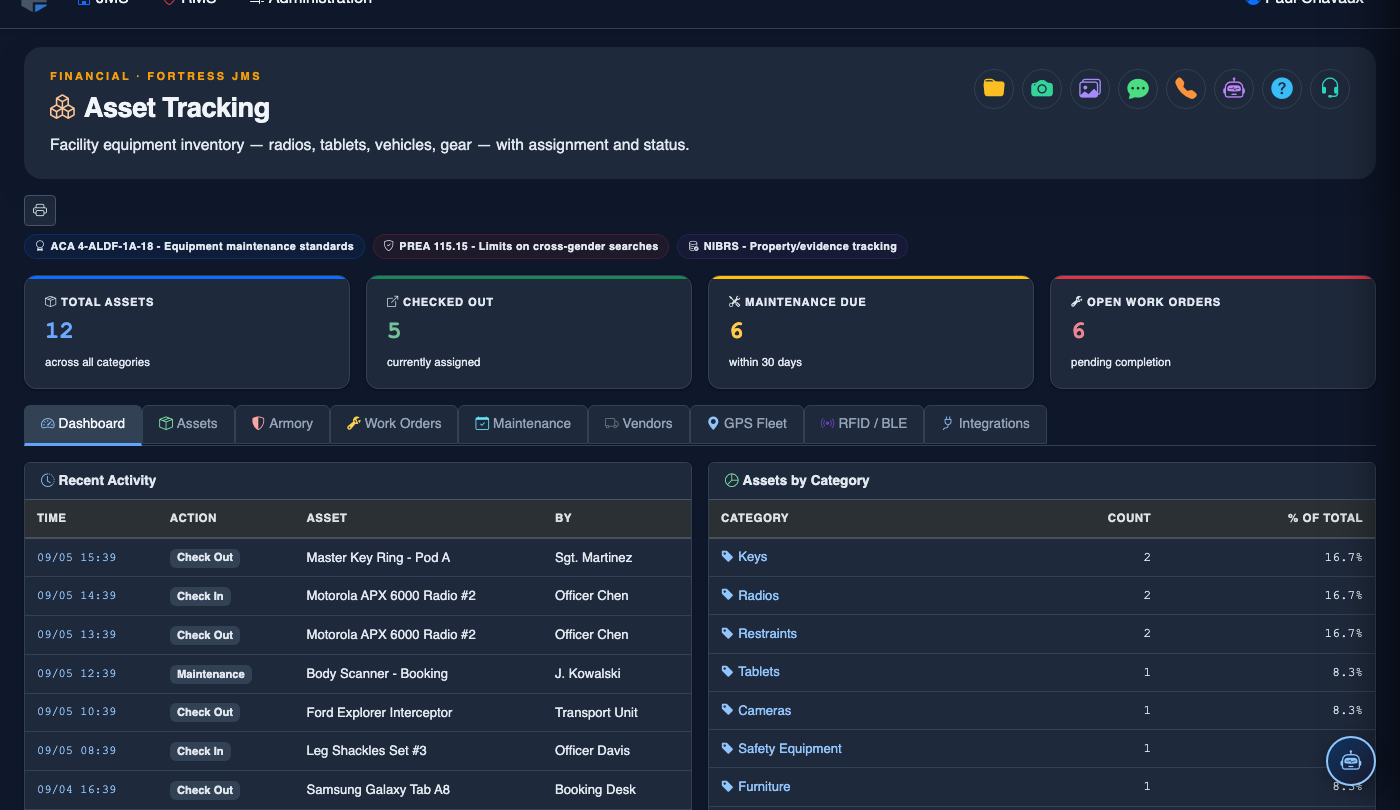
Go to Asset Tracking and select GPS Fleet Tracking. The live map loads immediately, displaying all currently active vehicles as labeled pins. Each pin shows the vehicle ID and current speed. The left panel lists all fleet vehicles with their last-known status.
Register a GPS-Equipped Vehicle
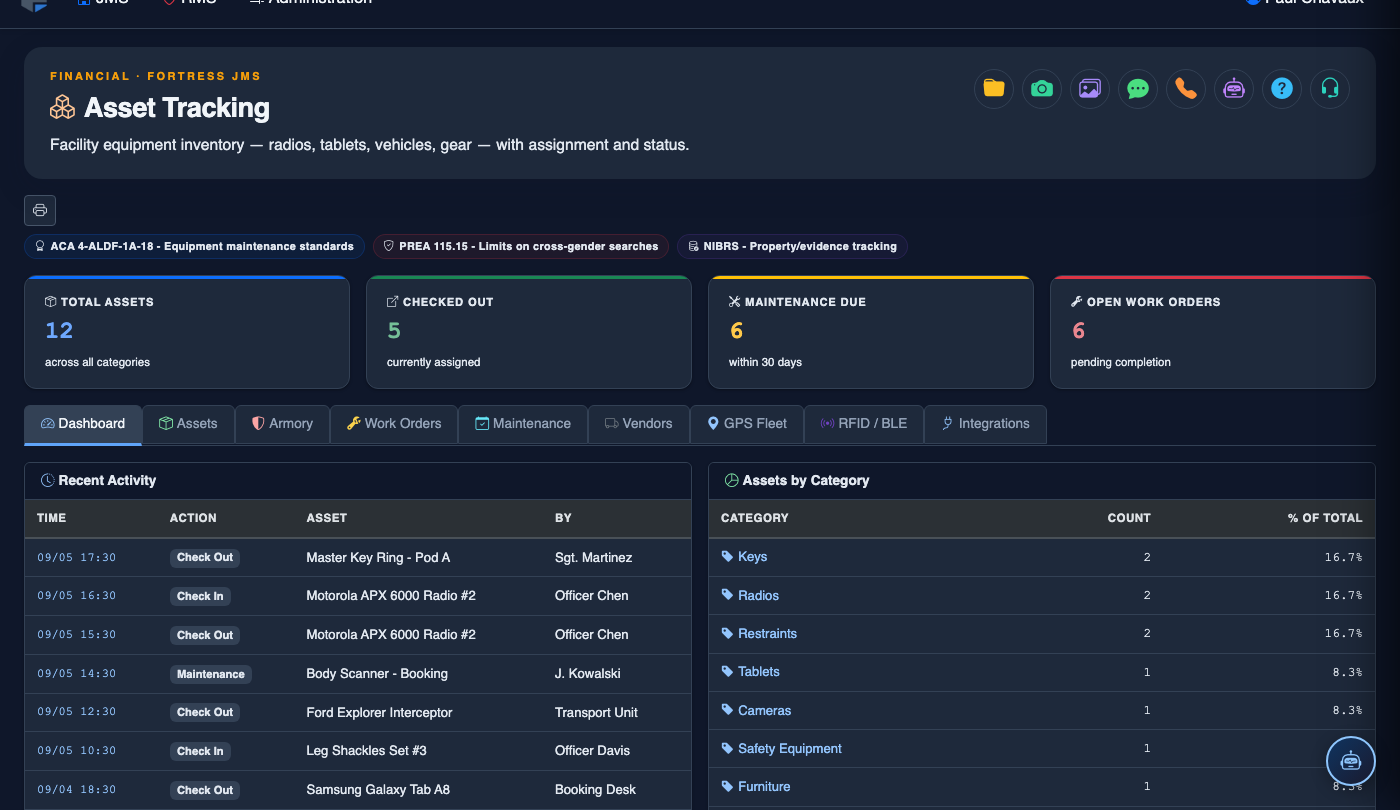
Click Fleet Settings > Add Vehicle. Enter the vehicle’s Unit Number, Make/Model/Year, VIN, and paste the GPS tracker’s Device ID from the hardware unit. Save the record — the tracker begins reporting within 60 seconds of pairing.
Set Up Geofence Zones
Click Geofences > New Zone. Use the map drawing tool to define a polygon or radius around an approved area (e.g., the facility campus, a courthouse, or a medical facility route). Name the zone, set alert recipients, and configure whether to alert on Entry, Exit, or both.
Monitor a Live Inmate Transport
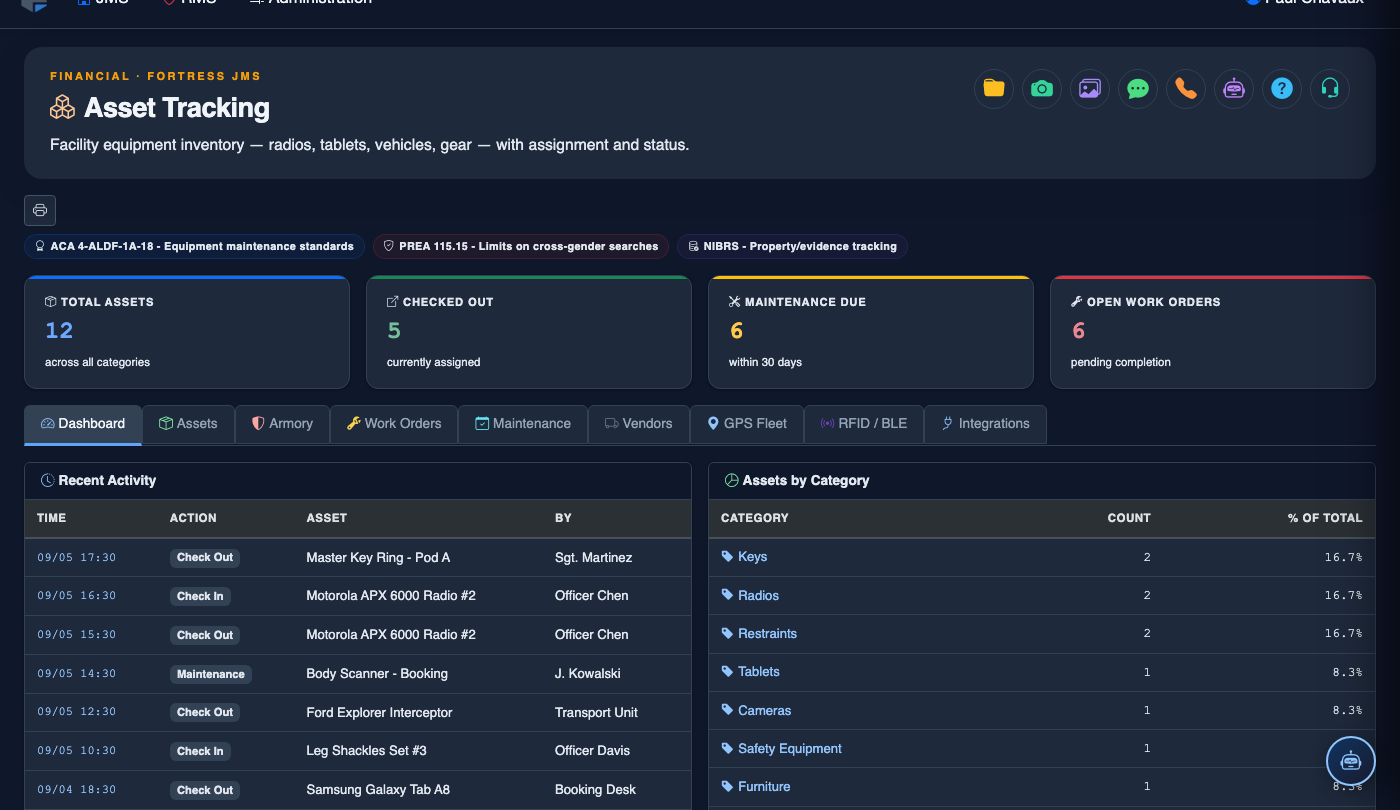
Click a vehicle pin on the map to open its live detail panel. The panel shows Driver, Assigned Inmate(s), Destination, Estimated Arrival, and Current Speed. Transport supervisors can watch the route in real time without radio contact for non-urgent monitoring.
Review Trip History and Replay a Route
Click Trip History and select a vehicle and date range. The system renders the full route on the map with timestamped waypoints. Click Replay to animate the vehicle’s movement — useful for incident investigations or verifying transport compliance with court-mandated route restrictions.
Generate Fleet Mileage and Utilization Reports
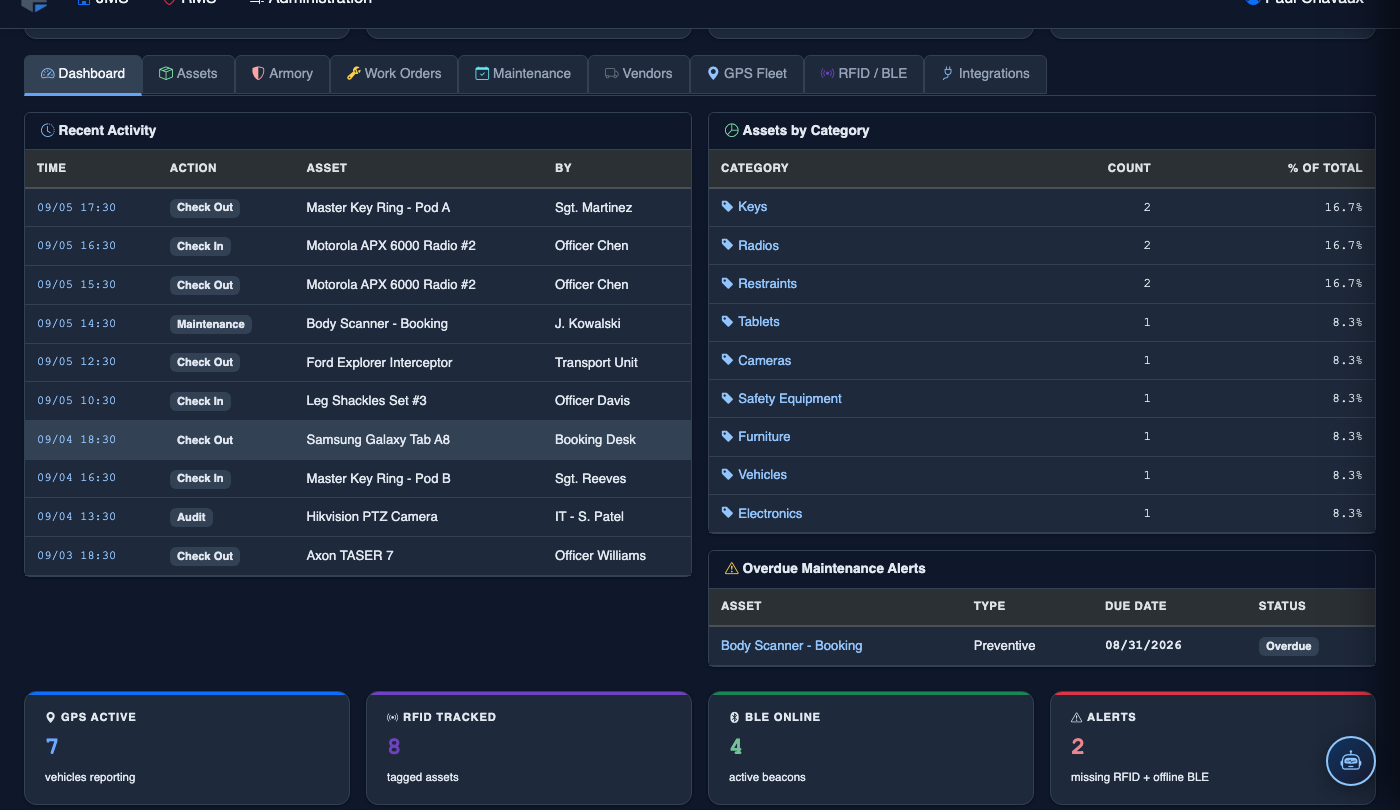
Navigate to Reports > Fleet Summary. Select vehicles, date range, and report type: Mileage Log, Idle Time Analysis, or Utilization Rate. Mileage reports export to CSV for fuel reimbursement, FMCSA compliance, and maintenance scheduling input.
Configure Mileage-Based Maintenance Triggers
In the vehicle record, navigate to Maintenance Integration. Enter the current odometer reading and set mileage thresholds (e.g., oil change every 5,000 miles). When GPS mileage data crosses the threshold, the system automatically creates a maintenance work order and notifies the fleet supervisor.
💡 Pro Tips
- Configure geofence alerts for the perimeter of your facility and all approved transport destinations — any deviation triggers an immediate supervisor notification, a critical safety control for inmate transports.
- Use the Idle Time Analysis report monthly to identify vehicles idling excessively; reducing idle time extends engine life and lowers fuel costs across the fleet.
- Pair GPS data with the Maintenance Schedules tab’s usage-based triggers so oil changes and tire rotations never depend on staff manually checking odometer readings.
Mobile View — GPS Fleet Tracking
FortressDMS is fully responsive. Officers can access the GPS Fleet Tracking on a phone or tablet directly from the field — no app install required.
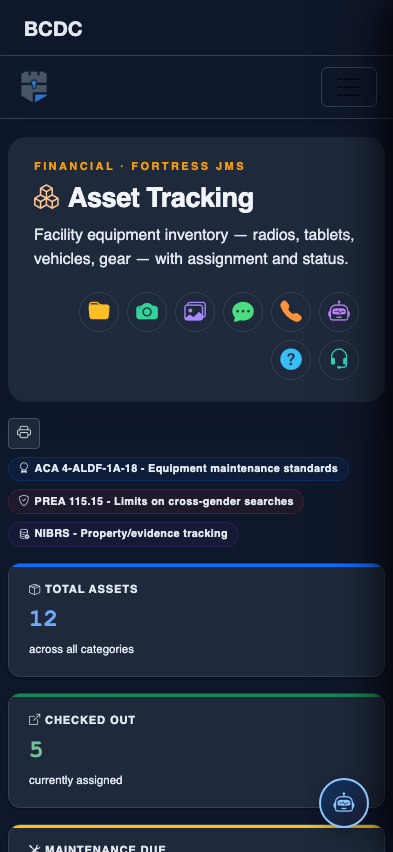
Tab view with data rows
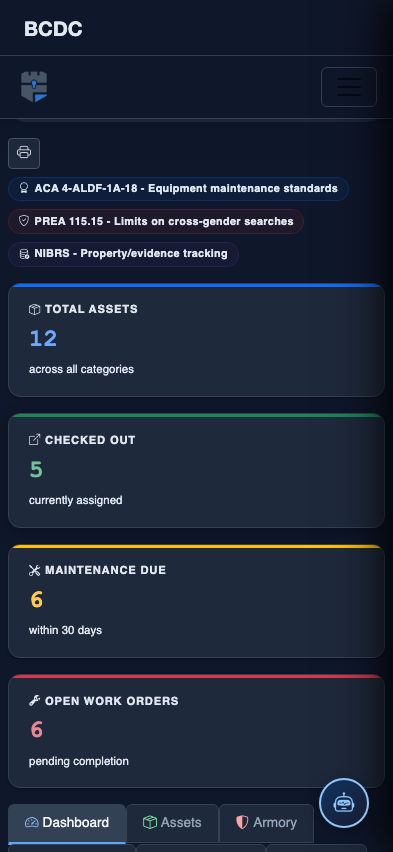
Scrolled / detail view