
Session Schedule
The Session Schedule tab gives administrators and officers a full calendar view of all upcoming and past video visitation appointments. Staff can approve, reschedule, or cancel appointments, set facility-wide blackout windows, and review completed session history — all in one organized timeline that prevents double-bookings and ensures smooth daily operations.
Calendar & List Views
Toggle between a day/week calendar view and a sortable list view to manage appointments in the format that suits your workflow.
Appointment Management
Officers can approve pending appointments, reschedule to available slots, or cancel with reason — all with automatic visitor notification.
Blackout Periods
Block scheduling during count times, lockdowns, facility events, or holidays — existing bookings in those windows are automatically flagged for rescheduling.
Session History Archive
All completed sessions are archived here with status (Completed / Terminated / Missed / Cancelled) and are searchable by inmate, visitor, or date.
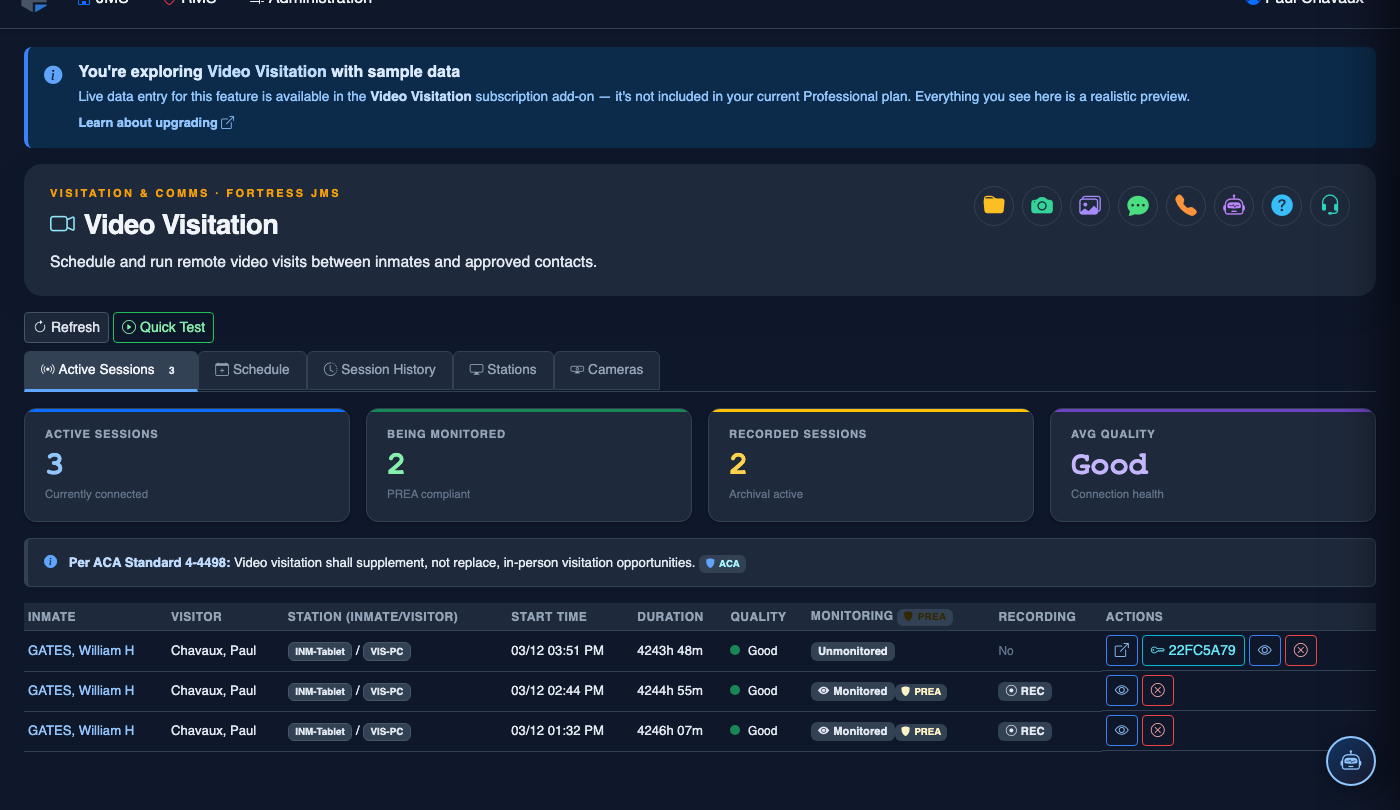
Step-by-Step: Managing the Video Session Schedule
Open the Session Schedule Tab
Navigate to Video Visitation and click Session Schedule. The default view shows today’s appointments in a time-sorted list. Use the Calendar toggle in the top-right to switch to a weekly calendar view.
Review Pending Approval Requests
Appointments booked by visitors through the web portal appear with a Pending badge. Click Approve to confirm the time slot or Decline to reject it with an optional message to the visitor. Approved appointments move to Confirmed status and appear on the calendar.
Reschedule an Appointment
Click any confirmed appointment row and select Reschedule. The system displays available slots based on your configured availability windows. Select a new slot and click Confirm Reschedule — the visitor receives an automated SMS and email notification with the new time.
Add a Blackout Period
Click Add Blackout in the schedule toolbar. Set the Start Date/Time and End Date/Time, give it a Label (e.g., “Facility Inspection — No Visits”), and optionally choose whether to auto-cancel conflicting bookings or hold them for manual rescheduling. Click Save Blackout.
Cancel an Appointment
Select any upcoming appointment and click Cancel Appointment. Choose a cancellation reason (Inmate Request / Disciplinary Restriction / Visitor Request / Administrative) and whether to send the visitor a notification. The slot is immediately freed for new bookings.
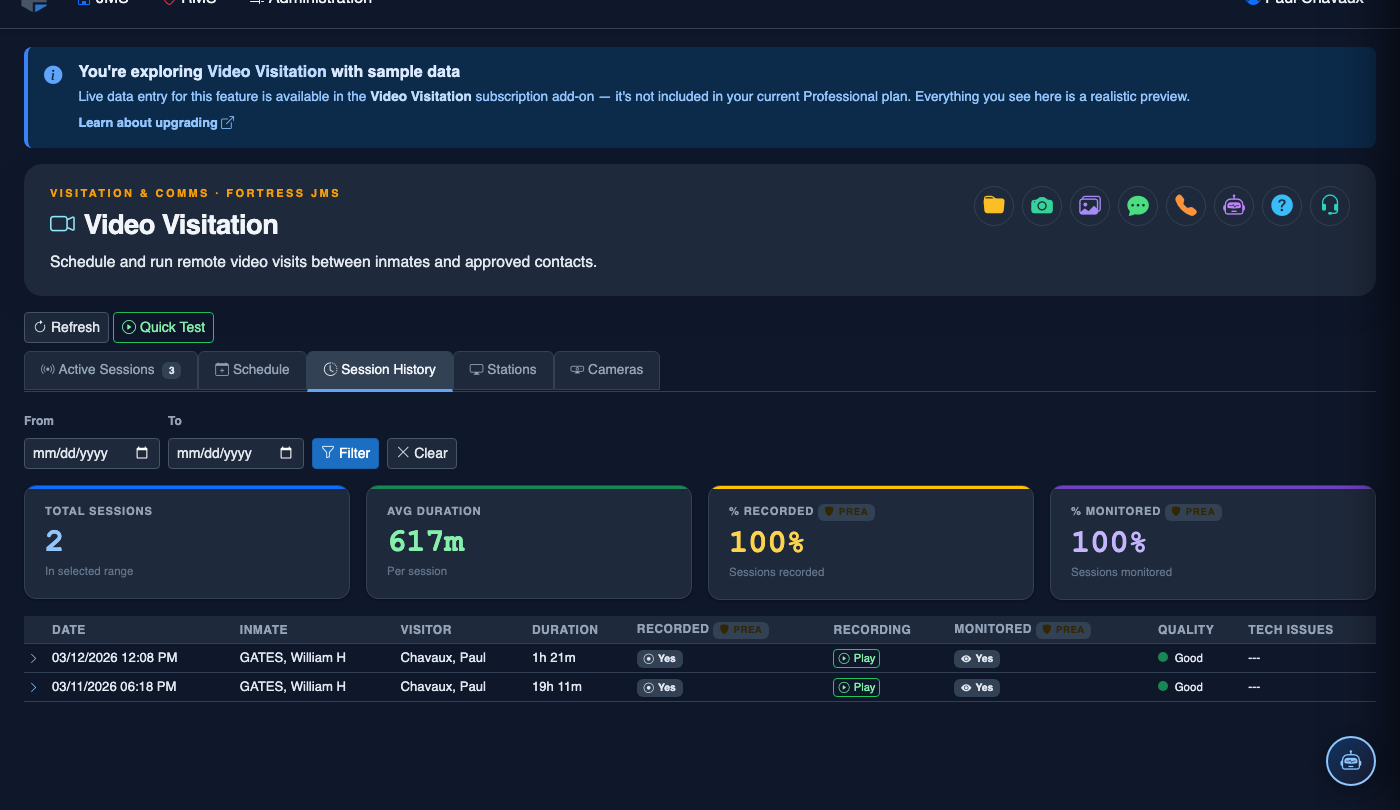
Search Session History
Use the History sub-tab and enter an inmate name, booking number, or visitor name to retrieve past sessions. Filter by Status (Completed, Terminated, Missed, Cancelled) or a custom date range. Click any past session to view its full detail including duration, recording link (if available), and any flags or incidents logged during the call.
Export Schedule or History Report
Click Export to download the current view as a PDF (formatted shift briefing sheet) or CSV (for spreadsheet analysis). Use the PDF export at shift start to give officers a printed schedule of the day’s video sessions without requiring access to the FortressDMS console.
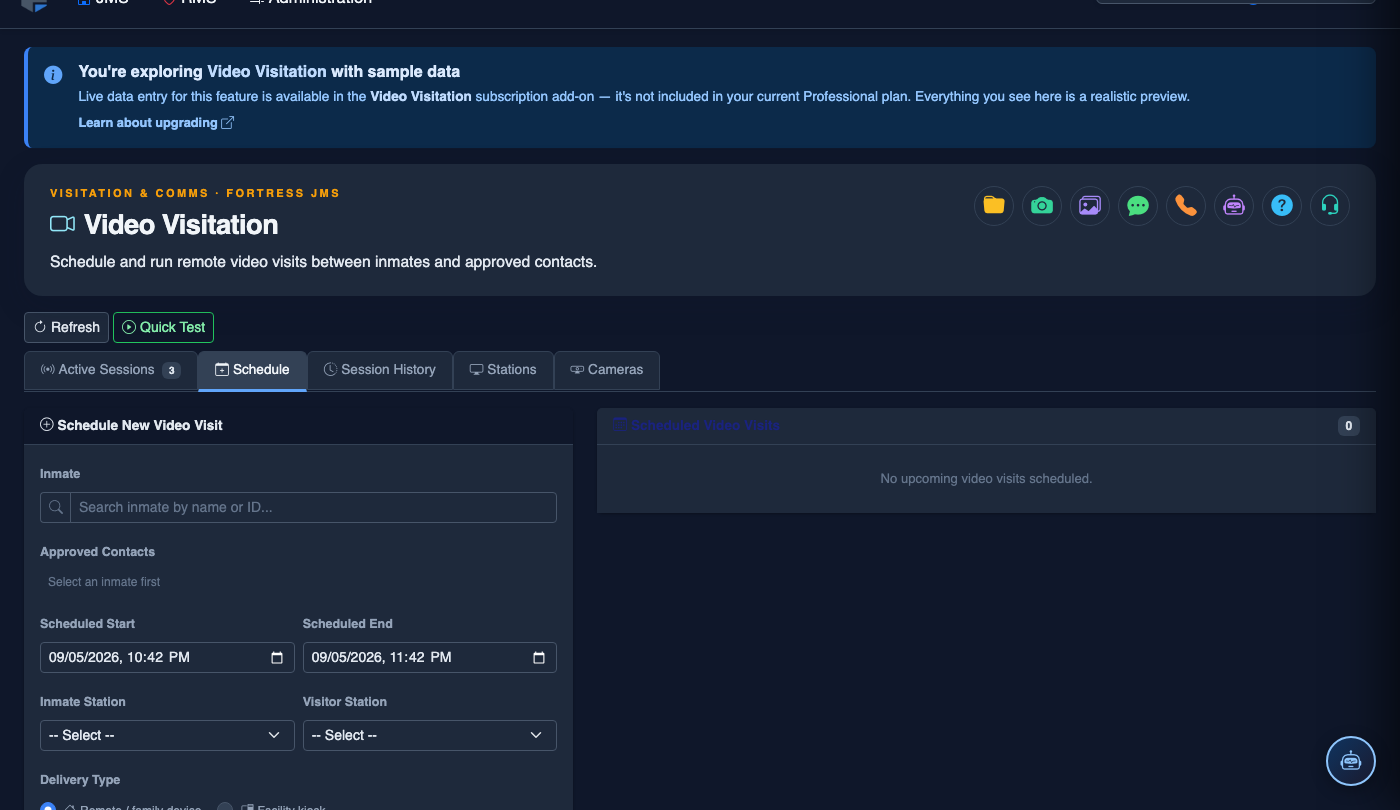
Schedule a Video Visitation Session
Click Schedule. Complete the video session booking:
- Inmate — search by name or booking number.
- Visitor — select from the approved visitor list; remote visitors receive an email invitation link.
- Session Type — Remote Video (visitor connects from home), In-Facility Kiosk, or Legal (private channel, no recording).
- Date and Time Slot — choose from available slots; the system enforces visit frequency limits per facility policy.
- Station Assignment — select the video station or kiosk to use.
- Duration — typically 30 minutes; extended slots require supervisor approval.
- Click Confirm Booking. Confirmation emails go to the visitor; session appears on the facility video schedule.
💡 Pro Tips
- Pre-load count times and major facility events as recurring blackout periods at the start of each month — this prevents visitors from booking slots the facility will never honor, which reduces no-show frustration and support calls.
- The Missed session status (visitor booked but never joined) is automatically assigned 10 minutes after a scheduled start with no connection — use this data monthly to identify visitors who repeatedly book but don’t show, and contact them proactively.
- For disciplinary restrictions, use the inmate’s profile to set a Video Visit Hold rather than manually cancelling individual appointments — the hold blocks all future bookings and auto-cancels existing ones system-wide without officer-by-appointment action.
Mobile View — Session Schedule
FortressDMS is fully responsive. Officers can access the Session Schedule on a phone or tablet directly from the field — no app install required.
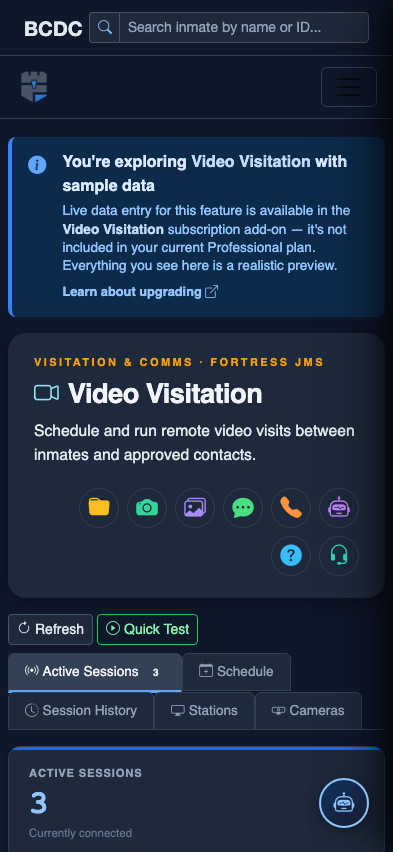
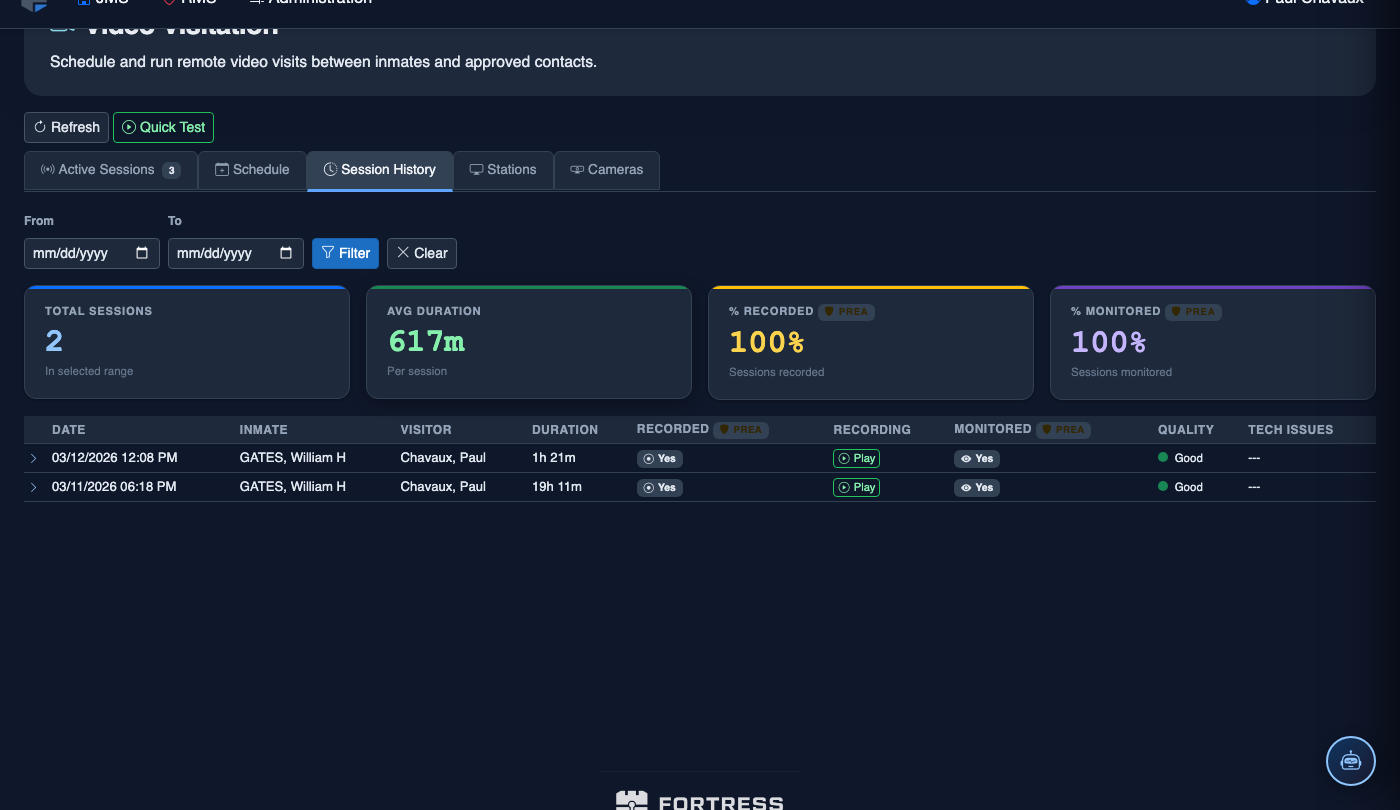
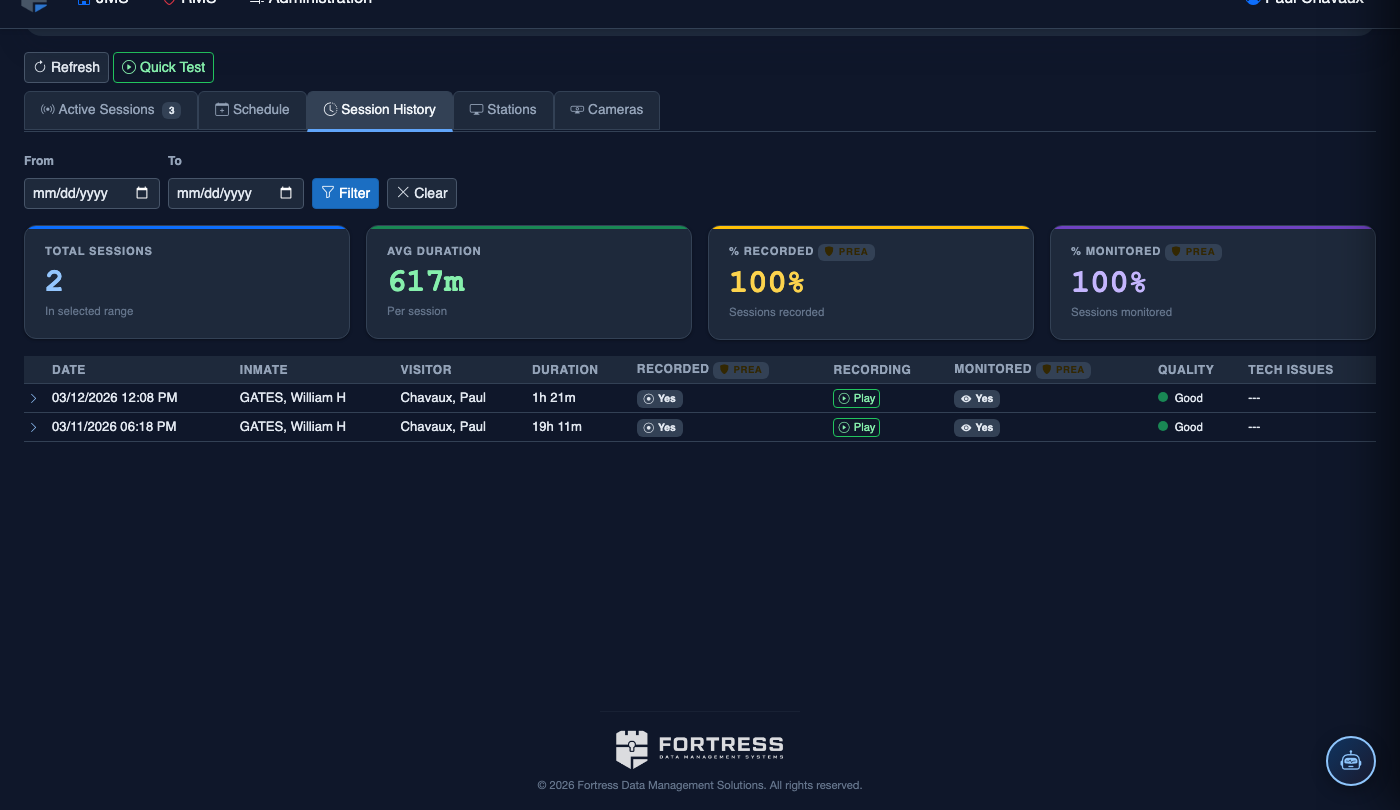
Tab view with data rows
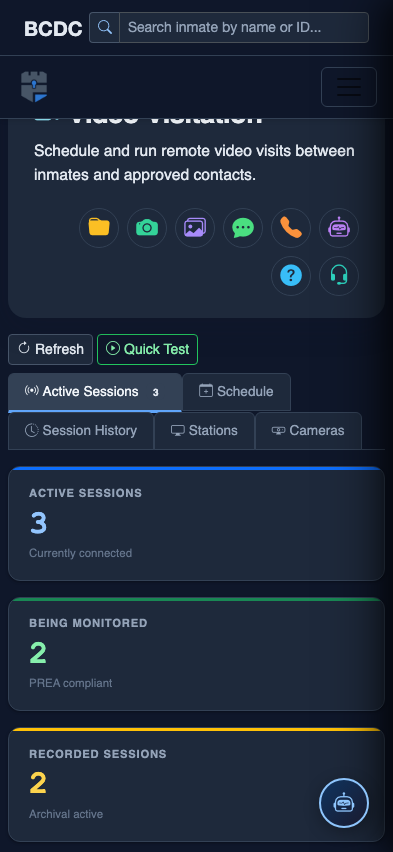
Scrolled / detail view