
Phone Numbers
The Phone Numbers module is the authoritative registry for all telephone numbers associated with the facility’s inmate communication system — including DID assignments, trunk numbers, extension mappings, and blocked number lists. Administrators can provision new numbers, assign DIDs to specific housing units or extensions, and maintain the facility-wide restricted number database from a single interface.
DID Management
Provision, assign, and retire Direct Inward Dial numbers with full history of extension assignments and usage.
Extension Mapping
Map physical or virtual SIP extensions to housing units, individual inmates, or facility-wide shared lines.
Blocked Number Registry
Maintain court-order and facility-policy blocked number lists that are enforced in real time across all inmate extensions.
Number Inventory
Full audit trail of all number assignments, releases, and transfers with officer credentials and timestamps.
Carrier Integration
View porting status, carrier assignments, and number type classifications (local, toll-free, emergency) in one place.
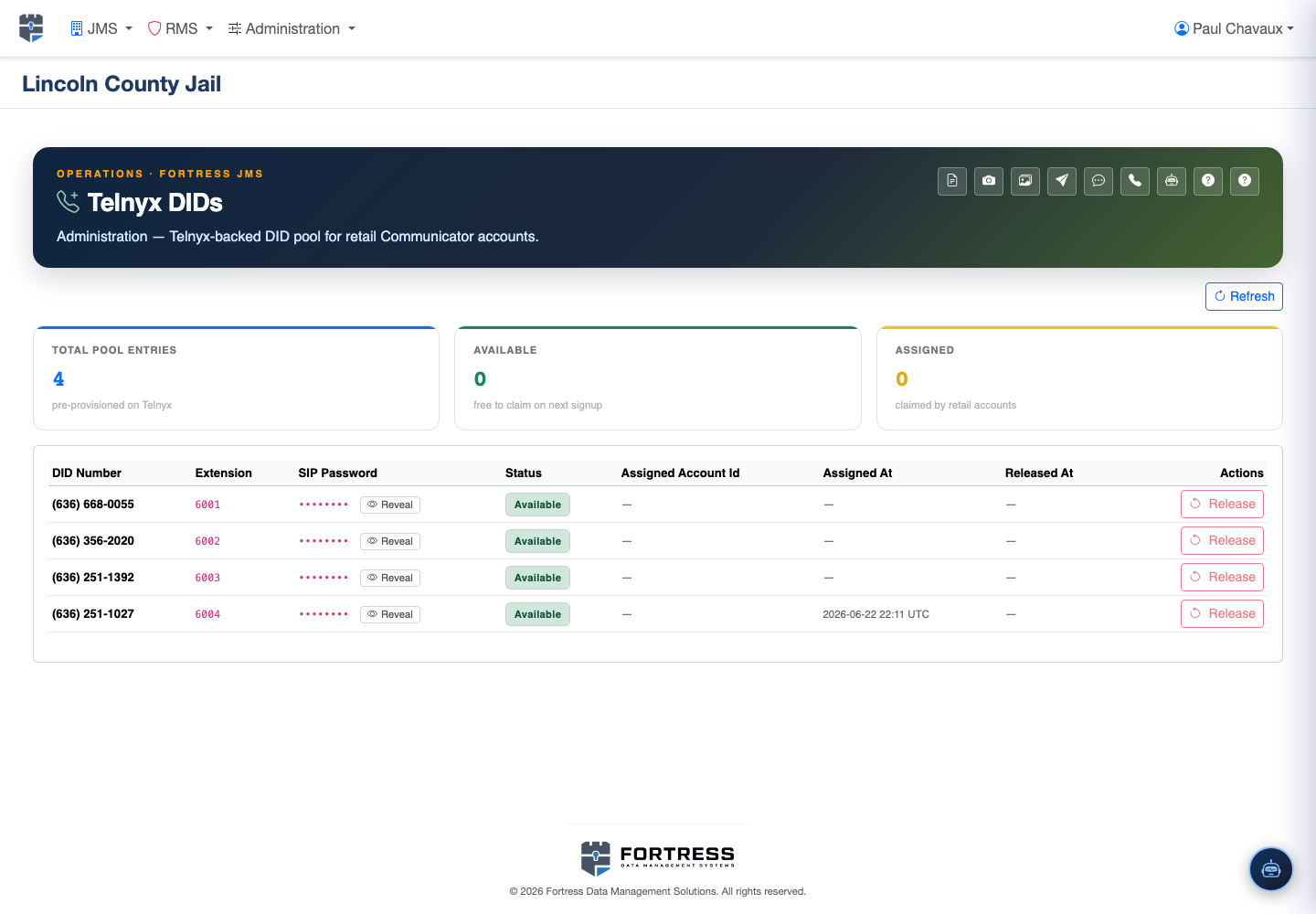
Step-by-Step: Managing Facility Phone Numbers
Access the Phone Numbers Module
Navigate to Administration → Phone Numbers. The module opens to the Number Inventory tab showing all provisioned DIDs, their assignment status, and associated extensions.
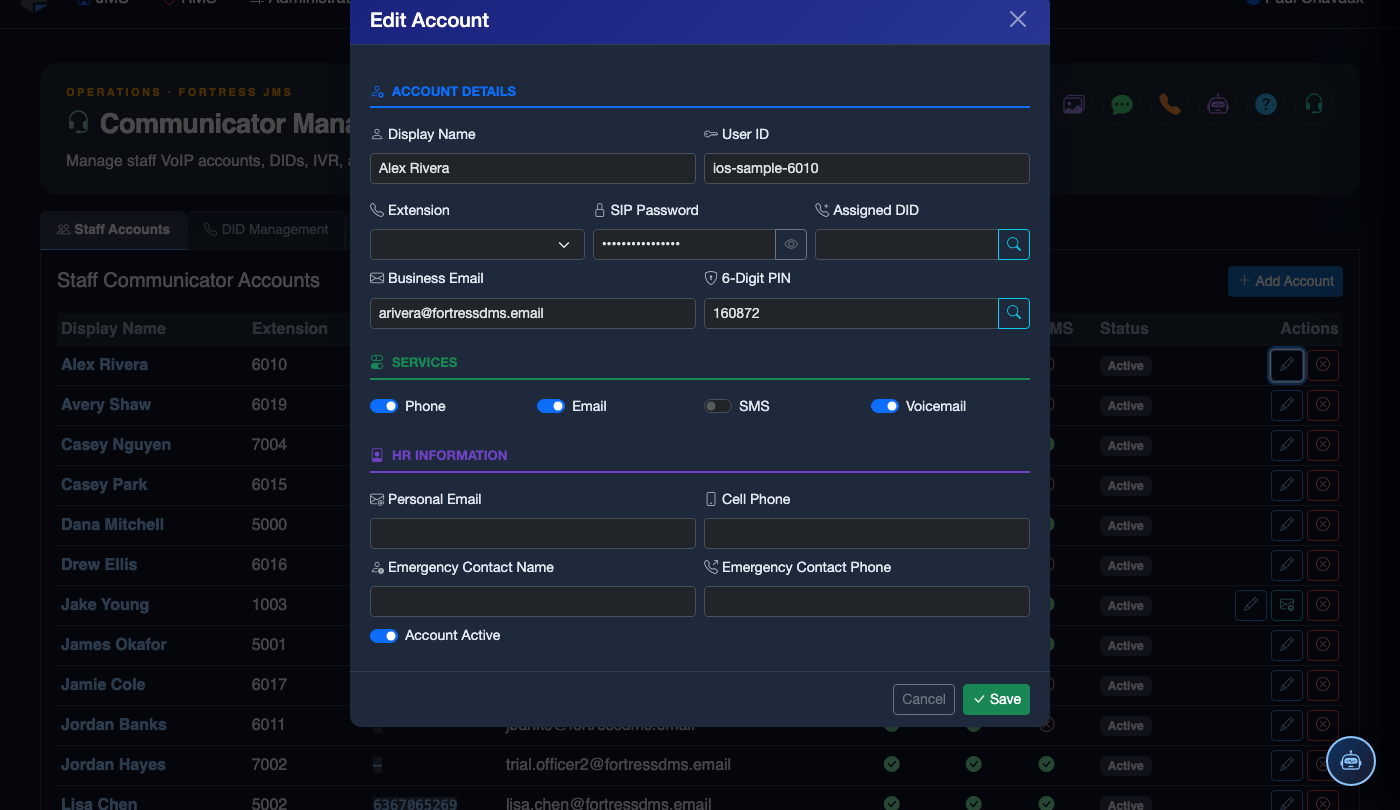
Add a New DID
Click + Add Number. Enter the full 10-digit DID in E.164 format, select the Carrier from the dropdown, assign a Number Type (Inmate Line, Admin Line, Emergency), and set the Housing Unit or extension association.
Assign a DID to an Extension
From the Number Inventory, click Assign on any unassigned DID. Select the target extension from the Extension Lookup field, confirm the housing unit, and click Save Assignment. The assignment takes effect immediately on the SIP infrastructure.
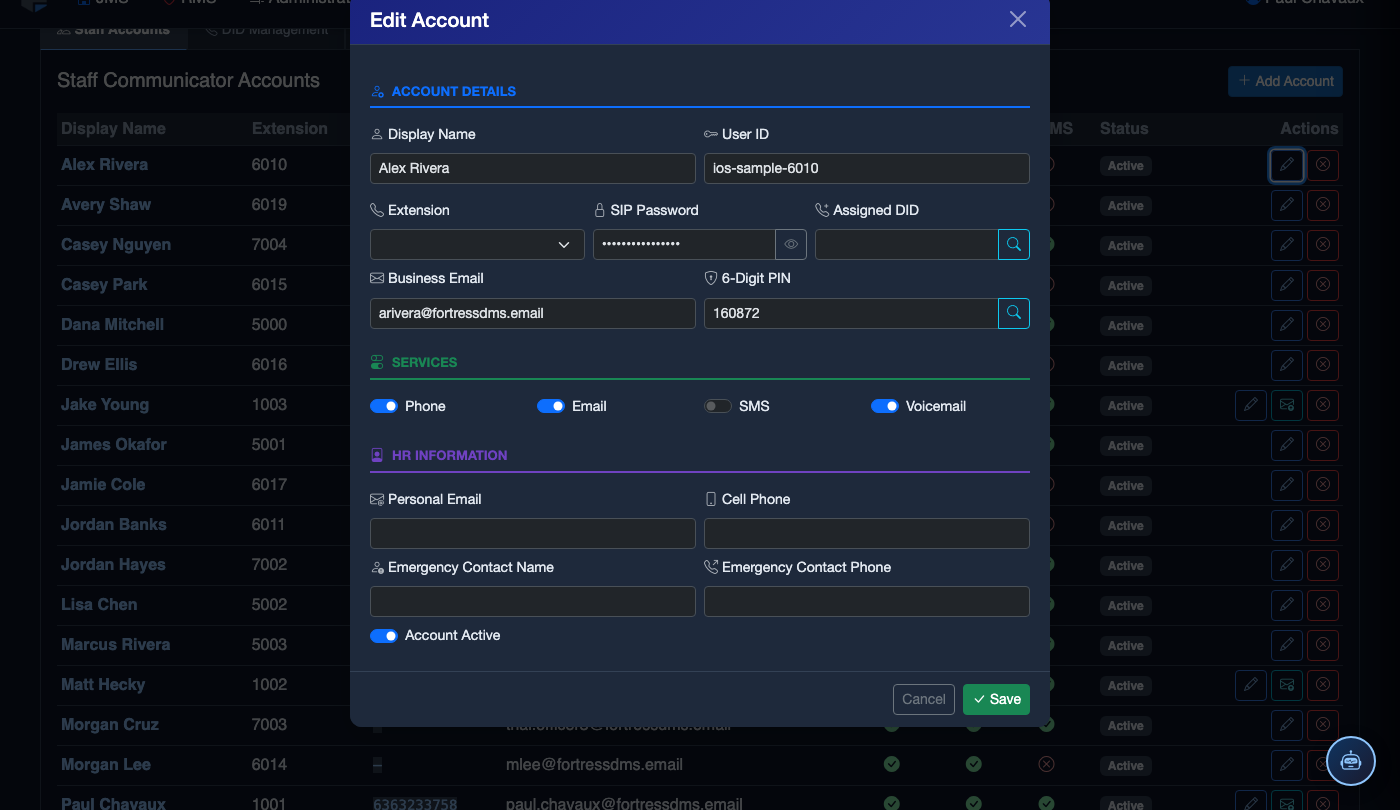
Manage the Blocked Number Registry
Click the Blocked Numbers tab to view and manage all restricted numbers. Click + Block Number, enter the destination number, select the Block Type (Court Order, Victim Protection, Facility Policy), enter the case reference, and set an Expiration Date if applicable.
Import a Blocked Number List
For bulk restrictions (e.g., from a court order with multiple numbers), click Import on the Blocked Numbers tab. Upload a CSV file with columns: Number, Block Type, Reference, Expiration. The system validates and applies all entries atomically.
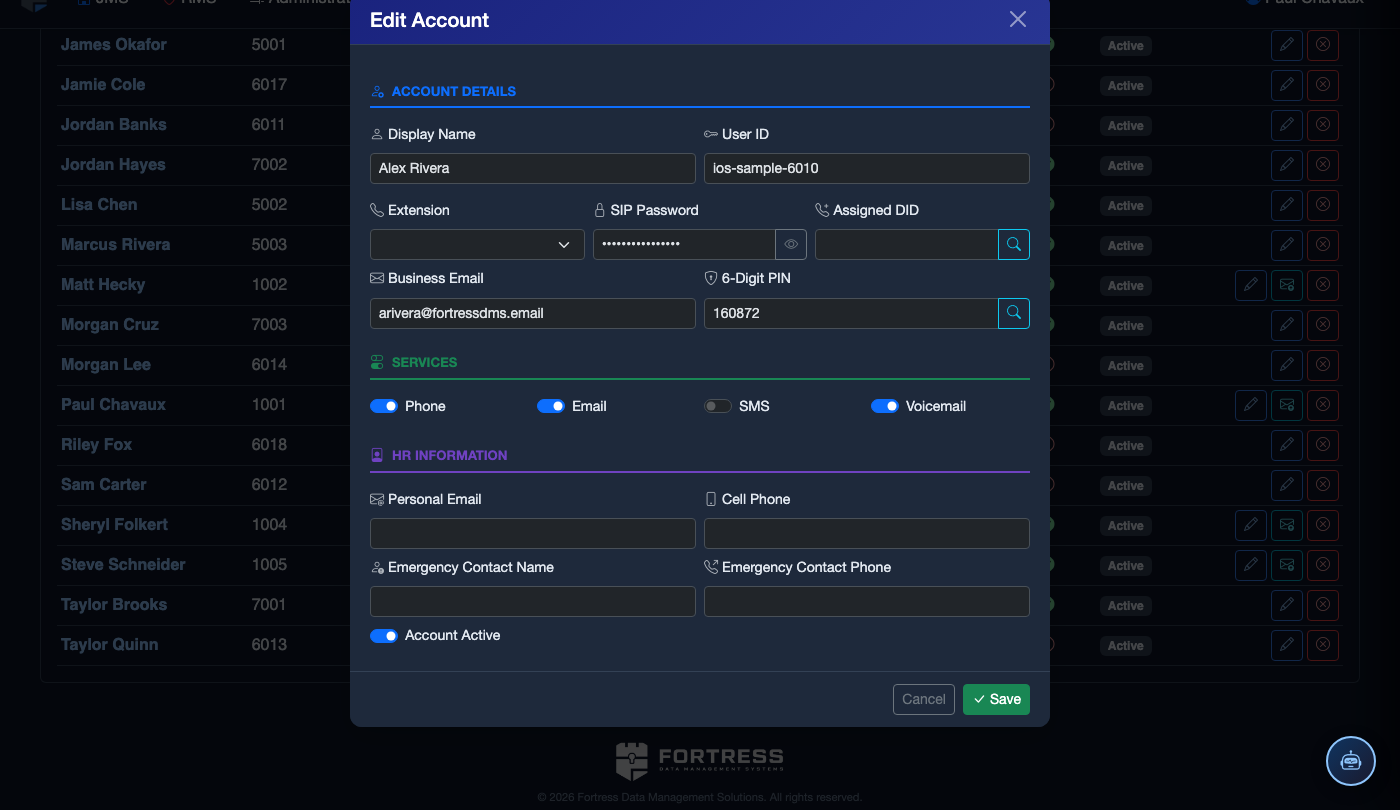
Release or Retire a DID
To decommission a number, click Release on any assigned DID. The system validates that no active calls are in progress, removes the extension mapping, and archives the number with full assignment history. The number is flagged for carrier return if applicable.
Export Number Inventory for Compliance
Click Export Inventory to generate a full PDF or CSV list of all provisioned numbers, their assignments, block statuses, and carrier details. Required for annual telecommunications compliance audits in most correctional standards.
💡 Pro Tips
- Assign a unique DID to each housing unit rather than sharing lines — this enables granular call analytics and makes it easier to trace communication patterns to specific pods during investigations.
- Review the blocked number registry quarterly to remove expired court orders and add newly court-ordered restrictions — outdated blocks create liability if a call that should be blocked goes through.
- Always test a newly provisioned DID with a Test Call from the SIP Console before assigning it to an inmate extension to confirm carrier routing is active and recording is capturing correctly.