
Release Queue
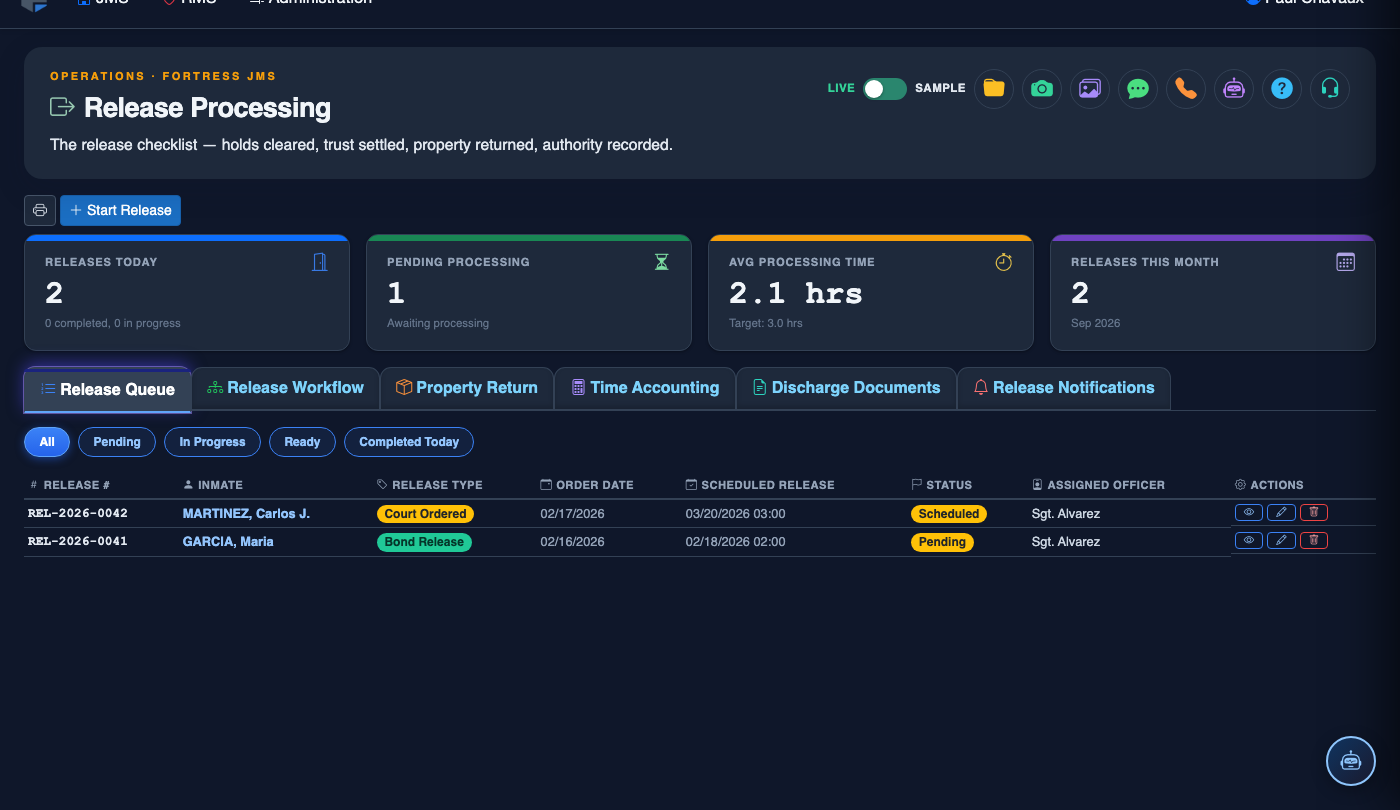
The Release Queue tab is the command center for all pending and same-day releases at your facility. It provides a live, prioritized list of every inmate scheduled for discharge — including time-served releases, bond postings, court orders, and deferred releases — along with at-a-glance status indicators for holds, workflow completion, and property readiness. Staff can triage the queue, escalate urgent cases, and launch individual release workflows directly from this view.
Live Status Indicators
Color-coded status badges show at a glance which releases are ready, pending, or blocked by a hold.
Smart Filtering
Filter by release type, housing unit, officer, or hold status to focus on exactly the cases your shift needs to process.
Hold Alerts
Automatic alerts for ICE detainers, agency holds, and outstanding warrants that block a release from proceeding.
One-Click Launch
Open any inmate’s full release workflow directly from the queue row without navigating to a separate screen.
Step-by-Step: Working the Release Queue
Open the Release Queue
Navigate to Release Processing in the main navigation. The Release Queue tab is the default landing view. The queue automatically loads all inmates with a release date of today or earlier and sorts them by Scheduled Release Time ascending so the most urgent appear first.
Interpret the Status Badges
Each row displays a colored status badge: Ready (all checks passed, release may proceed), Pending (workflow in progress), Blocked (active hold or unresolved condition), and Deferred (release postponed by officer or supervisor action).
Apply Filters to Focus Your Workload
Use the Filter toolbar to narrow the queue by Housing Unit, Release Type (bond, time served, court order), Assigned Officer, or Hold Status. Filters stack — you can show only time-served releases from Pod B that have no active holds.
Resolve or Escalate a Blocked Release
Click any Blocked row to see the specific hold or condition preventing release. If the hold has been lifted externally, click Clear Hold and attach the authorizing document. If the hold cannot be cleared, use Escalate to Supervisor to log the issue and notify the on-duty supervisor.
Launch the Release Workflow
For any Ready or Pending inmate, click Process Release in the action column. This opens the full Release Workflow tab pre-loaded with the inmate’s data so you can complete the checklist, property return, and time accounting without re-searching for the inmate.
Defer a Release
If a release must be postponed (e.g., the inmate is in a medical hold or transport is unavailable), click Defer, select a reason from the dropdown, and optionally enter a new target time. Deferred releases remain visible in the queue and will re-alert at the new target time.
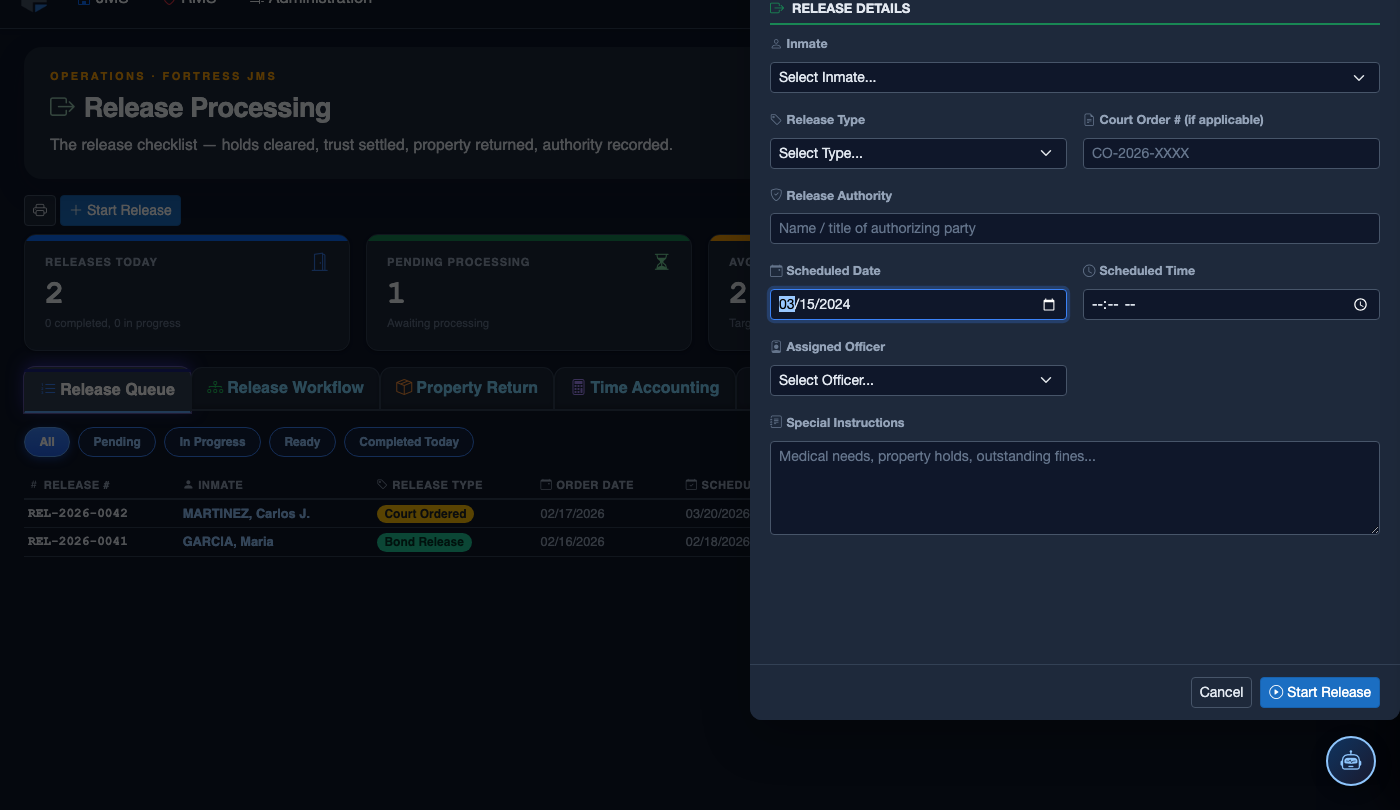
Initiate the Release Process
Click Start Release. Work through the release checklist:
- Inmate — search by name or booking number. Active detainers display as warnings.
- Release Type — Sentence Served, Bond Posted, Court Order, Transfer, or Supervised Release.
- Detainer Check — confirm no holds from other jurisdictions are active before proceeding.
- Property Return — verify all personal property is accounted for and the inmate signs the receipt.
- Release Date and Time — set the official release timestamp.
- Transportation — document how the inmate is leaving (self, family, transport agency).
- Post-Release Notes — conditions of release, supervision reporting requirements, etc.
- Click Finalize Release. Bed status changes to Available; housing and case records are closed.
💡 Pro Tips
- Check the Release Queue at the start of every shift — overnight holds and court orders that arrived after last shift may have created new entries that were not actioned.
- Use the Export button to generate a shift-end release log for supervisor review and inter-shift handoff documentation.
- A Blocked status does not automatically notify the relevant holding agency — you must separately contact the agency and log the communication in the hold resolution notes.
Mobile View — Release Queue
FortressDMS is fully responsive. Officers can access the Release Queue on a phone or tablet directly from the field — no app install required.
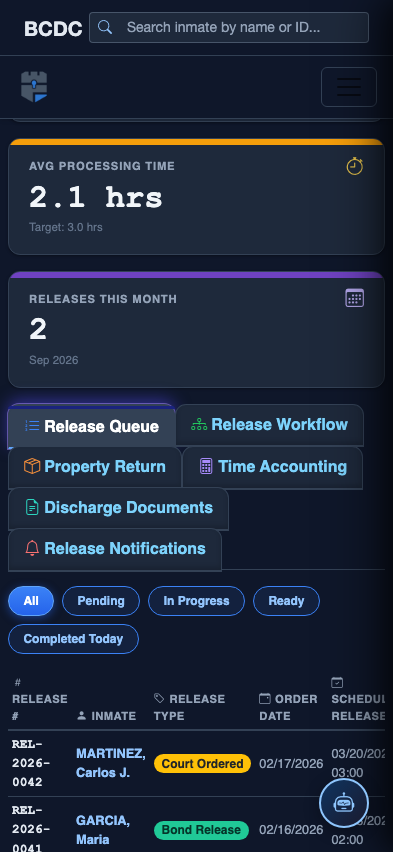
Tab view with data rows
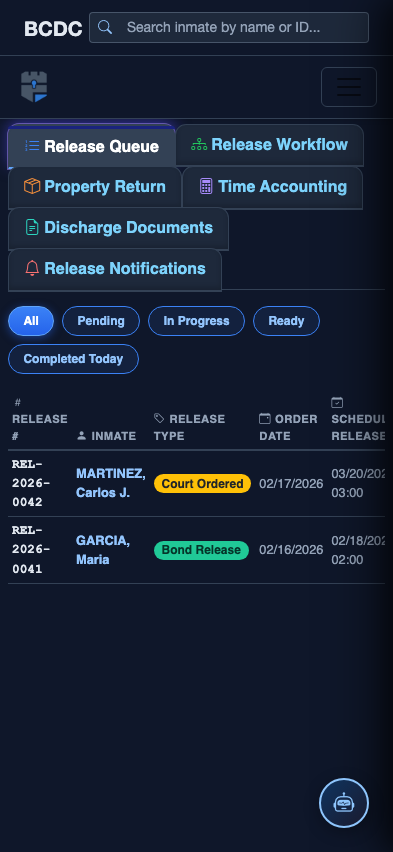
Scrolled / detail view