
Billing Reports
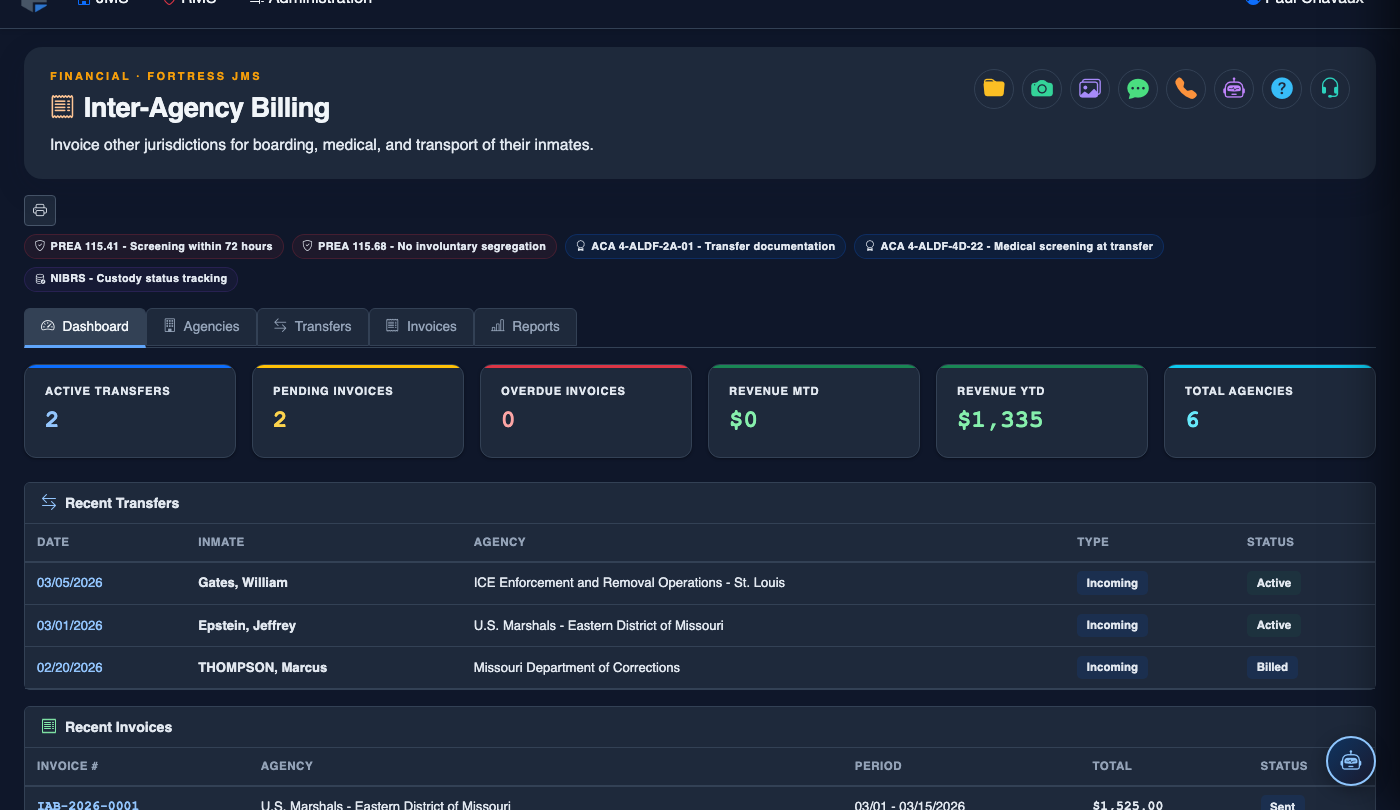
The Billing Reports tab provides comprehensive financial reporting for all inter-agency inmate housing arrangements, enabling facilities to track revenue, reconcile invoices, and audit billing accuracy across multiple contracting agencies. Administrators can generate detailed billing summaries, export data for accounting systems, and review historical billing records to ensure accurate cost recovery for housing services rendered.
Summary Reports
Generate consolidated billing summaries by agency, date range, or inmate classification for quick financial overviews.
Invoice Reconciliation
Match billed amounts against actual inmate housing days to identify discrepancies before submitting invoices to contracting agencies.
Export & Integration
Export billing reports in CSV or PDF format for import into county accounting or financial management systems.
Audit Trail
Review a complete audit history of billing adjustments, rate changes, and invoice approvals for compliance and accountability.
Step-by-Step: Generating Billing Reports
Navigate to Inter-Agency Billing > Billing Reports
From the main navigation, select Inter-Agency Billing and click the Billing Reports tab. The page loads with the most recently generated report or an empty report grid awaiting filter selection.
Set the Reporting Date Range
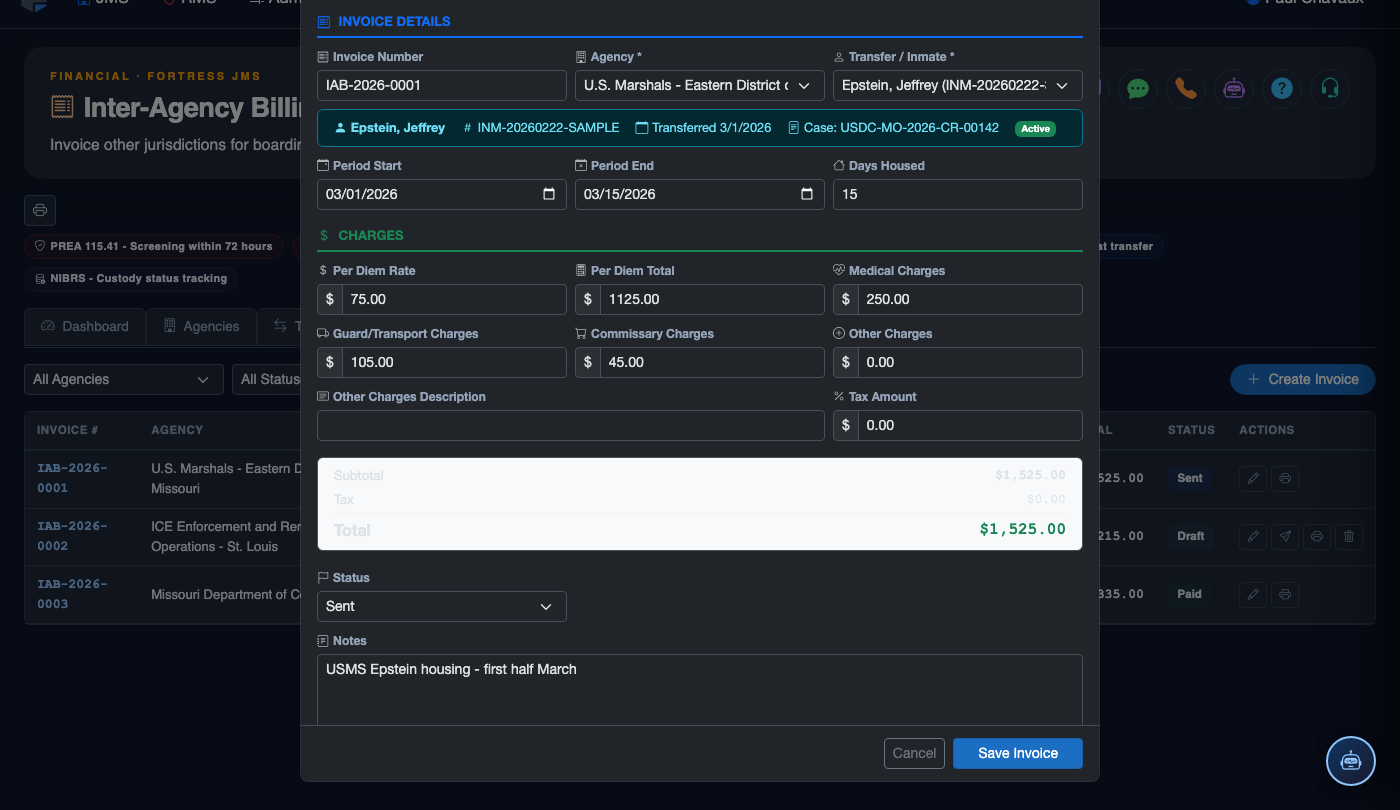
Use the Start Date and End Date pickers to define the billing period. For monthly billing cycles, select the first and last day of the target month. The system will pull all housing days and associated charges within that range.
Filter by Contracting Agency
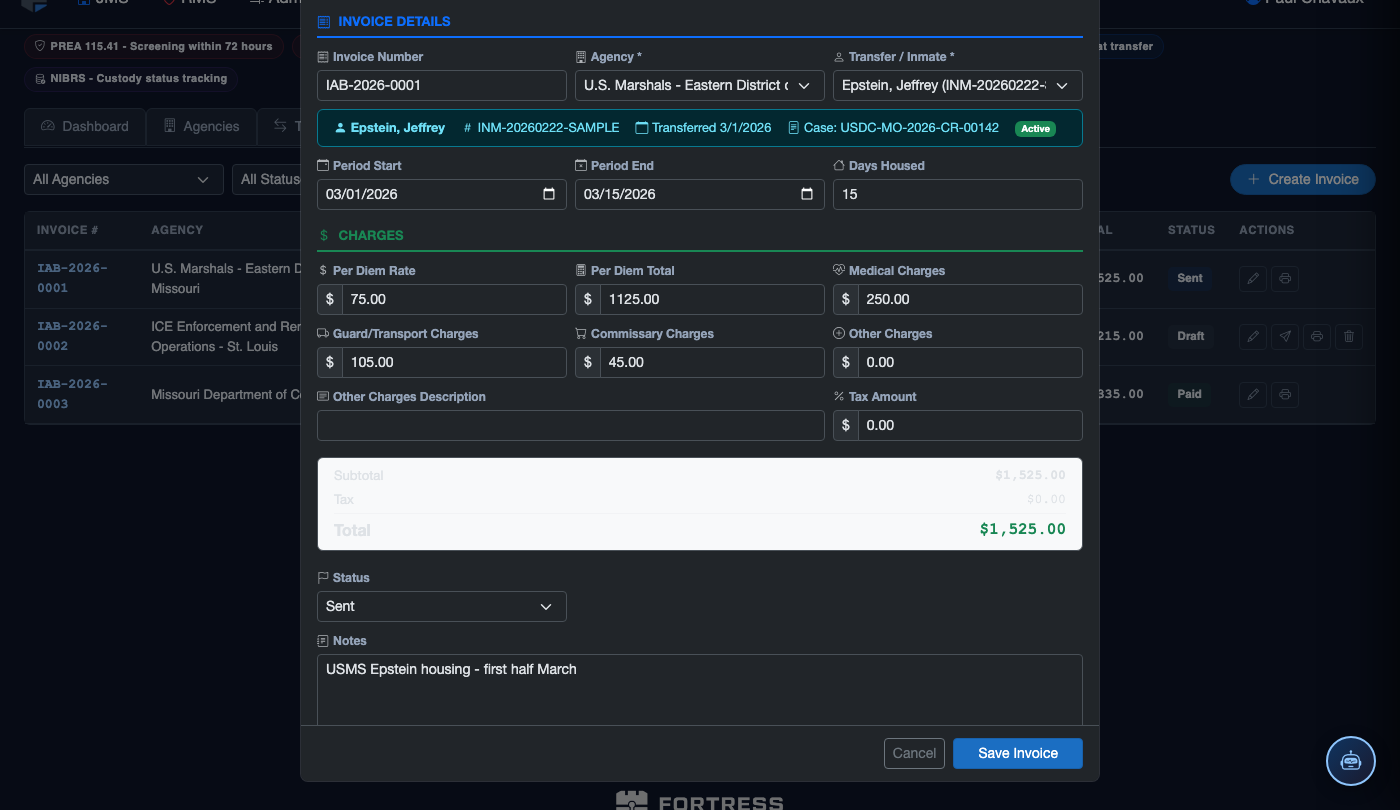
Select one or more agencies from the Agency dropdown to scope the report. Choose All Agencies for a consolidated view, or select a specific contracting county or federal agency to generate a targeted invoice-ready report.
Select Report Type
Choose the appropriate Report Type: Summary for a high-level agency total, Detailed for a per-inmate breakdown of housing days and charges, or Reconciliation to compare billed vs. actual housing days side by side.
Generate and Review the Report
Click Generate Report to populate the results grid. Review inmate names, booking numbers, housing dates, per-diem rates, and calculated totals. Use column sorting to identify discrepancies or verify individual inmate billing records.
Export the Report
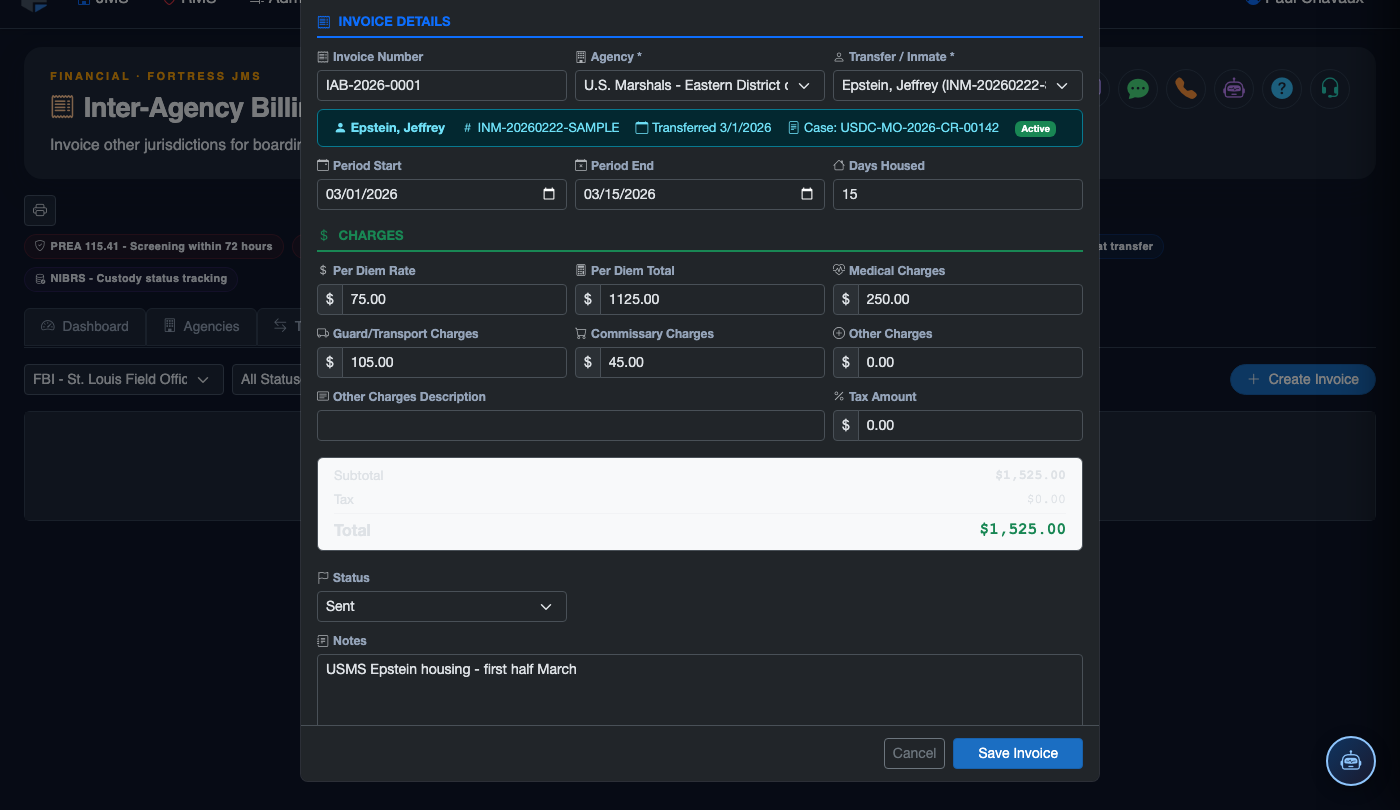
Click Export CSV to download a spreadsheet-compatible file, or Export PDF to generate a formatted invoice document suitable for submission to the contracting agency’s accounts payable department.
Submit or Archive the Report
After verification, use the Mark as Submitted action to record the invoice date and recipient. Submitted reports are archived and accessible from the billing history view for future audits or payment dispute resolution.
💡 Pro Tips
- Run a Reconciliation report before finalizing invoices — it highlights any housing days that were logged but not yet billed, preventing revenue loss.
- Use the Per-Diem Rate History filter to verify that rate changes were applied on the correct effective date, especially mid-month rate adjustments.
- Schedule monthly billing report exports on the 1st of each month so accounting staff receive consistent, timely data for payment processing.
Mobile View — Billing Reports
FortressDMS is fully responsive. Officers can access the Billing Reports on a phone or tablet directly from the field — no app install required.
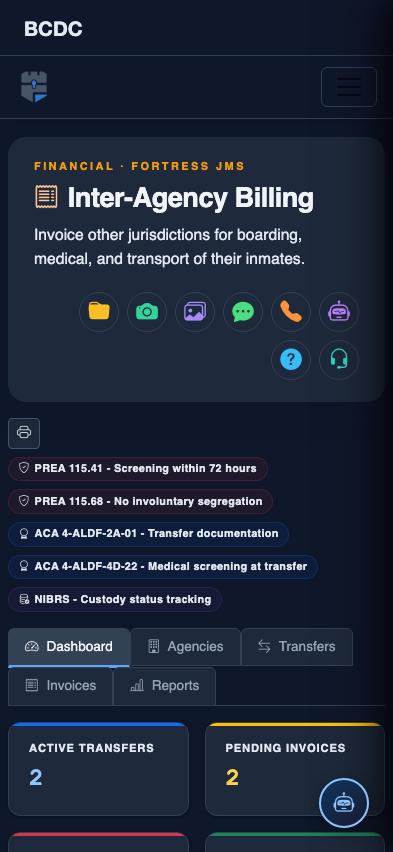
Tab view with data rows
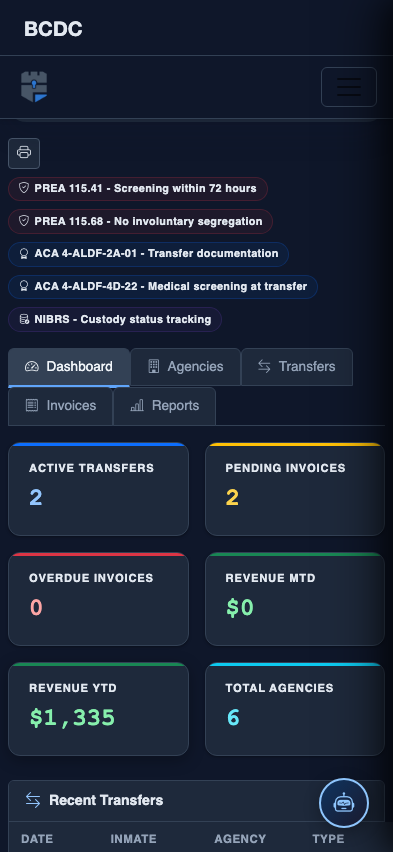
Scrolled / detail view