
BWC Share Review
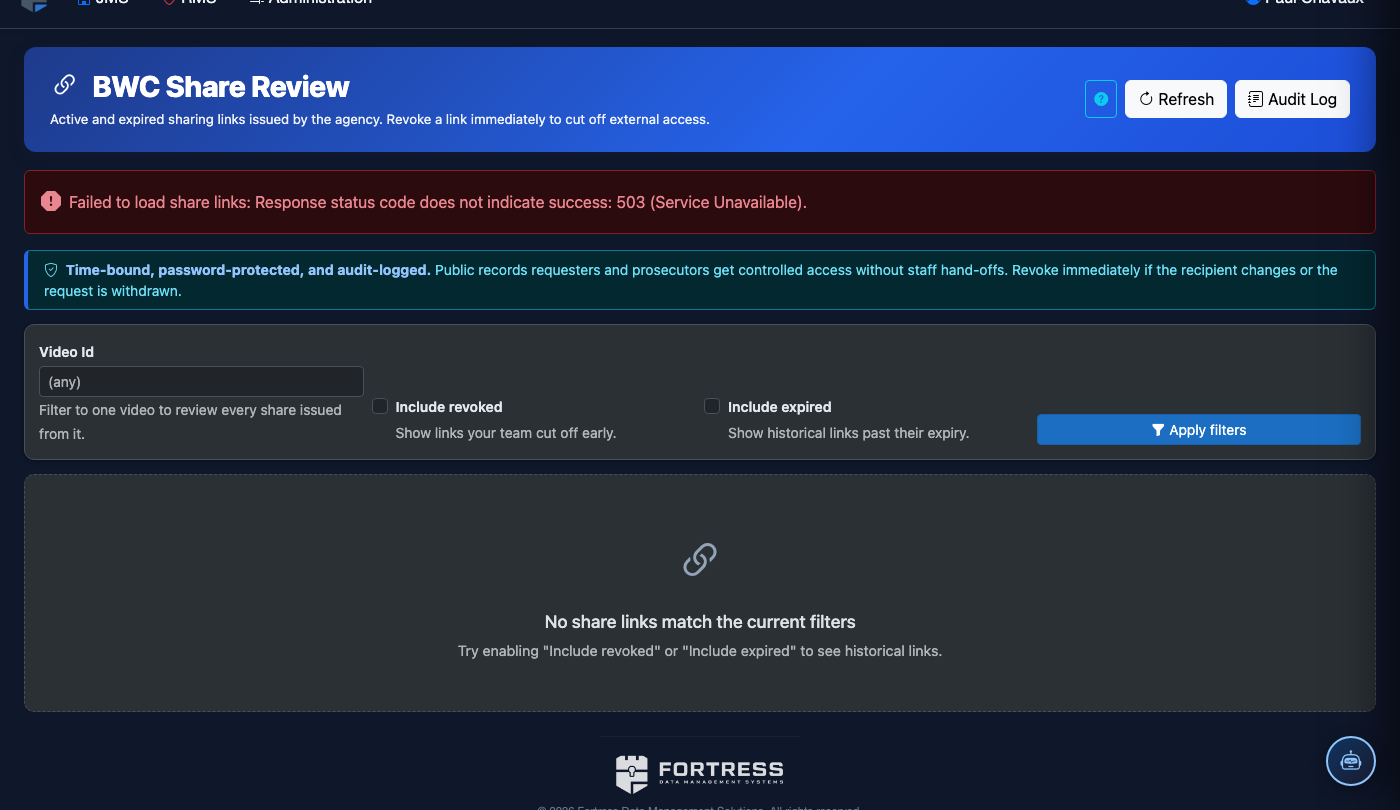
The BWC Share Review module provides a secure, audited workflow for sharing body-worn camera footage with authorized external parties — including prosecutors, public defenders, courts, and oversight bodies. Every share request is reviewed and approved before footage leaves the facility, ensuring that no video is released without proper authorization and documentation. This module eliminates the risk of accidental or unauthorized disclosure while maintaining full chain-of-custody records.
Share Request Queue
All share requests flow through a centralized review queue before any footage is transmitted to external parties.
Multi-Level Approval
Configure one- or two-step approval chains requiring sign-off from supervisors before footage is released.
Secure Link Delivery
Approved footage is shared via time-limited, access-logged secure links — no email attachments or physical media required.
Disclosure Documentation
Every share event generates a disclosure record capturing recipient identity, legal basis, and access timestamp.
Step-by-Step: Processing a Share Review Request
Open the Share Review Module
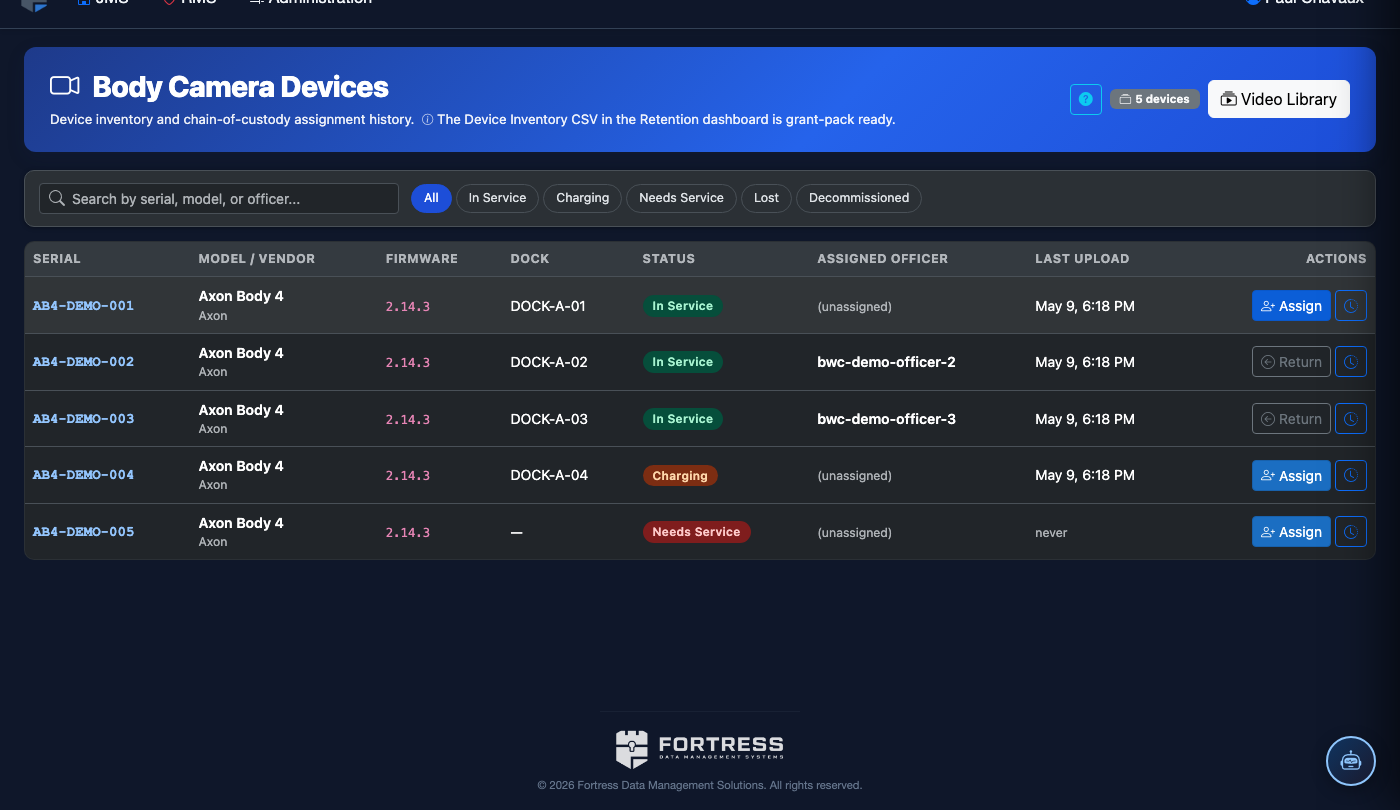
Navigate to Body-Worn Camera > Share Review. The module opens to the Pending Requests queue showing all share requests awaiting your review, sorted by submission date.
Select a Pending Request
Click a request row to open the Request Detail panel. Review the requesting officer’s name, the Recipient (e.g., County Prosecutor’s Office), the Legal Basis (subpoena, court order, FOIA), and the specific recording IDs included.
Preview the Footage
Click Preview next to each recording in the request to watch the footage before approving. Confirm the recording matches the incident number and that no privileged footage is inadvertently included.
Approve, Modify, or Deny the Request
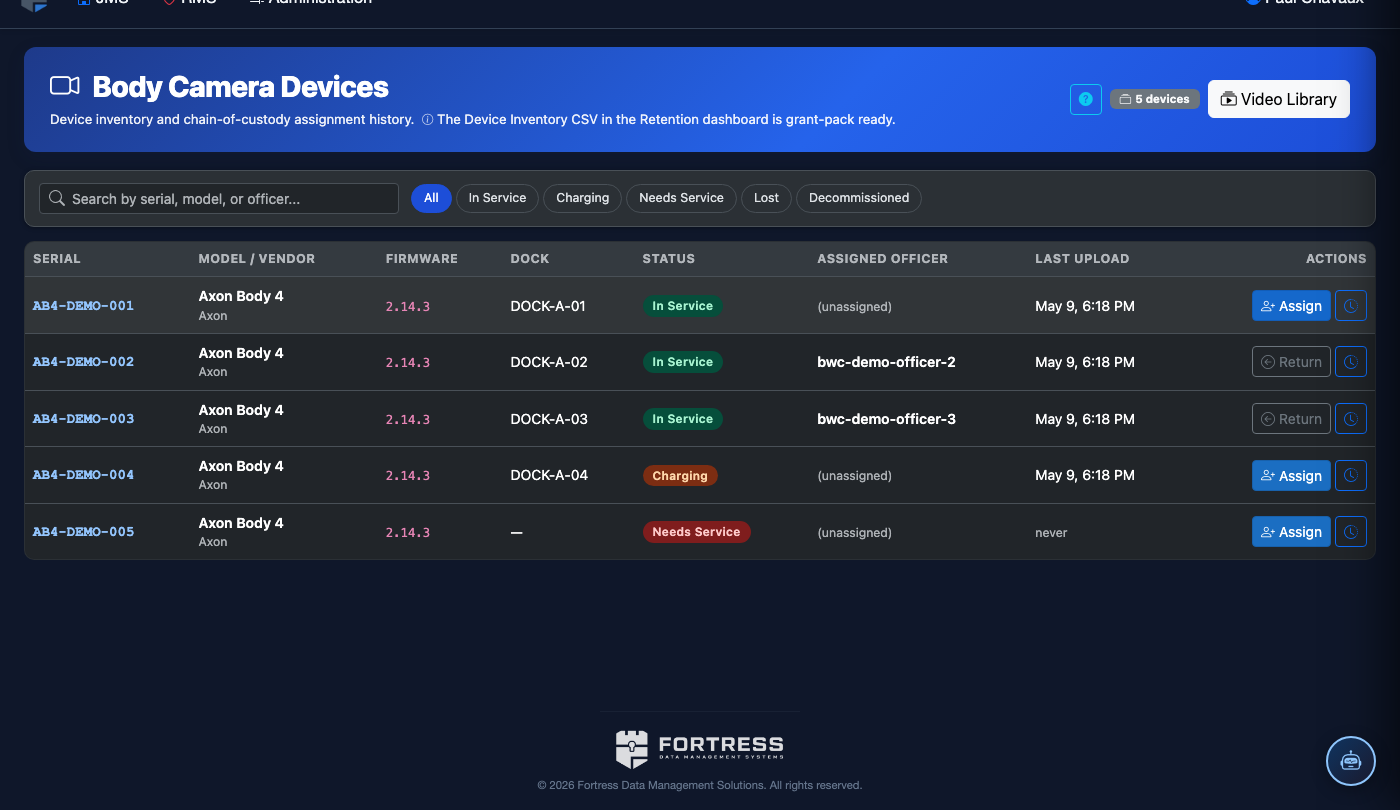
Click Approve to proceed, Modify to remove specific recordings before approving, or Deny to reject the request. All decisions require a mandatory Reviewer Notes entry before submission.
Configure the Secure Share Link
For approved requests, set the Link Expiration (24 hours to 30 days) and whether the recipient can download the file or view-only. Enter the Recipient Email to deliver the secure access link.
Send and Confirm Delivery
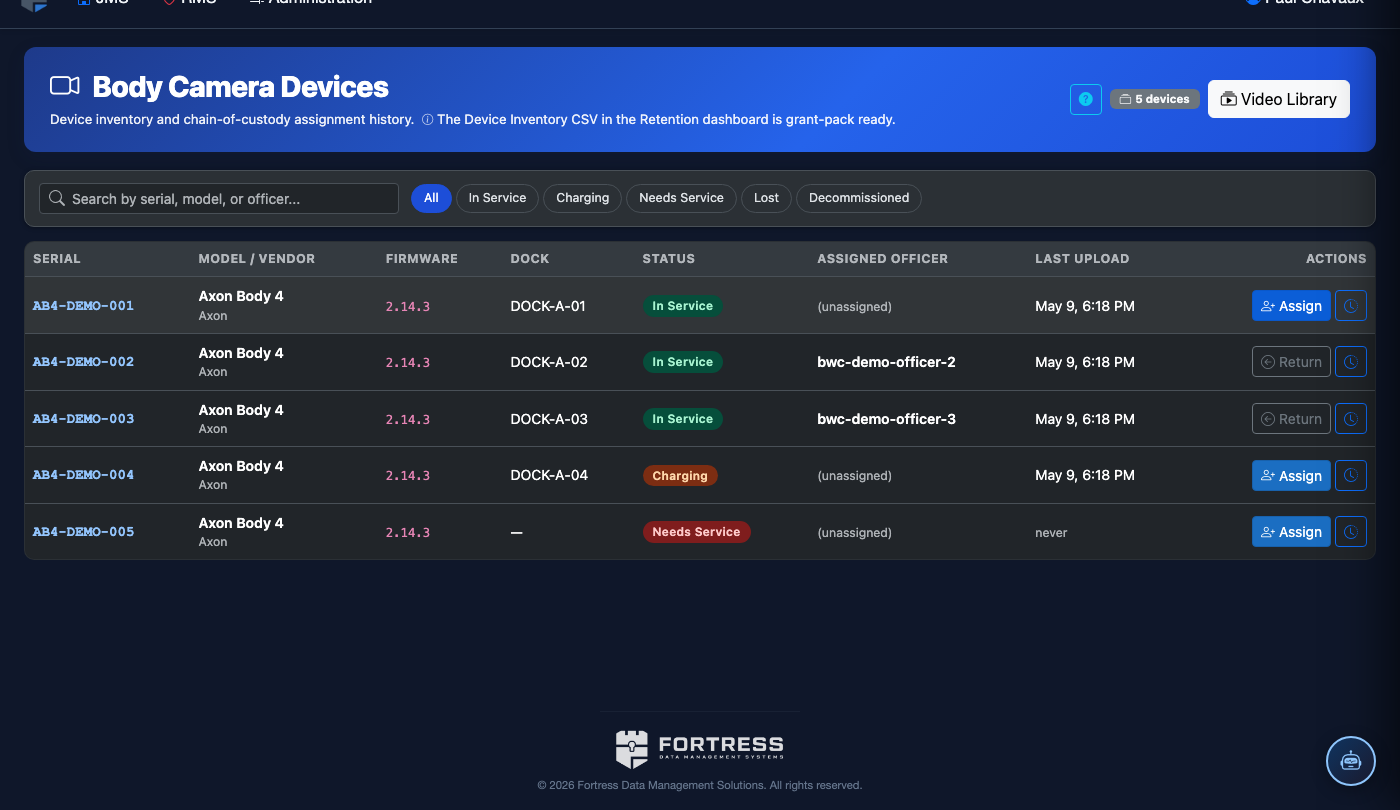
Click Send Secure Link. The system delivers the link to the recipient and moves the request to Completed status. A disclosure record is automatically created in the Audit Log.
Monitor Link Access Activity
From the Completed tab, click any share record to view the Access Log showing when and how many times the recipient accessed the footage before the link expired.
💡 Pro Tips
- Always set link expiration to the shortest period sufficient for the recipient’s needs — shorter windows reduce liability exposure if a link is forwarded.
- Use the Modify option to strip recordings that may contain informant footage or protected health information before approving a FOIA request.
- All share activity is cross-referenced in the BWC Audit Log — the two modules together provide complete disclosure accountability from request to access.
Mobile View — Share Review
FortressDMS is fully responsive. Officers can access the Share Review on a phone or tablet directly from the field — no app install required.
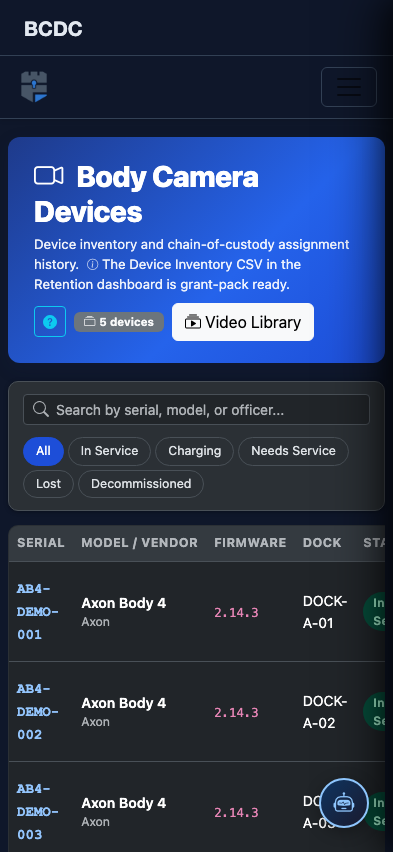
Tab view with data rows
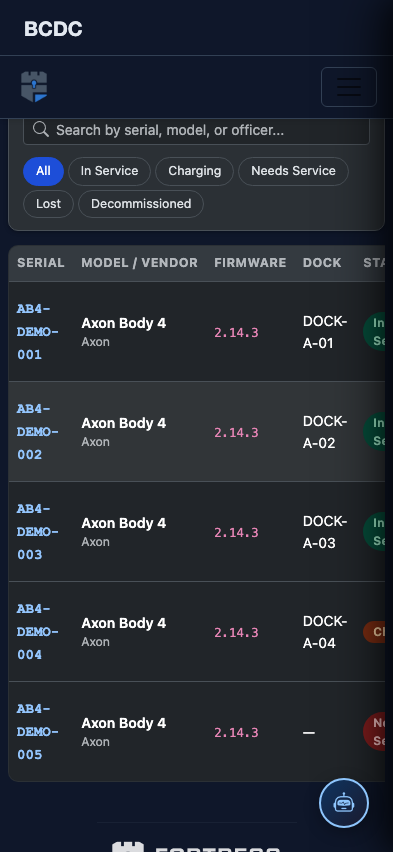
Scrolled / detail view