
Notifications
The Notifications tab tracks every required notification generated by an incident — command staff alerts, agency notifications, inmate next-of-kin contacts, oversight board filings, and inter-agency communications. Fortress JMS auto-generates notification requirements based on incident type and severity, allowing officers to confirm delivery and log timestamps without missing a legally mandated communication.
Auto-Generated Requirements
The system automatically populates required notifications based on incident type, severity, and inmate classification, so officers never have to manually determine who must be notified.
Delivery Timestamp Logging
Officers log the exact time each notification was delivered or attempted, creating a tamper-evident compliance record for regulatory audits and litigation review.
Next-of-Kin Contact Tracking
Pull inmate emergency contact information directly from the booking record, log call attempts and outcomes, and document the substance of the notification provided to family members.
Agency & Oversight Filing
Track notifications to external agencies — state corrections oversight, PREA coordinators, local DA, or court — with reference numbers and confirmation details stored on the incident record.
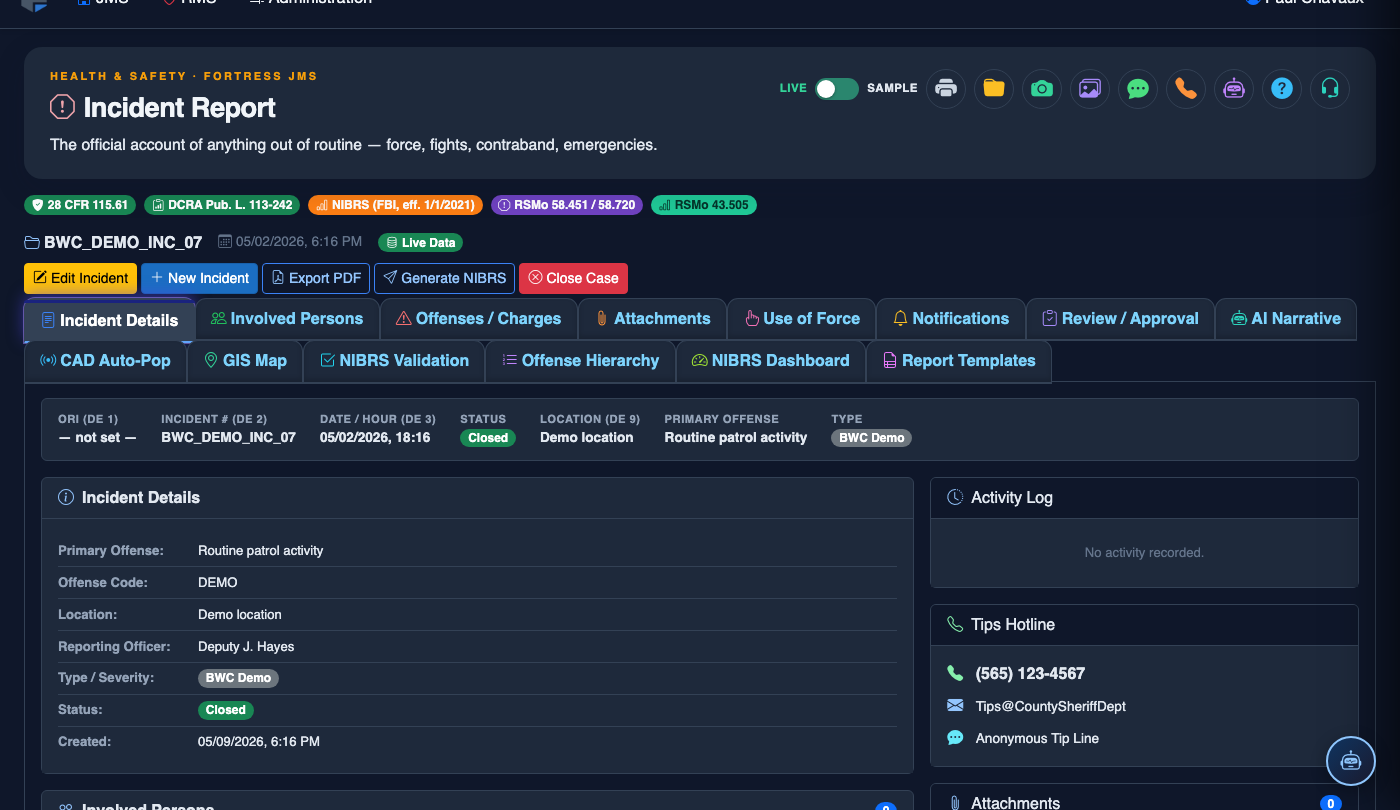
Step-by-Step: Managing Incident Notifications
Open the Notifications Tab
Navigate to the Notifications tab (Tab 6) of the incident report. The system will display a pre-populated list of required notifications based on the incident type, severity level, and any use-of-force or PREA flags set on prior tabs. Required notifications appear with a red badge; optional ones appear with a gray badge.
Review the Required Notifications Checklist
Read through each required notification row. Common auto-generated requirements include: Shift Supervisor Notification, Watch Commander Alert, Inmate Next-of-Kin Contact, PREA Coordinator Notice (if applicable), and State Oversight Agency Filing. Understand the time window for each — some must be completed within 1 hour of the incident.
Log Command Staff Notifications
For each command staff entry, click Mark as Notified, then enter the Notification Time, the Method (In Person, Phone, Radio, Email), and the name of the supervisor who was notified. If the supervisor was unreachable, log the attempt and the alternate contact made.
Complete Next-of-Kin Notification (if Required)
If the inmate was injured or involved in a serious incident, the system will generate a Next-of-Kin Notification requirement. Click the entry to expand it — the inmate’s emergency contact (name and phone number from their booking record) will auto-populate. Log the call outcome: Reached, Left Voicemail, No Answer, Refused Contact, and enter any notes about the conversation.
File Agency and Oversight Notifications
For external agency notifications (State Corrections Oversight, PREA Coordinator, District Attorney), expand each entry and record the Submission Method (Online Portal, Fax, Email), the Reference Number provided by the receiving agency (if applicable), and the exact Submission Time. Attach a copy of any filed form using the Attach Confirmation button.
Add Any Additional Ad-Hoc Notifications
If a notification was made that is not on the auto-generated list (e.g., notifying an attorney, a mental health provider, or inter-facility transfer coordination), click Add Notification to manually create an entry. Select the notification type, recipient, and log the delivery details the same way as required entries.
Confirm All Required Notifications Are Completed
The tab header shows a completion indicator — for example, Notifications: 5 of 6 Complete. Resolve any remaining required notification before advancing to the Review & Approval tab. The system will block report submission if mandatory notifications remain unconfirmed.
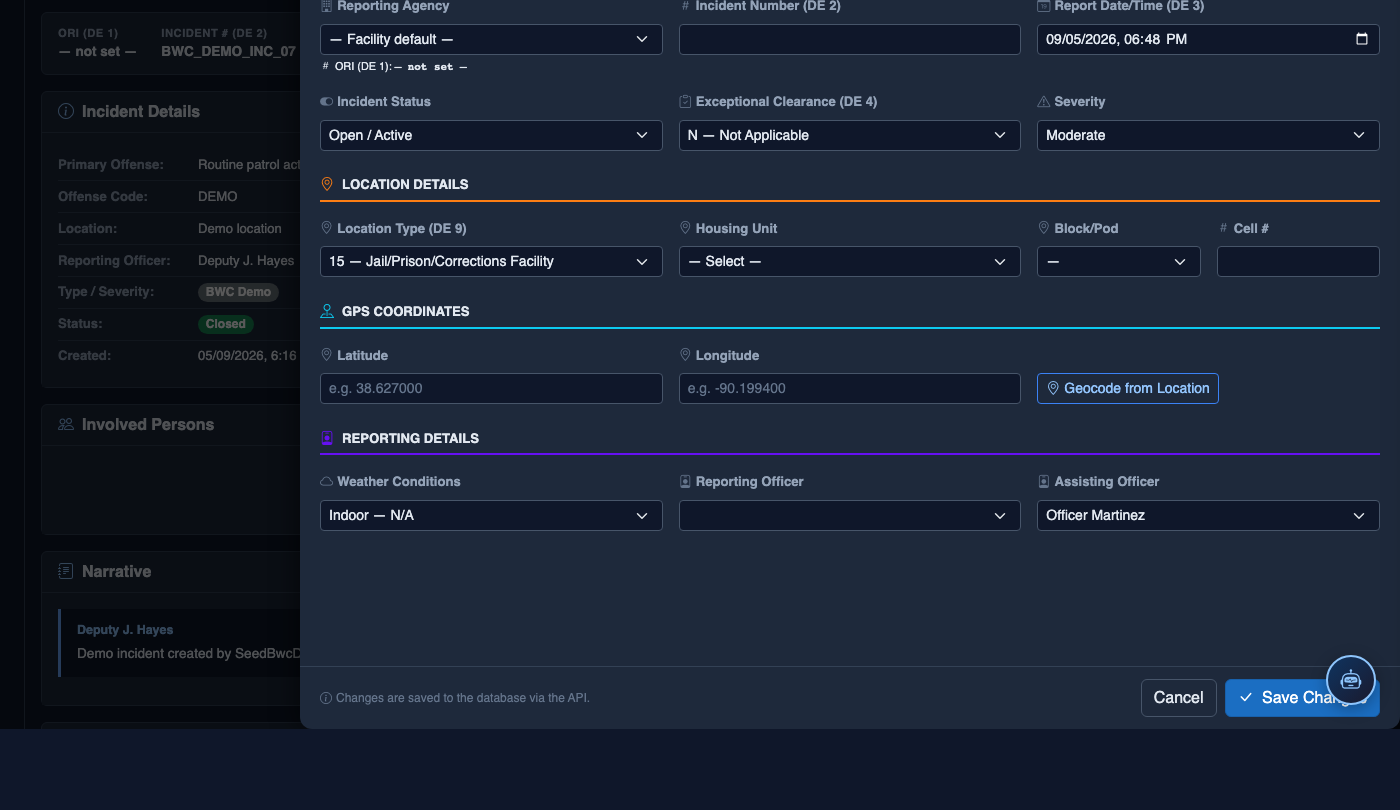
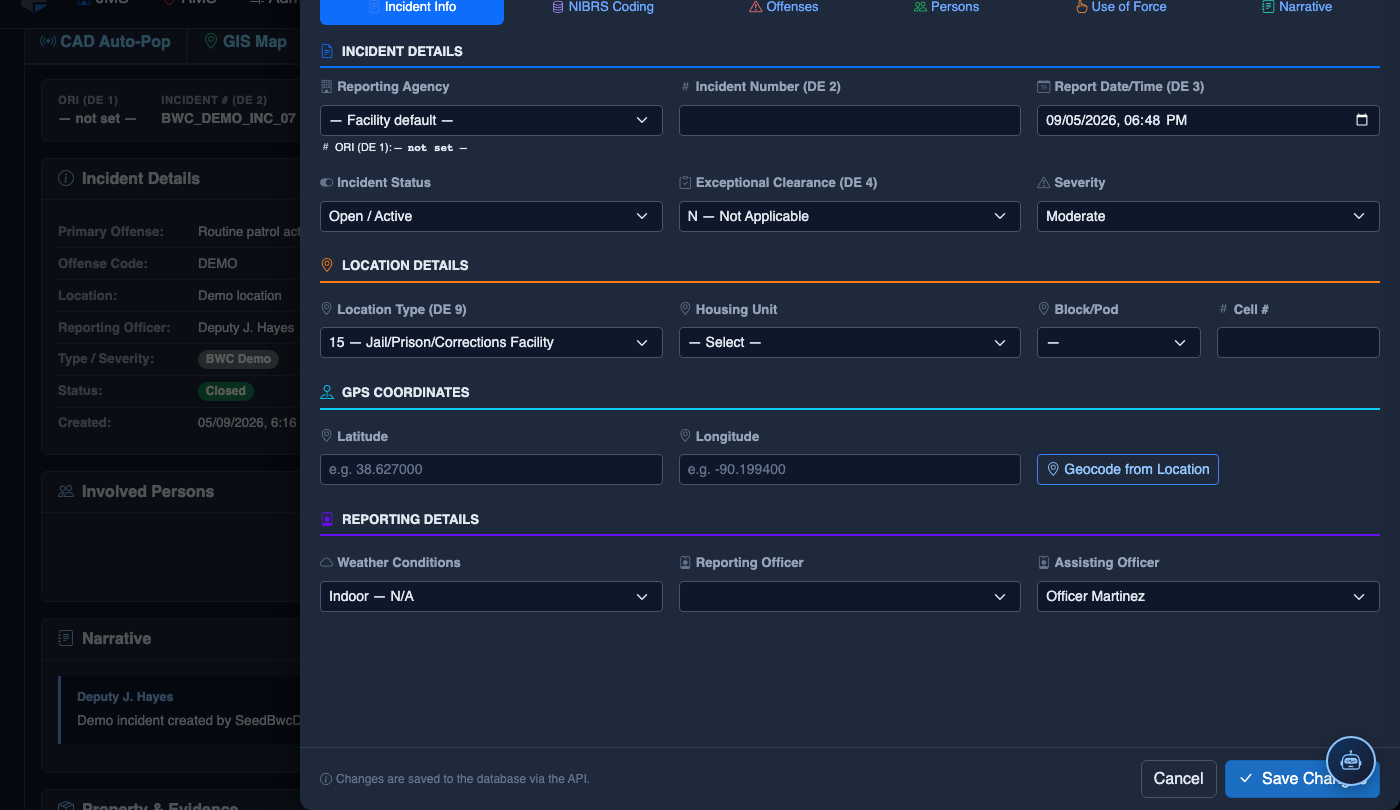
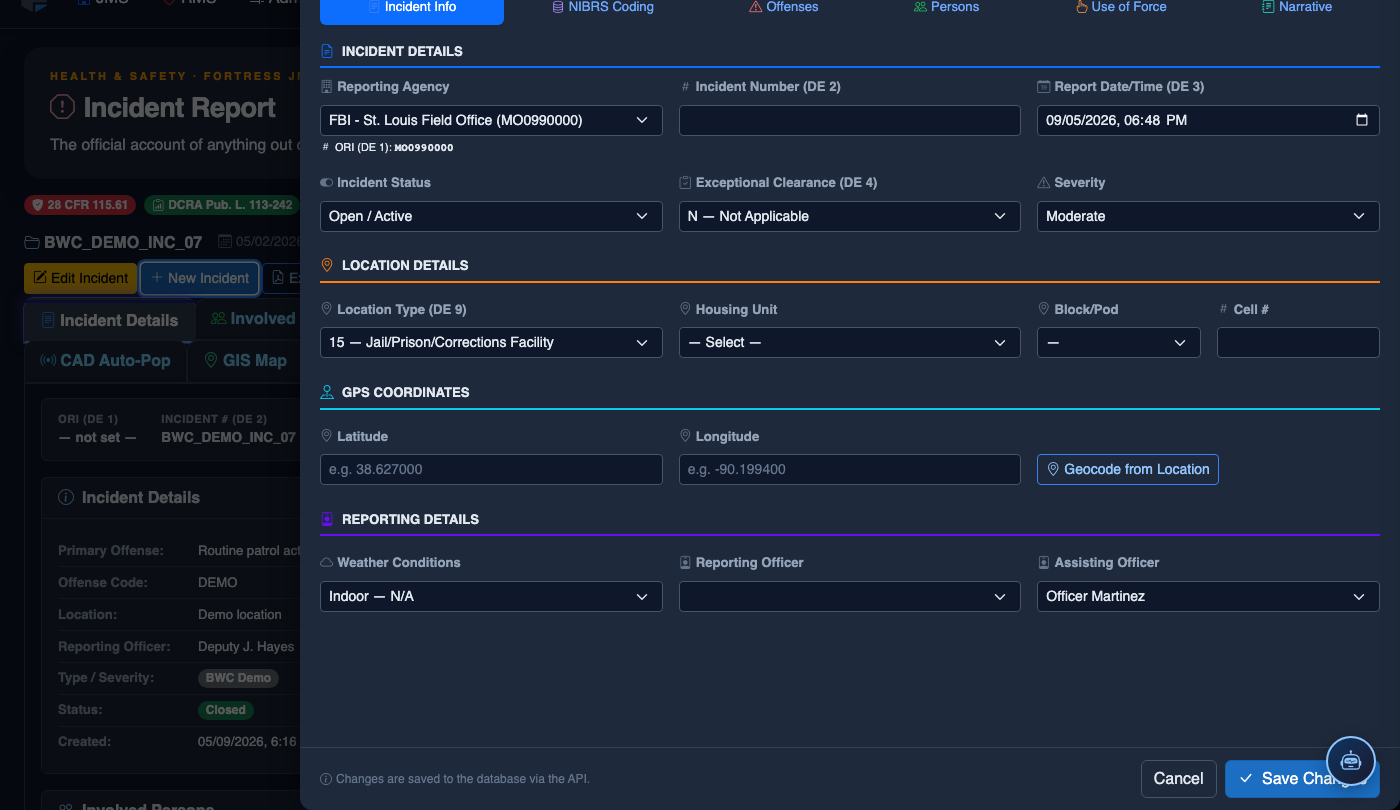
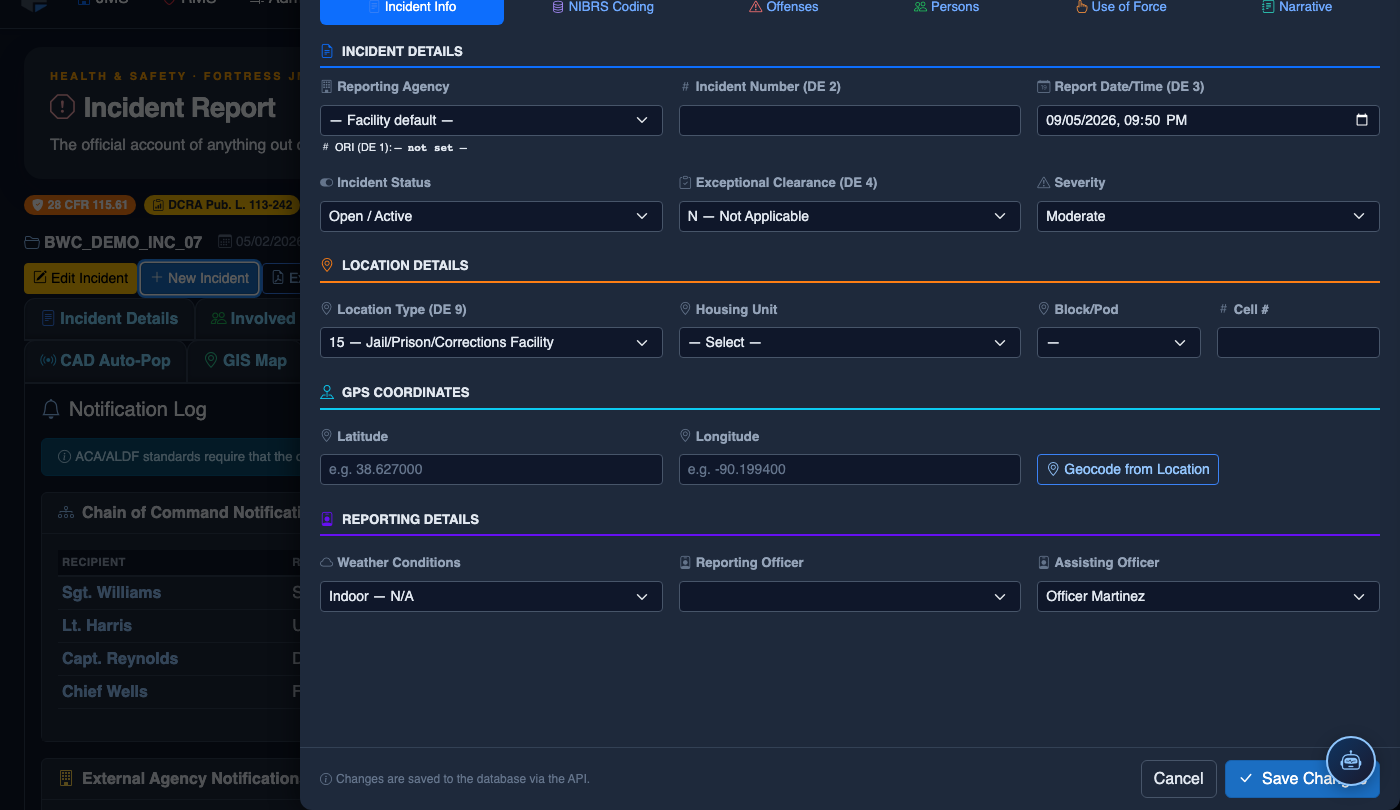
File a New Incident Report
Click New Incident. Complete the incident report:
- Incident Type — select the category (Altercation, Medical Emergency, Escape Attempt, Property Damage, Use of Force, etc.).
- Date, Time, and Location — the precise time and place of the incident.
- Involved Persons — add all Inmates, Staff, and Witnesses using the search tool.
- Narrative — write the factual incident description in first person, past tense. The AI Narrative Assist can draft based on your bullet points.
- Severity — Minor, Moderate, or Major. Major incidents trigger automatic supervisor notification.
- Attachments — upload photos, BWC footage, or medical documentation directly.
- Click Save Draft to continue later, or Submit for Review to route to your supervisor.
💡 Pro Tips
- Notification time windows are strictly enforced for PREA, serious-injury, and in-custody death incidents — complete the Notifications tab as soon as possible after the incident, not at end of shift.
- If a next-of-kin contact cannot be reached after three attempts, document each attempt with time and outcome, then notify your supervisor — this protects the facility in the event of later complaint.
- The Reference Number field for agency submissions is critical for follow-up — never leave it blank if the receiving agency assigned one, as it links your report to their investigation record.
- All notification log entries are immutable once saved — if a correction is needed, add a supplemental notification entry and note the correction in its description field.
Mobile View — Notifications
FortressDMS is fully responsive. Officers can access the Notifications on a phone or tablet directly from the field — no app install required.
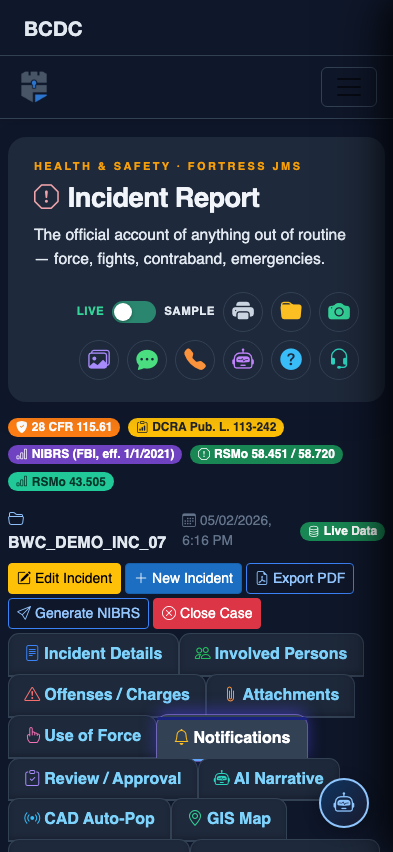
Tab view with data rows
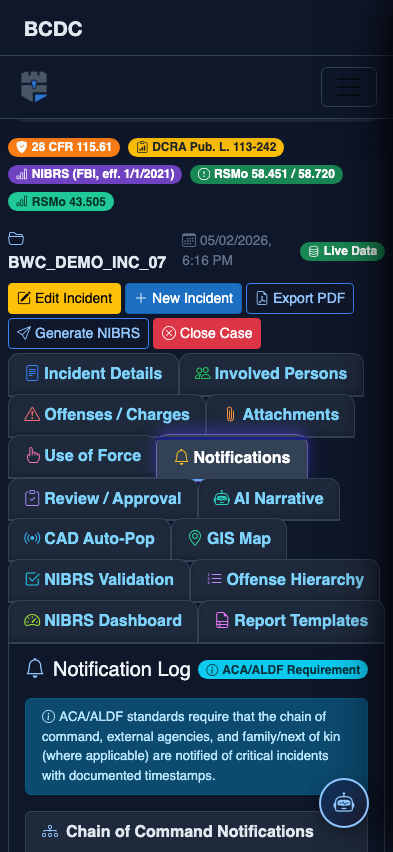
Scrolled / detail view