
Attorney Visits
The Attorney Visits tab provides correctional staff with a structured workflow for scheduling, logging, and monitoring privileged attorney-client visits in compliance with constitutional standards. Officers can quickly verify attorney credentials, assign private interview rooms, and maintain a complete audit trail of all legal counsel access. All attorney visit records are stored separately from general visitation logs to preserve attorney-client privilege documentation.
Credential Verification
Verify bar license numbers and photo ID before granting access to privileged legal visits.
Visit Scheduling
Schedule attorney visits with time blocks, room assignments, and automated conflict detection.
Privileged Status Tracking
Automatically flags attorney visits as privileged to prevent improper monitoring or recording.
Complete Audit Trail
Every attorney visit is timestamped, officer-logged, and retained for legal and compliance review.
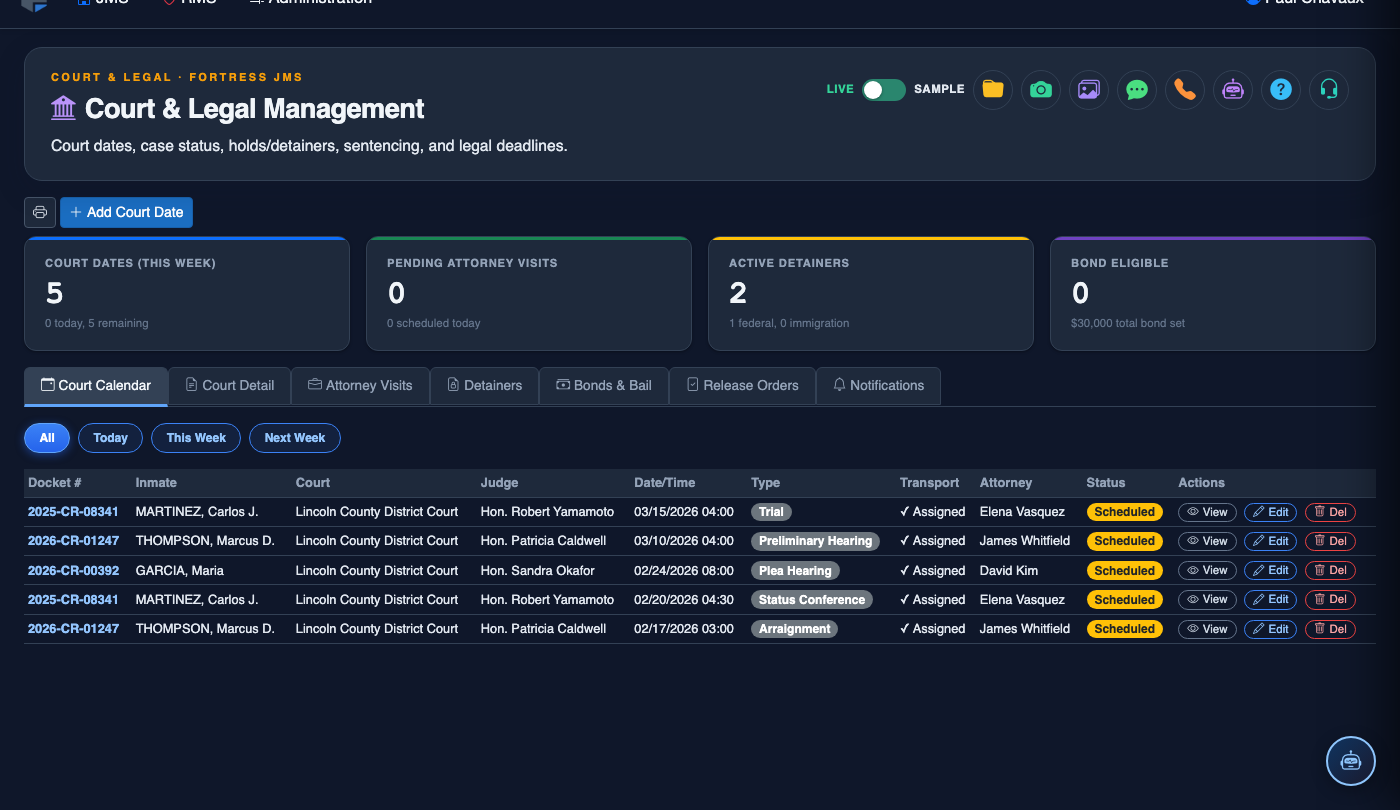
Step-by-Step: Processing an Attorney Visit
Navigate to Attorney Visits Tab
From the main navigation, open Court & Legal and select the Attorney Visits tab. The tab displays all scheduled and in-progress attorney visits for the current shift, sorted by appointment time.
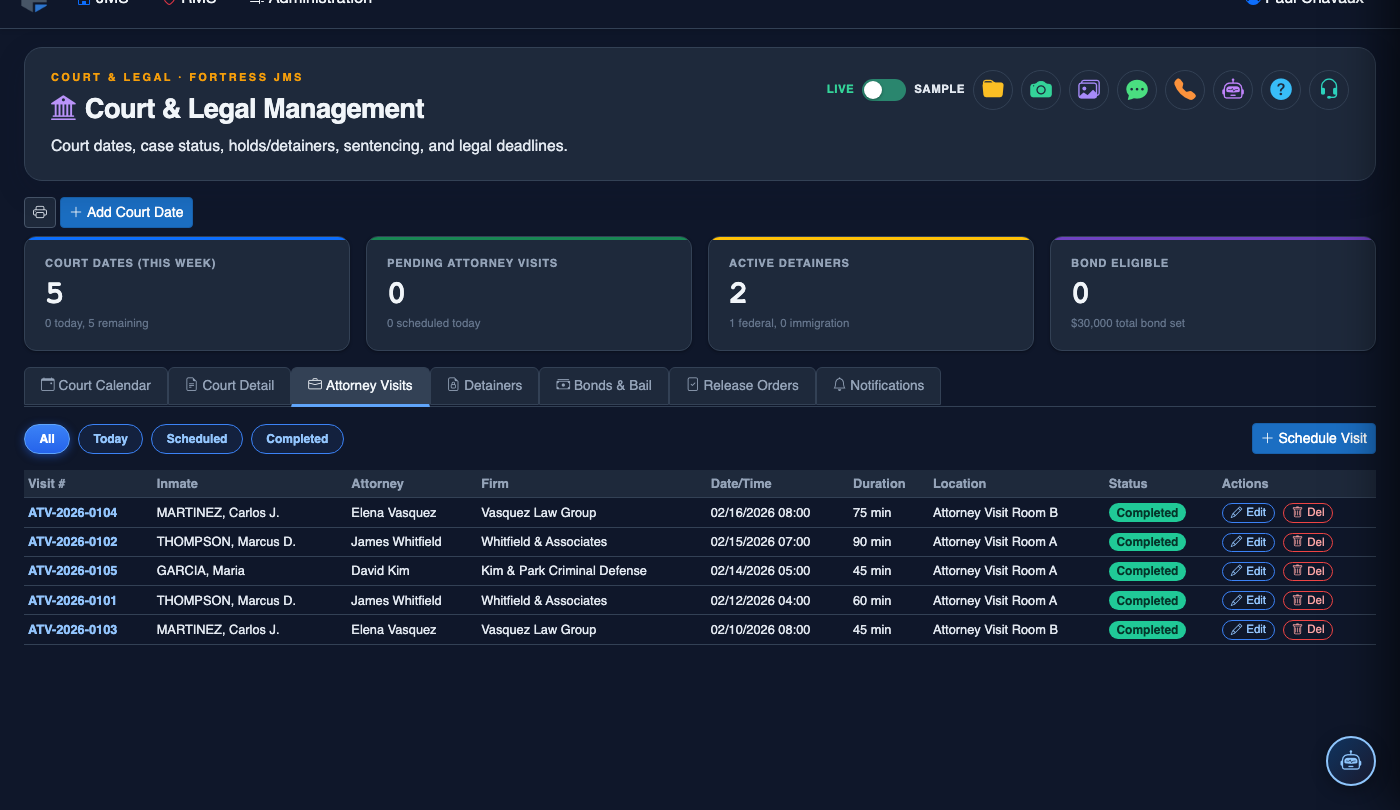
Add a New Attorney Visit
Click + New Visit in the upper-right toolbar to open the attorney visit form. Enter the Inmate ID or search by name to pull the inmate’s current booking record and housing assignment.
Verify Attorney Credentials
Enter the attorney’s Bar License Number, Full Name, and Law Firm. FortressDMS will flag any attorney whose license is on the facility’s restricted list. Scan or manually enter the attorney’s government-issued photo ID number for the record.
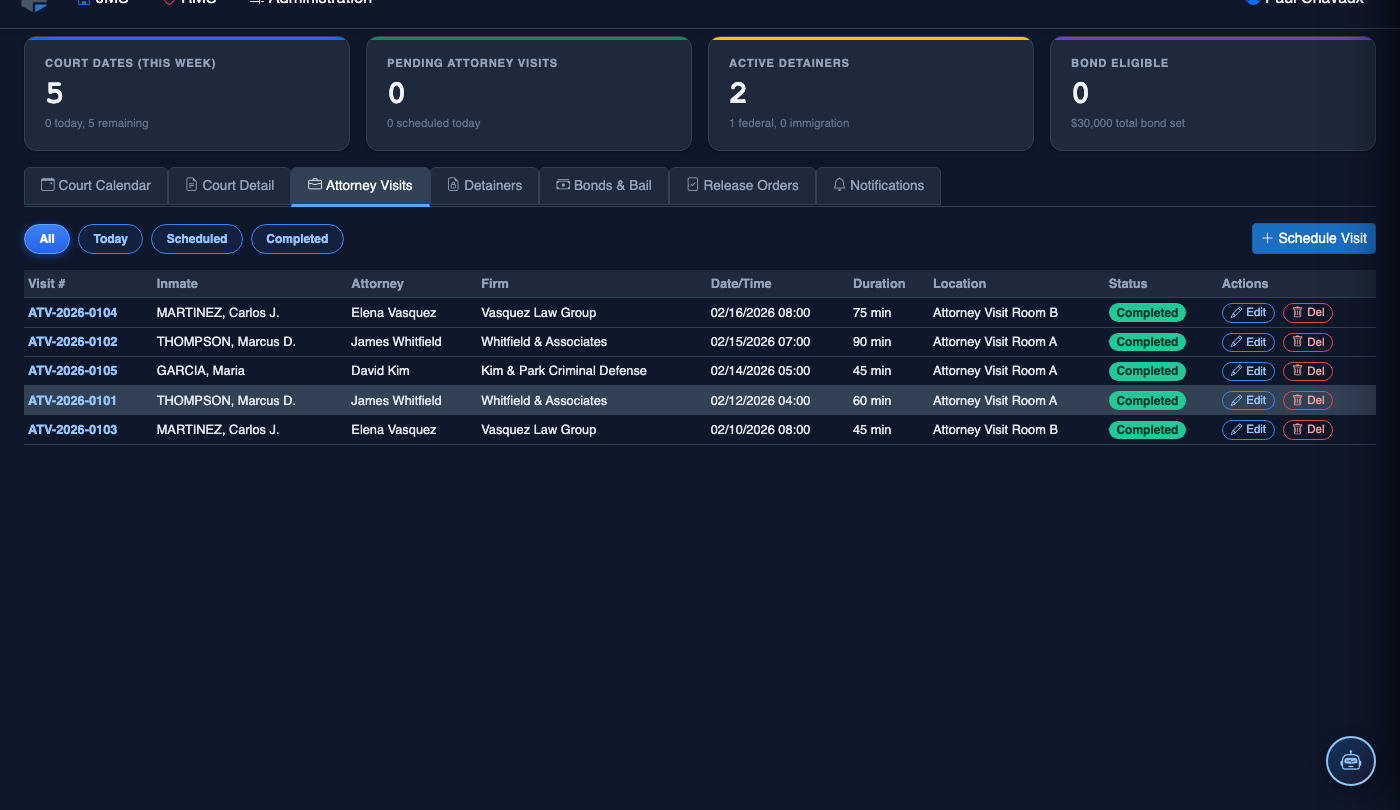
Assign Interview Room and Time Block
Select an available Interview Room from the dropdown — rooms already in use are grayed out. Set the Start Time and expected Duration. The system will alert you if the time block conflicts with an inmate court transport or another scheduled visit.
Confirm Privileged Status and Save
Confirm that the Attorney-Client Privilege toggle is enabled — this prevents any monitoring notation from being added to the visit record. Click Save Visit to create the record and notify housing officers to escort the inmate to the designated room.

Check In the Visit
When the attorney arrives, locate the visit in the queue and click Check In. The system records the actual arrival time and updates the room status to Occupied so other staff can see the room is in use.
Close and Document the Visit
When the visit concludes, click End Visit to record the actual end time. Add any required Officer Notes — such as items left behind or a request to return — then click Finalize to close the record and return the inmate to housing.
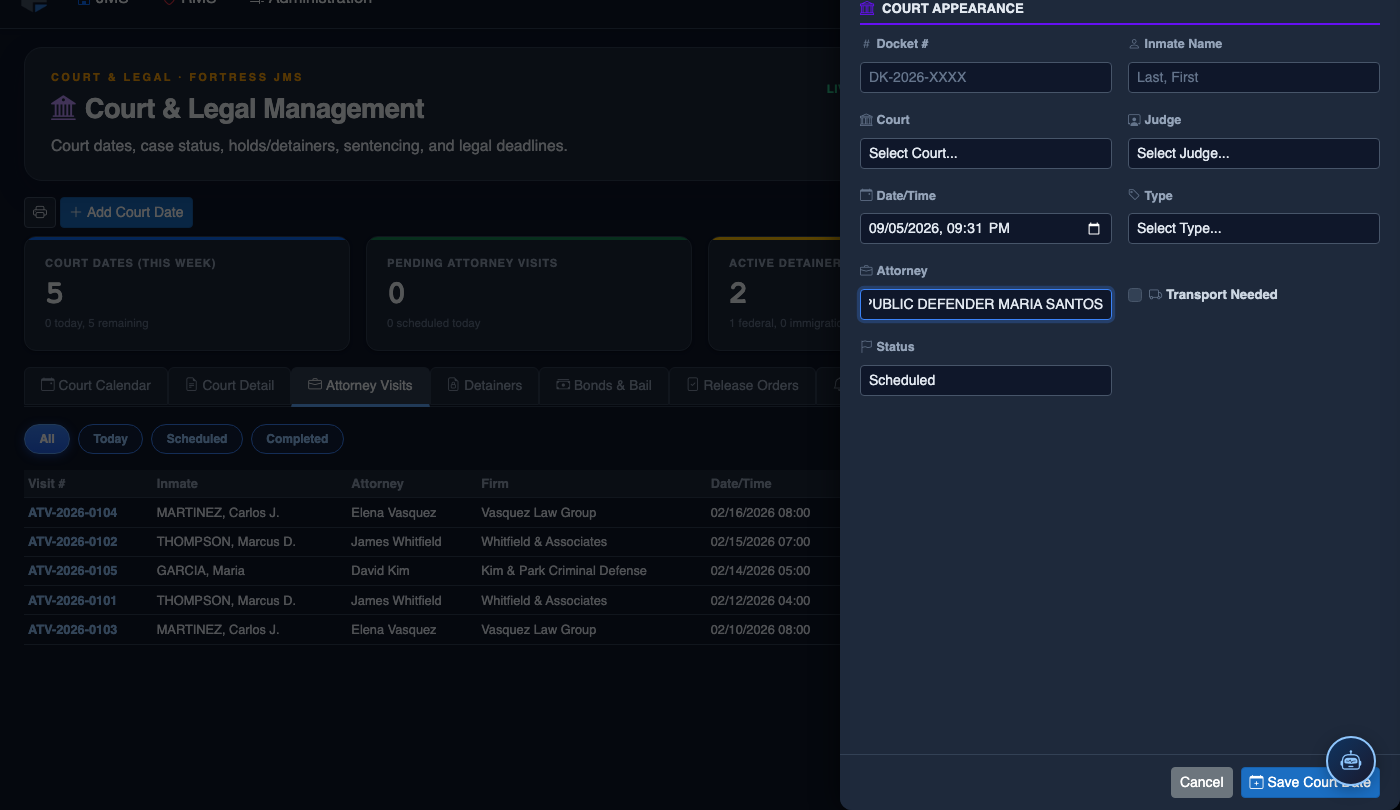
Schedule a New Court Date
Click Add Court Date. Complete the court scheduling form:
- Inmate — search by name or booking number.
- Court — select the court and division from the directory.
- Hearing Type — Arraignment, Pre-Trial, Sentencing, Hearing, or Probation Violation.
- Case Number — enter the docket number for tracking.
- Date and Time — the exact court appearance date/time.
- Transport Required — toggle on to add the inmate to the transport queue; select escort type.
- Attorney — record assigned counsel for court coordination.
- Click Save Court Date. Transport is scheduled and the court docket updates automatically.
💡 Pro Tips
- Always confirm the attorney’s bar license is active and in good standing before allowing access — your facility policy may require a daily verification call to the state bar.
- Use the Notes field to document any items the attorney brought in (legal pads, documents) without recording details of the conversation itself.
- If an inmate refuses an attorney visit, document the refusal with the inmate’s signature or a witness officer before closing the visit record to protect the facility from legal liability.
Mobile View — Attorney Visits
FortressDMS is fully responsive. Officers can access the Attorney Visits on a phone or tablet directly from the field — no app install required.
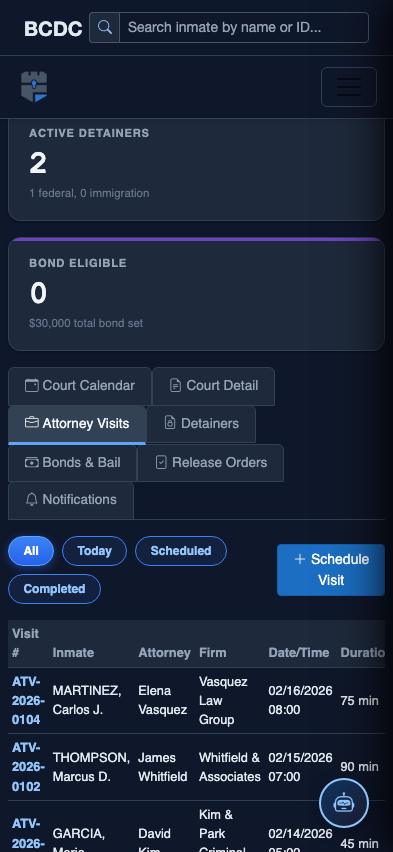
Tab view with data rows
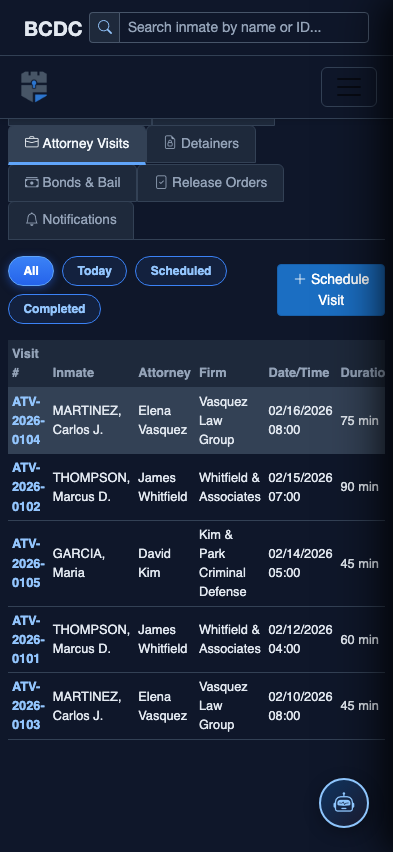
Scrolled / detail view