
Vendor Management
The Vendor Management tab gives correctional facility administrators a centralized registry for all external service providers — from maintenance contractors and vehicle repair shops to medical suppliers and uniform vendors. Manage contracts, track vendor certifications, evaluate performance, and link vendors directly to work orders and purchase requests. Consolidating vendor data in one system eliminates scattered spreadsheets and ensures procurement compliance.
Vendor Registry
Maintain a searchable database of all approved vendors with contact details, service categories, and insurance documentation.
Contract Tracking
Store contract terms, effective dates, and renewal alerts so no vendor agreement lapses without administrator review.
Performance Ratings
Rate vendor performance after each work order completion to build a historical quality score used in future procurement decisions.
Work Order Integration
Link vendors directly to work orders — all cost and performance data flows back into the vendor record automatically.
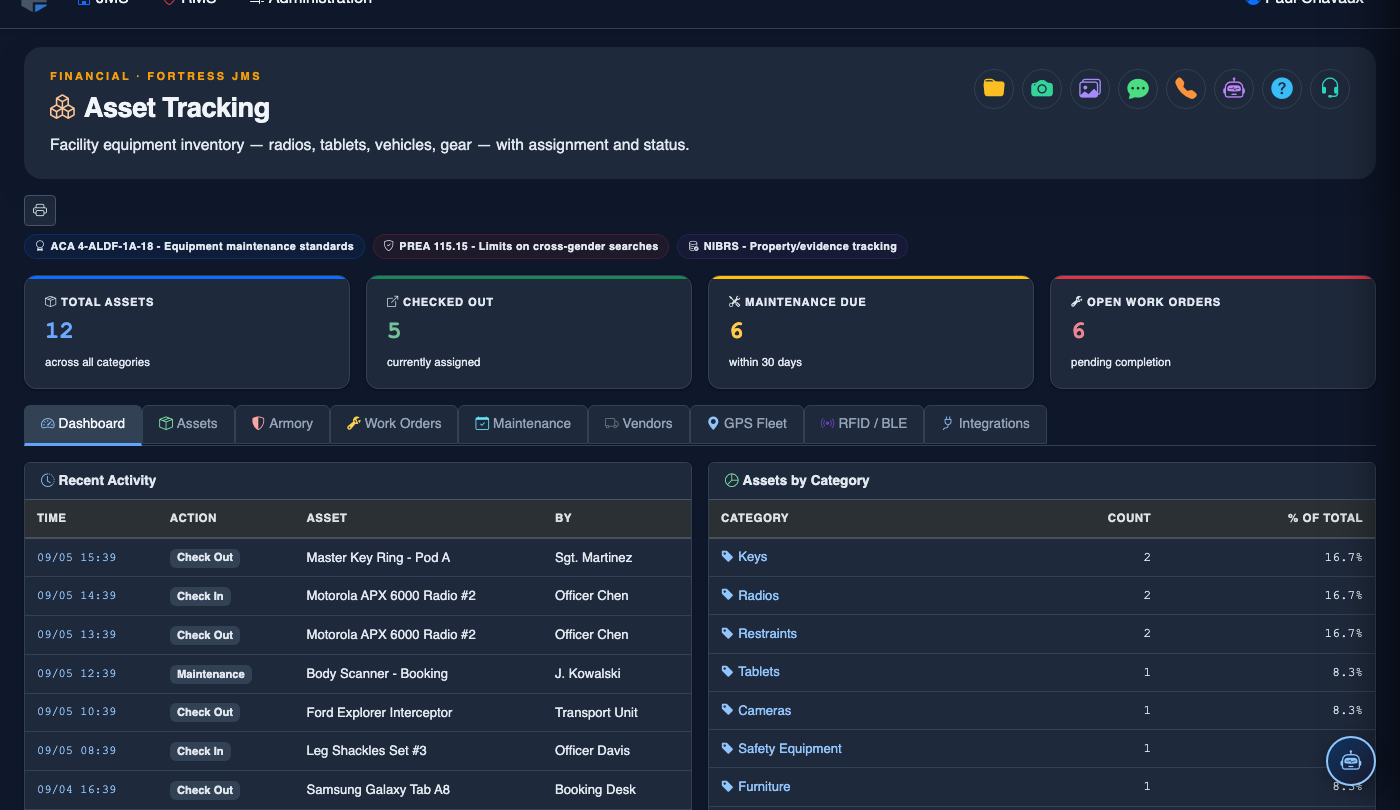
Step-by-Step: Vendor Management
Open the Vendor Management Tab
Navigate to Asset Tracking and click Vendor Management. The vendor list shows all registered vendors with their Category, Status (Active / Inactive / Pending Approval), and Contract Expiration date at a glance.
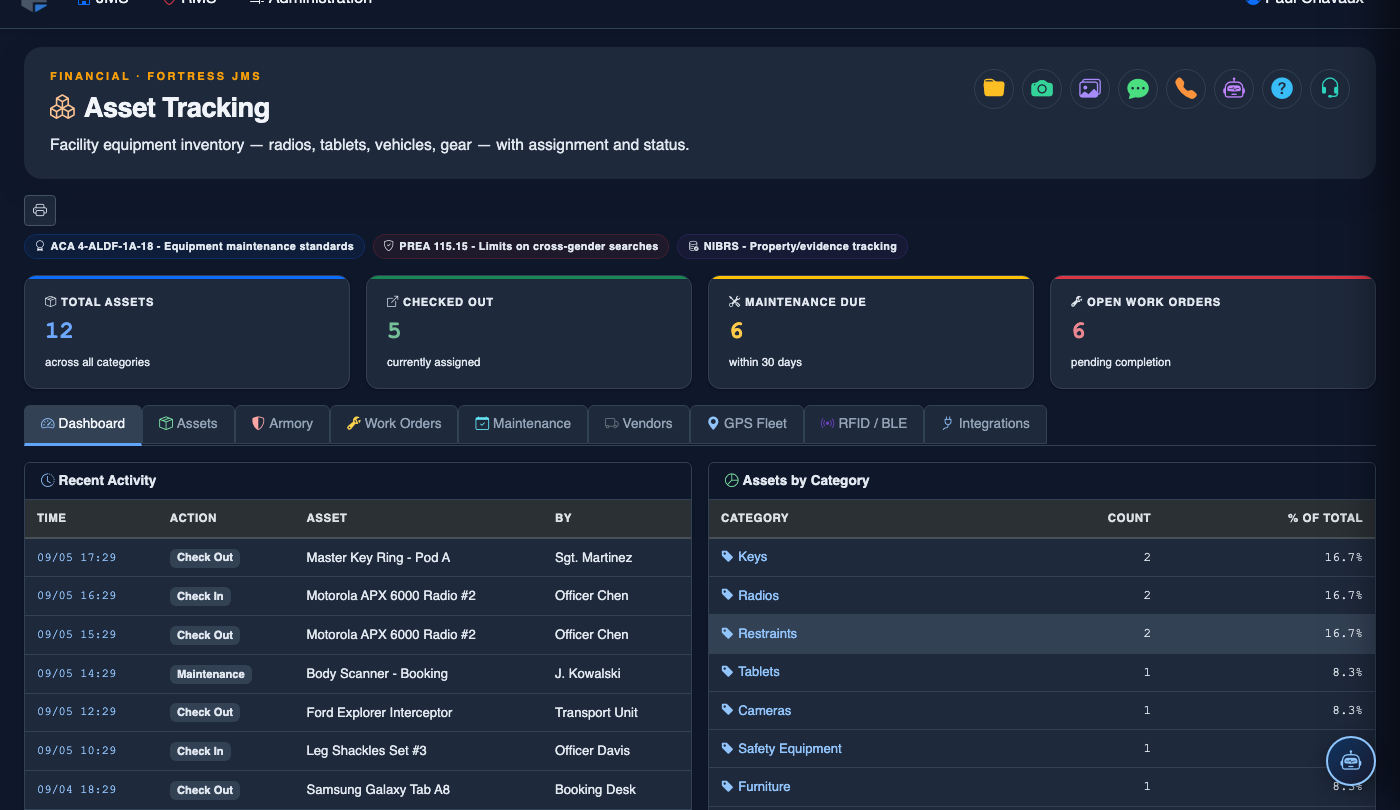
Add a New Vendor
Click + Add Vendor. Complete the vendor profile: Company Name, Primary Contact, Phone, Email, Service Categories (select all that apply), and Tax ID / EIN for procurement records. Upload a copy of the vendor’s Certificate of Insurance and any required facility clearance documents.
Enter Contract Details
In the Contracts section of the vendor record, click Add Contract. Enter the Contract Number, Effective Date, Expiration Date, Scope of Services, and Not-to-Exceed Amount. Upload the signed contract PDF. Set a renewal alert 60 days before expiration.
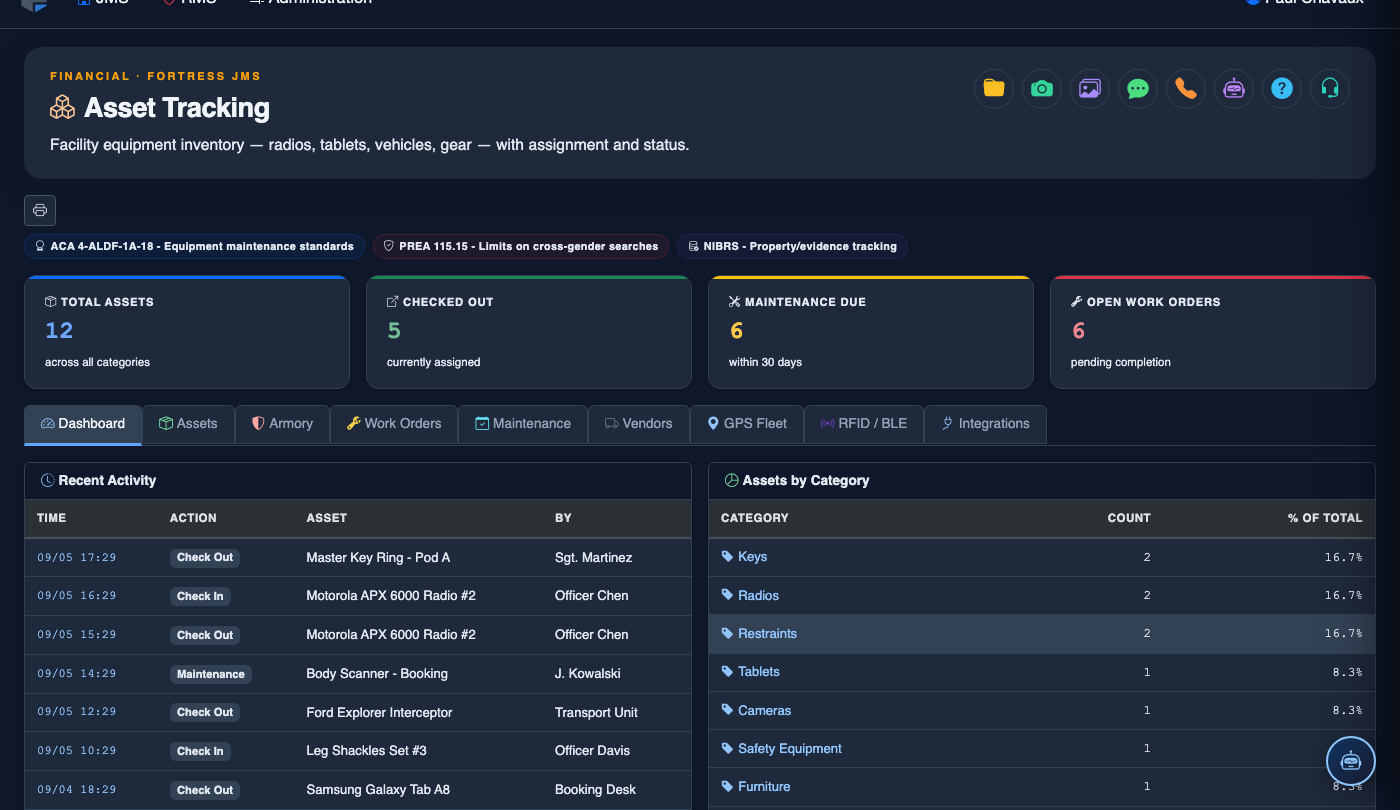
Assign a Vendor to a Work Order
When creating or editing a work order, select External Vendor in the assignment field. Search for the approved vendor by name or category. The system validates that the vendor has an active contract and current insurance on file before allowing assignment, blocking unauthorized vendor use.
Rate Vendor Performance
After a work order is closed, you are prompted to rate the vendor’s performance on Quality, Timeliness, and Communication using a 1–5 scale. Add written feedback in the Notes field. These ratings aggregate into the vendor’s lifetime Performance Score visible on the vendor list.
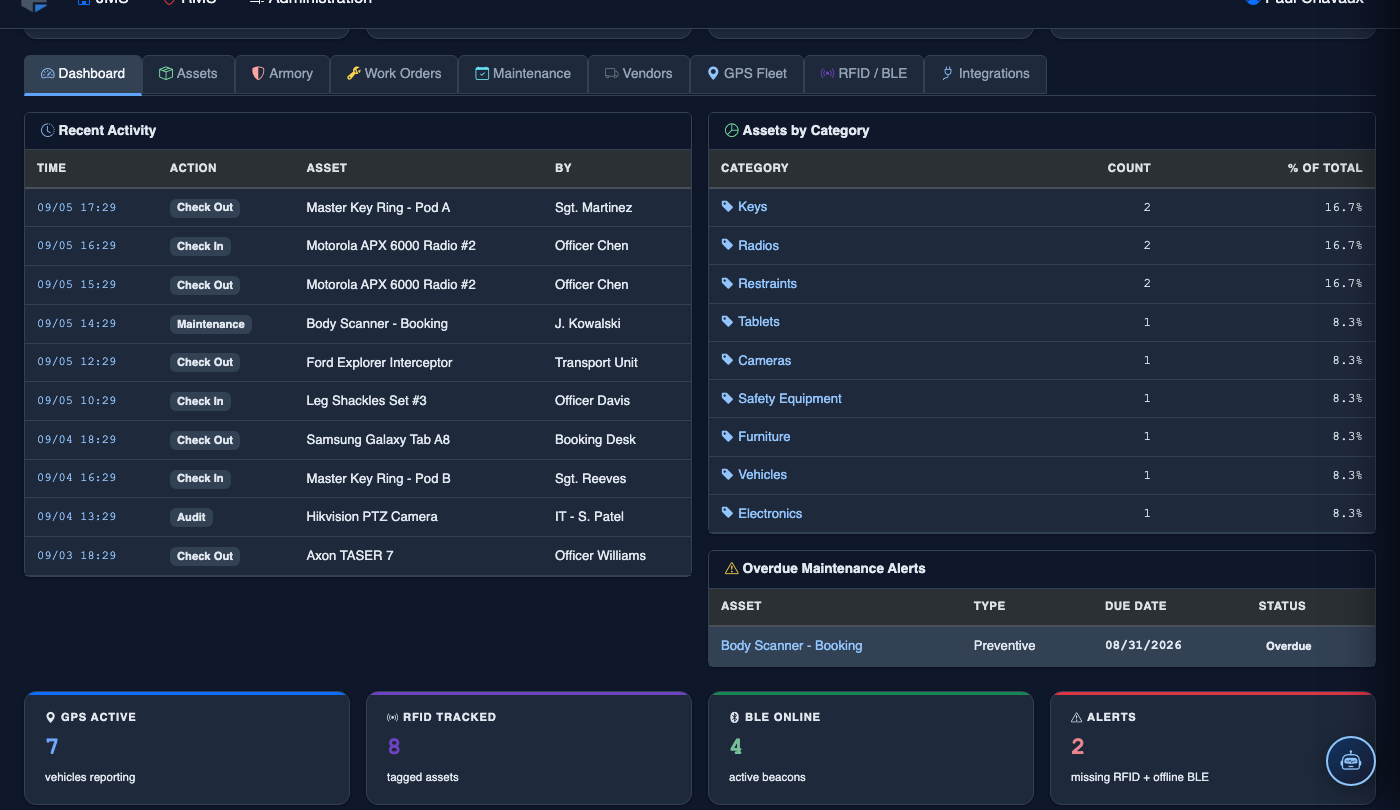
Monitor Contract Expirations and Compliance
Use the Contract Dashboard to view all upcoming expirations within the next 90 days. Vendors with expired contracts or lapsed insurance certificates are automatically flagged with a red Compliance Hold status, preventing new work orders from being assigned to them until the issue is resolved.
💡 Pro Tips
- Set contract renewal alerts to 90 days for specialized vendors (e.g., electronic security contractors) who require extended lead time to re-bid or re-approve through your procurement office.
- Use the Performance Score as a data point in bid evaluations — vendors with consistently low ratings should be formally reviewed before contract renewal, even if their pricing is competitive.
- Keep a secondary approved vendor in each service category so that if a primary vendor is placed on Compliance Hold, operations are not disrupted while the issue is resolved.
Mobile View — Vendor Management
FortressDMS is fully responsive. Officers can access the Vendor Management on a phone or tablet directly from the field — no app install required.
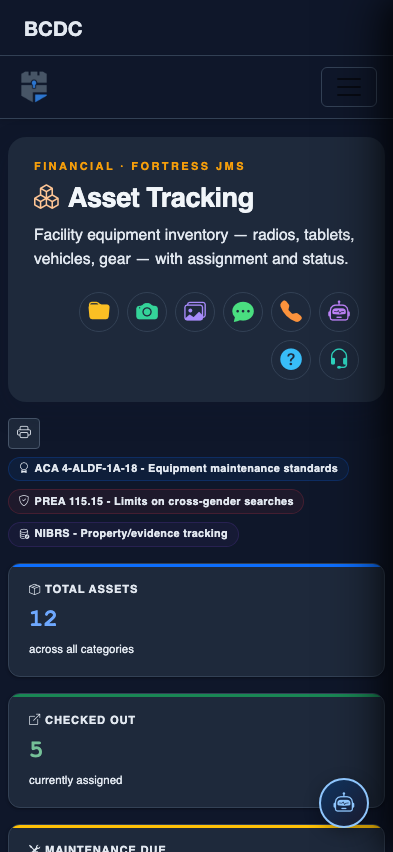
Tab view with data rows
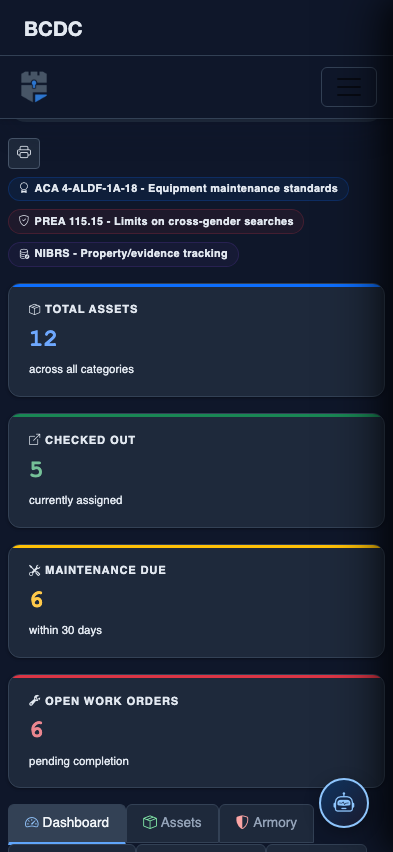
Scrolled / detail view