
Offense Hierarchy
The Offense Hierarchy tab applies FBI NIBRS hierarchy rules automatically when an incident involves multiple offenses, ensuring that the most serious crime is correctly identified as the primary offense for statistical reporting purposes. Officers can add all offenses that occurred during the incident, and the system will rank them according to the official NIBRS Group A offense hierarchy — preventing underreporting errors that are among the most common causes of NIBRS submission rejection. Each offense segment is documented separately while the hierarchy is maintained transparently for reporting.
Automatic Hierarchy Ranking
The system ranks multiple offenses per FBI rules instantly, eliminating manual hierarchy decisions and common submission errors.
Multi-Offense Segmentation
All offenses in a single incident are fully documented and reported — none are dropped — while hierarchy governs the primary statistical record.
Group A / Group B Separation
Group A offenses requiring full incident reporting are clearly distinguished from Group B arrest-only offenses, guiding officers through the correct workflow for each.
Override with Justification
Supervisors can override system-assigned hierarchy with a documented justification, creating an auditable record of every manual decision.
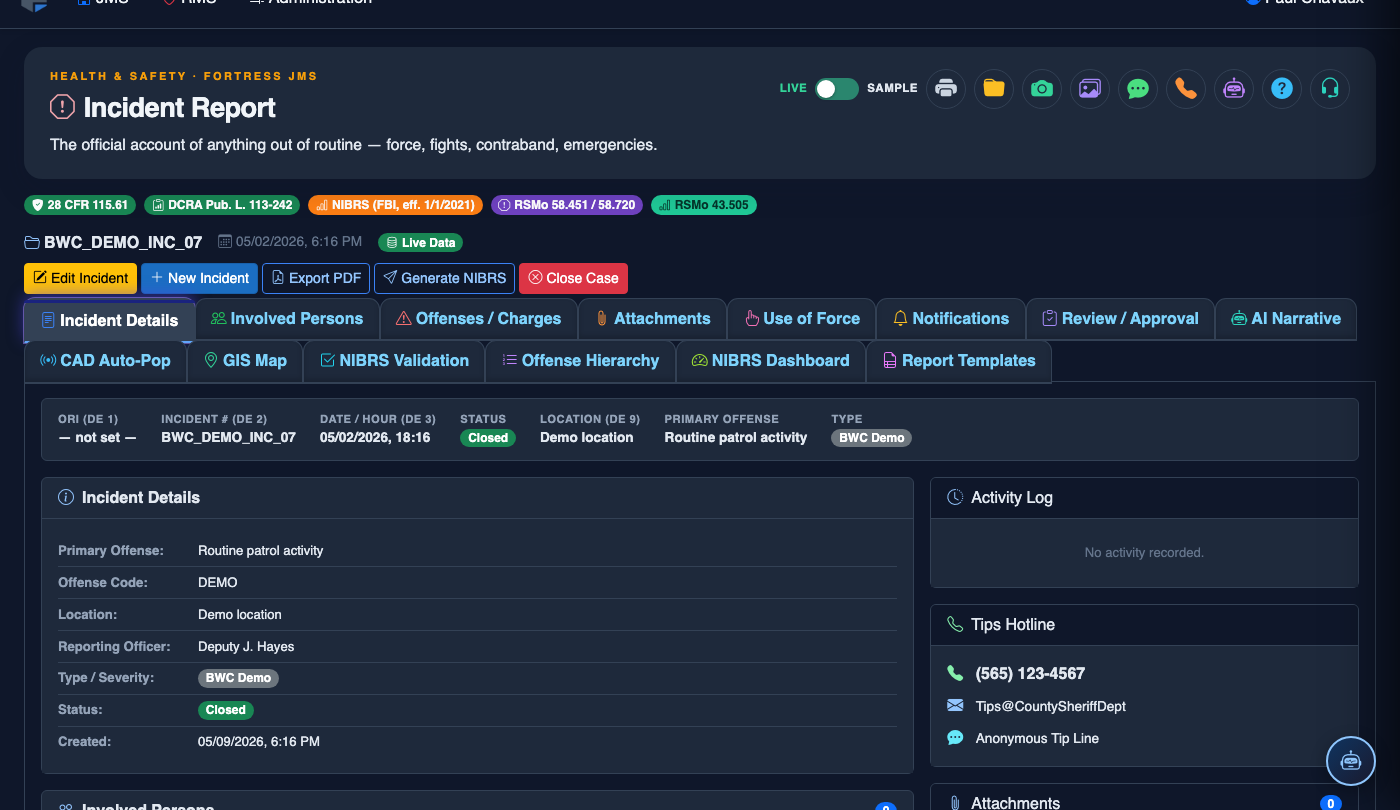
Step-by-Step: Offense Hierarchy
Add All Offenses to the Report
In the Offense Codes tab, add every offense that occurred during the incident using the NIBRS code search. Do not pre-filter to only the "most serious" crime — enter all offenses and let the Hierarchy engine rank them correctly.
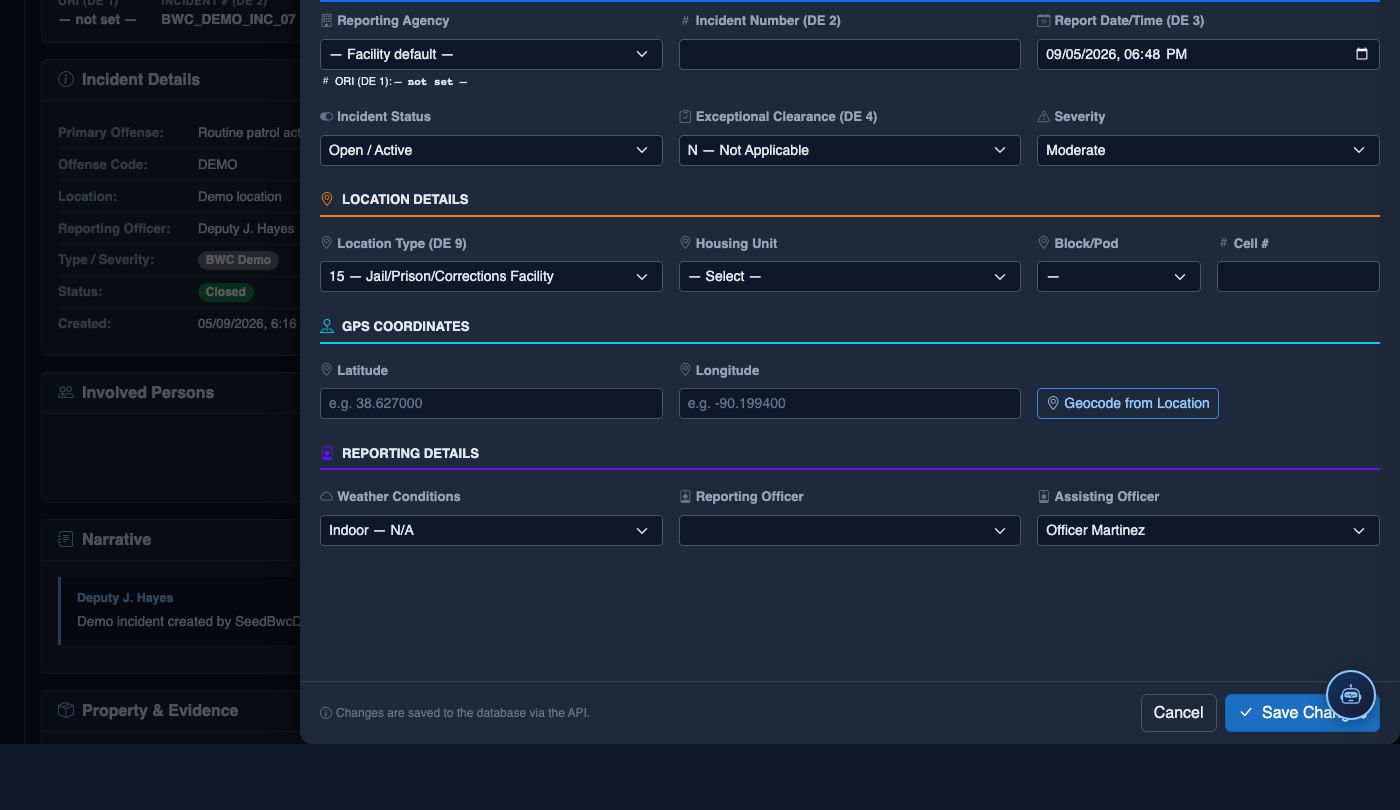
Navigate to the Offense Hierarchy Tab
Click the Offense Hierarchy tab. The system displays all entered offenses in a ranked list, with Rank 1 (primary offense) at the top. Each offense shows its NIBRS code, description, Group classification, and assigned hierarchy rank.
Review the Assigned Hierarchy
Verify that the Primary Offense (Rank 1) shown matches your expectation based on the FBI hierarchy chart. Hover over the blue information icon next to each offense to see the FBI rule that determined its ranking.
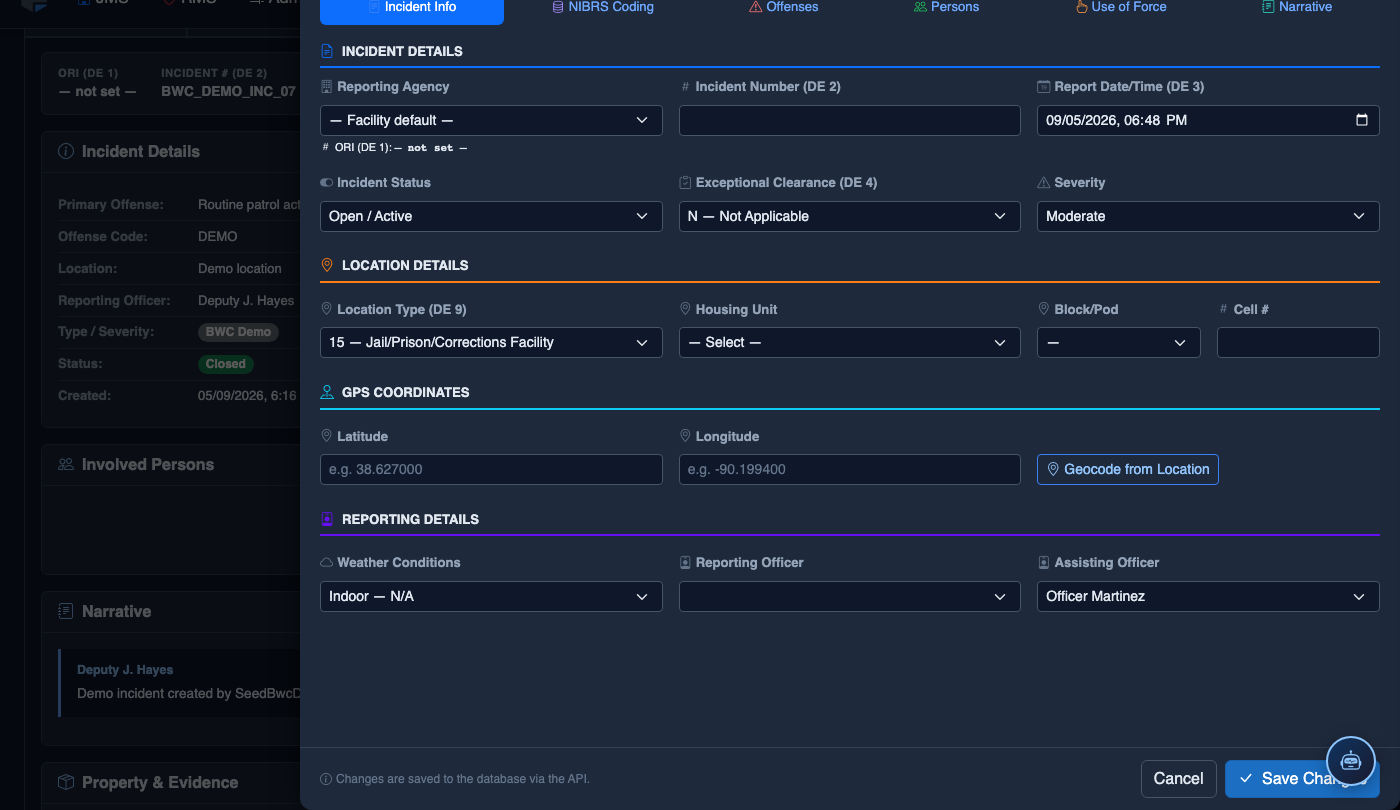
Identify Group A vs. Group B Offenses
Group A offenses are highlighted in blue and require a full incident report segment. Group B offenses are shown in gray and are reportable only upon arrest. The system automatically prevents officers from entering victim or property data against Group B offenses where those segments do not apply.
Request a Supervisor Override (If Needed)
If circumstances require a different primary offense than the system assigned, click Request Hierarchy Override. Enter a justification in the text field and submit. A supervisor notification is sent, and the supervisor can approve and select the alternate primary offense from the ranked list.
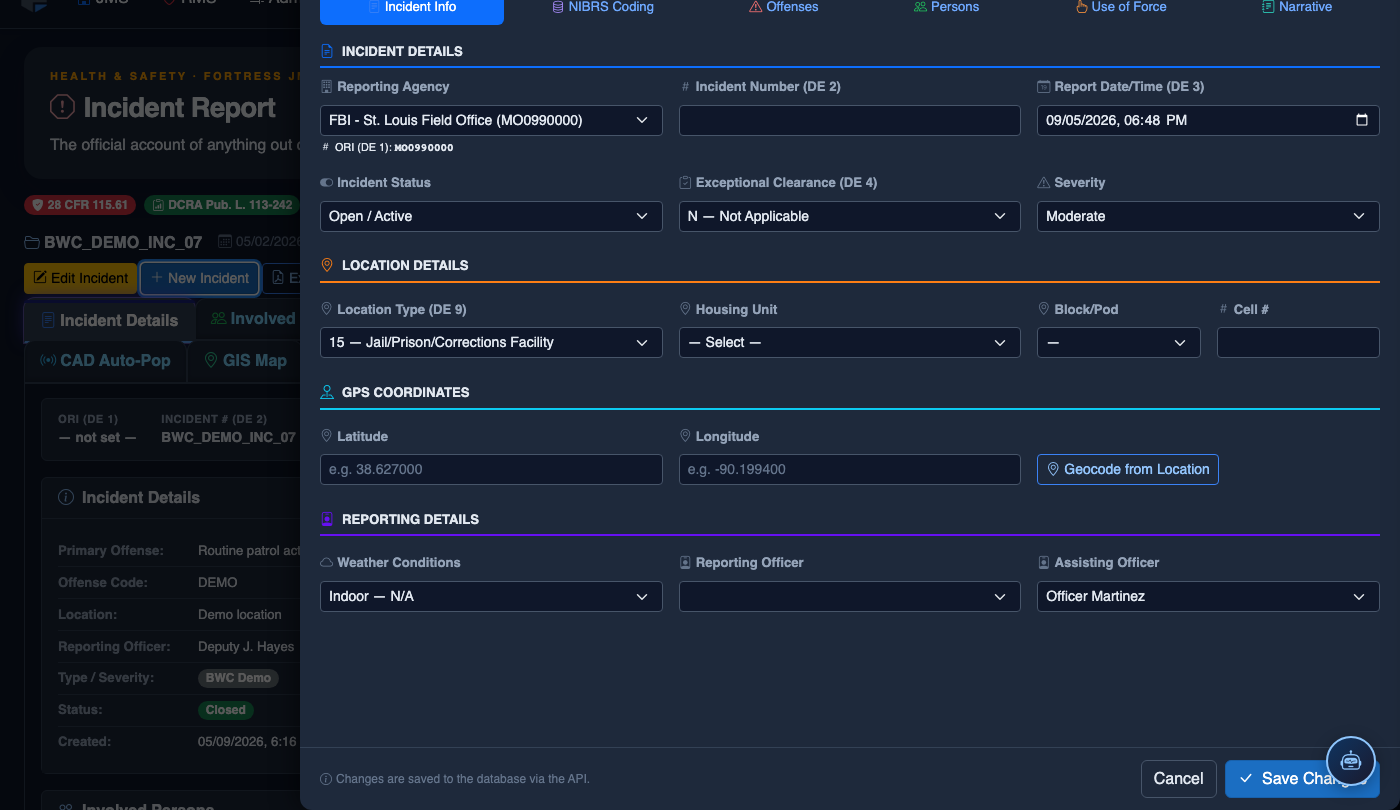
Confirm and Proceed to Validation
Once the hierarchy is correct, click Confirm Hierarchy. The report’s NIBRS primary offense designation is locked, and you are directed to the NIBRS Validation tab for final compliance checking before supervisor submission.
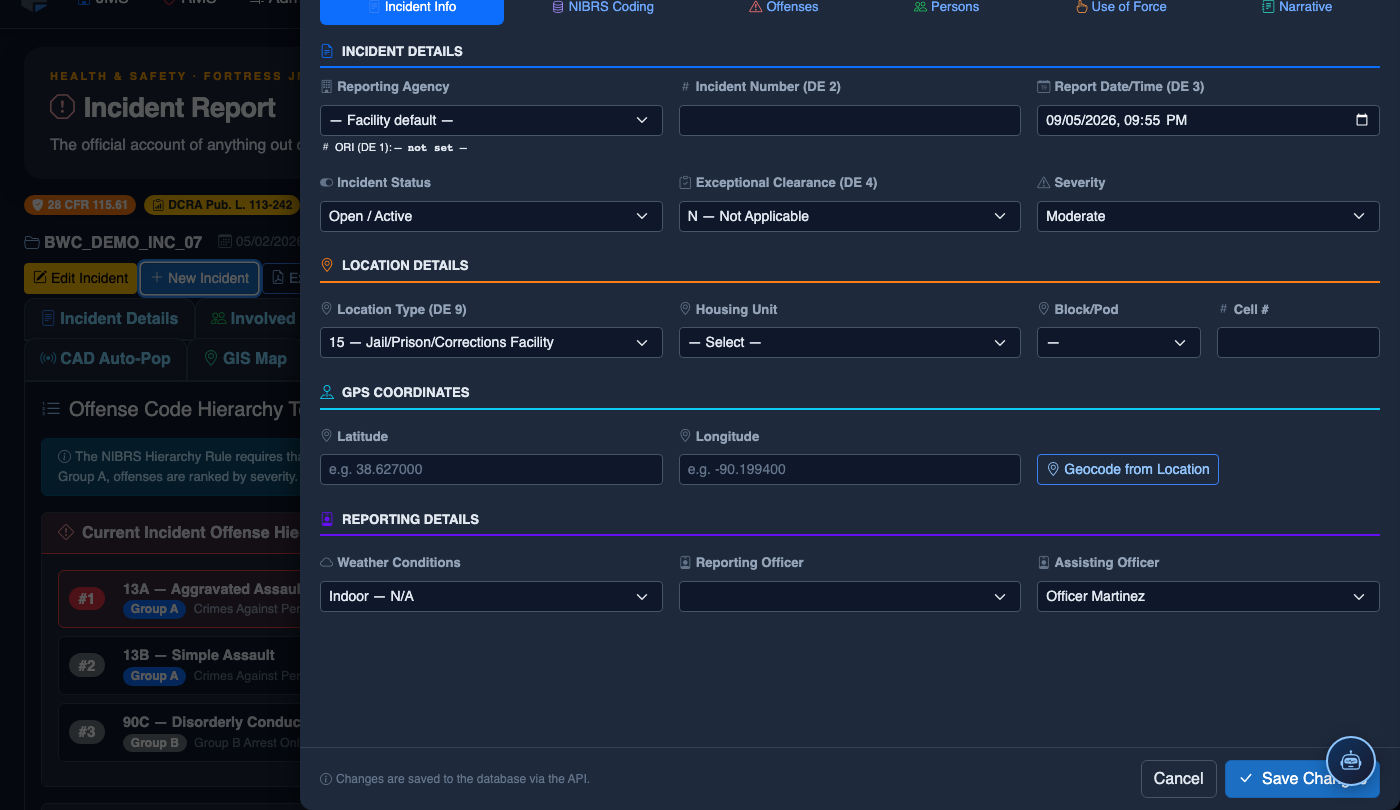
File a New Incident Report
Click New Incident. Complete the incident report:
- Incident Type — select the category (Altercation, Medical Emergency, Escape Attempt, Property Damage, Use of Force, etc.).
- Date, Time, and Location — the precise time and place of the incident.
- Involved Persons — add all Inmates, Staff, and Witnesses using the search tool.
- Narrative — write the factual incident description in first person, past tense. The AI Narrative Assist can draft based on your bullet points.
- Severity — Minor, Moderate, or Major. Major incidents trigger automatic supervisor notification.
- Attachments — upload photos, BWC footage, or medical documentation directly.
- Click Save Draft to continue later, or Submit for Review to route to your supervisor.
💡 Pro Tips
- Always add all offenses before visiting the Hierarchy tab — adding an offense after hierarchy confirmation will trigger an automatic re-ranking and require re-confirmation.
- Homicide, kidnapping, and sex offenses always rank above property crimes regardless of severity — do not assume the most violent-seeming charge will automatically win the ranking without checking the FBI hierarchy table.
- Run the monthly Hierarchy Override Report (Admin > NIBRS > Override Audit) to ensure overrides are being documented correctly and are not masking systemic data entry errors.
Mobile View — Offense Hierarchy
FortressDMS is fully responsive. Officers can access the Offense Hierarchy on a phone or tablet directly from the field — no app install required.
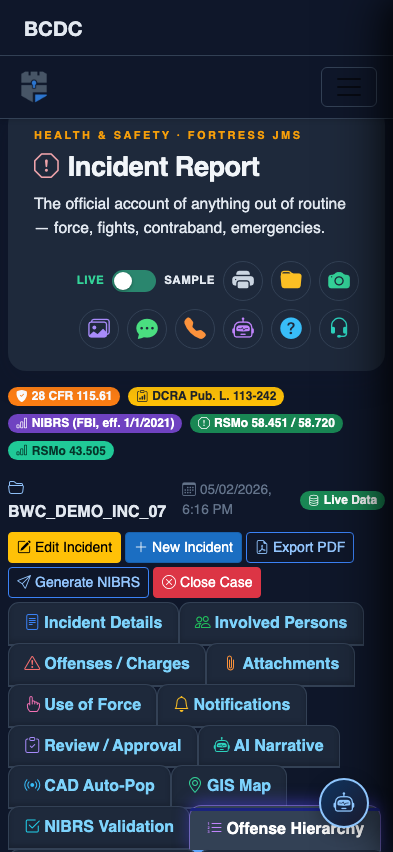
Tab view with data rows
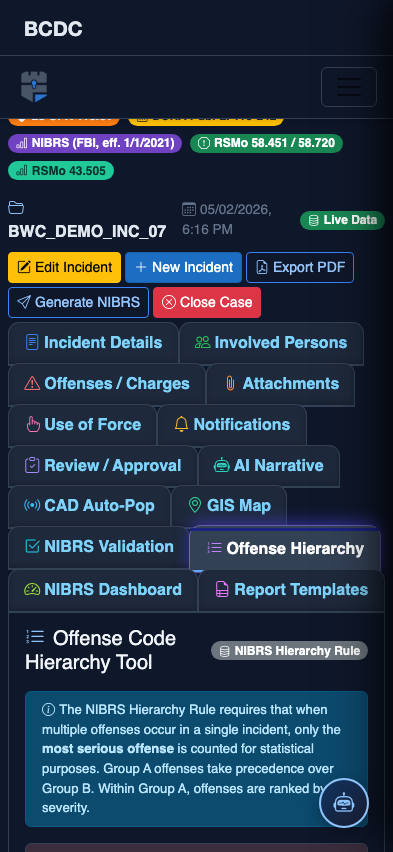
Scrolled / detail view