
Court Calendar
The Court Calendar tab provides a facility-wide view of every inmate’s upcoming court dates, organized in a clear, filterable calendar interface that helps operations staff plan staffing, transport, and booking workflows around court schedules. Officers can drill into any court date to see hearing details, review transport requirements, and confirm appearance readiness — all without leaving the calendar view. Keeping the court calendar current reduces missed appearances, compliance violations, and last-minute transport scrambles.
Multi-View Calendar
Switch between day, week, and month views to plan staffing and transport resources around the court schedule.
Inmate & Court Filters
Filter court dates by inmate name, booking number, courthouse, or hearing type to quickly locate specific appearances.
Upcoming Date Alerts
Automated alerts flag court dates within 24–48 hours to ensure transport and booking preparation begin on time.
Appearance Status Tracking
Log hearing outcomes — continued, sentenced, released, remanded — directly from the calendar entry after court returns.
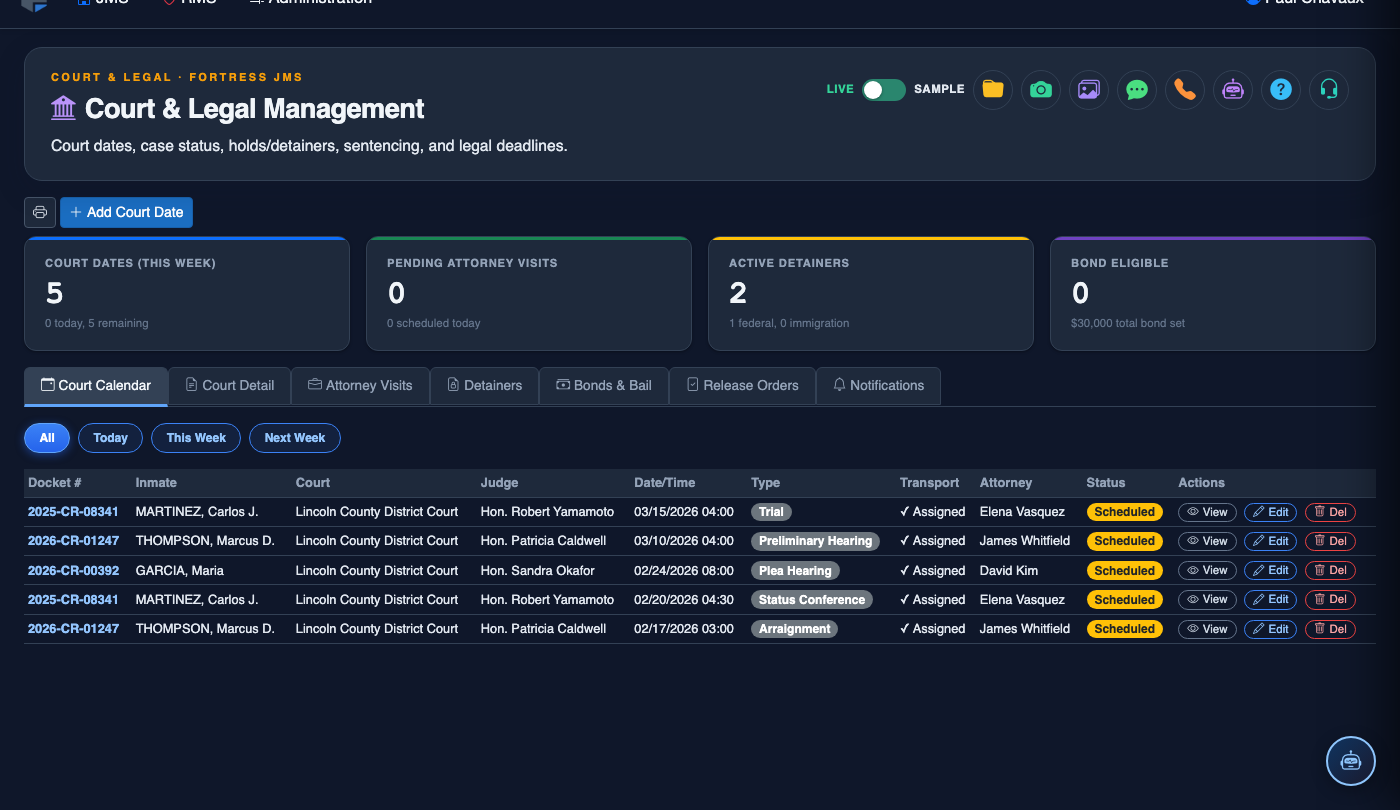
Step-by-Step: Using the Court Calendar
Open the Court Calendar Tab
Navigate to Court & Legal in the main menu and select the Court Calendar tab. The calendar loads in the default Week View, displaying all court appearances for the current week as color-coded blocks organized by time of day.
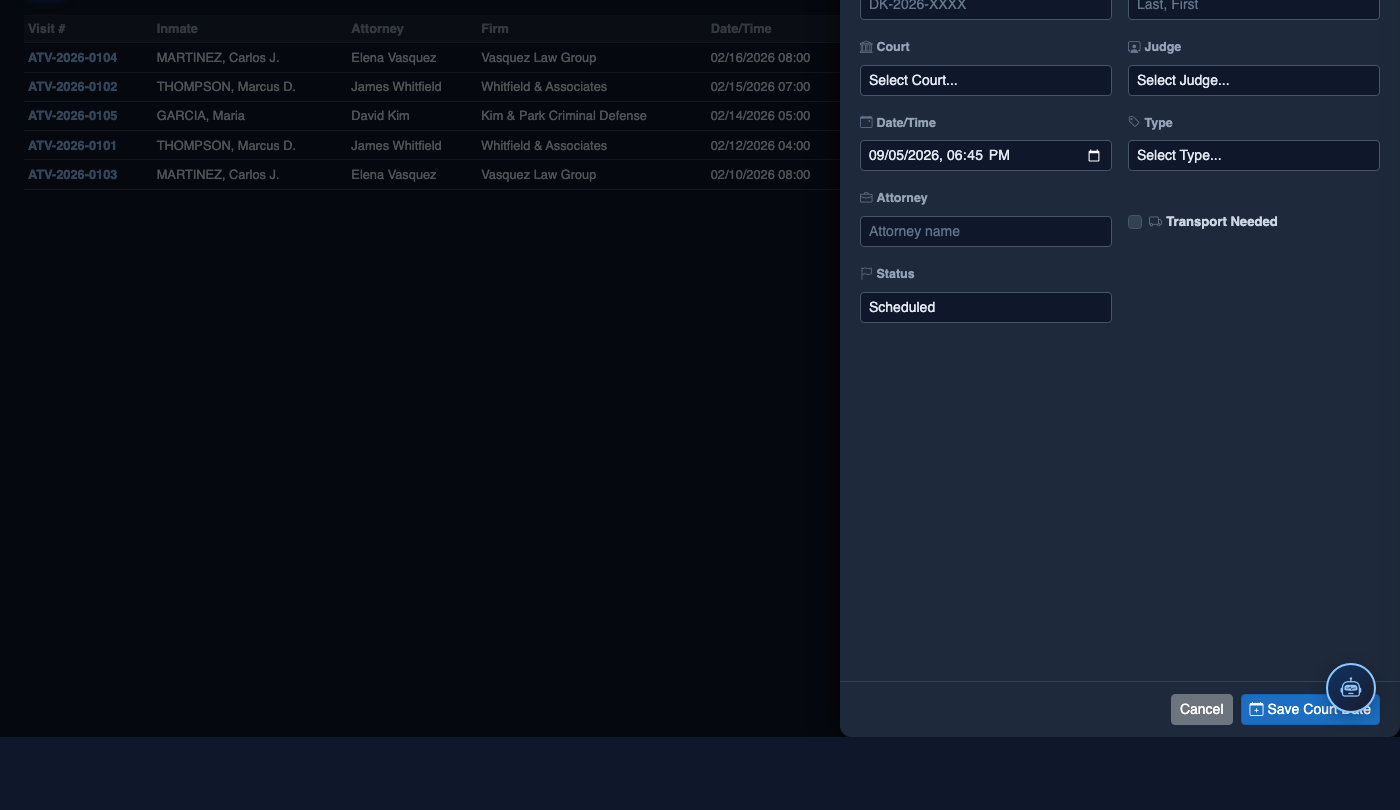
Switch Calendar Views
Use the Day / Week / Month toggle in the upper-right of the calendar to change the view. Day View is ideal for morning briefings and transport lineup. Month View gives a strategic overview for staffing planning. Use the navigation arrows to move forward or backward in time.
Filter by Courthouse or Inmate
Apply filters using the Filter Bar at the top of the calendar. Select a specific Courthouse to see only appearances at that venue, or type an inmate name or booking number in the Search field to jump directly to their scheduled dates.
Click a Court Date Entry for Full Detail
Click any calendar block to open the full hearing record. The detail pane shows Inmate Name, Booking Number, Court & Judge, Hearing Type, Transport Required indicator, and links to the inmate’s Legal Holds and current Housing Assignment. Officers can confirm transport prep from this view.
Add a New Court Date from the Calendar
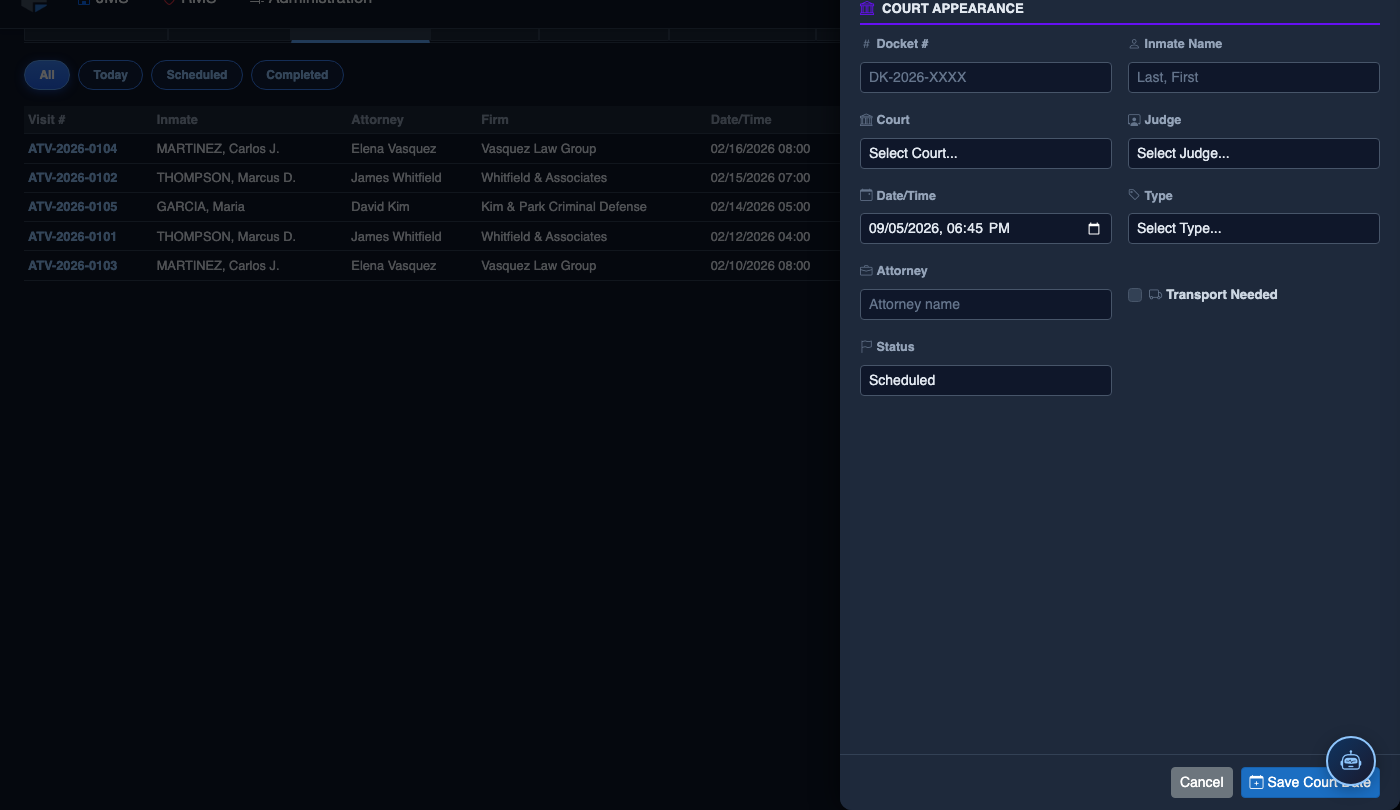
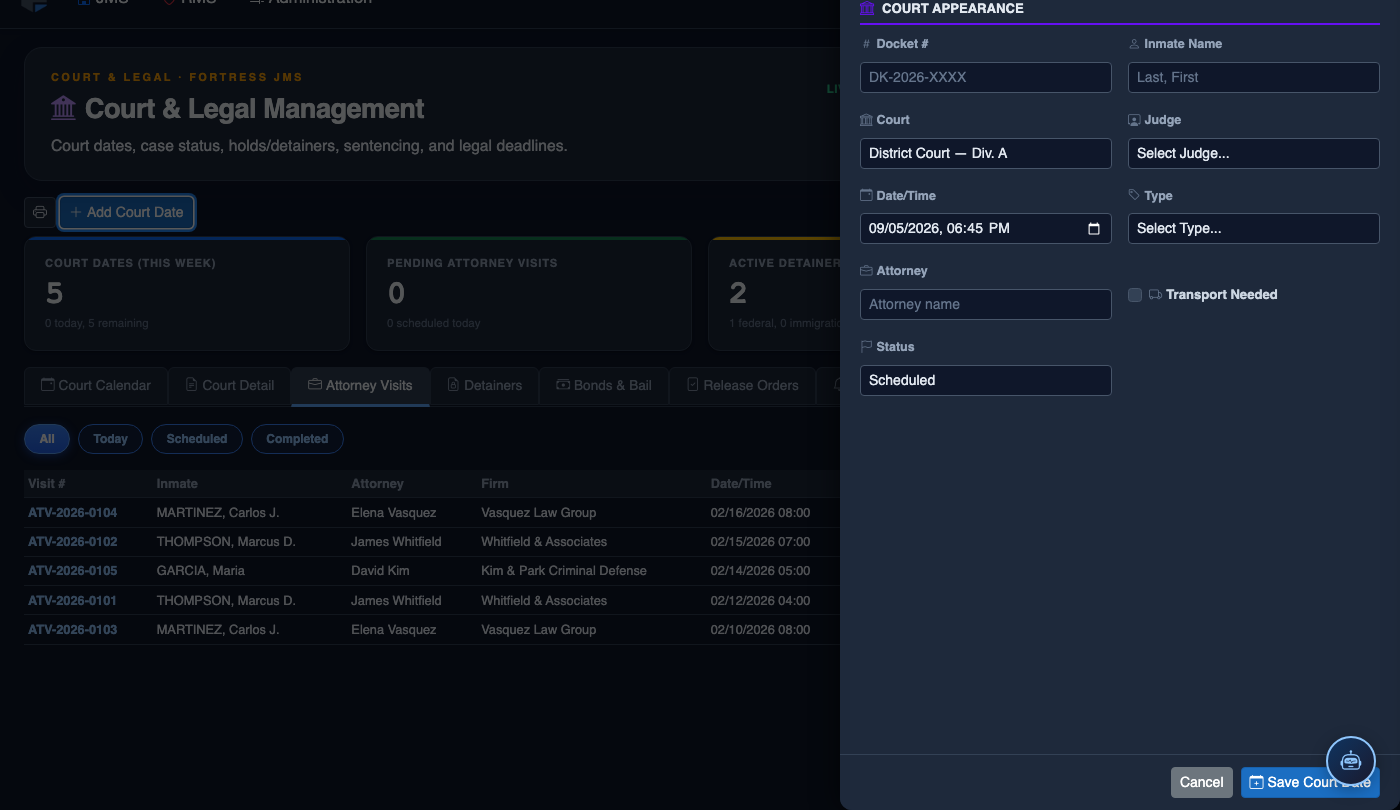
Click the + Add Court Date button or click an empty calendar slot to create a new entry. Search for the inmate by name or booking number, then fill in the Court, Hearing Type, Date, Time, and Transport Required flag before saving.
Log the Hearing Outcome
After the inmate returns from court, open the hearing record and update the Outcome field. Select from options such as Continued, Sentenced, Released on Bond, Remanded, or No Contest. Save the outcome to update the inmate’s legal record and trigger any release or classification workflows.
Schedule a New Court Date
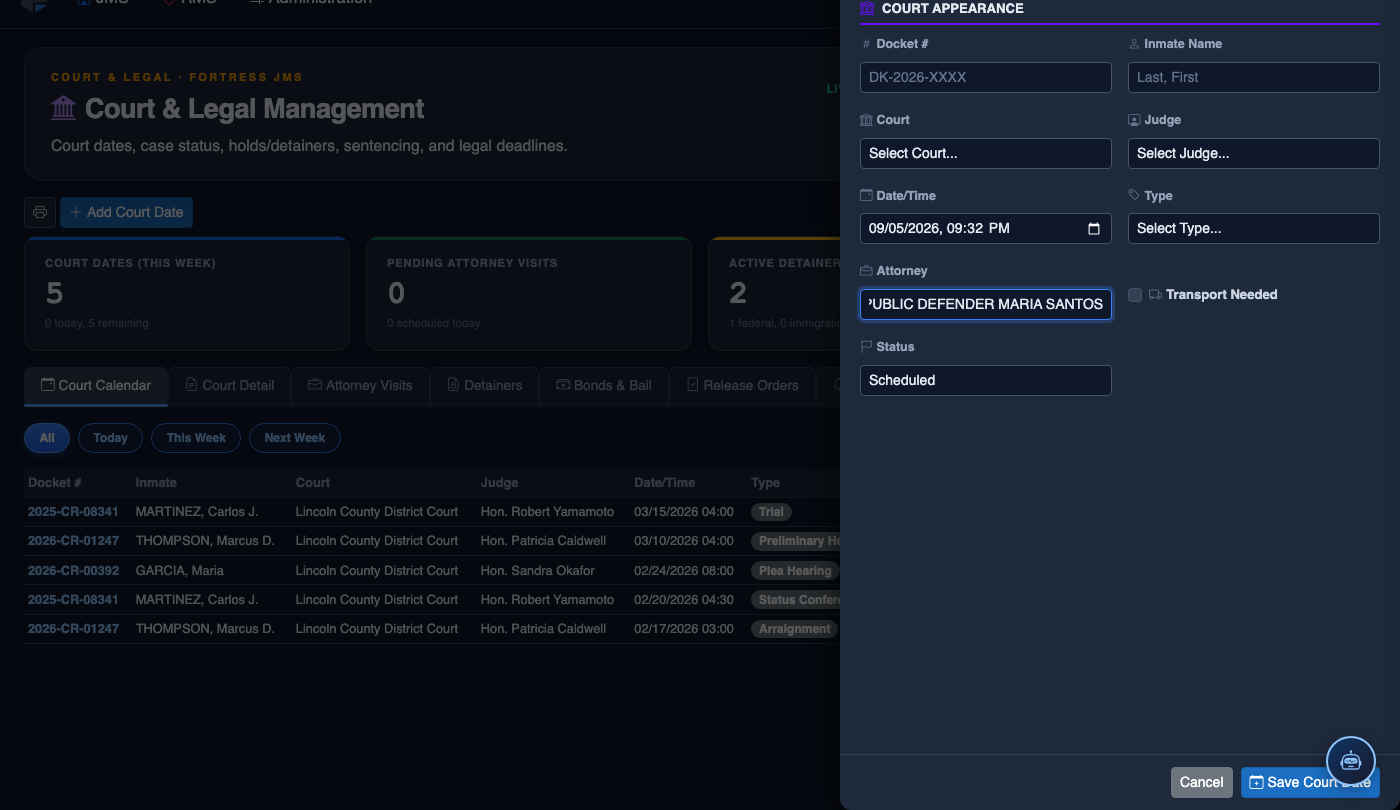
Click Add Court Date. Complete the court scheduling form:
- Inmate — search by name or booking number.
- Court — select the court and division from the directory.
- Hearing Type — Arraignment, Pre-Trial, Sentencing, Hearing, or Probation Violation.
- Case Number — enter the docket number for tracking.
- Date and Time — the exact court appearance date/time.
- Transport Required — toggle on to add the inmate to the transport queue; select escort type.
- Attorney — record assigned counsel for court coordination.
- Click Save Court Date. Transport is scheduled and the court docket updates automatically.
💡 Pro Tips
- Use Month View at the end of each week to identify heavy court days in the coming weeks and pre-assign transport officers before the last-minute rush.
- Color-coded calendar entries distinguish transport-required appearances (blue) from video hearings (green) and attorney visits (amber) at a glance — customize colors in System Settings.
- Always log hearing outcomes the same day court returns to keep Legal Holds accurate — an inmate bonded out at court must have their hold cleared before the next shift handoff.
Mobile View — Court Calendar
FortressDMS is fully responsive. Officers can access the Court Calendar on a phone or tablet directly from the field — no app install required.
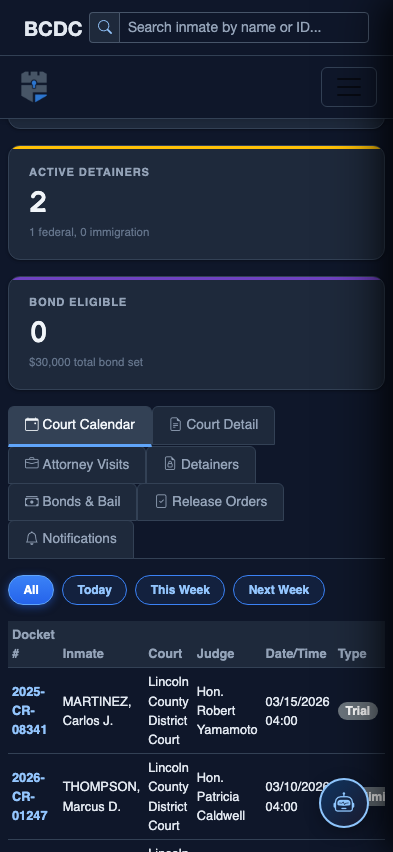
Tab view with data rows
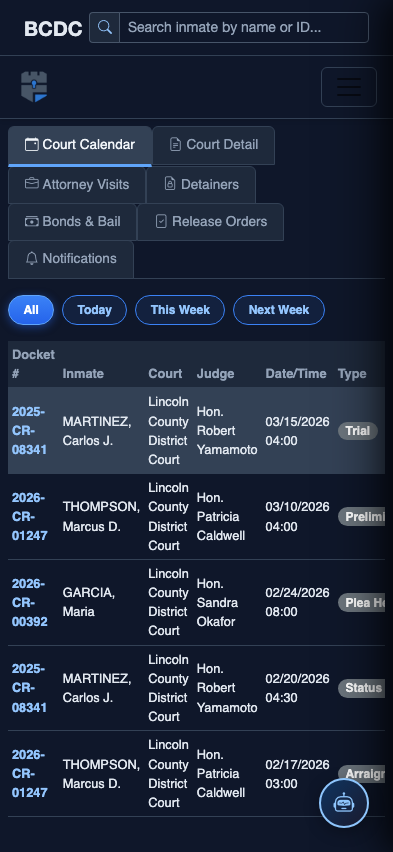
Scrolled / detail view