
Visitation
The Fortress JMS Visitation module provides end-to-end management of all inmate visitation activity — from scheduling and visitor registration to real-time check-in, visit monitoring, and post-visit reporting. Designed for correctional facilities of all sizes, the module enforces facility visitation policies, tracks approved visitor lists, and maintains a complete audit history of every visit to support compliance, investigations, and grievance resolution.
Online Scheduling
Visitors book appointments through the facility’s public-facing scheduling portal, eliminating walk-in lines and ensuring controlled visit volumes.
Visitor ID Verification
Integrated ID scanner checks government-issued identification at check-in and cross-references the approved visitor list and warrant databases.
Video Visitation
Supports scheduled video visits via facility kiosks or remote guest web sessions, reducing physical contact while maintaining family connections.
Visit Analytics
Real-time dashboard shows active visits, daily totals, visit duration averages, and denial rates to support capacity planning and policy review.
Visitor Restrictions
Enforces court-ordered no-contact orders, facility bans, and inmate classification-based visitation restrictions automatically at the point of scheduling.
Full Audit Trail
Every visit event — scheduling, check-in, denial, early termination, and check-out — is logged with officer badge, timestamp, and reason for permanent record retention.
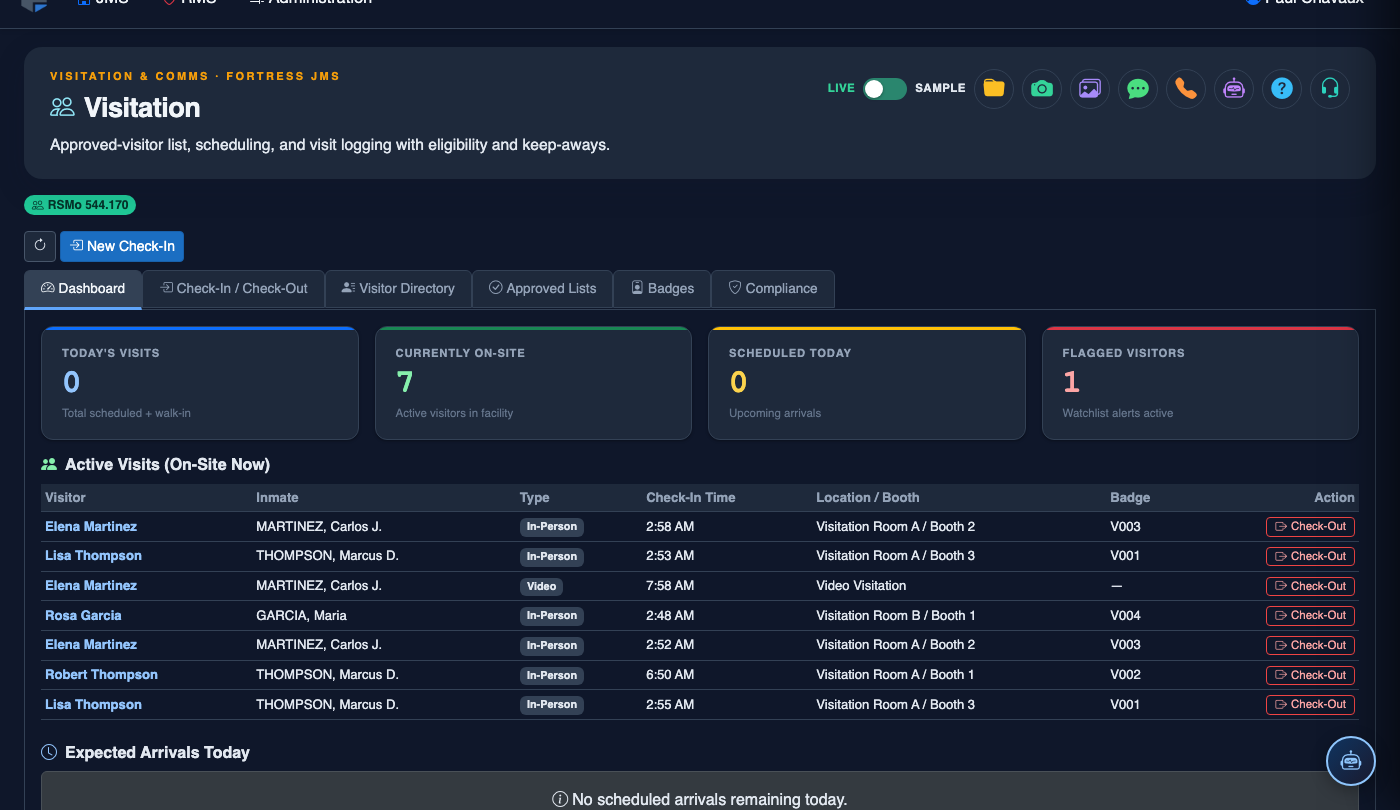
Step-by-Step: Managing Inmate Visitation
Configure Visitation Settings
Begin in Administration > Visitation Settings to establish facility-wide parameters. Set Visit Hours, Maximum Visit Duration, Simultaneous Visit Capacity per housing unit, approved visit types (in-person, video, attorney), and any classification-based restrictions. These settings govern all scheduling and check-in logic throughout the module.
Register and Approve Visitors
Navigate to the Visitor Directory tab and click Register New Visitor. Enter the visitor’s full legal name, date of birth, government ID type and number, relationship to inmate, and contact information. The system automatically checks the visitor against the Facility Exclusion List and active no-contact orders. Approved visitors are linked to the inmate’s approved visitor list with a configurable visit frequency limit.
Schedule a Visit
From the Visitation Dashboard, click Schedule Visit. Select the inmate, visit type, date/time slot, and visiting party from the approved visitor list. The system checks the inmate’s current classification, housing unit capacity, and any active visit suspensions before confirming the slot. A confirmation is automatically sent to the visitor via their registered email or phone number.
Process Check-In on Visit Day
When the visitor arrives, open the Check-In & Check-Out tab and locate their scheduled visit. Scan or manually enter the visitor’s government-issued ID. The system performs a real-time identity match against the reservation and re-checks for any new restrictions or warrant hits entered since the visit was scheduled. Cleared visitors are issued a Visitor Pass for the assigned visit room.
Monitor Active Visits
The Visitation Dashboard displays a real-time grid of all active visits with elapsed time, assigned room, and inmate/visitor names. Visits nearing their time limit turn amber at the 5-minute warning and red when time expires. Officers can send a Time Warning notification to the visit room, extend the visit with a supervisor override, or flag a visit for early termination with a reason code.
Check Out Visitors
When the visit concludes, locate the visit in the Check-In & Check-Out tab and click Check Out. The system records the exact end time, calculates total visit duration, and closes the visit record. If an officer terminated the visit early, they are prompted to enter a Termination Reason from the standard code list before check-out can be completed.
Run Visitation Reports
Access Reports > Visitation to generate daily visit logs, visitor frequency reports, denial summaries, and visit duration analytics. Reports can be filtered by housing unit, inmate, visitor, date range, or visit type. Export to PDF or CSV for shift briefings, administrative review, or response to legal discovery requests. All report access is logged in the facility audit trail.
💡 Pro Tips
- Use the Bulk Schedule feature on the Dashboard to pre-book attorney visits for the entire week — attorneys can be given a recurring time block without requiring individual approval each time.
- When an inmate is placed on Visit Suspension as a disciplinary measure, the system automatically cancels all upcoming scheduled visits and sends denial notifications to affected visitors — you do not need to cancel them individually.
- Configure Visitor Frequency Limits per relationship type (e.g., 2 visits/week for general family, unlimited for attorneys) in Administration to automatically enforce visit caps without officer intervention.
- The Video Visitation kiosk queue auto-expires reservations 5 minutes after the scheduled start time if the visitor has not connected — preventing rooms from being held for no-shows during peak hours.