
Vehicle Maintenance
The Vehicle Maintenance tab provides correctional facility fleet managers and transport officers with a centralized log for tracking service records, inspections, and repairs across all facility transport vehicles. Staff can schedule preventive maintenance, record completed service events, and monitor fleet readiness to ensure every transport vehicle meets safety and compliance standards before any inmate movement is authorized.
Fleet Registry
Maintain a complete registry of all facility transport vehicles including unit numbers, VINs, and assigned routes.
Service Log
Record oil changes, tire rotations, brake inspections, and all other maintenance events with technician sign-off.
Scheduled Inspections
Set recurring inspection intervals and receive alerts when a vehicle is approaching its next required service window.
Out-of-Service Flags
Flag vehicles as out-of-service to prevent assignment to transport orders until maintenance is cleared and approved.
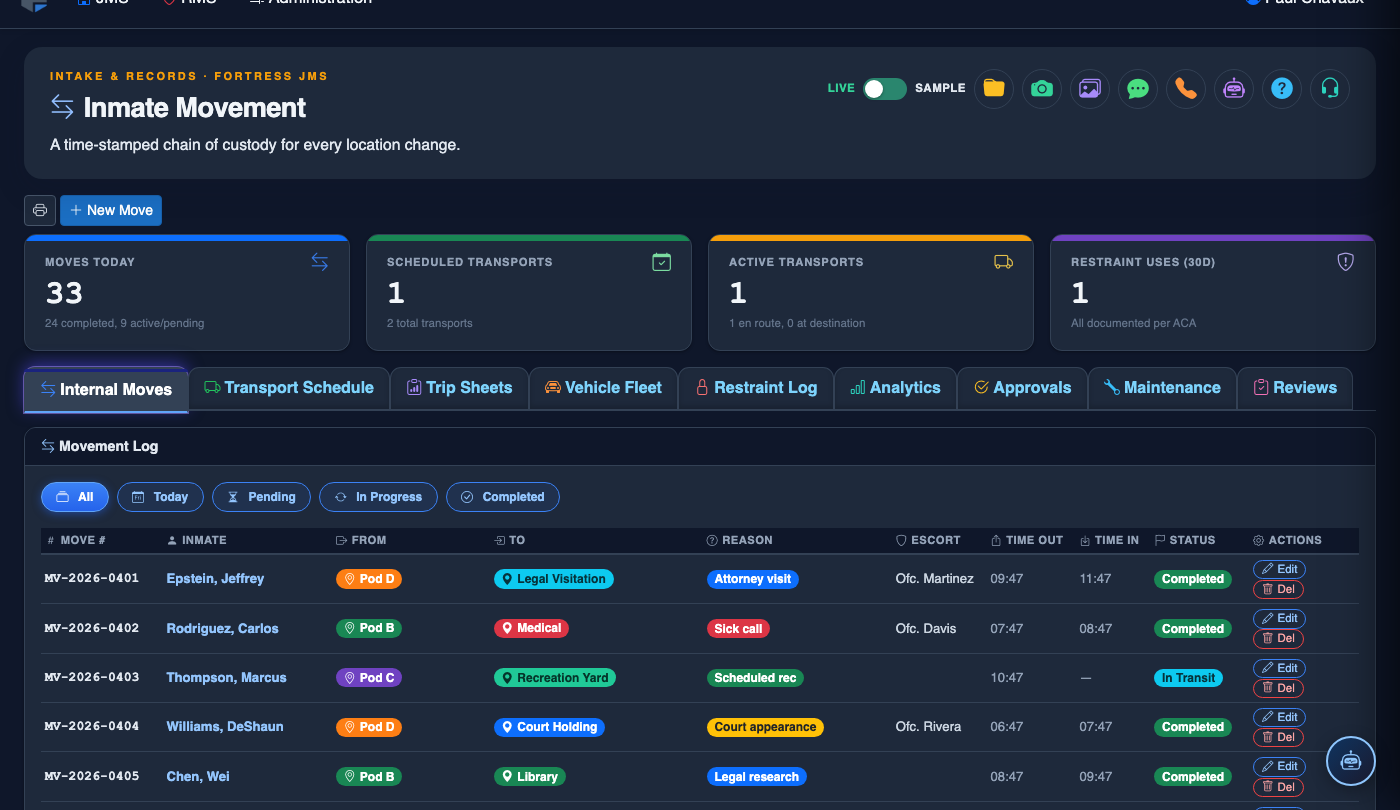
Step-by-Step: Vehicle Maintenance
Navigate to Vehicle Maintenance
From the Inmate Movement module, click the Vehicle Maintenance tab. The tab displays all registered facility transport vehicles along with their current maintenance status and last service date.
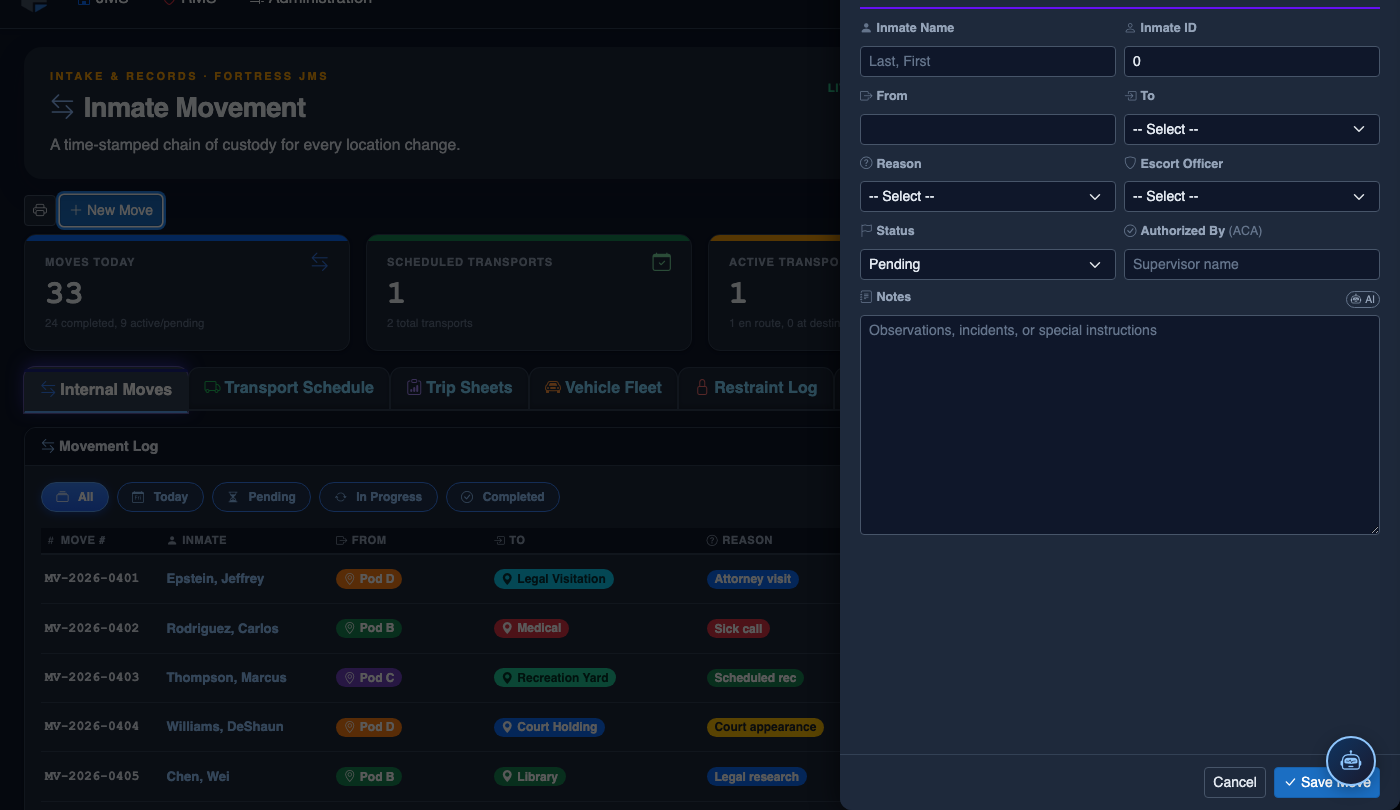
Select a Vehicle
Click on a vehicle unit number from the fleet list to open its detail panel. The panel shows the vehicle’s Unit Number, VIN, Make/Model/Year, Mileage, and complete service history.
Log a New Service Event
Click + Add Service Record to open the service entry form. Select the Service Type (e.g., Oil Change, Tire Rotation, Safety Inspection), enter the Service Date, current Odometer Reading, Technician Name, and any Notes about the work performed.
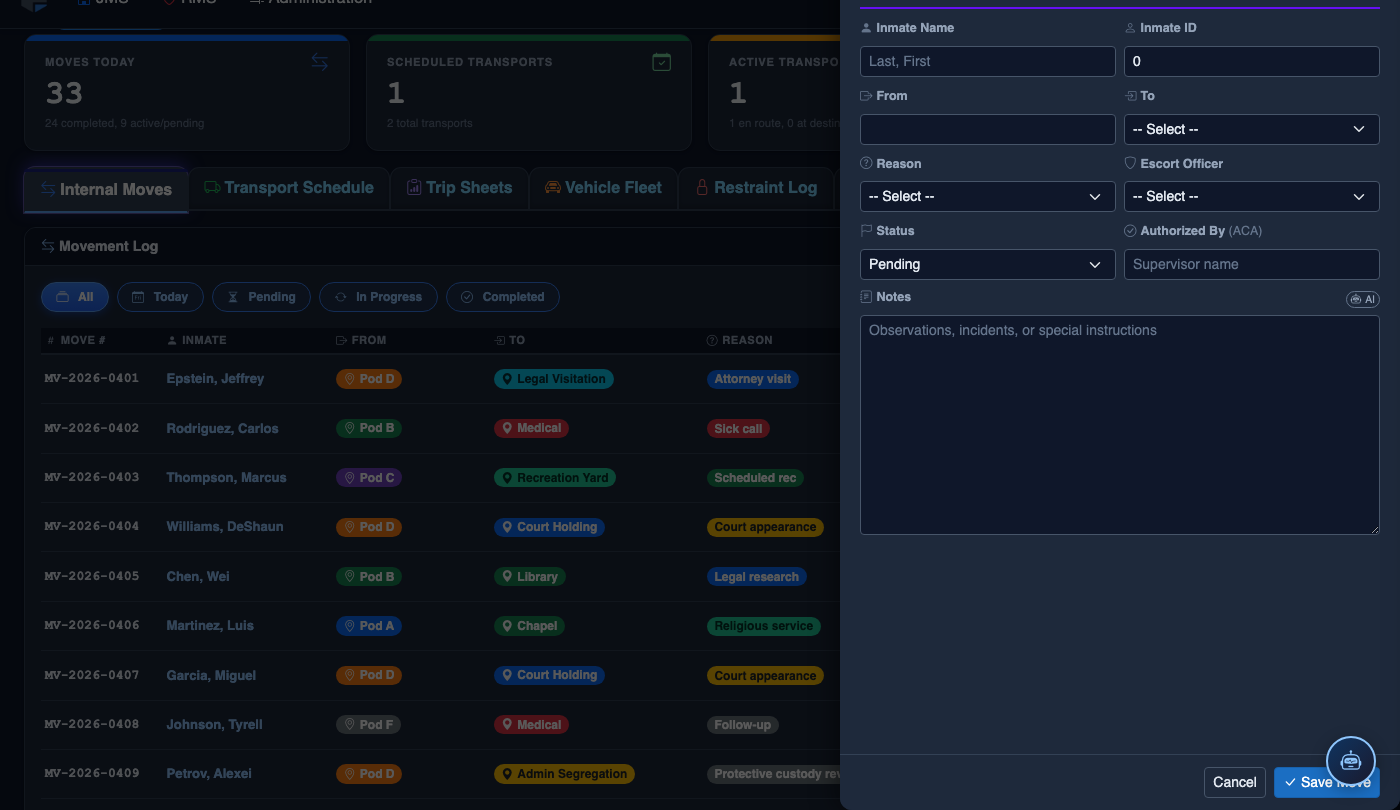
Schedule the Next Inspection
After saving a service record, set the Next Service Due date or mileage threshold. FortressDMS will highlight the vehicle in amber on the fleet list when it is within 500 miles or 14 days of the scheduled service.
Flag a Vehicle Out-of-Service
If a vehicle requires unscheduled repair, click Mark Out-of-Service and enter the reason. The vehicle will be blocked from assignment in the Schedule Transport workflow until an authorized supervisor clears the flag by clicking Return to Service.
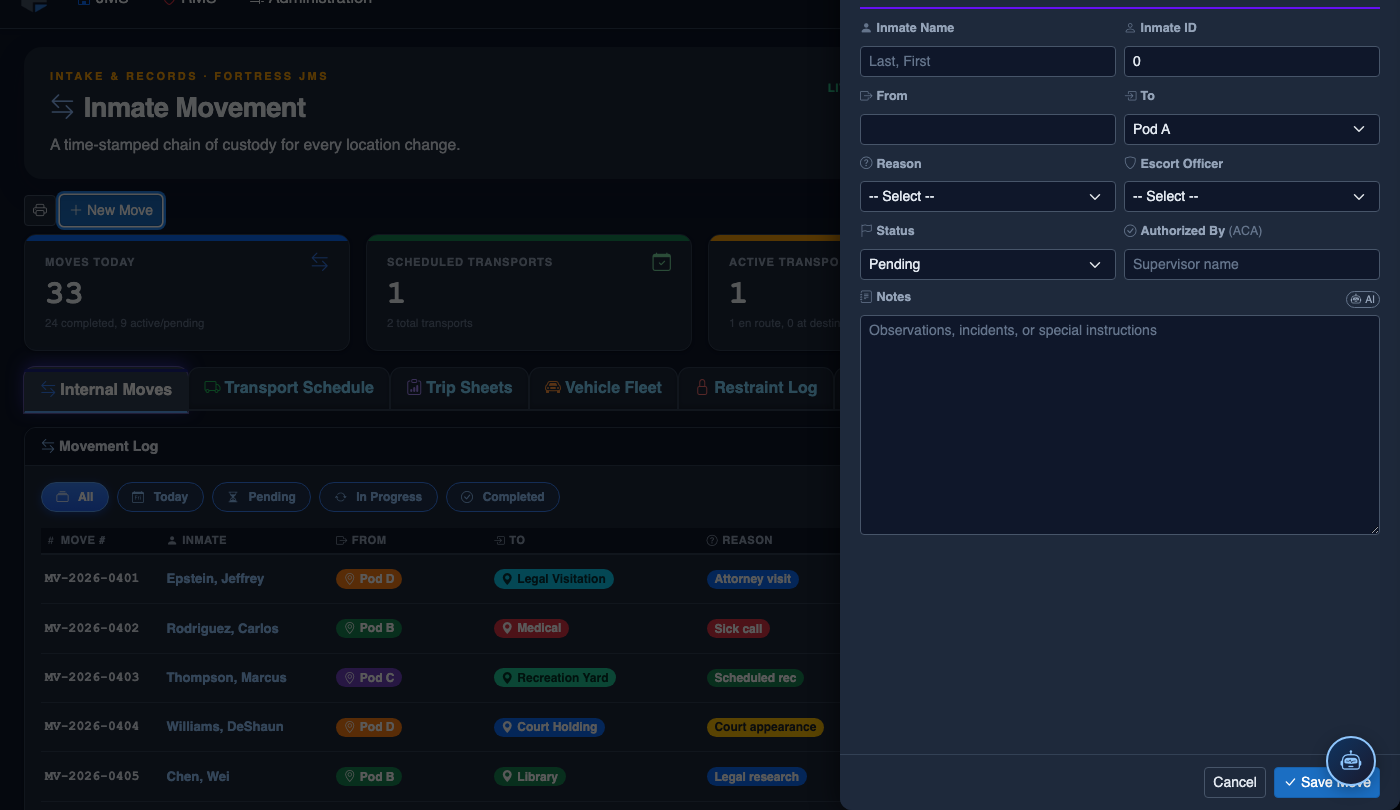
Print the Fleet Maintenance Report
Click Export Report to generate a PDF of the current fleet status including all service history and upcoming maintenance due dates. This report is commonly used for compliance audits and county fleet management reviews.
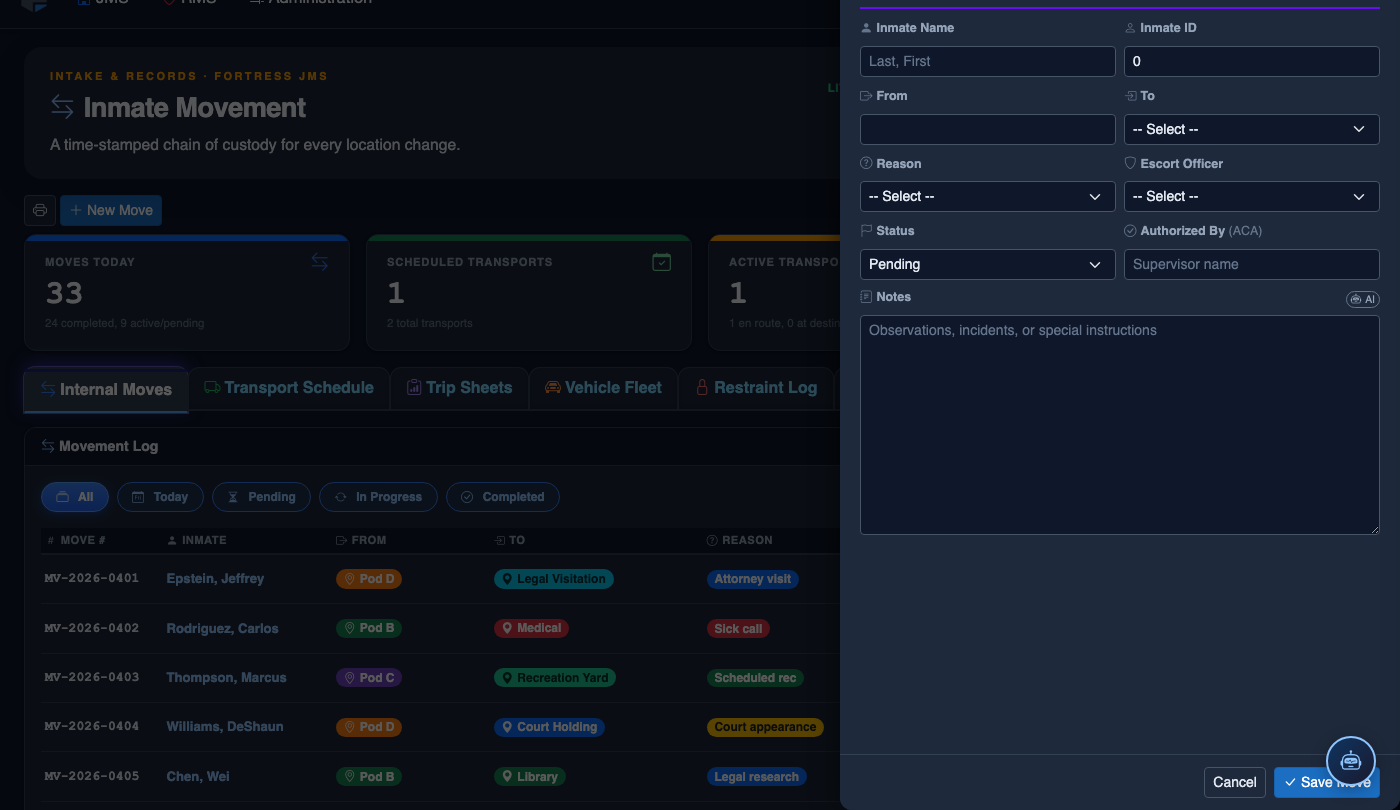
Log a New Movement
Click New Move in the module toolbar. Complete the movement record:
- Inmate — search by name or booking number.
- From Location — select origin unit, pod, and cell.
- To Location — select destination; the system flags restricted or unavailable beds.
- Movement Type — Internal Transfer, Court Transport, Medical, or Emergency.
- Reason — Classification Change, Disciplinary, Safety, Court Hold, etc.
- Authorizing Officer and Escorting Officer.
- Scheduled Date/Time — defaults to now for immediate moves.
- Click Save Movement. Bed Roster and Assignment records update automatically.
💡 Pro Tips
- Always verify a vehicle’s maintenance status is Current before approving a long-distance transport order — the system will warn you but will not auto-block if the administrator override is enabled.
- Use the Mileage Alert threshold rather than date-only scheduling for high-utilization vehicles that accumulate miles faster than the calendar interval suggests.
- Attach scanned repair invoices or inspection certificates to service records using the Attach Document button to maintain a fully paperless compliance record.
Mobile View — Vehicle Maintenance
FortressDMS is fully responsive. Officers can access the Vehicle Maintenance on a phone or tablet directly from the field — no app install required.
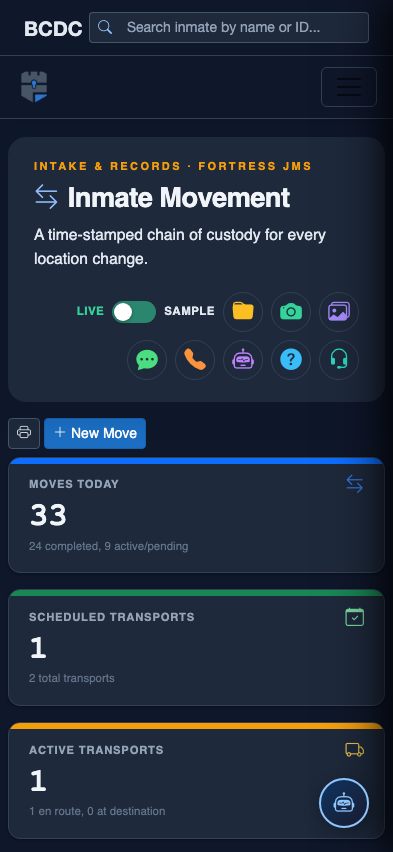
Tab view with data rows
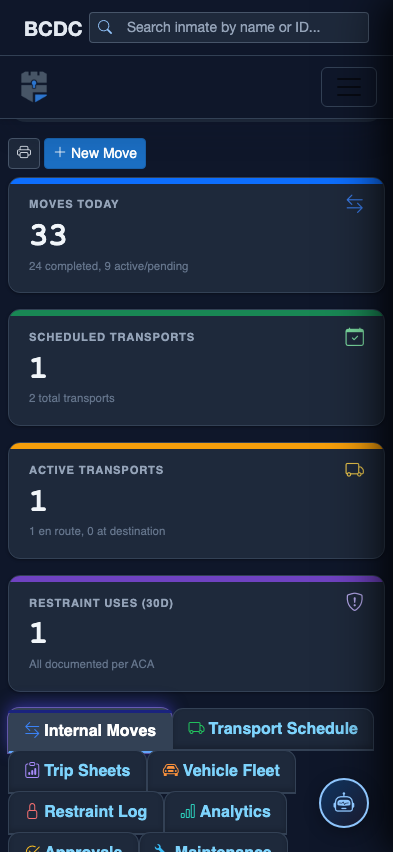
Scrolled / detail view